

Sharing Your Advanced-Reports
What's on this page
About Sharing Your Advanced-Reports
When your report is finished, you’ll want to share it with your colleagues, classmates, and maybe even a few friends. You are able to save your report as a PDF, create a link to a public webpage containing your report, or save individual visualizations for external use.
Qtip: The methods of report sharing described on this page only apply to survey advanced-reports.

Exporting Reports to PDF
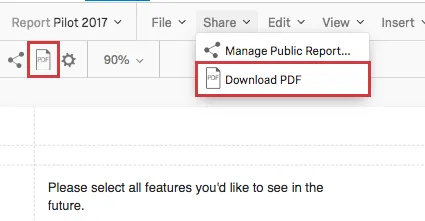
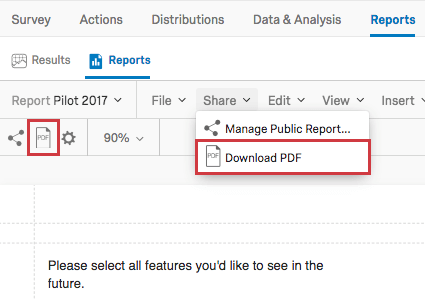
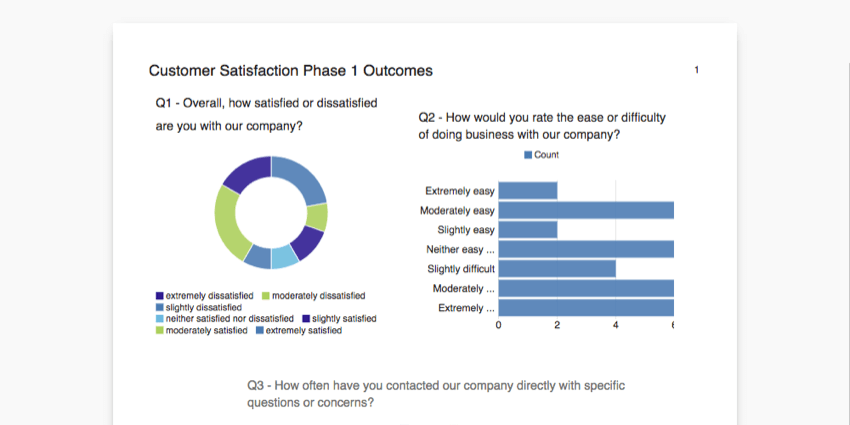
You can save your entire report as a PDF file. Once your report is saved this way, you are free to send it to colleagues or print it from your computer.
There are two ways you can save your report as a PDF:
Managing a Public Report
A public report allows you to share your report through a link. This link is live, so that every time it’s refreshed, it displays the most recent data. This allows you to share a link to your report once without have to regenerate new PDFs over and over again.
Enabling a Public Report
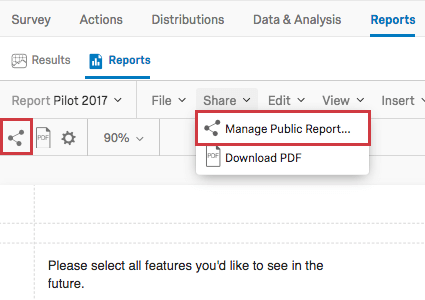
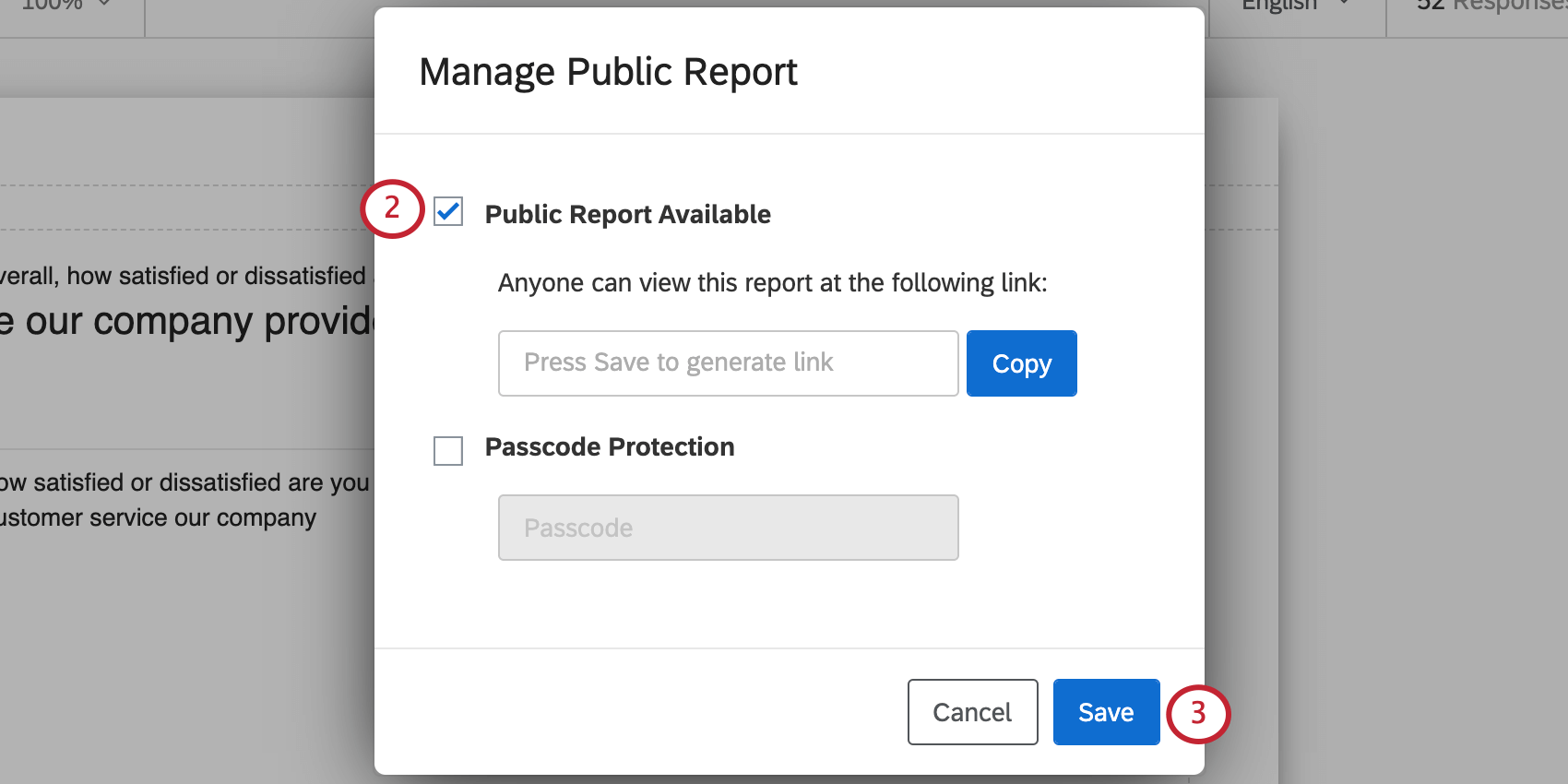
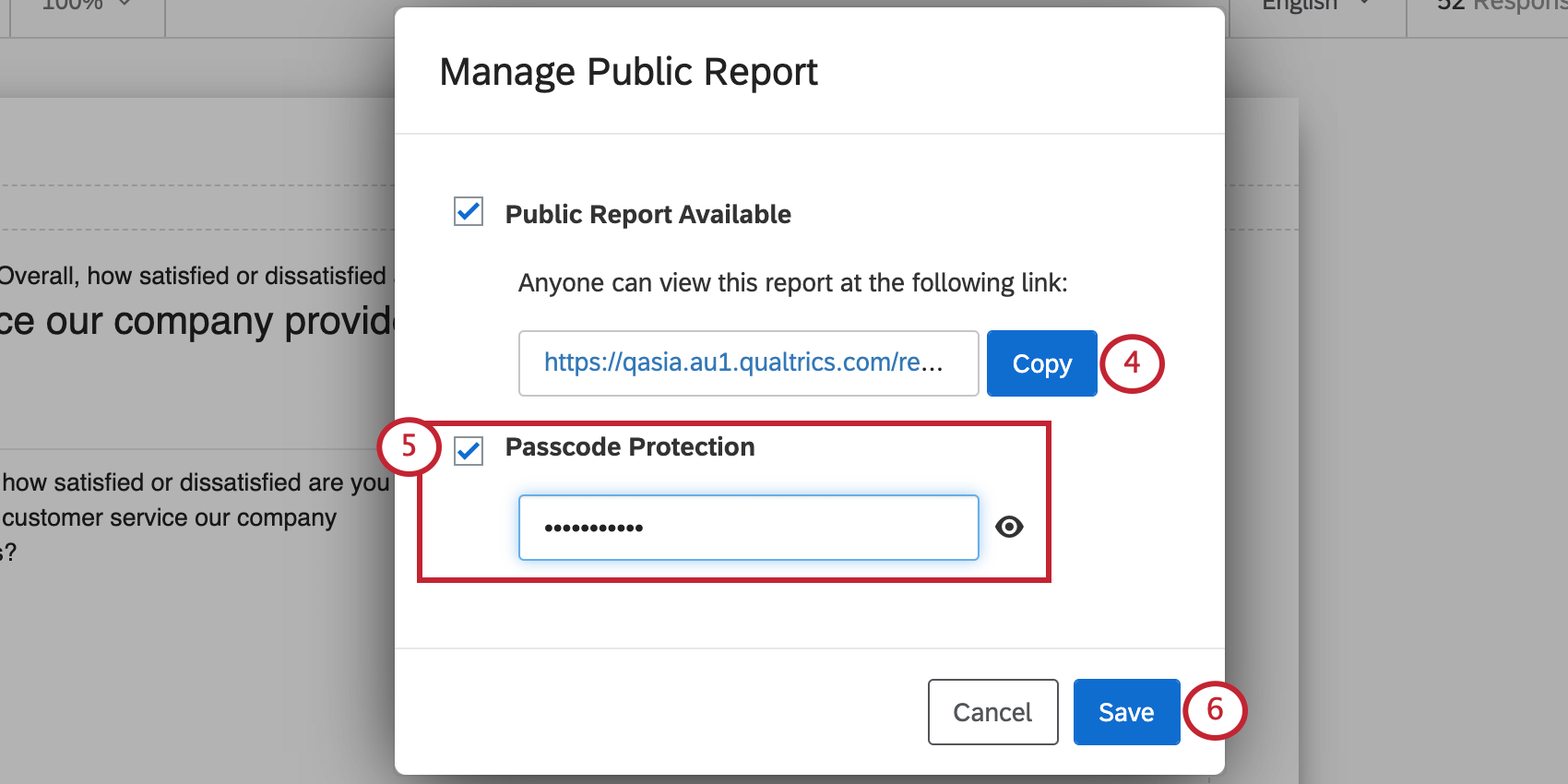
You can turn this option off at any time, disabling the link. If you turn the option back on, the same link will become active again, so you don’t have to worry about re-sharing it.
Public Report Appearance
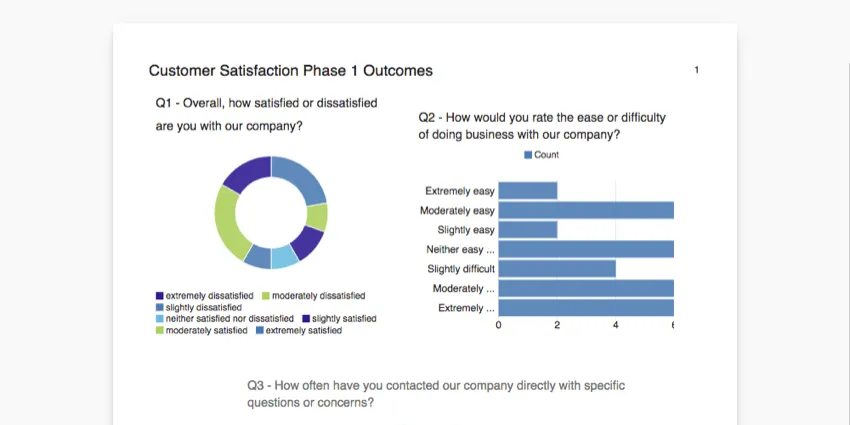
Your public report will look exactly like a PDF of your report. Every time you edit your report or get new data, this will be reflected on the public report.
Qtip: If you already have your public report open on your browser when you make a change, you’ll have to refresh the browser to see the changes. Anyone who visits the report after changes are made will see the changes immediately.
Saving Visualizations
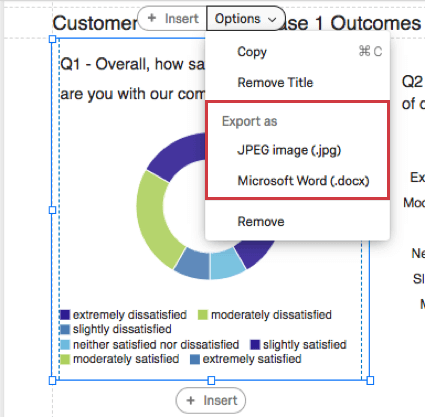
You can save an individual visualization as a JPEG image file, or you can save it as an image in a DOCX file. The ability to save visualizations is helpful if you have an external report or an essay you want to insert your Qualtrics findings into.
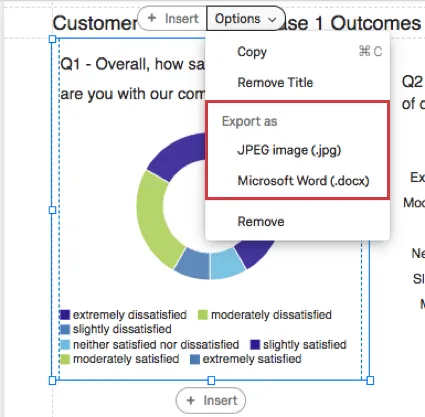
Qtip: DOCX files are compatible with Microsoft Word, and JPEGs are standard image files.
Qtip:Only the Bar Chart, Line Chart, Pie Chart, Data Table, and Statistics Table visualizations can be exported to DOCX.
Scheduling Report Emails
Scheduled Report Emails allow you to send a PDF copy of your advanced-report to a list of specified email addresses on a recurring basis. For example, you may need to send a PDF report with your customer satisfaction metrics to your manager every week. With Scheduled Report Emails, you can set up this email once, and it will continue to send automatically each week without any more work from you.
Scheduled Report Emails will send the most up-to-date data in each mailing. Your emailed PDF reports will dynamically include new response data and any update you’ve made to the report itself. With each mailing, you will send the most recent and relevant data to the desired individuals.
Navigate to the Reports tab.
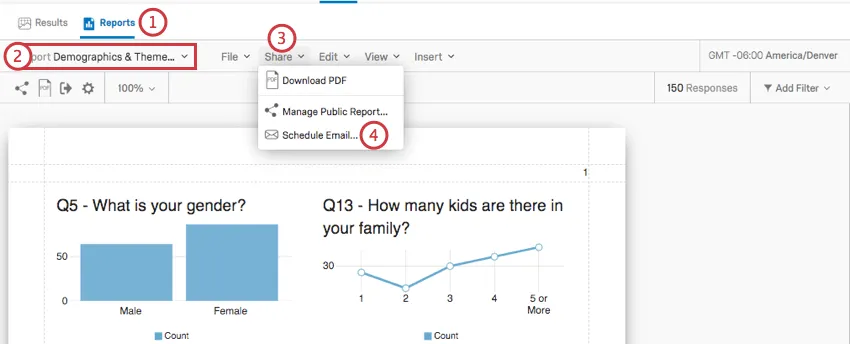
Select the desired report from the report selection dropdown menu.
Click Share.
Select Schedule Email.
Click New Email.
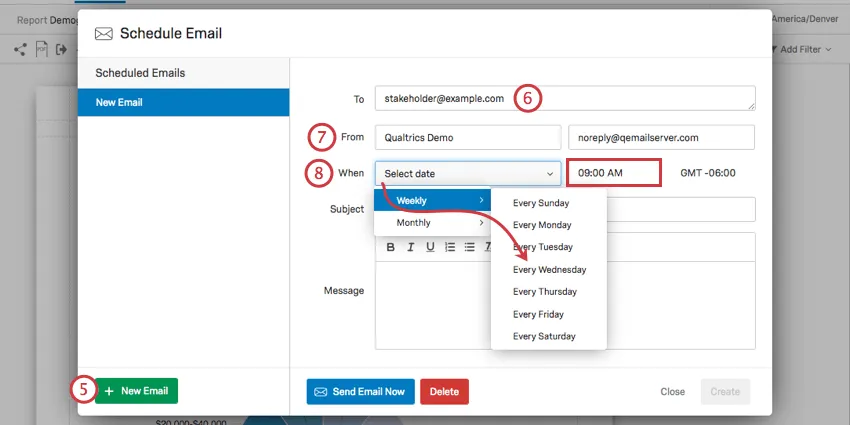
Enter emails to send the report to. You may enter multiple, comma-separated.
Fill out the “From” Address.
Qtip: The “From” Address address must be an approved address for your organization. If you attempt to use an unauthorized email, you will not be able to save your scheduled email, and it will not send. If you encounter any issues with your “From” Address, please reach out to your organization’s Brand Administrator.
Select the frequency of the distribution, including whether it’s monthly or weekly, and then the specific day and time it should go out.
Qtip: This time zone is based on your account settings.
Enter a Subject for your email.
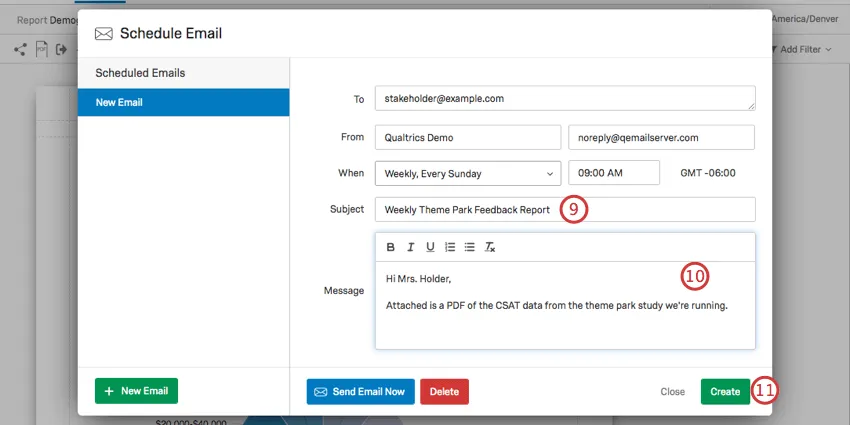
Construct the email message that will accompany your attached report.
Attention: You cannot include any linkable text in your message. This includes URLs and email addresses. If your message contains linkable text, you will see the error message "Links cannot be included in emails. Please remove the URL to proceed" and you will not be able to save your email until you remove the disallowed content. This security policy is in place to improve email deliverability and protect against phishing.

Click Create when you are finished.
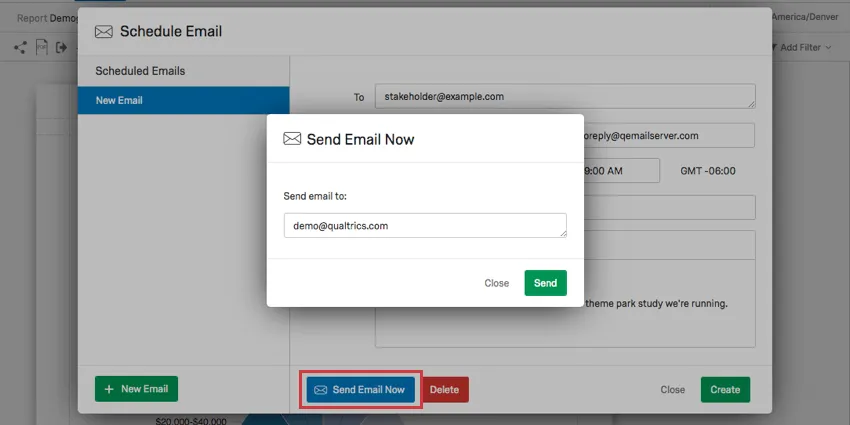
Qtip: If you would like to test your scheduled report before actually saving it, you can click the Send Email Now button, located in the lower-left corner. This allows you to send the report email to your own email address, where you can verify that it looks correct when viewed in an email inbox.
Attention: If a user is removed from a report, any scheduled report emails that they created will no longer send. This is because the user no longer has permission to access the report.
Editing and Cancelling Scheduled Reports
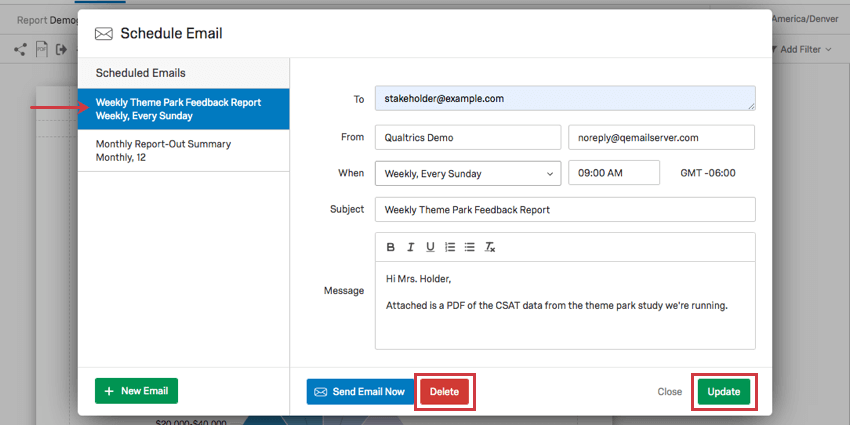
You can reopen the Schedule Email window at any time to delete or edit an existing scheduled report email. Just select an existing email from the left and either select Delete or Update.
That's great! Thank you for your feedback!
Thank you for your feedback!