

Using Premade Qualtrics Benchmarks (CX)
What's on this page
About Qualtrics Industry Benchmarks
In addition to allowing you to set your own custom benchmarks, Qualtrics provides you with pre-made industry benchmarks you can use to measure your organization’s performance on common KPIs. These benchmarks are based on research collected by our expert Experience Management scientists. For many of these benchmarks, we refresh the data on a yearly basis, offering you the most up-to-date industry performance to measure your organization against.
Qtip: This page covers how to use ready-made industry benchmarks, or “Qualtrics benchmarks” in your dashboards. For a guide on benchmarking using your own data, see Creating Custom Benchmarks.
Attention: The benchmark editor is available in a few different types of dashboard. However, this support page only covers how the benchmark editor works in CX Dashboards. For Employee Experience dashboards, see Benchmark Editor (EX).

List of CX Benchmarks
- Agent Effectiveness: The Agent Effectiveness benchmark includes key metrics for companies looking to compare their contact center agent effectiveness against peer organizations. This benchmark contains three agent performance metrics (friendliness, knowledgeability, and understanding) in addition to one overall support satisfaction metric.
- Business to Business: The Business to Business benchmark contains key CX metrics such as NPS, CSAT, Likelihood to Renew, and more using data from companies across 11 industries.
- Business to Consumer: The Relational Net Promoter® Score (NPS®) benchmark is derived from Qualtrics’ vast Customer Experience database. The data include hundreds of anonymized and aggregated Qualtrics customers of various regions, countries, and industries.
- Consumer Net Promoter Score (NPS): The XMI Customer Ratings – Consumer NPS® are comprehensive Net Promoter® Score (NPS®) benchmarks based on data gathered on leaders in the Customer Experience industry.
- Credit Union: The U.S. Credit Union Member Experience benchmark allows credit unions to see how their member experiences compare to other credit unions. Benchmark scores include but are not limited to NPS, Overall Satisfaction, and touchpoint experiences for Branch, Digital, and Call Center. Data filters enable comparisons to similar types of credit unions on measures such as member size and total assets.
- CX Edge: A Customer Experience benchmark that uses a nationally representative sample of consumers who have evaluated individual brands. Category averages for NPS® and XMI Customer Ratings are calculated based on brand-level responses.
- Digital: The XMI Customer Ratings – Digital are benchmarks that provide a reference point for companies looking to compare their digital customer experience against peer organizations. If you select this option, you can also choose whether you’re benchmarking off of Effort, Satisfaction, Success (task completion) or Likelihood to Return.
- Healthcare Payor MCAHPS Benchmark: This benchmark helps healthcare payors understand how they compare to the industry, so they can better predict how CAHPS Star rates will impact their overall contract-level Star ratings.
- Omnichannel CX (US): The Omnichannel CX (US) benchmark provides a comprehensive breakdown of channel-specific performance for several CX metrics including Task Completion, Ease, OSAT, CSAT, and agent effectiveness metrics.
- Overall: The XMI Customer Ratings – Overall is a cross-industry, open standard benchmark of customer experience. It evaluates experiences across three dimensions: success, effort, and emotion. If you select this option, you can also choose whether you’re benchmarking off of Effort, Emotion, Overall, or Success.
- Patient Experience: The Patient Experience Benchmark includes key metrics, such as Net Promoter Score (NPS) and Overall Rating of Care, along with modern Healthcare Experience Index questions that focus on success, effort, emotion, and trust. Qtip: The Patient Experience benchmarks are included in CX 1, 3, and 5 licenses and will appear in the benchmark editor by default. If you would like access to this feature, reach out to Account Services.

- Quick Service Restaurants Benchmark: The Quick Service Restaurant benchmark helps quick service restaurants understand how customer experience compares to industry peers. Benchmarks scores include ease of ordering, friendliness of the staff, satisfaction with the location, and more.
Exploring Qualtrics Benchmarks
Before adding a Qualtrics-made industry benchmark to your dashboard, you can preview it to get an idea of what the data looks like, and to make sure you have the right questions and data mappings to support it.
Example: You have the 2024 Q4 Patient Experience benchmarks in your dashboard. You want to look at the new version published in Q1 2025 before you use them. If there’s a big shift in the data, you can let your stakeholders know what to expect ahead of time.

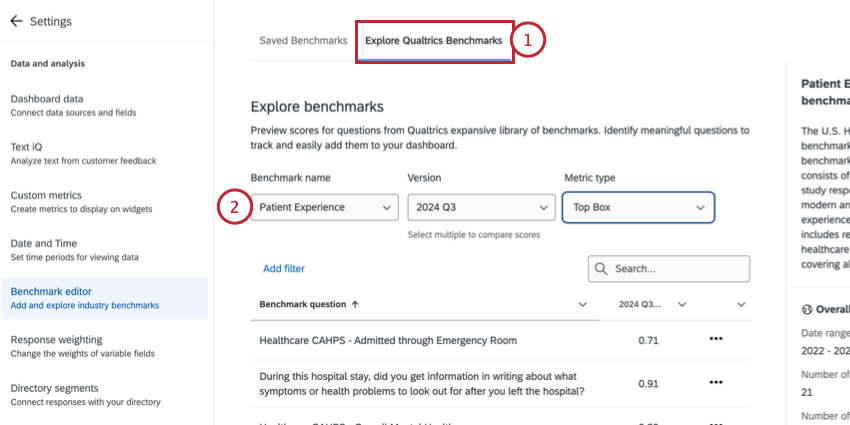
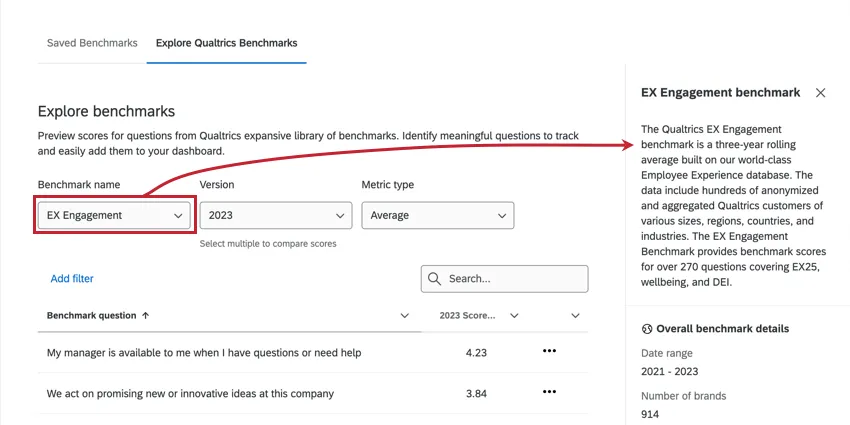
Qtip: You can read more information about the benchmark in the side panel to the right. This includes the methodology, number of responses, and date range.
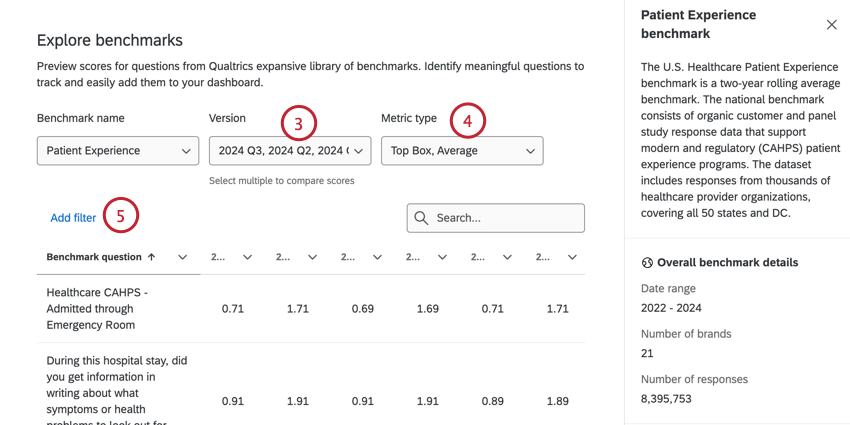
Qtip: If at least one of the metrics you selected is a percentile, a number scale will appear where you can select a number from 1 to 99. Keep in mind that not all benchmarks have percentile options.


Qtip: See the “Filtering Benchmarks” subsection below for step-by-step instructions.
Filtering Benchmarks
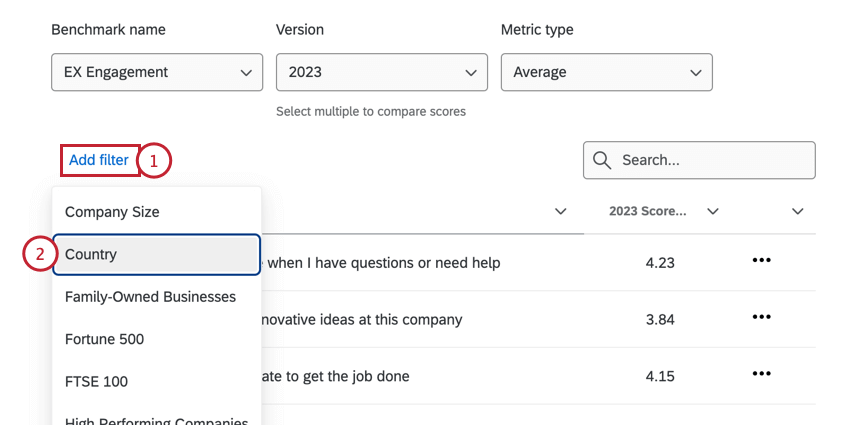
Qtip: The available filters will vary by benchmark. For example, the EX Healthcare benchmark does not contain an “industry” filter because the data is already specific to the healthcare industry.
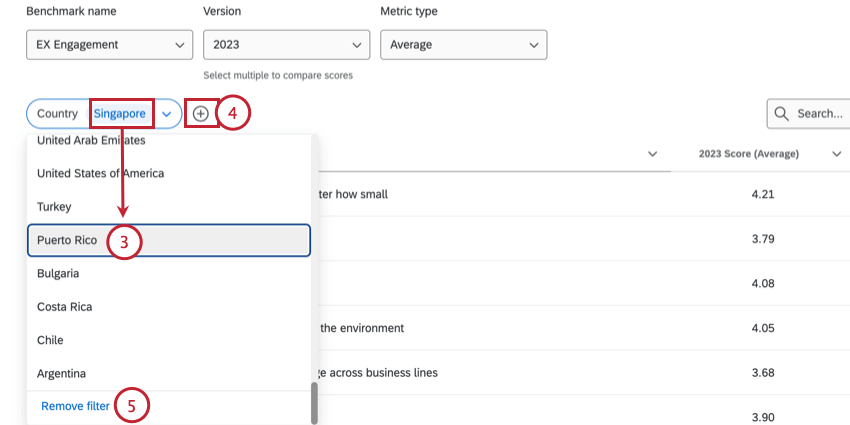
Qtip: The available filters will vary. For many benchmarks, you can only choose 1 value. However, some datasets allow you to select multiple at a time.
Using Premade Qualtrics Benchmarks
In the following steps, we’ll show you how to create benchmarks you can reuse across your dashboard. These benchmarks can come equipped with default page-level filters that can be used to limit their data to the most industry and regionally-relevant information.
Qtip: Each Qualtrics-provided dataset can only be used to make 1 benchmark set. However, you can add many different filter groups and customize the metric as you need right on the widget.
Qtip: You can also create a single-use benchmark straight from a widget. See one-time benchmarks.
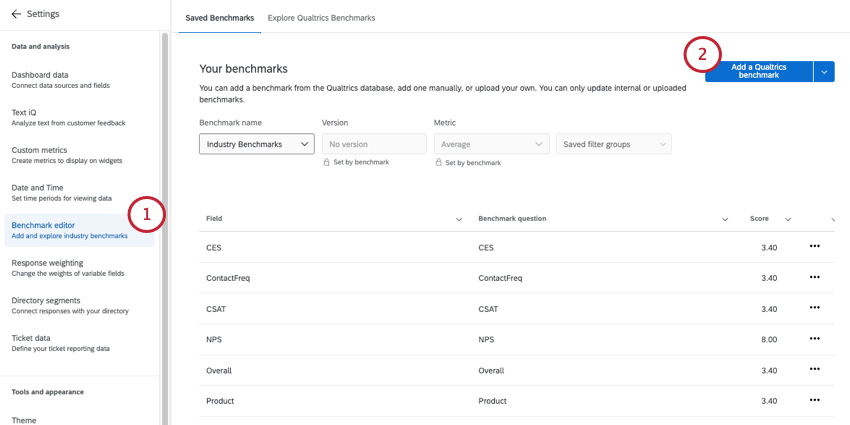
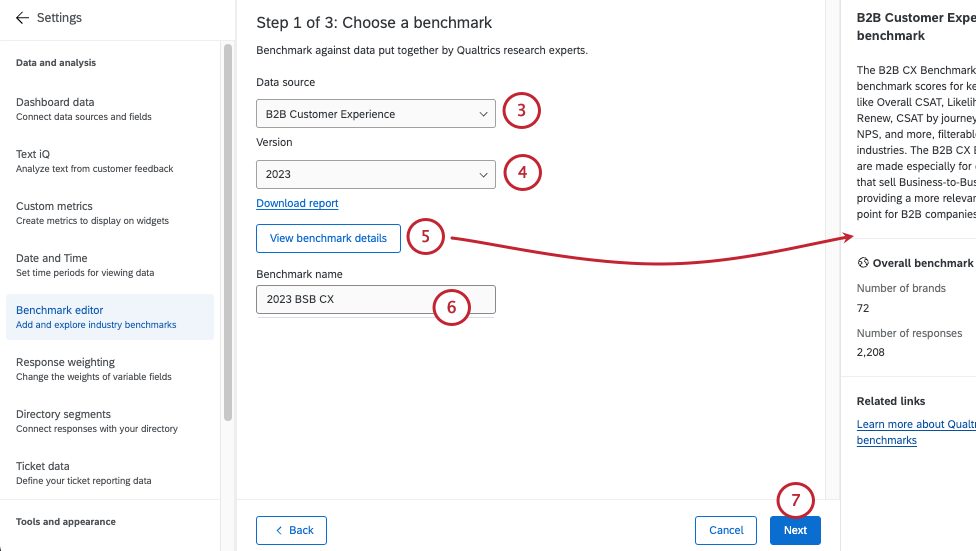
Qtip: Qualtrics benchmarks are typically refreshed annually.
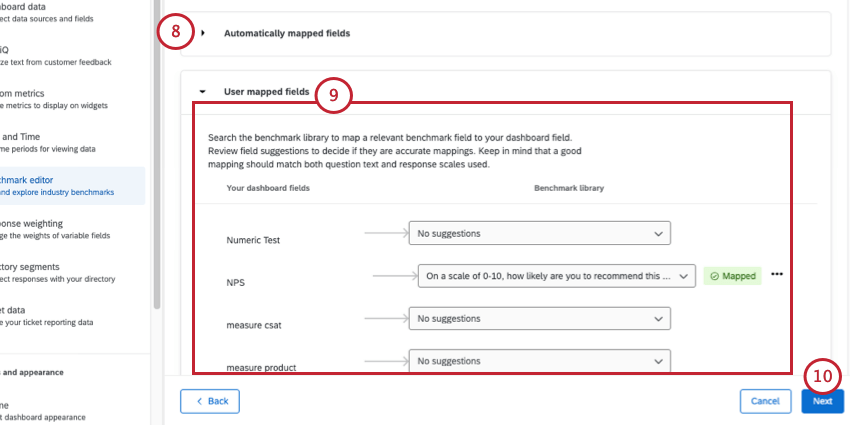
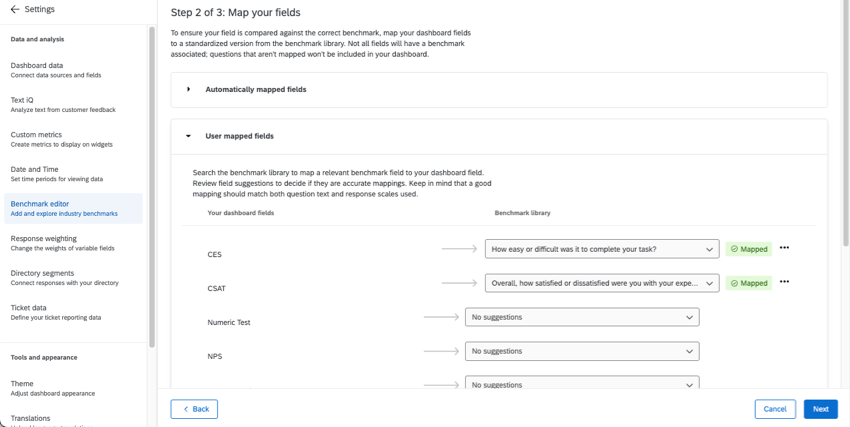
Qtip: If you use standardized fields, like certified questions, or use a recommended benchmark, some of your fields may be mapped automatically.
Qtip: There are a few field mapping requirements to consider:
- Your dashboard fields appear on the left, and benchmarks on the right.
- Each 1 benchmark should only be mapped to 1 dashboard field.
- Only certain field types are compatible; see Benchmark Field Types.
- Any unmapped benchmarks will not be added to your dashboard.
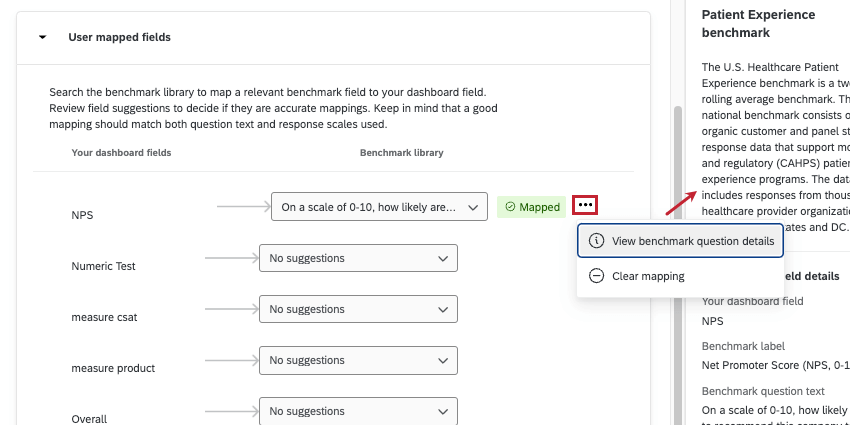
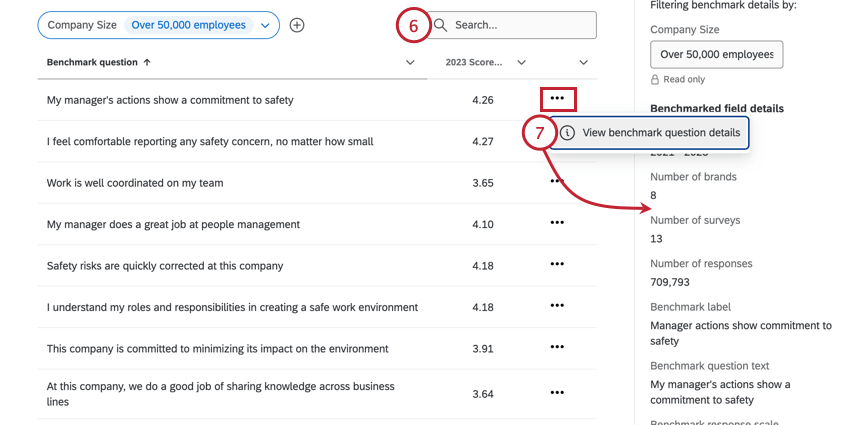
Qtip: Before you map a dashboard field to a benchmark, you can learn more about what the benchmark looks like. Knowing its scale and other information can help you match it to the correct data you’ve collected. Click the 3 dots and select View benchmark question details to see a summary of the data included in the benchmark, the response scale, and more.
Qtip: For detailed steps, see Creating Filter Groups for Benchmarks.
Once you’ve successfully created your industry benchmarks, it’s time to add them to widgets.
AI-Powered Benchmark Recommendations
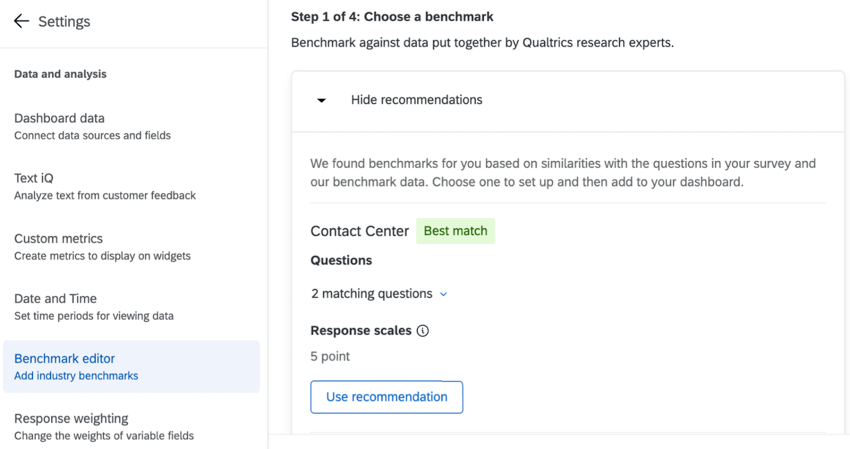
If there are questions in your dashboard that match the Qualtrics benchmark library, recommended benchmark(s) will appear as recommendations.
Select Use recommendation to create one of these benchmarks. Using a recommended benchmark will prefill many configuration options and question mapping.
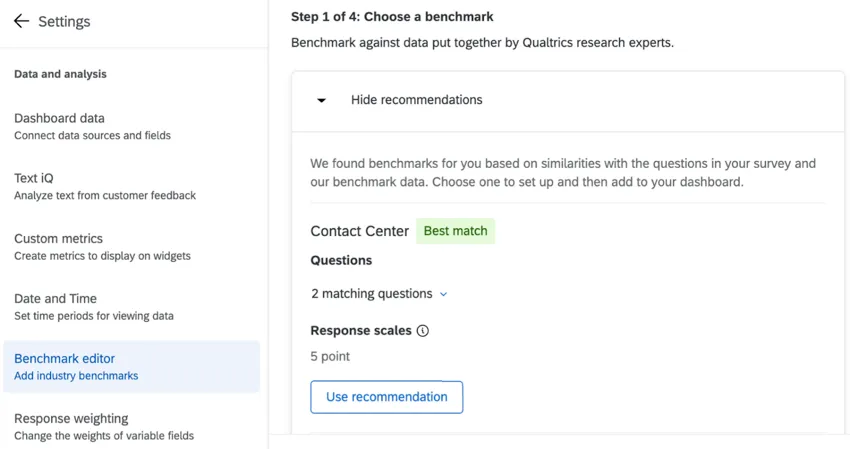
Qtip: Click X matching questions to view the benchmarks that match questions in your dashboard.
Qtip: While we have guardrails in place and are continually refining our products, artificial intelligence may at times generate output that is inaccurate, incomplete, or outdated. Prior to using any output from Qualtrics’ AI features, you must review the output for accuracy and ensure that it is suitable for your use case. Output from Qualtrics’ AI features is not a substitute for human review or professional guidance.
Creating Filter Groups for Benchmarks
When you use premade Qualtrics benchmarks, you can also create filters you want to use with your benchmark in widgets. These filters narrow down the data not by your dashboard fields, but by predetermined categories, like industry, region, or country. You can set a default filter that will appear with the benchmark on a specific page, or you can just save filters so they’re ready when you need them.
Example: We recommend using filter groups if you have chosen broad premade benchmarks and want to narrow down to more industry-specific data. For example, if you run a software company, you should probably compare your results to other companies in Software & Services rather than the travel industry.
Example: Create filter groups for each of the regions your company operates out of, then create a series of widgets comparing them.
Qtip: You can always add filter groups later, either from the benchmark editor, or directly in the widget itself.
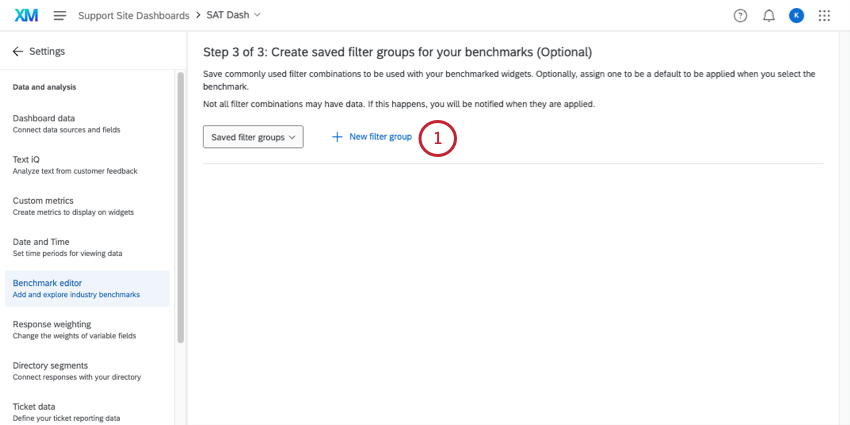
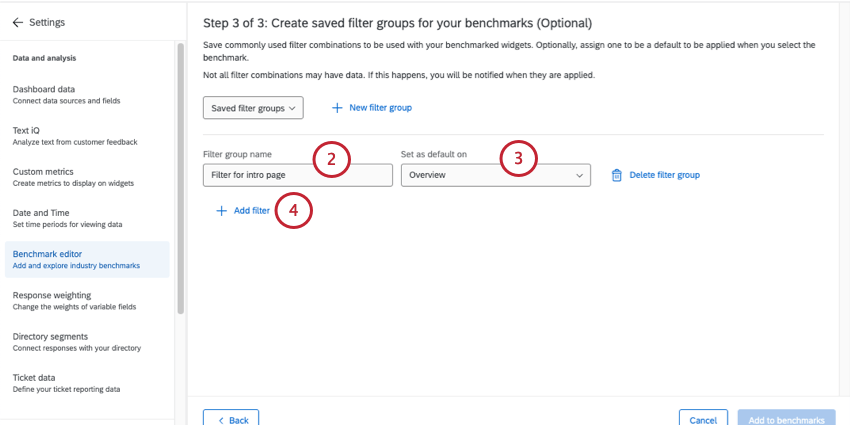
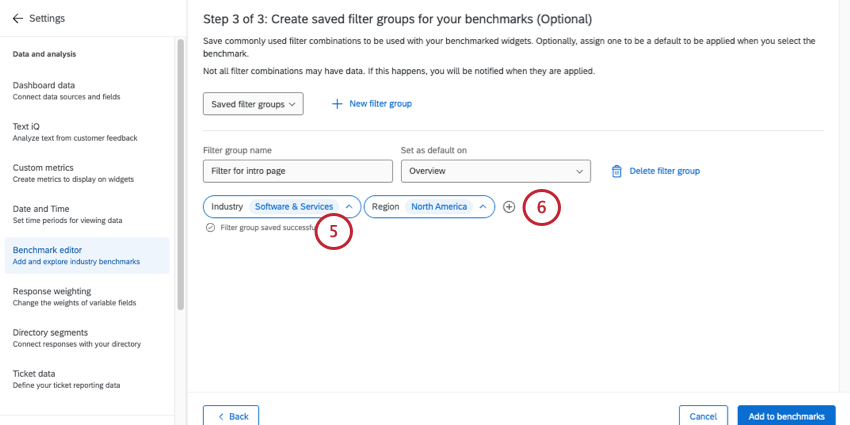
Qtip: You can only choose 1 value for each criteria. All conditions must be met before data will be included in the filter.
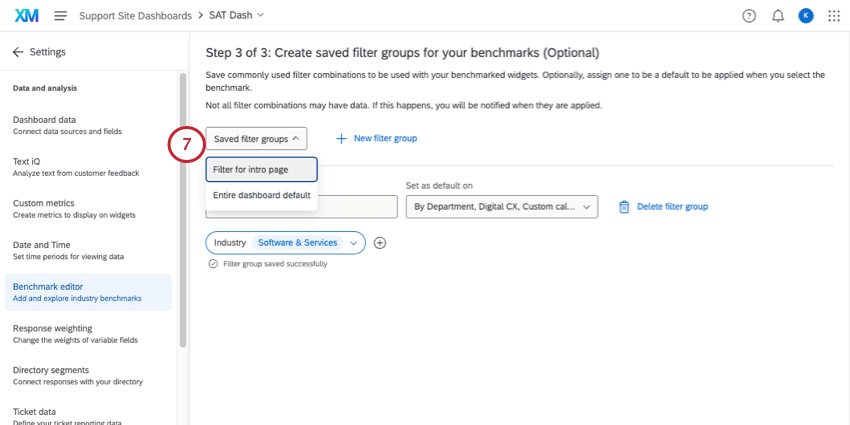
Qtip: Filter groups are saved automatically as you make changes to them.
Updating Qualtrics Benchmarks to New Versions
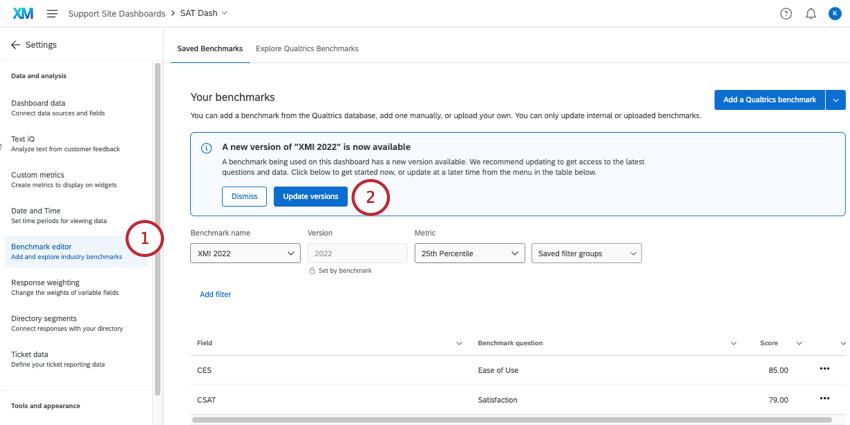
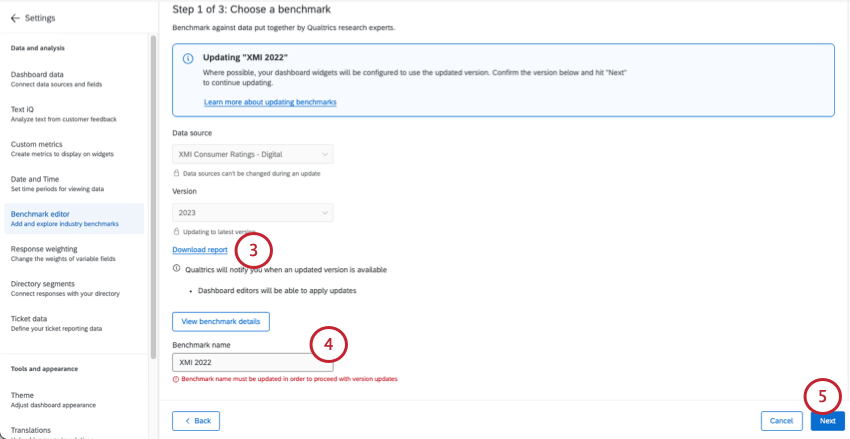
Some benchmarks have multiple years worth of data. Others will continue to be updated with new years worth of data in the future. If you’re using a benchmark that has a newer year of data available, a banner will appear notifying you, making it quicker and easier to keep your reports up-to-date with new industry standards.
Qtip: For a reminder on benchmark field mapping, see Creating Qualtrics Benchmarks.
Editing and Removing Qualtrics Benchmarks
You can edit and remove benchmarks from inside the benchmark editor.
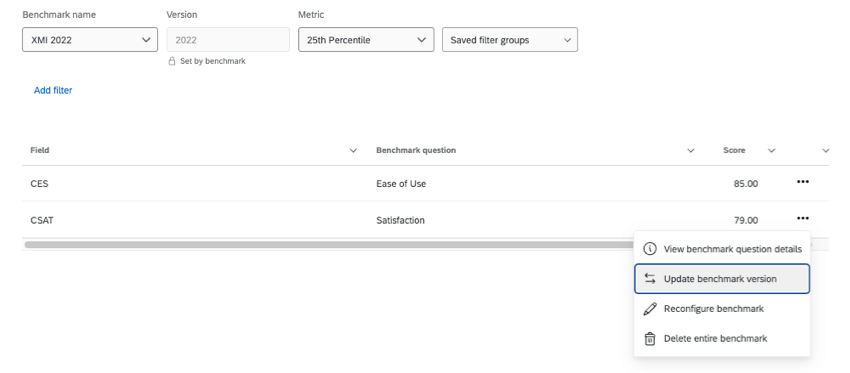
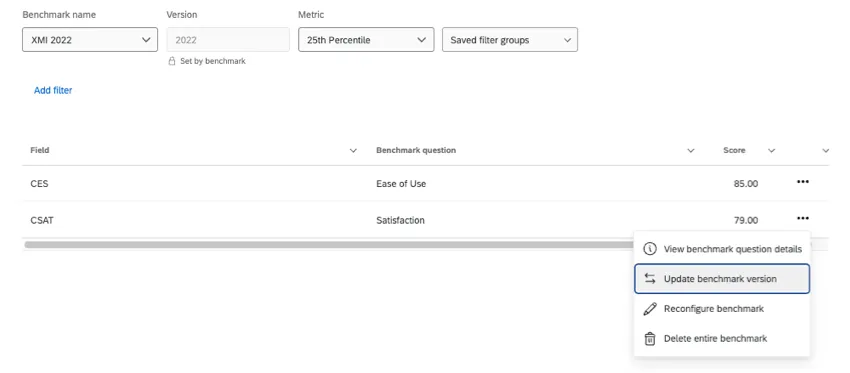
- View benchmark question details: Open a panel that shows a description of the benchmark, as well as additional details including the data and types of questions the benchmark contains.
- Update benchmark version: Only appears if your benchmark’s data is not the latest available for that series.
- Reconfigure benchmark: If you’d like to remap data or change metrics. See Creating Qualtrics Benchmarks.
- Delete entire benchmark: This option deletes the entire industry benchmark. In this example showing “XMI 2022,” the entire “XMI 2022” collection would be deleted, including both the CES and CSAT benchmarks.
Warning: Deleting a benchmark is permanent. Once a benchmark has been removed, it cannot be recovered. Only delete benchmarks you are absolutely sure you no longer need.
FAQs
Now that I’ve created my benchmarks, how do I add them to widgets?
Now that I’ve created my benchmarks, how do I add them to widgets?
What’s the difference between making an industry benchmark in the editor and using a one-time benchmark?
What’s the difference between making an industry benchmark in the editor and using a one-time benchmark?
Benchmarks made in the editor can be added to a widget as a comparison, appearing as a goal line. Benefits of the benchmark editor include the ability to explore data beforehand and being able to reuse the configurations you created in the editor, including filter groups. When creating benchmarks from the same Qualtrics study, you can also map a few rows at once, making it easier to create more benchmarks at a time.
One-time benchmarks appear as the primary metric in a widget (although you can often add more metrics to the same widget for comparison). Benefits of “one-time benchmarks” include speed and ease of use. In general, we recommend using these if you only want to create one or two benchmarks in your dashboard.
What information can I filter industry benchmarks by?
What information can I filter industry benchmarks by?
That's great! Thank you for your feedback!
Thank you for your feedback!