

Displaying Benchmarks in Widgets (CX)
What's on this page
About Displaying Benchmarks in Widgets
Benchmarks are a metric standard that enable you to understand how your organization’s overall experience compares against industry peers, and to establish overall customer experience, NPS, or digital experience goals based on company and industry comparisons. Before you add them to your widgets, benchmarks can either be uploaded to the benchmark editor, or they can be configured directly within a widget.
Attention: Benchmarks are available in a few different types of dashboard. However, this support page only covers how benchmarks work in CX Dashboards. For Employee Experience dashboards, see Displaying Benchmarks in Widgets (EX).

How Benchmarks Appear on Widgets
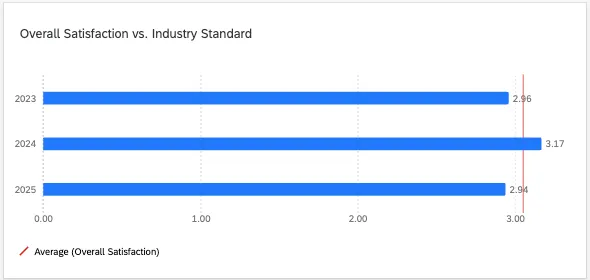
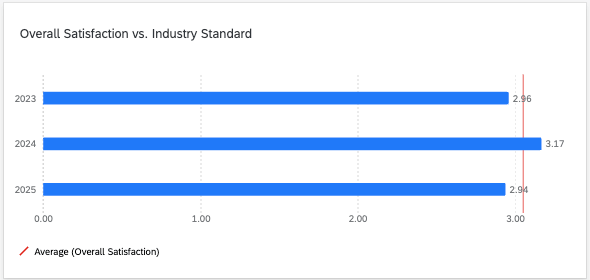
Benchmarks can be displayed on your widget as a comparison line with a custom color. This option is available in a lot of widgets, such as line and bar charts. You can create a custom static goal lines or even use any of the benchmarks you made in the editor as a goal line.
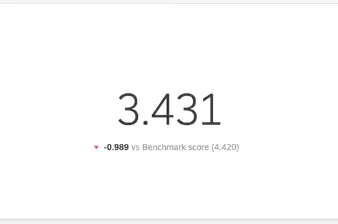
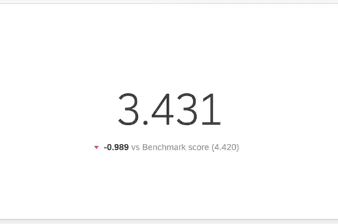
In number charts and gauge charts, benchmark comparisons appear as text below the primary metric, showing the difference between your performance and the benchmark.
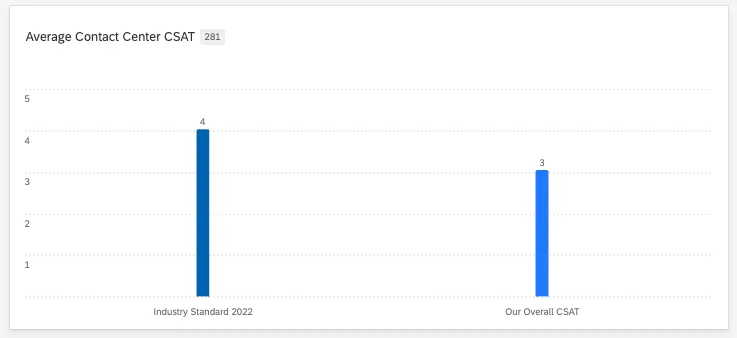
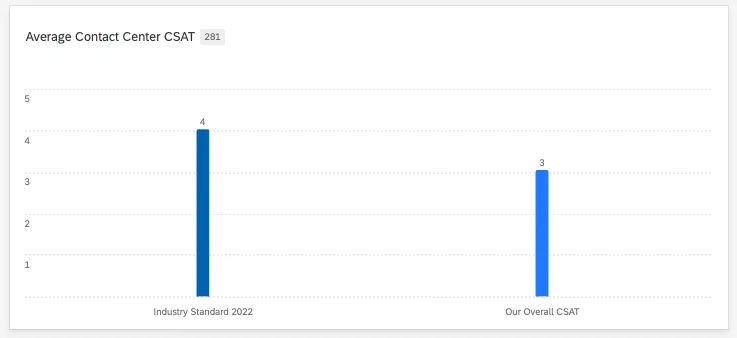
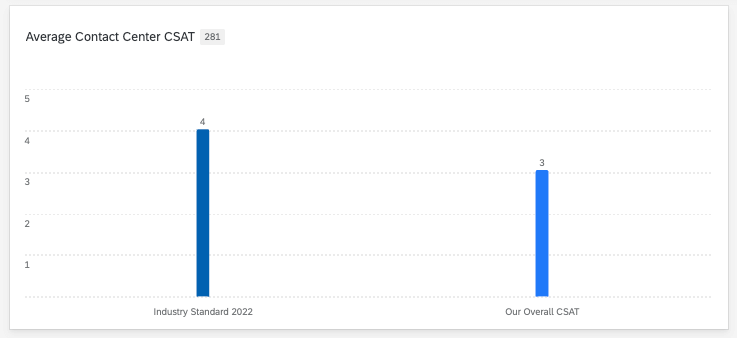
When a quick premade Qualtrics benchmark is added to a widget as a metric, you do not see a goal line or comparison text. Instead, you see another category in the widget. For example, you might see your benchmark and your average metric next to each other as bars on a bar chart.
Displaying Benchmarks as Comparison Lines
Once you’ve created any benchmark in the editor – whether they are industry benchmarks or custom benchmarks – it’s time to add them to your widgets.
Qtip: Benchmarks created in the editor are only compatible with rich text editor, number chart, gauge chart, line chart, vertical bar, and horizontal bar chart widgets. Table widgets are not supported.

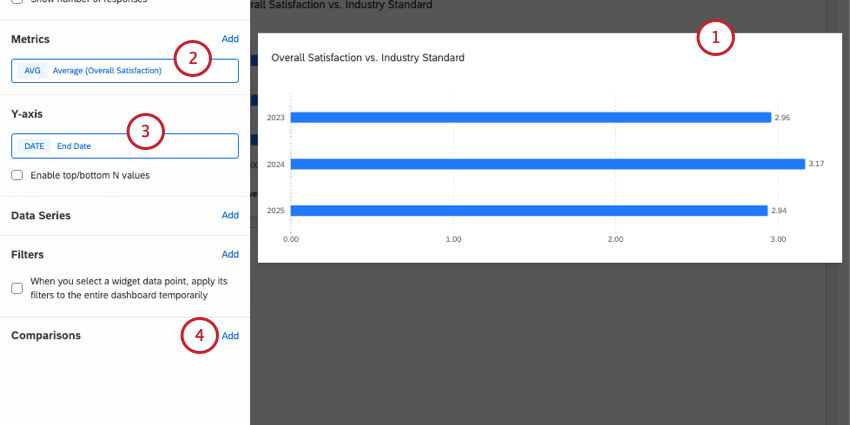
Qtip: We often recommend selecting a metric that matches with your benchmark so you can see the most accurate comparison. Since metrics available can vary by benchmark dataset, remember you can explore available data.
Example: You saved a benchmark with customer care CSAT standards that includes average performance. For your metric, you choose the average of your customer team’s satisfaction rating.
Example: You saved a benchmark with customer care CSAT standards that includes maximum and minimum performance. You add both to your widget, along with your own organization’s average CSAT to show how you fall within the bands.
Example: You break out your data over time, like the “recorded date.”

Qtip: Both pre-made industry benchmarks and custom benchmarks that you created will appear in this list!
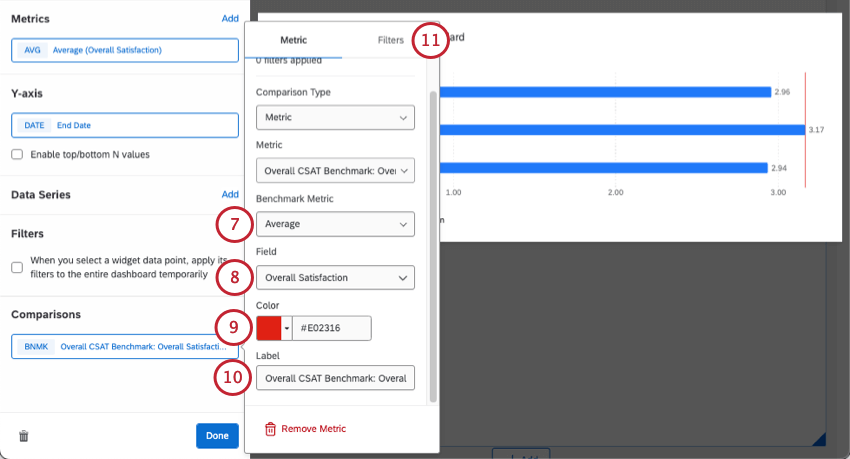
Qtip: Under this field, you might see Use percentile options. For more details, see Setting Up Percentile Benchmarks.
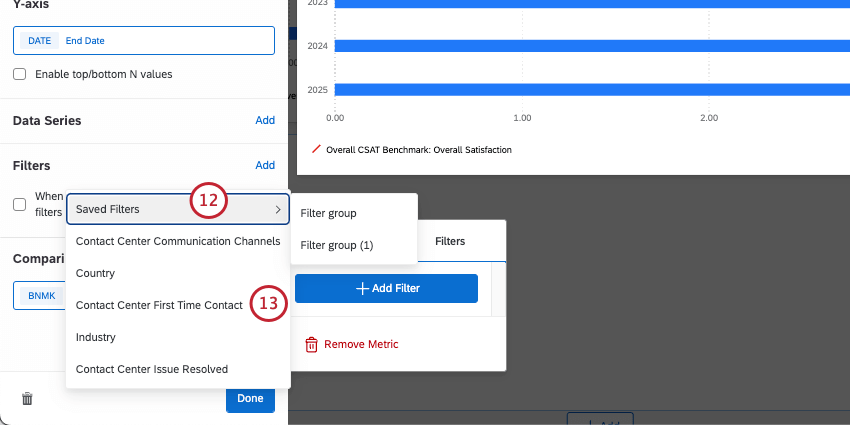
Qtip: If your benchmarks don’t look right on your widget, check the following:
- Carefully match the widget metric (step 2) with the benchmark metric (step 7).
- Make your recode values are mapped correctly in the dashboard data.
- Make sure your mapped field and the benchmark you chose are mapped on the same scale. For example, if your CSAT is on a 7 point scale, but the benchmark is on a 6 point scale, they are not comparable.
Quick Premade Qualtrics Benchmarks
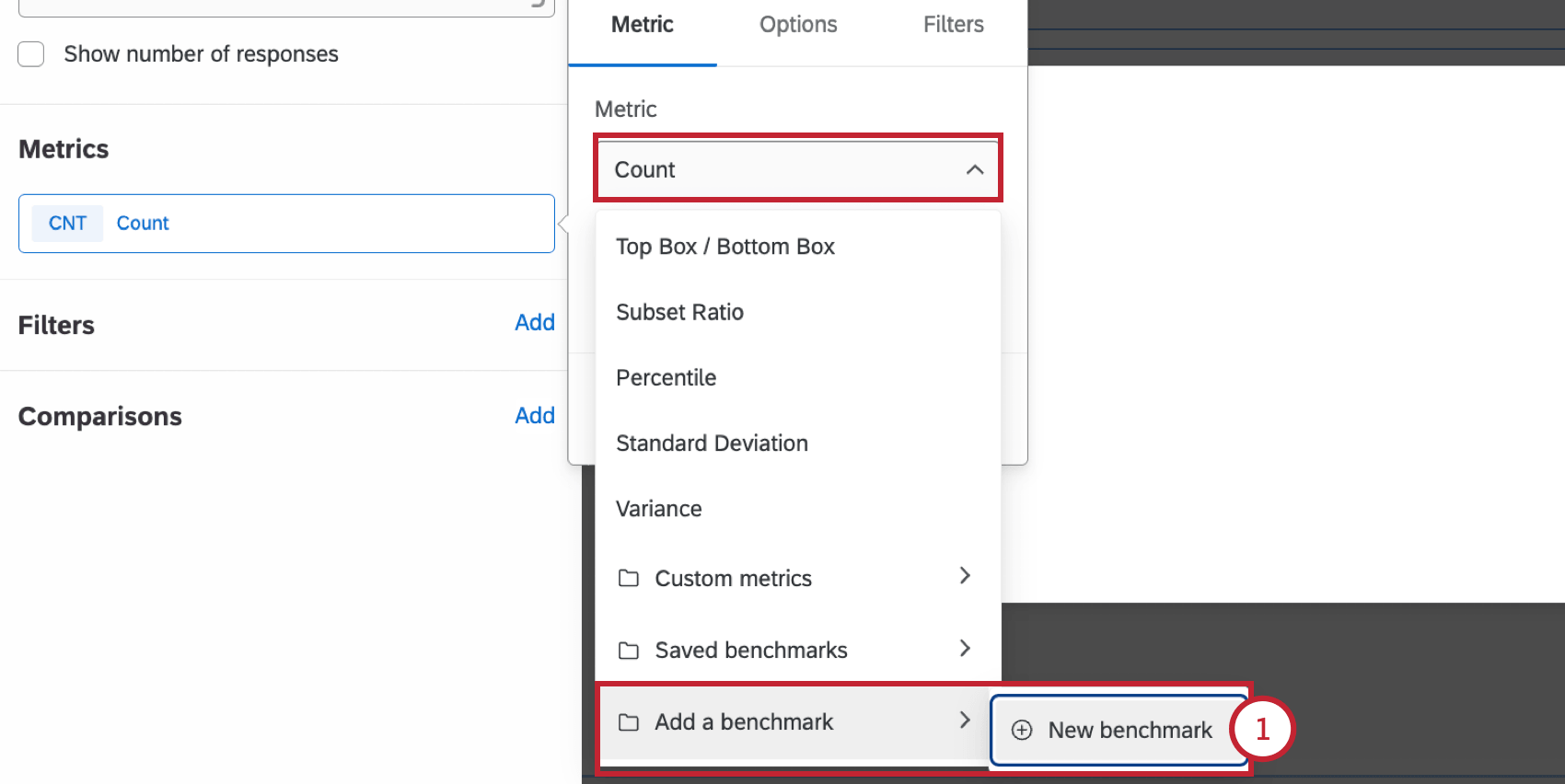
In addition to being able to create premade benchmarks using Qualtrics data in the benchmark editor, you can also create them directly on widgets like you would other metrics. You can think of this option as “quick premade benchmarks,” because you can easily choose from preset benchmark metrics and filters from right inside a widget.
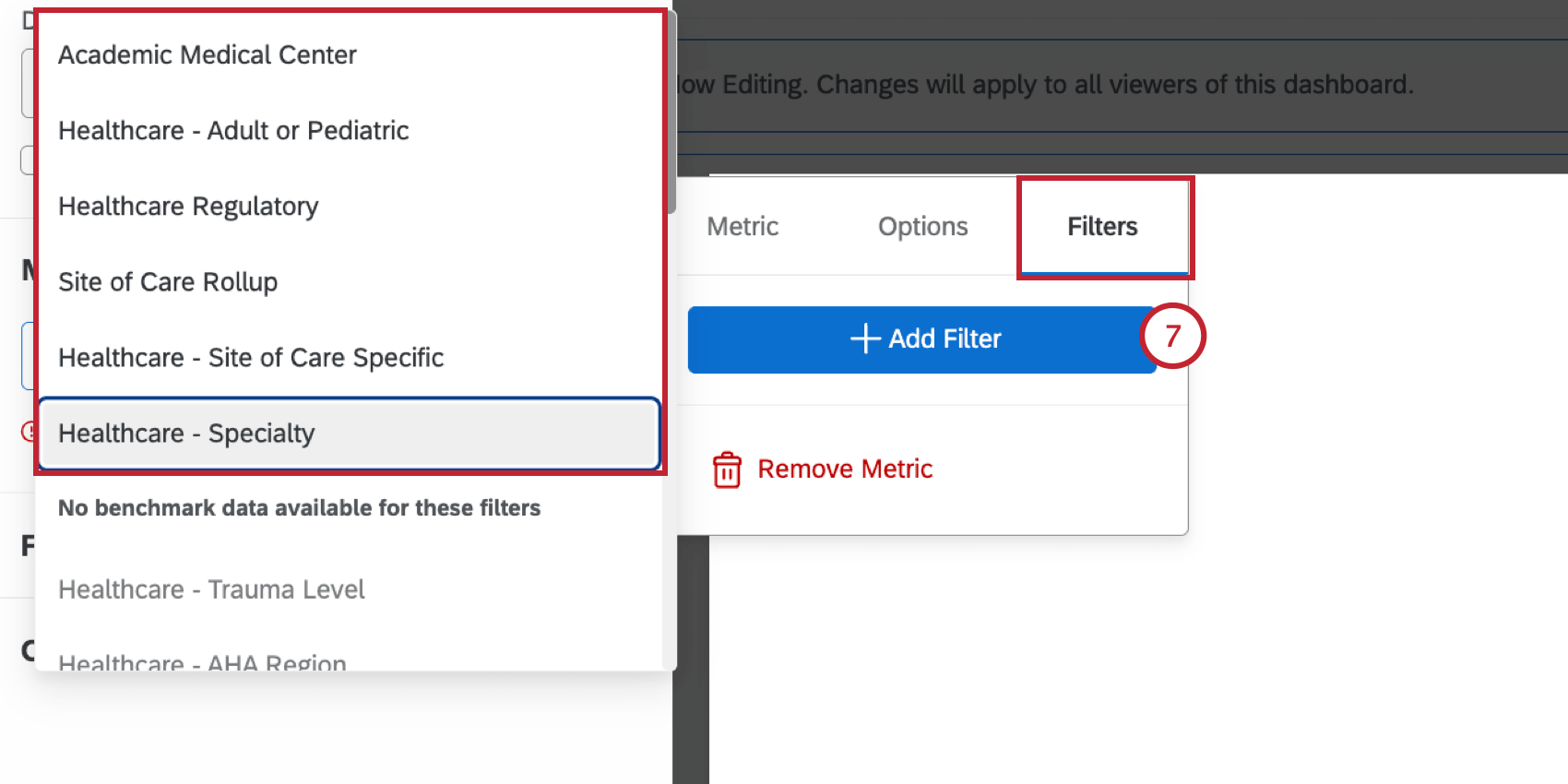
Quick premade benchmarks have the same industry datasets and filters available as when you create them in the benchmark editor. Quick premade benchmarks are displayed on widgets as additional metrics, not goal lines. For example, on a vertical bar widget, the one-time benchmark would be another vertical bar.
Qtip: Quick premade industry benchmarks are only compatible with rich text editor, number chart, gauge chart, table, line chart, vertical bar, and horizontal bar chart widgets.
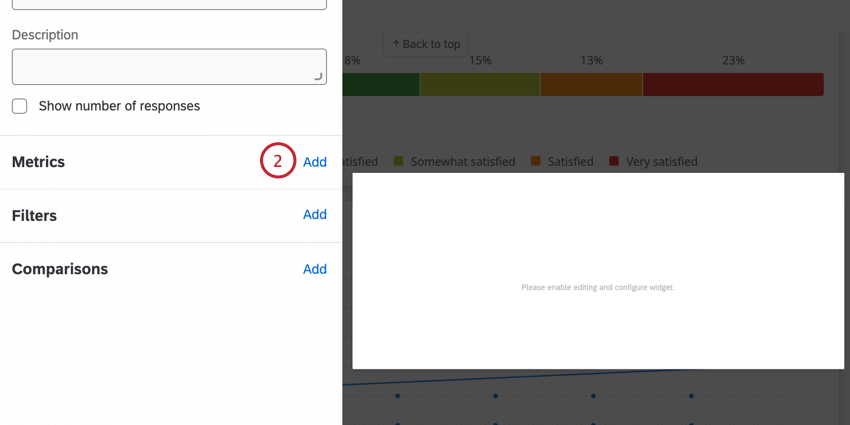
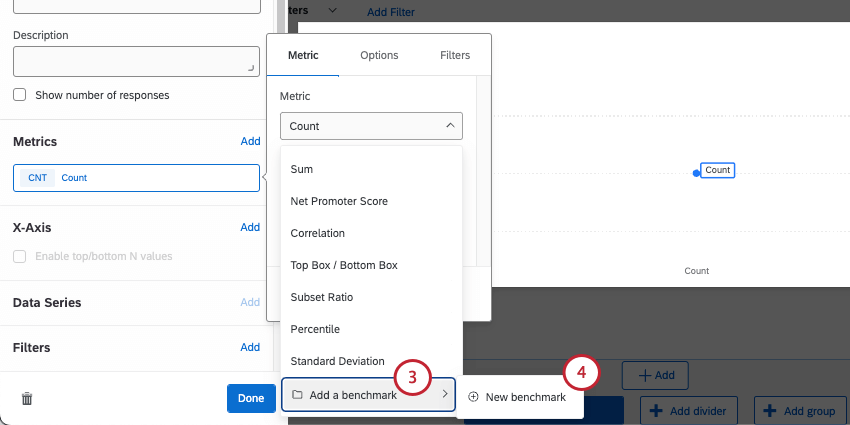
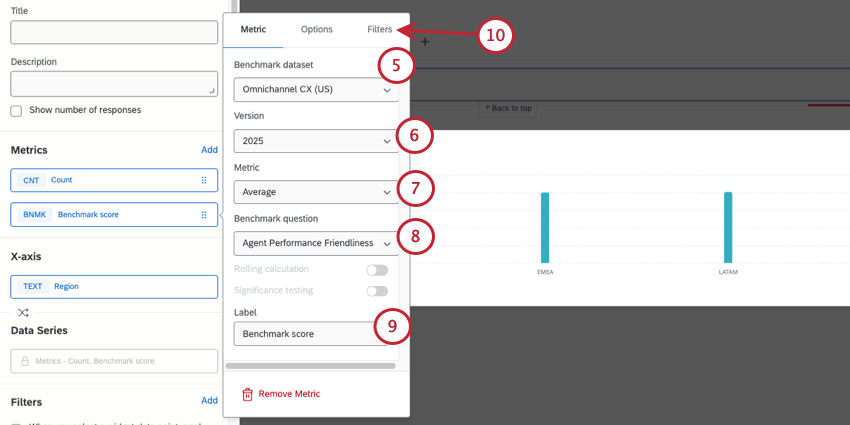
Qtip: Under this field, you might see Use percentile options. For more details, see Setting Up Percentile Benchmarks.
You can now finish building your widget, such as adding more metrics for comparison and breakouts (e.g., x-axis, y-axis, or data series).
Qtip: Because benchmarks are static data, features like rolling calculations and significance testing are not available.
Filtering Quick Benchmarks
Qtip: If you’d like to add customized filters that appear when you add premade benchmarks, see Creating Filter Groups for Benchmarks.
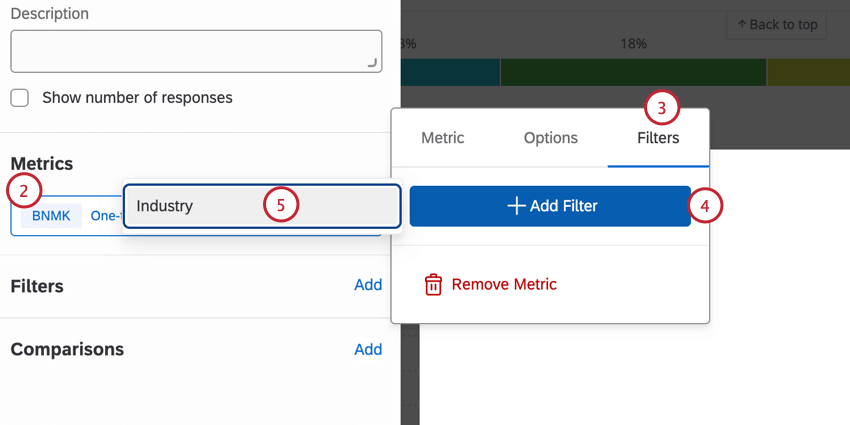
One-Time Custom Benchmarks
In addition to being able to create benchmarks in the benchmark editor, you can also create them directly on widgets. These are called “one-time benchmarks.” With this option, you can use a static number to add a goal line to a widget.
The benefit of one-time benchmarks is that they are quick to use. We generally recommend these if you only need to add one or two benchmarks. However, if you need to upload multiple benchmarks at a time or configure custom, reusable filters, it’s usually better to create with the benchmark editor and then display those benchmarks as comparisons.
Qtip: Benchmarks created in the editor are only compatible with number chart, gauge chart, line chart, vertical bar, and horizontal bar chart widgets. Table widgets are not supported.
Example: You break out your data over time, like the “recorded date.”
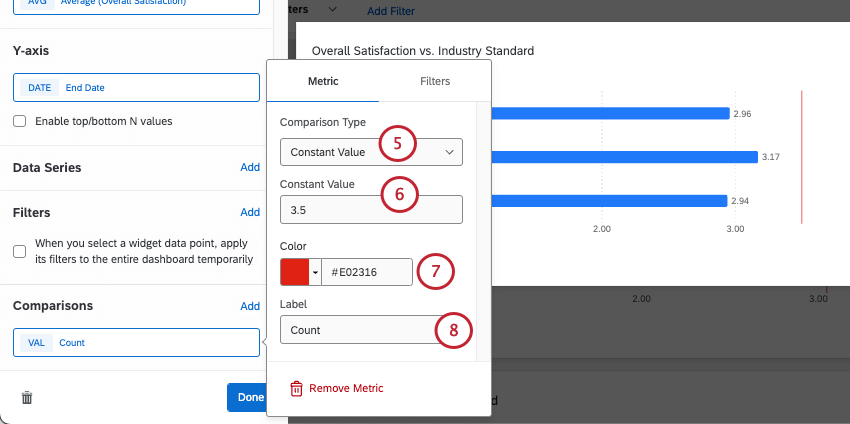
Setting Up Qualtrics Percentile Benchmarks
Percentiles contain a set of 100 values (or buckets) for a particular scoring scale. A value, such as an average, is calculated from the entire benchmark dataset, and then the value is looked up in the percentile list to see what percentile bucket (one of the 100 in the list) it falls in. Thus, percentiles are a great way to show industry rankings.
There are a few extra steps required if you’re setting up a percentile benchmark. These additional steps are the same regardless of whether you’re adding your premade Qualtrics benchmark as a comparison line or your main metric, or reusing a benchmark editor benchmark.
Qtip: Only a select few premade Qualtrics Benchmarks have percentiles available.
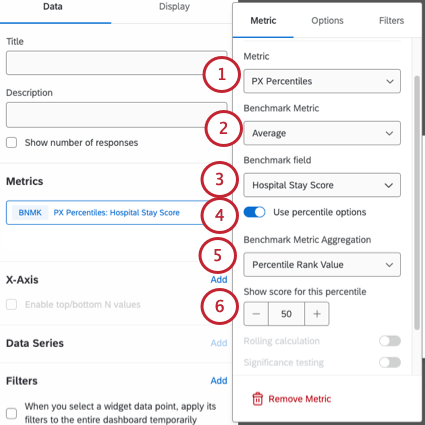
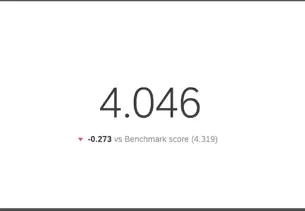
- Percentile rank value: Take a percentile rank and turn it into a number (as in raw score). For example, if you select the 50th percentile, you’d see an exact score from the 50th percentile, like 3.42. Example: Here’s what this setting looks like in a number chart:

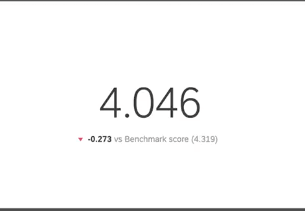
- Convert to percentile rank: Display the percentile rank itself. For example, if you choose the 75th percentile, the widget will mark the score in the correct spot, but label it as the 75th percentile instead of giving an exact score.
FAQs
What’s the difference between making an industry benchmark in the editor and using a one-time benchmark?
What’s the difference between making an industry benchmark in the editor and using a one-time benchmark?
Benchmarks made in the editor can be added to a widget as a comparison, appearing as a goal line. Benefits of the benchmark editor include the ability to explore data beforehand and being able to reuse the configurations you created in the editor, including filter groups. When creating benchmarks from the same Qualtrics study, you can also map a few rows at once, making it easier to create more benchmarks at a time.
One-time benchmarks appear as the primary metric in a widget (although you can often add more metrics to the same widget for comparison). Benefits of “one-time benchmarks” include speed and ease of use. In general, we recommend using these if you only want to create one or two benchmarks in your dashboard.
What information can I filter industry benchmarks by?
What information can I filter industry benchmarks by?
What’s the difference between making a custom benchmark in the editor and using a one-time benchmark?
What’s the difference between making a custom benchmark in the editor and using a one-time benchmark?
Benefits of the benchmark editor include being able to reuse the configurations you created in the editor and upload many benchmarks at a time.
Benefits of “one-time benchmarks” include speed and ease of use. In general, we recommend using these if you only want to create one or two benchmarks in your dashboard.
Regardless of which option you choose, the benchmark appears as a goal line on the widget, a visual comparison to your main data.
I followed all of the steps, but I don’t see my comparison line on my widget. What do I do?
I followed all of the steps, but I don’t see my comparison line on my widget. What do I do?
That's great! Thank you for your feedback!
Thank you for your feedback!