

Creating Custom Benchmarks (CX)
What's on this page
About Creating Custom Benchmarks (CX)
You can add personalized company benchmarks in your dashboard. Match each goal to the corresponding data, then easily reuse your benchmarks across your dashboard widgets.
Qtip: This page covers how to create your own, custom benchmarks for use in your dashboards. To use ready-made benchmarks already populated with industry data, see Using Premade Qualtrics Benchmarks.
Qtip: You cannot create benchmarks for custom metrics.
Attention: The benchmark editor is available in a few different types of dashboard. However, this support page only covers how the benchmark editor works in CX Dashboards. For Employee Experience dashboards, see Benchmark Editor (EX).

Creating Custom Benchmarks Manually
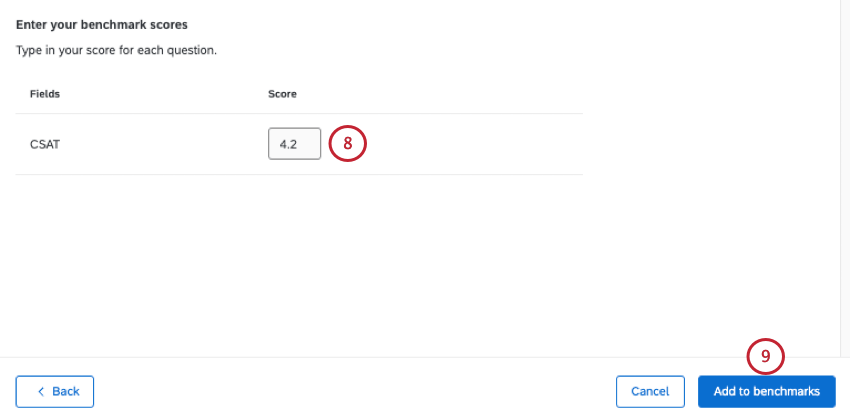
Follow these steps to manually create your own individual benchmarks.
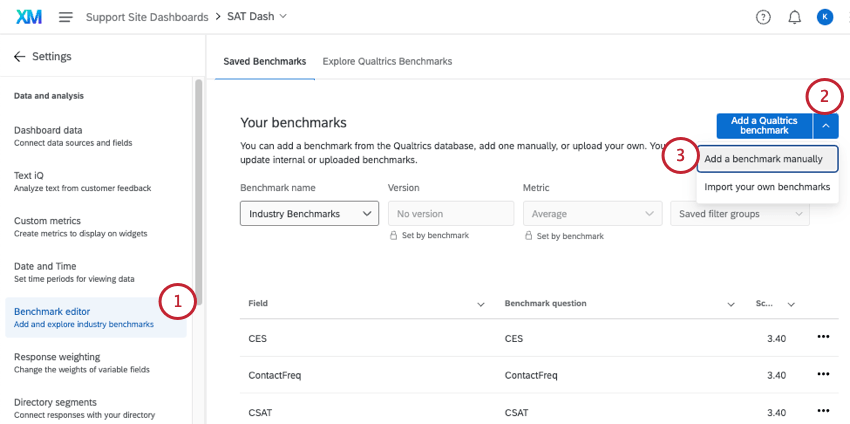
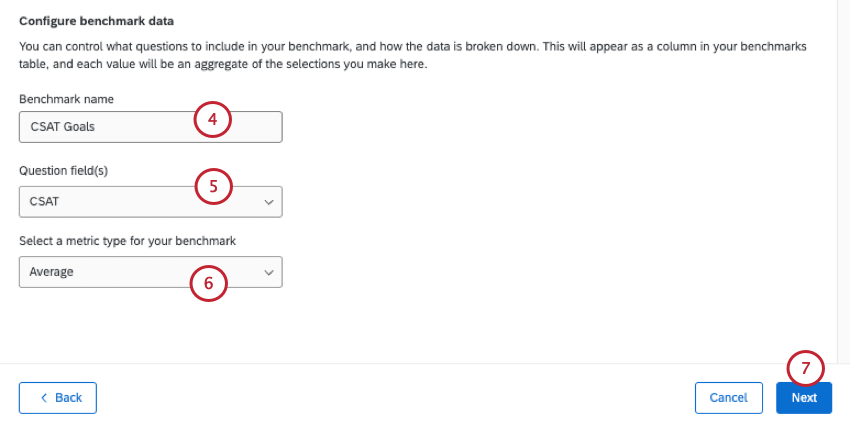
Attention: If you change the name of an existing benchmark, it will change the name for all fields under the benchmark.
Qtip: See which field types benchmarks support.
Qtip: Click Select all to select all benchmark fields.
Uploading Custom Benchmarks in Bulk
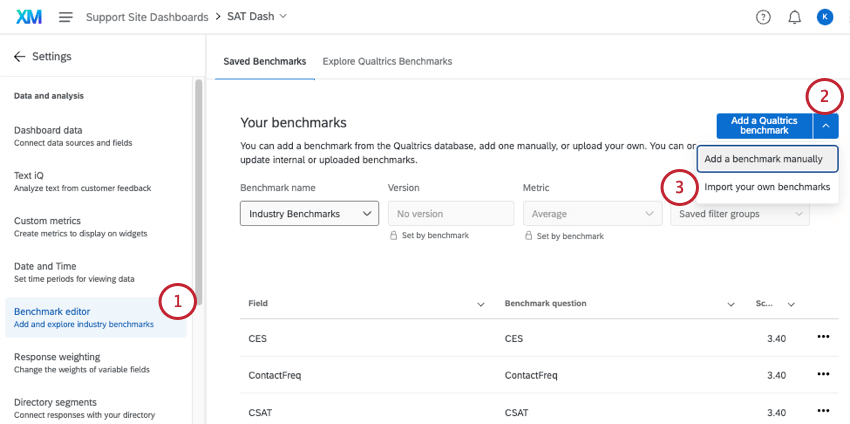
If you need to upload benchmarks to your dashboard in bulk, you can upload them from a file. These steps will take you through how to get a template, prepare your file, and upload your benchmarks.
You can use this method to upload new benchmarks or update existing benchmarks.
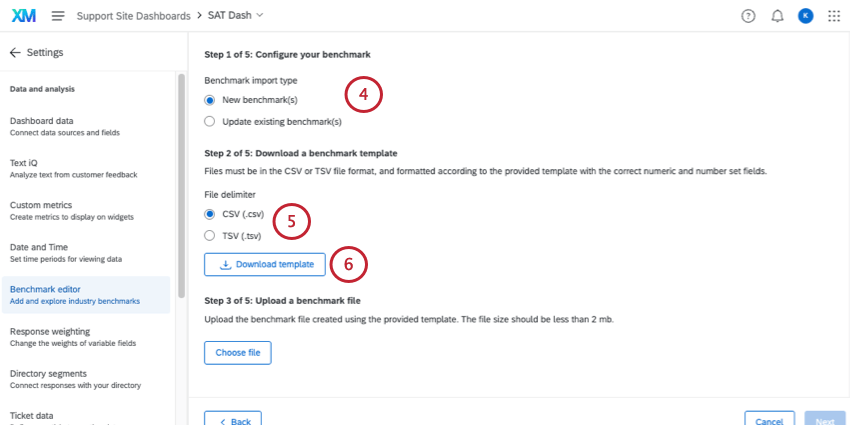
- New benchmark(s): Upload an entirely new benchmark or set of benchmarks. Keep in mind that all of the benchmarks in a set need to be the same metric (e.g., all averages, not a mix of averages and top box).
- Update existing benchmark(s): Update existing custom benchmarks. Select the benchmark (or multiple benchmarks) you want to edit.
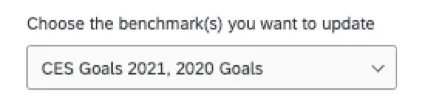 Qtip: We highly recommend only updating benchmarks in the same metric format. For example, only updates all averages, not a mix of averages and bottom boxes.
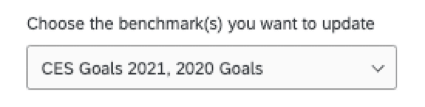

Attention: Even if you chose to make updates, this file will not contain your existing benchmarks – only your numeric and number set fields. If you are updating benchmarks, you will have to reenter all values in your file.
Qtip: Check out your Dashboard Data page if there are fields that need their names or field types changed, or if you need to add a new field.
Attention: All fields that are included when exporting the template need to be included in the import file, even if they don’t have a benchmark value. Do not include any blank rows in your import file. Otherwise, you will see the error: “This file is missing field IDs or has invalid field IDs”.
- CSV UTF-8 Encoded
- TSV Qtip: TSV is recommended if your field names contain characters not used in the English alphabet. See TSV / CSV Upload Issues for troubleshooting help.
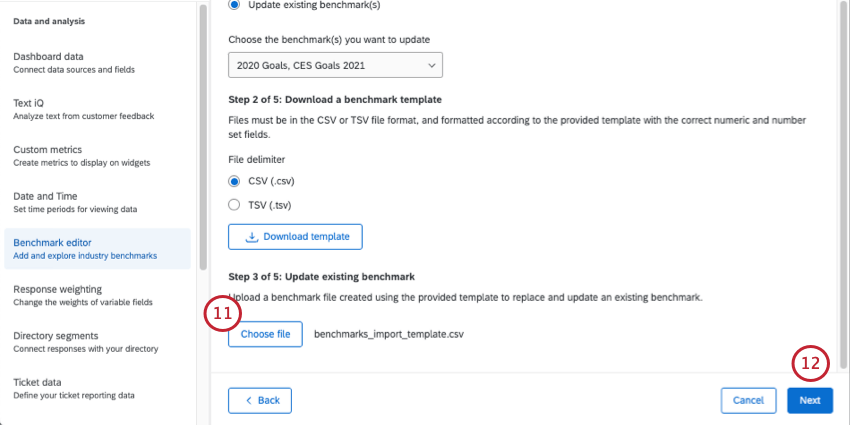
Qtip: If your file is too large, you won’t be able to upload it. You can upload smaller, separate files if needed.
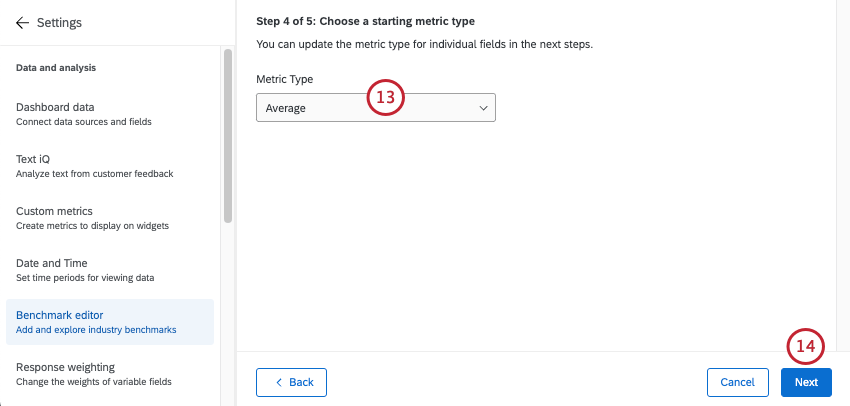
- Average: Each of the benchmarks in this set are represented as an average (or mean) value.
- Top/Bottom Box: Each of the benchmarks in this set are represented as a top or bottom box score. Top box is the percentage of respondents who fit into the highest ends of the scale. Bottom box is the percentage of respondents who fit into the lowest ends of the scale.
- NPS: Each of the benchmarks in this set are represented by a Net Promoter Score®. See more on Calculating Net Promoter Score.
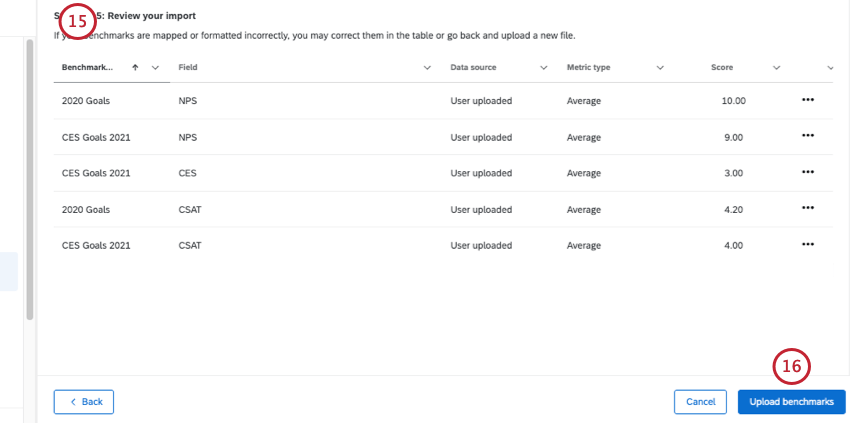
Qtip: If you need to edit a benchmark, click the 3 dots next to each row and select Edit benchmark field row.
Qtip: Click Back in the bottom-left to go back and adjust settings or upload a new file.
Troubleshooting Benchmark Uploads
You’ll receive an error message if your uploaded file failed to update participants. This section includes the error messages, as well as some troubleshooting tips to help you resolve each error.
In addition, here are some general best practices and file requirements:
- Benchmark files need to be less than 2 MB in size.
- Benchmarks only support up to two decimal places in a single benchmark. For example, you can make 2.54 your benchmark, but you can’t do 2.543.
Editing and Removing Benchmarks
Click the 3 dots next to a benchmark to edit or delete it. There are a few deletion options that differ from each other.
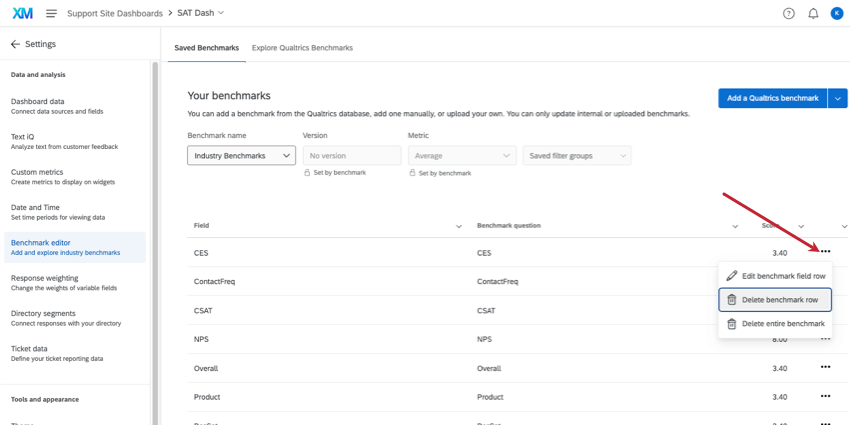
Qtip: When you create a benchmark, you may map goals to multiple dashboard fields. These multiple fields within the same benchmark are the benchmark “rows.” You might have some benchmarks with only 1 row, and you might have benchmarks with multiple rows.
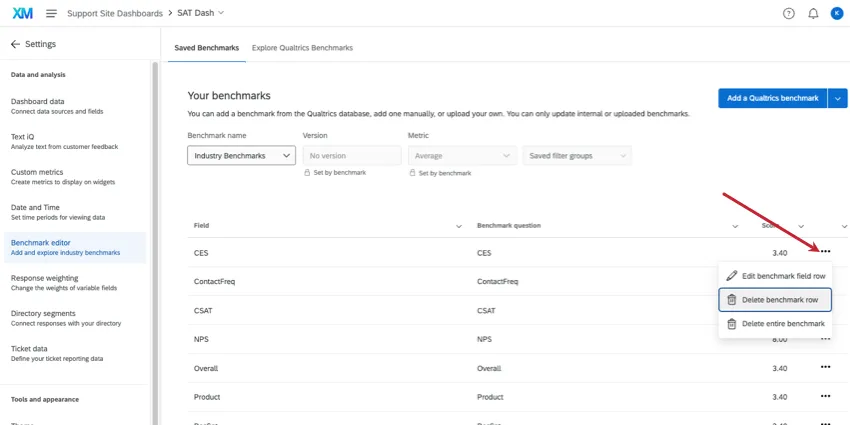
- Edit benchmark field row: Edit this individual benchmark. In this example showing “Industry Benchmarks,” only CES would be edited.
- Delete benchmark row: This option would permanently delete just the 1 row of the benchmark. In this example showing “Industry Benchmarks,” only CES would be deleted.
- Delete entire benchmark: This option deletes not just the individual row, but all rows surrounding it in the same benchmark. In this example showing “Industry Benchmarks,” the entire “Industry Benchmarks” collection would be deleted.
Warning: Deleting a benchmark is permanent. Once a benchmark has been removed, it cannot be recovered. Only delete benchmarks you are absolutely sure you no longer need.
FAQs
Now that I’ve created my benchmarks, how do I add them to widgets?
Now that I’ve created my benchmarks, how do I add them to widgets?
What’s the difference between making a custom benchmark in the editor and using a one-time benchmark?
What’s the difference between making a custom benchmark in the editor and using a one-time benchmark?
Benefits of the benchmark editor include being able to reuse the configurations you created in the editor and upload many benchmarks at a time.
Benefits of “one-time benchmarks” include speed and ease of use. In general, we recommend using these if you only want to create one or two benchmarks in your dashboard.
Regardless of which option you choose, the benchmark appears as a goal line on the widget, a visual comparison to your main data.
That's great! Thank you for your feedback!
Thank you for your feedback!