

Displaying Benchmark Comparisons in EX Widgets
What's on this page
Qtip: This page describes functionality that we intend to release starting November 4, 2026. Qualtrics may, in its sole discretion and without liability, change the timing of any product feature rollout, change the functionality for any in preview or in development product feature, or choose not to release a product feature or functionality for any reason or for no reason.

About Displaying Benchmarks in EX Widgets
There are EX widgets that can display benchmarks, such as question lists, heatmaps, engagement summaries, and scorecards. By displaying benchmarks in your dashboard, you can show how your organization compares against established industry performance.
Attention: Before you can use benchmarks with these EX widgets, make sure you have the new benchmark editor enabled for your dashboard.

Qtip: You must create benchmarks in the benchmark editor before you can add them to EX widgets. See how to create custom EX benchmarks and how to create Qualtrics industry benchmarks.
Types of EX Widgets and Dashboards Supported
The following Employee Experience widgets currently support benchmarks:
These widgets support benchmarks in the following types of EX dashboards:
Qtip: To learn how to add benchmarks to a wider range of widgets, such as line and bar widgets, see our other Displaying Benchmarks in Widgets support page.
How Benchmarks Appear on EX Widgets
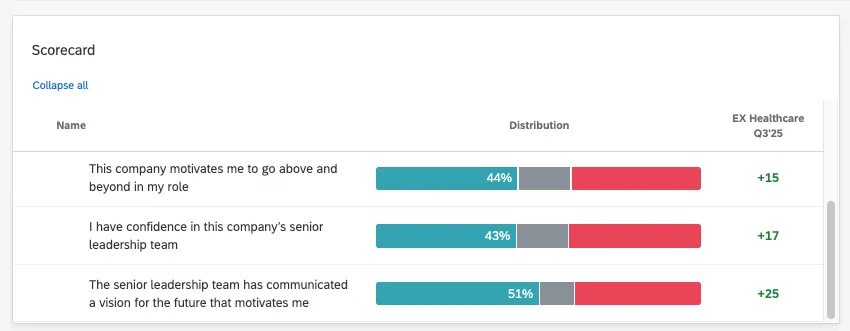
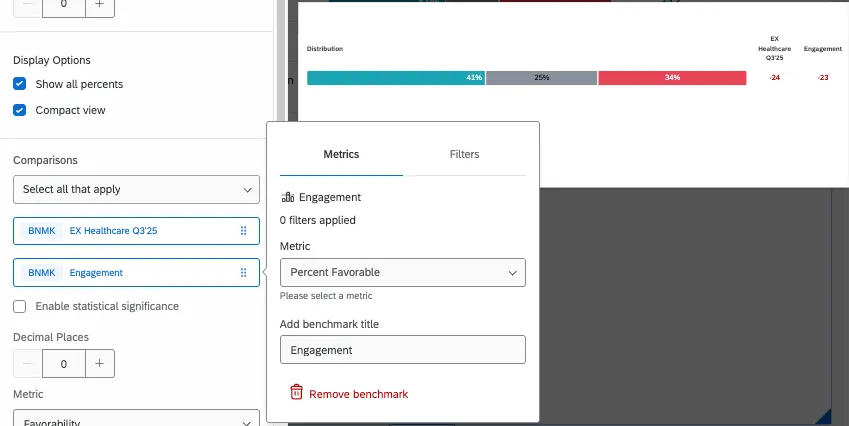
In scorecard, engagement, and question list widgets, benchmarks appear as a comparison column. You’ll see a delta that indicates how your employees performed against the chosen benchmark.
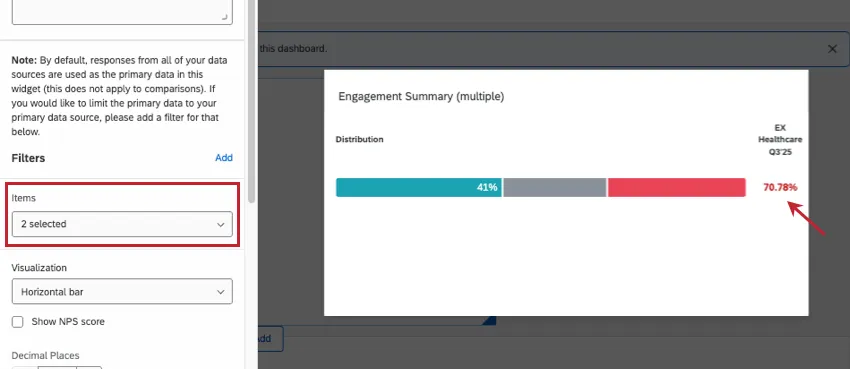
In the case of an engagement summary, if you select multiple benchmarked items, you’ll see an overall calculated score for performance against all relevant items in the benchmark.
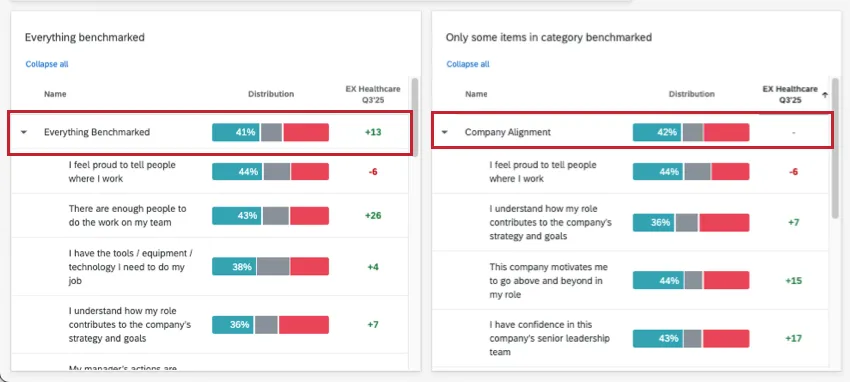
Categories can be used with benchmarking. If every item in the category has a corresponding benchmark, then the top-level category will also get an overall benchmark performance score. If even a single item out of the category isn’t benchmarked, then there will not be a category-level performance provided. See an example scorecard below.
Qtip: You can only add benchmarks to EX widgets as comparisons. You cannot use benchmarks as the primary data sources with these EX widgets.
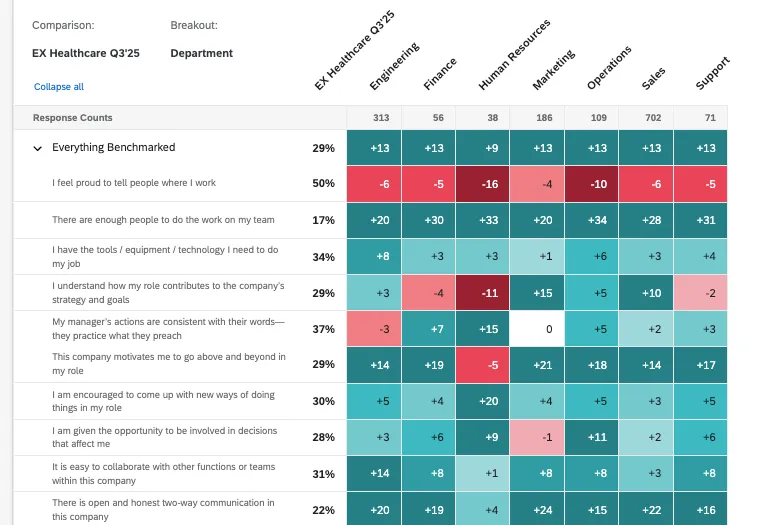
Benchmarks appear differently in heat maps than in other widgets because heat maps display comparisons differently. Heat maps show how breakout groups (often demographics and key employee segments) perform against a baseline comparison group. The color of each cell shows how the breakouts perform against the baseline. In this case, the benchmark can act as the baseline comparison.
Adding a Benchmark to an EX Widget
You can create benchmarks using Qualtrics data.
Make a new benchmark in the editor using premade Qualtrics benchmarks or with a custom benchmark.
Create or edit an EX widget that supports comparisons.
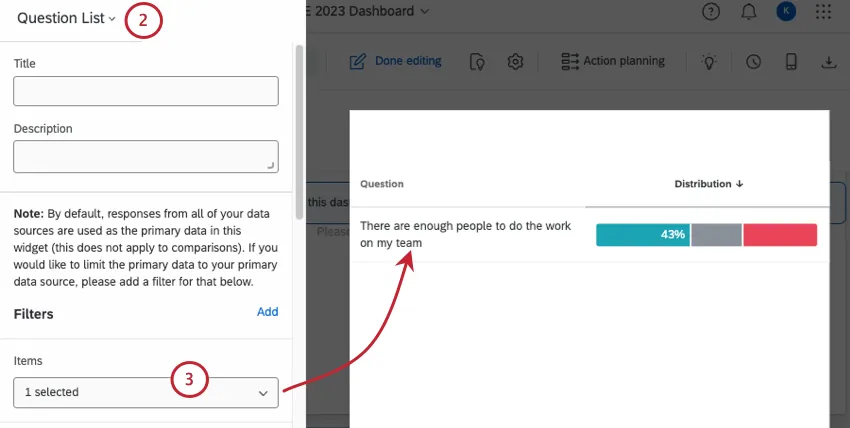
Make sure the items you display in your widget match benchmarks.
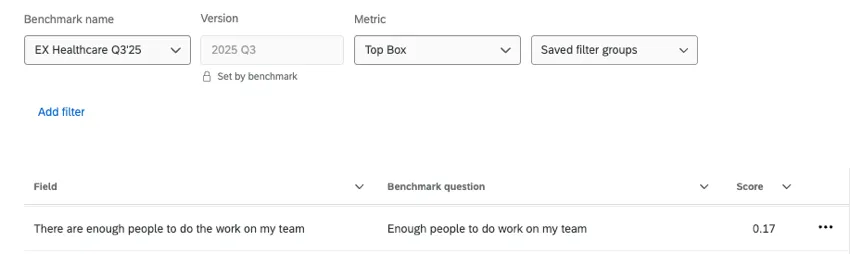
Example: You created an EX Healthcare benchmark. One of the benchmark items is “Enough people to do work on my team,” which you mapped to a question in your survey. When you choose which items to display in your widget, you choose this mapped question, “There are enough people to do the work on my team.” You can also display a category that contains this question.

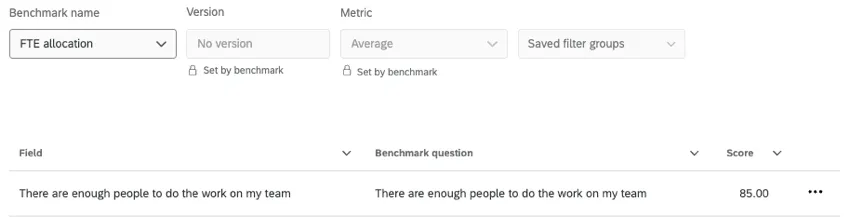
Example: When you created your own custom benchmark, you matched it to the question, “There are enough people to do the work on my team.” You can display this in your widget, or a choose category that contains it.
Select a metric. These affect the benchmarks available.
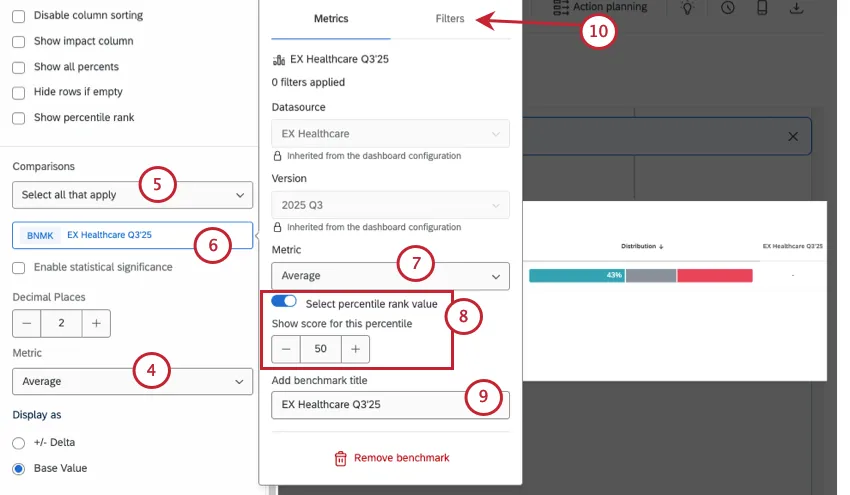
Under Comparisons, select a benchmark (or benchmarks).
Qtip: If your benchmark doesn’t appear in this menu, you probably have an incompatible metric selected.
If you are using a custom benchmark, you’re finished. If you’re using an industry benchmark, click the benchmark.
Select a benchmark metric. Options will be restricted based on the dataset you chose.
If desired, click Select percentile rank value. Set the percentile you want to display.
Qtip: This option is not available for all metrics or all datasets.
If desired, edit the benchmark label. This is how the benchmark’s name appears in the widget’s legend.
Some industry benchmarks may require filters or have filters available. See Creating Filter Groups for Benchmarks.
Qtip: To delete a benchmark from your widget, click the benchmark and select Remove benchmark.
Qtip: When working with industry benchmarks, datasource and version (year) are inherited from how you set the benchmark in the benchmark editor. In the engagement widget, when you edit your benchmark, you won’t even see these fields; just the settings you can adjust.
Showing Percentile Rank
In addition to adding benchmarks to EX widgets as comparisons, there’s one more setting you can use. With certain industry benchmarks, you can display a percentile rank. This will show the percentile that employees perform in for your chosen benchmark.
This setting is only for industry benchmarks with percentiles available. “Show percentile rank” is not meant for use with percentile custom benchmarks.
Qtip: Percentile ranks are not available for all benchmarks. Percentiles are only available for a select few premade Qualtrics benchmarks.
Create or edit a widget that supports percentile ranks.
Qtip: “Show percentile rank” is only available in heat map widgets, scorecard widgets, and question list widgets. This setting is not available in engagement summary widgets.
Select Show percentile rank.
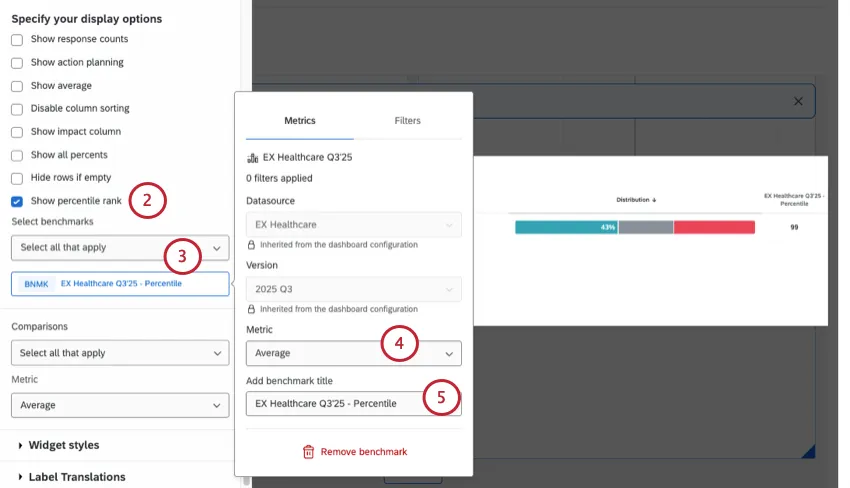
Select a benchmark (or benchmarks).
Select a metric (we recommend Average).
If desired, add a benchmark title. This will be the name of the column where the percentile performance is shown.
Adding Benchmarks to Other Widget Types
These Employee Experience widgets aren’t the only ones that support benchmarks. You can also add benchmarks to line charts, bar charts, gauge charts, and more. The steps are somewhat similar, but the settings available can vary.
For details, see Displaying Benchmarks in Widgets.
FAQs
What are CX Dashboards?
What are CX Dashboards?
What are EX Dashboards?
What are EX Dashboards?
That's great! Thank you for your feedback!
Thank you for your feedback!