

Extensions Administration
What's on this page
About Extensions Administration
Qualtrics allows you to integrate with many different software. As a Brand Administrator, you can manage settings that determine what accounts the entire brand should be linked to when they use these extensions.
Attention: When installing a third party extension, you will be asked to review and accept the extension’s privacy policy and terms of use. If you agree to these terms, the chosen third party extension will have permission to access certain information from your Qualtrics brand through the Qualtrics Public APIs.

Available Extensions
Qtip: Depending on what’s included in your license, you may not have all of the below extensions available to you. If you’d like to get access to a specific extension, reach out to your Qualtrics Account Executive.

- ServiceNow
- Google Sheets
- WebService
- Microsoft Teams
- Salesforce
- Slack
- ReviewTrackers
- Freshdesk
- Google Calendar
- Brandwatch
- Extract Employee Data from SuccessFactors
- Jira
- Salesforce Extractor
- Zendesk
- Extract Data from SFTP Files
- Salesforce (Sandbox)
- WhatsApp via Twilio
- HubSpot
- Adobe
- Text messages (SMS) via Link Mobility
- Marketo
- Microsoft Dynamics
- Microsoft Excel
- Extract Data from Google Drive
- Text messages (SMS) via Sinch LiveLink
- Text messages (SMS) via Infobip
- SMTP Relay
- Facebook Reviews
- Load data into SFTP
- Extract Recruiting Data from SuccessFactors
- Extract Data from Salesforce (Sandbox)
- Extract Data from Snowflake
Managing Extensions
Qtip: You can search available extensions using the search bar in the upper-right.
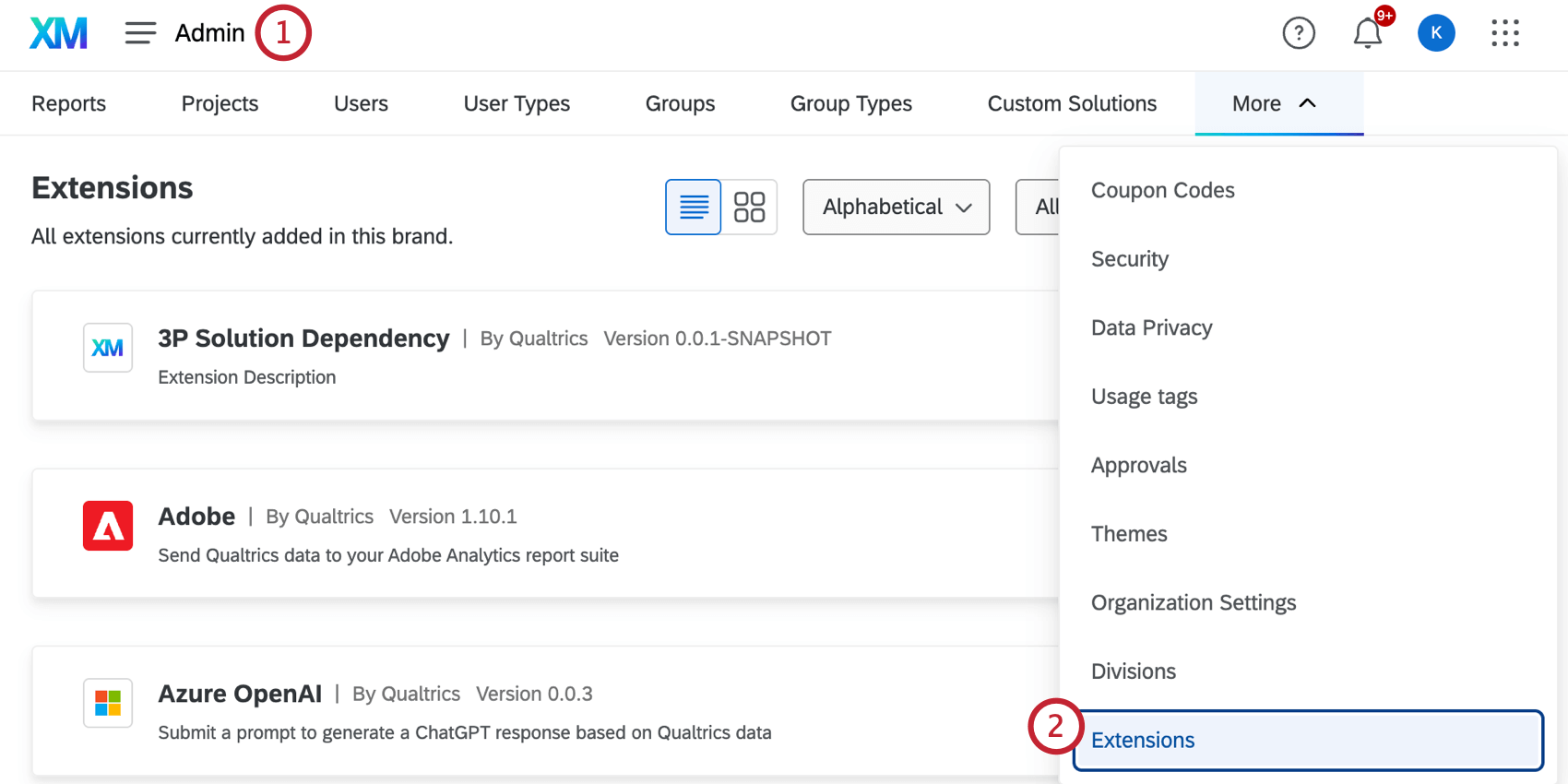
Qtip: You may need to click “More” to find this option.
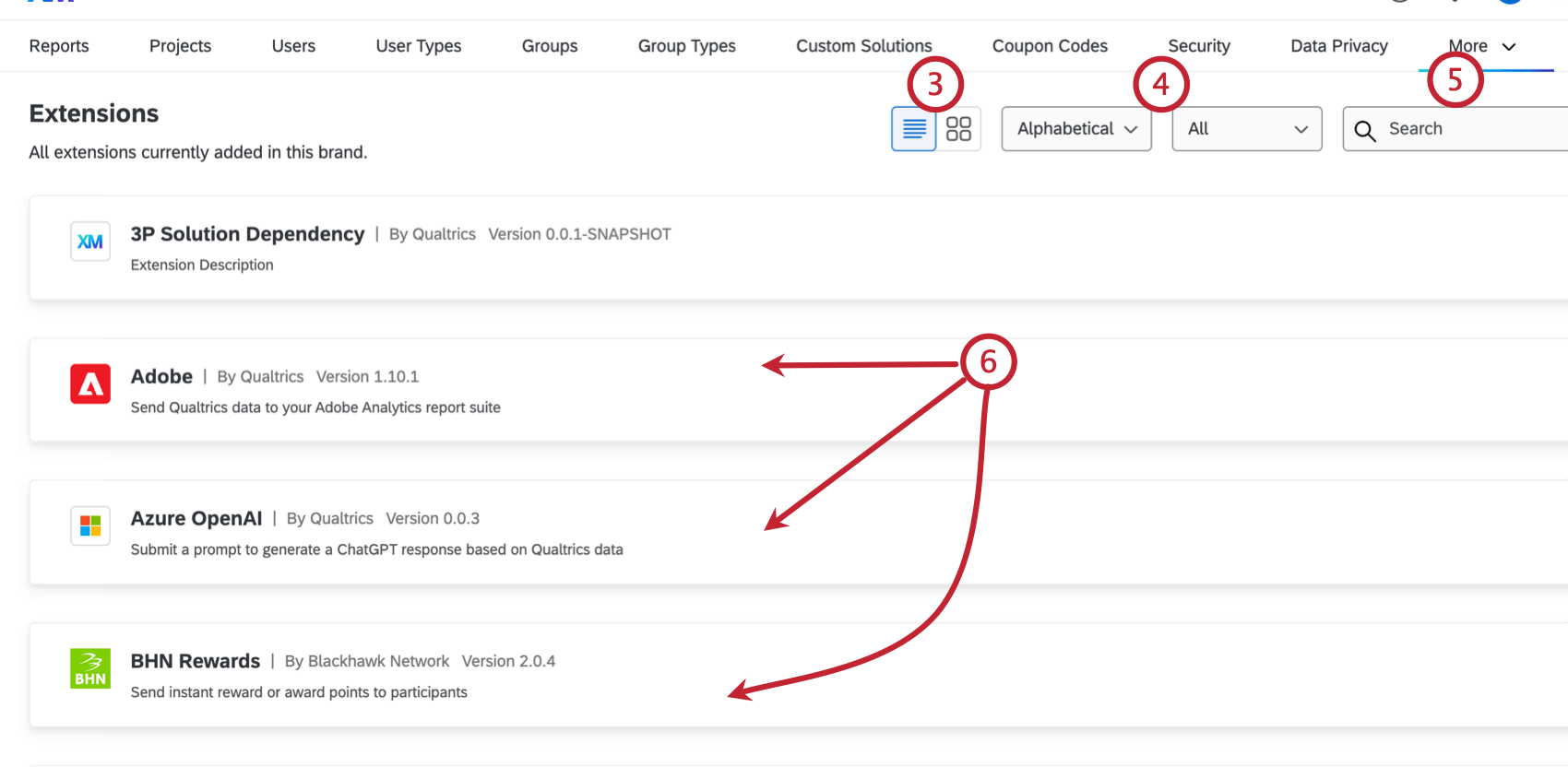
Available Extension Domains
Within each extension, Brand Administrators can view a list of all domains that a specific extension can connect with. This gives Brand Admins visibility into the access each extension has to their organization’s data. These domains can be viewed in two places:
Installing a new extension
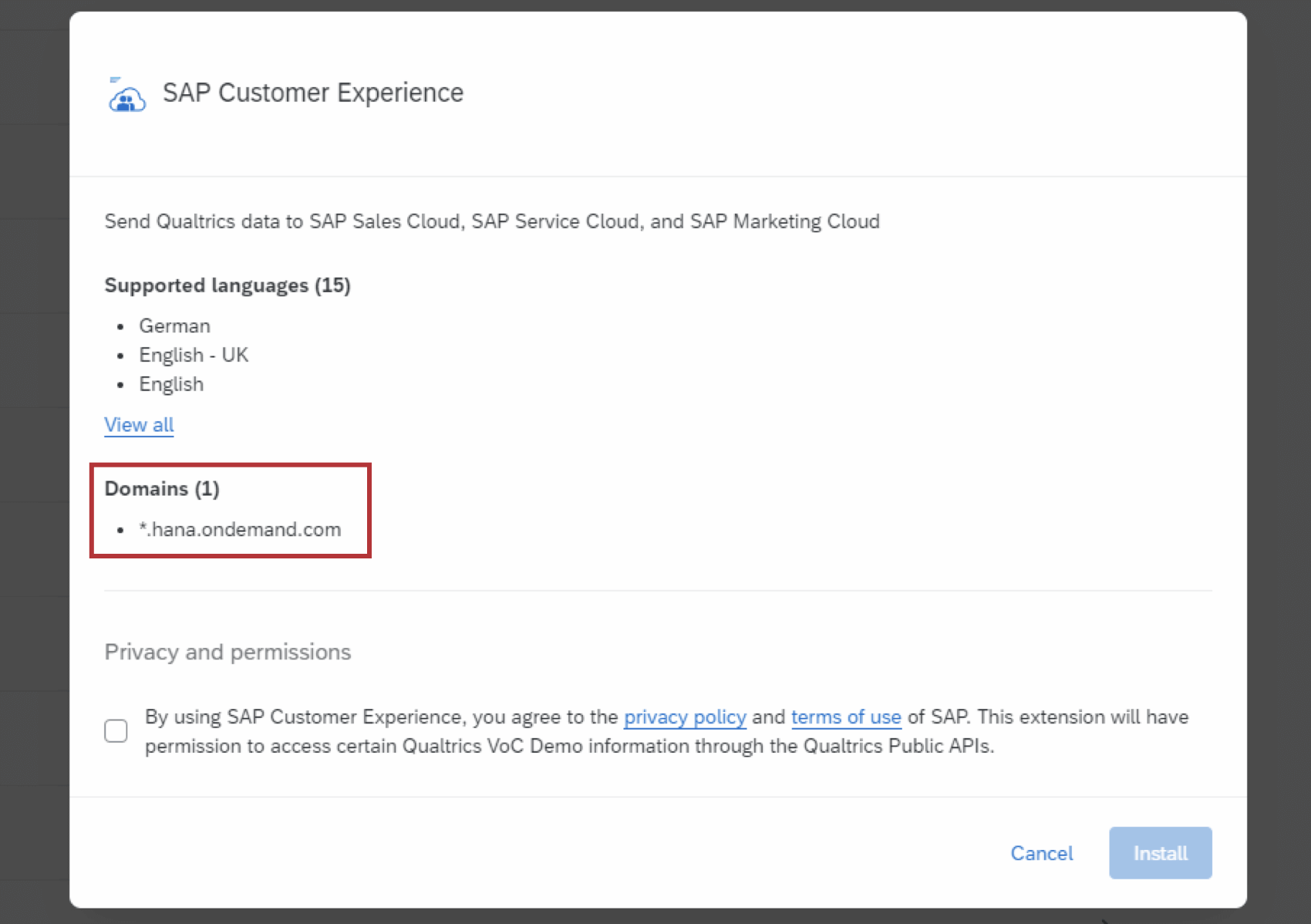
While installing a new third party extension, Brand Administrators will see a list of all the domains that extension can connect with.
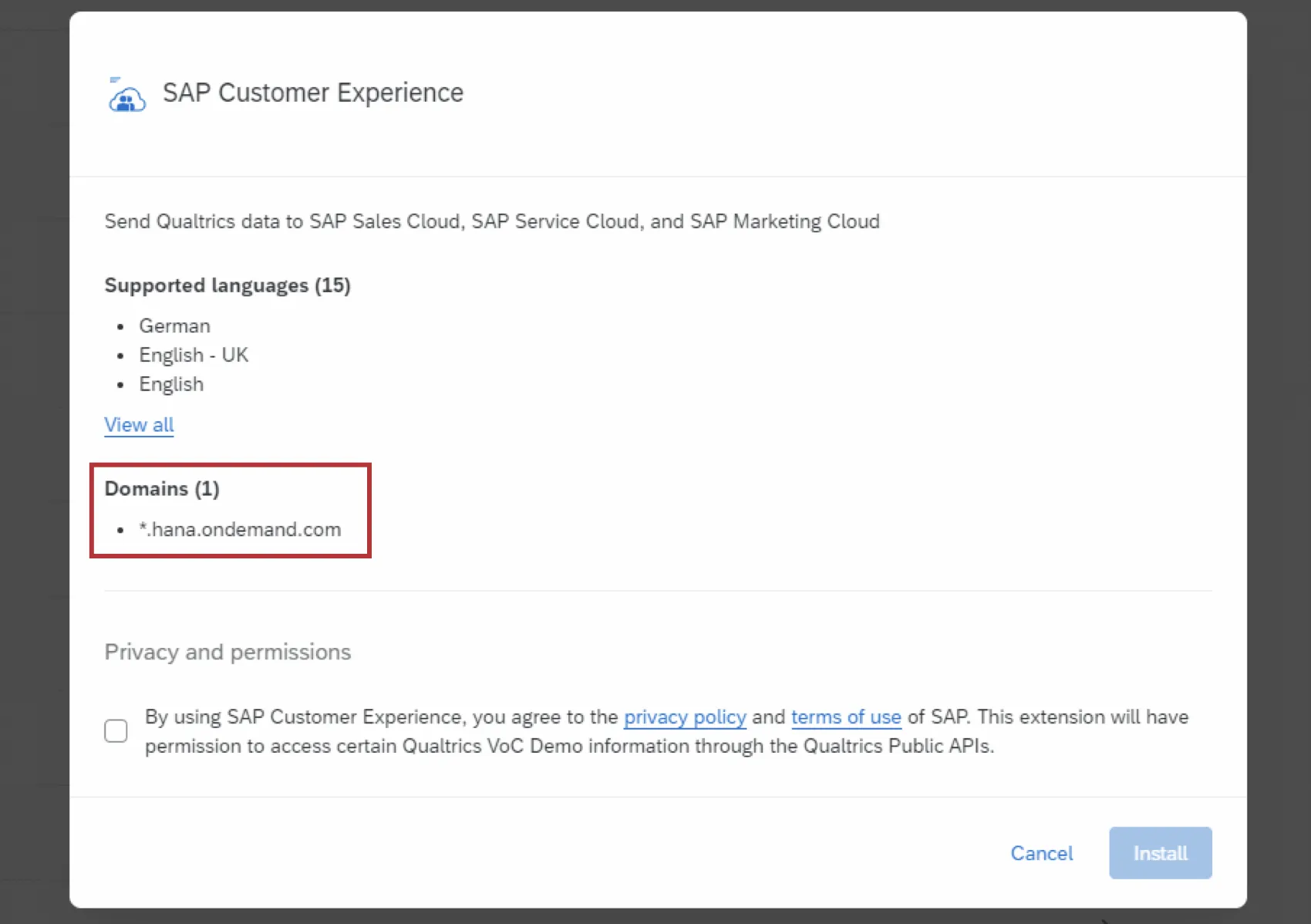
Attention: If there are no domains listed, all domains are blocked for that extension.
Managing Extension Domains
Some developers may allow you to configure what domains the extension has access to. You can add and remove additional domains after installing the extension. You can also add domains for the Qualtrics-built Web Service task. Please note that not all extensions allow you to add domains.
Example: You install a new third party extension which you need to connect to your company’s ticket system. Your company’s ticket system is hosted on your own website. To allow the extension to connect with your website, you must add its domain as a domain for the extension.

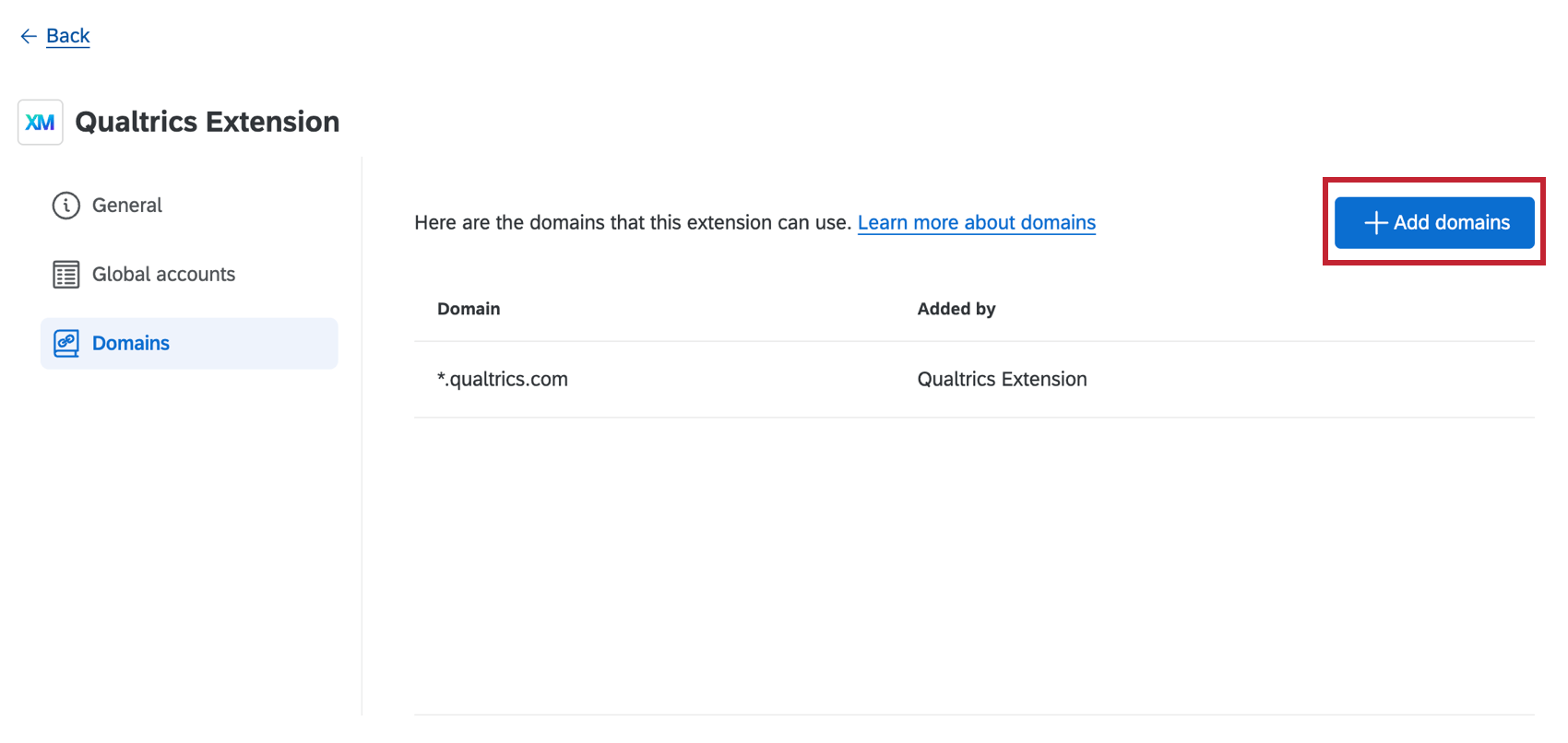
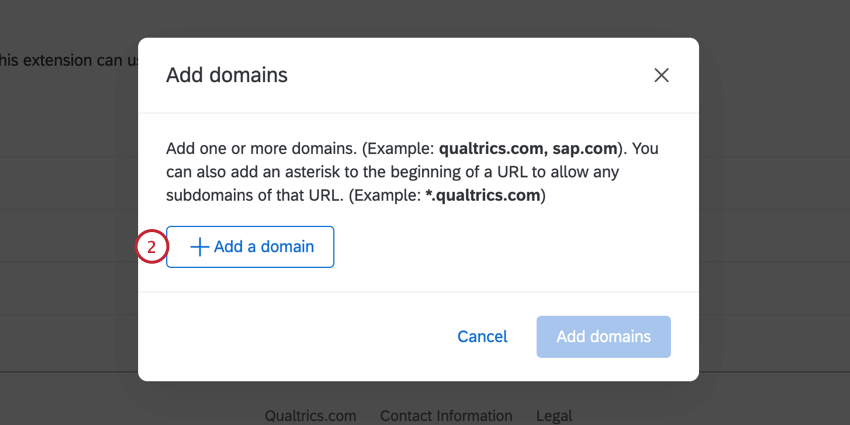
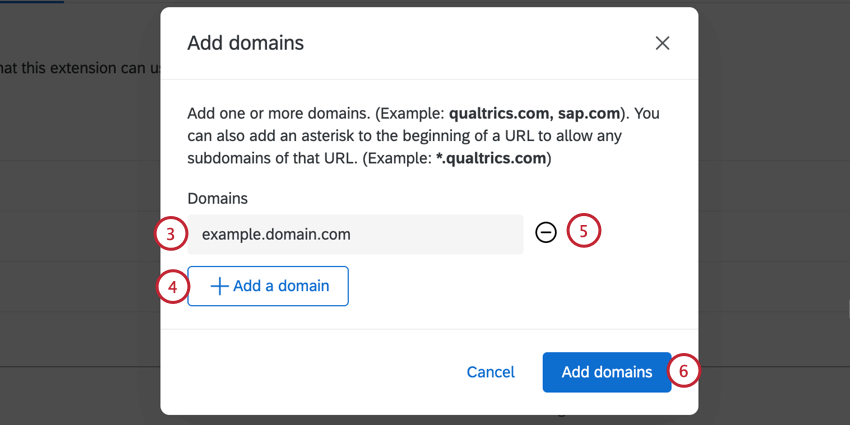
Qtip: We only allow https domains due to security reasons.
Example: Let’s say we wanted to add all subdomains and ports for our website, company.com. To add all subdomains, we can use a wildcard and add *.company.com. To add all ports, we can use another wildcard and add company.com:*.
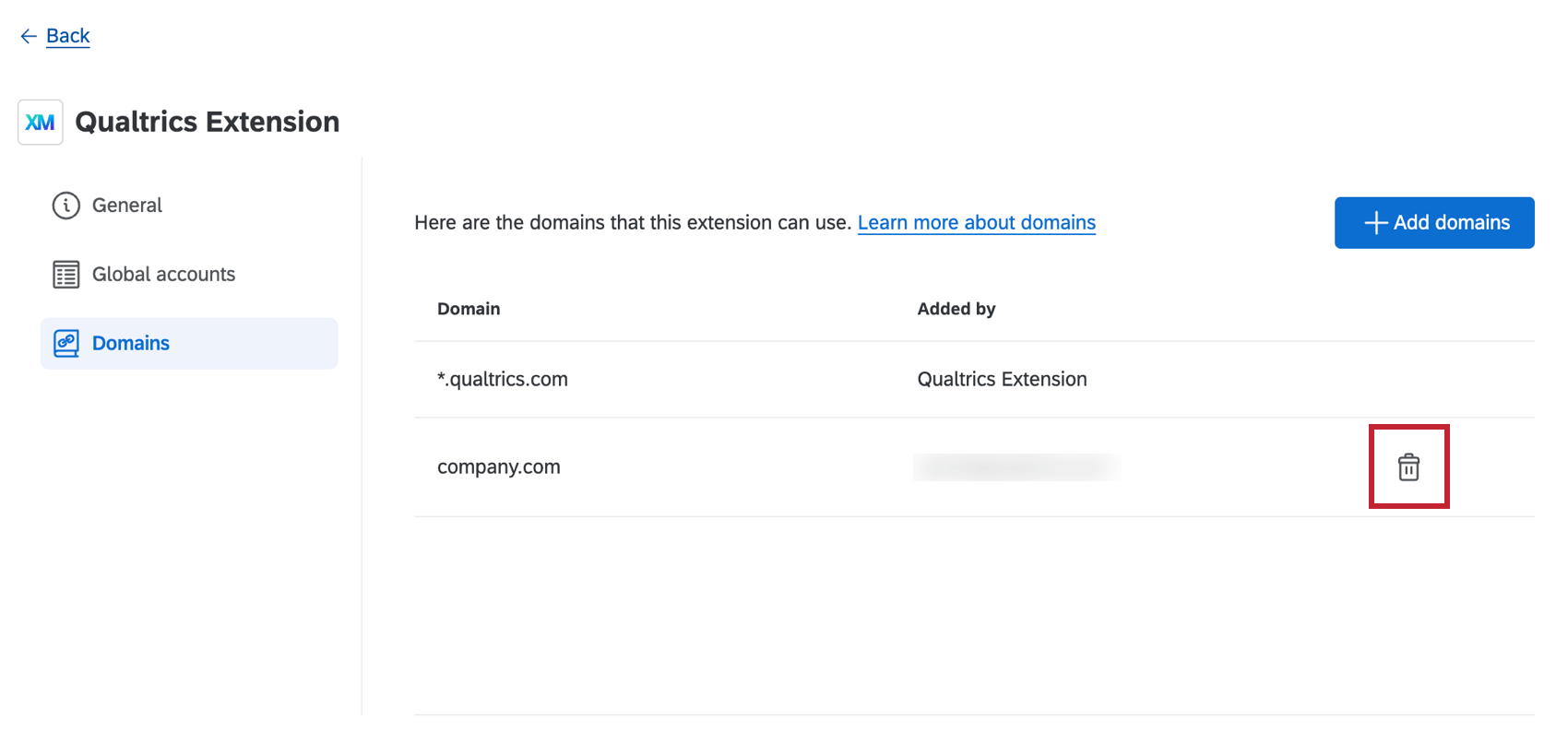
Viewing an Existing Extension
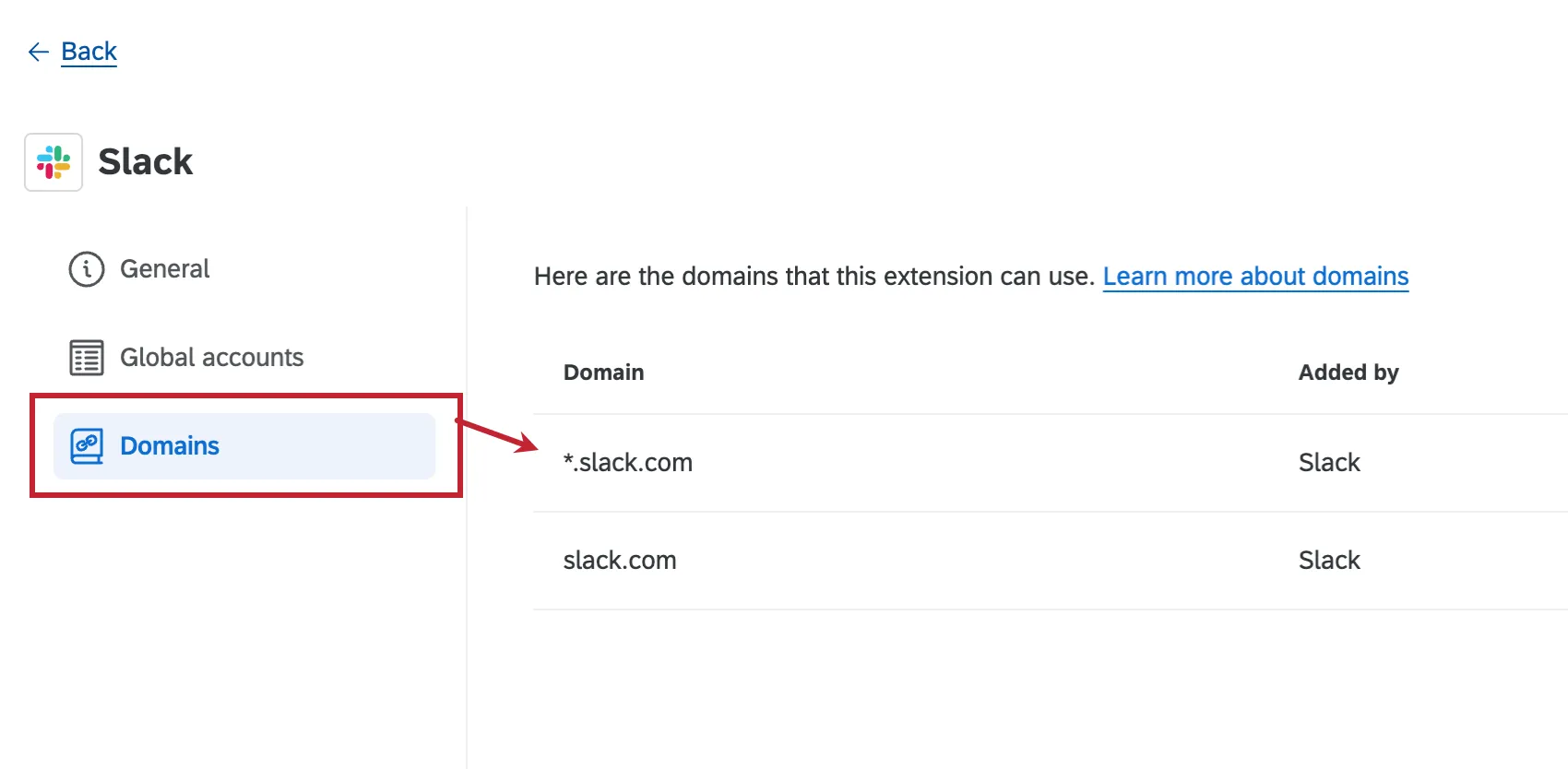
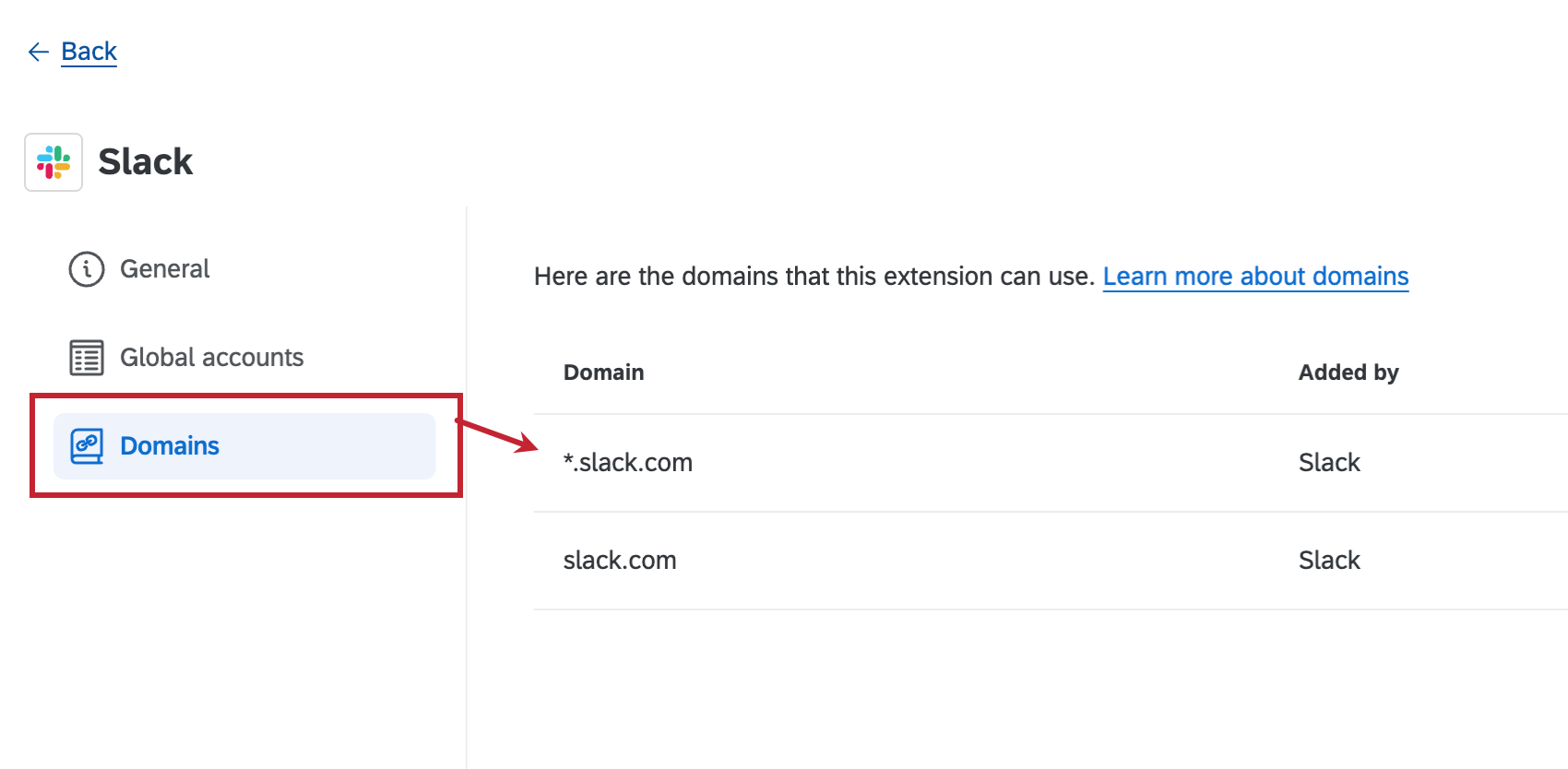
While viewing any existing extension, Brand Administrators can select the Domains tab to see a list of all the domains the extension can connect with.
Installing Third Party Extensions
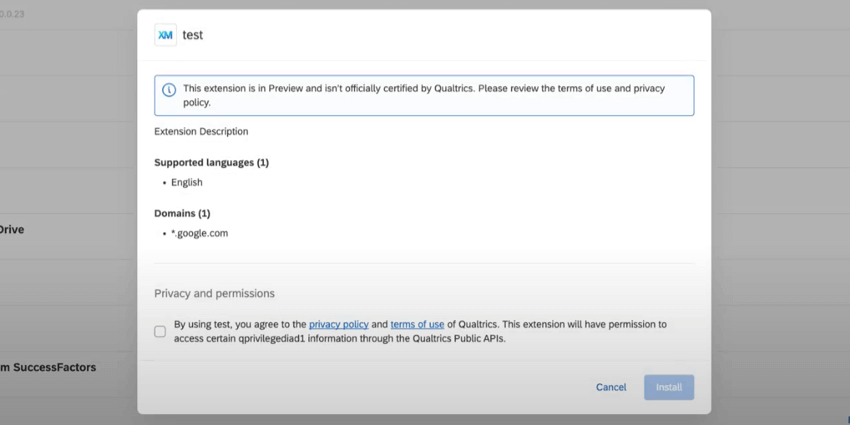
If you’ve been given access to a third party extension, you need to install the extension before you can use it.
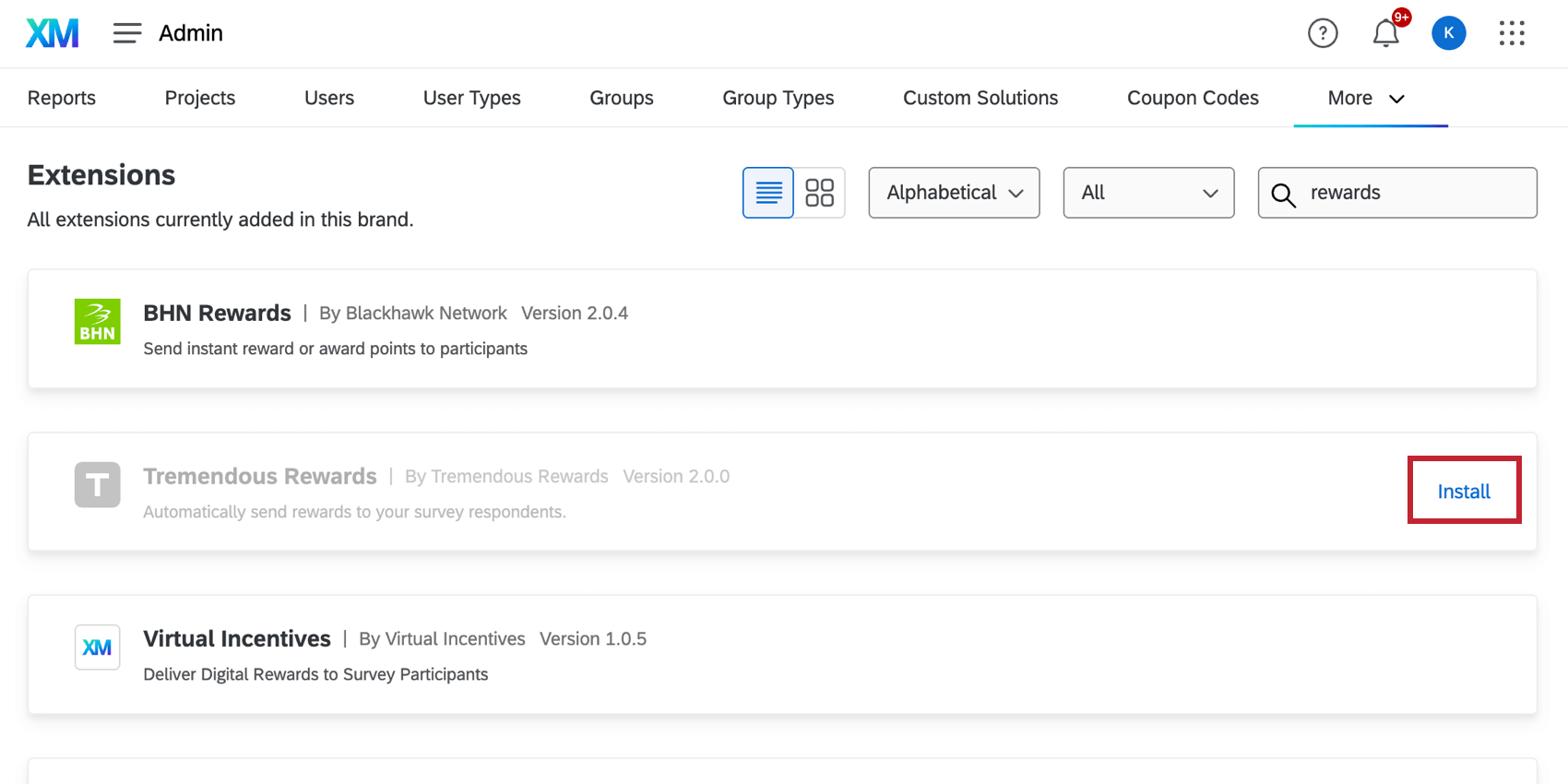
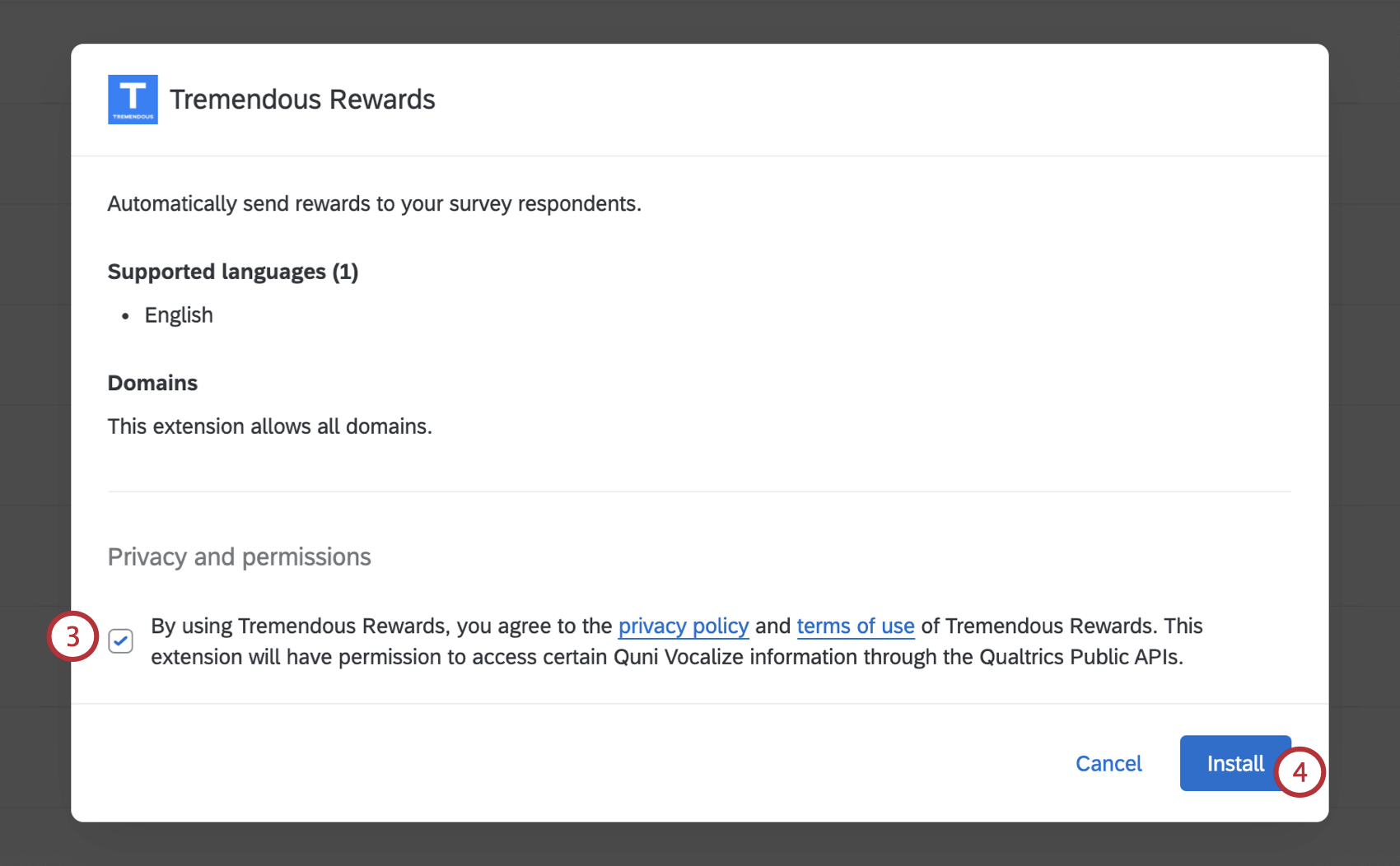
Attention: When using a third party extension, you will be asked to review and accept the extension’s privacy policy and terms of use. If you agree to these terms, the chosen third party extensions will have permission to access certain information from your Qualtrics brand through the Qualtrics Public APIs.
Qtip: After installing your extension, make sure to enable the extension for any users you want to have access.
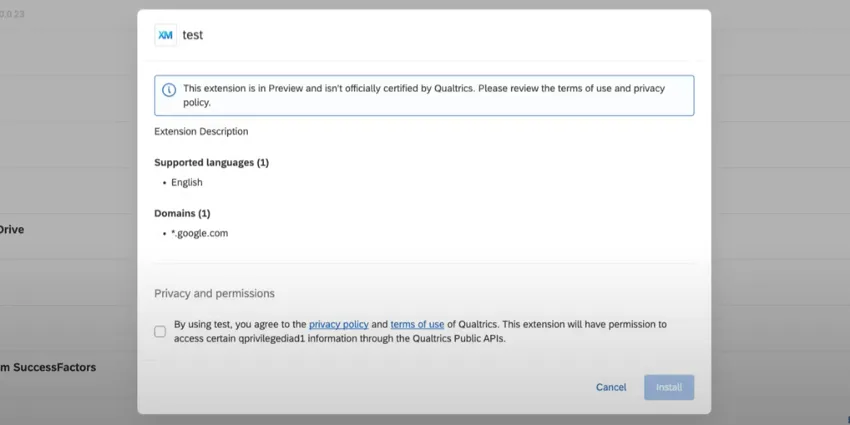
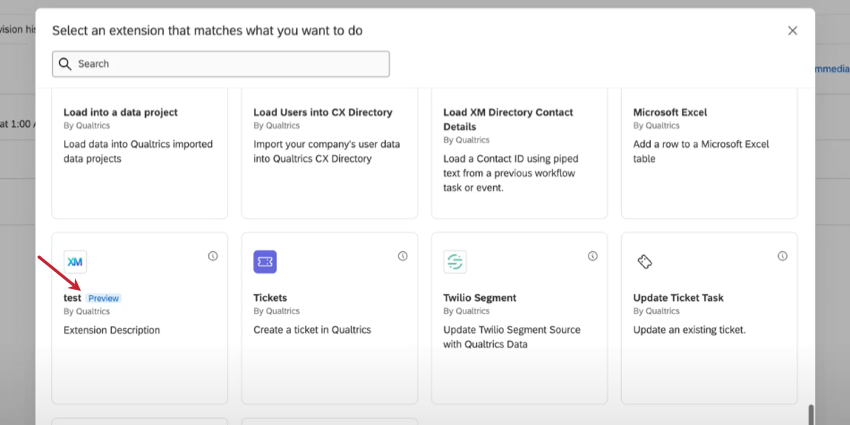
Qtip: Some third party extensions may be marked as “Preview.” This means the extension isn’t officially certified by Qualtrics. Consider the terms of use and privacy policy before deciding whether to install these extensions.

Only third-party extensions will ever be in preview. Extensions developed by Qualtrics are fully certified before they become available.
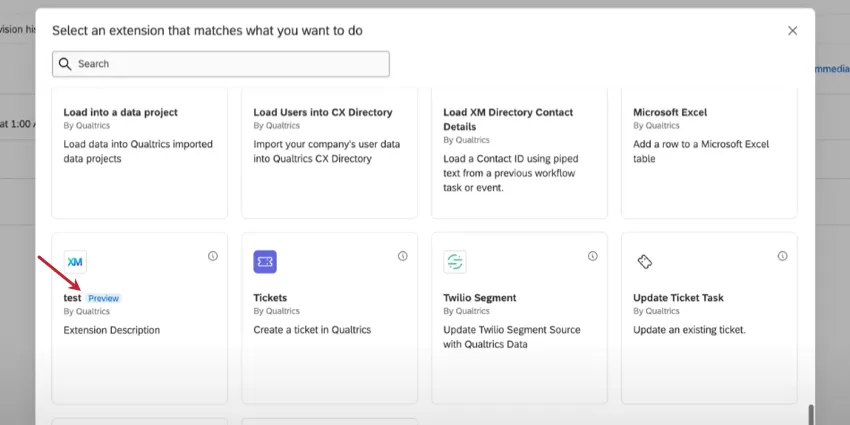
Extensions will also be marked as Preview when users add them to their workflows.
Uninstalling & Removing Third Party Extensions
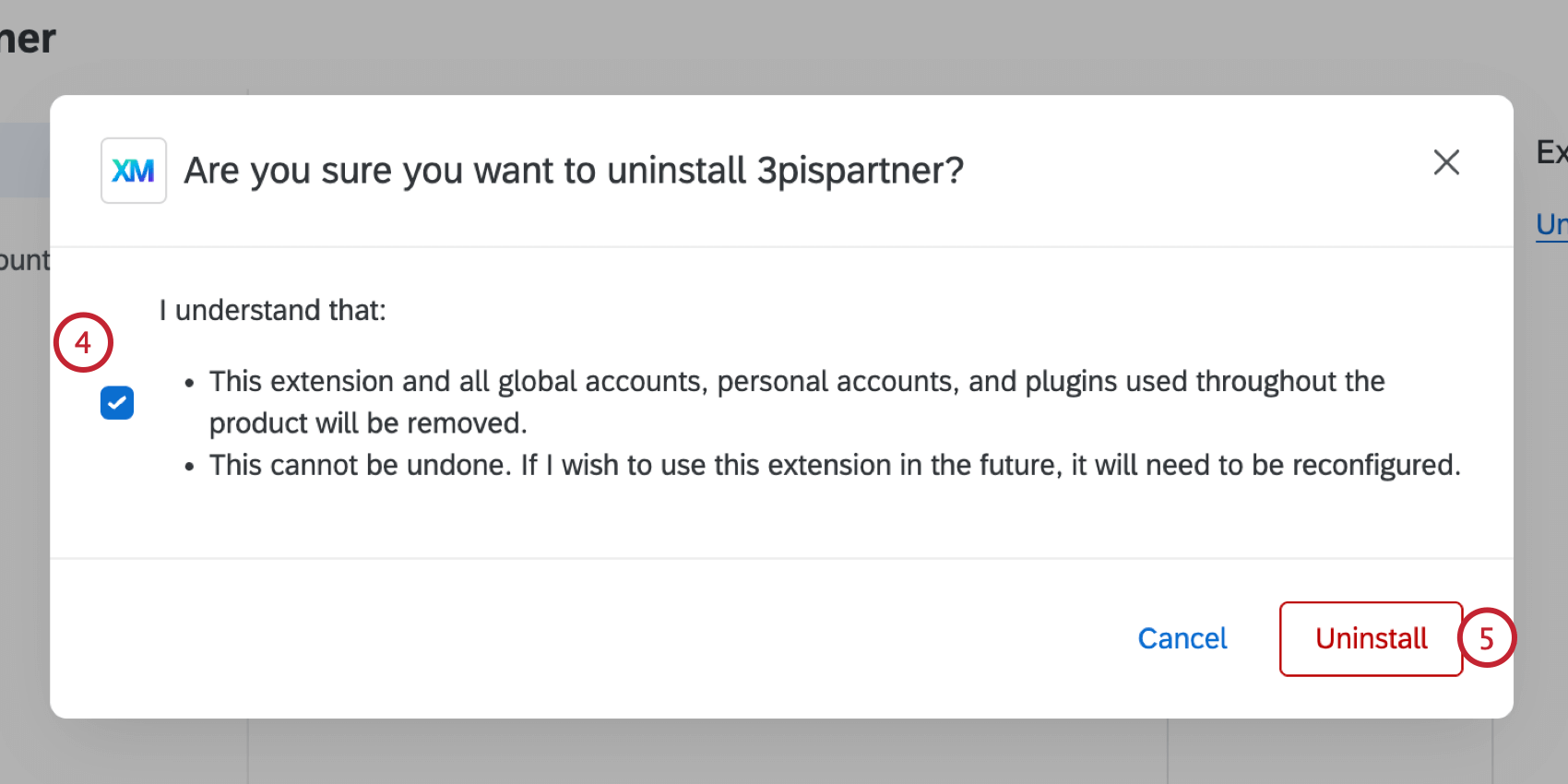
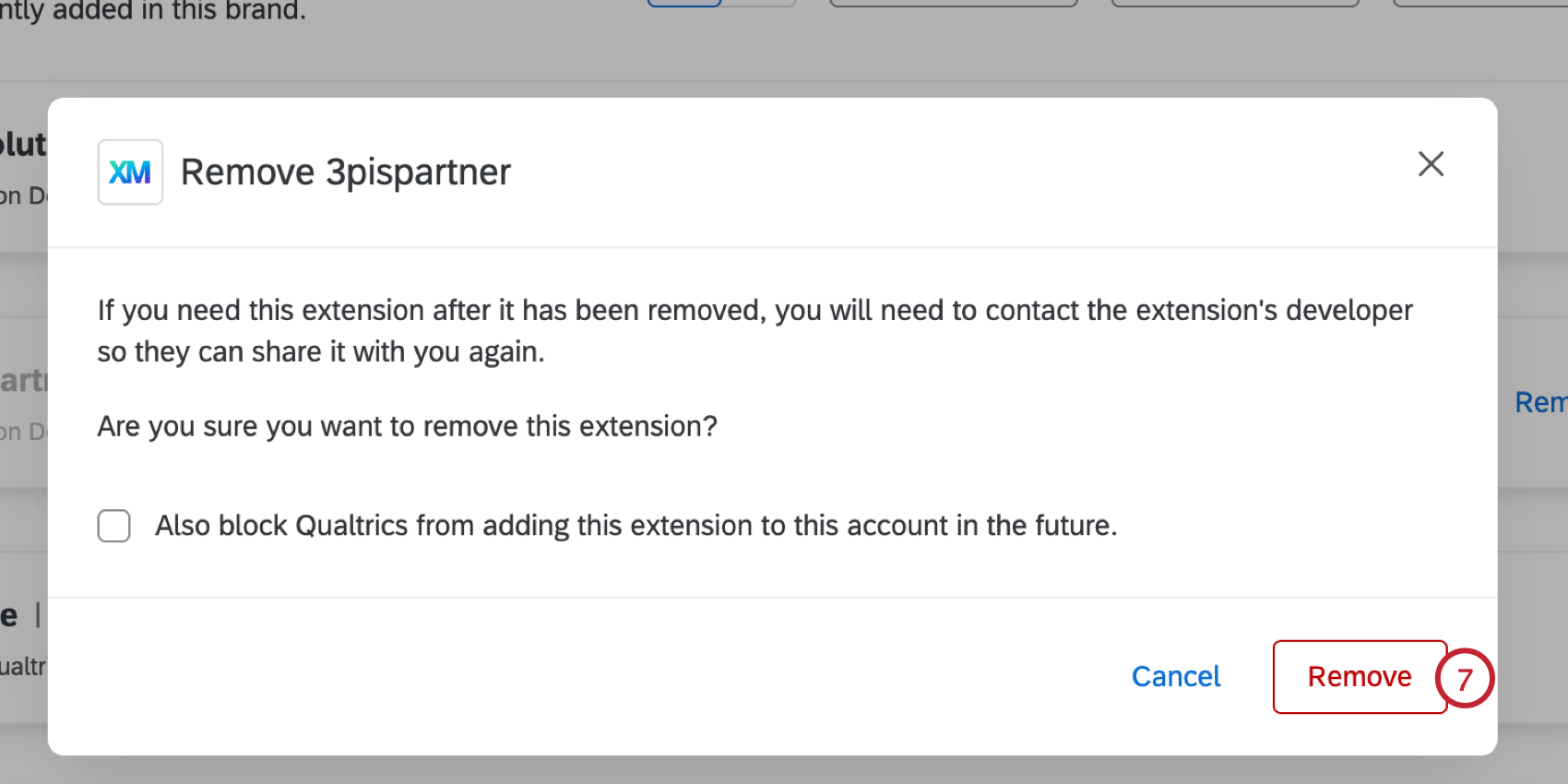
If needed, you can uninstall and remove third party extensions from your Qualtrics license. When uninstalling an extension, you revoke any access to that extension for all users in your license.
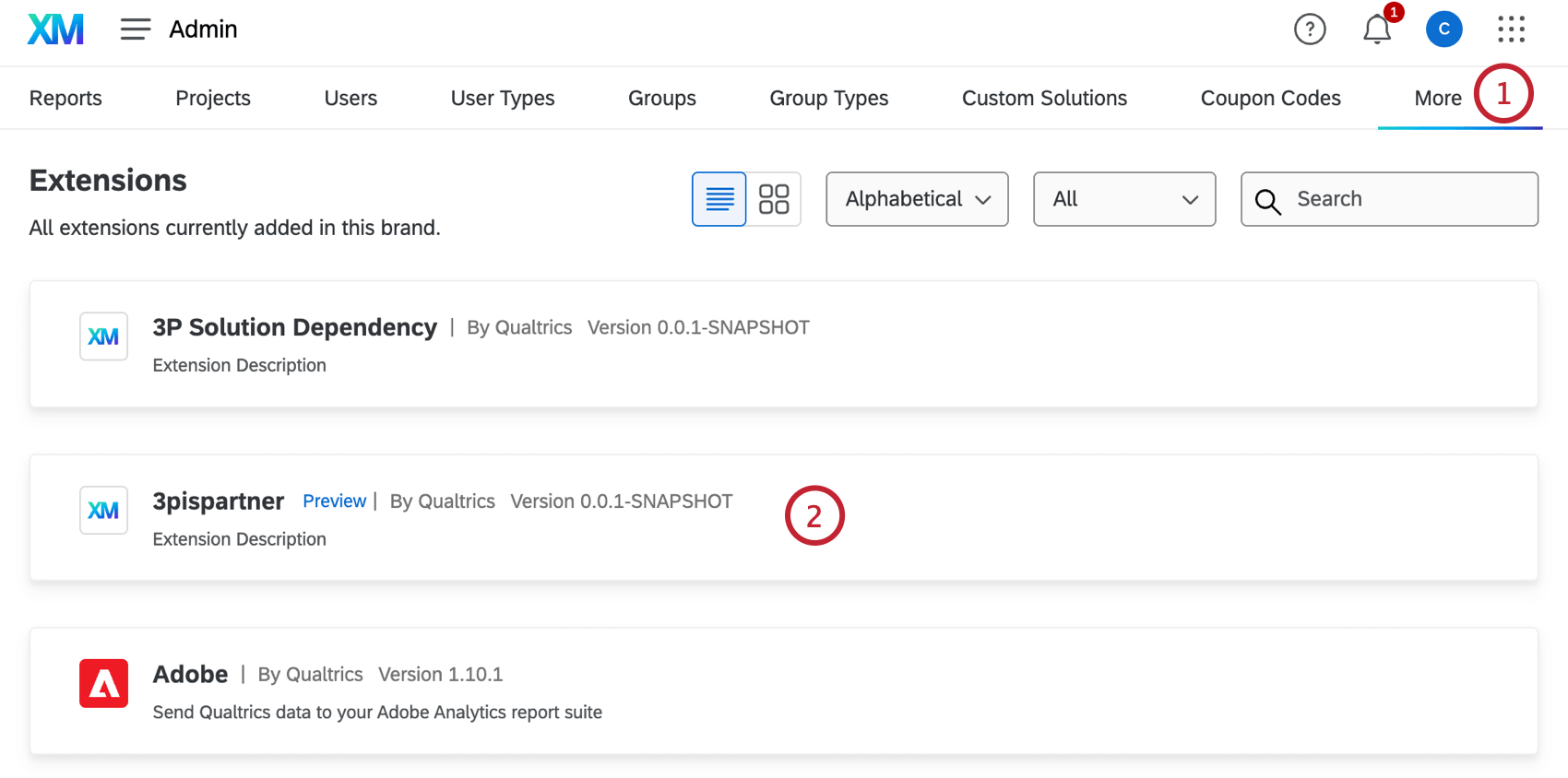
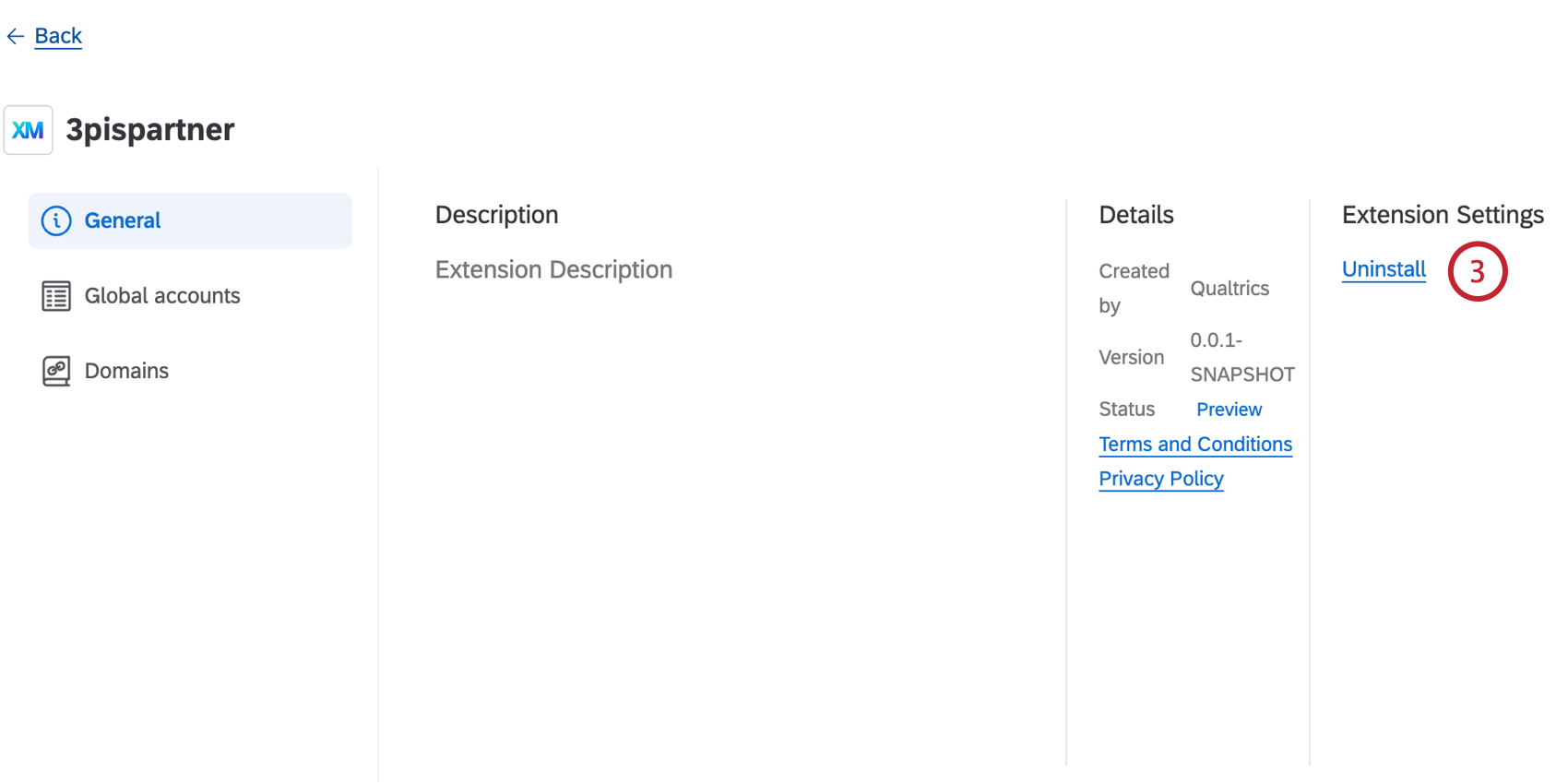
Qtip: If the extension does not have the option to uninstall it, then it is a first party extension. You cannot uninstall first party extensions.
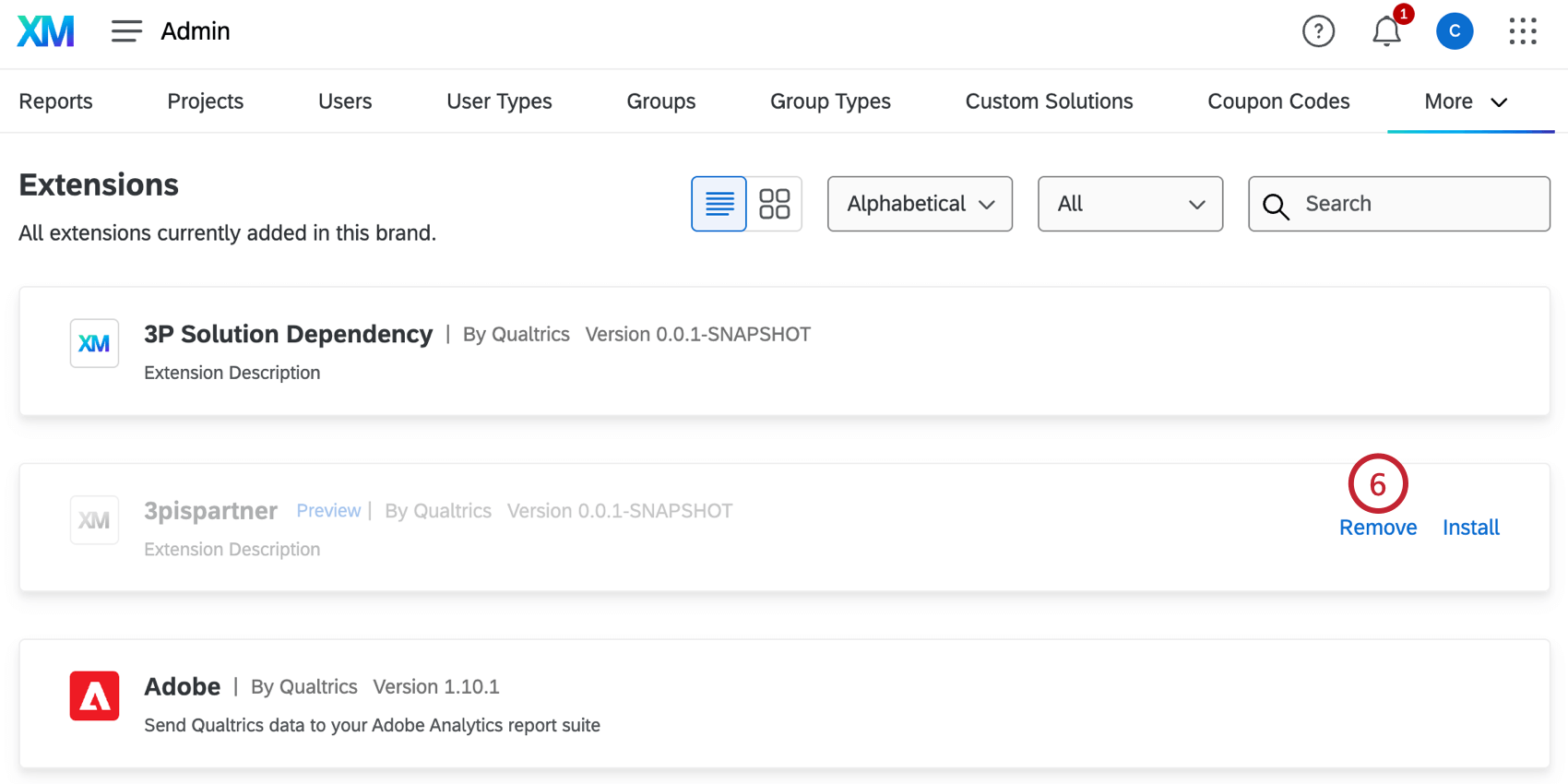
Qtip: You can only remove custom uninstalled third-party extensions that have been shared with your license. First-party apps cannot be removed.
Adding an Account
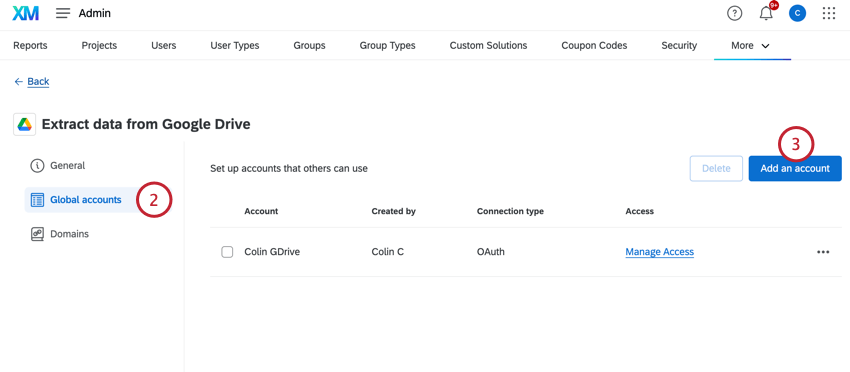
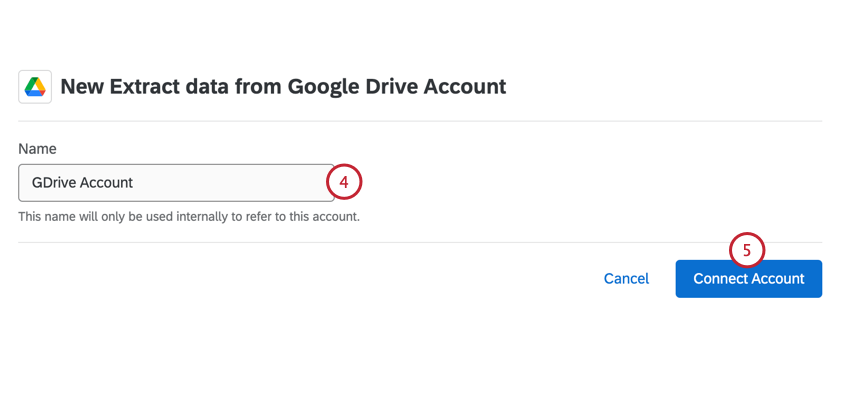
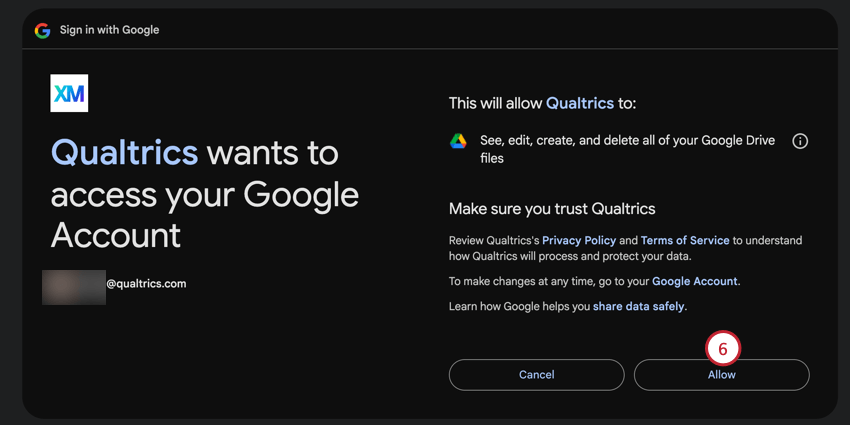
Qtip: Depending on the extension, there may be additional steps to complete. See the extension’s support page for more details. The Available Extensions section contains a list of available support pages.
If the account connection has been successful, you’ll be sent back to Qualtrics and see the account added on the extension’s page.
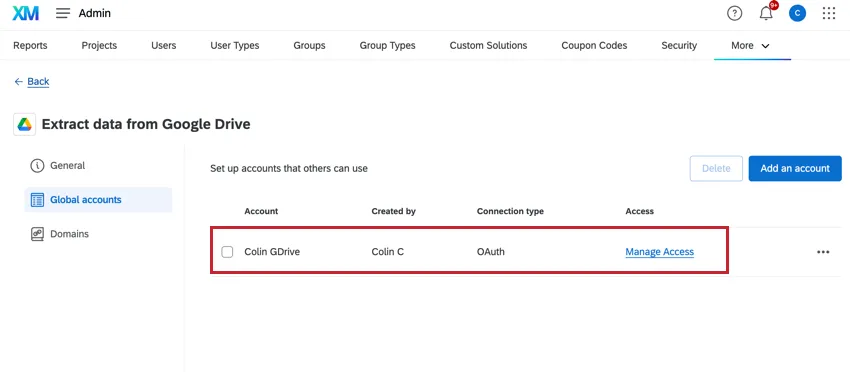
Editing Extension Accounts
You can easily change the credentials associated with your extension accounts. This is useful if your credentials have changed or are expired and need updating. When you change account credentials here, the credentials are updated across all workflows that use the account.
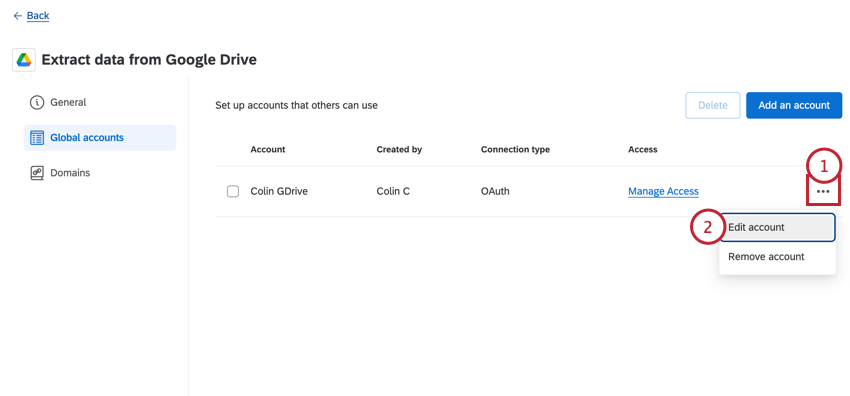
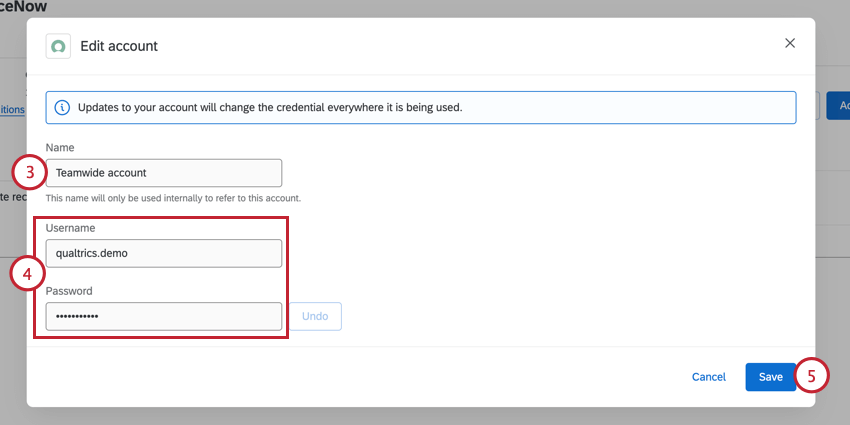
Determining Who Can Use an Extension Account
After adding an account, you can choose which users in your license can use the account. You can also give other Brand Administrators ownership access over an account, which allows them to remove the account and determine what users have access to the account.
Qtip: You will only be able to limit access to accounts for which you are listed as an owner or creator.
Adding Account Access
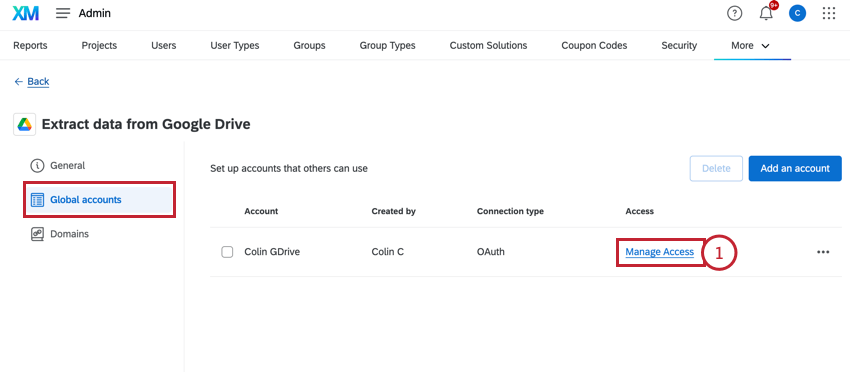
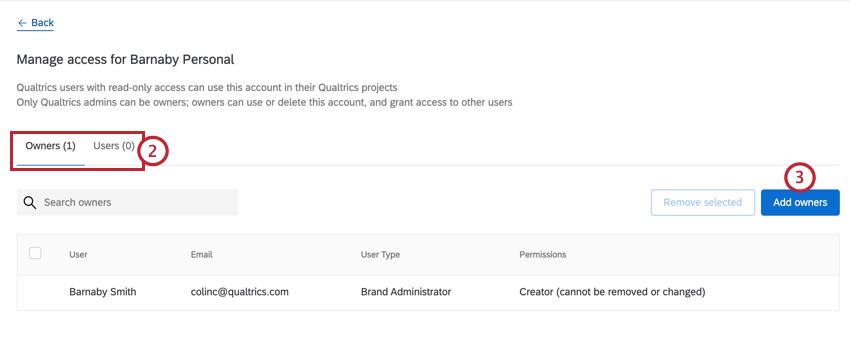
Your options include:
- Owner: Allows the user to use the account in extensions, delete the account from the brand, and control which users have access to the extension account. Only Brand Administrators can be listed as owners.
- User: Allows the user to use the account in extensions.
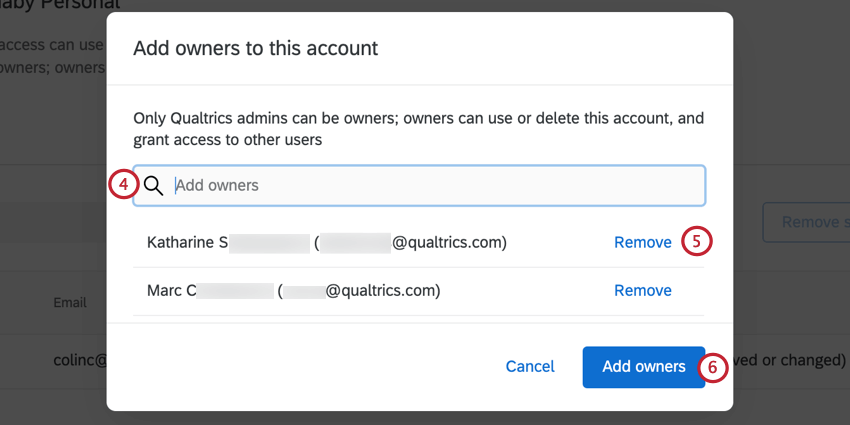
Qtip: To quickly grant access to every user in your entire license, go to the Users section and click Give access to all users. This will give them user-access for the account. You cannot grant owner-access to all users in this way.

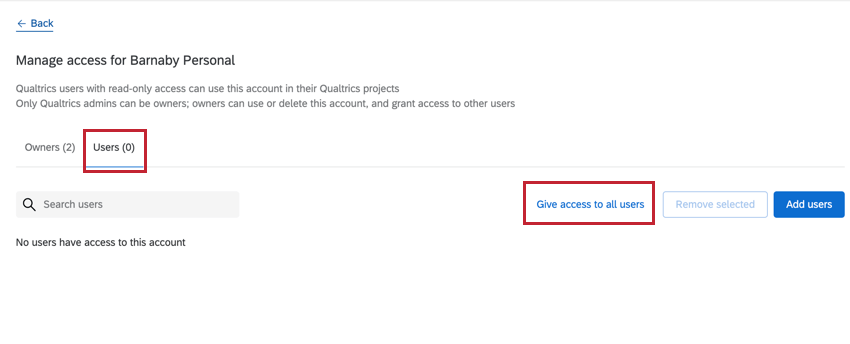
Managing Account Access
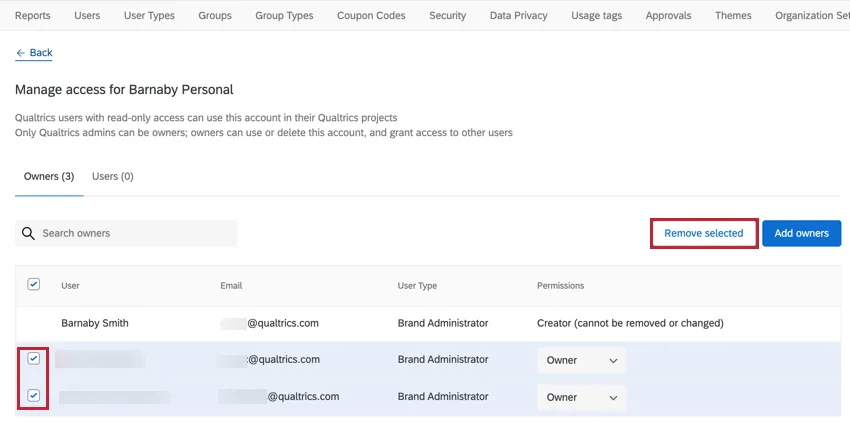
Users with access to the account will be listed in a table in the Manage Access page. As an owner for an extension, you can manage account access through the following:
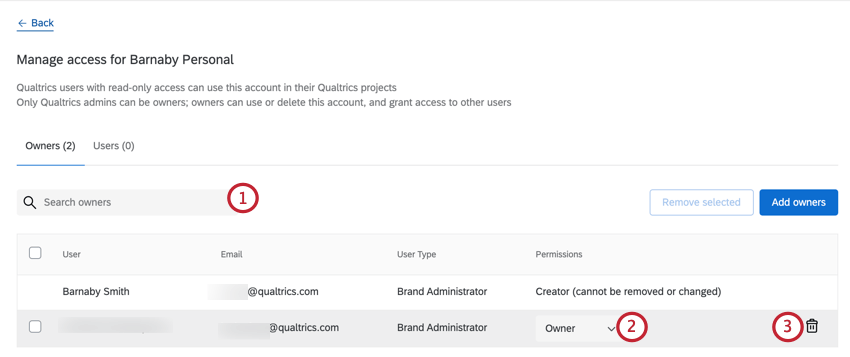
Qtip: The user who added the account originally will be listed as the Creator. You cannot change their permissions or remove the creator from the account.
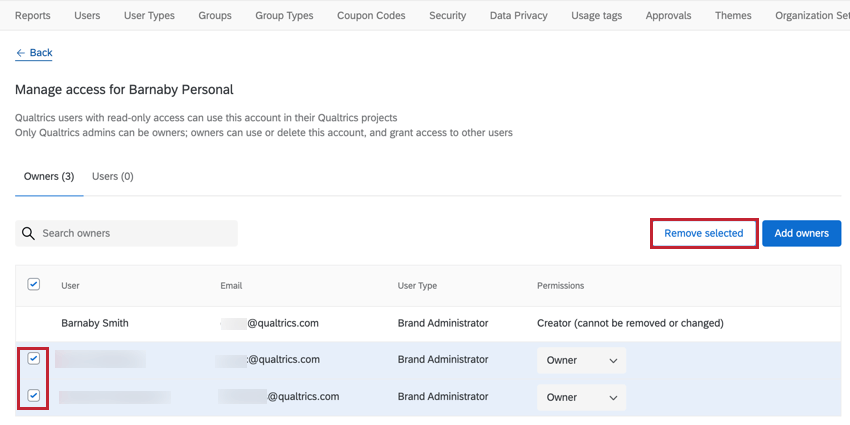
Qtip: You can remove multiple users at once by clicking the checkbox next to the user and then clicking Remove selected.

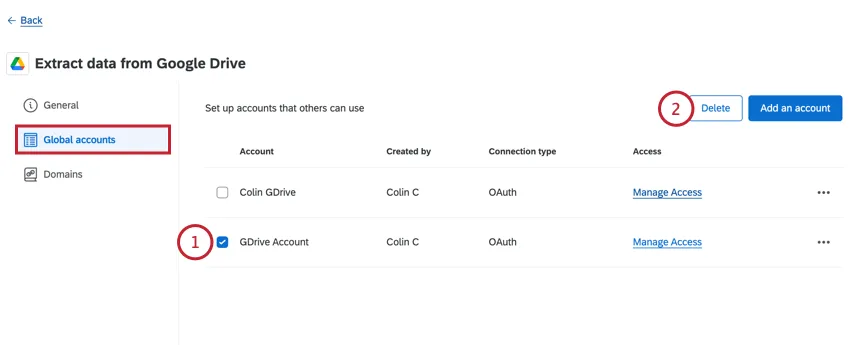
Deleting an Account
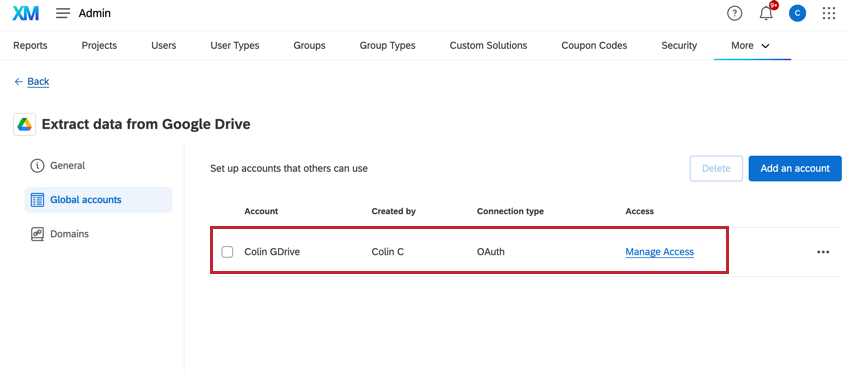
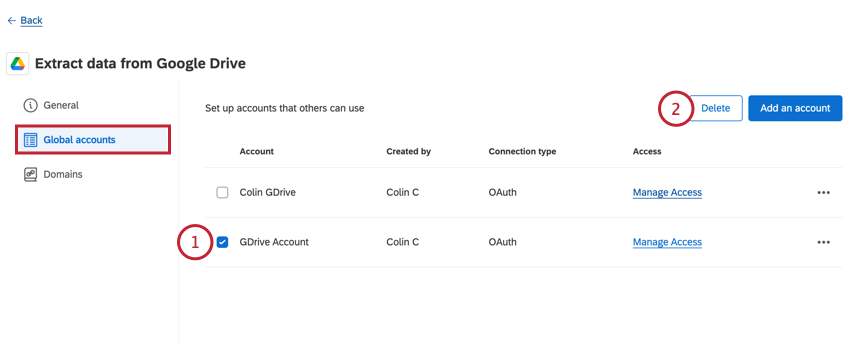
You can remove an account so that members of your Qualtrics brand are no longer able to integrate with it.
Qtip: If there are no accounts to select on this page, you did not connect any accounts to your brand.
Support for Third Party Extensions
If an extension is created by Qualtrics, then it is called a first party extension. This means the Qualtrics Support Team is prepared to support it, and you will find a page explaining the feature by searching the official Qualtrics Support Site. This accounts for a majority of the extensions we offer, even if they integrate with a different service. For example, we developed the extensions that allow you to connect to ServiceNow, Google Sheets, Salesforce, and more!
On the other hand, sometimes extensions are developed by other companies for use in Qualtrics. These are called third party extensions. Although these extensions are put through a rigorous approval process by Qualtrics, they aren’t officially developed by us. That means our Support Team cannot always support this extension, and there will not be a page for it on our Support Site.
However, that doesn’t mean there’s no way to get help! Every extension is required to provide the following information:
The screenshot below shows where this information can be found inside the Workflows page when adding an event or a task to your workflow.
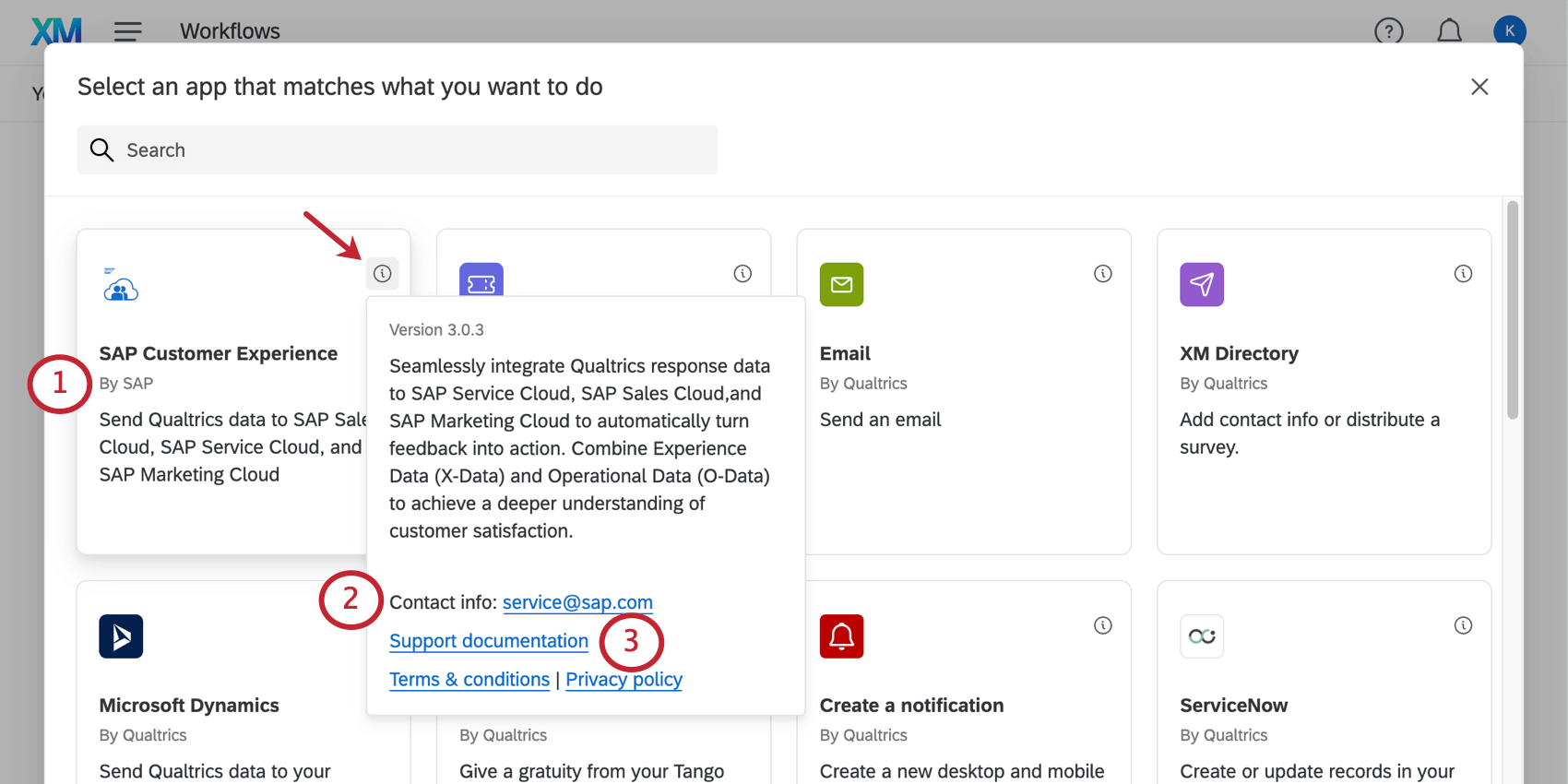
Here it is easy to tell between first and third party extensions, because first party extensions all say “By Qualtrics” under the extension’s title, while third party extensions say “By [another company’s name].”
Example: You are trying to connect to an extension created by a company named Tread.
Scenario A: If you are having issues within the Tread software, or you are trying to find certain IDs and API keys from your Tread account in order to connect to Qualtrics, then reach out to Tread’s support team.
Scenario B: If you are having issues setting up a workflow in Qualtrics, then reach out to the Qualtrics Support team.
Scenario C: If you see error messages or other issues in the Qualtrics interface when you try to set up your Tread extension, you may need to reach out to both support teams. If you reach out to Qualtrics, we are happy to help narrow down the source of the issue. However, keep in mind that we may need to redirect you if we find we’ve reached the limit of what we can do to resolve it.
FAQs
How can I tell the difference between first party and third party extensions? Where do I go for support for either kind?
How can I tell the difference between first party and third party extensions? Where do I go for support for either kind?
That's great! Thank you for your feedback!
Thank you for your feedback!