

Configuring SAML as an Identity Provider
What's on this page
About Configuring SAML as an Identity Provider
Qualtrics has the ability to connect with any Identity Provider (IdP) system that meets the SAML Technical Requirements. The system-specific instructions provided here are not all-inclusive; only IdP systems that are most often configured with Qualtrics have instructions publicly available. If your system is not included, more detailed settings will be provided by Qualtrics during the implementation process.
You can find our full metadata file in your Organization SSO settings. However, please find our Assertion Consumer URL and Entity ID below:
Depending on your IdP, you may need to use one metadata file over the other.
Qtip: Don’t know your OrganizationID or datacenter? Click the hyperlinks in either this Qtip or any of the sections on this support page for directions to find them.
Active Directory Federation Service (ADFS)
GENERAL SETTINGS
Qualtrics has the ability to connect with Microsoft Active Directory Federation Service (ADFS). You can find our full metadata file in your Organization SSO settings.
The link found in the Organization settings can be uploaded into the Set-up Wizard to pre-populate the following settings:
- Relying Party Trust Identifier (SP Entity ID):
https://OrganizationID.datacenter.qualtrics.com - Endpoint (Assertion Consumer Service URL):
https://OrganizationID.datacenter.qualtrics.com/login/v1/sso/saml2/default-sp
Qtip: The Relay State is only needed if you would like users to be able to login to the platform via IdP-initiated SSO. By default, the Relay State will take users to the Homepage of their account. If you would like to more directly control where users land when they enter their account, you can append an endpoint to the Relay State. The endpoint will vary depending on the platform you would like users to redirect to upon successful authentication. The endpoint should be added to the endpoint URL as follows:
https://OrganizationID.datacenter.qualtrics.com/endpoint?ssoConfigId=
The table below summarizes what the endpoint should be set to for each platform:
Platform Endpoint Standard Qualtrics /ControlPanel Employee Experience /ee/dashboards 360 /EX/ParticipantPortal Customer Experience /Vocalize
Attention: If you are unsure of how to do this, please reach out to Microsoft ADFS support.

ATTRIBUTES
Qualtrics requires LDAP Attributes to be released for use in the Username and Email Address Qualtrics fields. All other attributes are optional.
Qtip: The Username attribute must contain values that are unique, unchanging, and not confidential. The Email Address attribute must contain values in the format of an email (i.e., value@email.com).
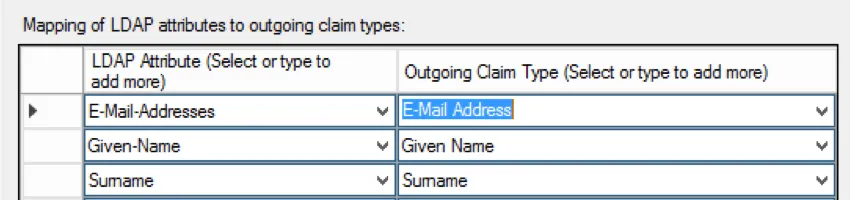
Qtip: Qualtrics is only able to consume attributes passed within the Attribute Statement of the SAML response. For that reason, please do not select “Name ID” as the Outgoing Claim Type for any of your LDAP Attributes.
Microsoft Entra
Qualtrics has the ability to connect with Microsoft Entra via the Qualtrics Enterprise Application or a custom application.
Qtip: Please note that within Microsoft Entra, the name of the Qualtrics Enterprise Application is SAP Qualtrics.
ENTERPRISE APPLICATION SETTINGS
When configuring the Qualtrics Enterprise Application within Microsoft Entra, the settings below can be used:

- Sign on URL (SP base URL):
https://OrganizationID.datacenter.qualtrics.com - Identifier (SP Entity ID):
https://OrganizationID.datacenter.qualtrics.com - Reply URL (Assertion Consumer Service URL):
https://OrganizationID.datacenter.qualtrics.com/login/v1/sso/saml2/default-sp
Attention: The Qualtrics enterprise application doesn’t support IdP-initiated SSO. If you’d like to support an IdP-initiated login, you will need to configure a custom application.
CUSTOM APPLICATION SETTINGS
When configuring the Qualtrics custom application within Microsoft Entra, the settings below can be used:
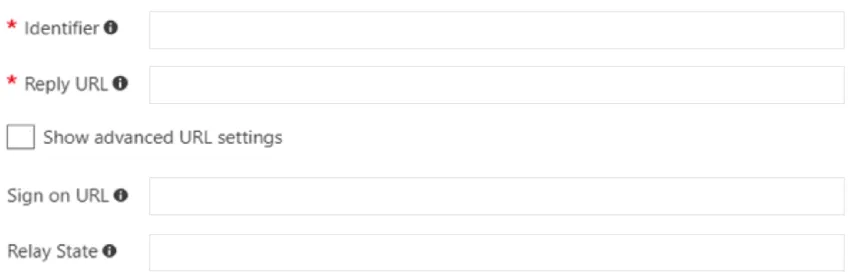
- Identifier (SP Entity ID):
https://OrganizationID.datacenter.qualtrics.com - Reply URL (Assertion Consumer Service URL):
https://OrganizationID.datacenter.qualtrics.com/login/v1/sso/saml2/default-sp - Sign On URL (SP base URL):
https://OrganizationID.datacenter.qualtrics.com Relay State:
https://OrganizationID.datacenter.qualtrics.com?ssoConfigId=xxxxxxxx
Qtip: The SSO Config ID and full Relay State can be found in your Organization SSO settings.
Qtip: The Relay State is only needed if you would like users to be able to login to the platform via IdP-initiated SSO. By default, the Relay State will take users to the Homepage of their account. If you would like to more directly control where users land when they enter their account, you can append an endpoint to the Relay State. The endpoint will vary depending on the platform you would like users to redirect to upon successful authentication. The endpoint should be added to the endpoint URL as follows:
https://OrganizationID.datacenter.qualtrics.com/endpoint?ssoConfigId=
The table below summarizes what the endpoint should be set to for each platform:
Platform Endpoint Standard Qualtrics /ControlPanel Employee Experience /ee/dashboards 360 /EX/ParticipantPortal Customer Experience /Vocalize
ATTRIBUTES
Qualtrics requires SAML Attributes to be released for use in the Username and Email Address Qualtrics fields. All other attributes are optional.
Qtip: The Username attribute must contain values that are unique, unchanging, and not confidential. The Email Address attribute must contain values in the format of an email (i.e., value@email.com).
Below are the usual attributes:
| Field in Qualtrics | Attribute Name |
|---|---|
| Email Address | http://schemas.xmlsoap.org/ws/2005/05/identity/claims/emailaddress |
| First Name | http://schemas.xmlsoap.org/ws/2005/05/identity/claims/givenname |
| Last Name | http://schemas.xmlsoap.org/ws/2005/05/identity/claims/surname |
Centrify
Qualtrics has the ability to connect with Centrify via the Qualtrics default web application or a custom application.
DEFAULT WEB APPLICATION SETTINGS
Attention: Please use the custom application when configuring SAML settings in the Organization SSO tab.
When configuring the Qualtrics default application within Centrify, the settings below can be used:
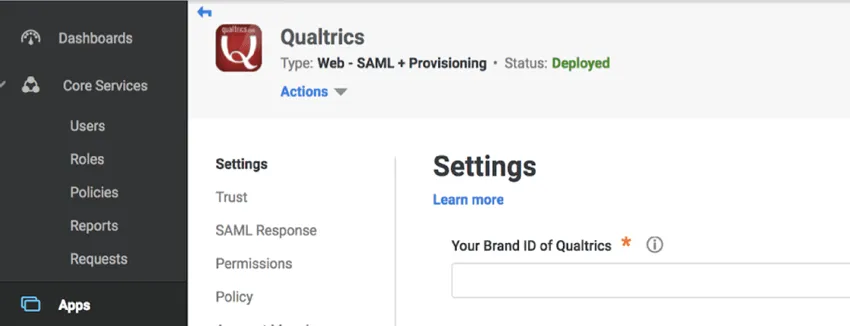
- Your Brand ID of Qualtrics: Brand ID
Attention: The Qualtrics Enterprise Application doesn’t support IdP-initiated SSO. If you’d like to support IdP-initiated logins, you will need to configure a custom application.
CUSTOM APPLICATION SETTINGS
When configuring the custom application within Centrify, the settings below can be used:
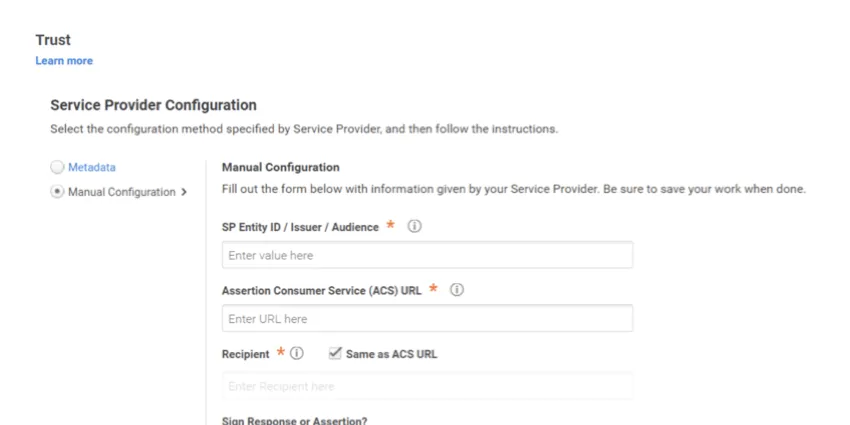
- SP Entity ID / Issuer / Audience:
https://OrganizationID.datacenter.qualtrics.com - Assertion Consumer Service (ACS) URL:
https://OrganizationID.datacenter.qualtrics.com/login/v1/sso/saml2/default-sp - Recipient:
https://OrganizationID.datacenter.qualtrics.com/login/v1/sso/saml2/default-sp
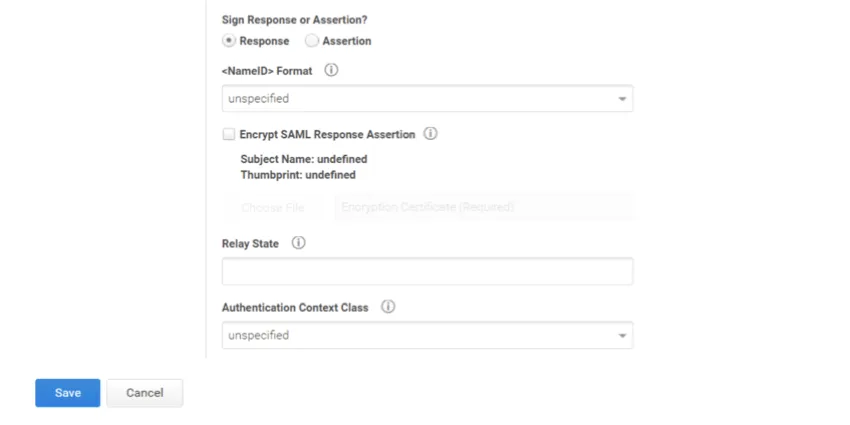
Relay State:
https://OrganizationID.datacenter.qualtrics.com?ssoConfigId=xxxxxxxxQtip: The SSO Config ID and full Relay State can be found in your Organization SSO settings.
Qtip: The Relay State is only needed if you would like users to be able to login to the platform via IdP-initiated SSO. By default, the Relay State will take users to the Homepage of their account. If you would like to more directly control where users land when they enter their account, you can append an endpoint to the Relay State. The endpoint will vary depending on the platform you would like users to redirect to upon successful authentication. The endpoint should be added to the endpoint URL as follows:
https://OrganizationID.datacenter.qualtrics.com/endpoint?ssoConfigId=
The table below summarizes what the endpoint should be set to for each platform:
Platform Endpoint Standard Qualtrics /ControlPanel Employee Experience /ee/dashboards 360 /EX/ParticipantPortal Customer Experience /Vocalize
ATTRIBUTES
Qualtrics requires SAML Attributes to be released for use in the Username and Email Address Qualtrics fields. All other attributes are optional.
Qtip: The Username attribute must contain values that are unique, unchanging, and not confidential. The Email Address attribute must contain values in the format of an email (i.e., value@email.com).
G-Suite
Qualtrics has the ability to connect with Google G-Suite via the default application or a custom application.
DEFAULT APPLICATION SETTINGS
When configuring the default application within G-Suite, the settings below can be used:
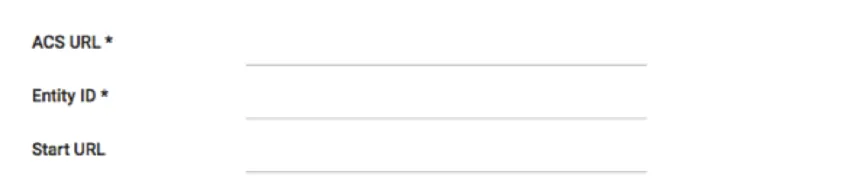
- ACS URL (Assertion Consumer Service URL): https://OrganizationID.datacenter.qualtrics.com/login/v1/sso/saml2/default-sp
- Entity ID (SP Entity ID): https://OrganizationID.datacenter.qualtrics.com
Start URL (Relay State):
https://OrganizationID.datacenter.qualtrics.com?ssoConfigId=xxxxxxxxQtip: The SSO Config ID and full Relay State can be found in your Organization SSO settings.
Qtip: The Start URL is only needed if you would like users to be able to login to the platform via IdP-initiated SSO. By default, the Start URL will take users to the Homepage of their account. If you would like to more directly control where users land when they enter their account, you can append an endpoint to the Start URL. The endpoint will vary depending on the platform you would like users to redirect to upon successful authentication. The endpoint should be added to the endpoint URL as follows:
https://OrganizationID.datacenter.qualtrics.com/endpoint?ssoConfigId=
The table below summarizes what the endpoint should be set to for each platform:
Platform Endpoint Standard Qualtrics /ControlPanel Employee Experience /ee/dashboards 360 /EX/ParticipantPortal Customer Experience /Vocalize
ATTRIBUTES
Qualtrics requires SAML Attributes to be released for use in the Username and Email Address Qualtrics fields. All other attributes are optional.
Qtip: The Username attribute must contain values that are unique, unchanging, and not confidential. The Email Address attribute must contain values in the format of an email (i.e., value@email.com).
Custom Application SETTINGS
When configuring a custom application within G-Suite, the settings below can be used:
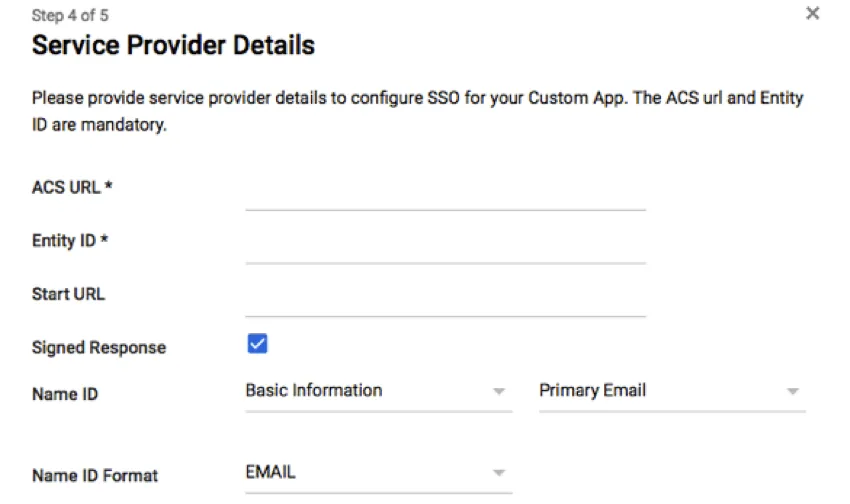
- ACS URL (Assertion Consumer Service URL):
https://OrganizationID.datacenter.qualtrics.com/login/v1/sso/saml2/default-sp - Entity ID (SP Entity ID):
https://OrganizationID.datacenter.qualtrics.com Start URL (Relay State):
https://OrganizationID.datacenter.qualtrics.com?ssoConfigId=xxxxxxxxQtip: The SSO Config ID and full Relay State can be found in your Organization SSO settings.
Qtip: The Start URL is only needed if you would like users to be able to login to the platform via IdP-initiated SSO. By default, the Start URL will take users to the Homepage of their account. If you would like to more directly control where users land when they enter their account, you can append an endpoint to the Start URL. The endpoint will vary depending on the platform you would like users to redirect to upon successful authentication. The endpoint should be added to the endpoint URL as follows:
https://OrganizationID.datacenter.qualtrics.com/endpoint?ssoConfigId=
The table below summarizes what the endpoint should be set to for each platform:
Platform Endpoint Standard Qualtrics /ControlPanel Employee Experience /ee/dashboards 360 /EX/ParticipantPortal Customer Experience /Vocalize
ATTRIBUTES
Qualtrics requires SAML Attributes to be released for use in the Username and Email Address Qualtrics fields. All other attributes are optional.
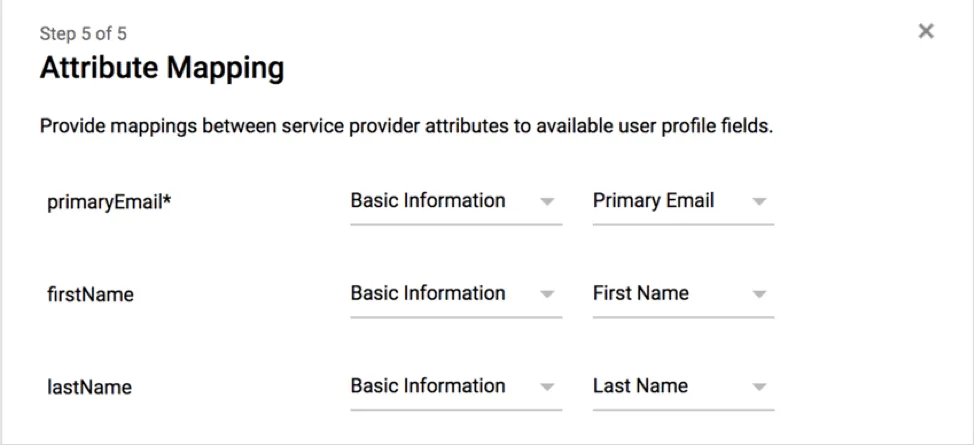
Qtip: The Username attribute must contain values that are unique, unchanging, and not confidential. The Email Address attribute must contain values in the format of an email (i.e., value@email.com).
Okta
Qualtrics has the ability to connect with Okta via the Qualtrics SAML default application or a custom application.
DEFAULT APPLICATION SETTINGS
Attention: Please use the custom application when configuring SAML settings in the Organization SSO tab.
When configuring the Qualtrics SAML default application within Okta, the settings below can be used:
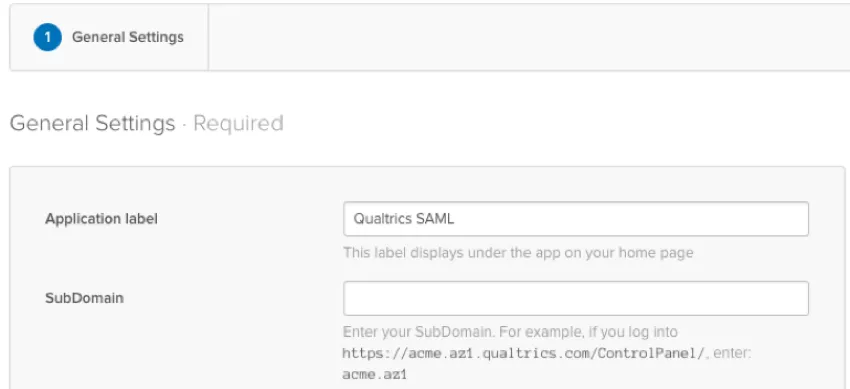
- SubDomain:
OrganizationID.datacenter
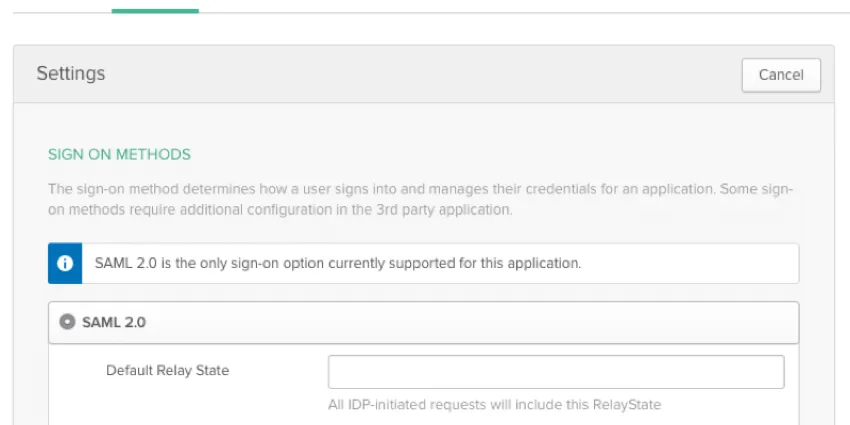
Default Relay State:
https://OrganizationID.datacenter.qualtrics.com?ssoConfigId=xxxxxxxxQtip: The SSO Config ID and full Relay State can be found in your Organization SSO settings.
Qtip: The Relay State is only needed if you would like users to be able to login to the platform via IdP-initiated SSO. By default, the Relay State will take users to the Homepage of their account. If you would like to more directly control where users land when they enter their account, you can append an endpoint to the Relay State. The endpoint will vary depending on the platform you would like users to redirect to upon successful authentication. The endpoint should be added to the endpoint URL as follows:
https://OrganizationID.datacenter.qualtrics.com/endpoint?ssoConfigId=
The table below summarizes what the endpoint should be set to for each platform:
Platform Endpoint Standard Qualtrics /ControlPanel Employee Experience /ee/dashboards 360 /EX/ParticipantPortal Customer Experience /Vocalize
CUSTOM APPLICATION SETTINGS
When configuring the custom application within Okta, the settings below can be used:
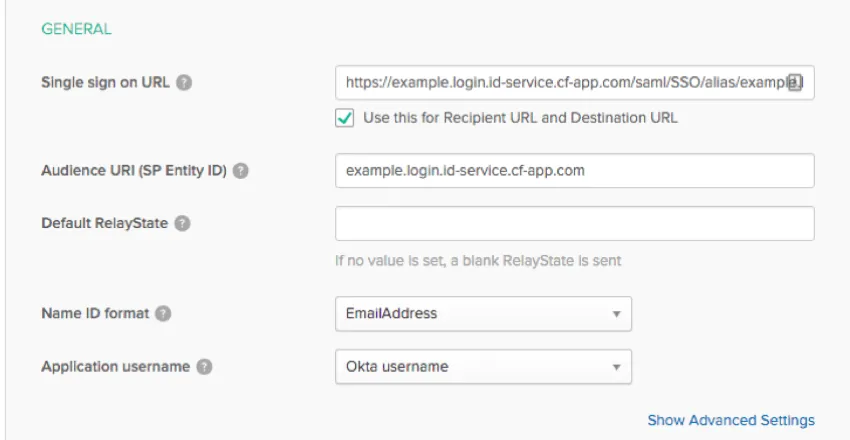
Single sign on URL (Assertion Consumer Service URL):
https://OrganizationID.datacenter.qualtrics.com/login/v1/sso/saml2/default-spQtip: Be sure that Use this for Recipient URL and Destination URL is checked.
- Audience URI (SP Entity ID):
https://OrganizationID.datacenter.qualtrics.com Default Relay State:
https://OrganizationID.datacenter.qualtrics.com?ssoConfigId=xxxxxxxxQtip: The SSO Config ID and full Relay State can be found in your Organization SSO settings.
Qtip: The Relay State is only needed if you would like users to be able to login to the platform via IdP-initiated SSO. By default, the Relay State will take users to the Homepage of their account. If you would like to more directly control where users land when they enter their account, you can append an endpoint to the Relay State. The endpoint will vary depending on the platform you would like users to redirect to upon successful authentication. The endpoint should be added to the endpoint URL as follows:
https://OrganizationID.datacenter.qualtrics.com/endpoint?ssoConfigId=
The table below summarizes what the endpoint should be set to for each platform:
Platform Endpoint Standard Qualtrics /ControlPanel Employee Experience /ee/dashboards 360 /EX/ParticipantPortal Customer Experience /Vocalize
ATTRIBUTES
Qualtrics requires SAML Attributes to be released for use in the Username and Email Address Qualtrics fields. All other attributes are optional.
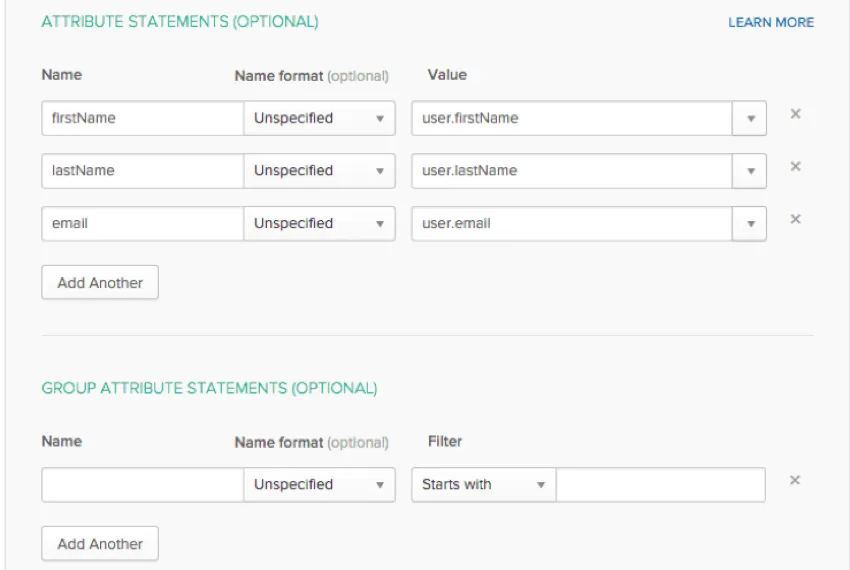
Qtip: The Username attribute must contain values that are unique, unchanging, and not confidential. The Email Address attribute must contain values in the format of an email (i.e., value@email.com).
Below are the usual attributes:
| Field in Qualtrics | Attribute Name |
|---|---|
| Email Address | |
| User Name | user |
| First Name | firstName |
| Last Name | lastName |
OneLogin
Qualtrics has the ability to connect with OneLogin via the Qualtrics default application or a custom application.
ENTERPRISE APPLICATION SETTINGS
Attention: Please use the custom application when configuring SAML settings in the Organization SSO tab.
When configuring the Qualtrics default application within OneLogin, the settings below can be used:
- SAML Audience (SP Entity ID): https://OrganizationID.datacenter.qualtrics.com
- SAML Consumer URL (Assertion Consumer Service URL): https://OrganizationID.datacenter.qualtrics.com/login/v1/sso/saml2/default-sp
- SAML Recipient (Assertion Consumer Service URL): https://OrganizationID.datacenter.qualtrics.com/login/v1/sso/saml2/default-sp
Relay State:
https://OrganizationID.datacenter.qualtrics.com?ssoConfigId=xxxxxxxxQtip: The SSO Config ID and full Relay State can be found in your Organization SSO settings.
Qtip: The Relay State is only needed if you would like users to be able to login to the platform via IdP-initiated SSO. By default, the Relay State will take users to the Homepage of their account. If you would like to more directly control where users land when they enter their account, you can append an endpoint to the Relay State. The endpoint will vary depending on the platform you would like users to redirect to upon successful authentication. The endpoint should be added to the endpoint URL as follows:
https://OrganizationID.datacenter.qualtrics.com/endpoint?ssoConfigId=
The table below summarizes what the endpoint should be set to for each platform:
Platform Endpoint Standard Qualtrics /ControlPanel Employee Experience /ee/dashboards 360 /EX/ParticipantPortal Customer Experience /Vocalize
CUSTOM APPLICATION SETTINGS
When configuring the Qualtrics custom application within OneLogin, the settings below can be used:
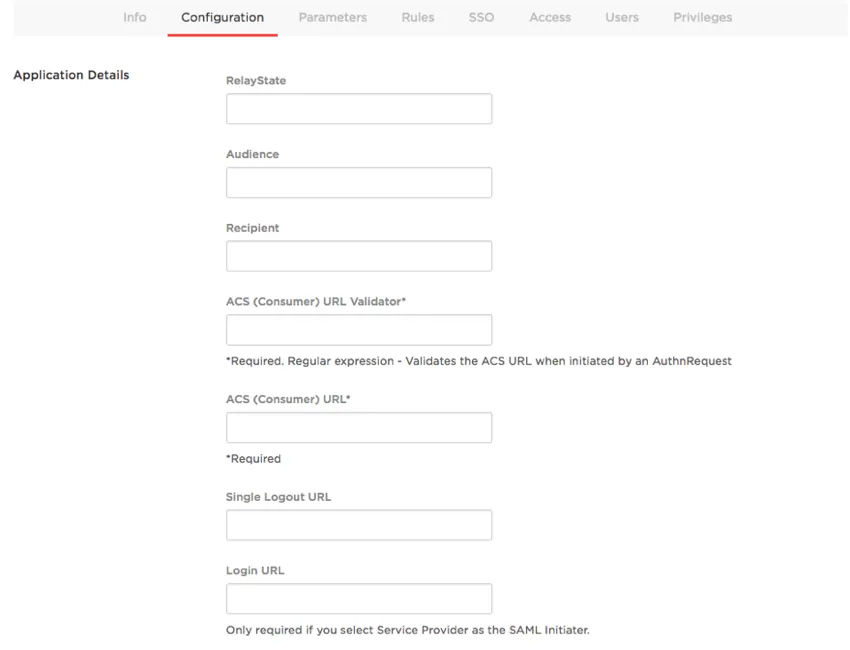
RelayState:
https://OrganizationID.datacenter.qualtrics.com?ssoConfigId=xxxxxxxxQtip: The SSO Config ID and full Relay State can be found in your Organization SSO settings.
Qtip: The Relay State is only needed if you would like users to be able to login to the platform via IdP-initiated SSO. By default, the Relay State will take users to the Homepage of their account. If you would like to more directly control where users land when they enter their account, you can append an endpoint to the Relay State. The endpoint will vary depending on the platform you would like users to redirect to upon successful authentication. The endpoint should be added to the endpoint URL as follows:
https://OrganizationID.datacenter.qualtrics.com/endpoint?ssoConfigId=
The table below summarizes what the endpoint should be set to for each platform:
Platform Endpoint Standard Qualtrics /ControlPanel Employee Experience /ee/dashboards 360 /EX/ParticipantPortal Customer Experience /Vocalize
- Audience (SP Entity ID):
https://OrganizationID.datacenter.qualtrics.com - Recipient:
https://OrganizationID.datacenter.qualtrics.com/login/v1/sso/saml2/default-sp - ACS (Consumer) URL Validator:
^https:\/\/OrganizationID.datacenter.qualtrics.com\/login\/v1\/sso\/saml2\/default-sp* - ACS (Consumer) URL:
https://OrganizationID.datacenter.qualtrics.com/login/v1/sso/saml2/default-sp - Login URL (SP Entity ID):
https://OrganizationID.datacenter.qualtrics.com
ATTRIBUTES
Qualtrics requires SAML Attributes to be released for use in the Username and Email Address Qualtrics fields. All other attributes are optional.
Qtip: The Username attribute must contain values that are unique, unchanging, and not confidential. The Email Address attribute must contain values in the format of an email (i.e., value@email.com).
PingFederate
GENERAL SETTINGS
Qualtrics has the ability to connect with PingFederate. When configuring a trust within PingFederate, the settings below can be used:
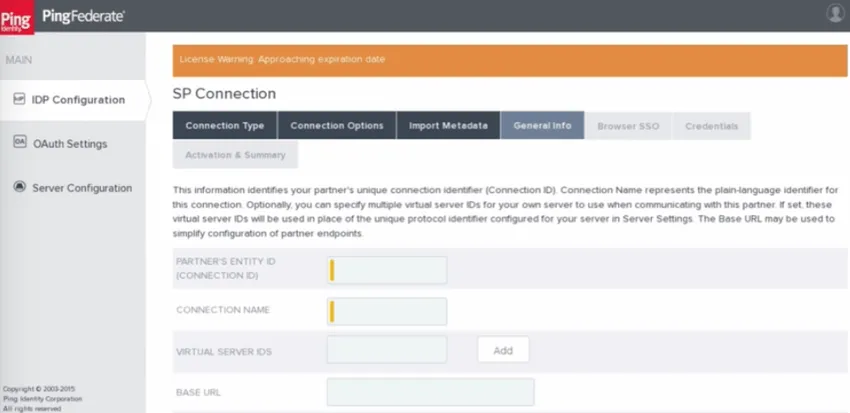
- Partner’s Entity ID / Connection ID (SP Entity ID):
https://OrganizationID.datacenter.qualtrics.com - Base URL (Beginning of ACS URL / Entity ID):
https://OrganizationID.datacenter.qualtrics.com - Assertion Consumer Service (ACS) URL (End of the ACS URL):
/login/v1/sso/saml2/default-sp TargetResource (Relay State):
https://OrganizationID.datacenter.qualtrics.com?ssoConfigId=xxxxxxxxQtip: The SSO Config ID and full Relay State can be found in your Organization SSO settings.
Qtip: The TargetResource is only needed if you would like users to be able to login to the platform via IdP-initiated SSO. By default, the TargetResource will take users to the Homepage of their account. If you would like to more directly control where users land when they enter their account, you can append an endpoint to the TargetResource. The endpoint will vary depending on the platform you would like users to redirect to upon successful authentication. The endpoint should be added to the endpoint URL as follows:
https://OrganizationID.datacenter.qualtrics.com/endpoint?ssoConfigId=
The table below summarizes what the endpoint should be set to for each platform:
Platform Endpoint Standard Qualtrics /ControlPanel Employee Experience /ee/dashboards 360 /EX/ParticipantPortal Customer Experience /Vocalize
ATTRIBUTES
Qualtrics requires SAML Attributes to be released for use in the Username and Email Address Qualtrics fields. All other attributes are optional.
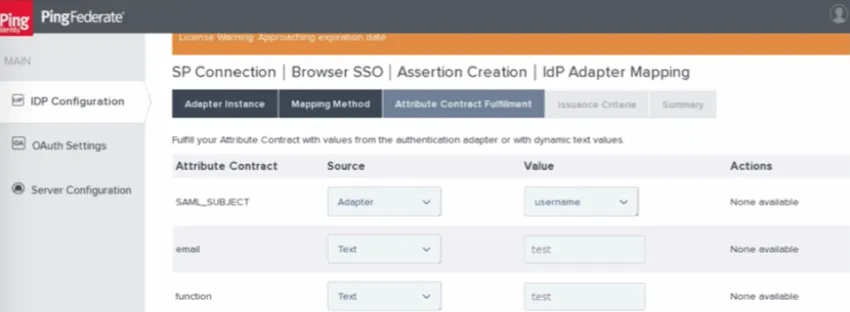
Qtip: The Username attribute must contain values that are unique, unchanging, and not confidential. The Email Address attribute must contain values in the format of an email (i.e., value@email.com).
Salesforce
Qualtrics has the ability to connect with Salesforce when Salesforce is used as an Identity Provider. You’ll need to configure the settings in your Single Sign-On Settings and in a Connected App in the Identity Provider Organization.
SINGLE SIGN-ON SETTINGS
When configuring the Single Sign-On Settings, the settings below can be used:
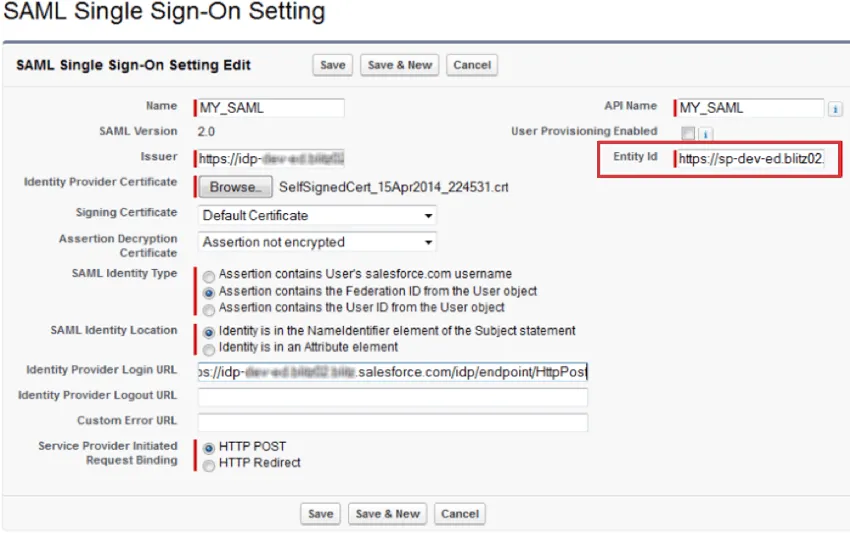
- Entity ID: https://OrganizationID.datacenter.qualtrics.com
CONNECTED APP IN THE IDENTITY PROVIDER ORGANIZATION
Qtip: As of Spring 2026, Salesforce has deprecated the ability to create a new connected app in Salesforce. You can request a new connected app be created by contacting Salesforce support. Alternatively, you can migrate to Salesforce's new external client app functionality to set up a new connection.
When configuring the connected app in the identity provider organization, the settings below can be used:
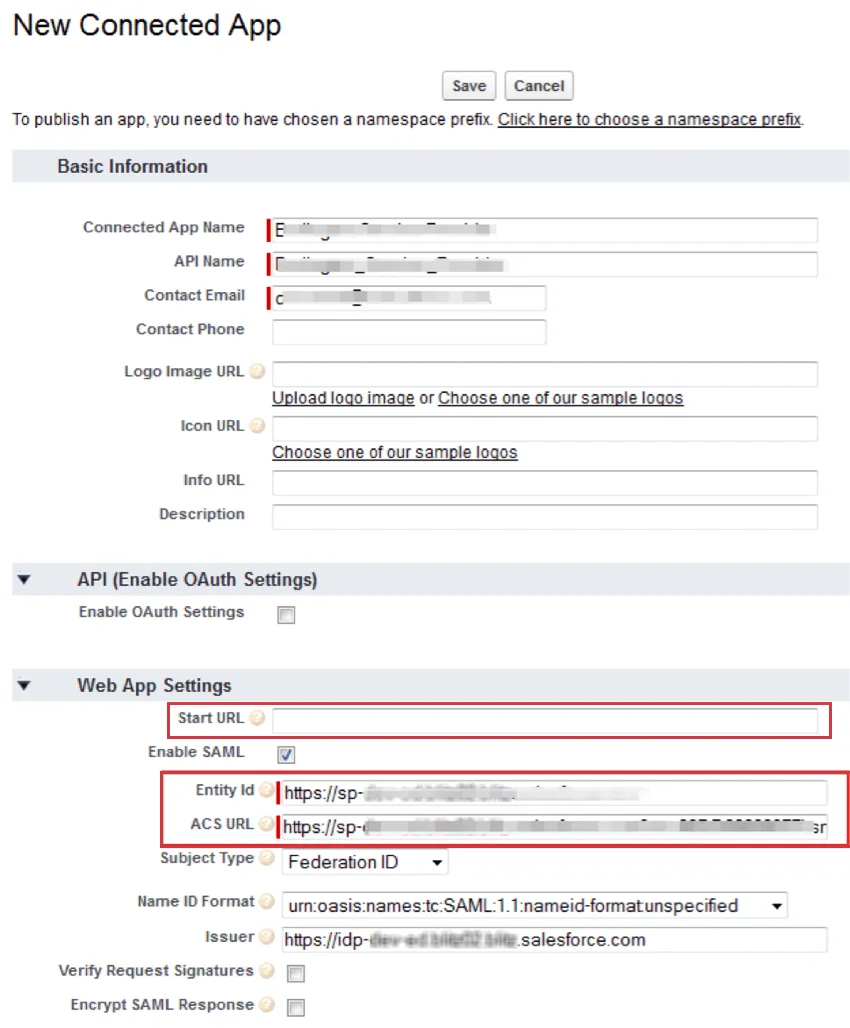
- Entity ID: https://OrganizationID.datacenter.qualtrics.com
- ACS URL: https://OrganizationID.datacenter.qualtrics.com/login/v1/sso/saml2/default-sp
- Start URL: https://OrganizationID.datacenter.qualtrics.com
Qtip: The Start URL is only needed if you would like users to be able to login to the platform via IdP-initiated SSO. If your Qualtrics brand has a vanity URL, you can use the vanity URL in place of “https://OrganizationID.datacenter.qualtrics.com” for the START URL.
By default, the Start URL will take users to the Projects page of their account. If you would like to more directly control where users land when they enter their account, you can append an endpoint to the Start URL. The endpoint will vary depending on the platform you would like users to redirect to upon successful authentication. The table below summarizes what the endpoint should be set to for each platform:
Platform Endpoint Standard Qualtrics ControlPanel Employee Experience ee/dashboards 360 EX/ParticipantPortal Customer Experience Vocalize
ATTRIBUTES
Qualtrics requires SAML Attributes to be released for use in the Username and Email Address Qualtrics fields. All other attributes are optional.
Qtip: The Username attribute must contain values that are unique, unchanging, and not confidential. The Email Address attribute must contain values in the format of an email (i.e., value@email.com).
NetIQ
Qualtrics has the ability to connect with NetIQ Access Manager from Micro Focus when a SAML 2.0 Trusted Service Provider is created. You can find our full metadata file in your Organization SSO settings.
Please use the below information to populate the Metadata section of your Trust:
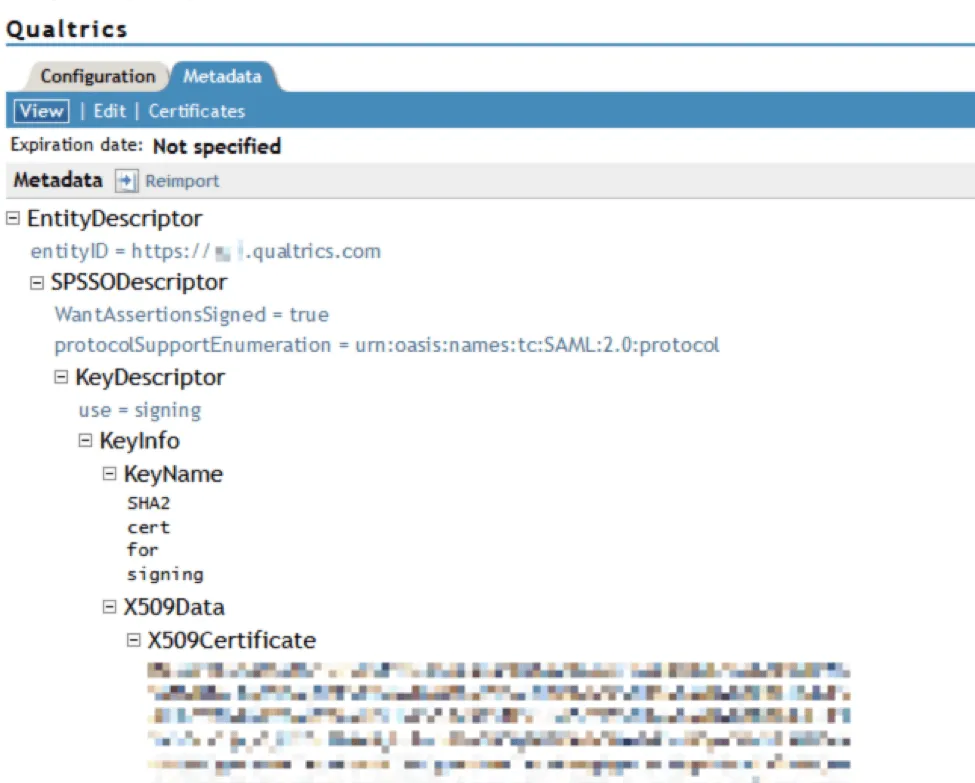
- Entity ID:
https://OrganizationID.datacenter.qualtrics.com
Configuration
Under the Authentication Response Section, please apply the following settings:
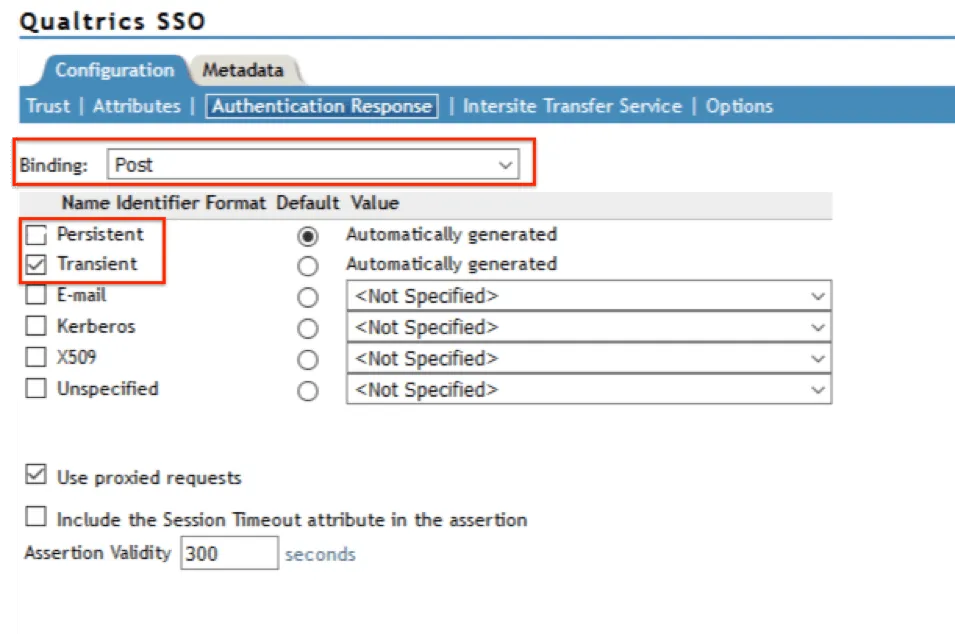
Attributes
Qualtrics requires SAML Attributes to be released for use in the Username and Email Address Qualtrics fields. All other attributes are optional.
Qtip: The Username attribute must contain values that are unique, unchanging, and not confidential. The Email Address attribute must contain values in the format of an email (i.e., value@email.com).
That's great! Thank you for your feedback!
Thank you for your feedback!