

Logging In with Your Organization ID
What's on this page
About Logging In with Your Organization ID
Qtip: This page explains a special process used by brands with SSO to log into the apps listed above. Logging into a Qualtrics account on desktop (e.g., the regular survey and dashboard-building site) does not require the special steps listed on this page. For guidance on how to log into your Qualtrics account on desktop, see the Creating an Account & Logging In support page.

Users who belong to organizations with single sign-on (SSO) will usually log in with an organization-specific URL. However, Qualtrics has several applications that use a special log-in page where users enter an organization ID (or brand ID) before logging in. These apps include:
- Customer Success Hub
- Qualtrics Experience Community
- Qualtrics Learn
- Qualtrics Support Site
- XM app
- Offline app
- Some special builds created by our Professional Services team
Qtip: If you’re a user in our FedRAMP environment, the way you access Qualtrics Learn and the Experience Community is different. Please login to your Customer Success Hub for details on how to access these resources.
Qtip: FedRAMP users cannot log into the Qualtrics Support Site. With the exception of Early Access Documentation and other exclusive features, you can still browse the majority of the Qualtrics Support Site without logging in.
Logging In with Your Organization ID
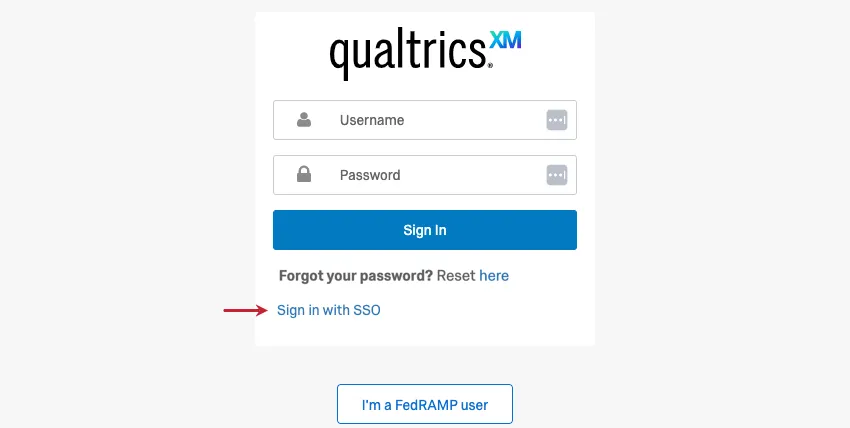
If your organization has SSO, and you want to use any of these apps, use the Sign in with SSO link to login. You will then be asked for your organization ID, and proceed to log into your organization’s portal as normal. Afterwards, you'll be taken to the app.
Qtip: For help finding your organization or brand ID, see this section.
Go to your service's login page. Here are some common ones:
Click Sign in with SSO.
Enter your organization ID in the field.
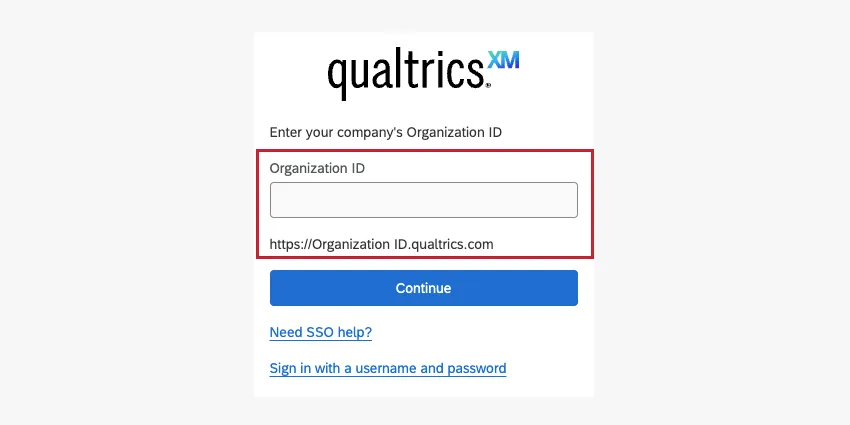
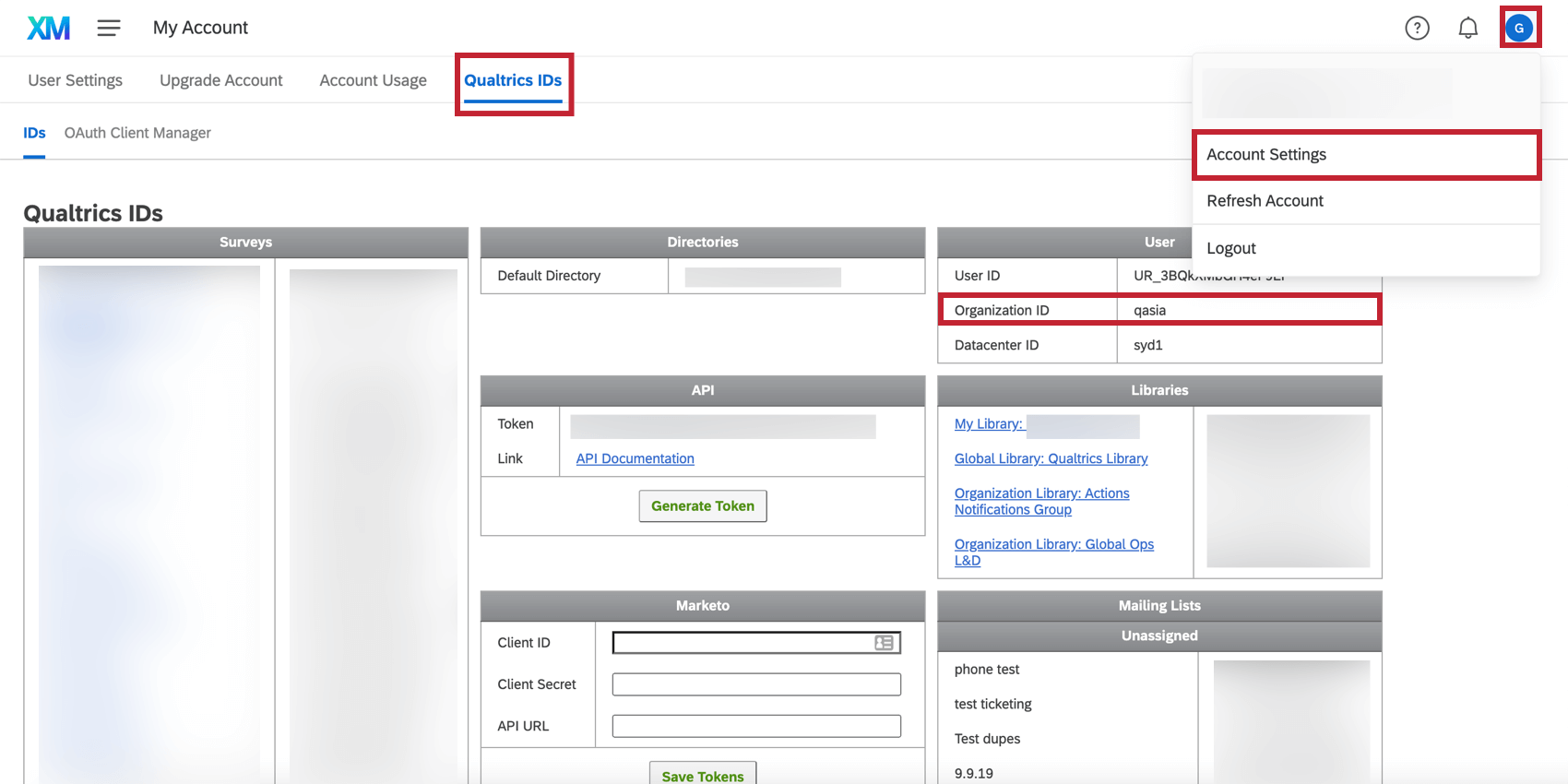
Qtip: Your organization ID is the unique org name in your Qualtrics login URL, as shown here. It is not the entire URL.
Click Continue.
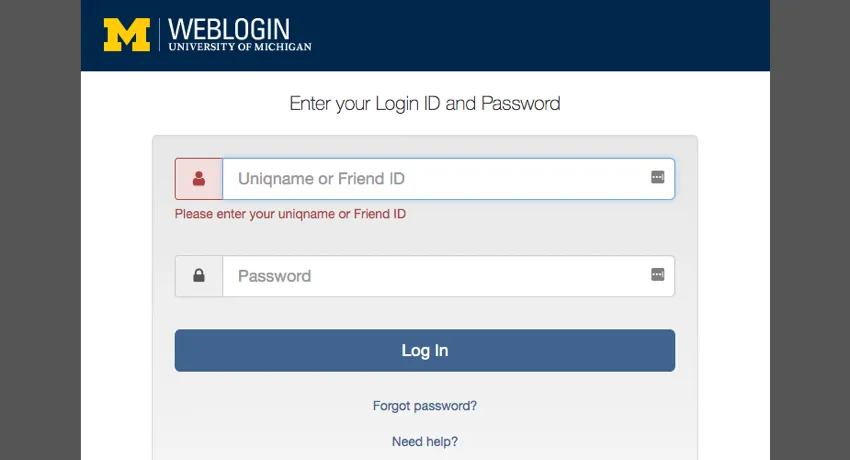
You will be automatically redirected to your organization’s login portal. Once you finish logging in here, you will be given access to your chosen app.
How do I find my Organization ID (or Brand ID)?
Organization IDs (or brand IDs) can be found in a variety of ways, including:
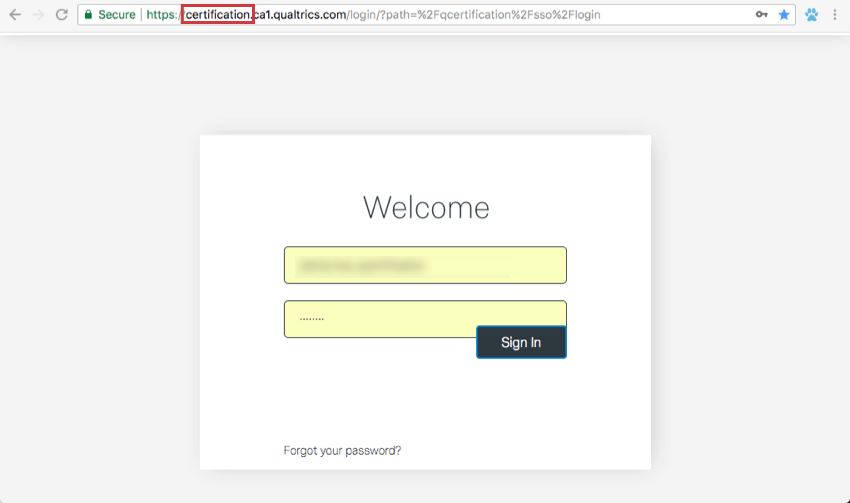
Qtip: 2-letters ending in 1 (like ca1 and az1) are not organization IDs, but the database your Qualtrics brand is housed in.
Not Redirected to Portal
In some cases, after you add your organization ID, the login screen will ask for your email address so it can send you a login code.
Qtip: This means your organization is currently using an older SSO configuration that is not compatible with 2-way authentication. We highly recommend that your organization updates its SSO configuration via your IT department to allow users to follow the standard Customer Success Hub SSO login process. This will also ensure that users have access to other third party authentication services, including that of the Experience Community, Qualtrics Learn, the XM mobile app, and the offline app.
Enter your email address in the field.
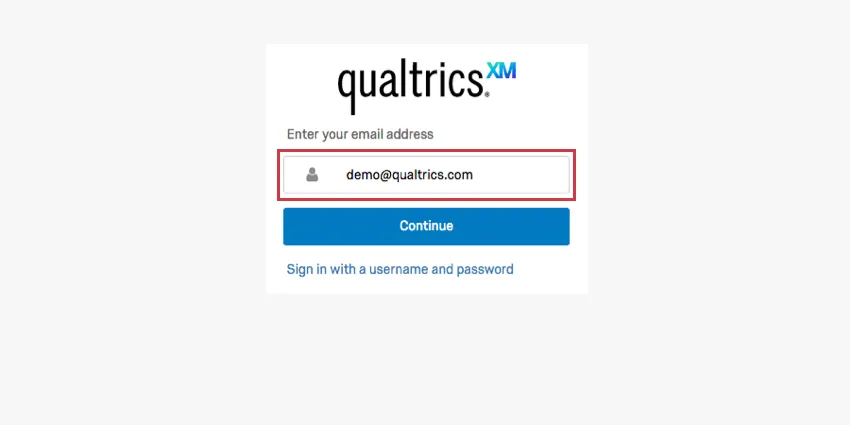
Click Continue.
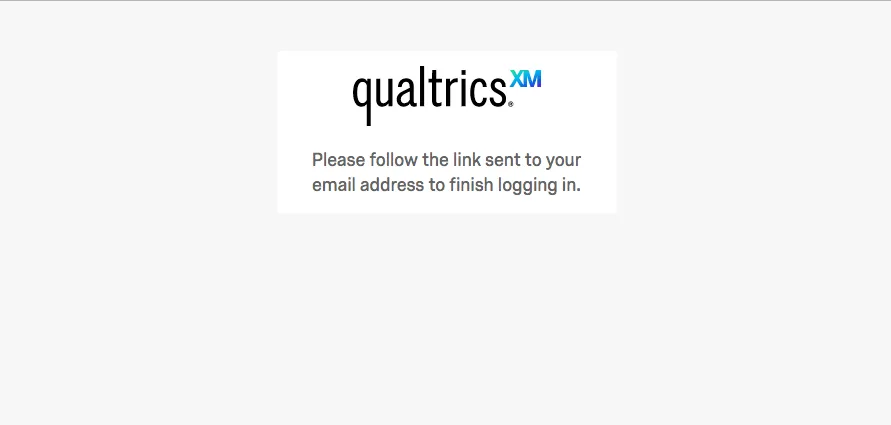
You will receive a login link.
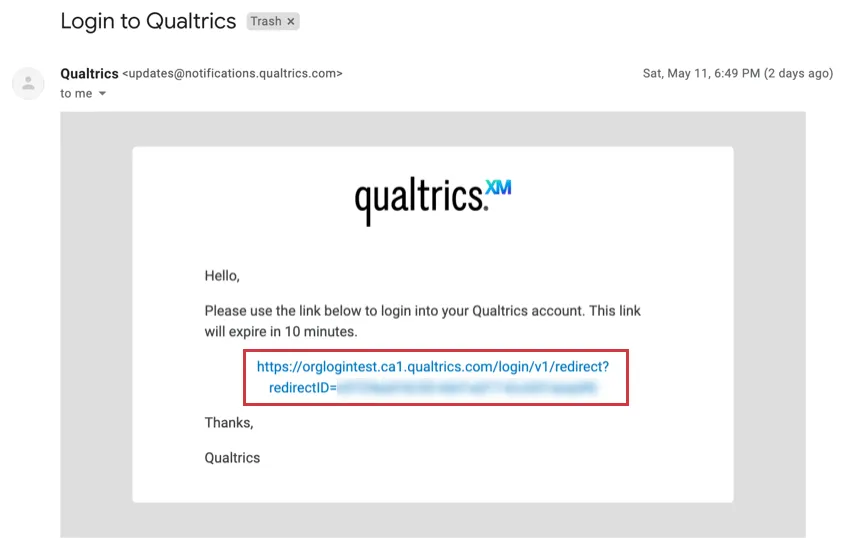
Go to your email and click the link to access the site.
Login Error
For several brands, there is an issue where logging in with your organization ID produces an error message on your organization’s SSO portal. The reason this is happening is because these applications use a newer login service that requires organizations to update their SSO settings. Qualtrics is in the process of updating these settings for all brands, but if you would like to expedite the process, contact our support team to report the error you are seeing, and they will update your brand accordingly. (If you are unable to log into the Customer Success Hub, select Can’t login.)
Qtip: If you’re seeing an error message on the Qualtrics login page instead of your organization’s portal, see our support page on Login Issues.
Solutions for Organization ID Login Errors
If you are seeing the login error when you try to log in with your organization ID, this section has a few solutions.
Issues Logging into Community with an existing Experience Community account
If you have tried to log in at https://community.qualtrics.com/ and are still having trouble accessing your Experience Community account, please fill out this survey.
All Applications Except Community
If your organization ID login issues pertain to any application other than Community, the best solution is to update your SSO so you can use this login properly. Contact your Technical Success Manager for help upgrading your SSO.
That's great! Thank you for your feedback!
Thank you for your feedback!