

Making Standalone Intercepts & Creatives
What's on this page
About Making Standalone Intercepts and Creatives
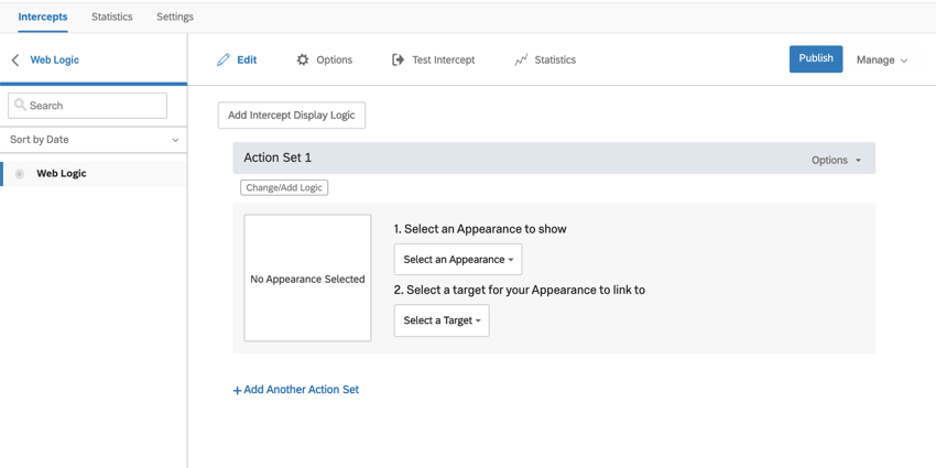
If you already have experience with Website & App Insights, you can make standalone creatives and intercepts that can be connected together. You may prefer this approach if you want to use graphics not yet supported by our guided setup, such as a banner or a pop under. Standalone intercepts also allow you to create more complex action sets, such as different types of creatives appearing based on different criteria.
Qtip: If you don’t have access to any of the features described on this page, reach out to your Account Executive, or Brand Administrator if you are a standard user. For more information about the differences between Digital Feedback and CustomerXM for Digital, see Digital Feedback vs. CustomerXM for Digital.

Feature Compatibility
By comparing the features that are or are not supported by standalone intercepts and creatives, you can decide whether you’d prefer to use these or the guided setup.
Qtip: If you’re new to Website & App Insights, we recommend starting with the guided setup.
Supported features
Standalone intercepts and creatives support some functionality that the guided setup does not.
- Multiple action sets, with differing creatives and targets.
- Web creatives in the form of banners and pop unders.
- Mobile app creatives for prompts and notifications.
Features that Require Additional Setup
Certain features are not built into the editor of standalone intercepts and creatives, and require additional setup instead. The guides below show how you can implement common goals.
Qtip: To translate standalone creatives, you must use multiple action sets in your intercept with unique conditions that lead visitors to different translated creatives, depending on the visitor’s language.
Making Standalone Creatives
Creatives can be thought of as the visual element of your Website & App Insights project; for example, a banner, a window that opens over a webpage, or even a link. Standalone creatives are different from guided intercepts because they do not have intercept options attached, and instead need to be combined with a standalone intercept.
Standalone creatives include:
- Pop over
- Info bar
- Embedded link
- Slider
- Pop under
- Custom embedded feedback
- Mobile app prompt
- Mobile notification
To make one of these standalone creatives, follow these steps:
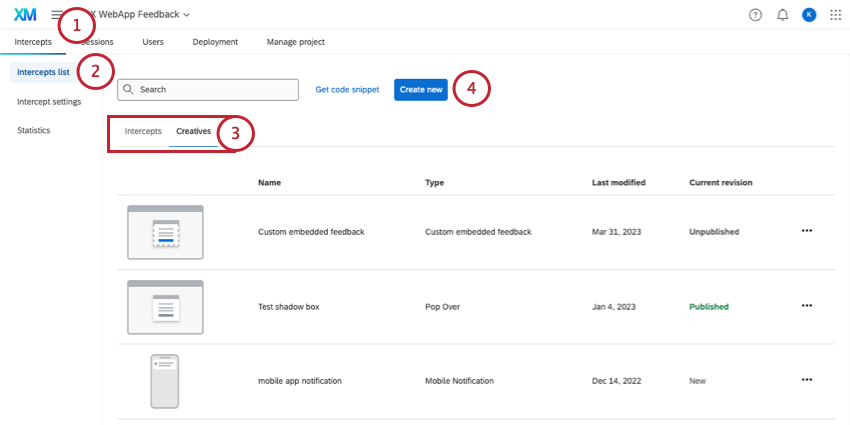
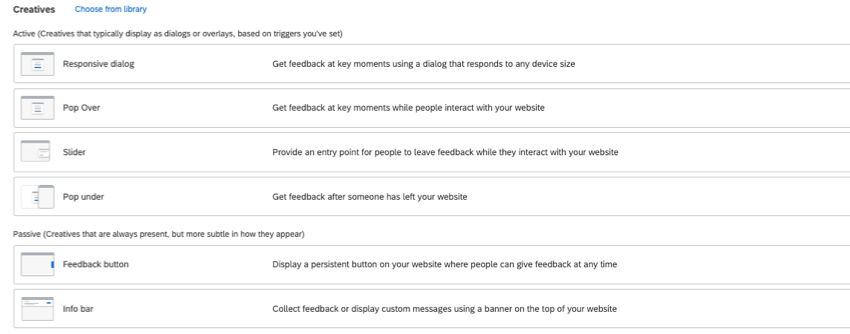
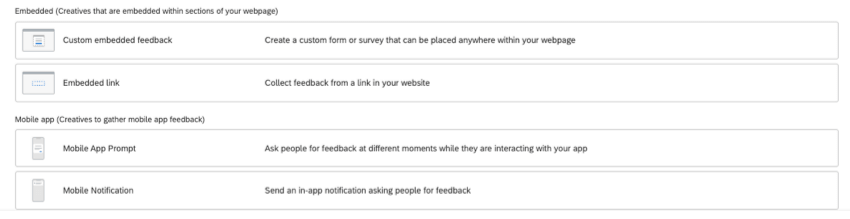
Qtip: To help explain their purpose, creatives are grouped into three categories:
- Active: Creatives that display as dialogs or overlays on your website.
- Passive: Creatives that are always present on your website, but more subtle in how they appear, like a button off to the side.
- Embedded: Creatives embedded in sections of your website.
- Mobile app: Creatives made to collect mobile app feedback.
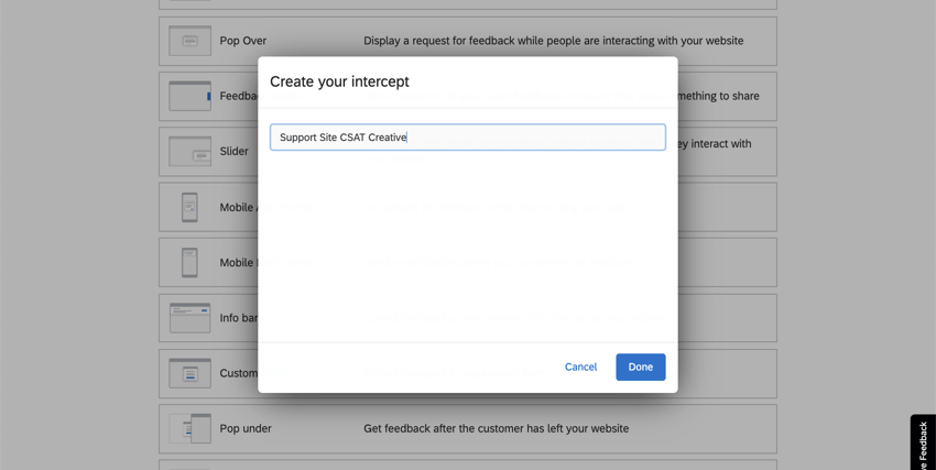
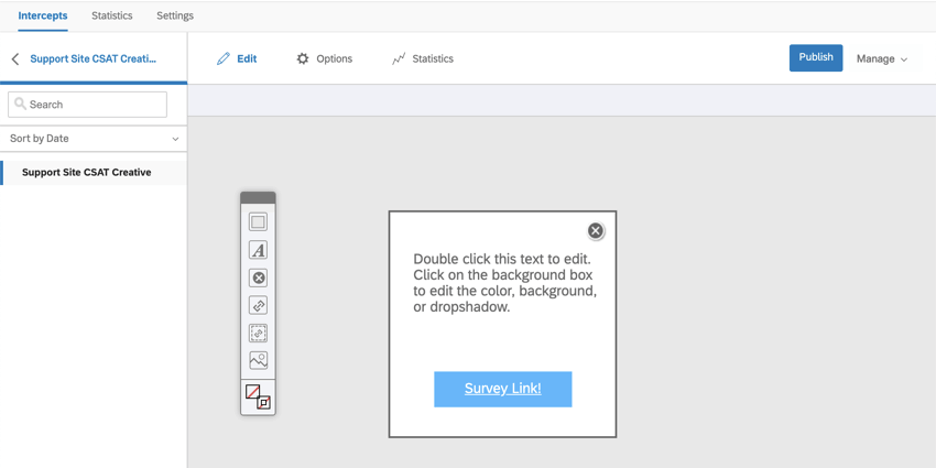
Qtip: In addition to the page on generally editing creatives, you can check your specific creative’s support page for more settings unique to that type.
Making Standalone Intercepts
Intercepts can be thought of as the rules that determine when and how your project will be displayed on a website or an app. For example, you can show different elements depending on user information or portions of the URL. The intercept is where your target survey, creative(s), and the conditions of a visitor’s session come together.
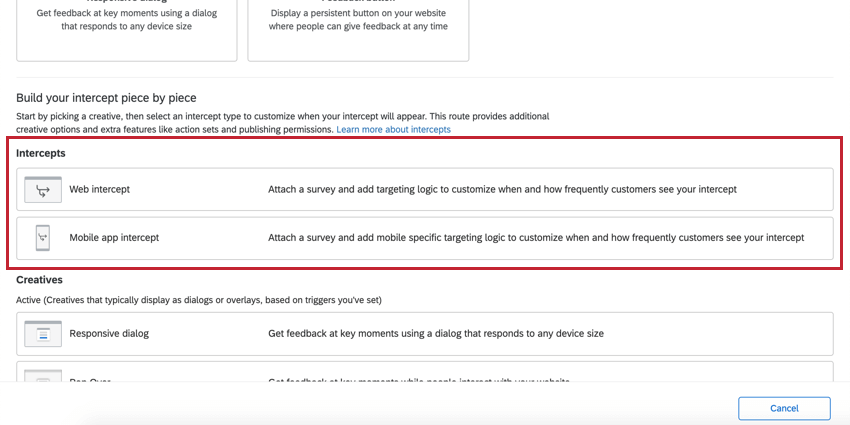
Qtip: For further guides, please see:
Qtip: If you’ve saved intercepts in the library that you want to reuse, see creating an intercept from the library.
Building Website & App Insights Piece by Piece
The pages below provide a very basic overview of how to create a website insights project using standalone creatives and intercepts. This can be a great place to start to familiarize yourself with all of the moving parts.
That's great! Thank you for your feedback!
Thank you for your feedback!