

Google Calendar Task
What's on this page
About the Google Calendar Task
Automate your scheduling process by linking Qualtrics to your calendar. The Google Calendar task allows you to automatically create and cancel Google Calendar events based on survey responses.
Qtip: This feature is available to any user with access to workflows.

Connecting a Google Calendar Account
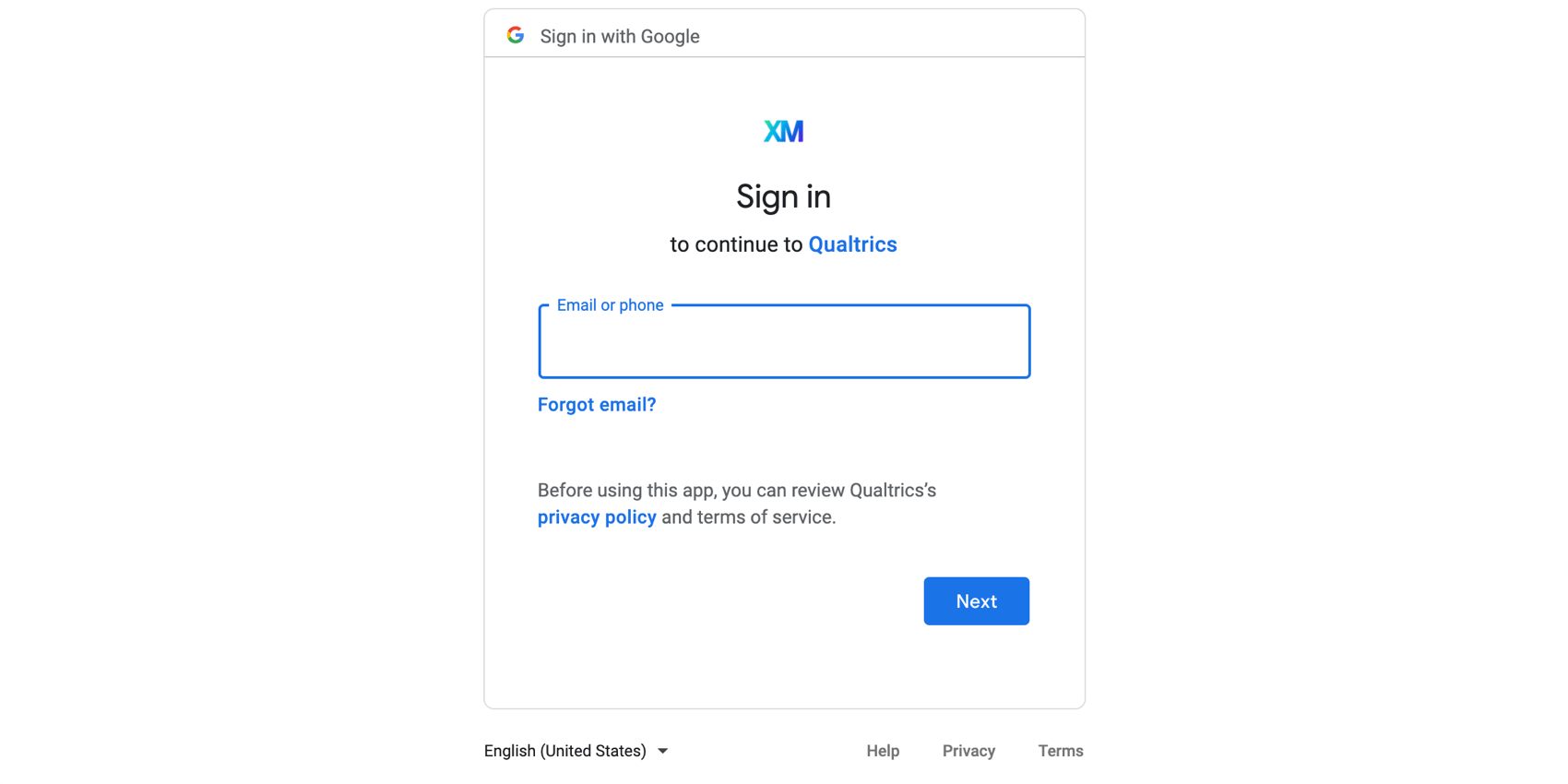
Before you can use the Google Calendar task, you must connect a Google Calendar account for Qualtrics to schedule events with. Accounts may be added by Brand Administrators for other users in the brand to use, or by individual users for their personal use.
Adding an Account as a Brand Administrator
If you are a Brand Administrator, follow the steps in this section to add a Google Calendar account for some or all users in your license to use.
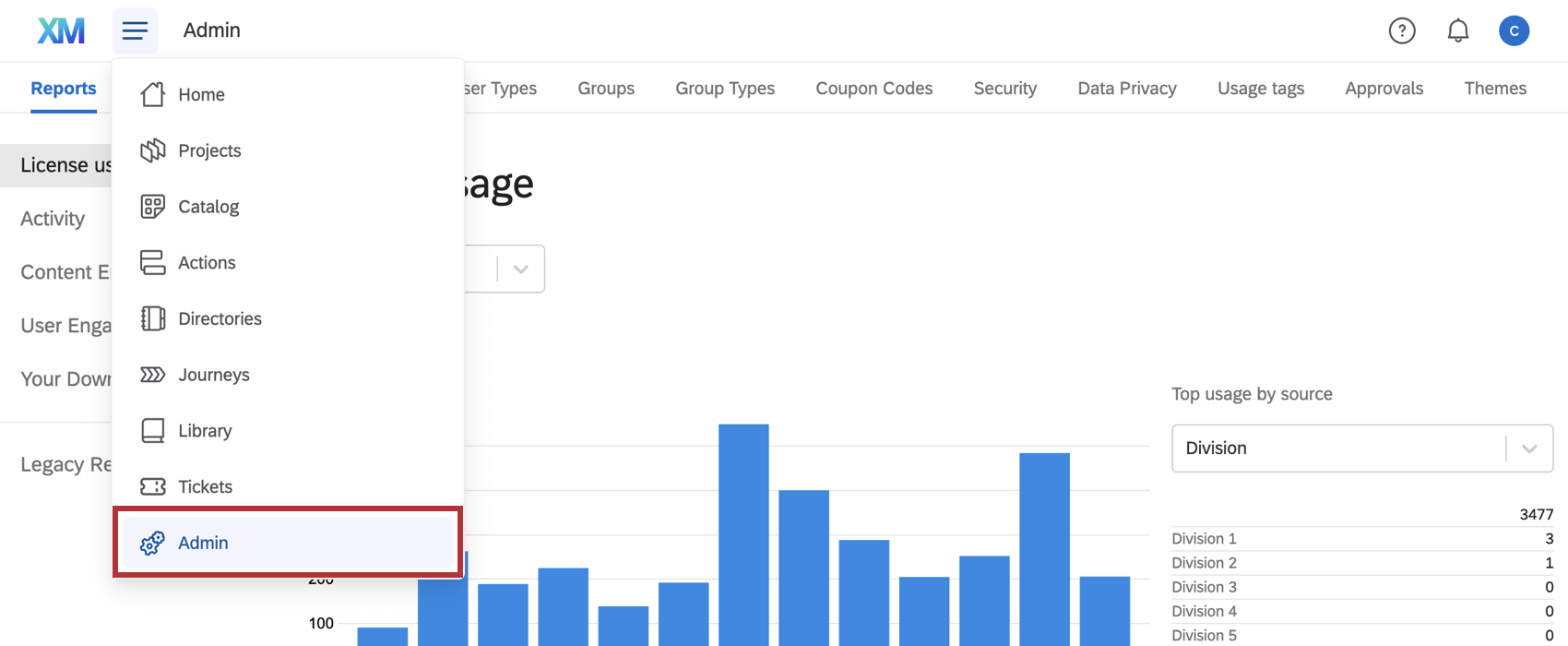
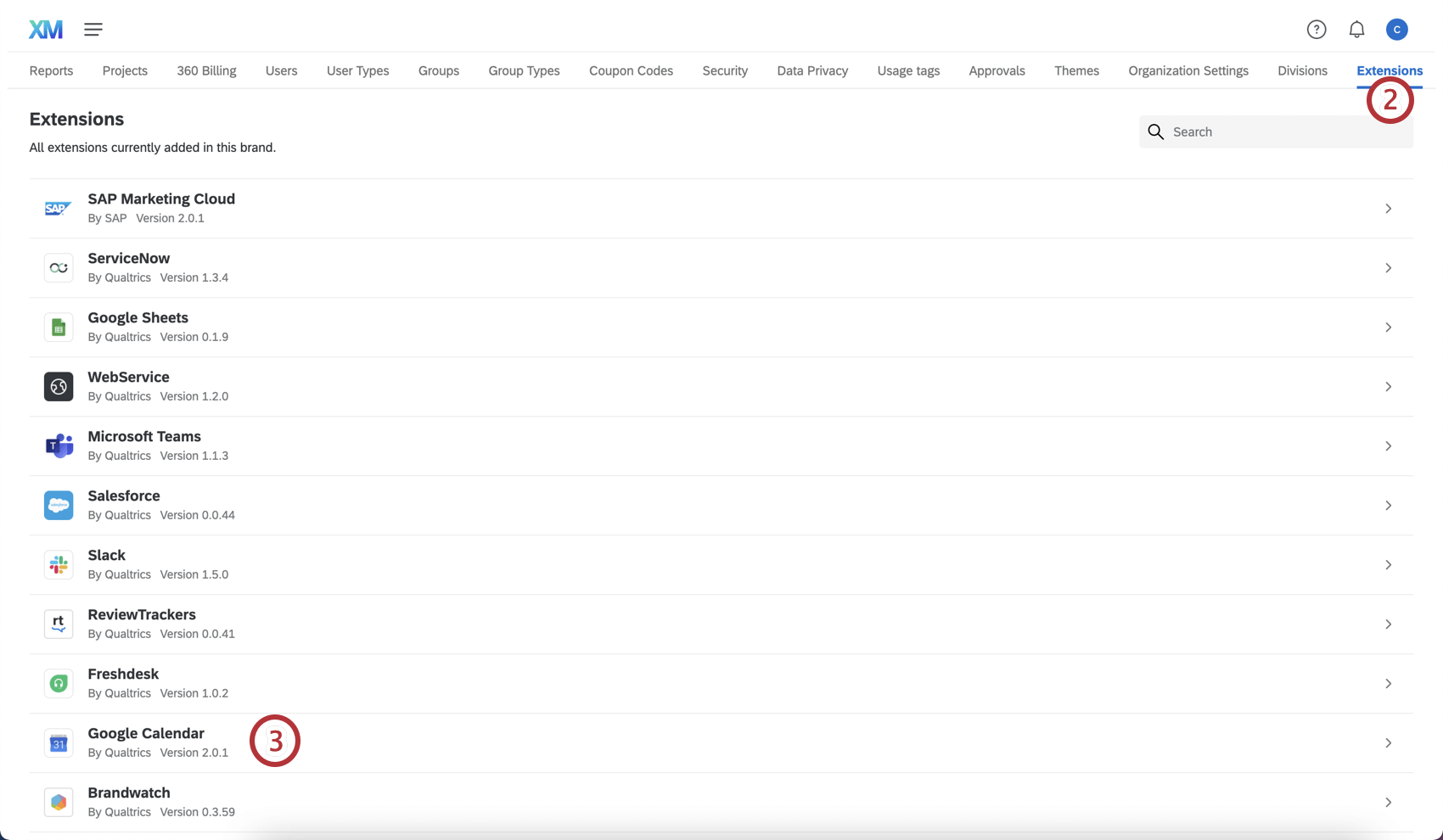
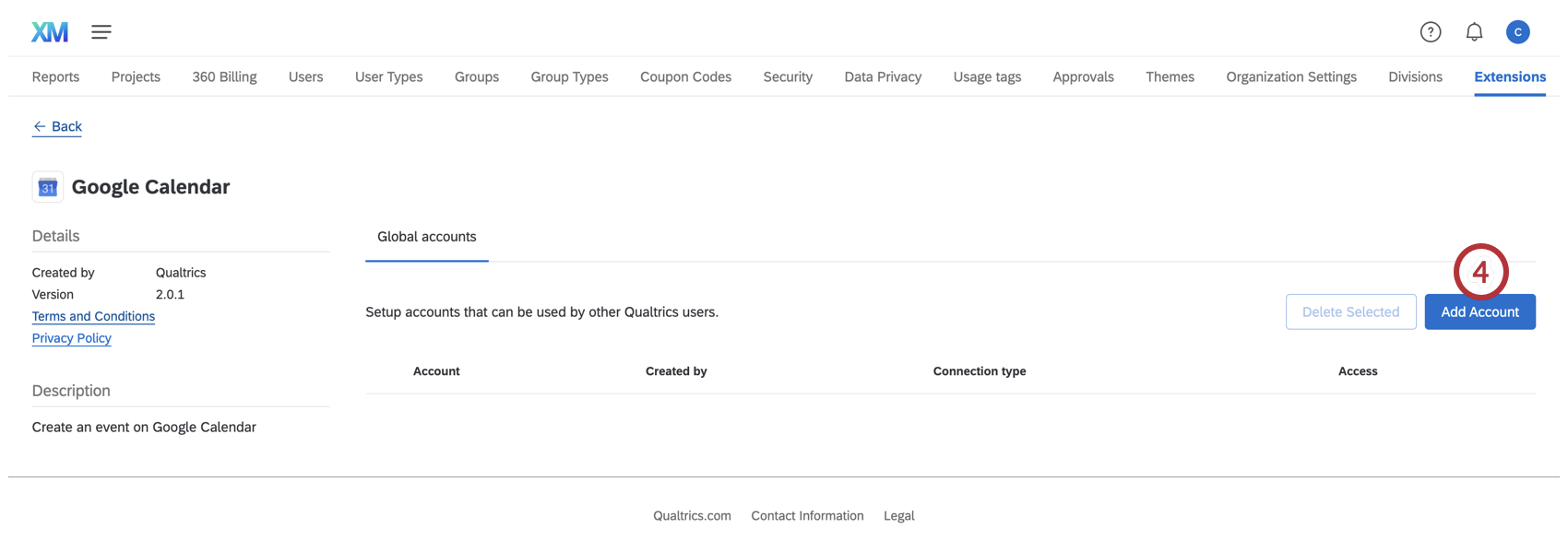
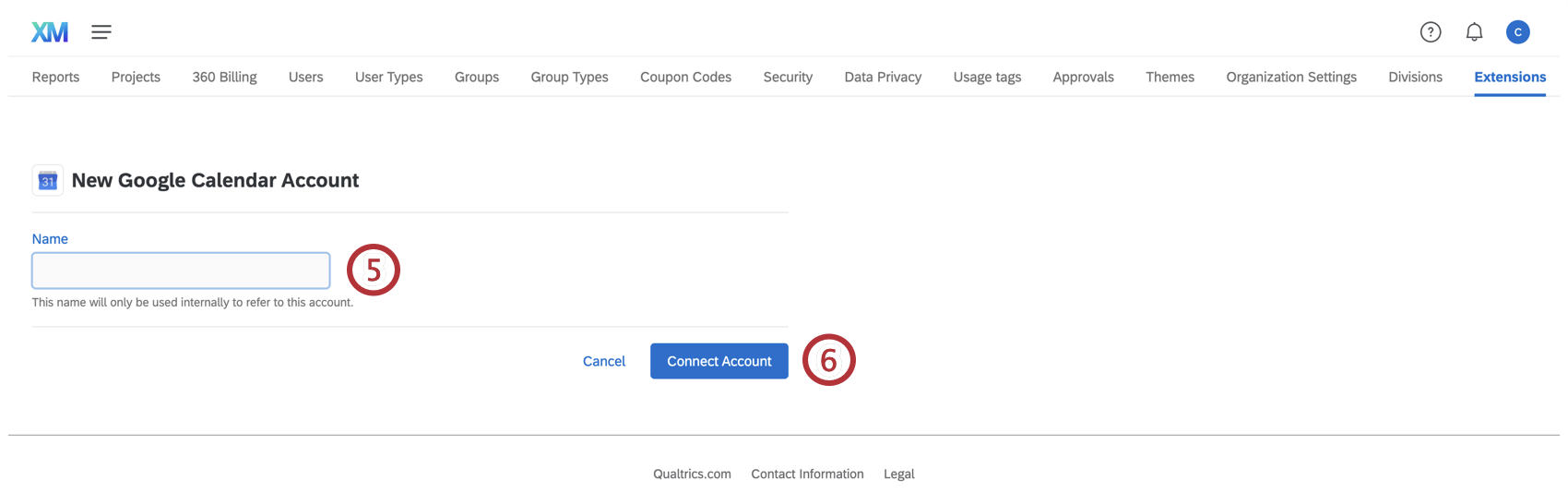
For more on managing which users have access to this account, see Determining Who Can Use an Extension Account.
Adding an Account as an Individual User
Follow the steps in this section to add a Google Calendar account for your personal use. Only you will be able to use the account that you connect.
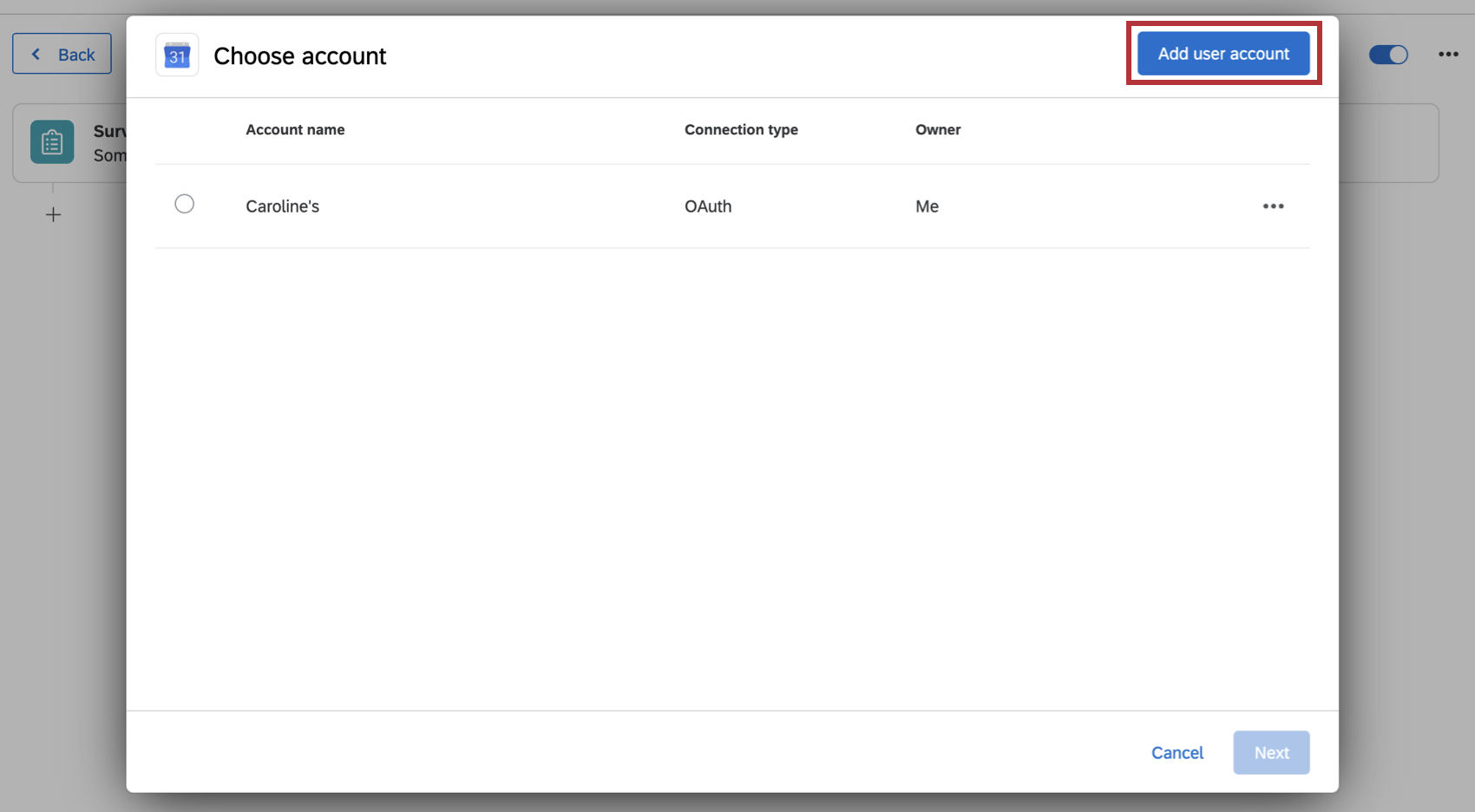
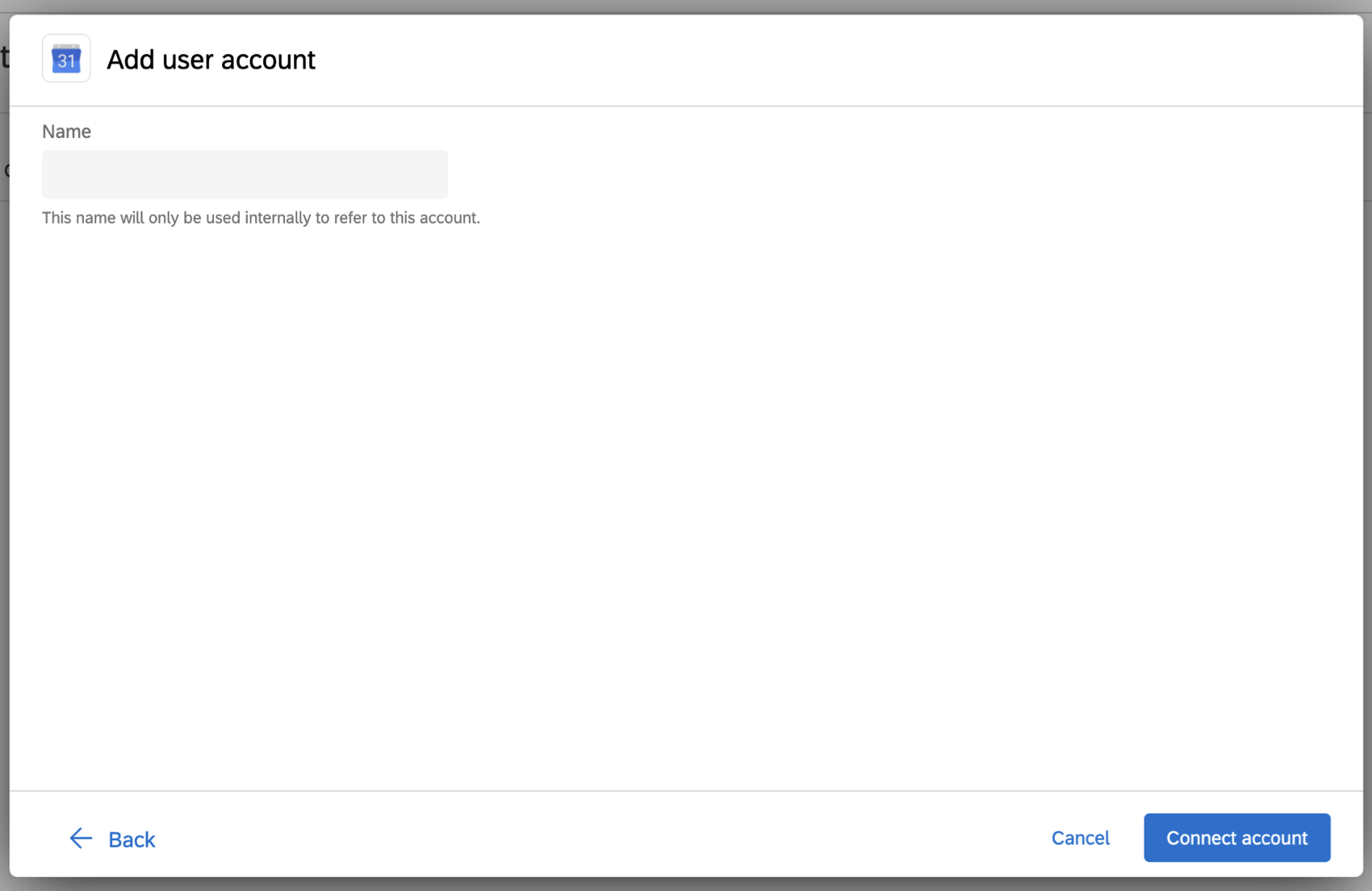
Setting up a Google Calendar Task
Creating a Google Calendar Event
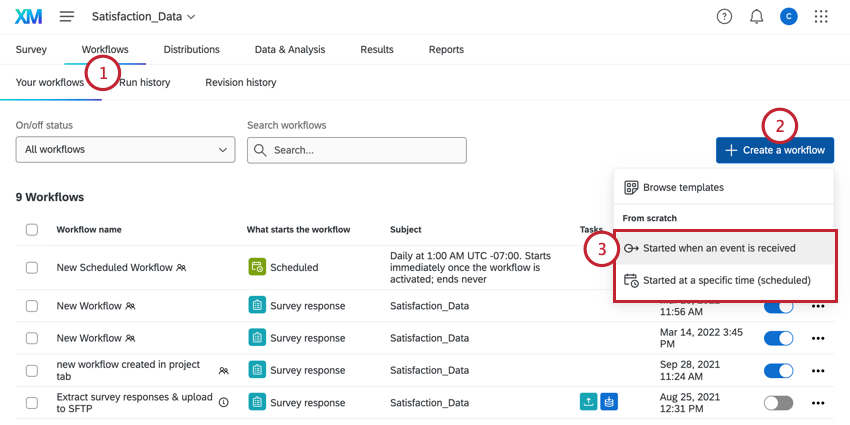
Qtip: To link this to a particular survey’s responses, we recommend starting in the Workflows tab of a survey.
Qtip: To automatically use this survey’s responses to add events to your Google Calendar, this should be an event-based workflow.
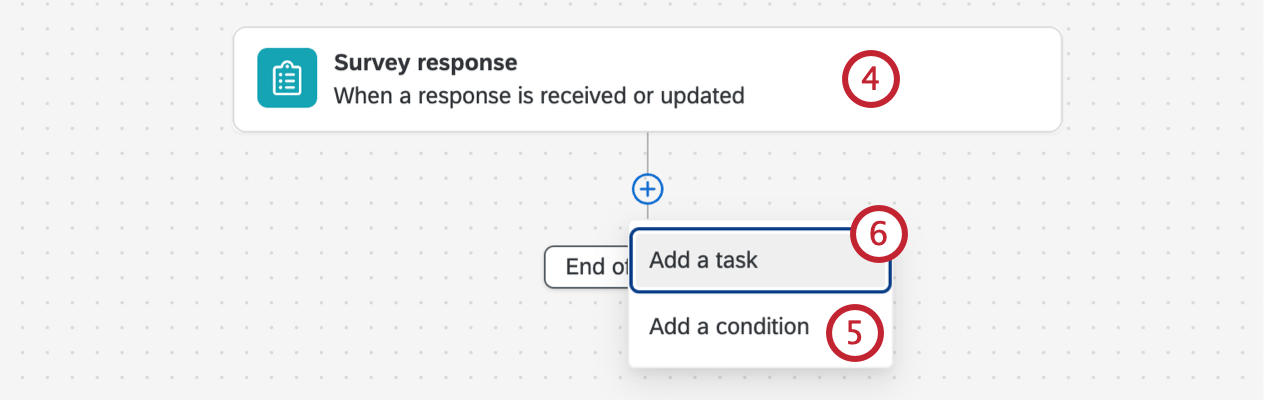
Qtip: To start the workflow based on a survey response, set up a survey response event.
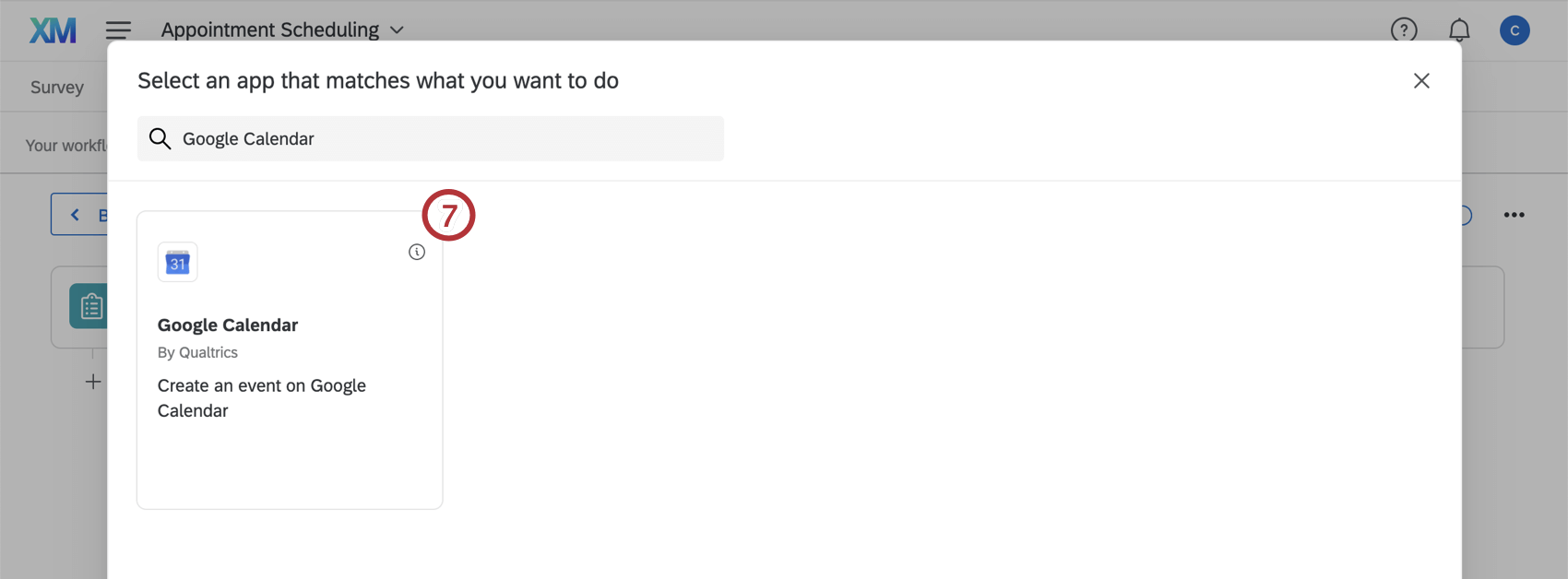
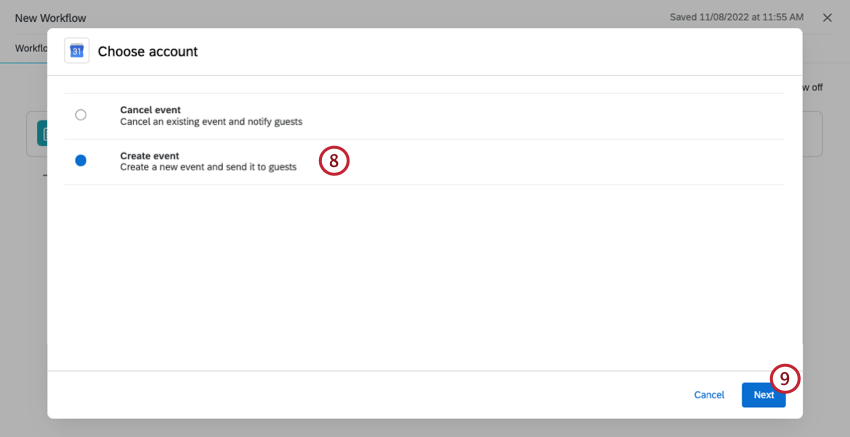
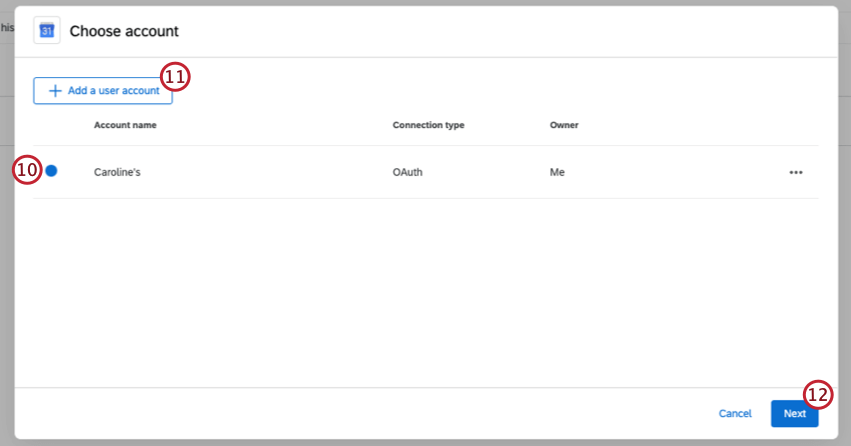
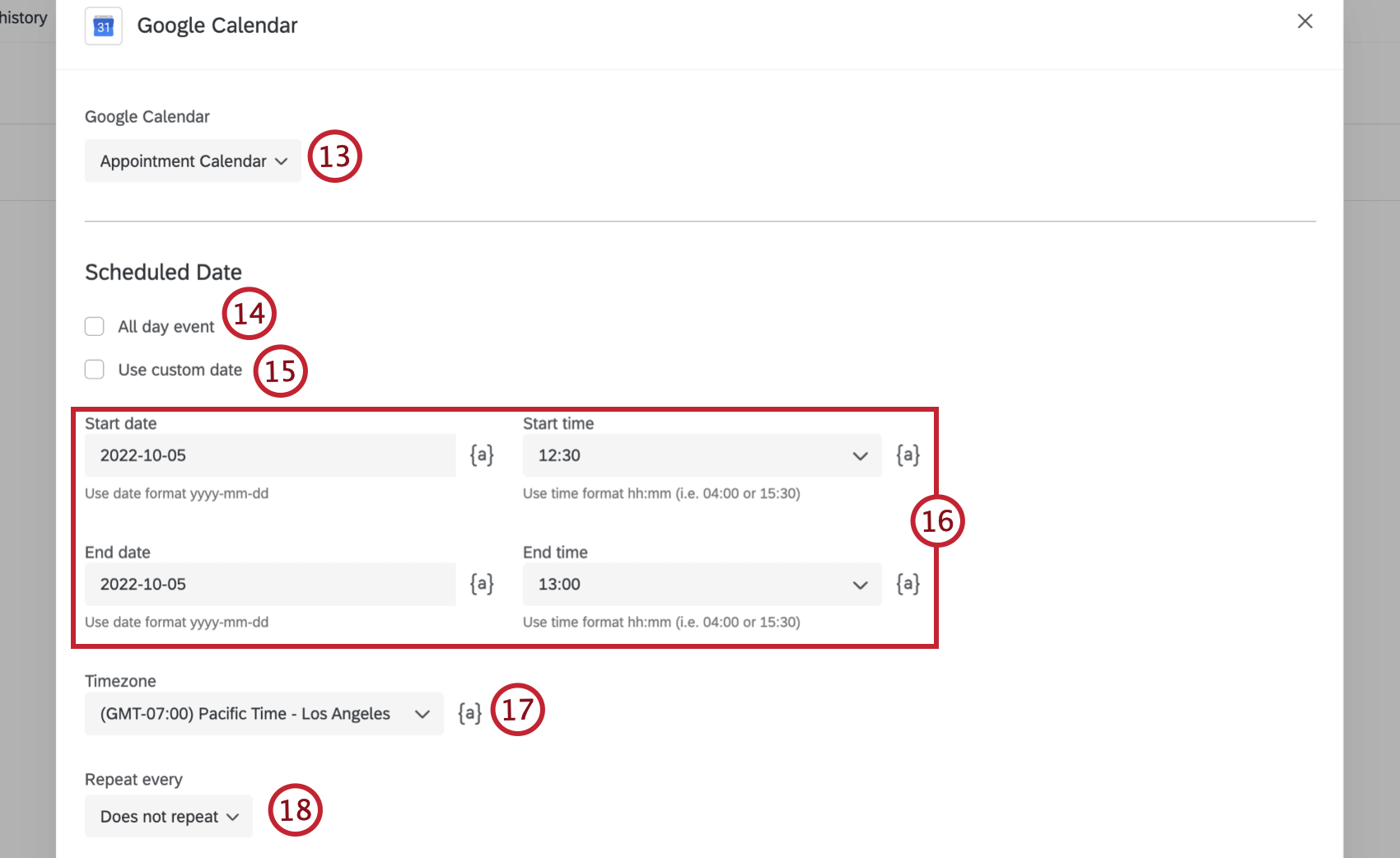
Qtip: You can only select calendars that you are the owner of.
Qtip: Dates should be in the format yyyy-mm-dd, and times should be in the format hh:mm.
Attention: End dates are exclusive. If you are scheduling an event to be from April 1-2, you will need to select an end date of April 3 when configuring your event.
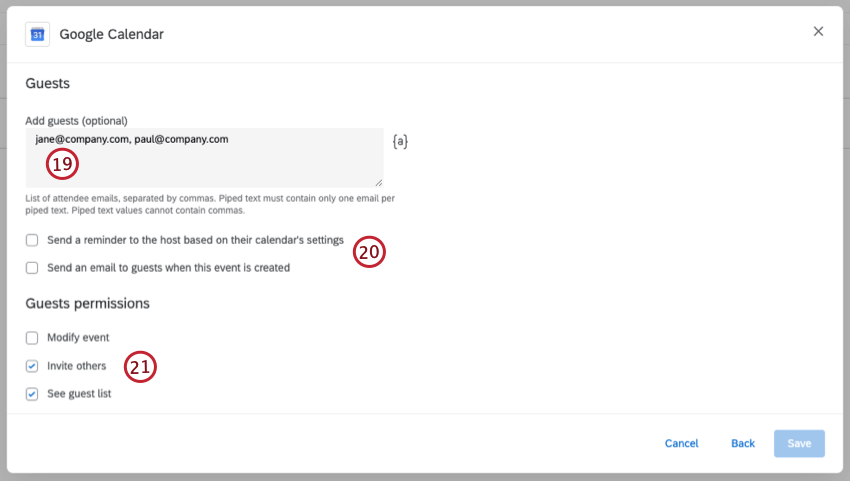
- Modify event: Give guests the ability to edit the event. This is disabled by default. Attention: If you don’t give guests the Modify event permission, they can’t change the event’s date or time on their own calendar.

- Invite others: Give guests the ability to add other guests to the event. This is enabled by default.
- See guest list: Give guests the ability to see which other guests are added to the event. This is enabled by default.
Qtip: If you select Modify event, both Invite others and See guest list will be selected by default.
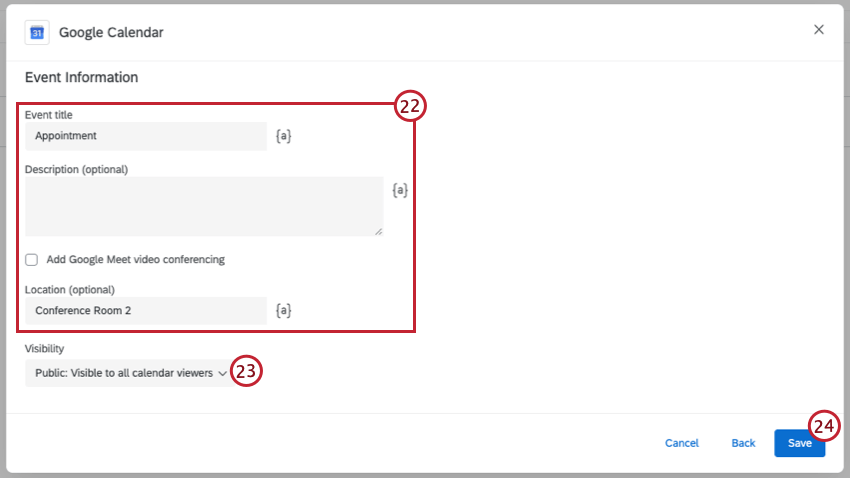
Qtip: Selecting Add Google Meet video conferencing will add a “Join with Google Meet” button to the calendar invite.
Using Piped Text
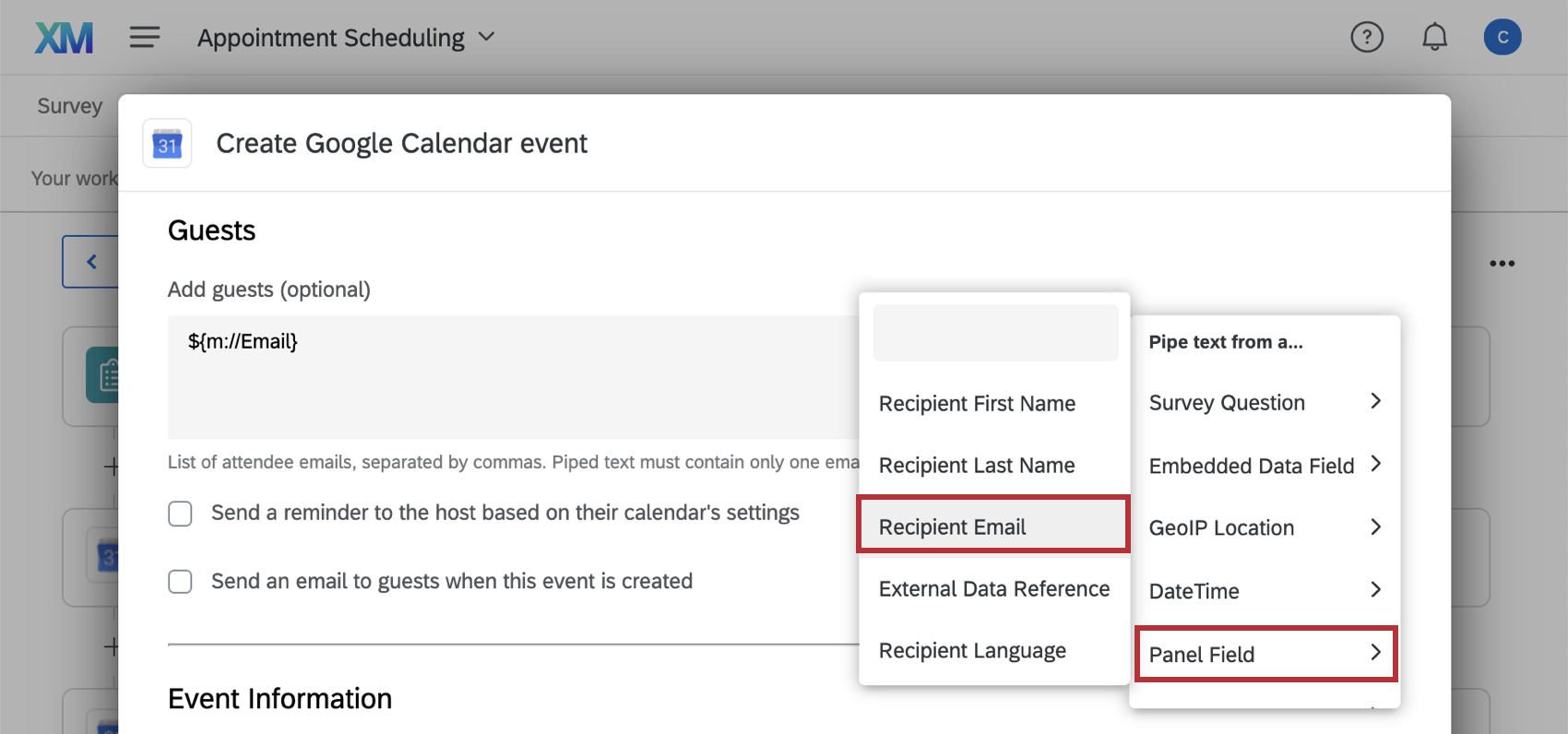
When creating a Google Calendar event you also have the option to use piped text for any of the fields. This allows you to customize calendar events based on information specific to each respondent, instead of using the same information for each respondent. Click the {a} icon next to a field to pipe in text from the survey. The available fields for piped text are the following:
- Survey Question: The response to a specific survey question.
- Embedded Data Field: The value of a specific embedded data field.
- GeoIP Location: The location information of a respondent.
- DateTime: A specific date or time.
Qtip: When piping in a date, it should be in the format yyyy-mm-dd. - Panel Field: The value of a specific directory field.
- Quota: The count of a survey quota.
Example: Pipe text from a panel field to automatically add the survey respondent as a guest on the calendar event.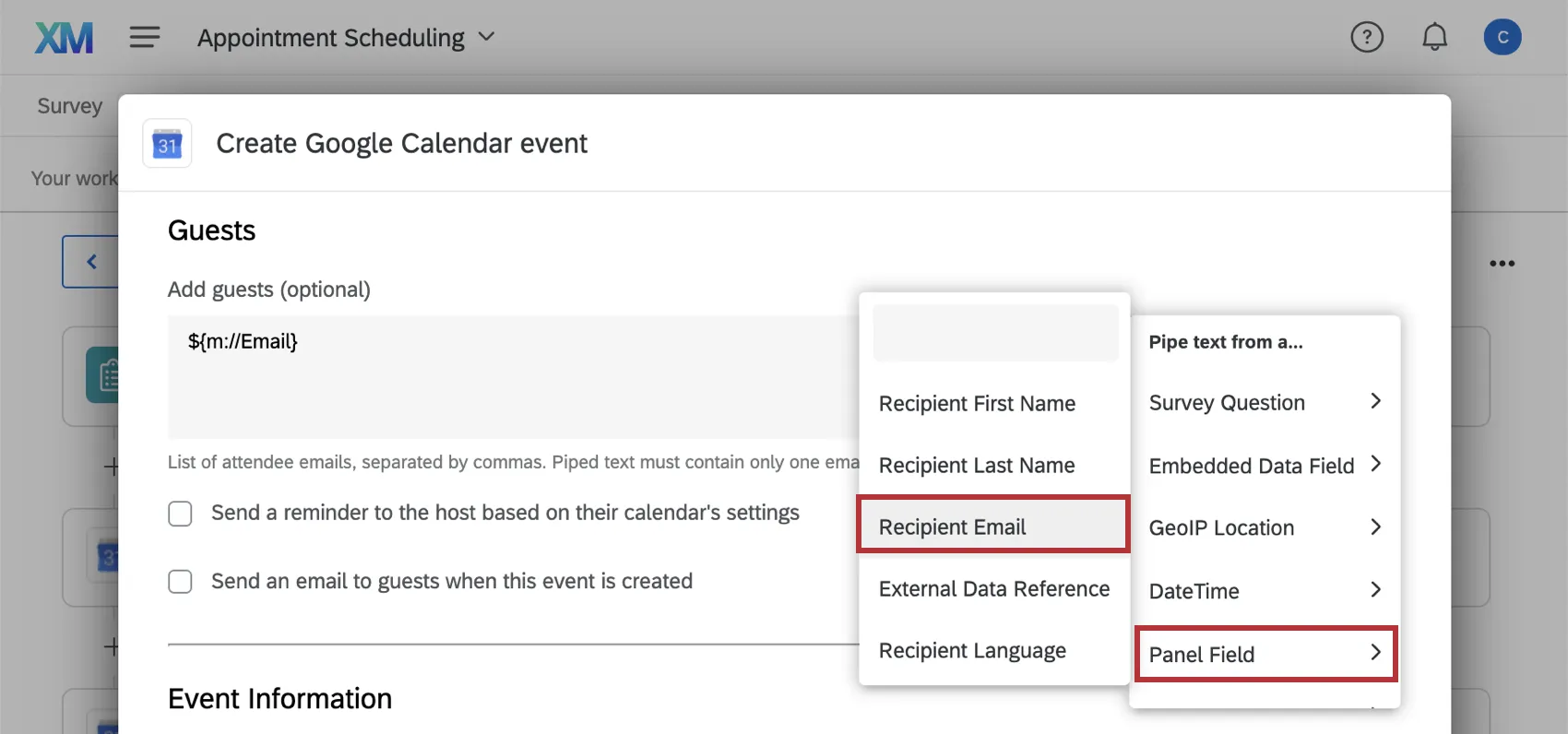

Cancelling a Google Calendar Event
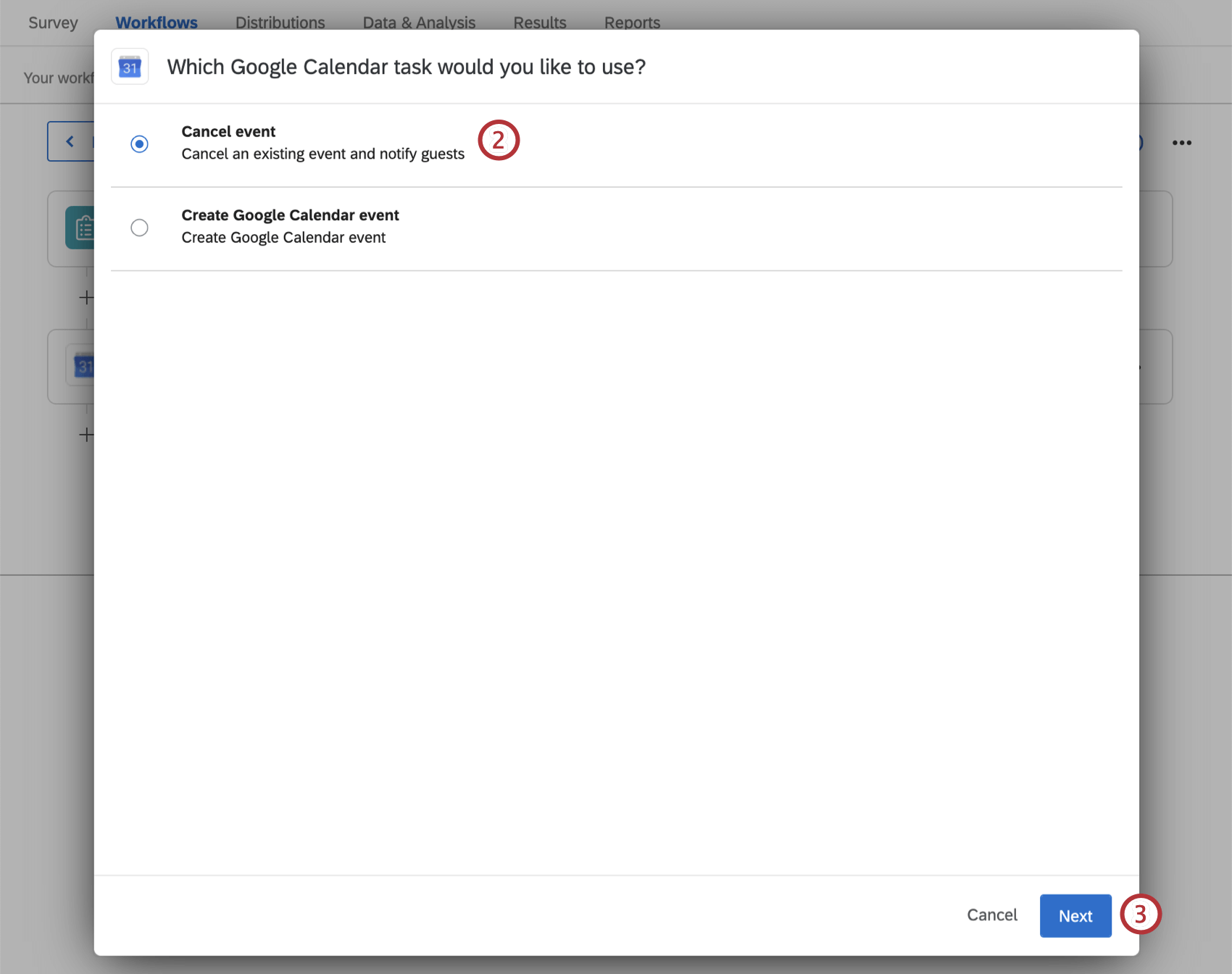
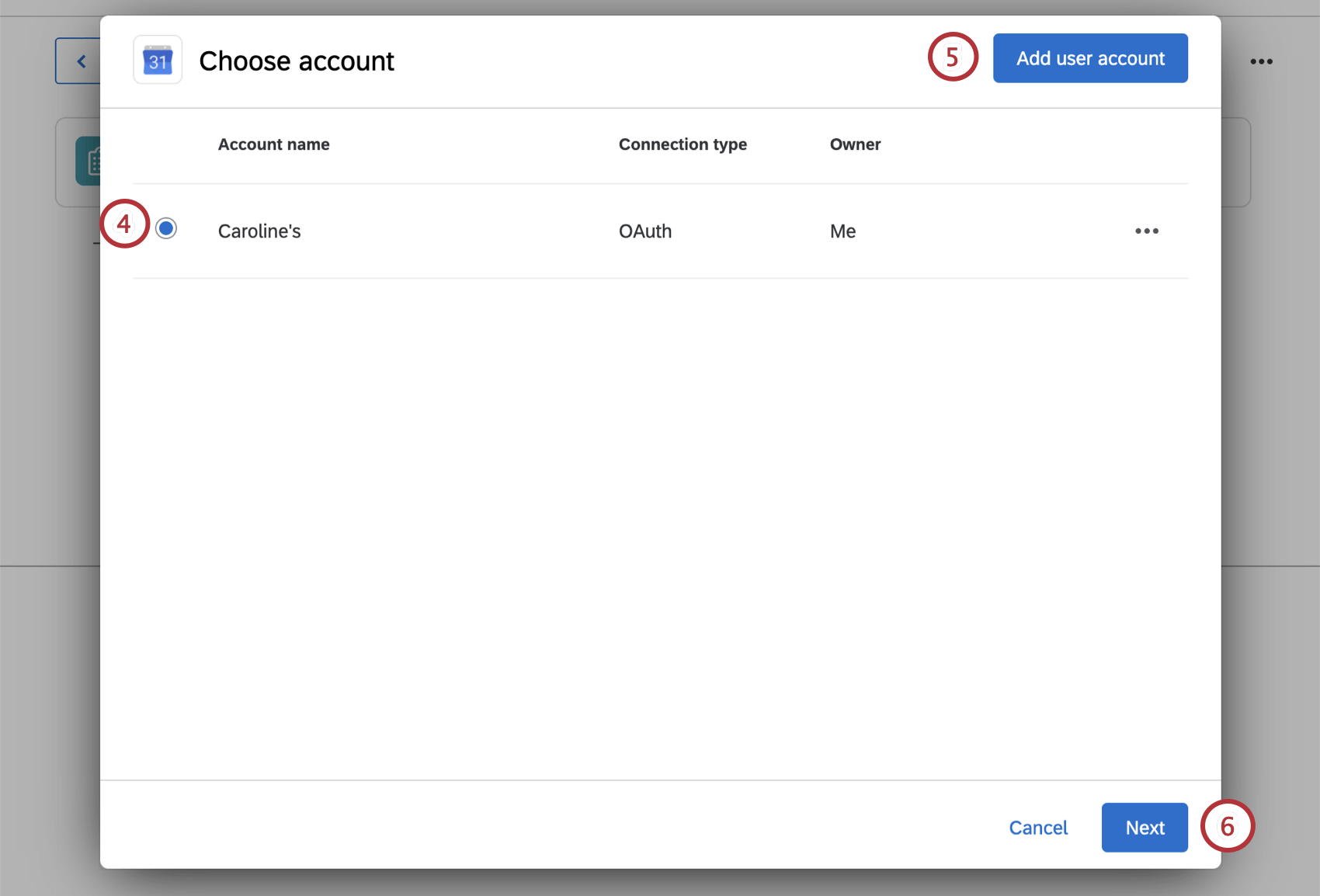
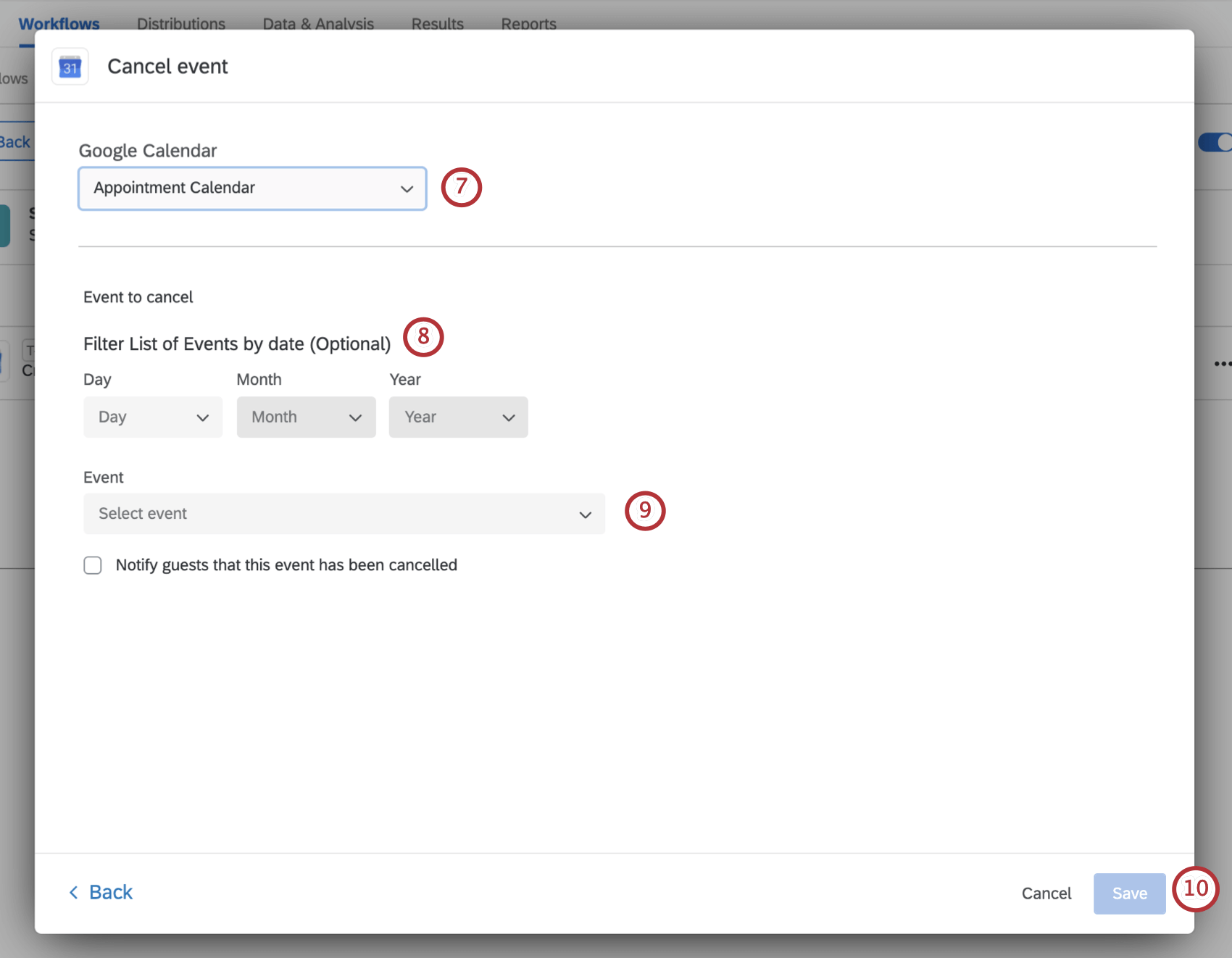
Cancelling an event involves many of the same steps as creating a new calendar event.
FAQs
How can I tell the difference between first party and third party extensions? Where do I go for support for either kind?
How can I tell the difference between first party and third party extensions? Where do I go for support for either kind?
How do I add or remove an extension from my Qualtrics account?
How do I add or remove an extension from my Qualtrics account?
That's great! Thank you for your feedback!
Thank you for your feedback!