

Calendar Question
What's on this page
About Calendar Question
Attention: You must have the Calendar user permission in order to use this question type. This question type is only available in the New Survey Taking Experience. Contact your Brand Administrator if you need permissions enabled.

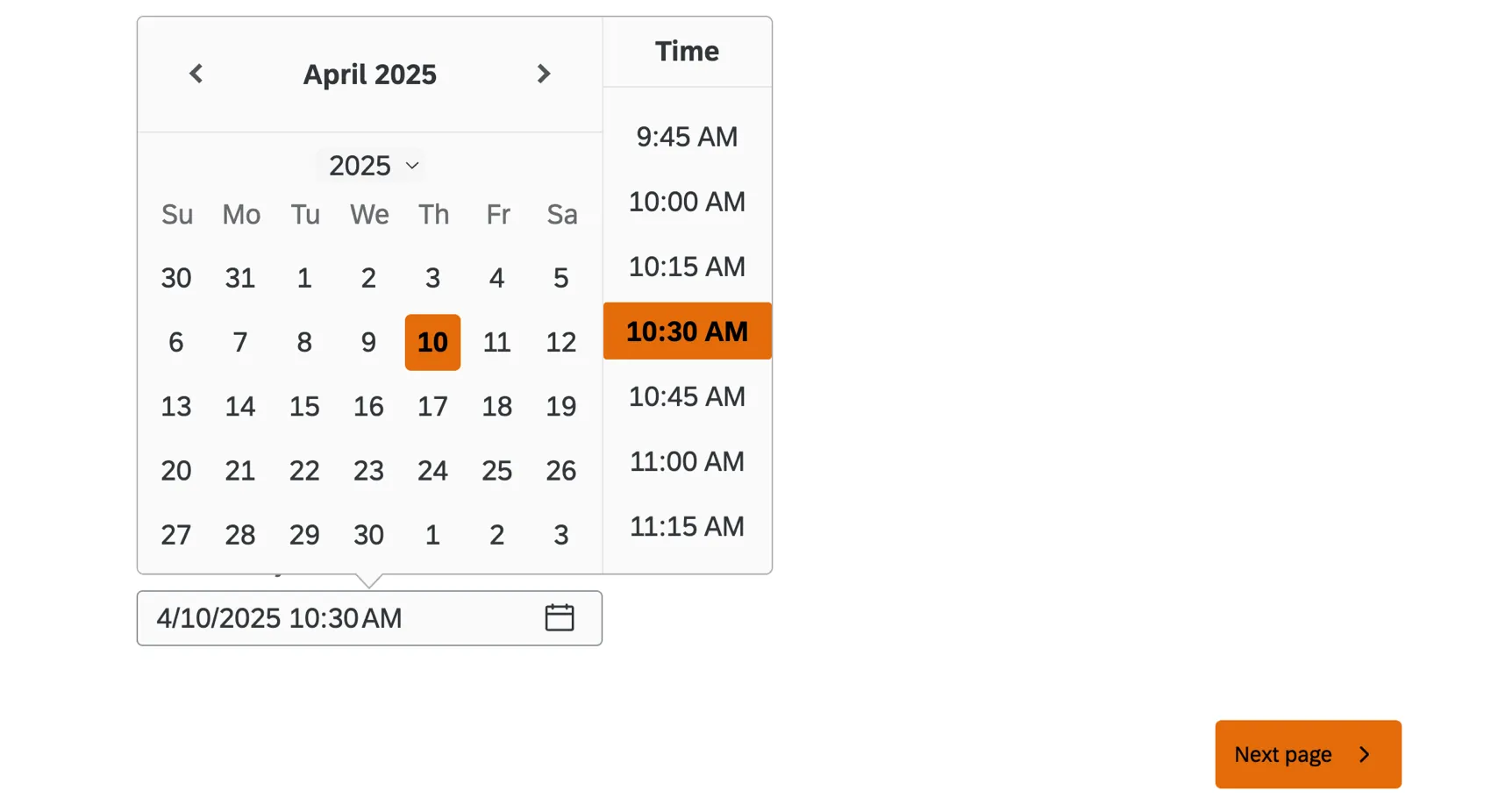
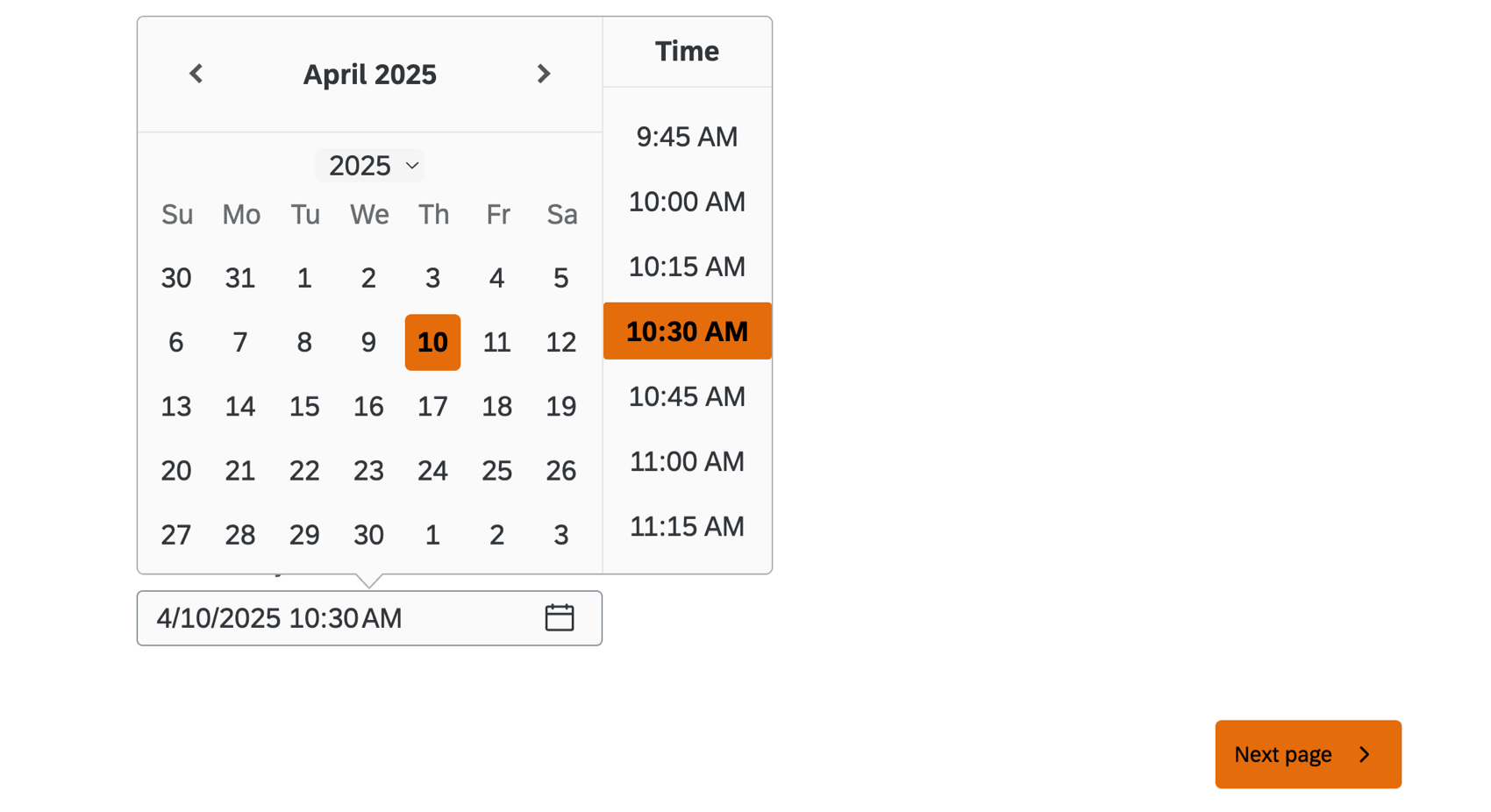
The calendar question allows users to input a date and time using a calendar in the survey.
Qtip: See Creating Questions for more information on setting up a survey question.
Calendar Format Options
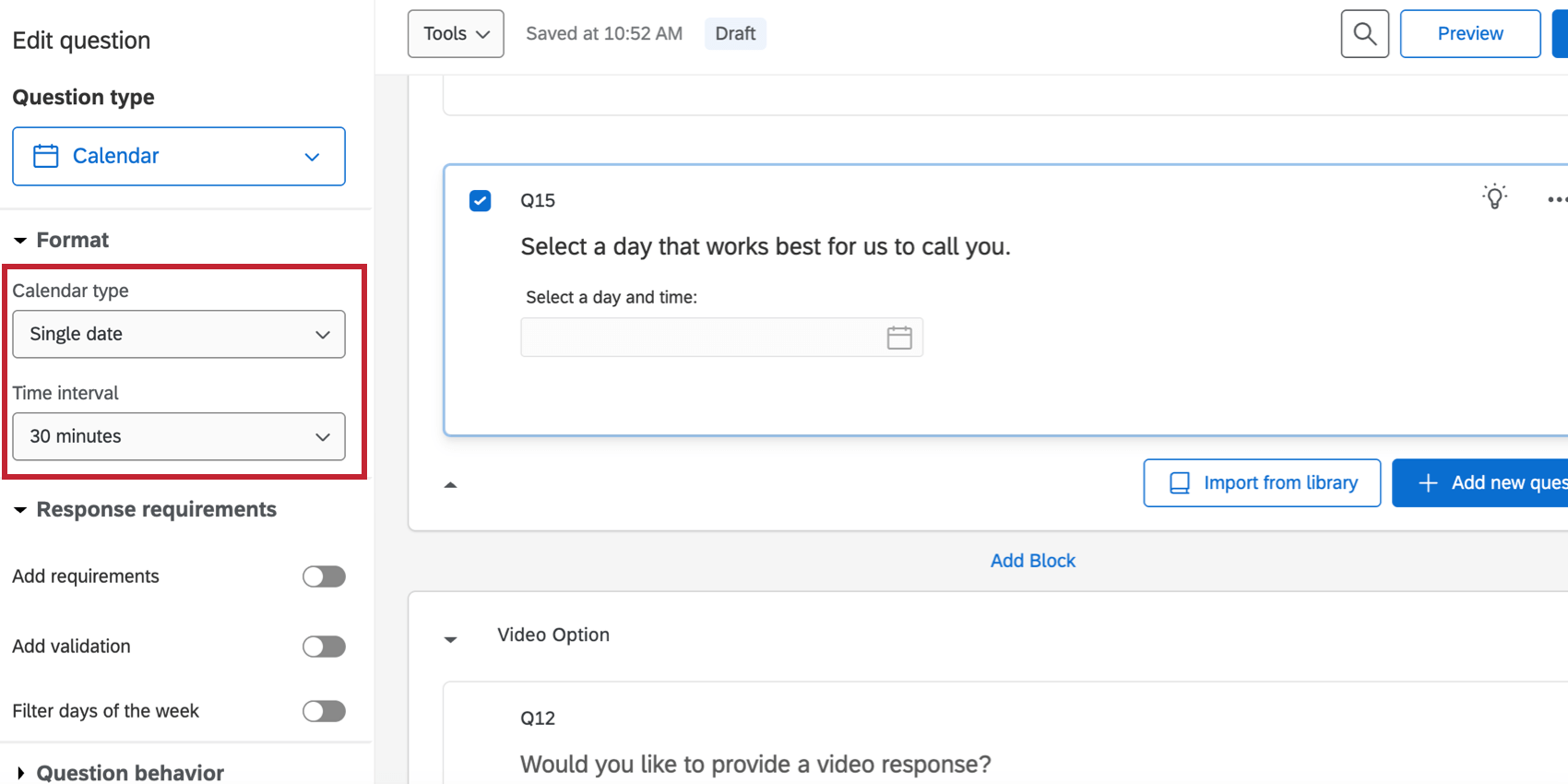
You can change the format of the calendar question by using the options under Format in the question editing pane.
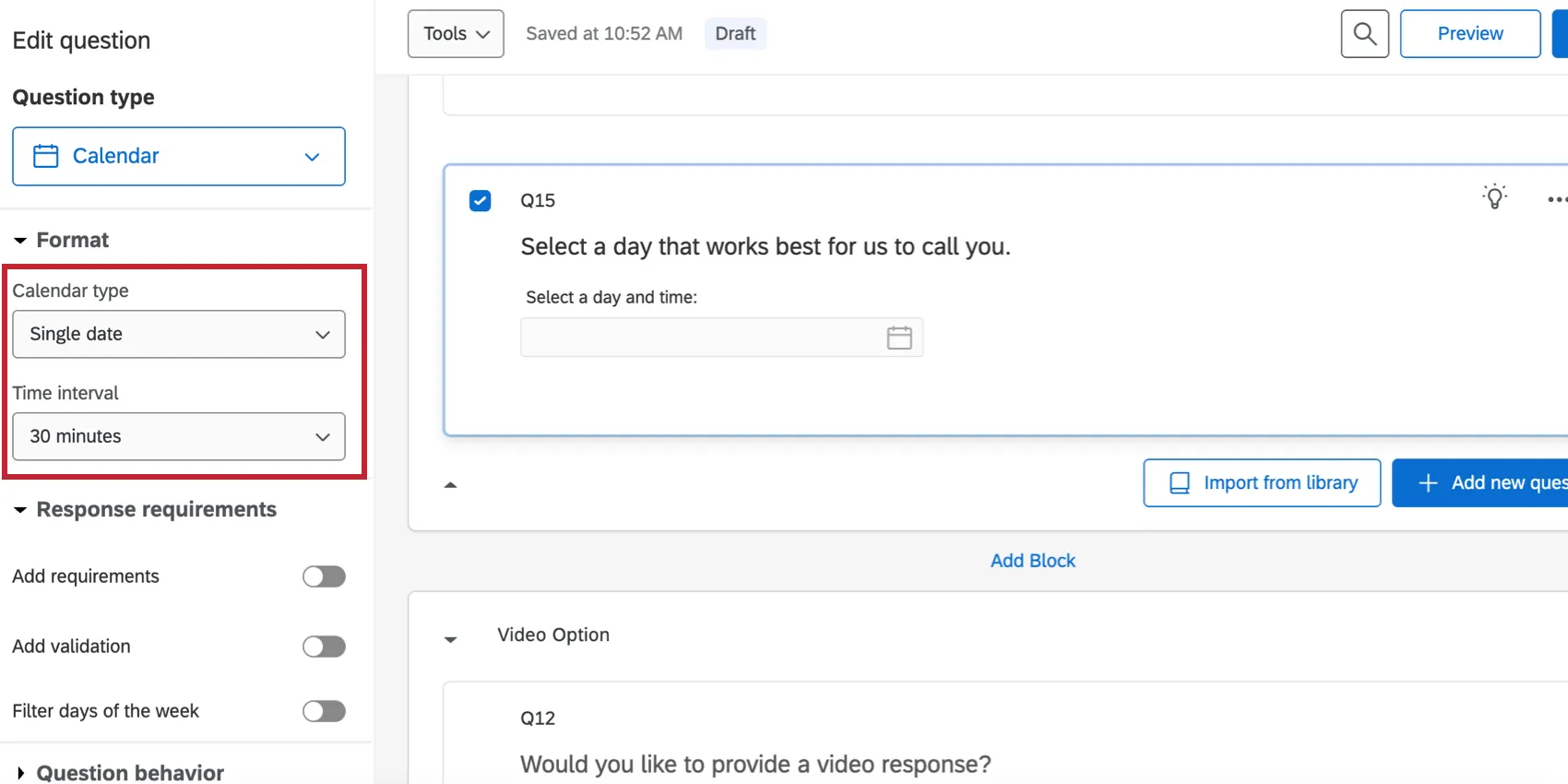
- Calendar type: Select whether respondents can enter a single date or a date range.
- Time interval: Select whether respondents can select times in 15 minutes, 30 minutes, or 1 hour intervals. Qtip: Respondents can type any time into the text box, regardless of the interval displayed.

Qtip: The format of the date (for example, dd/mm/yyyy) is displayed to respondents according to their browser settings.
Calendar Response Requirement Options
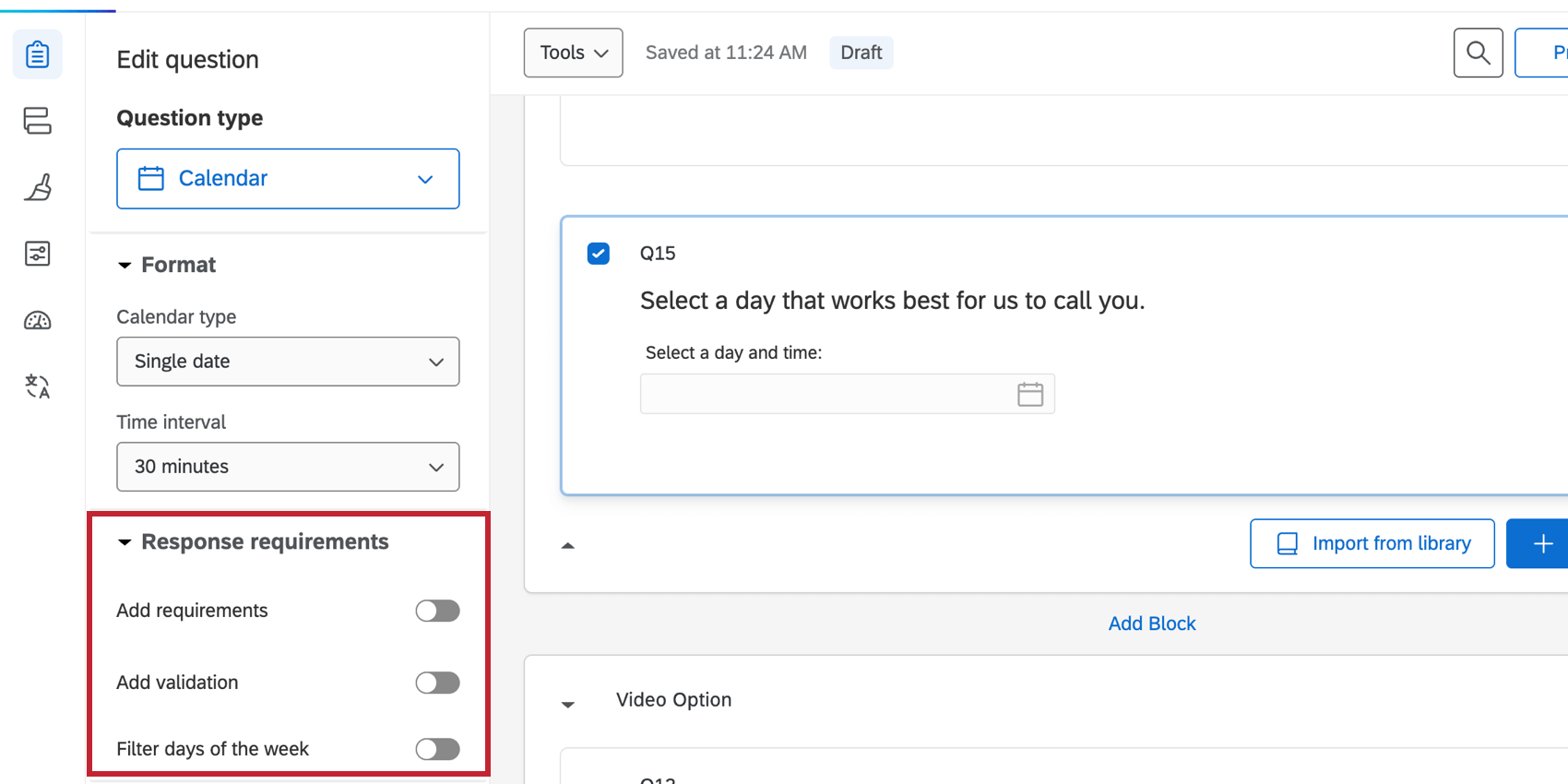
You can set response requirements to define how respondents must enter their date and time when using the calendar question.
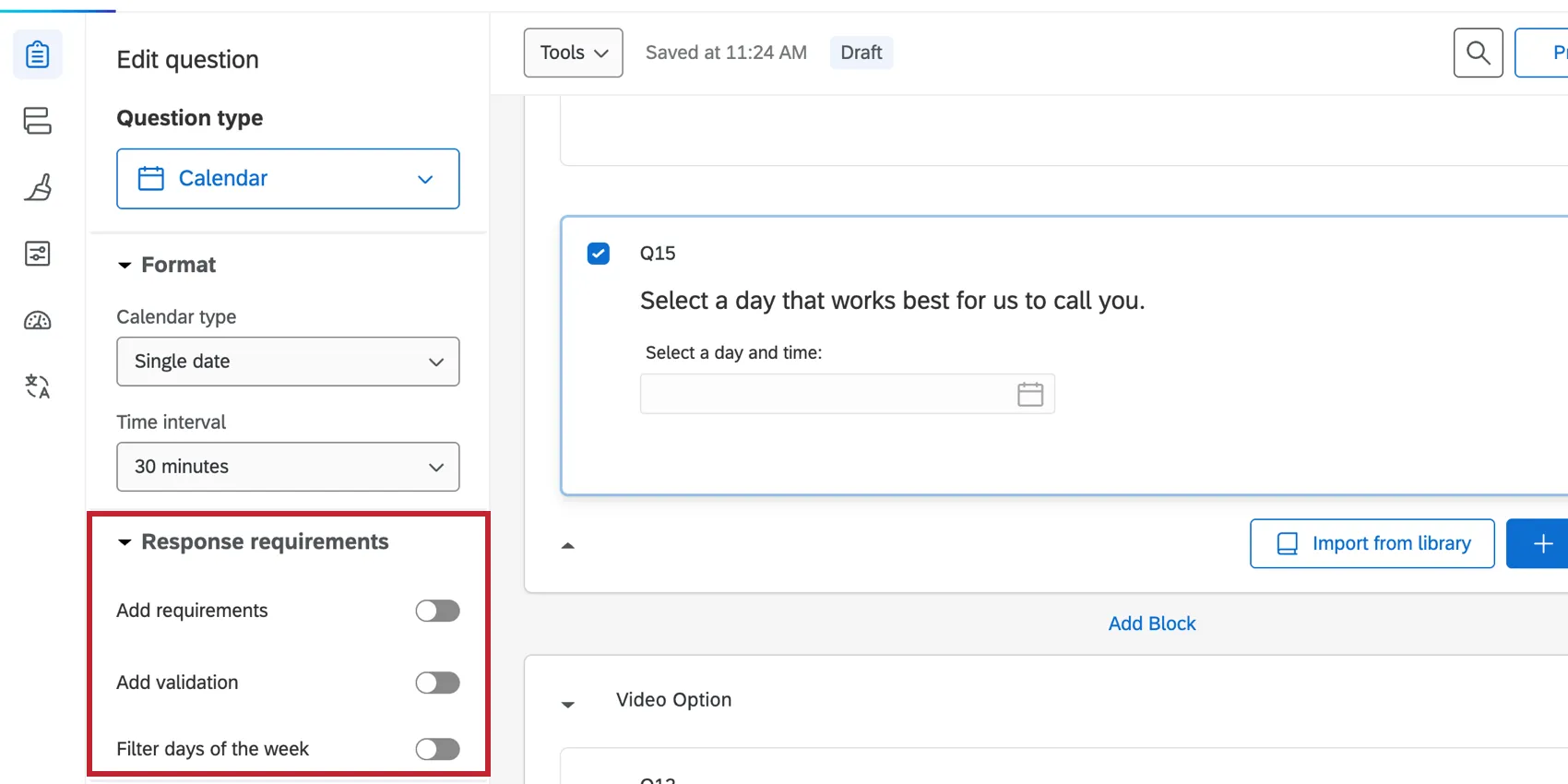
- Add requirements: Enable force response or request response.
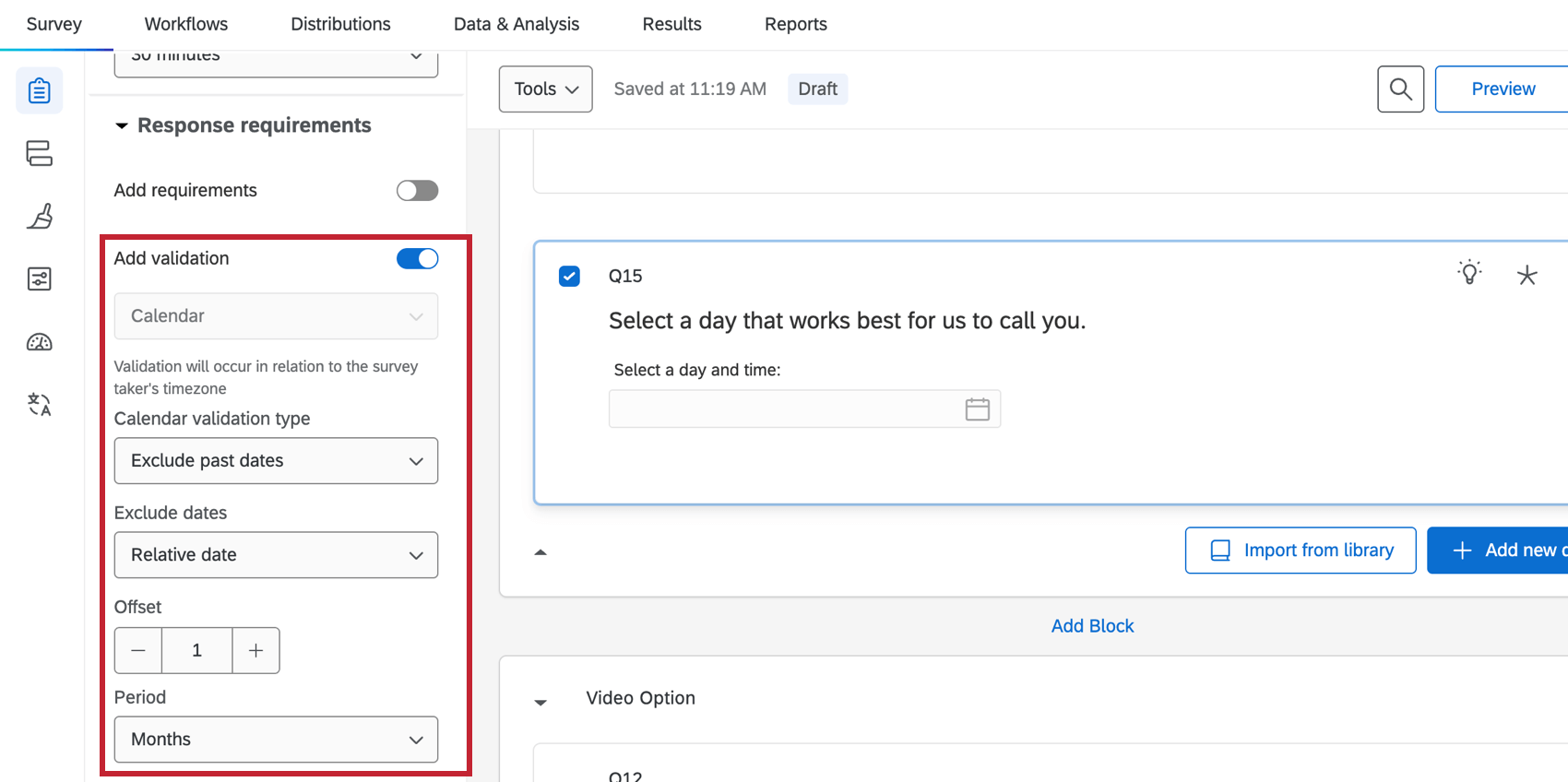
- Add validation: Select if you want to exclude or restrict date options in the Calendar validation type Then, use the dropdowns to set up that validation.
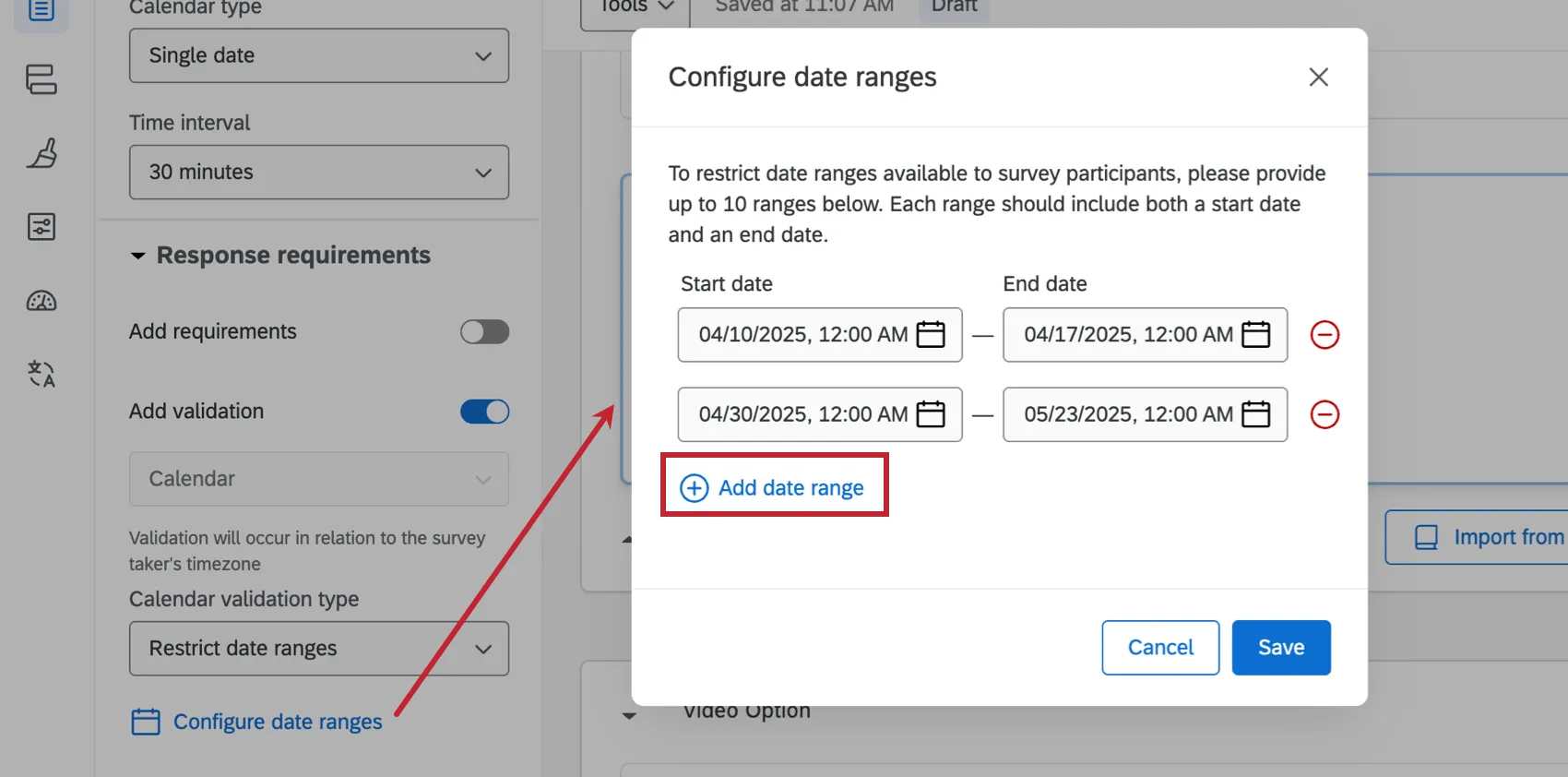
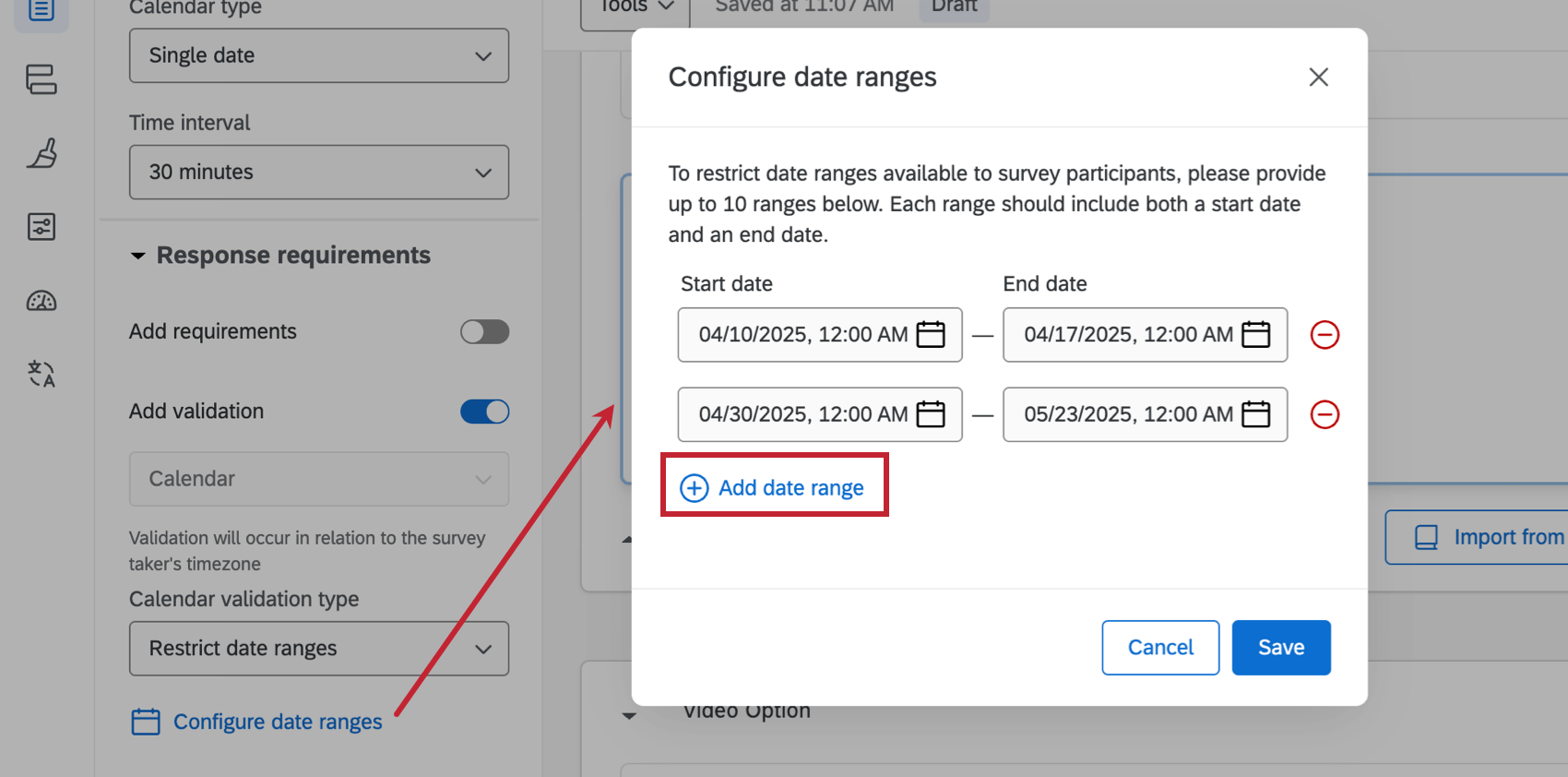
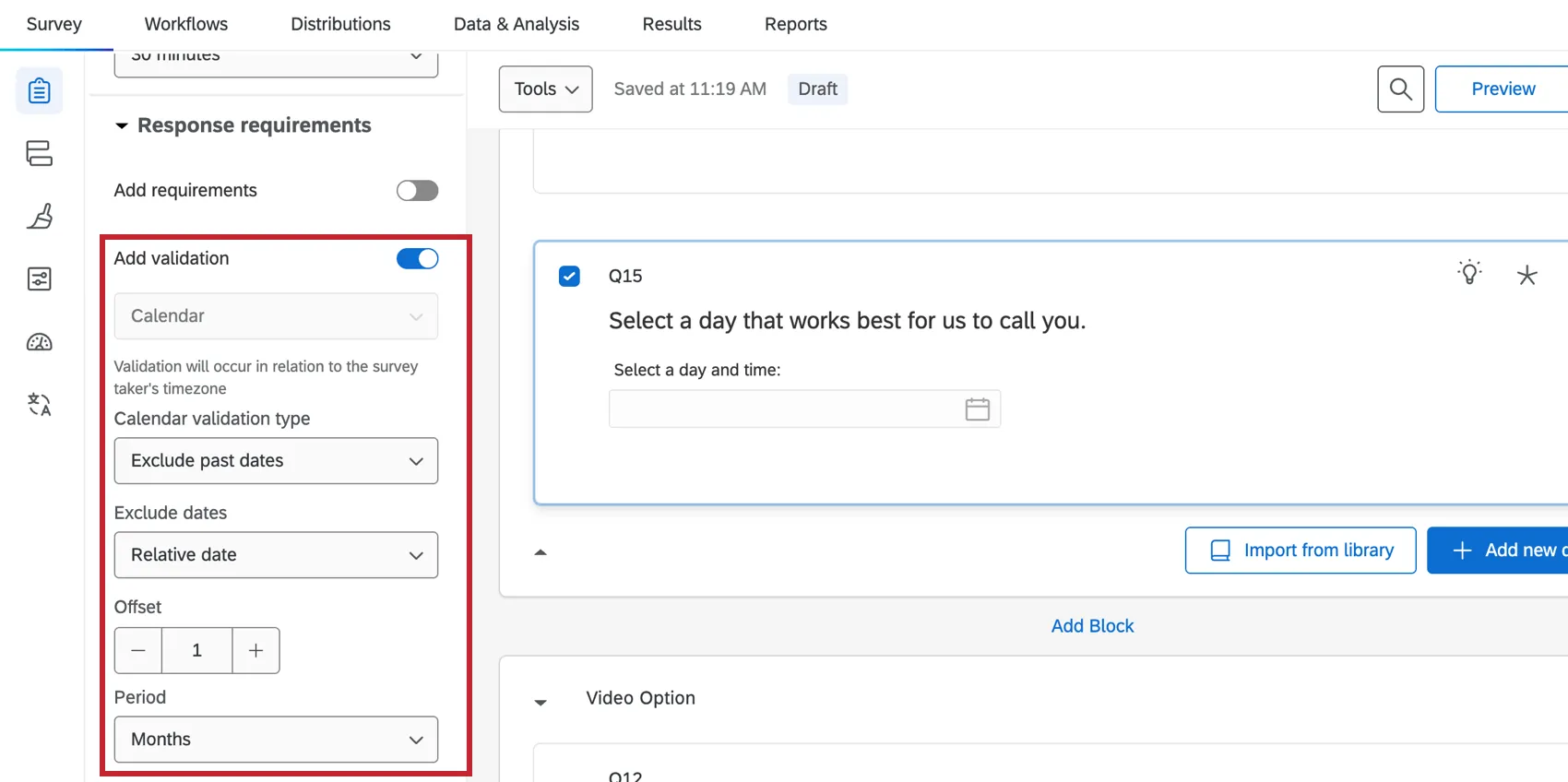 Qtip: If you set the calendar validation type to Restrict date ranges, click Configure date ranges to select what dates are available for respondents to select. You can add multiple ranges by selecting Add date range.
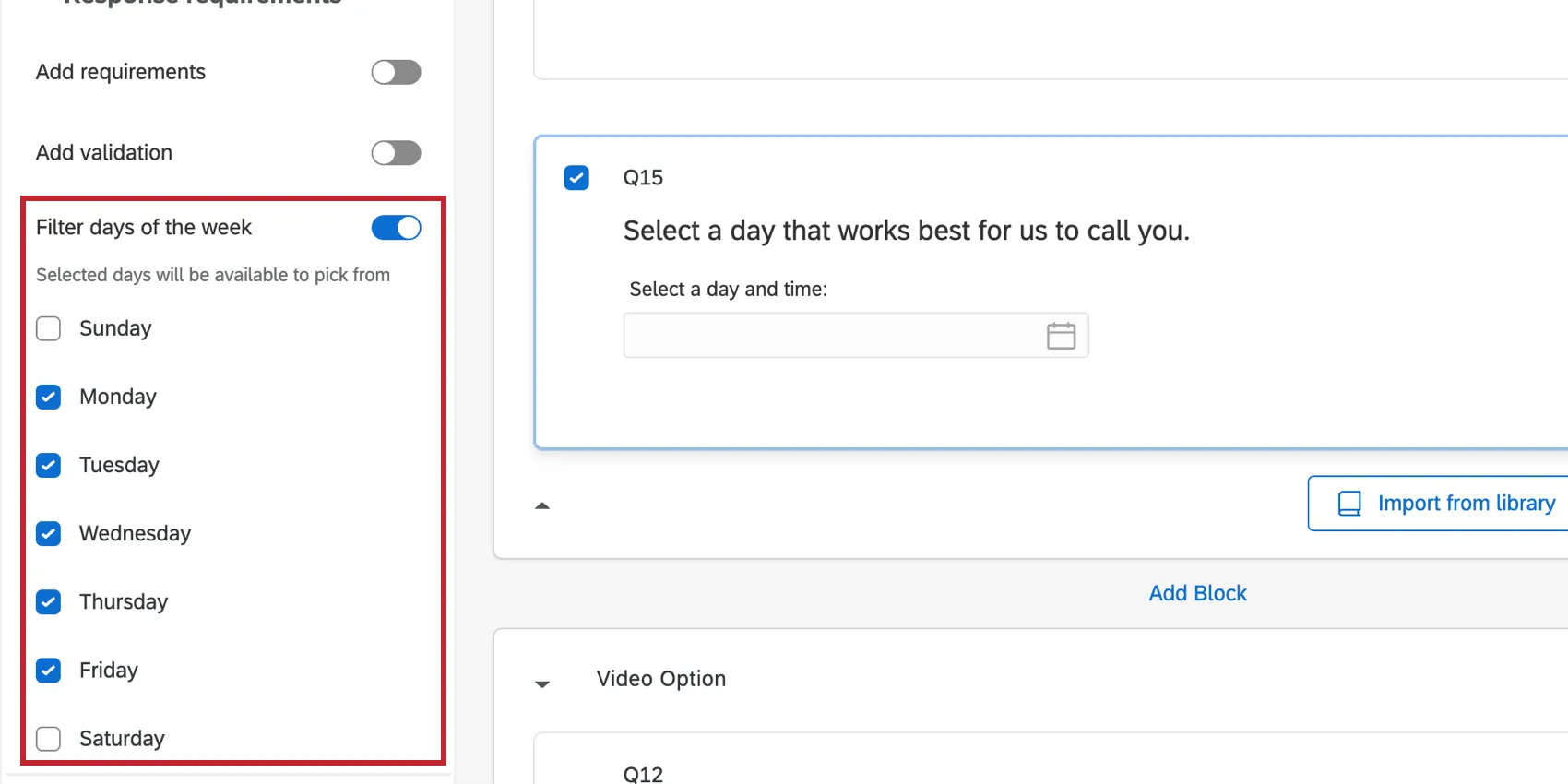
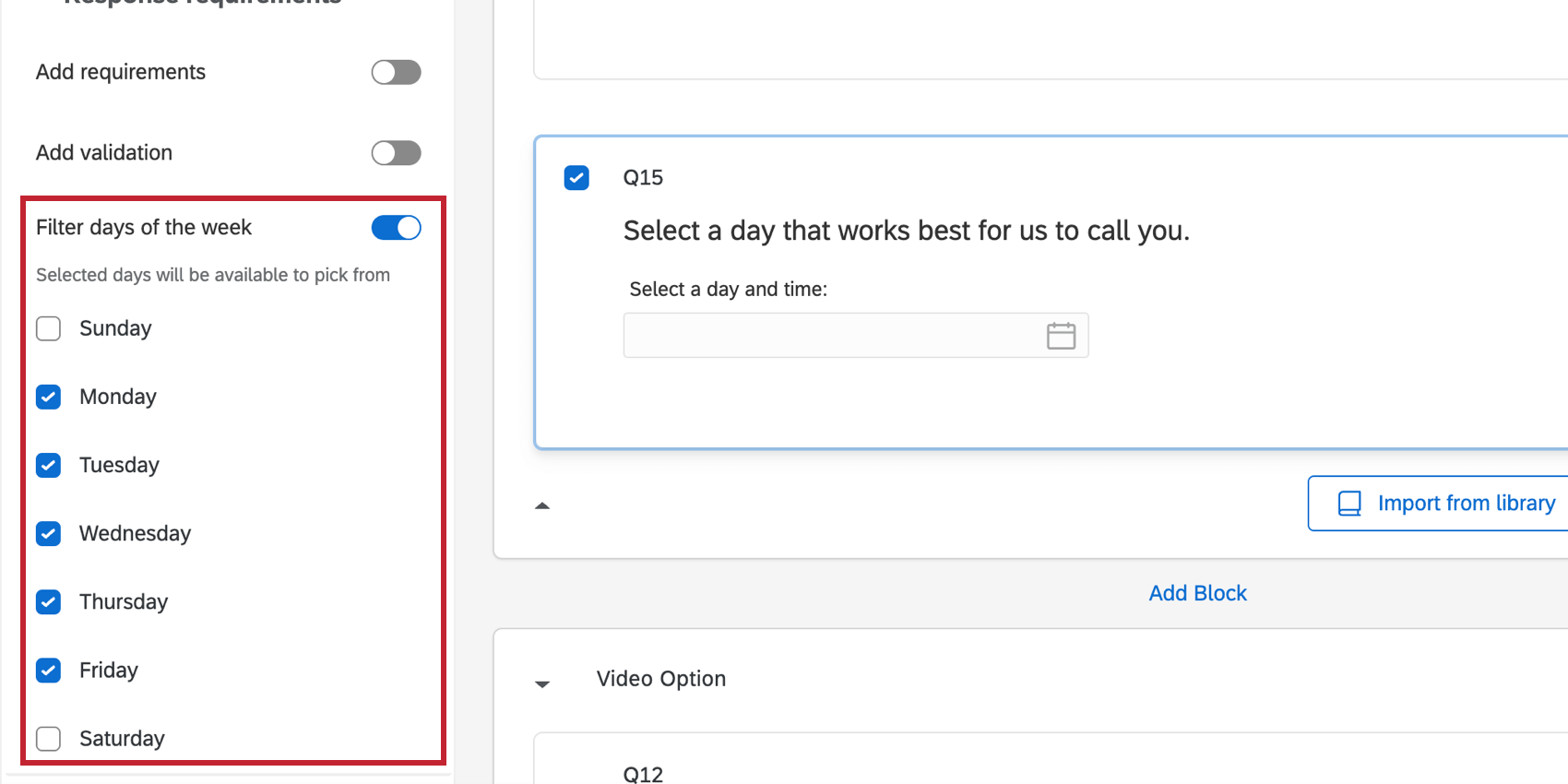
- Filter days of the week: Select which days of the week respondents can choose from.
Data Analysis
Once your responses have been collected, Qualtrics offers various methods to create reports both in and out of the platform. In the Results and Reports sections, you can view aggregate data with pre-made reports as well as create your own. From the Data & Analysis tab, you can view and manipulate your survey responses on an individual basis.
Qtip: The date entered by the respondent is converted to the time zone of your account.
Data and Analysis Tab
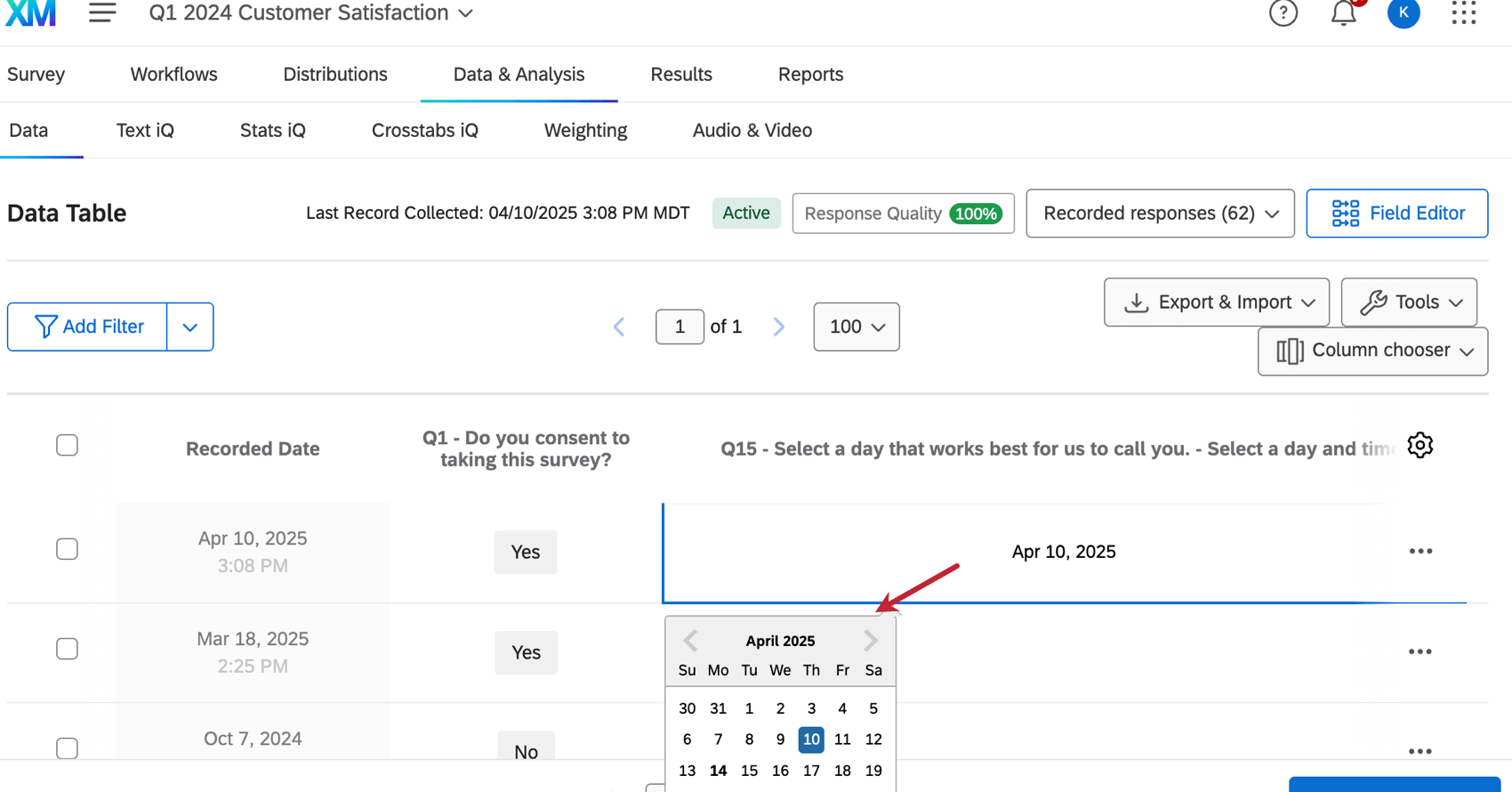
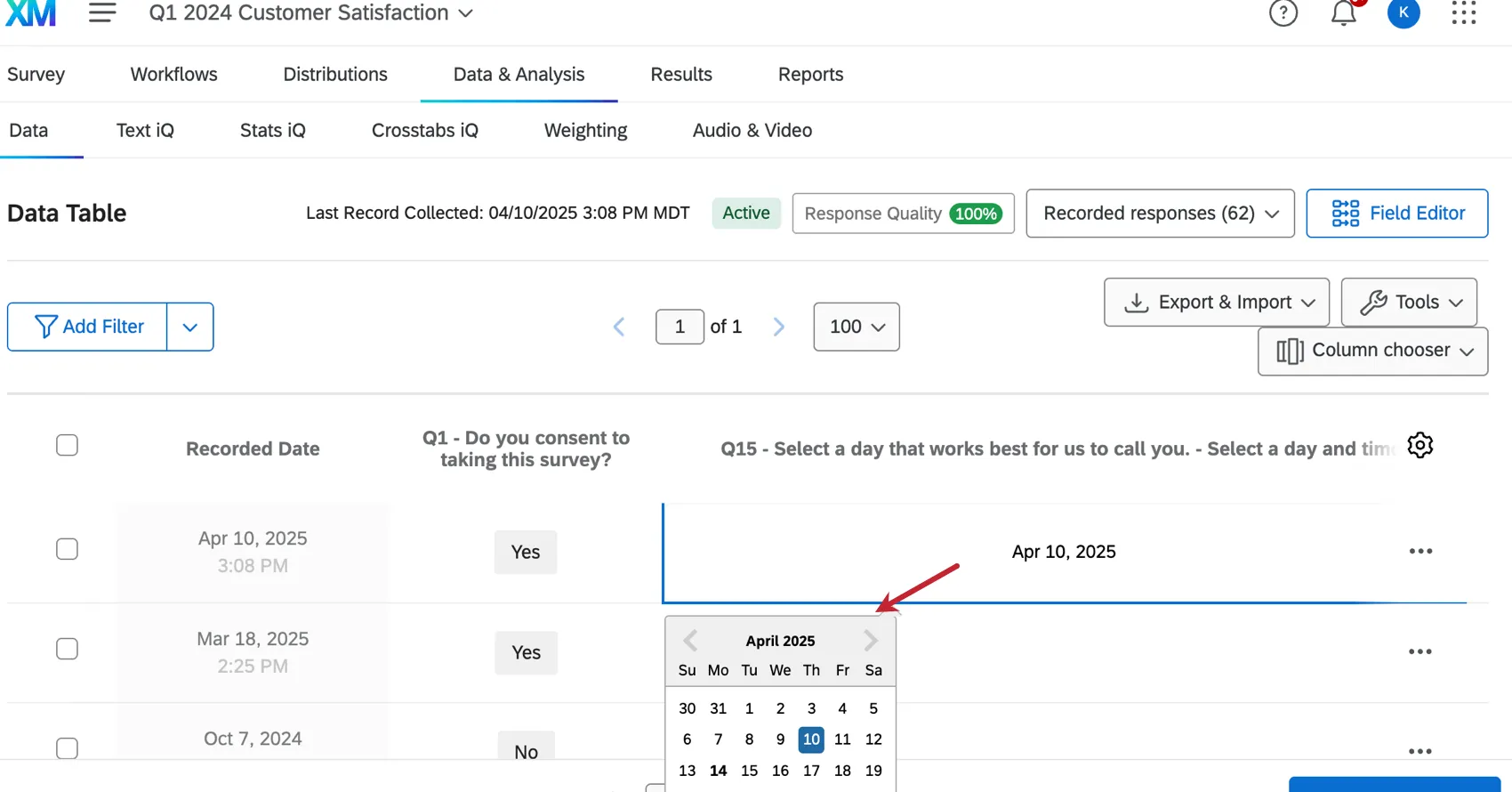
You can edit the data by clicking on the answer for the calendar question then selecting a new date.
Widgets and Visualizations
The field type for calendar questions is Date. See Field Types & Widget Compatibility for information on which widgets and visualizations are compatible.
FAQs
What kind of project can I use this type of question in?
What kind of project can I use this type of question in?
That's great! Thank you for your feedback!
Thank you for your feedback!