

Slack Task
What's on this page
About the Slack Task
When a survey response is recorded (or another event occurs in Qualtrics), you can trigger a Slack message to be sent to users or channels of your choice. With this functionality, you can disseminate important feedback and information faster. Rather than sending email notifications that can go unread/unanswered for days, key stakeholders receive instant notification.
Qtip: You can choose to message just channels, just users, or a combination of both.

Qtip: If you are looking for support on distributing surveys via Slack, see the Slack Extension page.
Required Permissions
Qtip: The Qualtrics-Slack extension is an add-on feature not included in the standard Qualtrics license. Please see the Slack Extension listing in the XM Marketplace, or contact your Qualtrics Account Executive for more information.
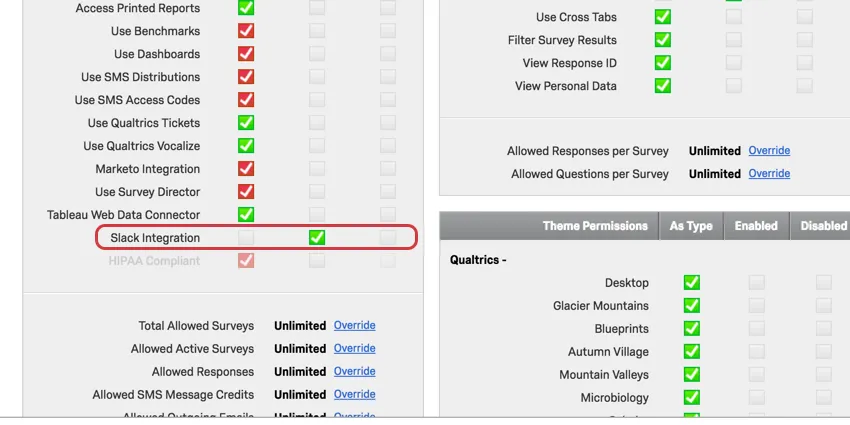
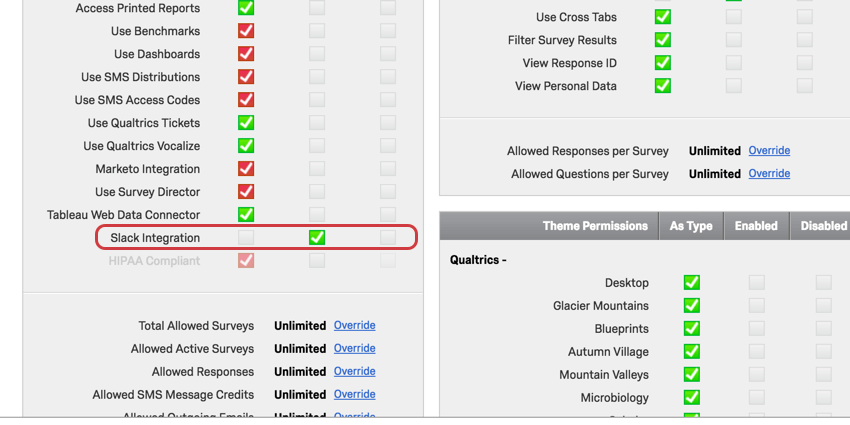
You need permission to use the Slack Integration before you can access this in your account. If you cannot access Slack under the Workflows tab, contact your Brand Administrator.
If you are a Brand Administrator, the permission looks like this:
Setting Up a Slack Task
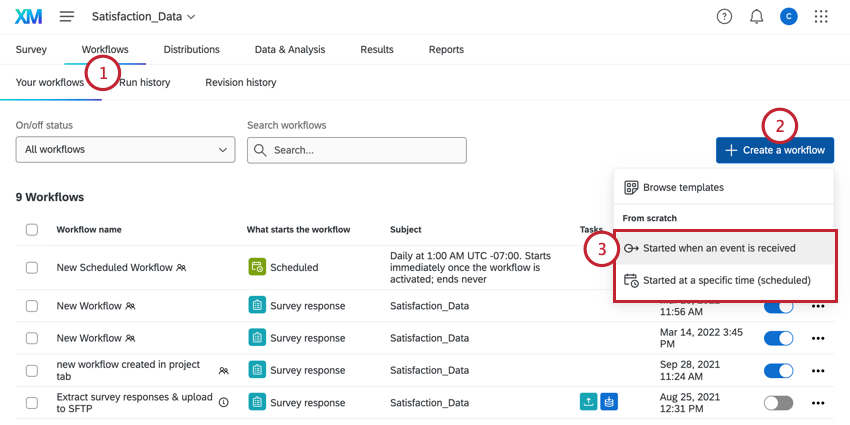
Qtip: Usually, you’ll choose event-based and the survey response event.
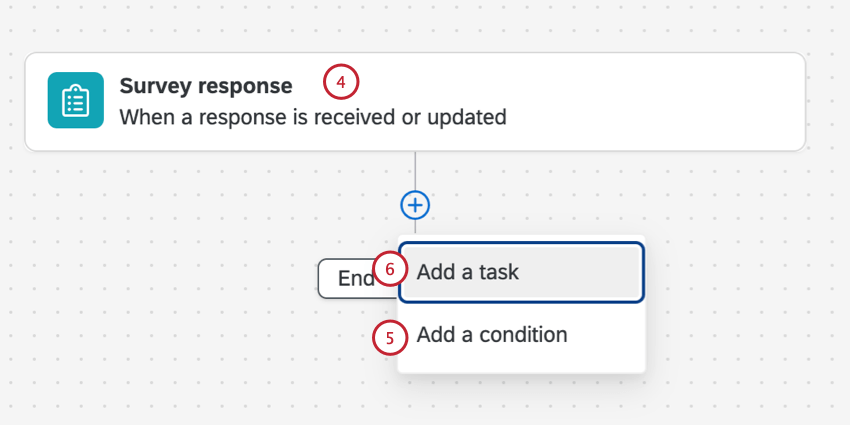
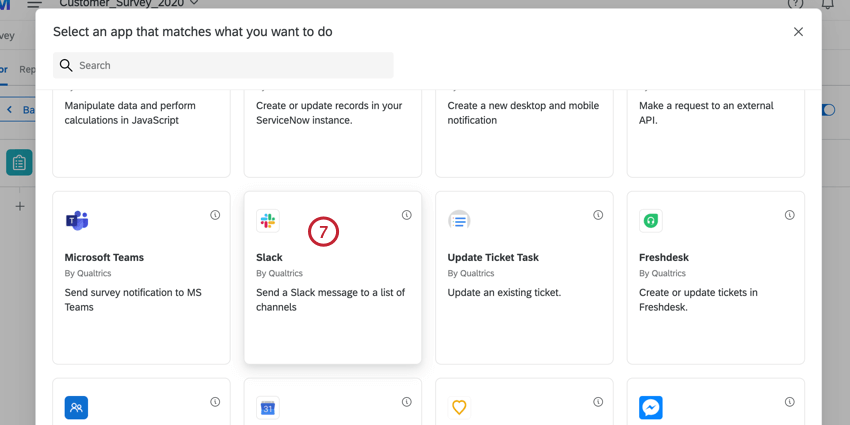
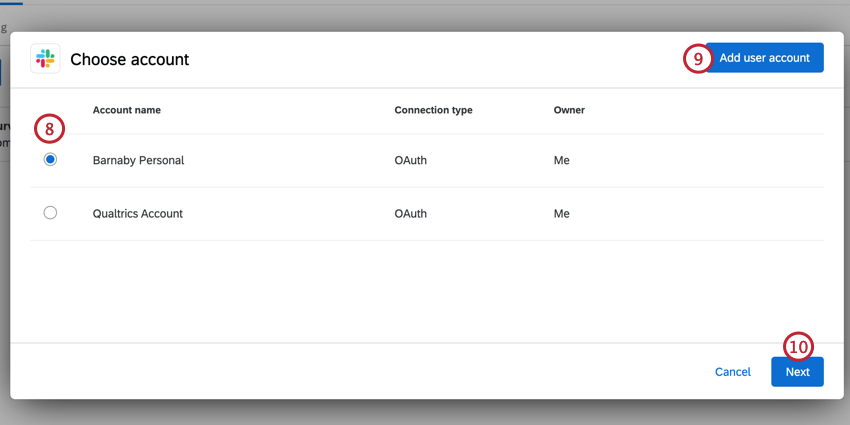
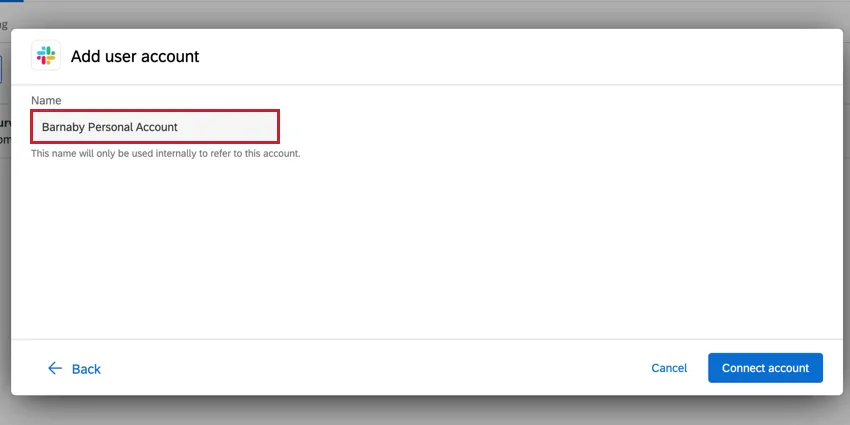
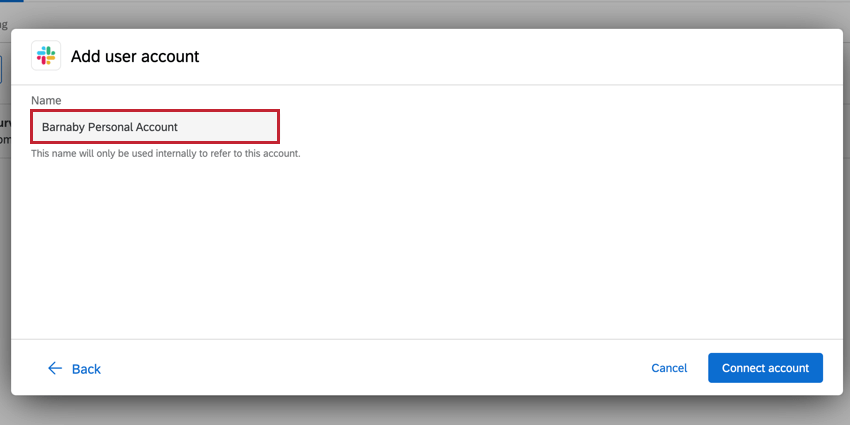
Qtip: After clicking add user account, give your account a name and click Connect account.
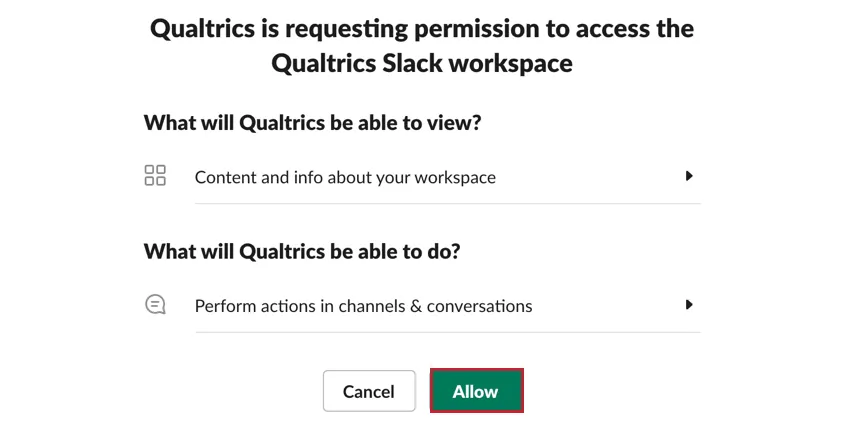
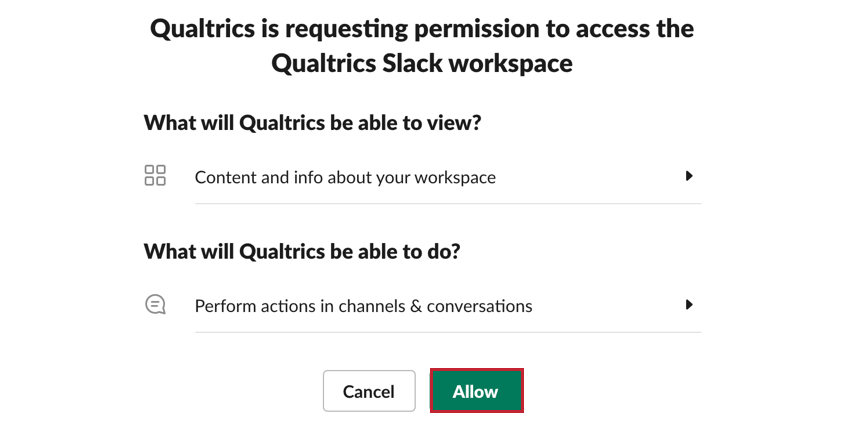
Then, review the data that will be passed between Slack and Qualtrics and click Allow to complete the connection.
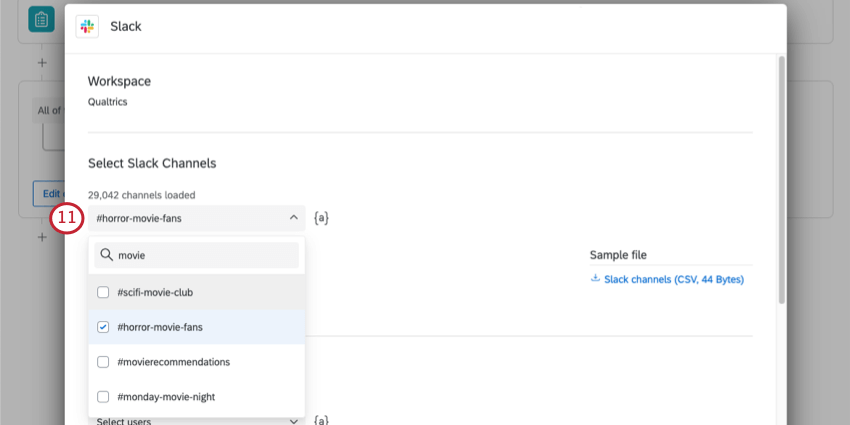
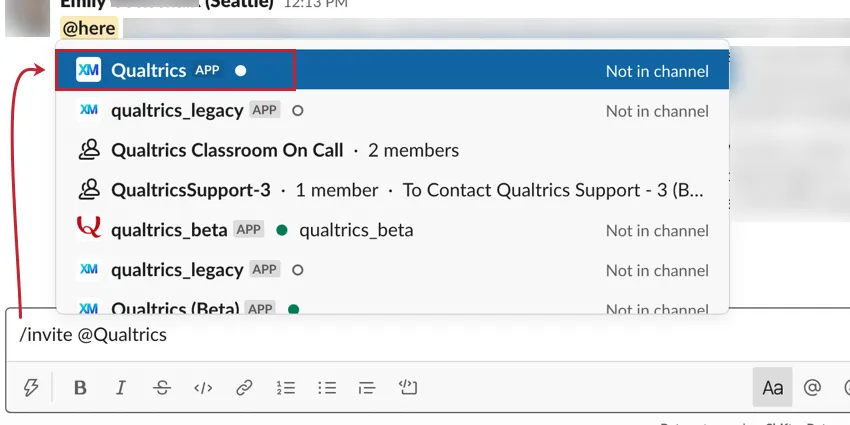
Qtip: You can send a message to a private channel by adding the Qualtrics app to the channel. To add the Qualtrics app to a private channel, type “/invite @Qualtrics” in the channel and select the Qualtrics app from the list.
Qtip: You can also use the piped text button ( {a} ) to select slack channels. For example, if embedded data values or respondents’ answers to questions change what slack channel should receive the message.
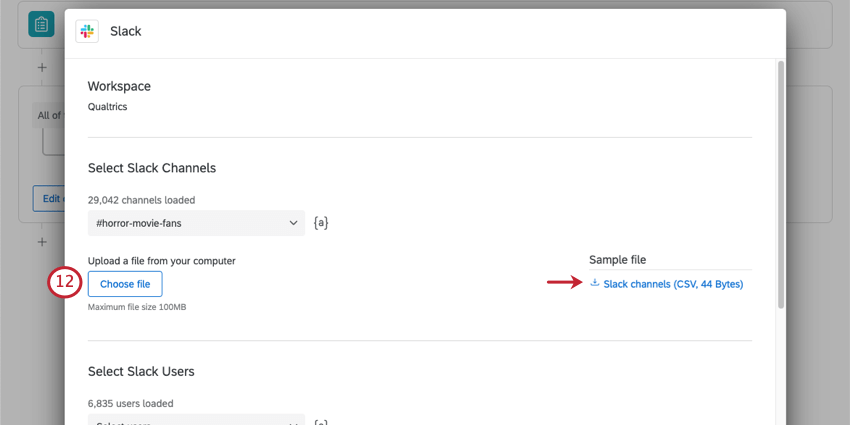
Qtip: Make sure to keep the header you see in the file and separate channels by rows. Do not include the hashtag ( # ) in channels names.
Qtip: The maximum file size you can upload is 100MB.
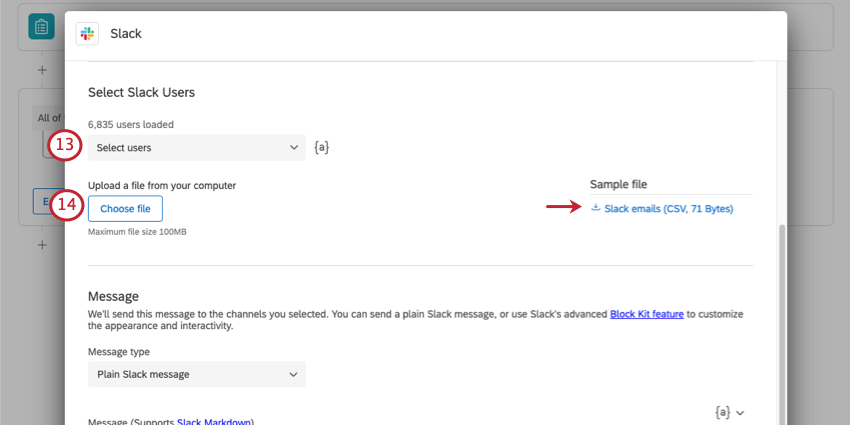
Qtip: The Slack task generates separate direct messages, not a group message.
Qtip: Make sure to keep the header you see in the file and separate users by rows. Users must be identified by email address.
Qtip: The maximum file size you can upload is 100MB.
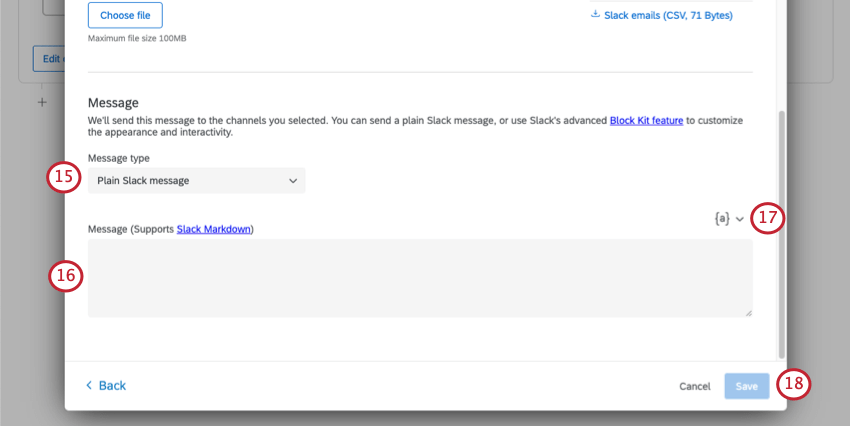
- Plain Slack message: A normal Slack message, no different than typing in Slack normally. This message type supports Slack markdown. This message type is best for simple messages with basic formatting.
- Slack Block Kit: Build a message using the Slack Block Kit Builder. This message type is best for messages with complicated formatting not possible using the regular Slack markdown.
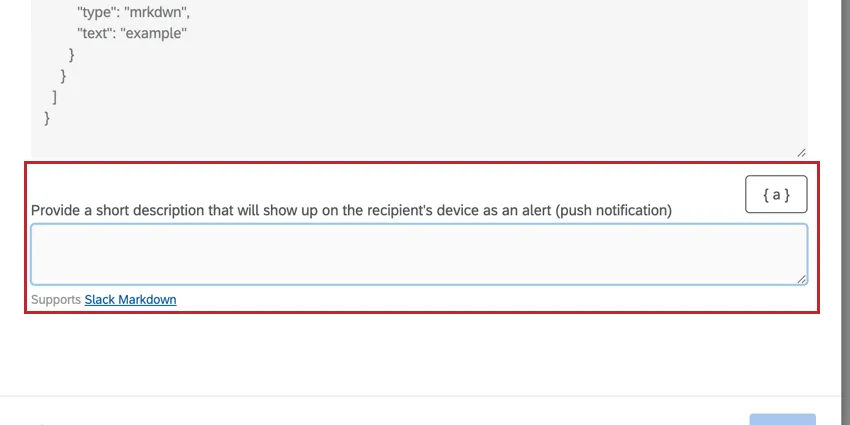
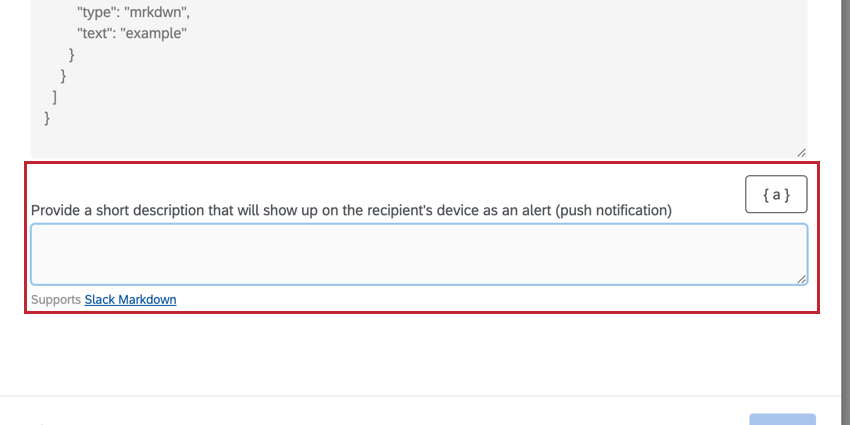
Qtip: If you selected the Slack Block Kit message type, a second box will appear for you to enter a message to display as a mobile push notification.
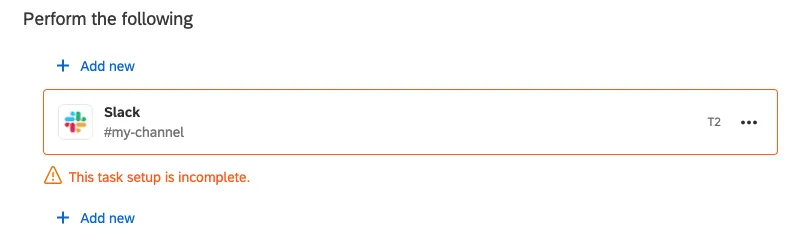
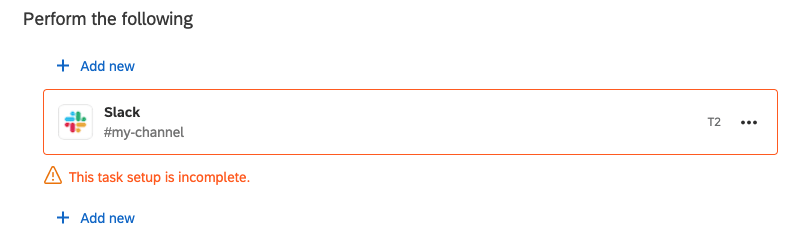
Qtip: You may see a “this task setup is incomplete” message on your existing Slack tasks. If this is the case, click the task and select Back to return to the credential selection screen. Either select an existing credential, add your own credentials, or have a Brand Administrator add a credential for the license. Once you’ve selected new credentials, finish setting up the task.
FAQs
Do I have access to all extensions available through the Workflows templates?
Do I have access to all extensions available through the Workflows templates?
Is there a link to all Workflows events and tasks?
Is there a link to all Workflows events and tasks?
What are Workflows templates?
What are Workflows templates?
What are workflows? / Where are actions?
What are workflows? / Where are actions?
There are no changes to workflow functionality as part of this update.
How can I tell the difference between first party and third party extensions? Where do I go for support for either kind?
How can I tell the difference between first party and third party extensions? Where do I go for support for either kind?
How do I add or remove an extension from my Qualtrics account?
How do I add or remove an extension from my Qualtrics account?
That's great! Thank you for your feedback!
Thank you for your feedback!