

Qualtrics Assist (CX)
What's on this page
Attention: This feature is only available to users on the new simplified pricing and packaging plans or customers who actively participated in the Preview Program for this feature. For more information, see Qualtrics Public Preview. If you have questions about your Qualtrics pricing and packaging plan, reach out to Account Services.

About Qualtrics Assist (CX)
Qualtrics Assist (CX) is a dashboard assistant that enables CX and VoC teams to analyze comments from open text survey responses and reviews. When combined with science-backed Qualtrics AI, users can uncover qualitative and quantitative insights from their dashboard results quickly and reliably, while also identifying topics of interest.
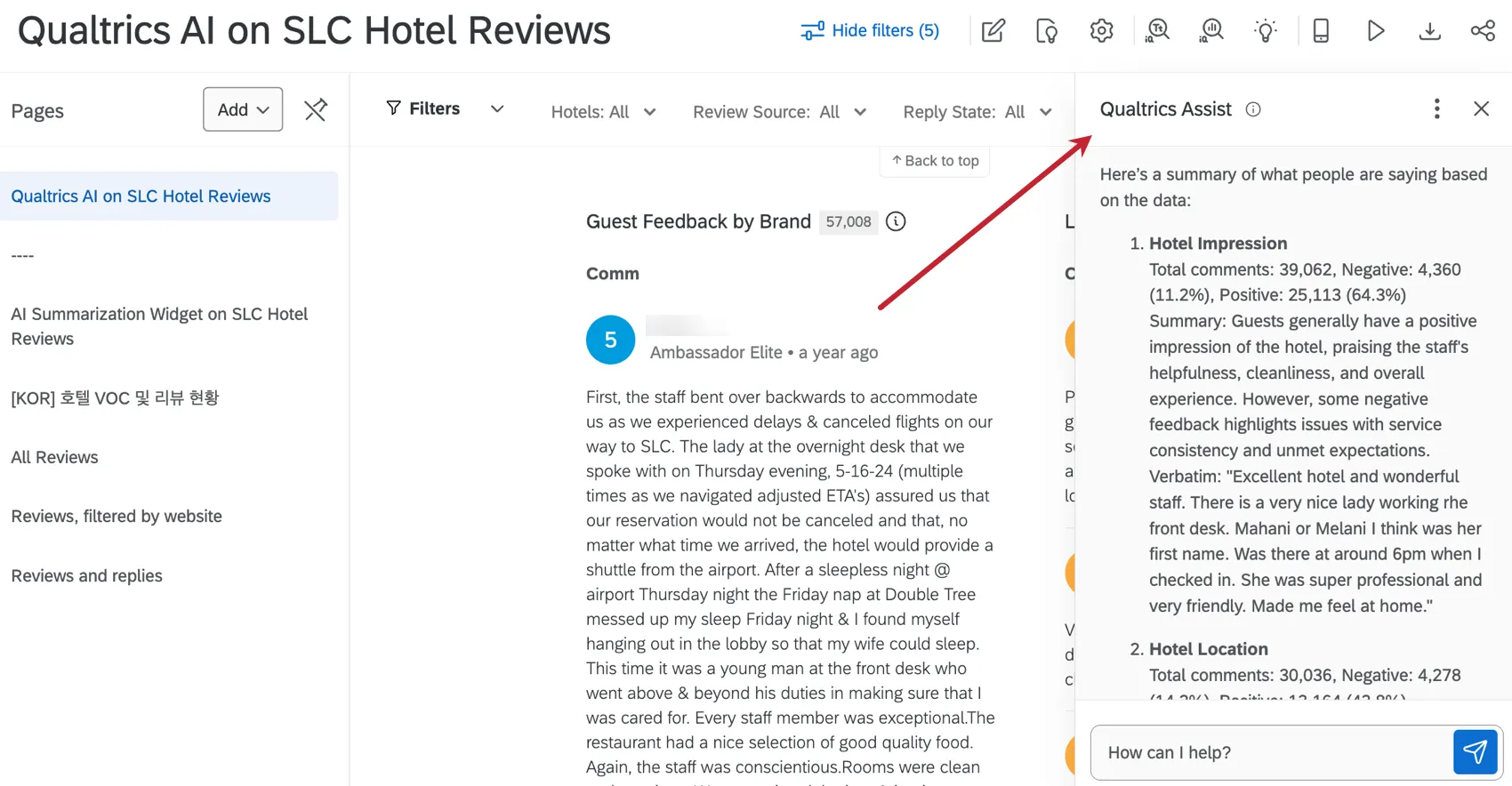
Attention: Qualtrics Assist is currently only compatible with data from response ticker widgets on the same dashboard page. Qualtrics Assist will not use data from other pages or any other widget type when answering questions.
Qtip: While we have guardrails in place and are continually refining our products, artificial intelligence may at times generate output that is inaccurate, incomplete, or outdated. Prior to using any output from Qualtrics’ AI features, you must review the output for accuracy and ensure that it is suitable for your use case. Output from Qualtrics’ AI features is not a substitute for human review or professional guidance.
Requirements for Qualtrics Assist (CX)
Before you can add Qualtrics Assist to a CX Dashboard, there are some important requirements to meet.
Before You Enable Qualtrics Assist in a Dashboard
- Open Text: Have open-ended feedback (i.e., verbatims) mapped to your dashboard as an open text field.
- Dashboard Text iQ: Perform Text iQ inside the dashboard on the open text field. This analysis must include:
- Enrichments.
- At least one topic.
Attention: The Text iQ topic and enrichments must exist in the dashboard Text iQ. If Text iQ data exists in the survey’s text iQ, it will not work for Qualtrics Assist, even if that survey data is mapped to the dashboard.
- Response Ticker Widget: Have a response ticker widget that meets these requirements:
- All of the widget's content fields must be open text fields you've performed dashboard Text iQ on.
- At least 1 response displayed in the widget has to be tagged with a Text iQ topic.
- The widget cannot be a legacy response ticker. If you are using the legacy version of the widget, you must rebuild the widget from scratch to use Qualtrics Assist (CX). Make sure you delete the legacy version once the new widget is complete.
Attention: If you have a Response Ticker widget with 20 or more fields on any page of your dashboard, you will not be able to use Qualtrics Assist. To use Qualtrics Assist, you can either remove the widget or get the field count below 20 for all individual response ticker widgets on the dashboard.
Qtip: If a response ticker widget is edited or added to a dashboard page after Qualtrics Assist has been enabled on that dashboard, then you must reset your conversation with Qualtrics Assist to update the analysis with that widget.
Requirements for Qualtrics Assist (CX) to Work on a Page
Once added to a dashboard, Qualtrics Assist (CX) doesn't automatically work on every page of the dashboard.
To work, a page must have:
- At least 1 response ticker widget that meets Qualtrics Assist requirements. (See all requirements above.)
- No response tickers that are missing requirements. A single misconfigured response ticker widget on a dashboard page will prevent Qualtrics Assist (CX) from working on that page.
Adding Qualtrics Assist to a CX Dashboard
Qtip: Your Brand Administrator must enable the Qualtrics Assist CX permission before you can set up Qualtrics Assist. This feature can be enabled by user type, and it is enabled for Brand Administrators by default. Once their permission is enabled, users can use Qualtrics Assist on any CX dashboard where it is enabled.
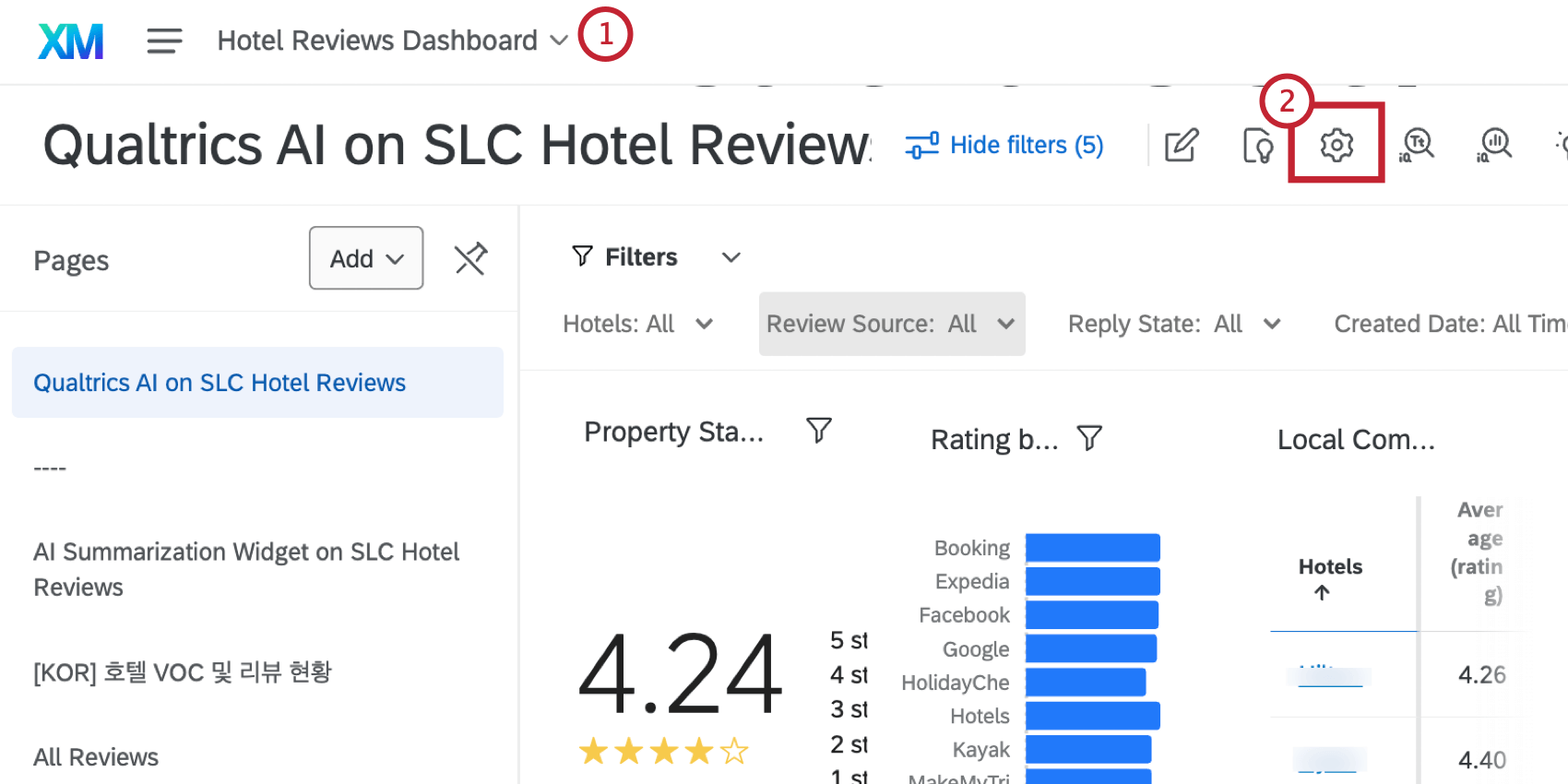
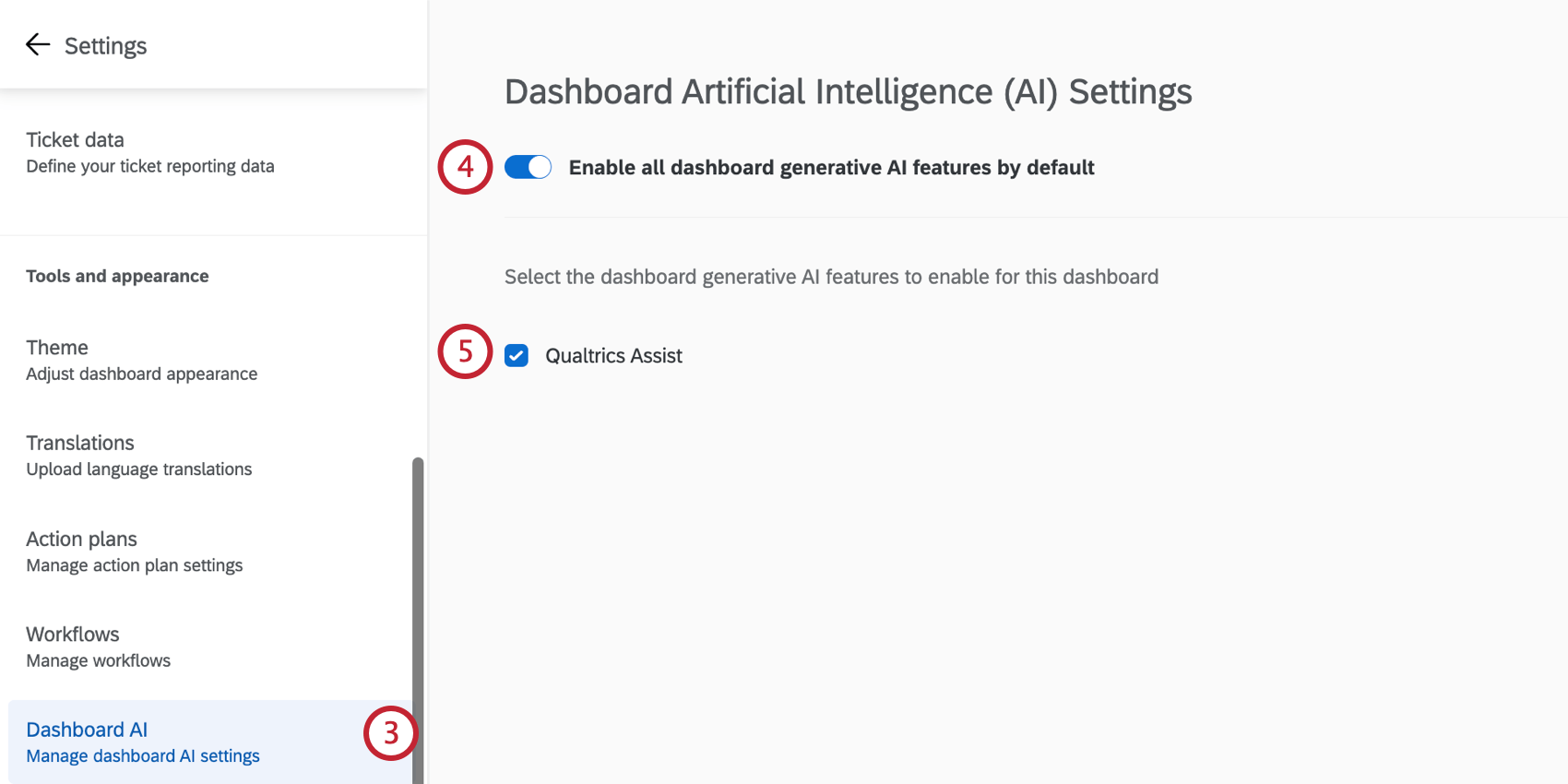
Qtip: We do not recommend using Qualtrics Assist CX on dashboard copies, as it can affect the count of comments that Qualtrics Assist CX provides.
Using Qualtrics Assist (CX)
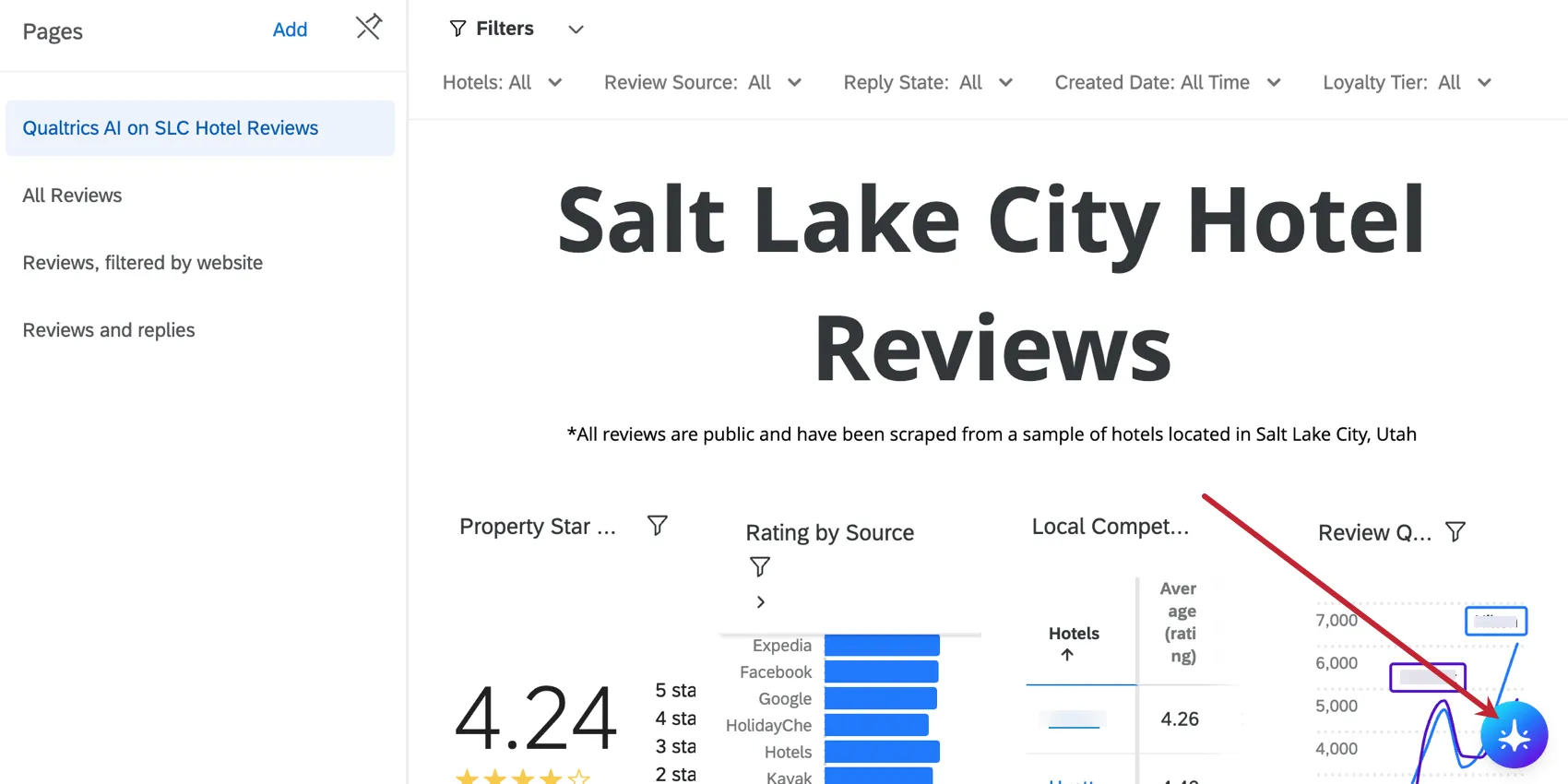
When you are using a dashboard with Qualtrics Assist enabled, you’ll see the icon in the lower-right corner.
Attention: Qualtrics Assist cannot be used with custom date filters.
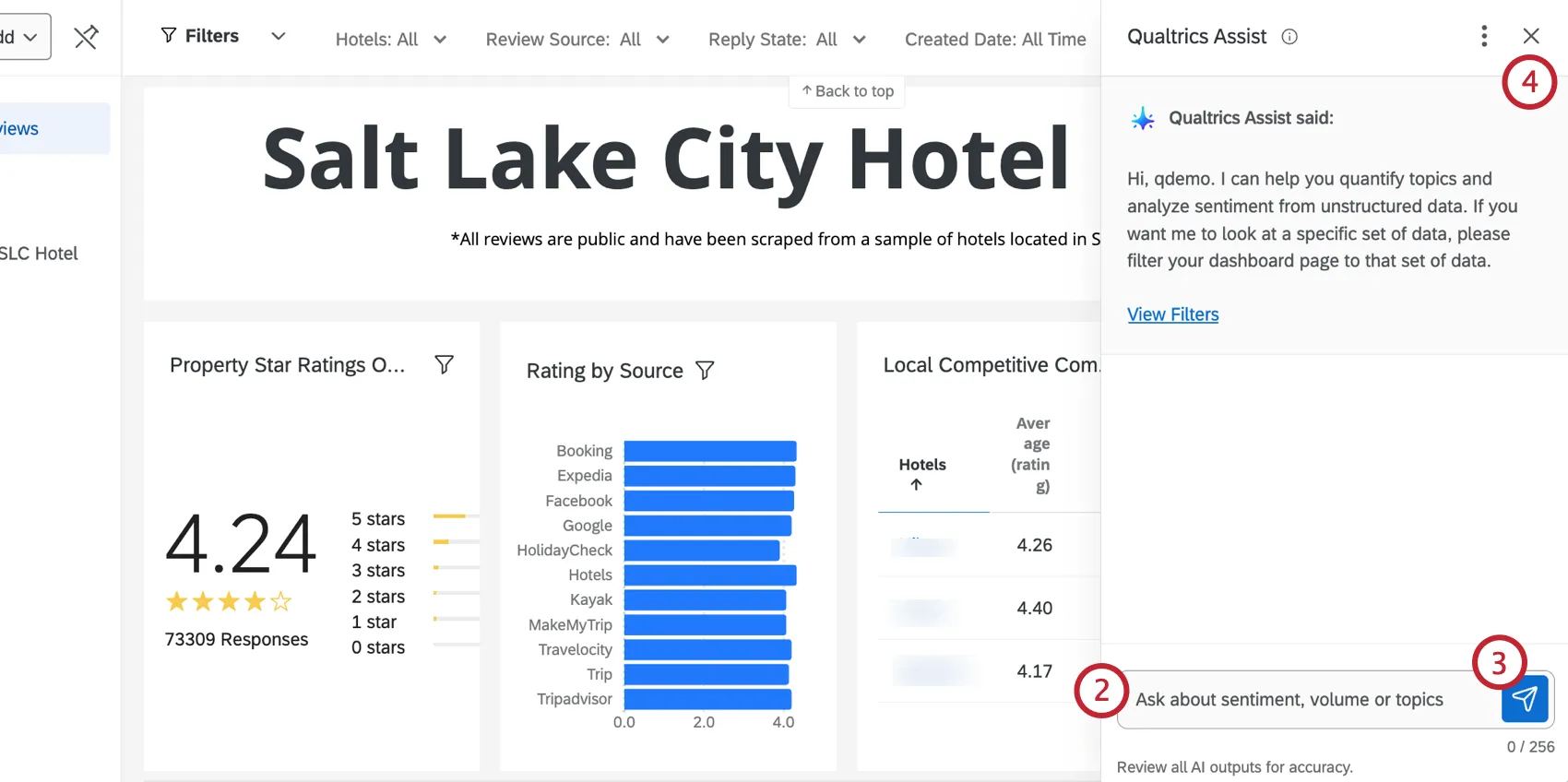
Click on the Qualtrics Assist icon.
Type a question into the textbox on the right.
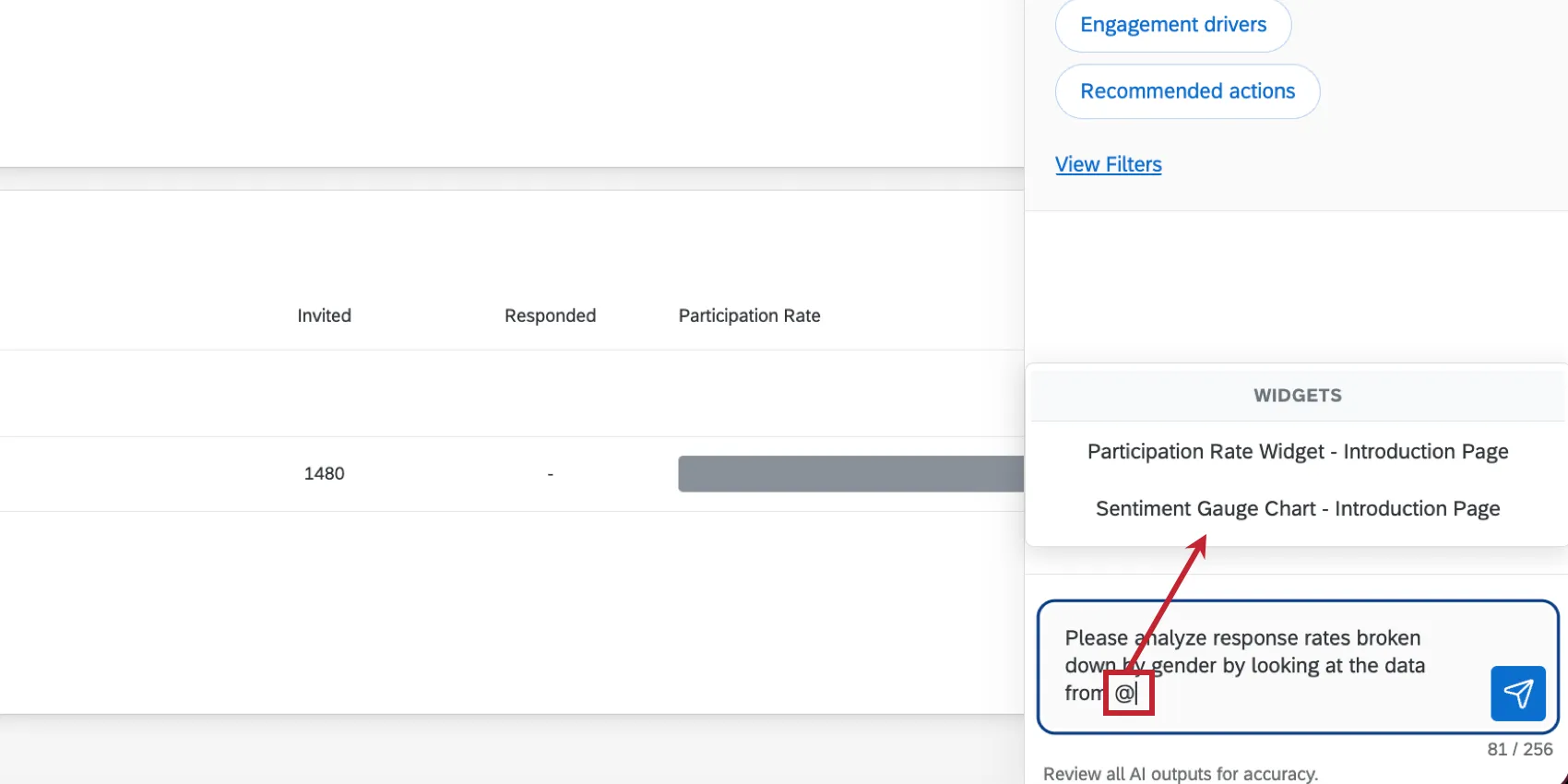
Qtip: You can reference a specific widget from your dashboard by typing "@" and then selecting the widget from the menu that appears.
Click the send icon.
To close the Qualtrics Assist window, click the X in the upper-right corner.
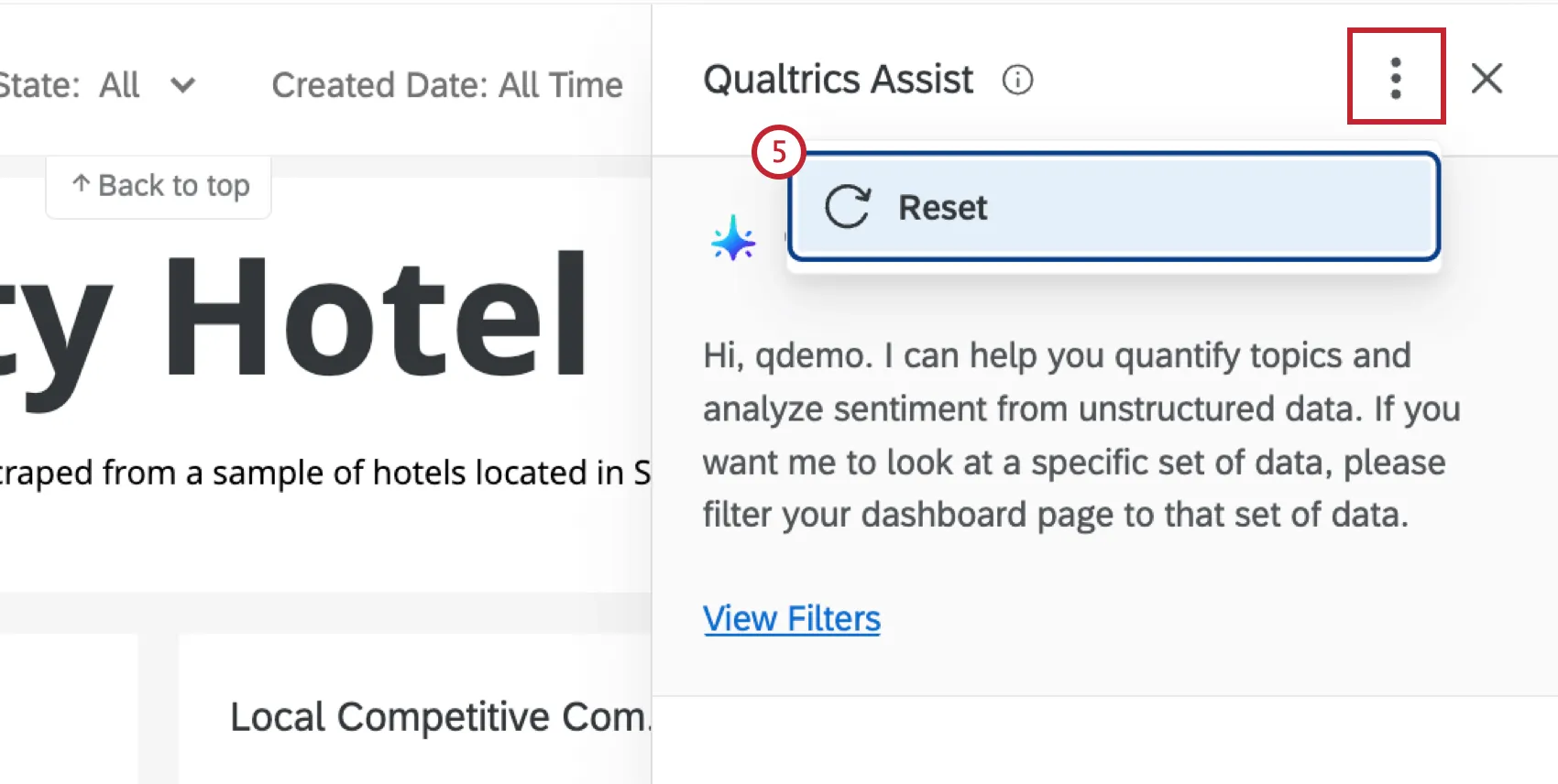
If you’d like to delete your conversation and start over, click the three-dot menu and select Reset.
Qtip: Qualtrics Assist in CX Dashboards is limited to the page filters applied to the dashboard. For example, if your dashboard has a filter for responses in the last 3 months, Qualtrics Assist will only use data from the last 3 months and not read data outside of this filtered timeframe. Please note that Qualtrics Assist ignores widget filters.
Question Tips
Here's a few tips to keep in mind when asking questions to Qualtrics Assist:
- Questions on quantification must focus on specific topics. For example, "How many comments are there on [topic]?" or "Provide the number of negative comments on [topic]"
- Use the "@" symbol to reference a specific widget.
- Qualtrics Assist does not have conversational memory. You must restate any context and reference widgets in each follow-up question.
Example Questions
You can ask Qualtrics Assist any question about the comments in your dashboard, but the responses will depend on the data you have configured. Here are some common examples of questions you can ask:
“Summarize what people are saying.”

Qtip: This summary will include the number of positive and negative comments for a specific topic. “Very positive” and “very negative” sentiments are included in the count for “positive” and “negative” comments.
- “What are users talking about the most?”
- “What are users complaining about the most?”
- “What are the top issues?”
- “What are users saying about [topic]?”
Qtip: Since Qualtrics Assist in CX Dashboards is currently only compatible with response ticker widgets, it will not be able to answer questions about specific metrics (e.g. NPS).
Qtip: Qualtrics Assist cannot currently understand requests to filter the data that it looks at. For example, it can’t respond to “What are users saying in the last month?” or “What are mobile users saying?”. To receive insight on segments of information, add a filter to the dashboard before asking: “What are users saying?”.
Troubleshooting Qualtrics Assist (CX)
- Make sure the setup requirements are met.
- Response tickers are the only widget compatible with Qualtrics Assist (CX). Only data from response ticker widgets can be analyzed in Qualtrics Assist (CX).
- If you receive an error message, see if a response ticker widget is missing from the dashboard page, or if there is a misconfigured response ticker widget on the dashboard page. A single misconfigured response ticker widget on a dashboard page will prevent Qualtrics Assist (CX) from working on that page.
- You can use Dashboard Spot Check to determine if the dashboard page is configured correctly for Qualtrics Assist on CX Dashboards. Dashboard Spot Check will scan the dashboard page to identify any legacy response ticker widgets or response ticker widgets without Text iQ topic-mapped fields.
- Qualtrics Assist is not currently compatible with embedded Discover dashboard pages.
Qtip: Qualtrics Assist for CX Dashboards does not have the same requirements or setup as Qualtrics Assist for EX Dashboards. Make sure when troubleshooting, that you're on the correct support page.
That's great! Thank you for your feedback!
Thank you for your feedback!