

Imported Data Projects
What's on this page
Qtip: This page is about imported data projects, which is a unique project type for analyzing external data inside Qualtrics. For information on how to import survey responses into a standard survey project, see Import Responses.

Imported Data Projects
Imported data projects allow you to use data from other external sources to analyze in Qualtrics. These project types are particularly useful for analyzing your operational data collected outside Qualtrics with your experience data collected inside Qualtrics.
Once your data is imported into Qualtrics, use Stats iQ, Text iQ, crosstabs, and response weighting to analyze your data. You can also use your project as a data source in your CX dashboards.
Qtip: Imported data projects do not have access to the Reports and Results tabs.
Attention: If you don’t have access to Imported Data projects, contact your Brand Administrator to verify you have the Use Imported Data Projects permission enabled.
Attention: Data can be imported through alternative methods as well, including Load into Data Projects Workflow task or by using an API.
Qtip: If using API in an Imported Data project, follow these steps to extract the internal ID from the API.
Preparing a File for Import
Your file can be saved in the following formats: .xlsx, .csv, .tsv, .sav (SPSS), and .xls. You can also upload those files in compressed form by using the format [filename].[file type].zip (e.g., mydata.csv.zip, odata.xlsx.zip).
The first row of your file should contain the headers for each of the fields you’d like to import. These headers will become the field names in your project, so make sure they’re clear and concise. All headers must be unique. Under each header, enter the data for each participant.
Your file size must be less than 100 MB to import.
Qtip: Your file should contain only one header row. If you export data from a Qualtrics survey to use in an Imported data project, be sure to delete extraneous header rows.
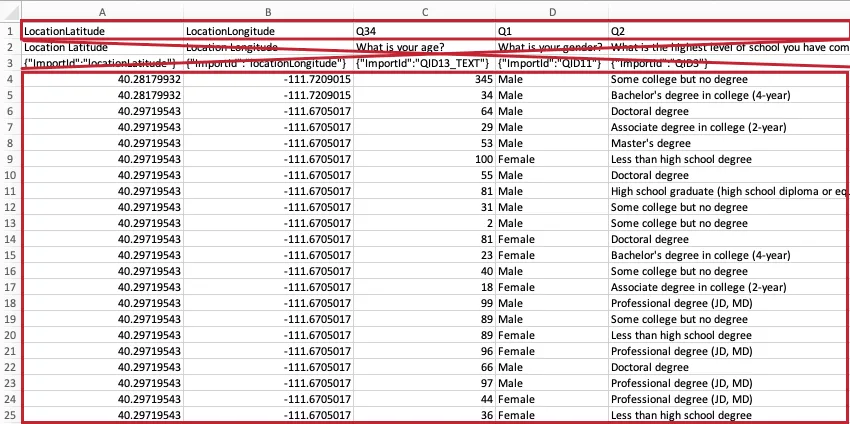
Attention: In your import file, each field name must be less than 255 characters long. Do not begin any fields with an underscore ( _ ). Field names cannot be edited after the file is imported.
Attention: Spaces in header names will become underscores ( _ ) when the imported data project is created. That means “Sample_Name” and “Sample Name” will be understood as duplicate headers, and you will not be able to upload your file until you change one of these headers’ names.
Date and Time Formatting
Dates and times in your file need to be formatted in UTC with a time zone specified. If no time zone is specified, it defaults to UTC+0 (also known as Greenwich Mean Time, GMT).
The exact time and date formatting is in ISO 8601:
yyyy-mm-ddThh:mm:ss-+HH:MM “T” always remains “T.” The second hour and minute combo is the offset from UTC. Time should be formated as 0 – 23, where 0 is midnight (12 AM) and 23 is 11 PM.
Example: Our date and time data is in Pacific Standard Time (PST). PST is UTC−08:00. So March 9, 2023, at 4 PM in Pacific Standard Time would be:
2023-03-09T16:00:00-08:00
You can find your location’s UTC time zone by searching online.
Attention: Once you’ve formatted your date data, do not open your file again. Often, this can revert date formatting to the system default. Instead, immediately upload the file to Qualtrics after your date formatting is saved. If you have to re-open your file, make sure to double-check your date formatting hasn’t changed. For help changing date system default in your spreadsheet software, see their documentation (e.g., Microsoft Excel, Google Sheets, Numbers).
Creating an Imported Data Project
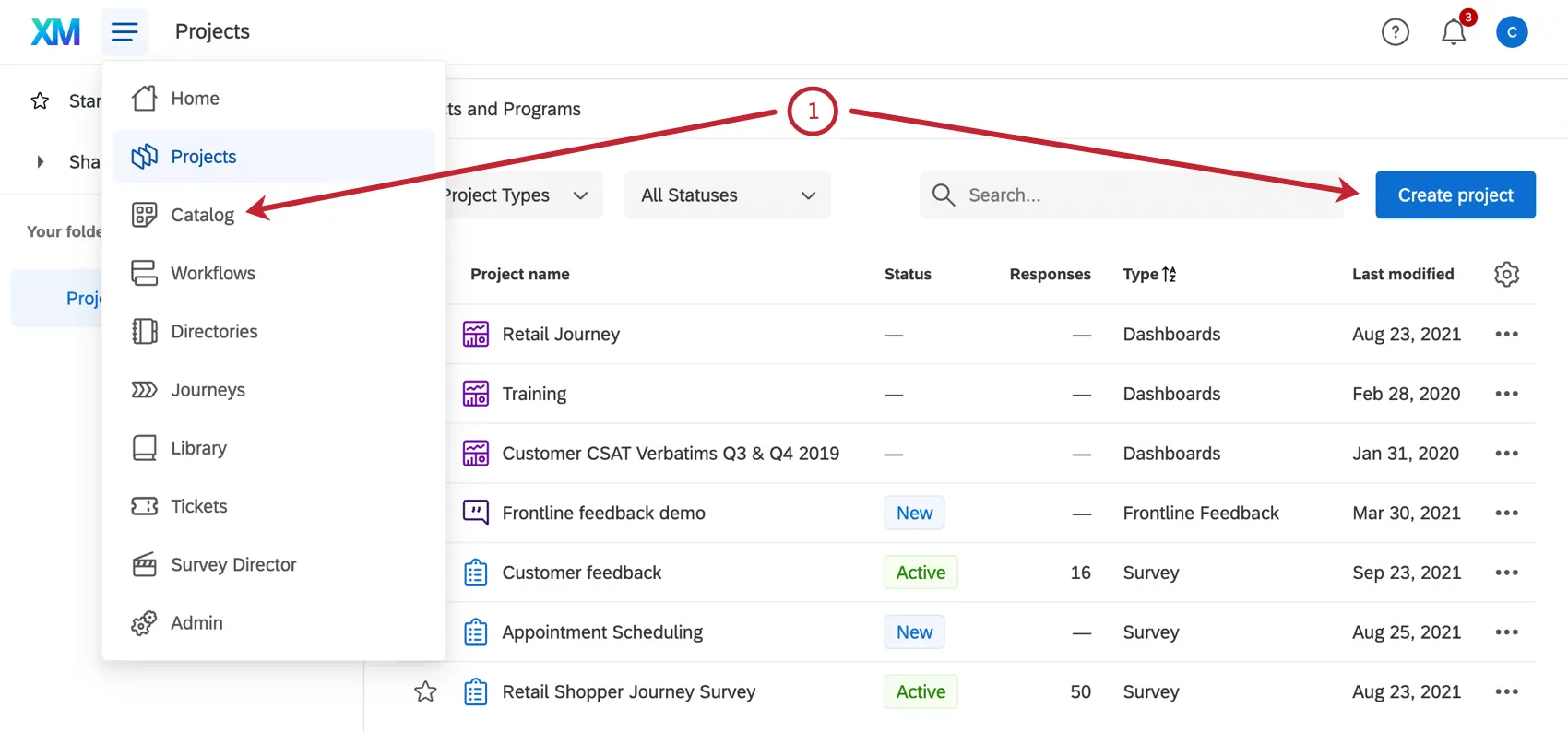
Either navigate to the Catalog or click Create project on the Projects page.
Scroll, filter, or search as needed to find the correct project type.
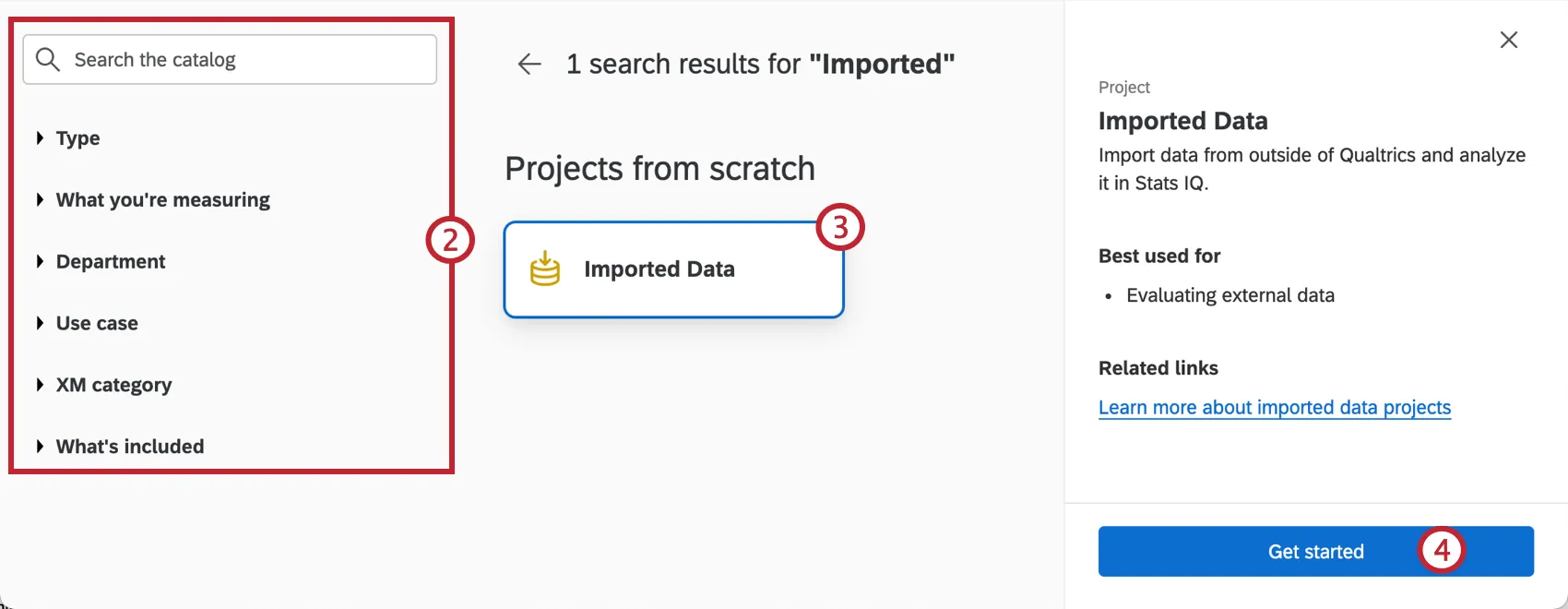
Select Imported data.
Click Get Started.
Name your project.
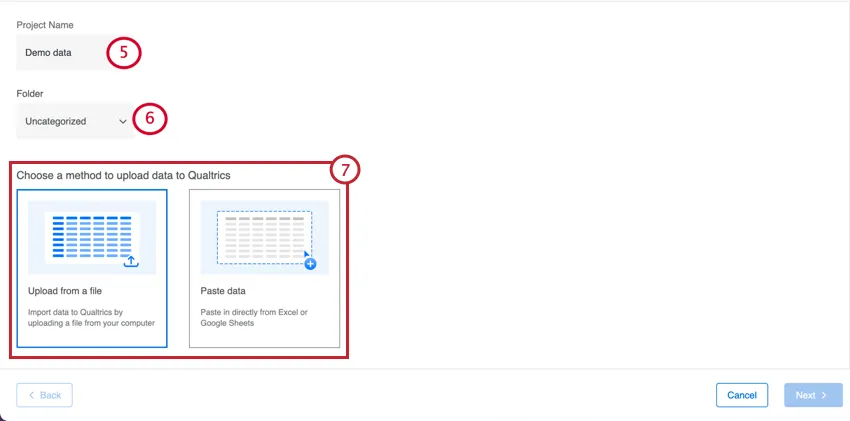
If desired, place it in a folder.
Choose how you want to upload data to Qualtrics. You may choose to either Upload from a file, or Paste data. The following steps will go over using both options.
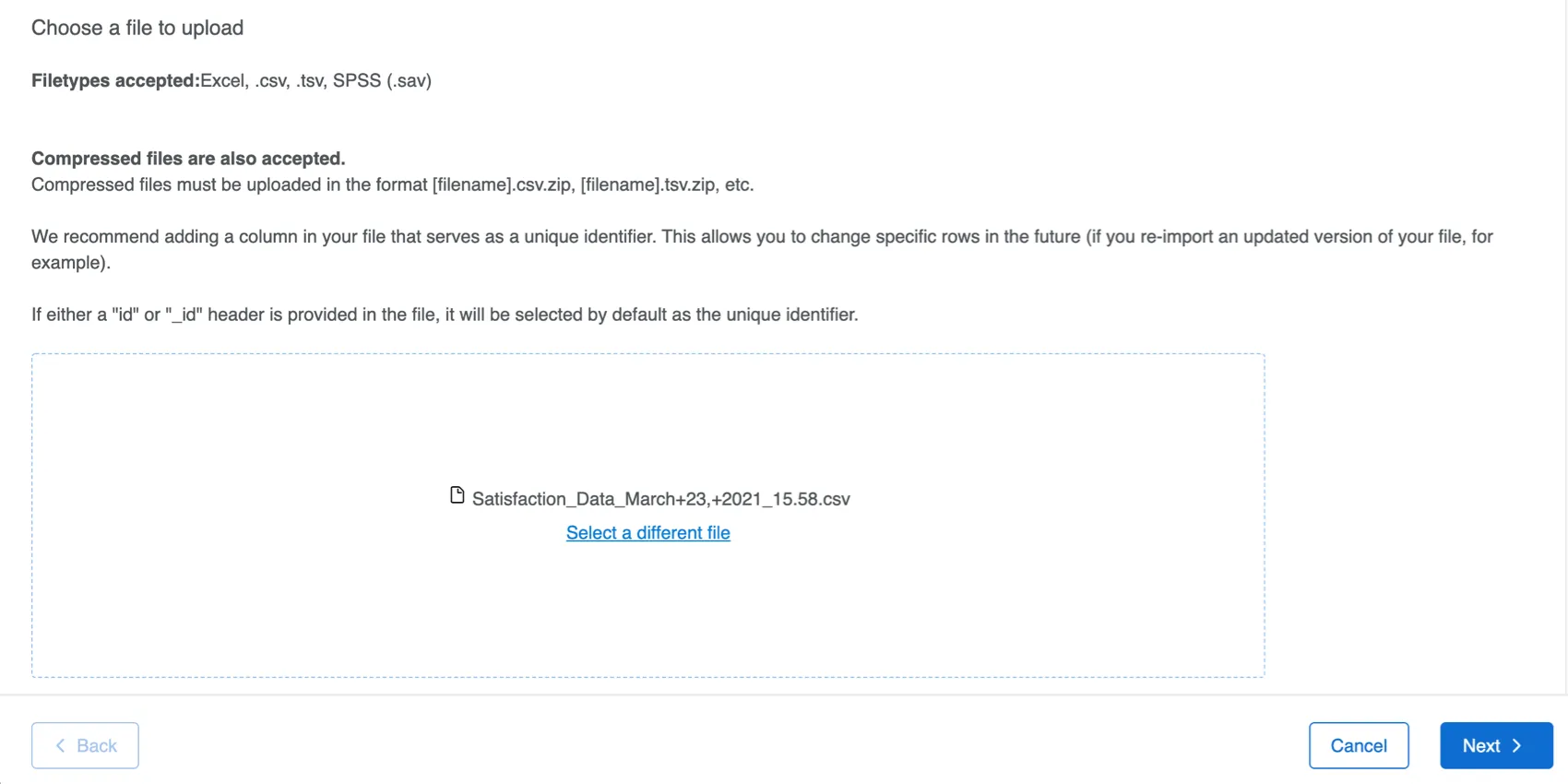
If you choose Upload from a file click Select a file and select the file you prepared. The project name will match the file you uploaded, but you can change this if desired.
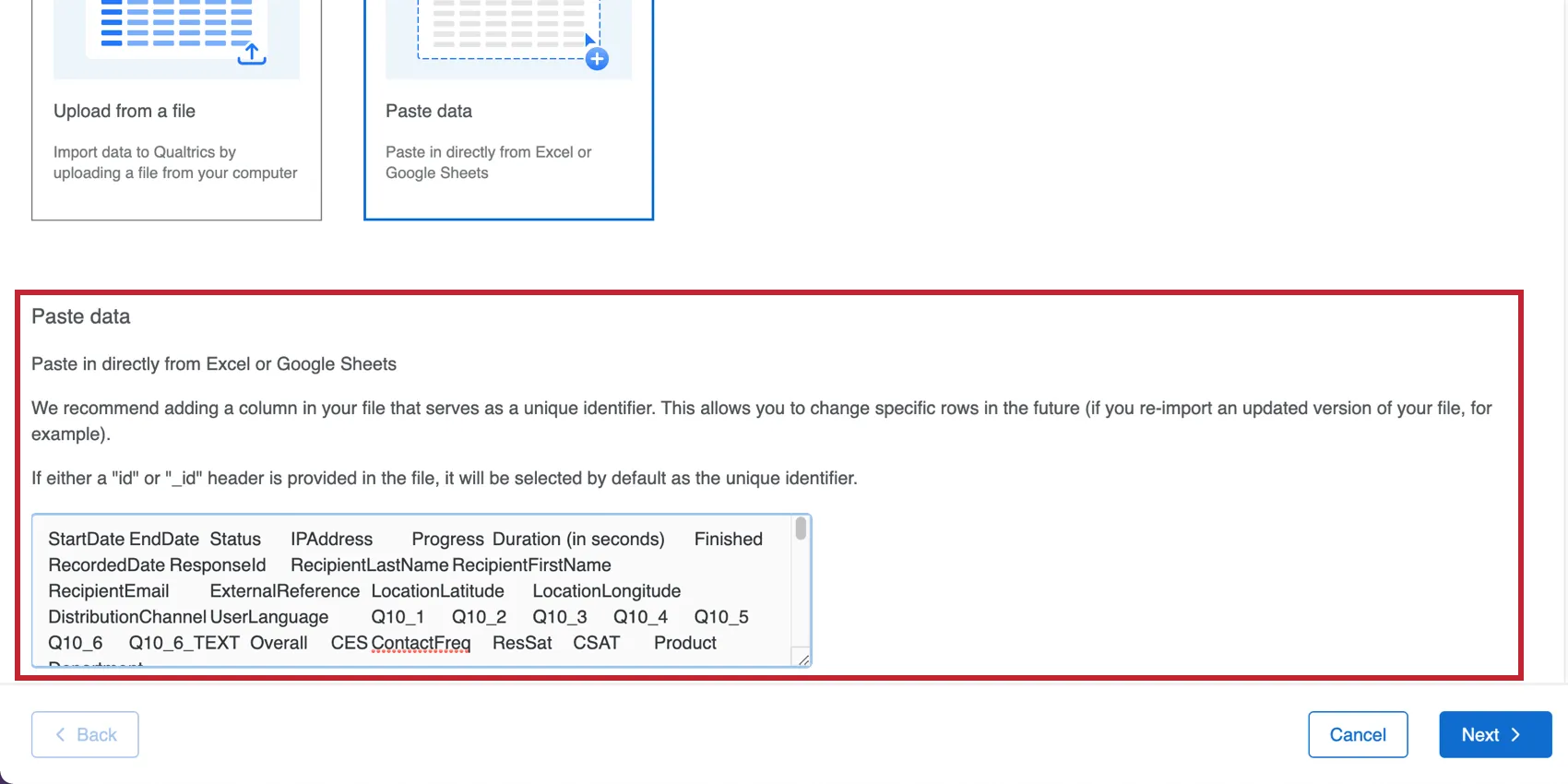
If you choose Paste data, you can paste data from Google Sheets or Excel. Remember to name your project.
When you’re ready, click Next.
Choose your Unique id field. This field will be used to deduplicate data entries if they have the same value for this field. Your chosen field will have an id label next to it in your dataset.
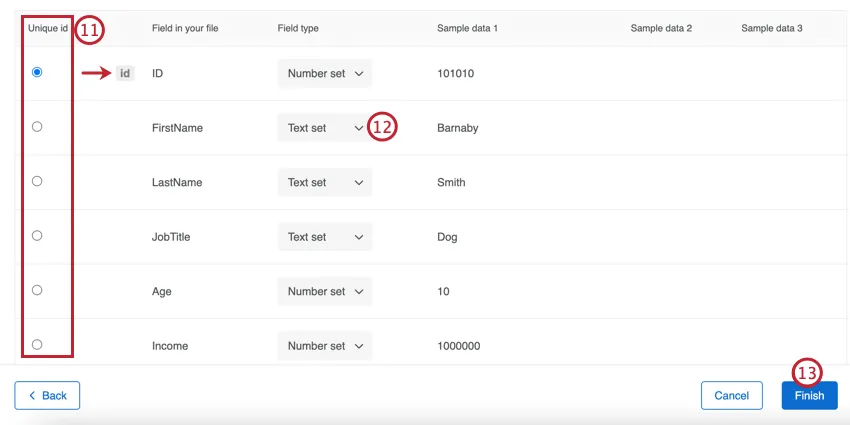
Qtip: When data deduplicates based on matching unique IDs, the new data uploaded will always override preexisting data.
If needed, adjust the Field type for your imported fields. The field type determines how the data can be analyzed and displayed in dashboards. The available field types are:
- Numeric value: A number, with infinite possible values. In CX dashboards, this is a numeric value field type, and in Stats iQ this is a number variable type.
- Number set: A set of numbers that has a finite set of values (i.e. scale from 1 to 5). In CX dashboards, this is the number set field type, and in Stats iQ this is a number variable type.
Date: A calendar date. In CX dashboards, this is the date field type, and in Stats iQ this is a times variable type.

Attention: Dates need to be in the format YYYY-MM-dd hh:mm:ss for the date variable to show up within the data table.
- Text value: A one or two word value, with infinite possible values. In CX dashboards, this is a text value field type, and in Stats iQ this is a text variable type.
- Text set: A one or two word value with a finite set of values (i.e. on a scale from very satisfied to very dissatisfied). In CX dashboards, this is a text set field type, and in Stats iQ this is a categories variable type.
- Multi-answer text set: Multiple select questions that ask respondents to check all items that are applicable to them. In CX dashboards, this is a multi-answer text set field type, and in Stats iQ this is a checkboxes variable type.
Open text: Longer blocks of text. In CX dashboards this is an open text field type, and in Stats iQ this is a text variable type.
Attention: To analyze your data in Text iQ, you must have at least one open text field. If your project does not have an open text field, then you will not be able to access Text iQ.
Click Finish.
Using an Imported Data Project
Imported data projects are useful for when you have existing data that you want to upload to Qualtrics for analysis. You have many data analysis options available to you in Qualtrics, including data editing, weighting, statistical and text analysis, and more.
To learn more, see Data & Analysis in Imported Data Projects.
Attention: If you are deleting multiple responses at once, please note that you can only select 1 page of responses at a time.
Qtip: If you want to report on your data, you can also use imported data projects as sources in CX Dashboards.
Workflows
The Workflows tab is a great way to automate other Qualtrics functionality in addition to any extensions you may have access to. Workflows allow you to trigger tasks, like sending an email or creating a ticket, based on various events. Setting up a workflow requires creating conditions and defining the tasks that should be completed when these events meet the conditions specified. To learn more about workflows, see Workflows Basic Overview and Building Workflows.
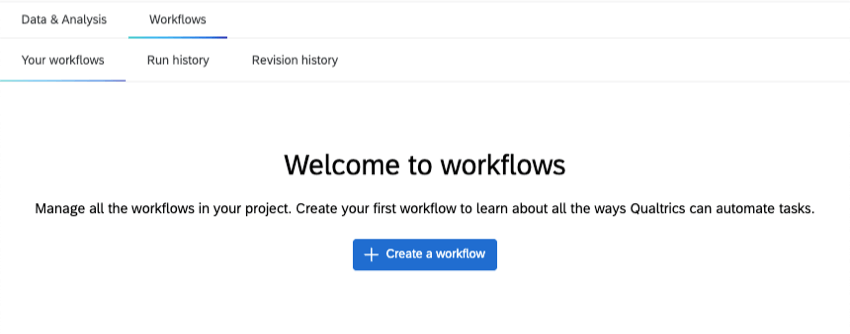
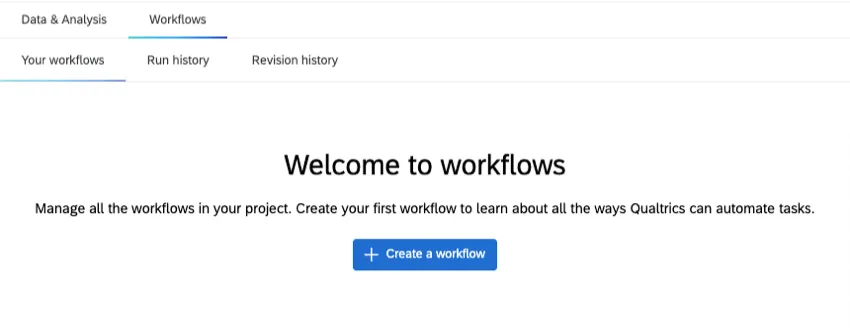
The Workflows tab of an imported data project supports all 3 workflow types: scheduled, event-based, and ETL.
Available Events
Events trigger event-based workflows. There are 2 events you can use in an imported data project:
- Data set record event: Start a workflow when a new record is added to your imported data project. Example: Every time a record is added to your project, send a confirmation email to a colleague.

- Ticket event: Start a workflow when changes are made to a ticket, such as reassignment, a change in priority, or a status change.
Related ETL Tasks
ETL workflows involve the extraction of data from one source to another on a regular schedule. Learn more about available data (extractor) sources and data (loader) destinations.
Example: Every Monday, information is extracted from your SFTP server and uploaded to your imported data project.
Example: Once a month, information is extracted from your imported data project and uploaded to your Amazon S3 instance.
Here are ETL tasks related to imported data projects. You can use them to build examples like the ones described above.
- Extract data from data project: Extract data from your imported data project to upload elsewhere.
- Load into a data project task: Take data you extracted from one source and upload it into your imported data project.
Project Actions
When you’re on the Projects page, you can click the dropdown to the far-right of an imported data project for more options.
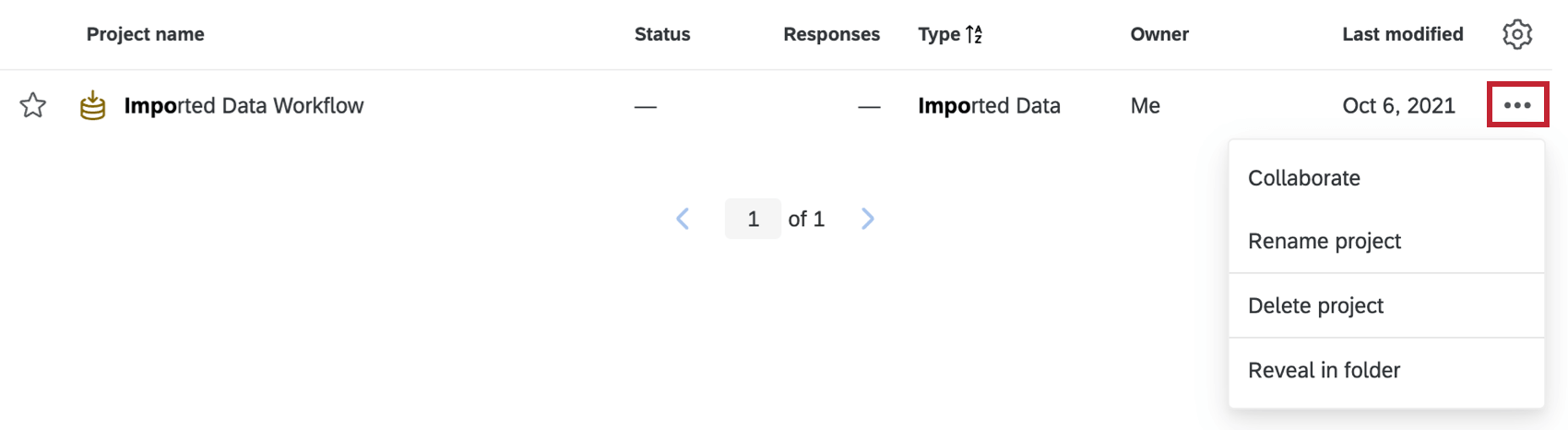
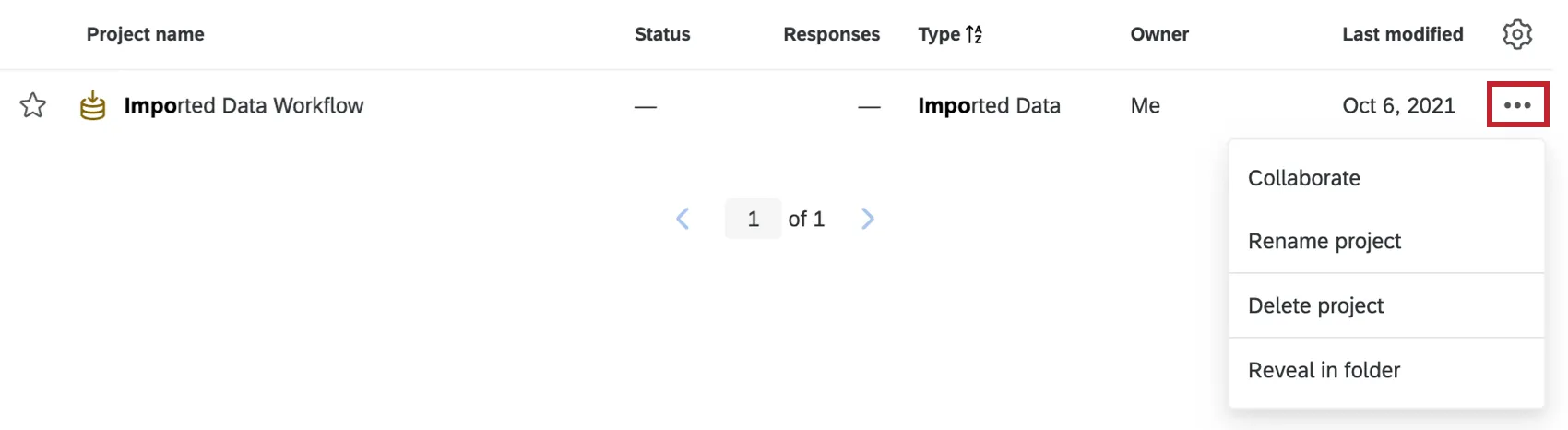
- Collaborate: Invite other users to collaborate on the project.
- Rename Project: Rename the project.
- Delete Project: Delete the project. Only do this if you are absolutely sure! Deleted imported data projects cannot be recovered.
That's great! Thank you for your feedback!
Thank you for your feedback!