

Preview Survey (360)
What's on this page
About Previewing Your Survey
Once you have finished building your survey, you can preview it to ensure that everything is working the way you want by clicking Preview in the top-right of the Survey tab.
In the preview survey mode, you can answer questions and move through the survey the same way your participants would with a real link. The survey itself looks exactly the same as it would in the real link, with the addition of a mobile preview you can open and close.
Attention: Preview survey works similarly in 360 and the Survey Platform, but there are a few key differences. For one, previewing the survey in 360 does not produce a response. When you fill out the preview link and submit a response, the response is not recorded. Another key difference is that the preview feature in 360 has the added bonus of allowing you to choose what relationship you want to preview the survey as.

Preview Survey with Relationship
Click the dropdown arrow to the right of the preview button. Here, you’ll be able to select the relationship you’d like to preview the survey as. This option is extremely helpful if you have added relationship-specific display logic to questions in your survey.
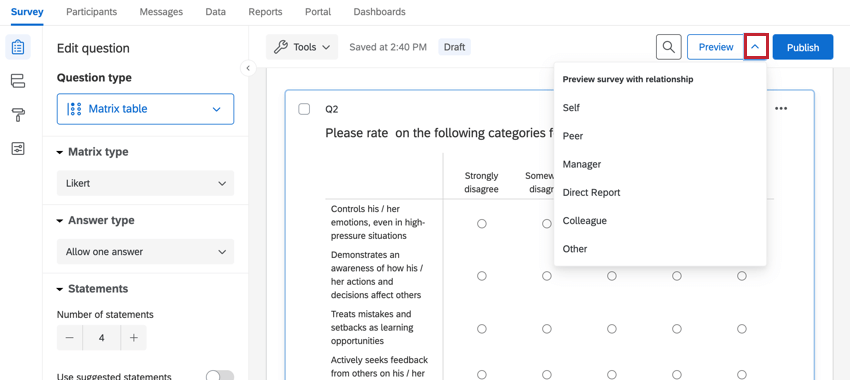
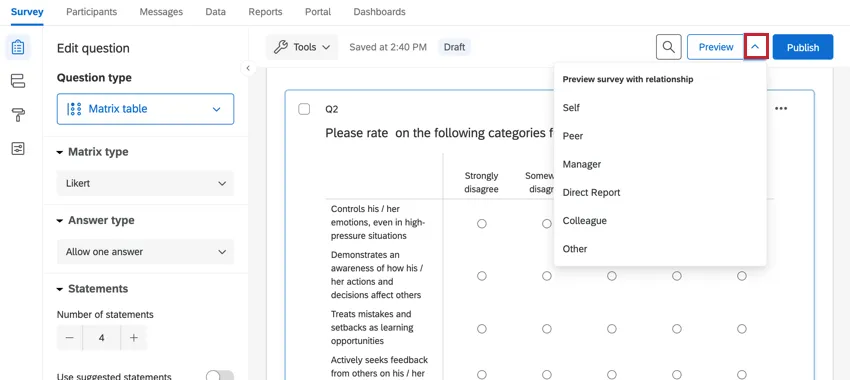
This dropdown lets you choose from all the relationships in your project. Relationships in your directory but unrelated to the participants of your project will not be included.
Preview Banner
The banner along the top of a preview survey has useful options, such as the ability to ignore validation, show hidden questions, and bookmark your place in the preview. This works the same in the Survey Platform as it does in 360. See the Survey Platform support page on the preview banner for more details.
Mobile Preview
The mobile preview lets you view how the survey will look on a mobile device. This mobile representation is dynamic, and you can use it to move forward in the survey. This works the same in the Survey Platform as it does in 360. See the Survey Platform support page on the mobile preview for more details.
Other Preview Modes
In addition to previewing a whole survey, you can also preview just a question or just a block of the survey. This works the same in the Survey Platform as it does in 360. See the Survey Platform support page on the other preview modes for more details.
That's great! Thank you for your feedback!
Thank you for your feedback!