

Send Survey via Email Task
What's on this page
About Sending a Survey via Email
The Send a survey via email task allows you to distribute a survey by email whenever a workflow is triggered. You can use this task to automate survey distribution to the contacts saved in your XM Directory. You can even automate reminders, reaching out to incomplete respondents over email or SMS. Multiple tasks can be included in a workflow, allowing you to configure multiple emails to send when the workflow is triggered.
You can email the survey to:
- A full mailing list, or an individual contact
- A sample
- A segment
- A transaction group
- Or, components from supported workflow events and tasks
Qtip: This task offers enhanced functionality over the XM Directory task and should be used instead.
Qtip: If you’d like to send the initial invite via SMS instead, see Sending a Survey via Text Message (SMS) Task.
Supported Workflow Components
There are various workflow events and tasks you can combine with the “send a survey via email” task to create an automated survey distribution workflow. For example, you can have one workflow task that creates new contacts and then the following task sends a survey to the new contacts.
The below workflow components can be combined with the “send a survey via email” task:
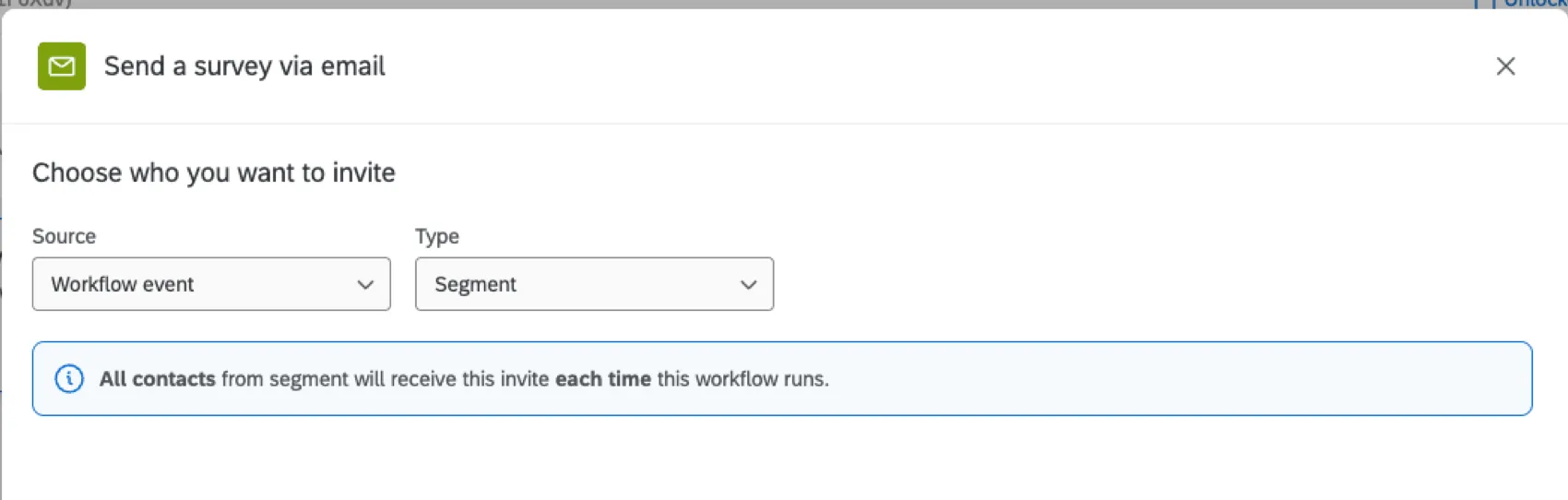
Experience ID segments event: This event triggers a workflow when a segment is changed. You can then distribute a survey to the segment that triggered the workflow.

Example: When you choose a recipient for the Send a survey via email task, change the Source to Workflow event, then choose Segment.
- Experience iD change event: This event triggers a workflow when a contact is created or updated. You can then distribute a survey to this specific contact that triggered the workflow.
Example: Set up a workflow triggered by an Experience iD change event, and select Contact data change. When you choose a recipient for the Send a survey via email task, change the Source to Workflow event, then choose Single contact.
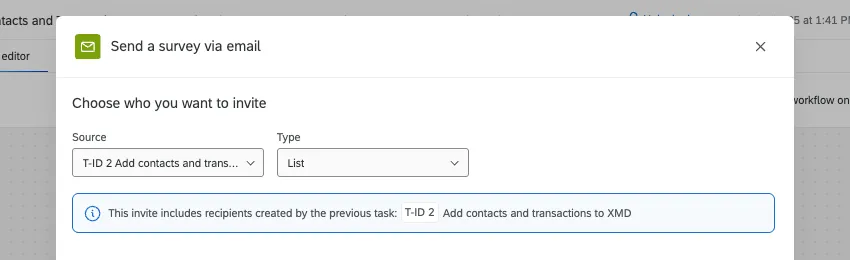
- Add contacts and transactions to XMD task: This task lets you create or update contacts, transactions, and mailing lists in XM Directory. First, you build a full ETL workflow, with this task as the “loader.” Then, you can add a Send a survey via email task at the end of the workflow. You’ll be able to choose either the mailing list or transaction group as your recipient.
Example: When sending an email, the Add contacts and transactions to XMD task is selected as the Source, and then List to send an email to the entire list.
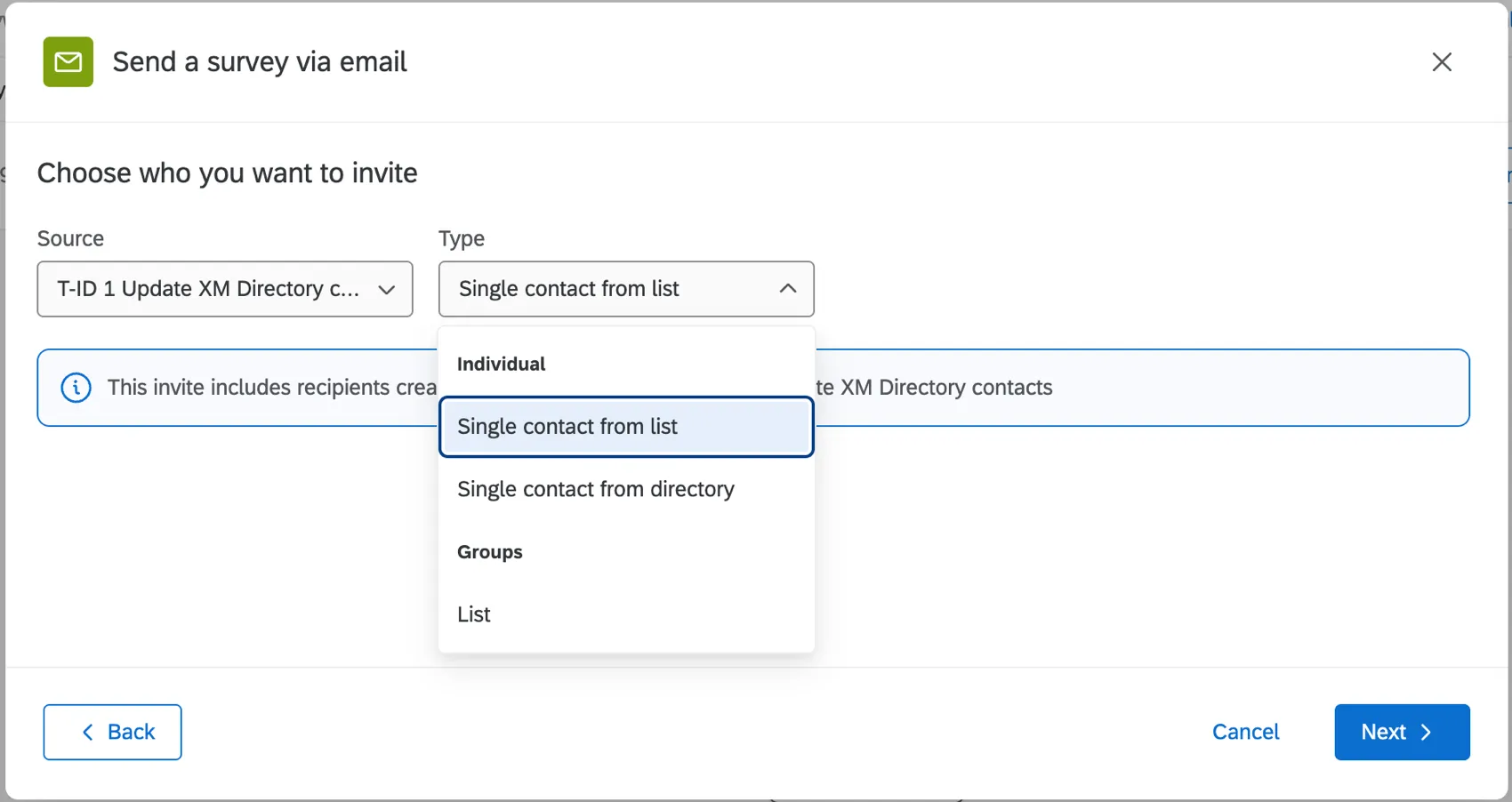
Update XM Directory contacts task: This task allows you to create or update contacts in XM Directory. You can use contact, mailing lists, and transactions made from this task as your survey’s recipients.
Example: First, create a workflow with this task. Then, add a Send a survey via email task at the end of the workflow. When you choose a recipient, change the Source to the Update contacts task, then choose the list, single contact, or transaction group.
- Create experience ID sample task: This task allows you to create a new sample in XM Directory. You can then distribute a survey to the sample.
Qtip: These workflow components are not required to use the “Send a survey via email” task. If the contacts you want to survey already exist in XM Directory, then you can set up the workflow without any additional tasks.
Setting up a Send a Survey via Email Task
Follow the linked instructions to create a new workflow. When building the workflow, you can set it to trigger based on a specific event, or to trigger periodically on a schedule. You can also decide if your workflow should have any preceding supported events or tasks.
Click the plus sign ( + ) and choose Add a task.
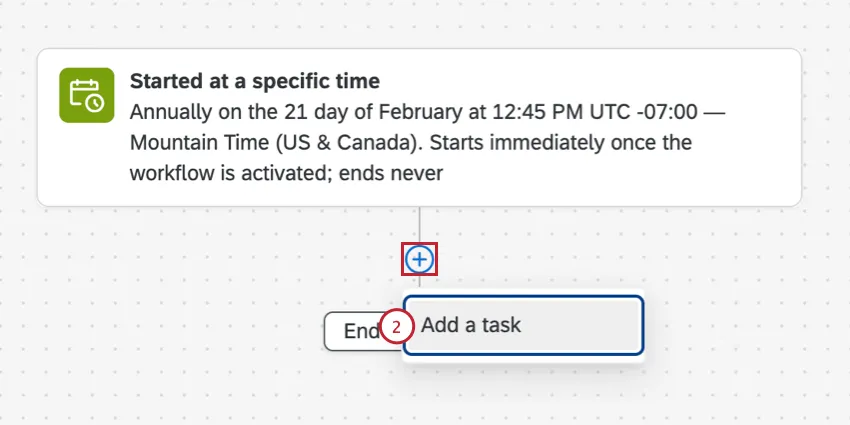
Select the Send a survey via email task.
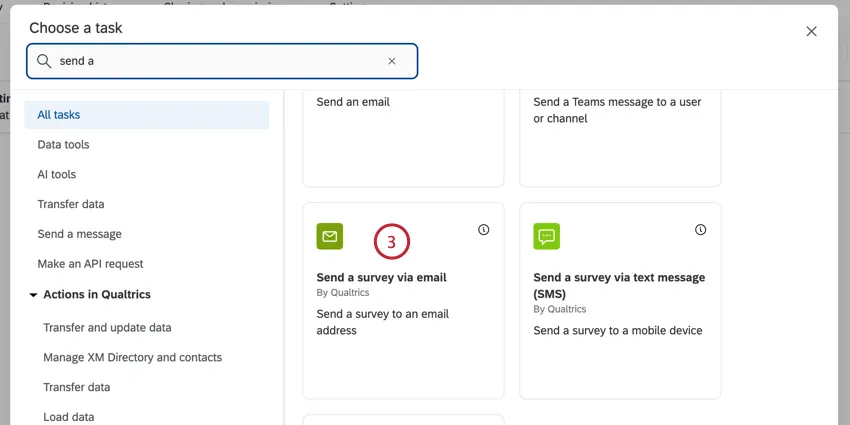
Select the project you’d like to distribute. Only survey projects will appear here.
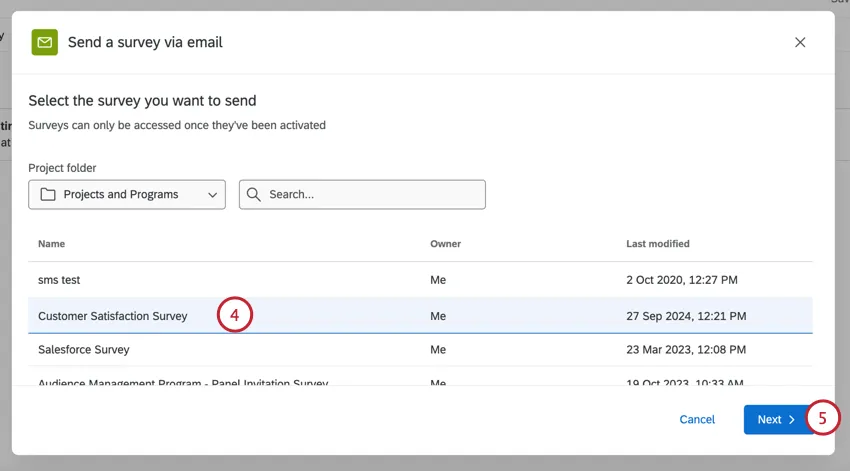
Click Next.
Choose the Source that contains the contacts you’d like to survey:
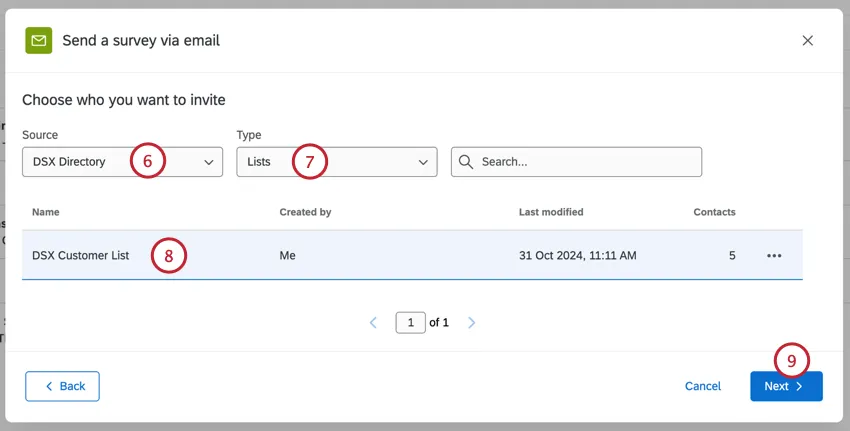
- Directory: Choose from one of the directories you have access to.
- Workflow Event: Send the invite to recipients from the event which starts the workflow. This option is available when the workflow starts with an Experience ID segments event or Experience ID change event.
- Available Tasks: Send the invite to recipient lists or groups that were created by a previous task, such as the Add Contacts and Transactions to XMD task.
Piped Text: Use piped text to enter the directory ID and other relevant IDs (mailing list ID, sample ID, etc.). Choose this option if you want to distribute to contacts from other components in your workflow.

Qtip: When using piped text to send to a single contact from list, be sure to use the correct ContactID based on your event. For example, if your contact is from a survey event using a personal link, you should input the RecipientID.
Use the Type dropdown to choose which contacts you’d like to survey:
- When distributing to a group of contacts, choose from:
- Lists
- Samples
- Segments
- Single contact
- Transaction Groups
Qtip: You can select existing transaction groups as recipients. Learn more about transaction groups.
- When distributing to a single contact, choose from:
- Single contact from directory
- Single contact from list
- Single transaction from group
Choose the mailing list / sample / segment / transaction group that you’d like to send the survey to. If you selected a single contact in the previous step, this step is not necessary.
Qtip: If you selected a mailing list, you can send the survey to a single contact from that list by clicking Send to individual.
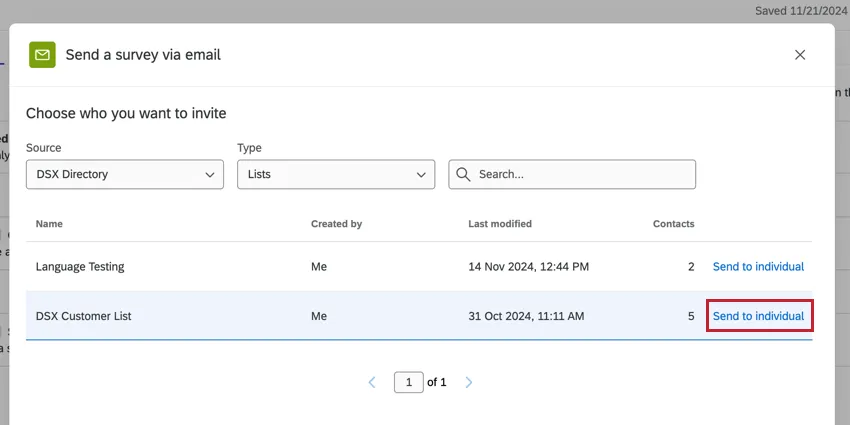
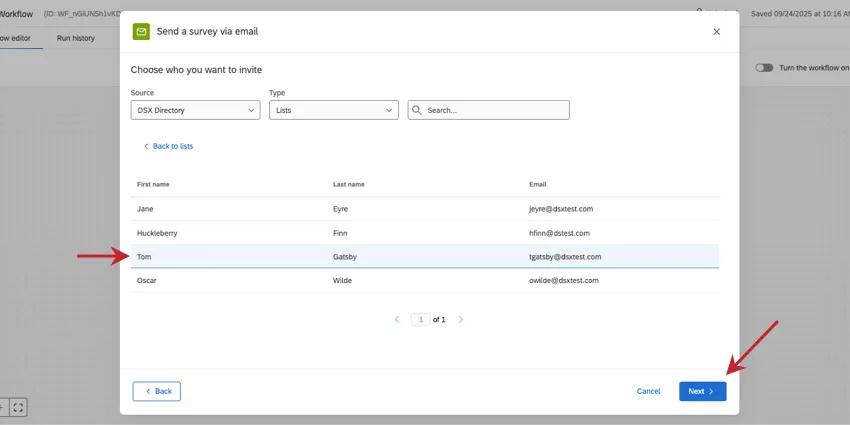
Then you can choose the recipient. Once selected, click Next to go to the next step.
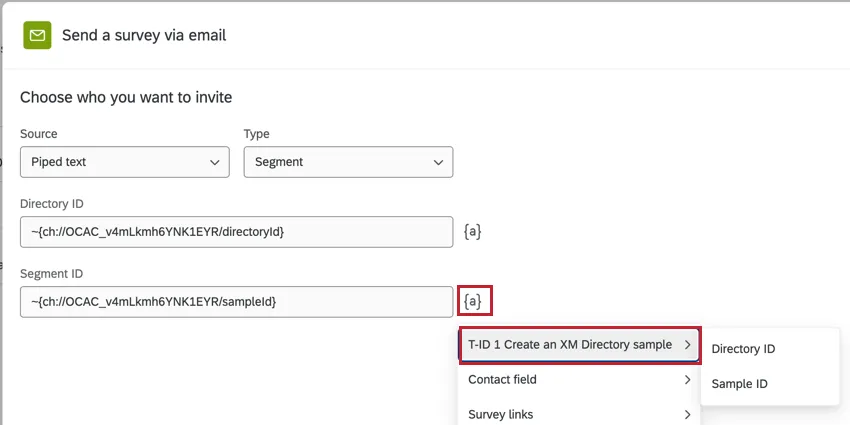
Qtip: If using piped text to identify the recipients, click {a} and select the field from your previous workflow component.
Click Next.
Enter the From name for the email, which can be anything you would like.
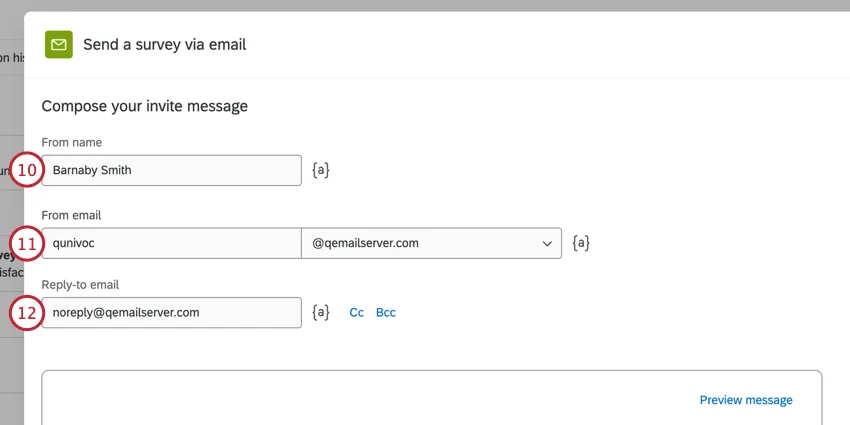
You can change the From email to another standard Qualtrics email address. Depending on your license, you may also be able to use a custom from address. For more information on changing these, visit our Using a Custom From Address support page.
Choose a Reply-to email to receive replies to the email invitation.
Qtip: Generally, the reply-to email can only be the email connected to your Qualtrics account. However, brands often have a series of custom FROM domains. These custom domains allow you to use any email address with a valid domain as your reply-to. For example, if you’re a student at Qualtrics University, you may be able to use any email address ending in @qualtricsuniversity.edu. If you’re having trouble setting your reply-to email, reach out to your Brand Administrator to check if it uses a valid domain.
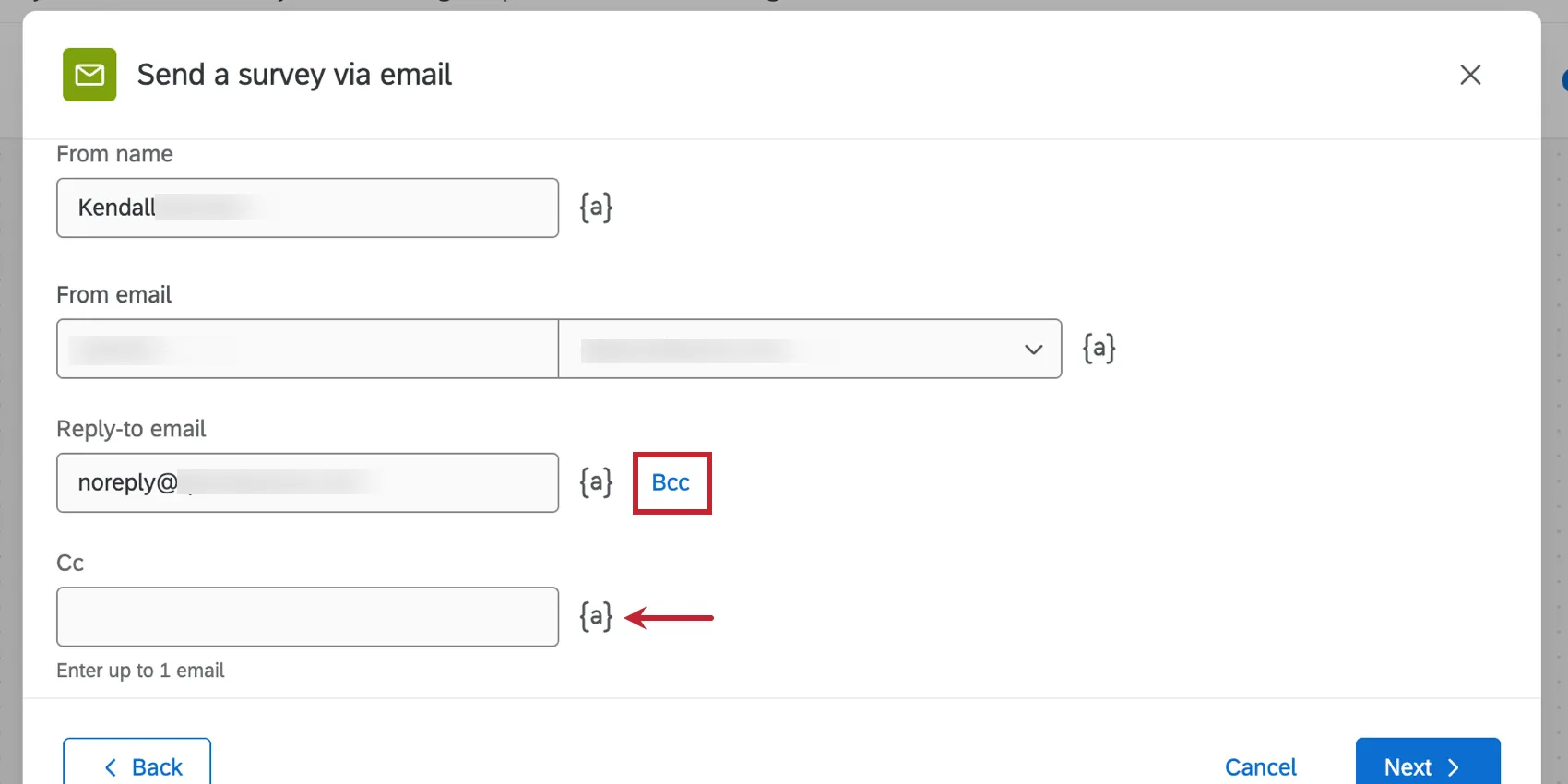
Qtip: Click CC or BCC next to the reply-to field to add additional emails to the message. Click the piped text icon ( {a} ) to use piped text to pull in email addresses from the survey data.
Enter a subject line for the invitation email.
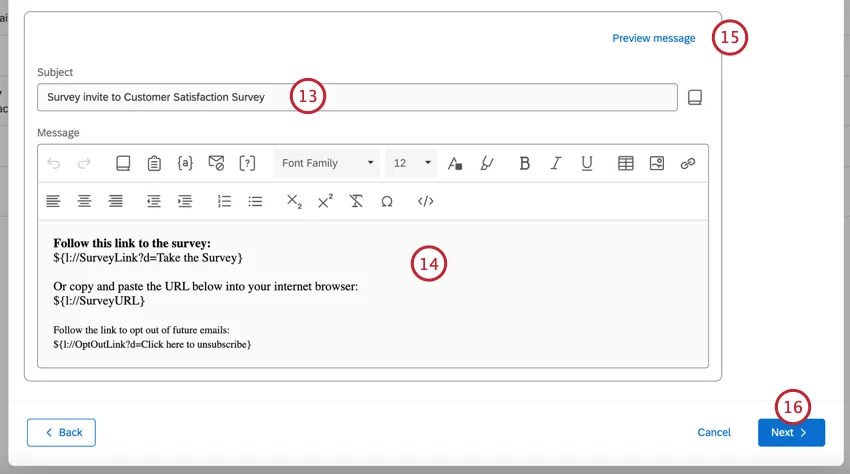
Qtip: You can load a saved subject line from your library by clicking the library icon next to the subject line field. This is especially useful if you need to translate your email into multiple languages.
Type an email invitation message into the rich content editor, or click the library icon to insert a previously saved email invitation from your library (this is especially useful if you need to translate your email into multiple languages).
Qtip: For simple distributions, leave the default survey link content in the message editor and add your own message above. For a more custom message, see Customizing Your Email With Piped Text and Inline Email Questions. To ensure your emails will have the best deliverability possible, read the Avoid Being Marked as Spam page before sending your email.
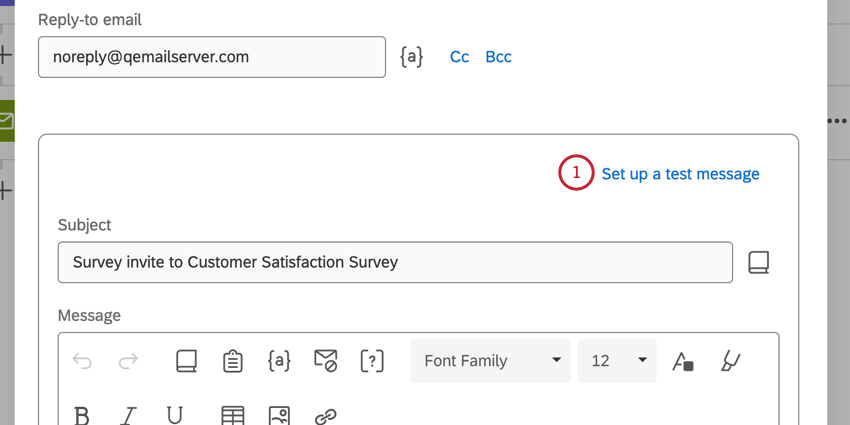
To test the email, click Preview message and then enter the email address to receive the test email. The survey link in this test email will contain a link to preview the survey. See Previewing Messages for more information about this feature.
Click Next.
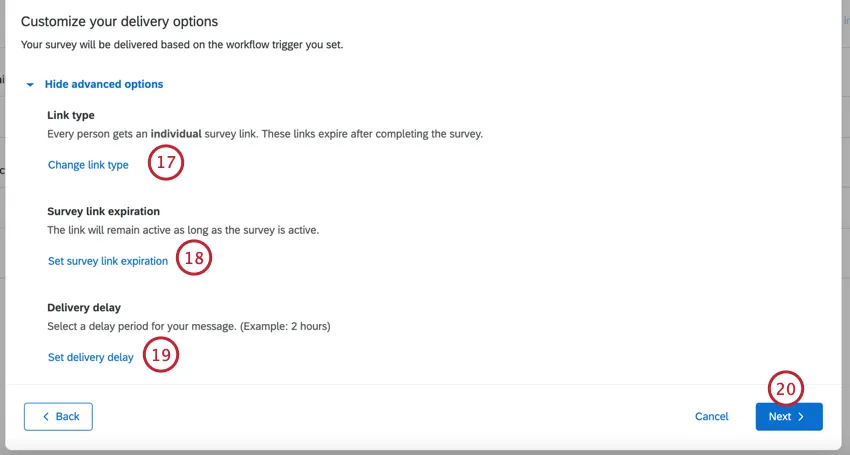
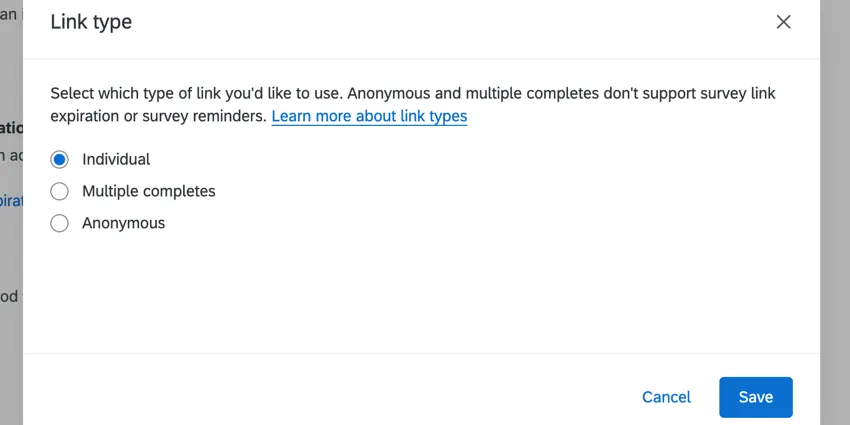
By default, each recipient of the email will receive their own unique survey link. You can change the survey link type by clicking Change link type.
Qtip: The available link types include individual, multiple completes, and anonymous. See Survey Link Types for an explanation of each.
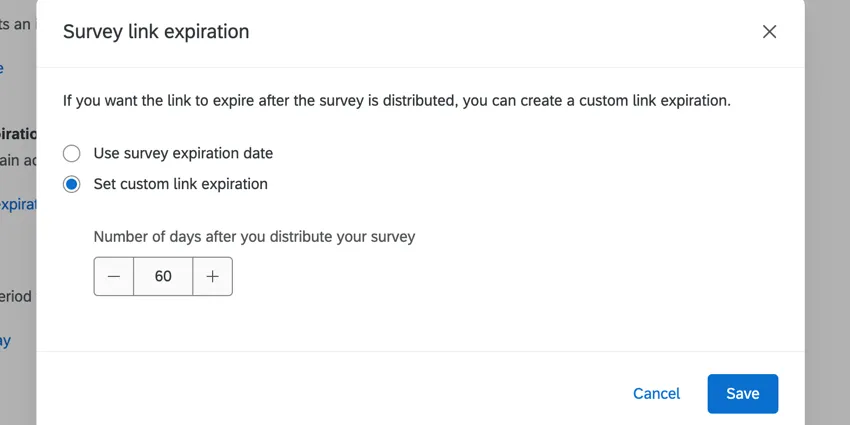
By default, the survey link will remain active as long as the survey is active. Click Set survey link expiration if you’d like to set a custom date instead. You can then choose for the links to expire after a certain number after they’re distributed.
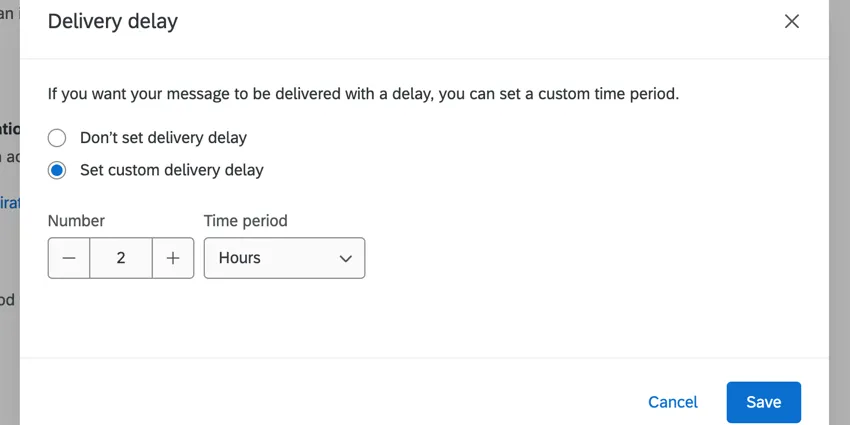
By default, the invitations are sent immediately once the workflow is triggered. You can set a delay by clicking Set custom delivery delay. Then, choose how long you want the delay to be.
Click Next.
Review the details of your distribution and click Edit if you need to change any part of it.
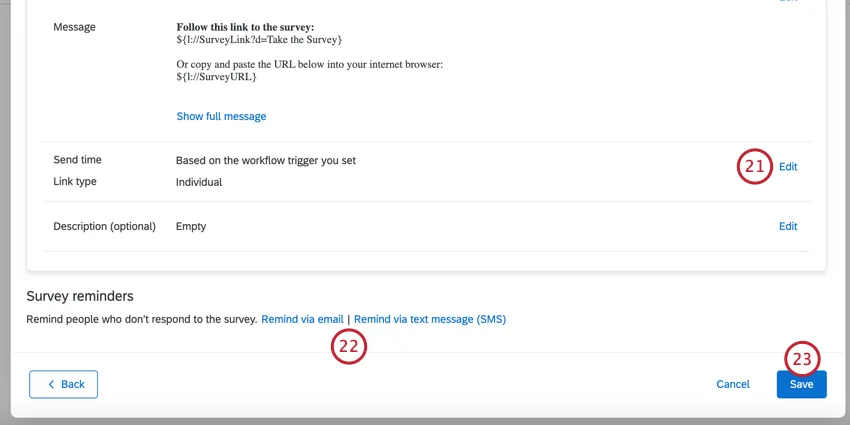
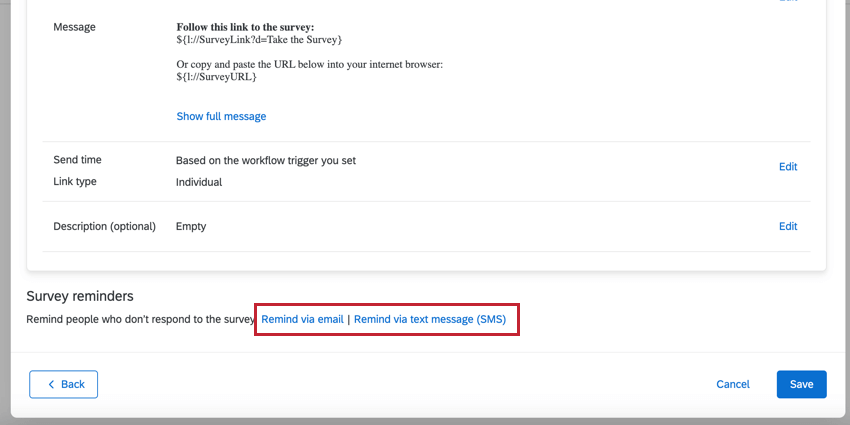
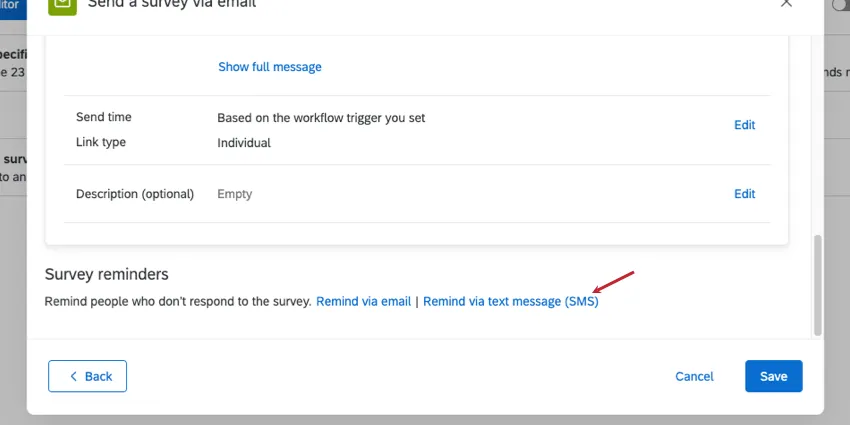
You can add reminders to this workflow. These reminders will only be sent to people who haven’t responded to the survey invitation. See the linked sections for more information:
Click Save.
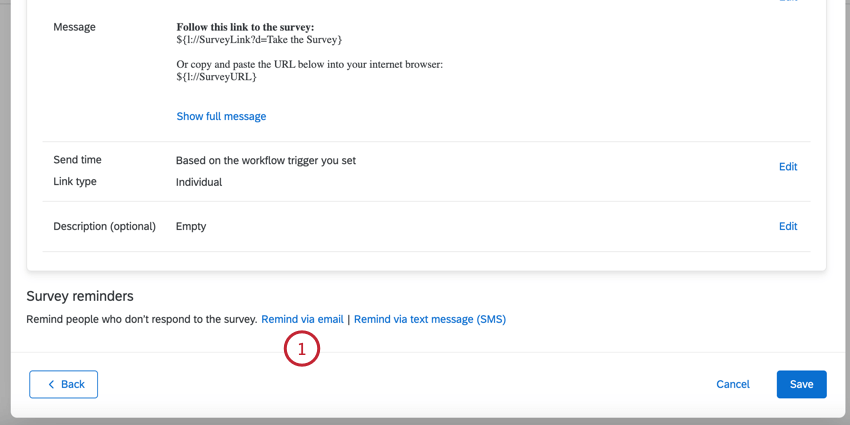
Adding Email Reminders
Follow these steps to set up an email reminder when sending a survey invite via workflows.
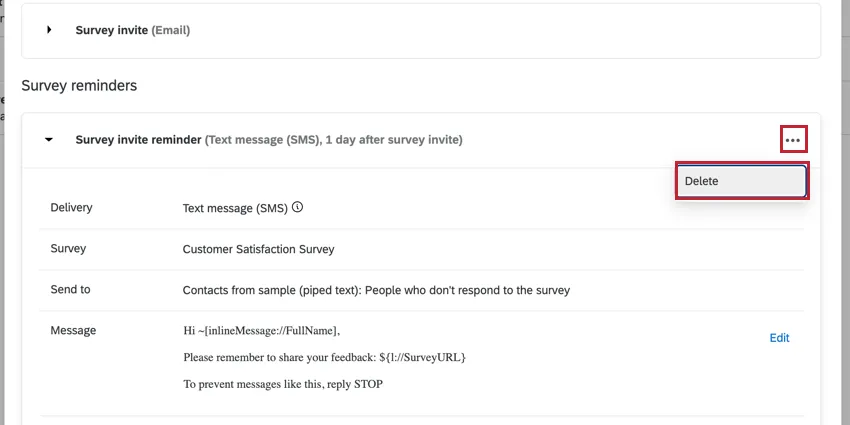
Qtip: If you click the “Cancel” button while setting up a reminder, the task window will completely close and your email invitation will not be saved. If you change your mind about adding a reminder, then complete the reminder setup. Once it is fully set up, you can delete it before saving the task.
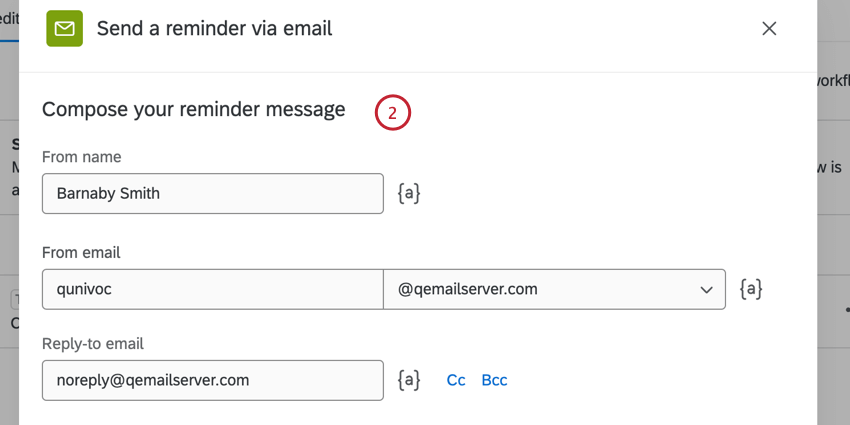
- From name: Can be anything you’d like.
- From email: Can be changed to another standard Qualtrics email address. Depending on your license, you may also be able to use a custom from address. For more information on changing these, visit our Using a Custom From Address support page.
- Reply-to email: Choose an address to receive replies to. Qtip: Generally, the reply-to email can only be the email connected to your Qualtrics account. However, brands often have a series of custom FROM domains. These custom domains allow you to use any email address with a valid domain as your reply-to. For example, if you’re a student at Qualtrics University, you may be able to use any email address ending in @qualtricsuniversity.edu. If you’re having trouble setting your reply-to email, reach out to your Brand Administrator to check if it uses a valid domain.Qtip: You can also add a CC or BCC by clicking those buttons next to the reply-to field.
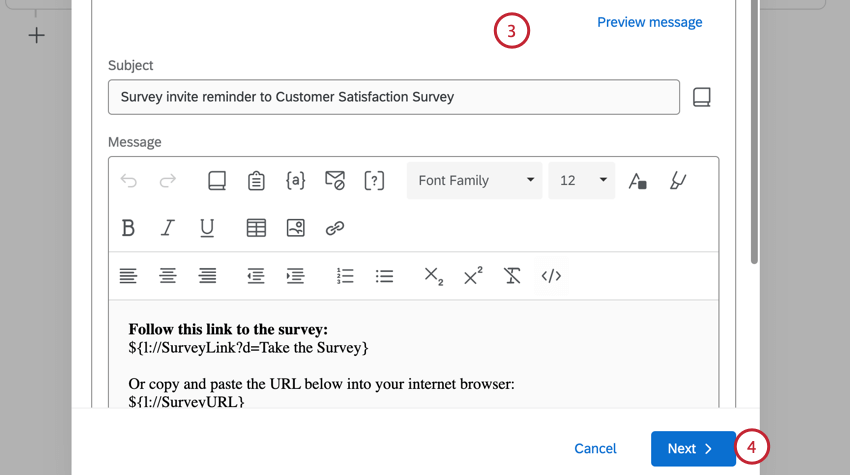
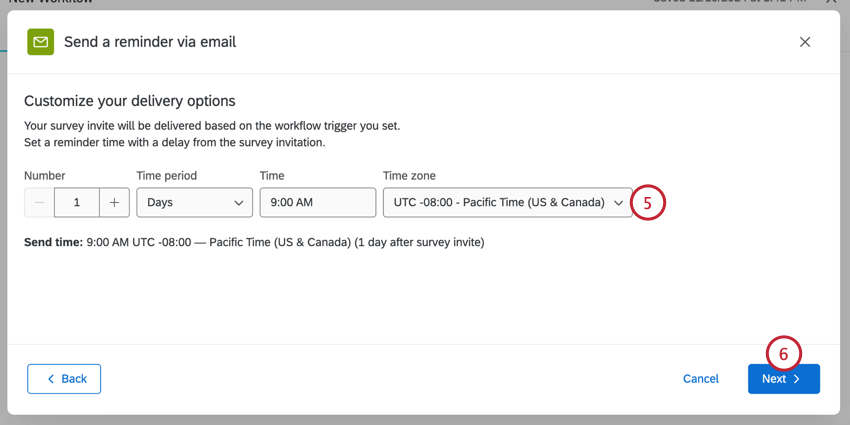
Adding SMS Reminders (Text Message)
You can add SMS (text message) reminders to email invites you send in workflows.
Attention: If you’re adding SMS reminders to an email distribution:
- Make sure contacts have phone numbers listed in the correct format.
- Make sure your SMS reminder message meets opt-in compliance guidelines. (See also Legal Requirements.)
- Keep an eye on your SMS credit consumption.

Previewing Messages
You can preview your message before sending it. When previewing a message, you can send a test message in different translations or use piped text to make the message as close as possible to the real distribution.
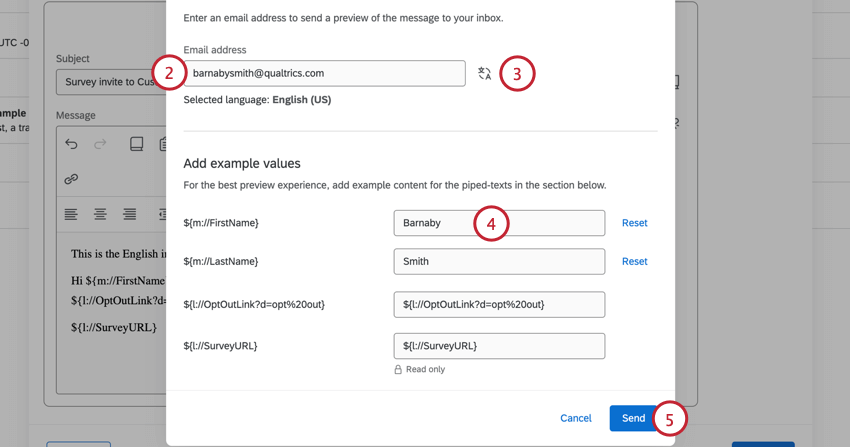
Example: Since you’re not sending to a real contact, fields from a contact list will appear as empty in the test email. You can enter example values for these fields so they appear correctly in the email.
Qtip: The survey link will be a preview link. You cannot edit this field.
Qtip: You can revert back to the default values by clicking Reset.
Distributing to a Single Contact
You can create a workflow to distribute surveys to individual contacts in your directory.
Navigate to the stand-alone Workflows page.

- Click Create a workflow.
- Select Started when an event is received.
Select Experience iD Change as the event that begins the workflow.
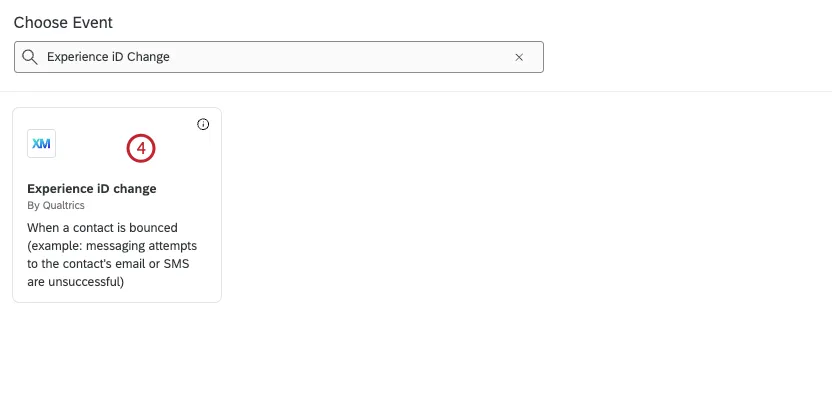
Select Contact data change as the kind of change you want to monitor.
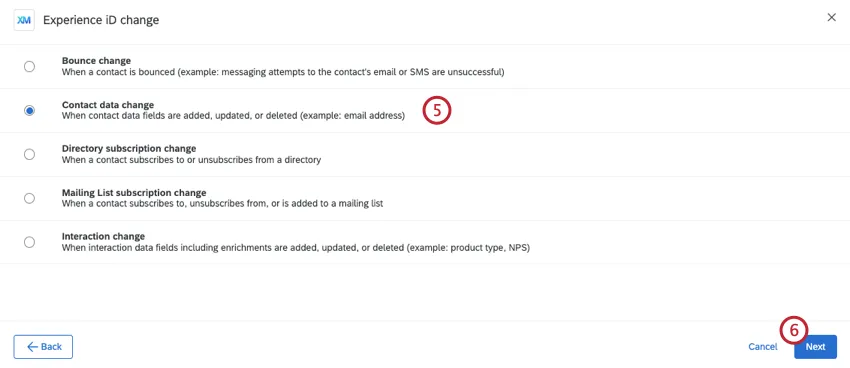
- Click Next.
Select which directory to monitor for contact changes.
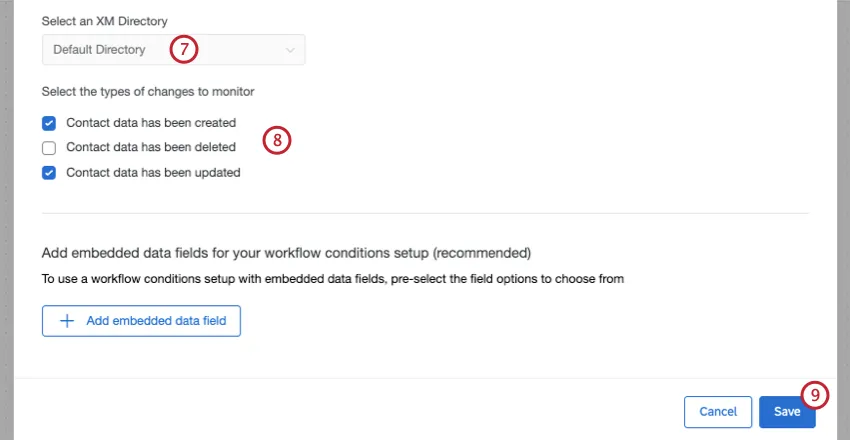
- Select the types of changes to monitor. When sending a survey to a single contact you should choose either Contact data has been created, Contact data has been updated, or both.
- Click Save.
- If desired, click the plus sign ( + ) and select Add a condition to add conditions to your workflow. Conditions help determine when a workflow fires. See the linked page for more information about building conditions.
Click the plus sign ( + ) and select Add a task.

Select the Send Survey via Email task. You can also select the Send Survey via Text Message (SMS) task to distribute your survey via SMS.
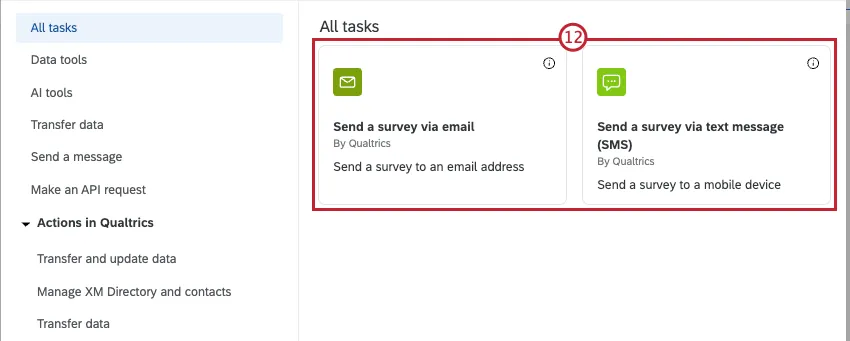
Configure your task. See the step-by-step instructions on the linked pages for more information. When selecting who to send the survey to, select Workflow Event as the source, and select Single contact as the type.
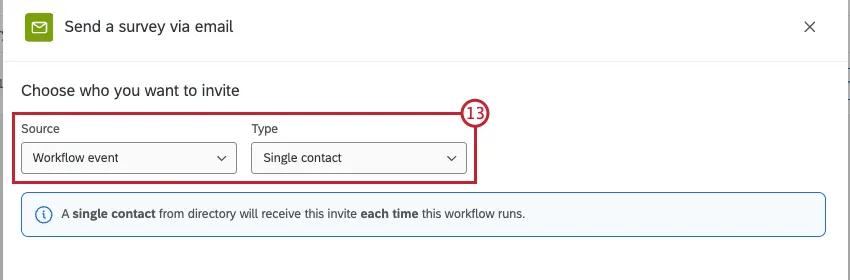
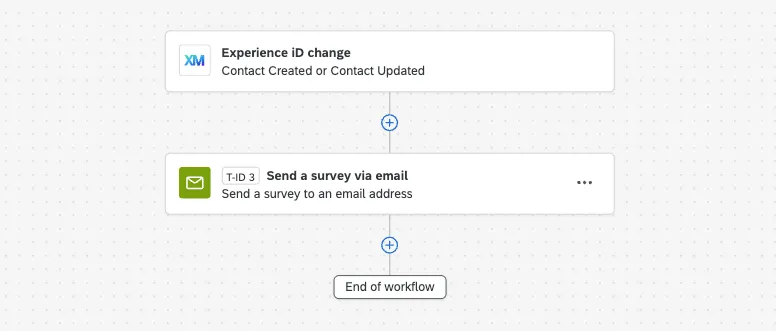
Finish configuring your distribution task. At the end, you should have a workflow that looks similar to this:
Managing Workflow Distributions
You can always manage workflows right from the workflows page. However, one of the great things about workflow survey invites is that they appear in the same places as other survey distributions, giving you a chance to track and troubleshoot all of your distributions in one place. Send Survey via Email Task invites, Send Survey via Text Message Task invites, and all of their reminders qualify.
Distributions can appear in both XM Directory and in the specific survey you’re distributing. To learn more about viewing, managing, and troubleshooting distributions in these locations, see the following support pages:
XM Directory: Outbox
Survey Distributions tab:
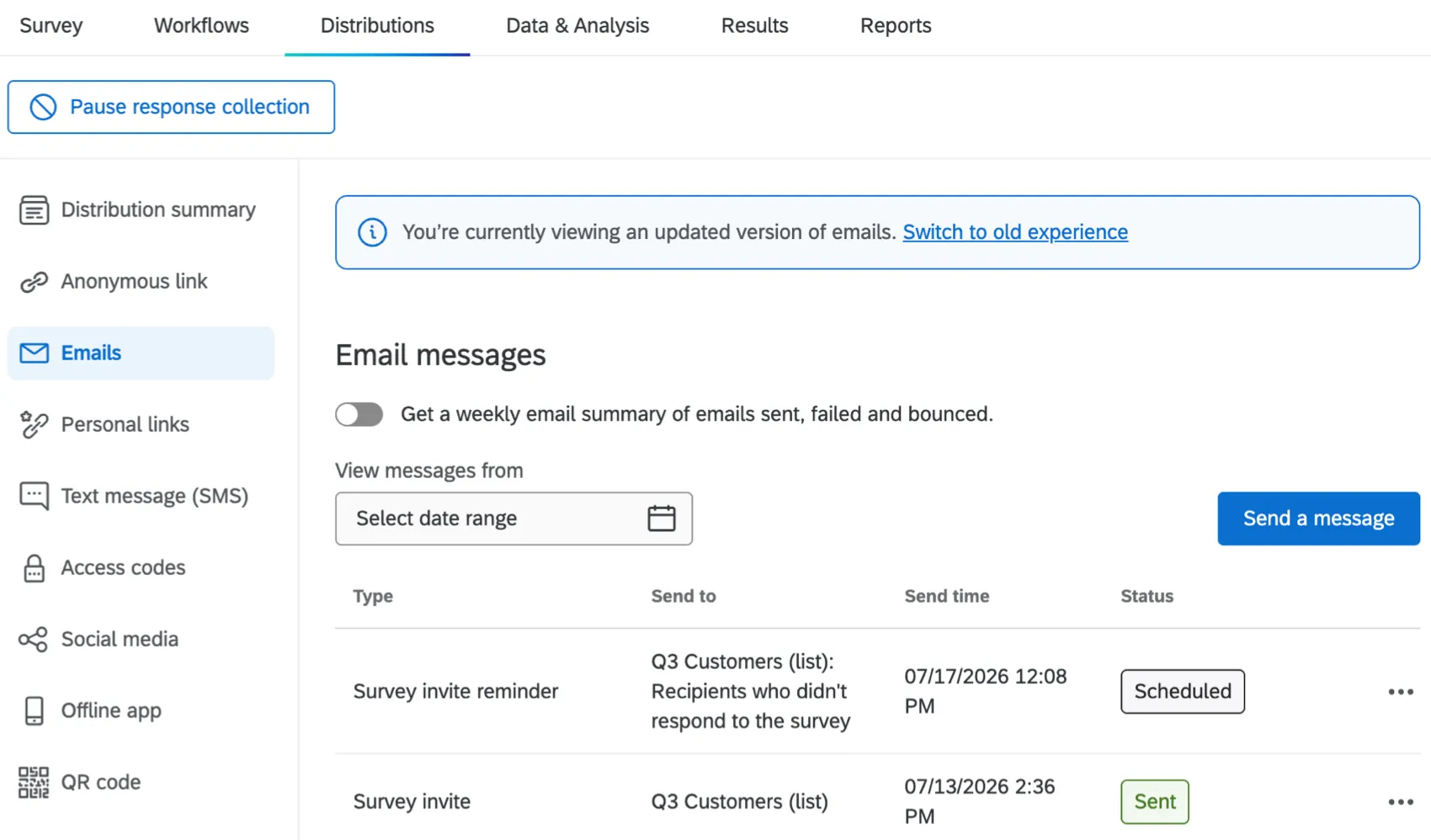
Example: Below, we see an email distribution from workflows in the Distributions tab of a survey. Along with it, we see both its email and SMS reminders.
FAQs
Can I edit multiple scheduled distributions at the same time?
Can I edit multiple scheduled distributions at the same time?
That's great! Thank you for your feedback!
Thank you for your feedback!