

SMS Distributions in XM Directory
What's on this page
About SMS Distributions in XM Directory
Qualtrics SMS distributions help you reach your audience through mobile devices and collect on-the-go pocket feedback. You can distribute surveys in two different ways through SMS: as a “2-way” interactive survey where respondents text their replies to each question, or as a link to the survey sent to the respondent’s phone that can be opened in a mobile browser.
Instead of having to return to a specific project, XM Directory lets you send SMS distributions right from the Distributions tab of your directory.
Qtip: SMS Surveys is an add-on feature not included in the standard Qualtrics license. If you are a Brand Administrator who would like to get this feature, reach out to Account Services.
Qtip: If you are collaborating on a survey with another user who doesn’t have XM Directory, you will not be able to use your mailing lists to distribute the survey. If you must distribute, make a copy of the survey on your account, or be sure to create the surveys on your account going forward.
Qtip: Contact frequency rules apply to most SMS distributions. These rules exclude reminders and thank yous.
Attention: Survey link expiration will not apply to SMS invitations or SMS surveys sent through the XM Directory.
Projects You Can Send Through XM Directory
Qtip: The features discussed in this section are not necessarily included with every license. If you’re interested in getting access, please reach out to your Account Executive.
You can use XM Directory to send invitations for several types of Qualtrics projects. However, not every Qualtrics project type is compatible with XM Directory.
XM Directory can be used to send the following:
- Survey projects
- Conjoint / MaxDiff
- Certain non-EX XM Solutions
Qtip: SMS distributions are compatible with both XM Directory and XM Directory Lite. However, SMS is not available in all licenses. If you’d like to upgrade to XM Directory, reach out to your Account Executive.
In contrast, XM Directory cannot be used to distribute any Employee Experience (EX) projects. Instead, SMS distributions in Employee Experience are completely disconnected from XM directory. See SMS Distributions (EX) for details.
Other SMS Resources
Details on SMS distributions sent right inside the Distributions tab of a survey can be found on the SMS Distributions support page. Please note that the act of distribution and distribution history differ slightly in the survey and in XM Directory. We will cover details specific to XM Directory on the rest of this support page.
Here is a list of resources that are relevant regardless of whether you’re distributing from the survey or XM Directory:
- SMS Credits Pricing
- SMS Providers
- Survey Design (For 2-Way SMS)
- Importing Phone Numbers
- Opting Out of an SMS Distribution
- Opt-In Compliance Guidelines Attention: Make sure your survey follows all opt-in compliance guidelines.

- Legal Requirements
- Using Your Own SMS Provider
SMS Credits
Attention: For information about SMS credits pricing, reach out to Account Services.
You need to purchase SMS credits to send SMS surveys through Qualtrics. This section will cover the various factors that influence how many credits are consumed when sending SMS surveys. These include the recipient’s country, the length of the message, and the characters included in the message.
For more details on credit consumption and pricing, see SMS Credits Consumption.
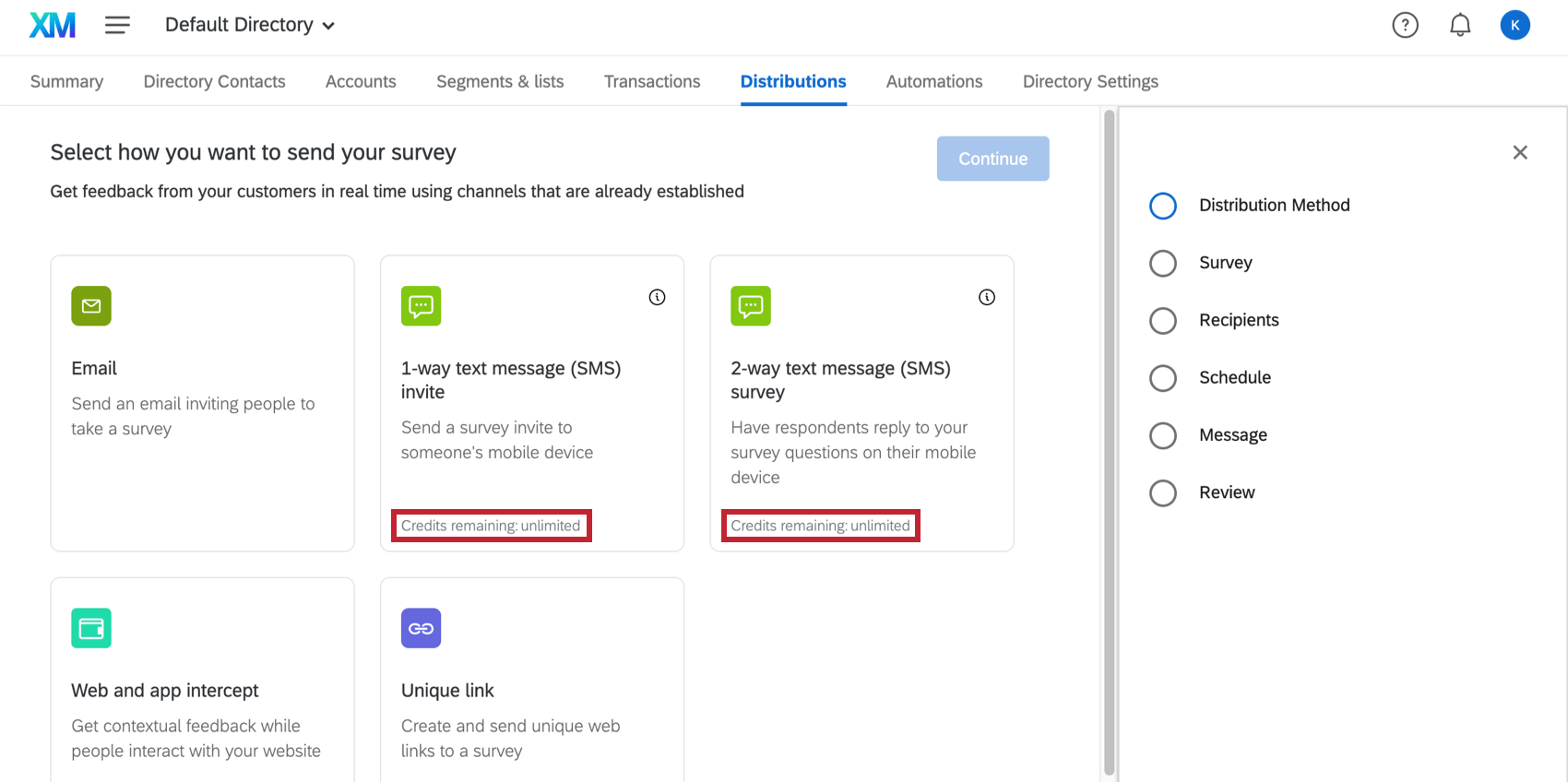
When you go to distribute through SMS in your directory, you’ll be able to see the credits available to your account.
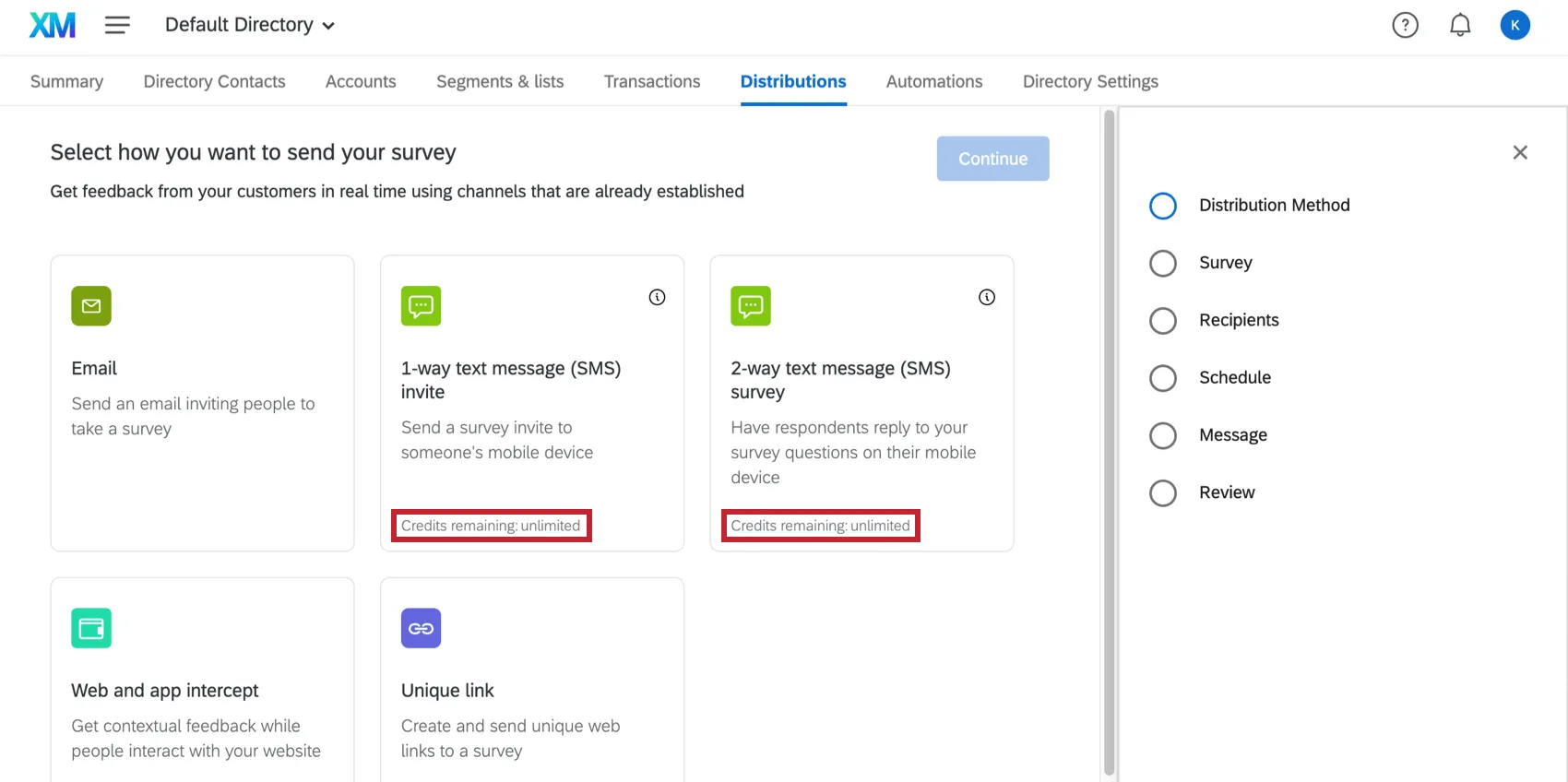
Distributing a 2-Way SMS Survey
2-Way SMS allows you to send surveys to contacts as texts to their phone. Your contacts can then text their responses to questions.
Preparing Your Mailing List and Your Survey
First, make sure 2-Way SMS is available in your country.
Phone numbers need to be formatted a certain way when you upload them in a mailing list. For example, you need to include the country code. For more, see Importing Phone Numbers.
You also need to make sure you’ve made your survey compatible with 2-Way SMS, because not all Qualtrics features are compatible with 2-way SMS. See Survey Design for more details.
Sending Your Distribution
Qtip: To prevent SMS providers from blocking your messages, you must include an opt-out message for your respondents. Please include a message along the lines of “text STOP to opt-out of this survey” in the first question of your survey.
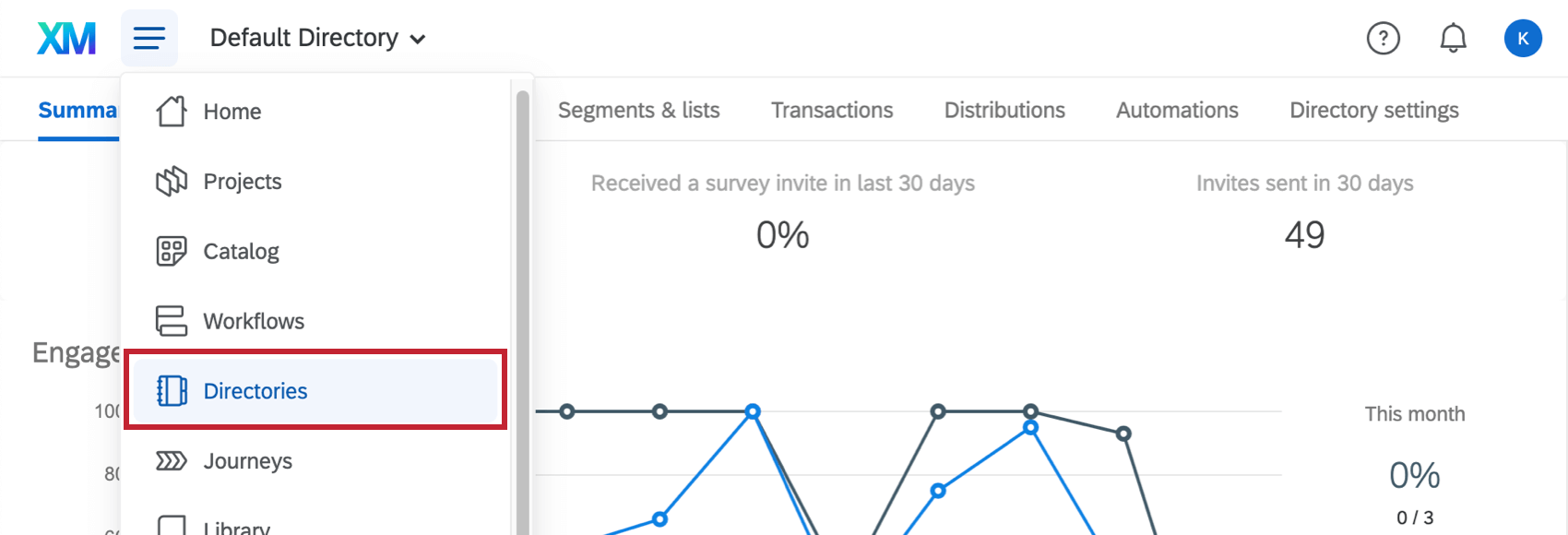
Qtip: If you have access to multiple directories, use the dropdown at the top of the screen to make sure you’re in the correct one.
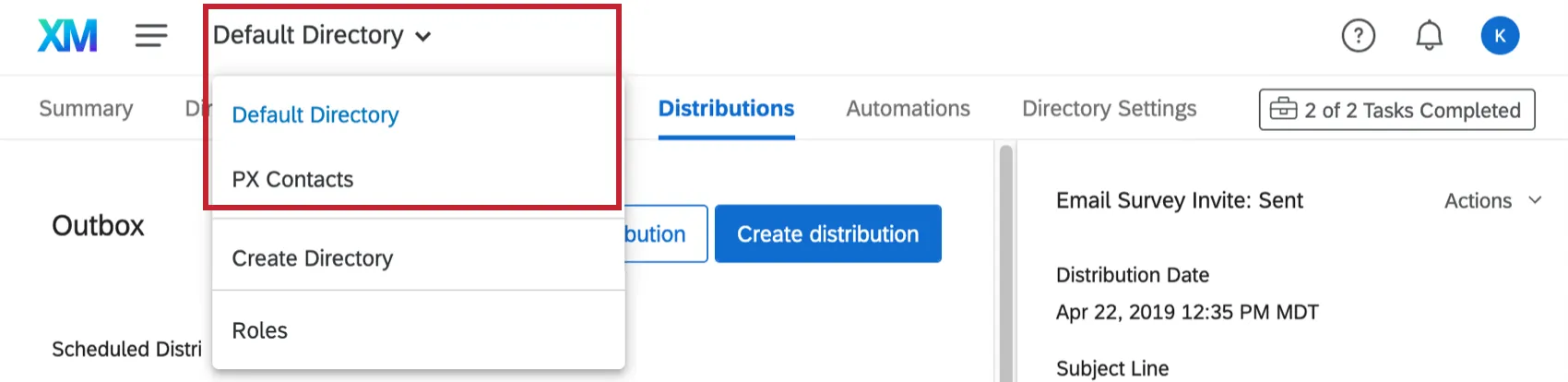
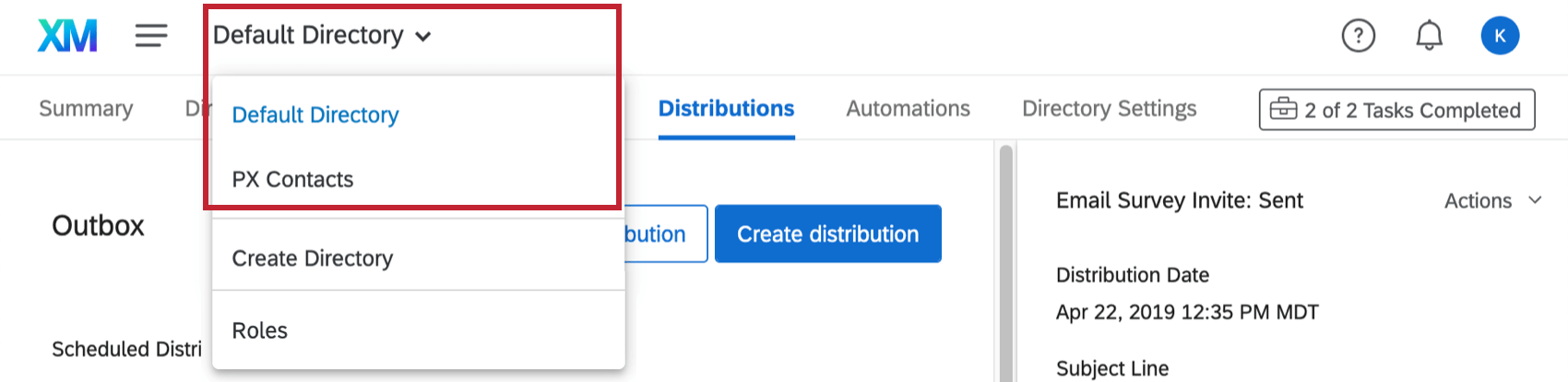
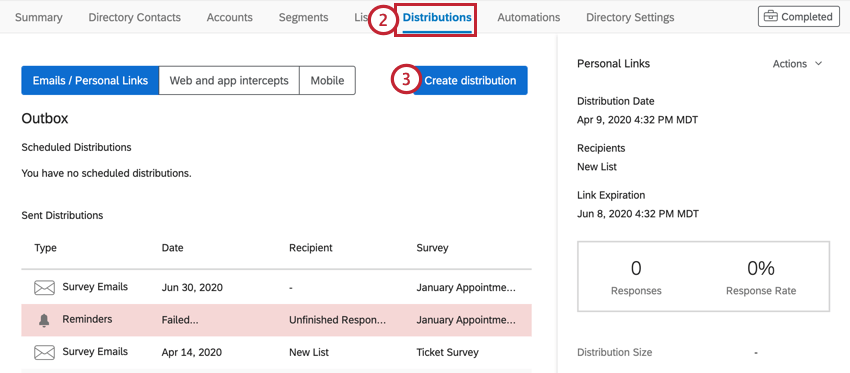
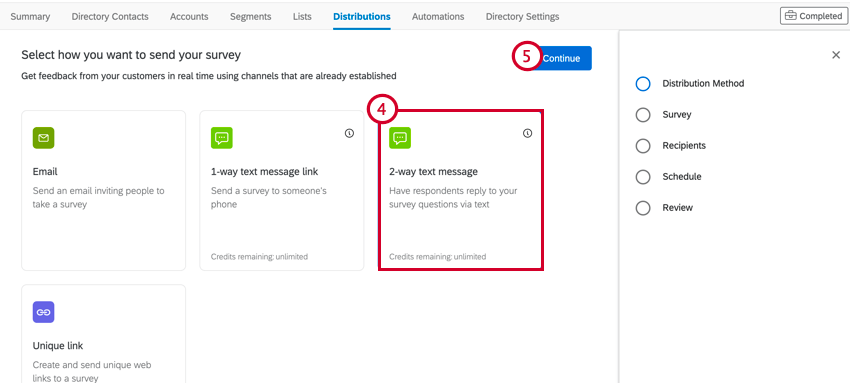
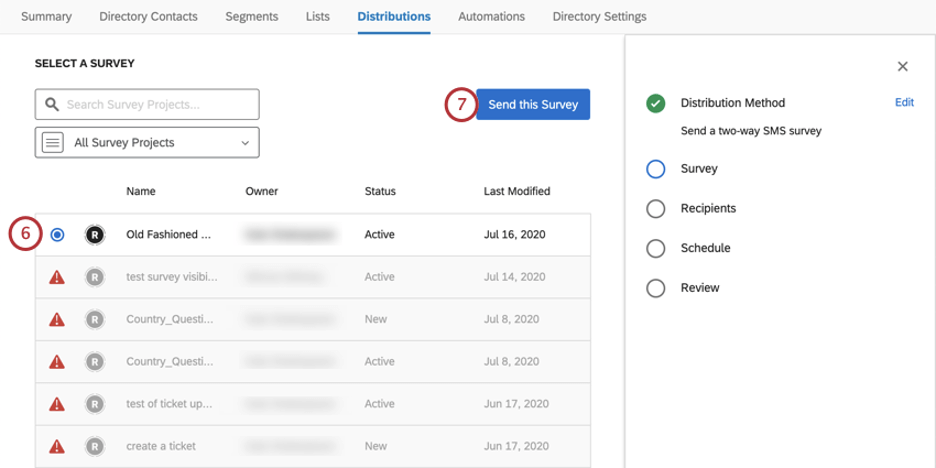
Qtip: Surveys incompatible with 2-way SMS will be marked with a red triangle.
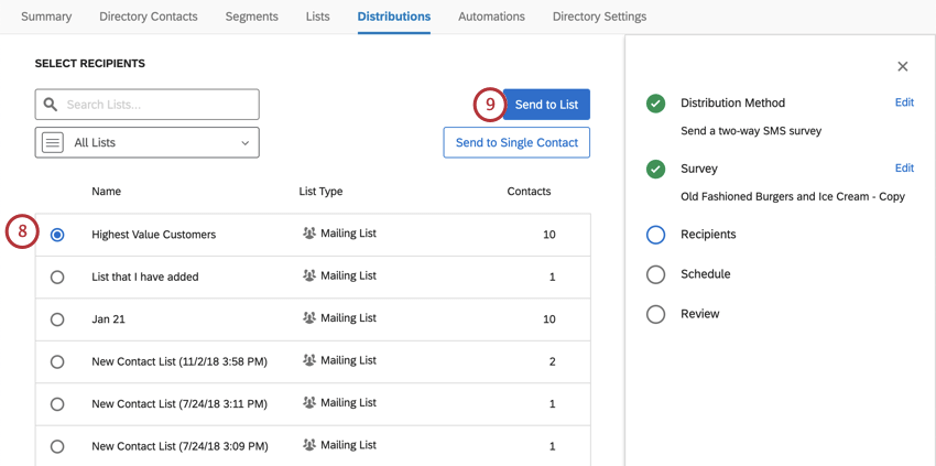
Qtip: You can also generate unique links for a segment or transaction group.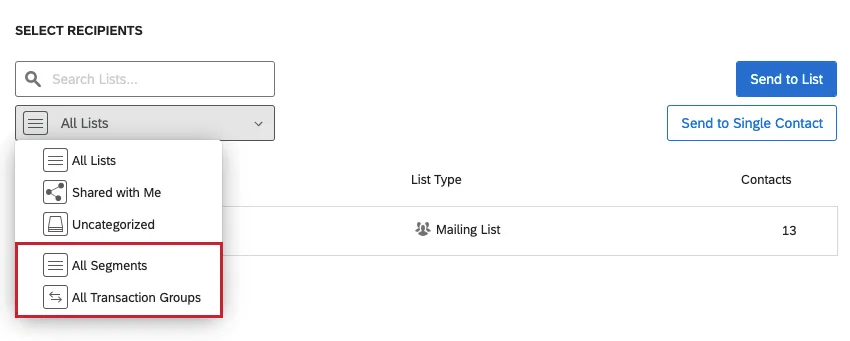
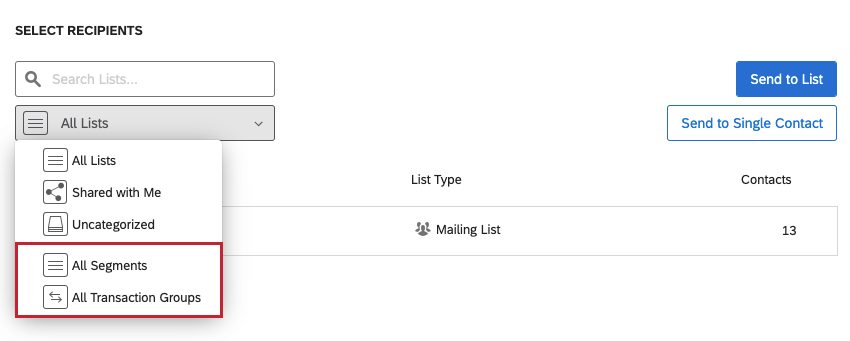
Qtip: You can also send to a single contact from the selected list instead by clicking Send to Single Contact.
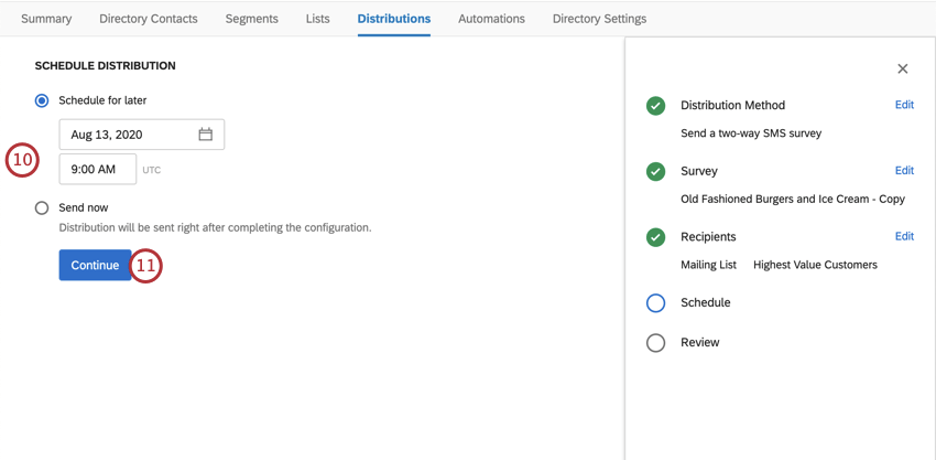
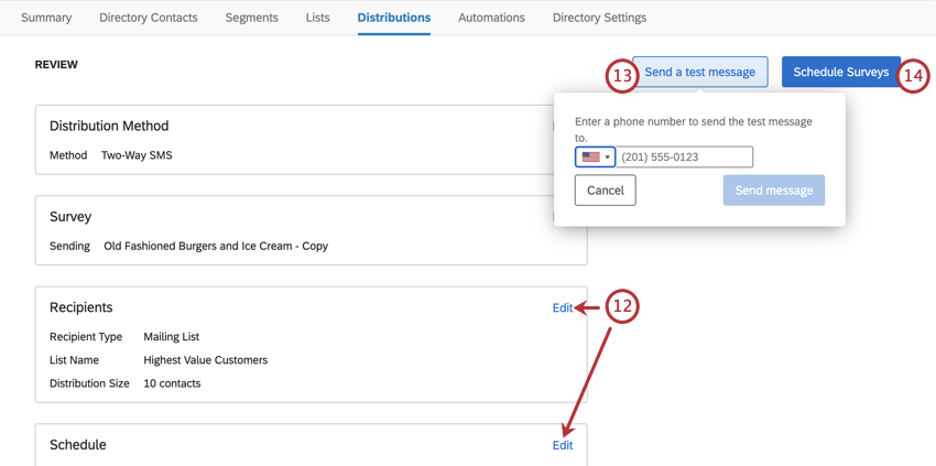
Qtip: You will be able to test the entire survey over text. If you complete the survey, your response will be counted as a preview response.
Distributing Survey Invitations via SMS
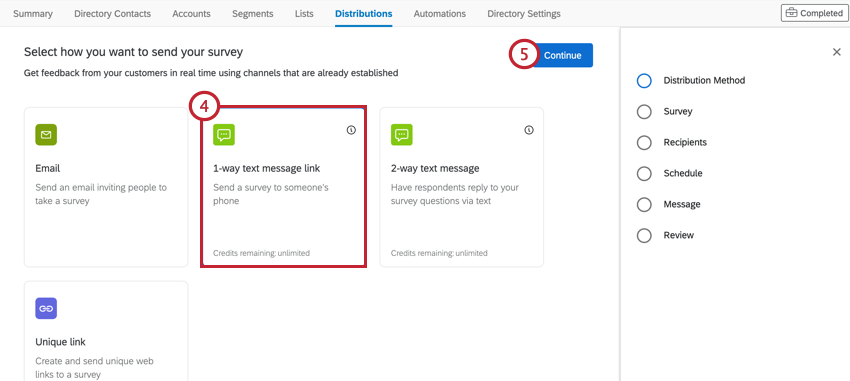
You can distribute an invitation to any survey using SMS. With this distribution method, you text a link to the survey to your recipients, and they can open the link in a mobile browser on their phone.
Links sent in these kinds of distributions will be individual links. That means the survey response can reference other information saved with the recipient in the mailing list, such as embedded data or contact fields.
Qtip: To prevent SMS providers from blocking your messages, you must include an opt-out message in your SMS invitation. Please include a message along the lines of “text STOP to opt-out of this survey” in your invitation.
Qtip: Your survey design does not have to match the requirements for 2-way messaging to use this distribution method. However, the survey will not be texted directly to the recipients, just a link will be.
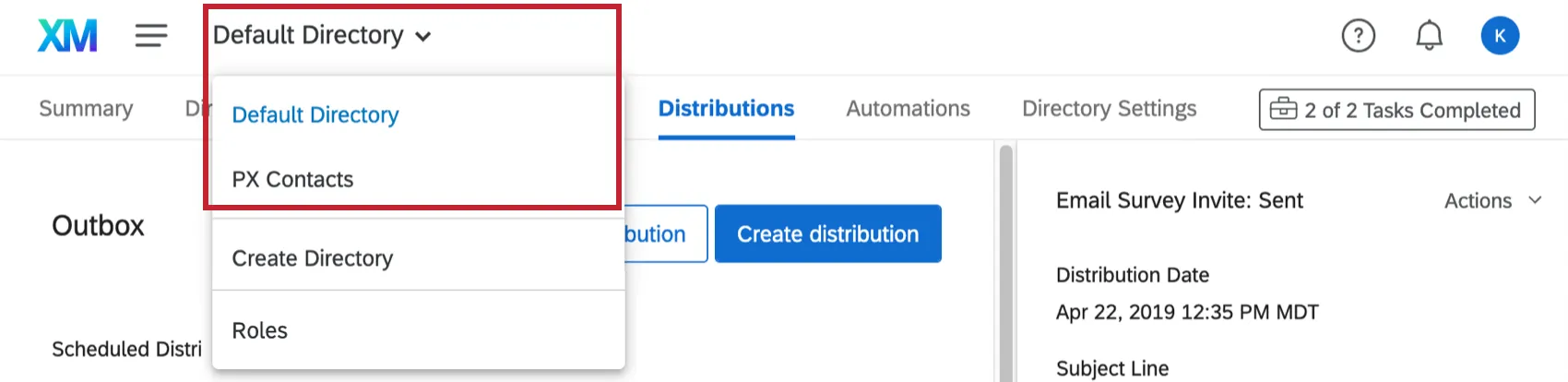
Qtip: If you have access to multiple directories, use the dropdown at the top of the screen to make sure you’re in the correct one.
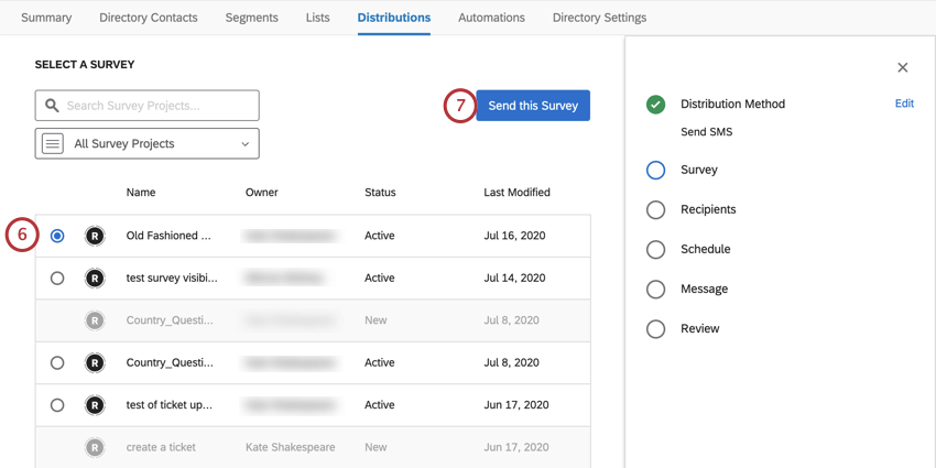
Qtip: Surveys that are not active will be greyed out. See more about adjusting project status.
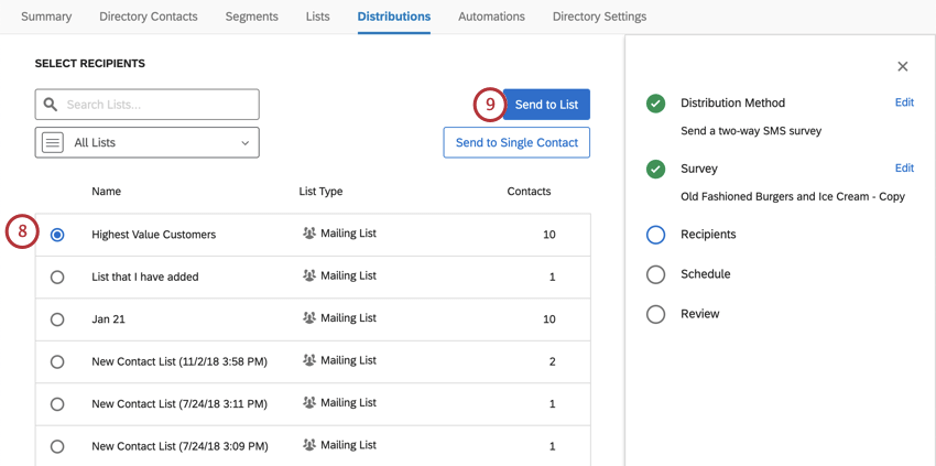
Qtip: You can also generate unique links for a segment or transaction group.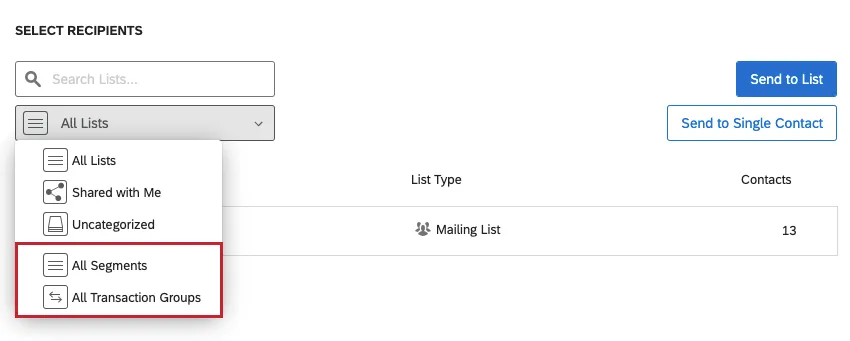
Qtip: You can also send to a single contact from the selected list instead by clicking Send to Single Contact.
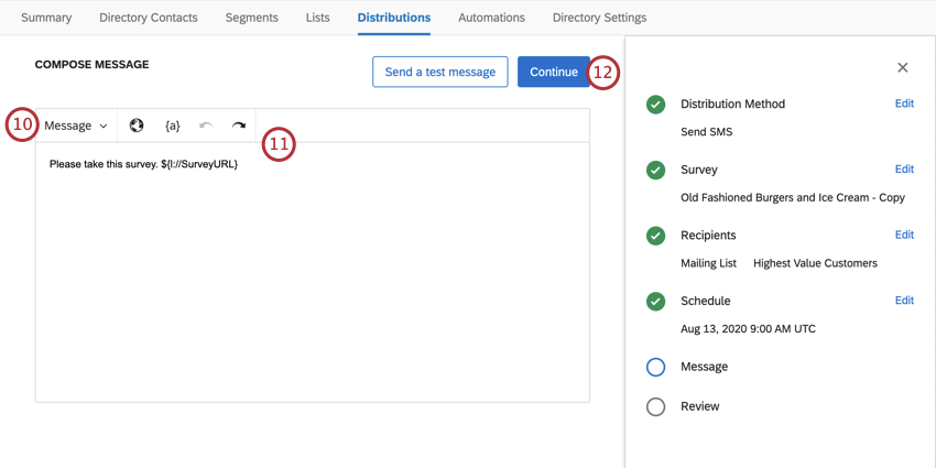
Qtip: This field can only use library messages saved as an SMS Invite.
Warning: It is recommended you create your message within this window as opposed to copying and pasting from a Word document. When you copy and paste, hidden HTML elements can carry over which can cause your SMS to be broken over multiple messages, leading to extra credits being consumed.
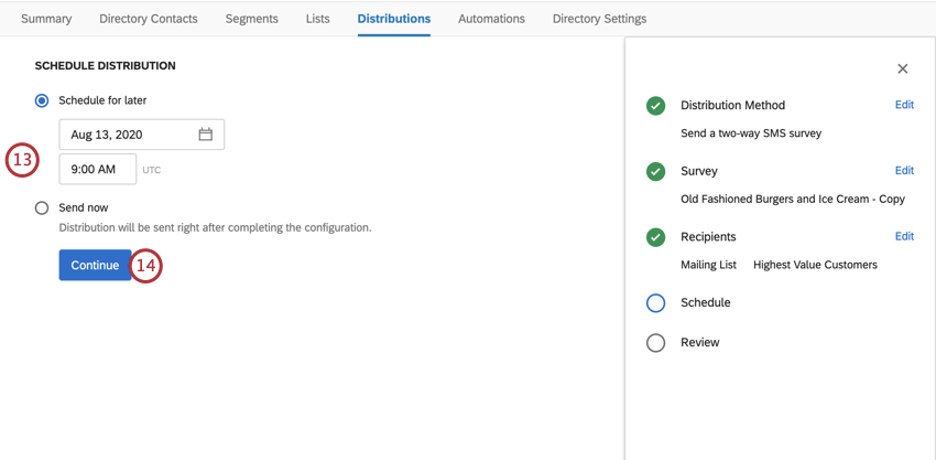
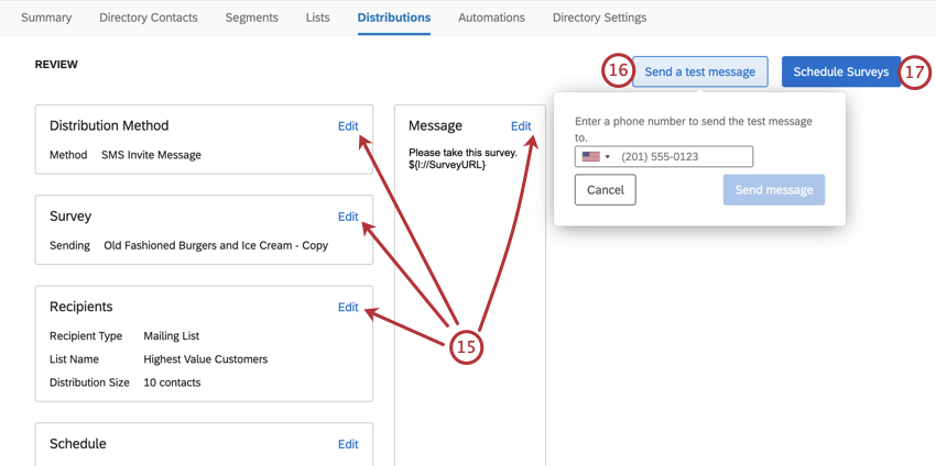
Qtip: The test message will contain a preview survey link.
Reminders and Thank Yous
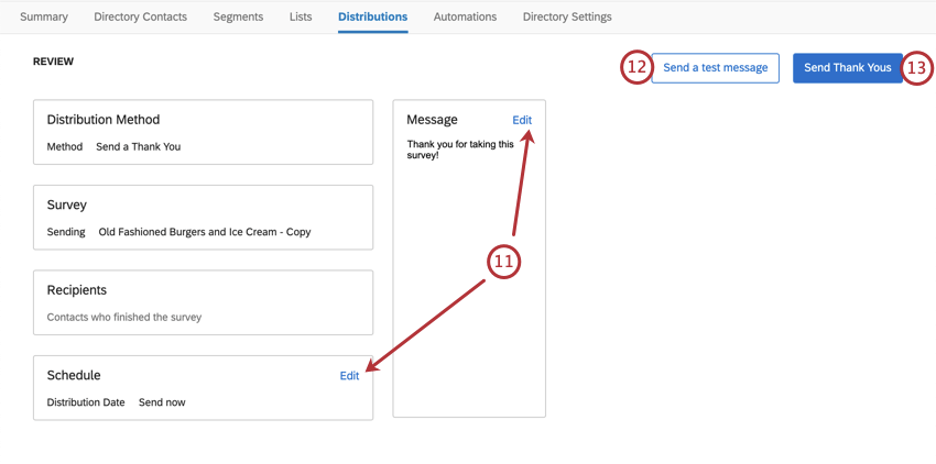
You can send reminder and thank you texts if you are distributing survey invitations with SMS. Reminders and Thank Yous are not available for 2-way SMS.
Reminder texts only go to respondents who are either halfway through the survey, or never started it. Thank Yous only go to respondents who have finished the survey.
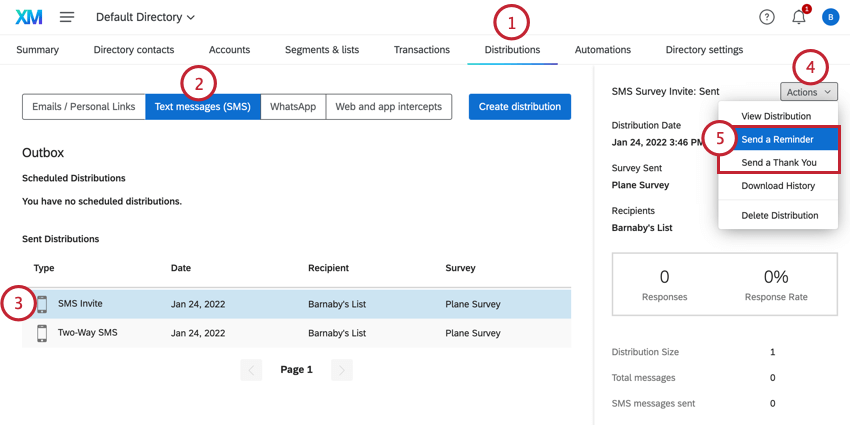
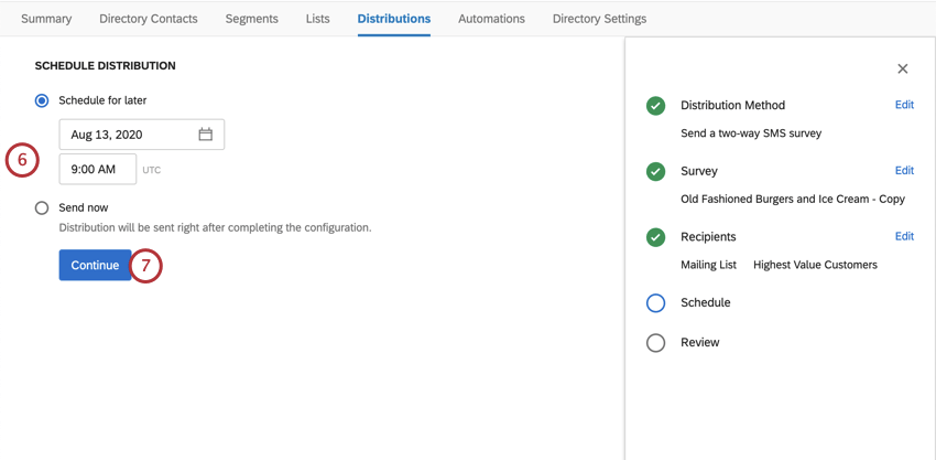
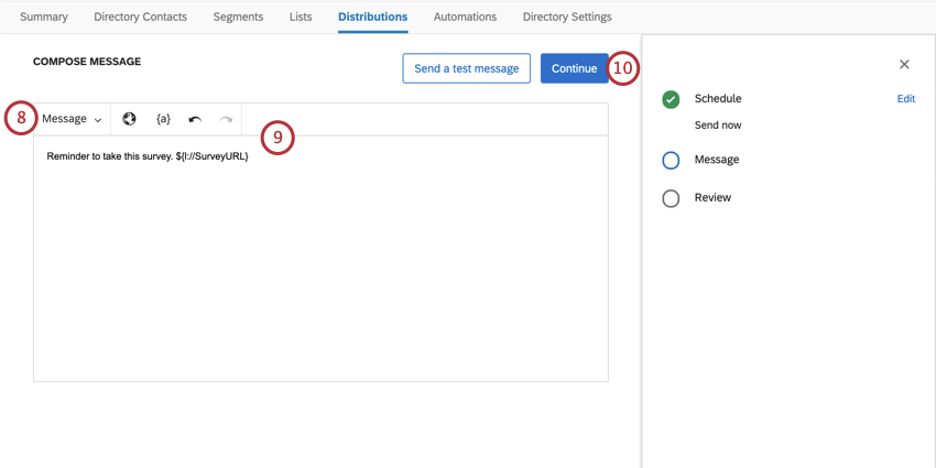
Qtip: This field can only use library messages saved as an SMS Invite.
Warning: It is recommended you create your message within this window as opposed to copying and pasting from a Word document. When you copy and paste, hidden HTML elements can carry over which can cause your SMS to be broken over multiple messages, leading to extra credits being consumed.
Distribution Information
You can view past SMS distributions, distributions in progress, and distributions scheduled for the future in the Distributions tab of your directory, when you go to the Text messages (SMS) section.
Qtip: For instructions on cancelling and deleting scheduled distributions, see the Outbox support page.
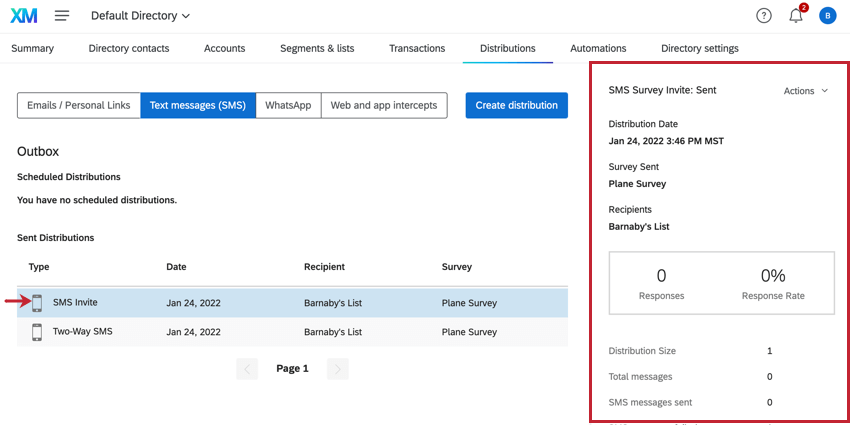
Once you click a past SMS distribution, you’ll see the following information:
- Distribution Date: When the distribution was sent (matching the time zone of your account).
- Survey Sent: The name of the survey distributed.
- Recipients: The name of the mailing list, segment, transaction group, or individual contact the distribution was sent to.
- Responses / Response Rate: The number of responses completed and the resulting response rate (percentage of complete responses out of total recipients).
- Distribution Size: How many contacts the distribution was sent to.
- Total messages: The total number of SMS messages attempted.
- SMS messages sent: The number of SMS messages successfully sent.
- SMS messages failed: The number of SMS messages that failed to send. Qtip: Make sure phone numbers are formatted correctly in your contact list.

- Surveys Started: The number of surveys where the recipient has at least clicked on the link, but hasn’t necessarily submitted the survey. In 2-way SMS, they replied to at least one question.
- Surveys Completed: The number of recipients who have completed the survey, meaning they submitted the last page.
- Credits: The credits consumed by the distribution. For more details on credit consumption, see SMS Credit Consumption. Attention: For information about SMS credits pricing, reach out to Account Services.
- Related Distributions: If there were connected invites, reminders, or thank you emails.
Downloading Distribution History
You can download the distribution history for a specific SMS distribution. This allows you to see each respondent in the distribution and view their status for the survey. More information about downloading distribution history can be found on this page.
FAQs
Can I edit multiple scheduled distributions at the same time?
Can I edit multiple scheduled distributions at the same time?
That's great! Thank you for your feedback!
Thank you for your feedback!