

Sharing Dashboard Manager Reports (EX)
What's on this page
Qtip: This page describes functionality available to Engagement, Lifecycle, and Ad Hoc Employee Research projects. For more details on each, see Types of Employee Experience Projects.
About Sharing Reports
When the report template is finished, you’ll want to make it available for dashboard users to export in PDF and PPTX (Powerpoint) format.
Qtip: To print this report, export it to PDF. From there, you can open the file on your computer to print it.
How Report Data is Restricted
Reports are tied to dashboards because their data is automatically restricted based on the data restrictions you set for the dashboard’s role. This ensures that when users export their reports, they only see data relevant to them.
The data will also be limited by any filters the user applied to the dashboard before they entered the report.
Attention: Make sure you set up roles and permissions correctly for all of your users that will be accessing the dashboard and downloading data from it.

Attention: Dashboard users should export their own reports from the dashboard, as explained in How Dashboard Users Export Reports. Do not export the report using the icon on the toolbar and share this with users, because it will not be subject to data restrictions!


Making PDF or Powerpoint Reports Available
Qtip: Before you complete these steps, make sure you’re created and customized your report template. For information on how to access the report so you can make edits, see the Report Template Overview.
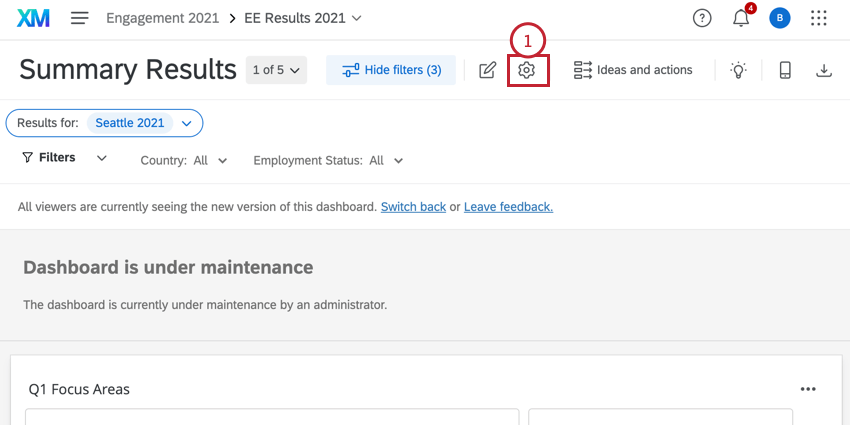
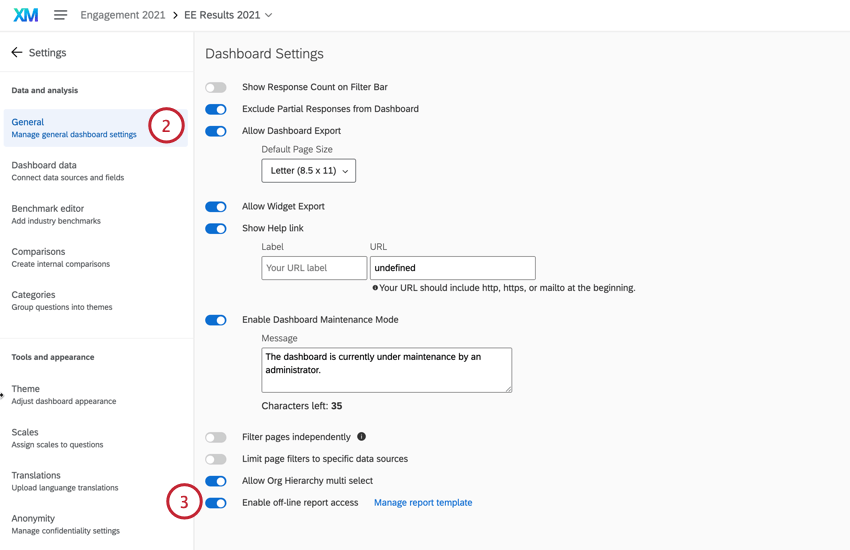
How Dashboard Users Export Reports
Attention: Please contact Account Services if if you’d like access to editable exports. Once enabled for a brand, this functionality will be available to all users with export permissions. Only versions of the widget created after the March 2023 update can be exported to an editable format. The linked update has instructions for how to tell if your widget is the updated version.
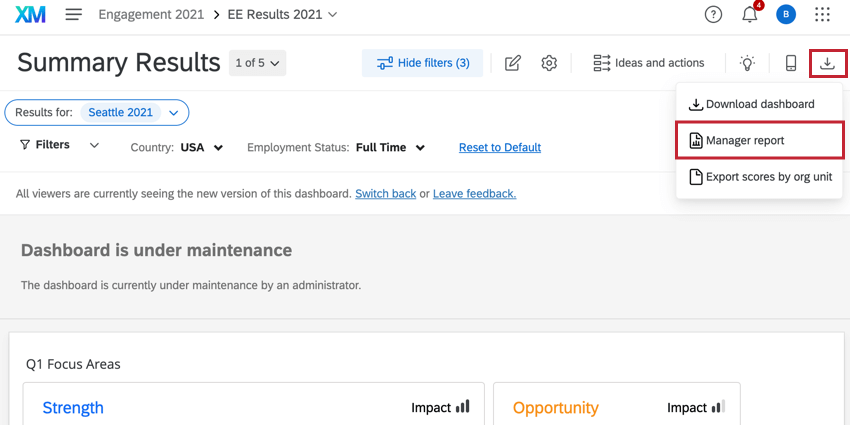
Dashboards reports are exported from right inside the dashboard, using the Export dashboard button in the upper-right. Select Manager report to download the report.
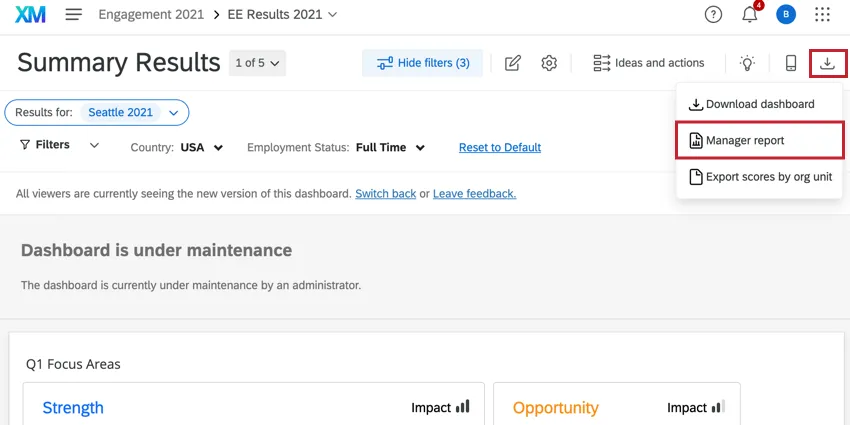
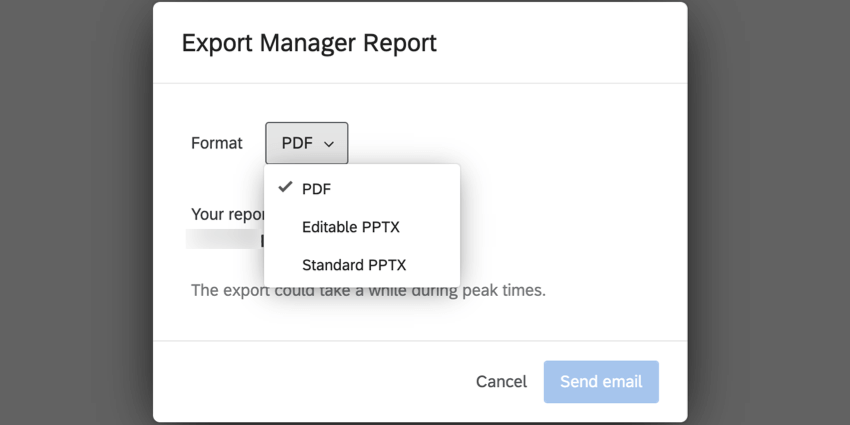
From there, choose the file format for your export. You can choose PDF, Editable PPTX (Powerpoint), or Standard PPTX.
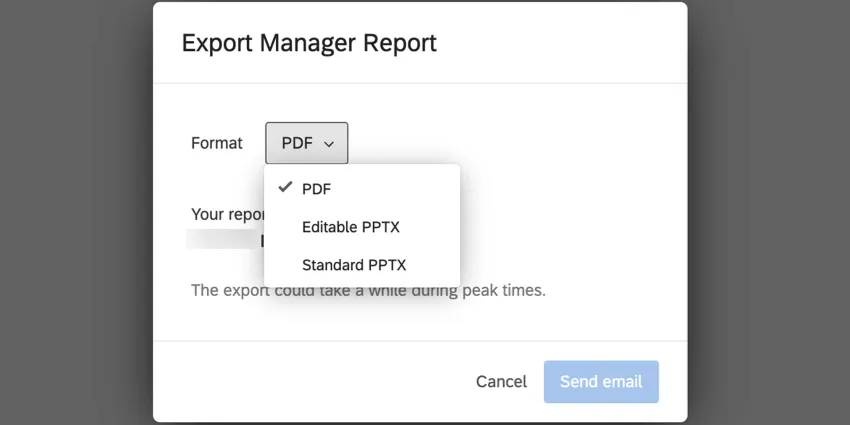
Your chosen format will be emailed to you. This email goes to the email address (not the username) that is uploaded in the Participants tab of the project. You can double check this email address in the export window.
When exporting an editable PPTX, you can edit the styling, text, and data sources for these visualizations:
- Heat map Qtip: We recommend opening these in Microsoft Powerpoint since they may not display as intended in other software.

- Question list Qtip: The format of this widget will be different in the editable PPTX format. The first screenshot below shows the exact representation of the visualization, available in the PDF or standard PPTX format.
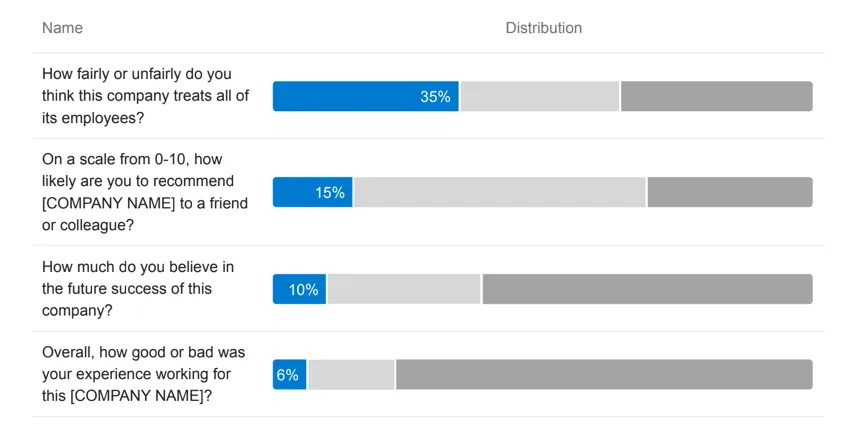
The second screenshot shows the same widget in the editable PPTX format.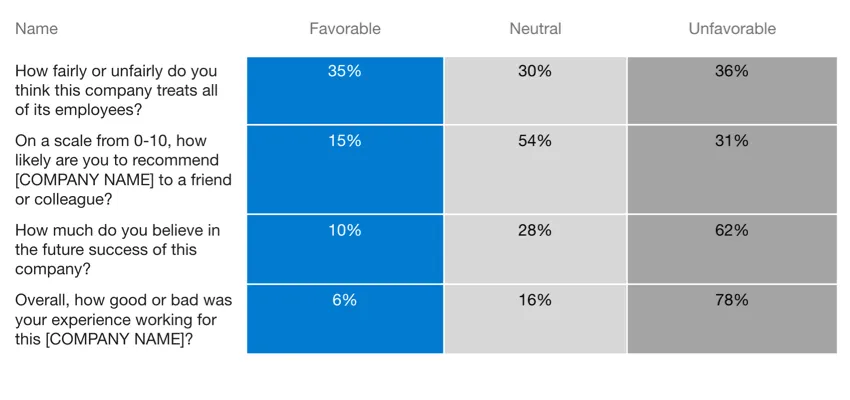
- Scorecard Qtip: The format of this widget will be different in the editable PPTX format. For an exact representation of the visualization, select the PDF or Standard PPTX format. See the question list widget Qtip for example images.
- Bar chart
- Data table
- Grid table
- Statistics table
- Text Qtip: Bullet points and numbered lists in text boxes are not supported for editable PPTX exports.
That's great! Thank you for your feedback!
Thank you for your feedback!