

Publishing Your Data Model (EX)
What's on this page
Qtip: This page only describes data models in Employee Journey Analytics and CrossXM Analytics projects.

About Publishing Your Data Model
Once you have generated a preview of your dataset, click Publish. This will prepare the dataset for use in dashboards and Stats iQ.
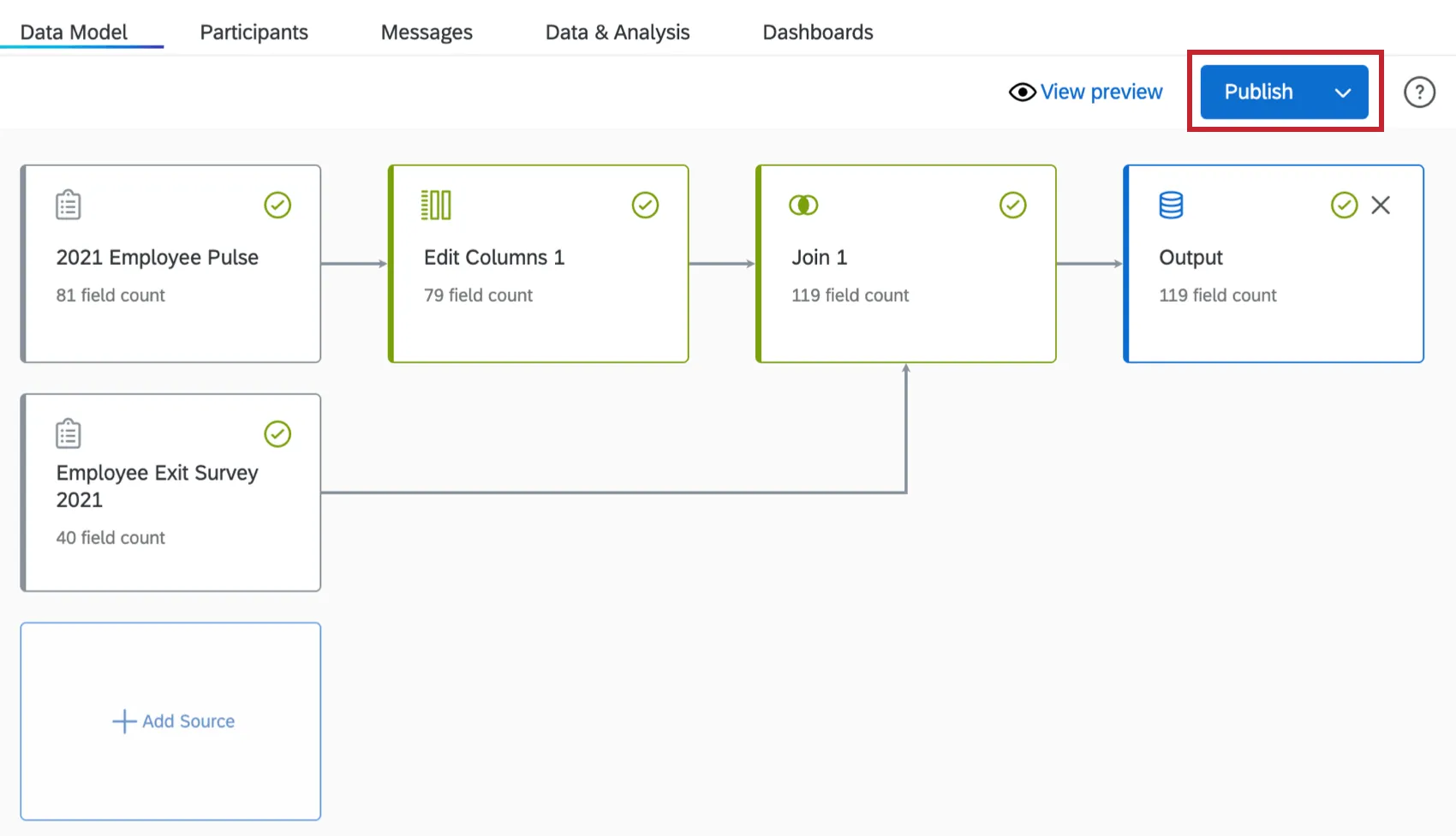
After your data model is published, the Publish button will be grayed out and you will see a date for when the model was last published. If you make changes to your data model you will have to preview and publish it again.
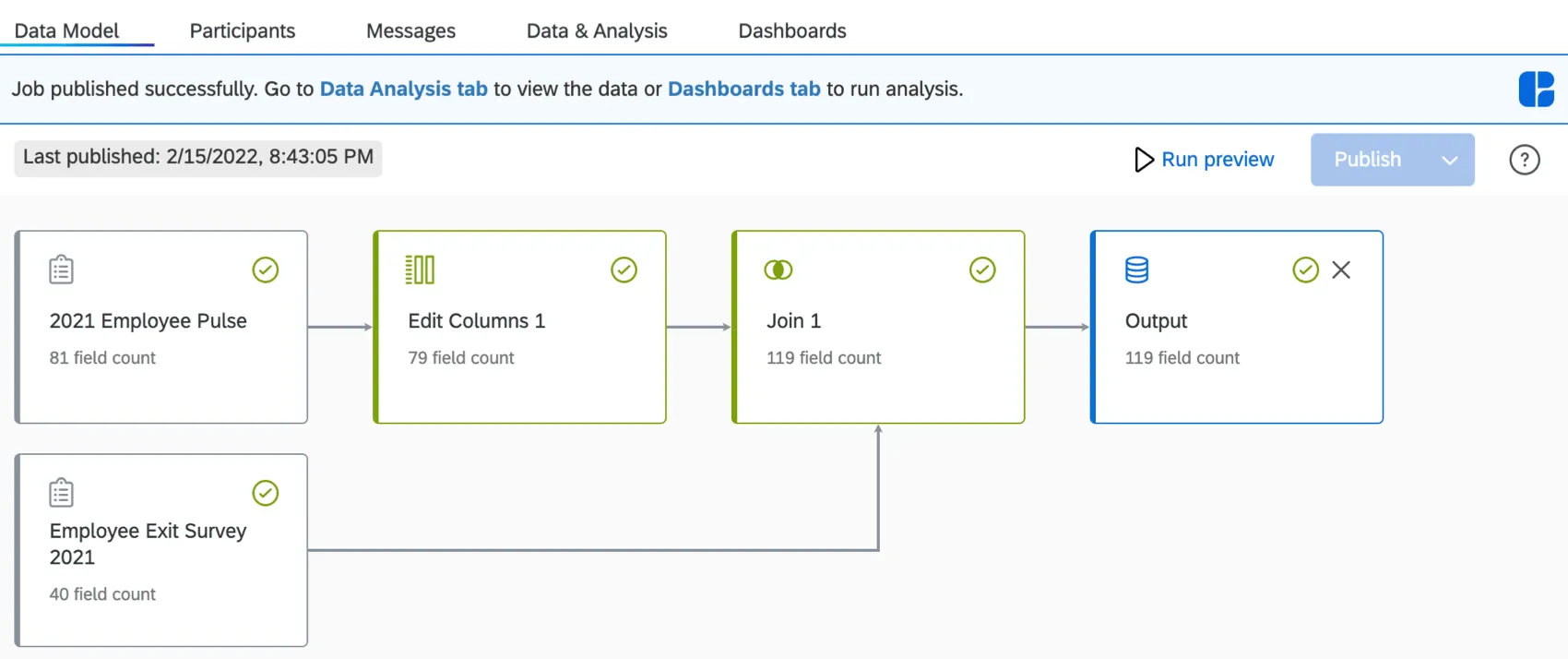
Now that your dataset is published, navigate to the Data & Analysis tab to view the data or the Dashboards tab to run analysis.
Attention: Text iQ is not available in the journey project’s Data & Analysis tab. If you’d like to use text analytics, perform them in the source projects before building the data model. You also cannot use the “Field Editor” tab in Data & Analysis since you can edit fields directly in the data model instead.

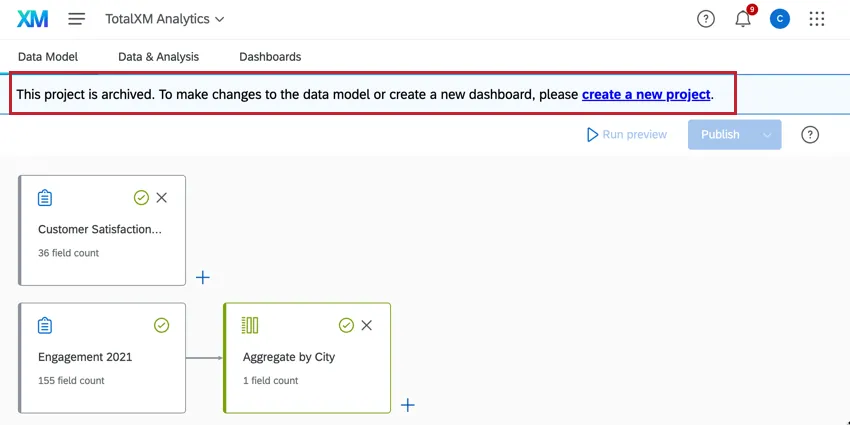
Attention: Projects created before November 6, 2024 use the old data model and have been placed in an Archived state. You cannot edit, publish, or refresh the data model in archived projects. Previously published data, dashboards, participants, and Stats iQ will continue to be available and operational, however dashboard creation and copying is disabled in archived projects. Archived projects cannot be copied; create a new project instead.
Refreshing the Dataset
Data models that only use left joins, filters, unions, and new fields are continuously updated as new responses come in. You do not need to refresh these datasets. Newly collected responses to surveys included in the data model will be automatically included in the output dataset.
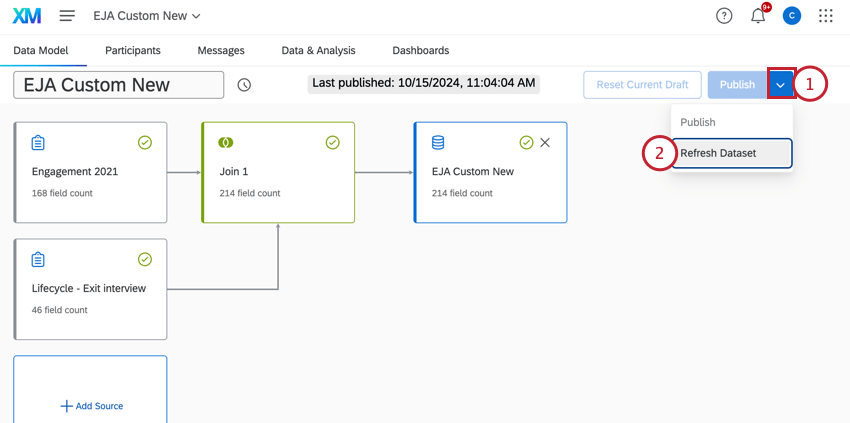
Data models with aggregations or outer joins will be periodically refreshed each week based on when the first survey was sent out. You can manually refresh your dataset at any time by following the below steps:
Dataset Update Schedule
Datasets will periodically update with new data automatically. You can view when your dataset was last updated and the next scheduled update by hovering your mouse over the clock next to your dataset’s name.

Data Model Version History
When you publish your data model, it’s added to the version history. A data model’s version history lets you view, preview, and restore previously published versions of a dataset, eliminating the need to manually rebuild a previous setup from scratch.
For more details, see Data Model Version History. Although this content is on the CX support pages, the functionality is the same for EX data models.
That's great! Thank you for your feedback!
Thank you for your feedback!