

Qualitative Panels
What's on this page
About Qualitative Panels
Qualitative panels are often used for studies that go beyond a simple survey, such as those requiring screen-sharing or multiple rounds of feedback. The purpose of qualitative panels is to find participants comfortable engaging in these exercises while giving detailed feedback. The participants will not be anonymous, coming with a profile of information attached as embedded data.
Example: In UX research, you might require screen, camera, or microphone-sharing. Qualitative research can help you find candidates willing to perform these actions while giving actionable feedback.

Qtip: Due to the greater study demands, qualitative panels tend to have higher incentives provided by researchers themselves, as opposed to the panel provider. Qualtrics Support cannot advise on incentive pricing. We recommend looking for resources with best practices tailored to your industry and type of study.
Qtip: Qualitative panels tend to be better for low volume studies of 1 to 50 participants.
Creating a Qualitative Panel
Follow these steps to create a qualitative panel:
Go to the Distributions tab of your project.
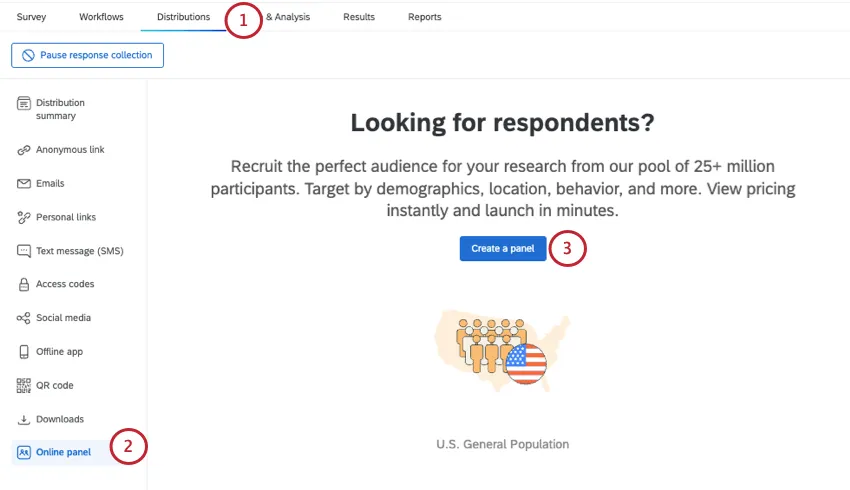
Go to Online panel.
Click Create a panel.
Select Start a Qualitative panel from scratch.
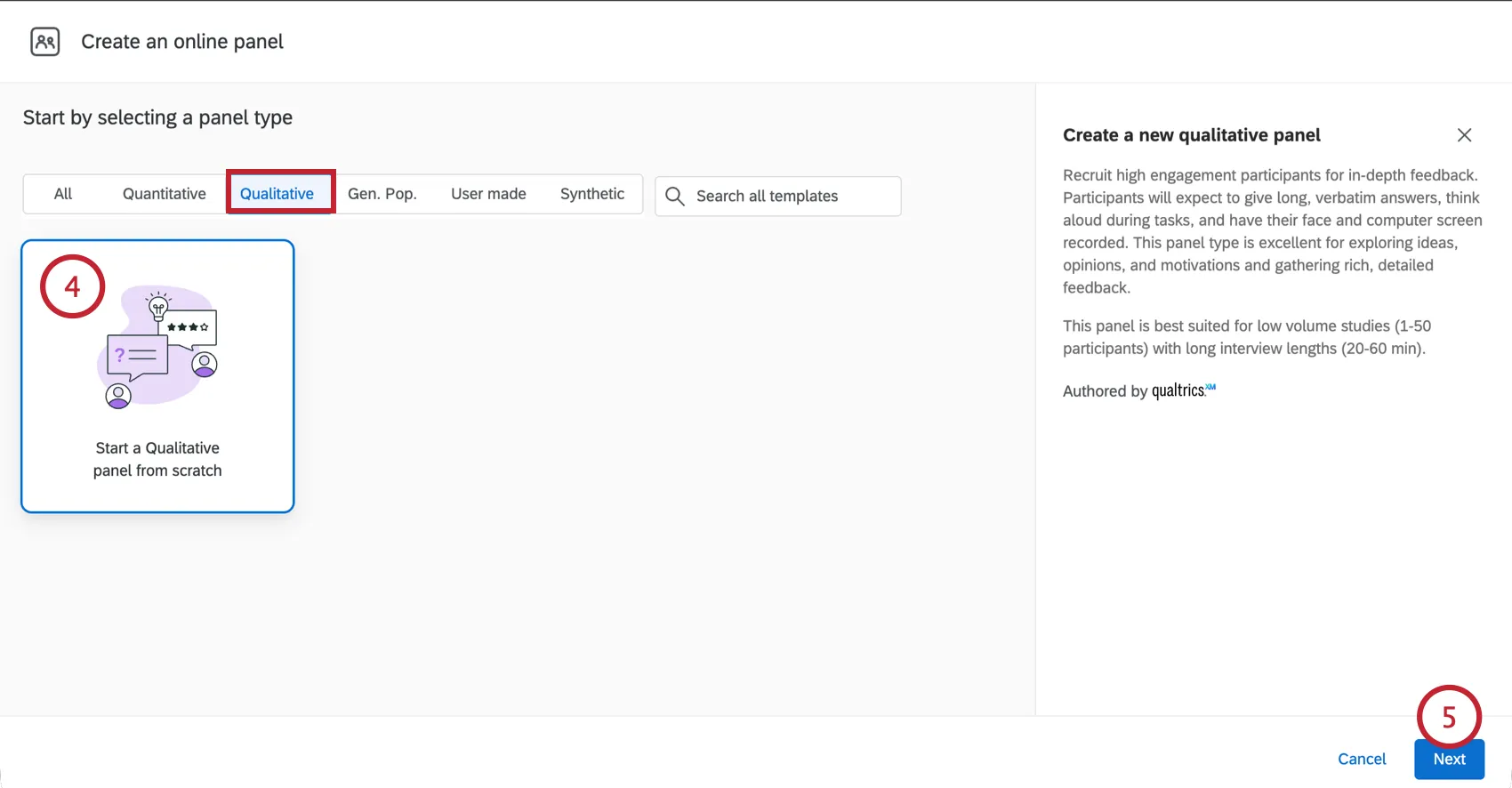
Click Next.
Name your panel.
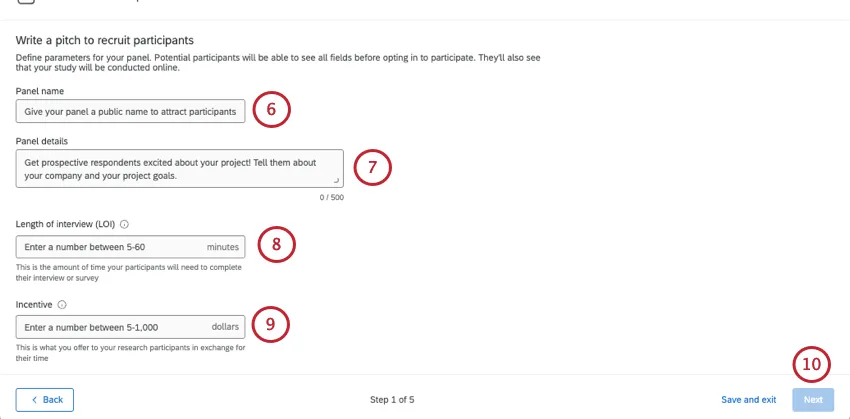
Under Panel details, write a pitch to recruit participants. Explain the project and what participants will be expected to do.
Qtip: The panel details have a maximum of 500 characters.
Under Length of interview (LOI), enter how long the interview should be in minutes.
Qtip: This field can be anywhere from 5 to 60 minutes. This is to keep recording limits for video questions in mind.
Under Incentive, add the incentive for the study in United States dollars.
Qtip: This field can be anywhere from 5 to 1000 dollars.
Click Next.
Qtip: You can also save your changes and come back to them later using Save and exit. Select Save as template to save your panel as a template.
In Required Criteria, enter the target number of participants. This is a max of 50.
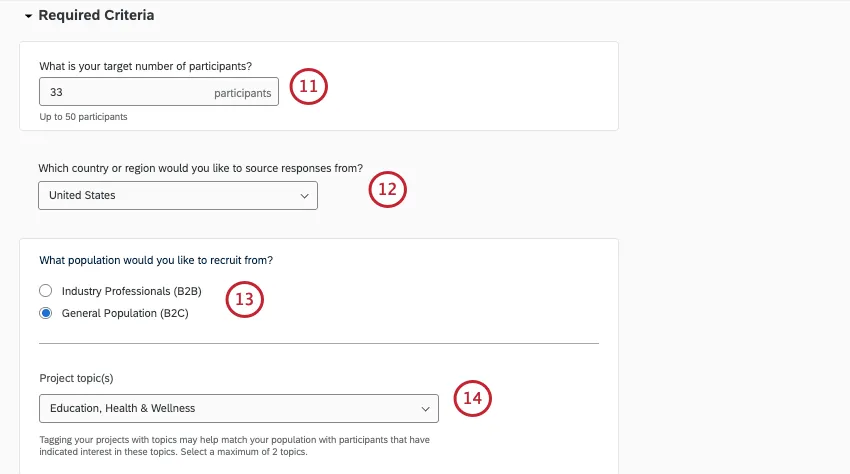
Choose the country or region participants should come from.
Choose the population you want to recruit from:
- Industry professionals (B2B)
- General population (B2C)
From there, narrow down the other industry criteria you have. This will vary based on whether you chose B2B or B2C.
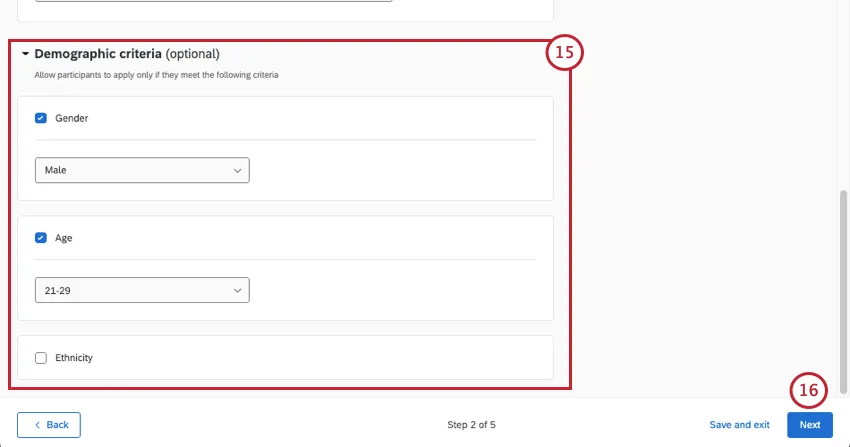
The Demographic criteria section is optional. Here, you can specify what gender, age, and ethnicity of respondents you’re targeting. You can only choose 1 option for each.
Qtip: Respondents who are screened out by the screener questions are not recorded, and they do not count as auditable responses.
Add at least 2 screener questions that will go out with your qualitative panel. This can help you disqualify candidates before the review process.
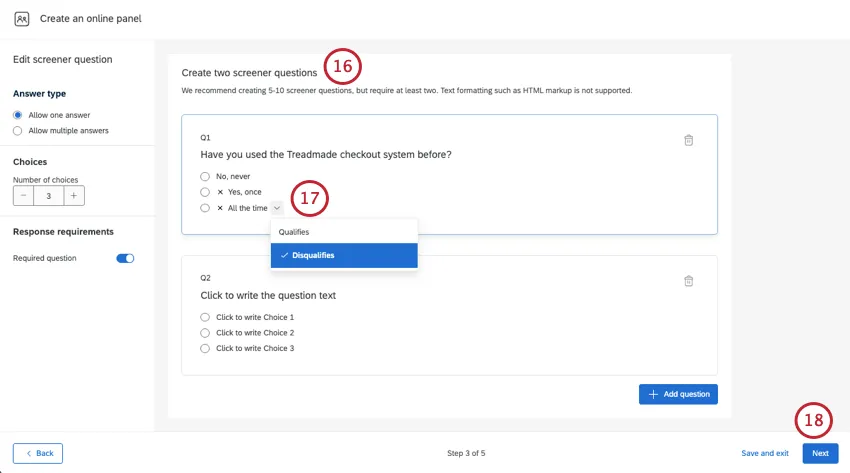
Example: You are running a UX study on a software that is replacing your old checkout system. However, you don’t want to include participants who know the old system well, and want to only focus on how new users might react. Asking respondents if they know the old system can help you remove candidates accordingly.
Qtip: Screener questions can only be multiple choice questions. Both single and multiple answers are supported.
Qtip: Use Number of choices in the editing panel to adjust the number of choices. You cannot use delete and enter key commands to add and remove choices like in the survey builder.
When your questions are written, click the down arrow next to an answer choice to indicate:
- Single select questions:
- Qualifies: Respondents who choose this answer can still proceed to the next step in the recruitment process. This is selected for answer choices by default.
- Disqualifies: Respondents who choose this answer cannot still proceed to the next step in the recruitment process. Even choosing just 1 disqualified answer is enough to remove a candidate from the running.
Multiple select questions:
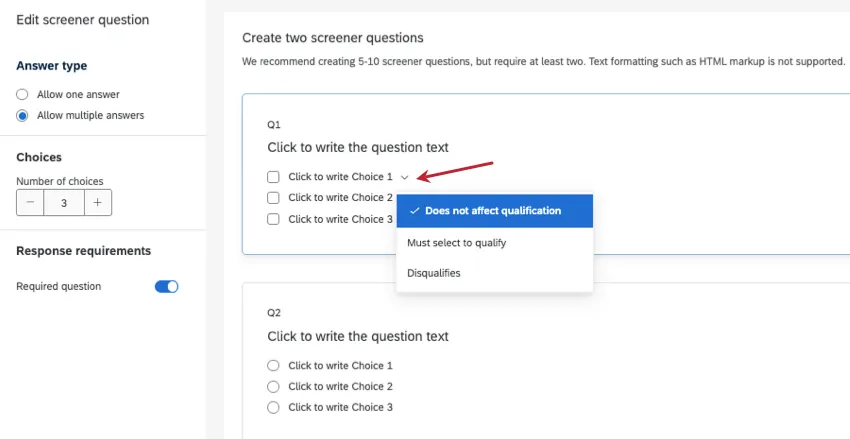
- Does not affect qualification: The default choice. These options do not affect the respondent’s qualification.
- Must select to qualify: If a respondent does not choose this answer, they will be disqualified from the panel.
- Disqualifies: No matter what other options the respondent selected, this option will disqualify them if they select it. Respondents that choose this option will even be disqualified if they selected a different, qualifying answer at the same time.
Click Next.
Review your panel makeup and cost.
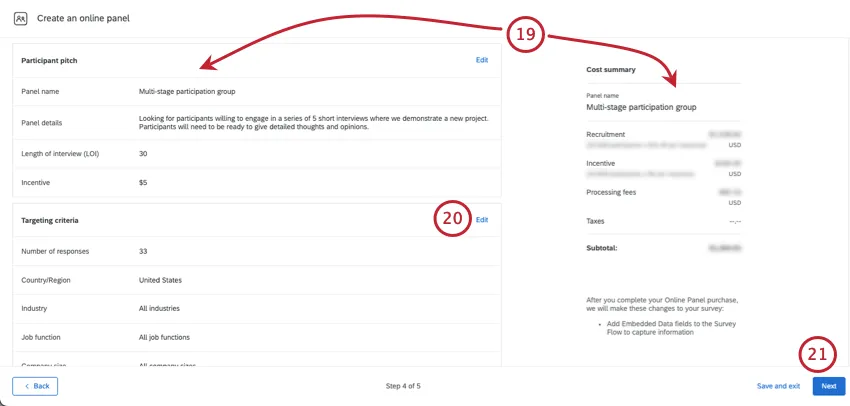
Qtip: You can switch between a cost summary in credits or USD.
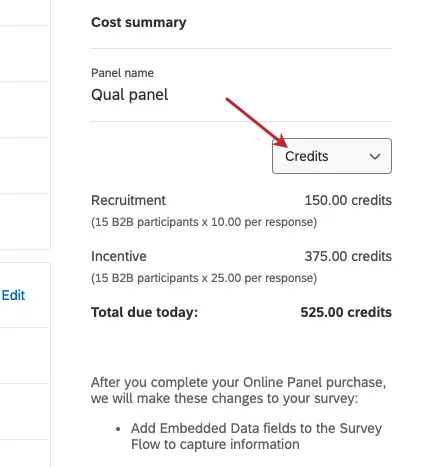
Qtip: If your panel cost is too high to purchase in the platform, you have a few options:
- If you’re a standard user, your division may be out of subscription credits. Reach out to a Brand Administrator.
- If you’re a Brand Admin, see steps on allocating subscription credits. Otherwise, reach out to your Account Executive to purchase more.
- If you’re not using subscription credits, you can reach out to your Qualtrics Research Services representative.
If you need to edit your panel, click Edit to be brought to that step in the setup.
Click Next.
Select your payment options. See Payment Options.
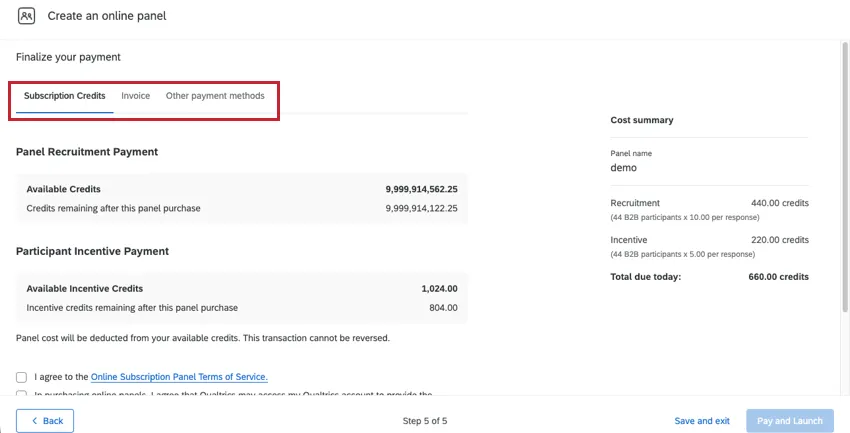
Accept the Terms of Services.

Click Invoice Panel or Purchase Panel.
As suitable participants are identified, you have the chance to choose which candidates you want to use. Look through the candidates, invite the ones you want to participate, and then review responses as they come in.
Attention: You must invite candidates before you can collect data in your survey from panelists.
Inviting and Managing Qualitative Panel Candidates
As suitable participants are identified for your qualitative panel, you can choose which candidates you want to officially invite to participate in the study. Look through the candidates, and invite the ones you want to participate. Only invited participants receive the survey. From there, you can choose to either approve or reject the participants’ responses.
Qtip: If you pause the panel for 7 days, the panel is automatically closed, and unreviewed responses are auto-approved.
Attention: It’s important to review responses as they come in. Only approved panelists receive an incentive, but any responses left “awaiting approval” will be automatically moved to “approved” and incentivized once the panel is closed.
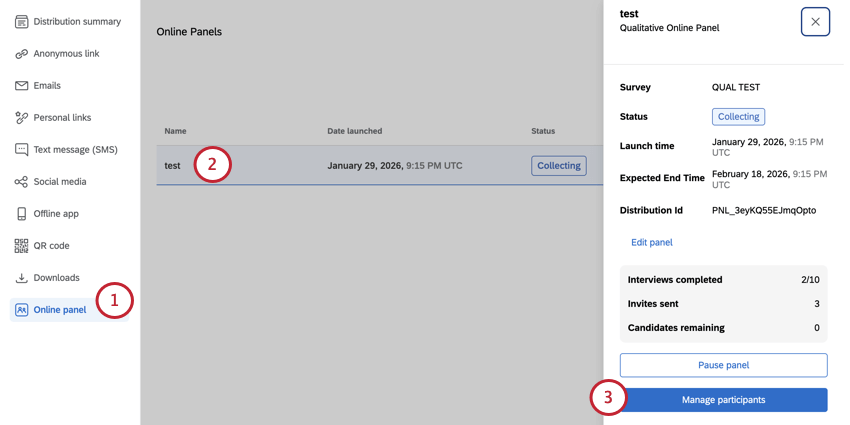
Qtip: The panel status will be Collecting while candidates are gathered and once responses start coming in. See more about panel statuses.
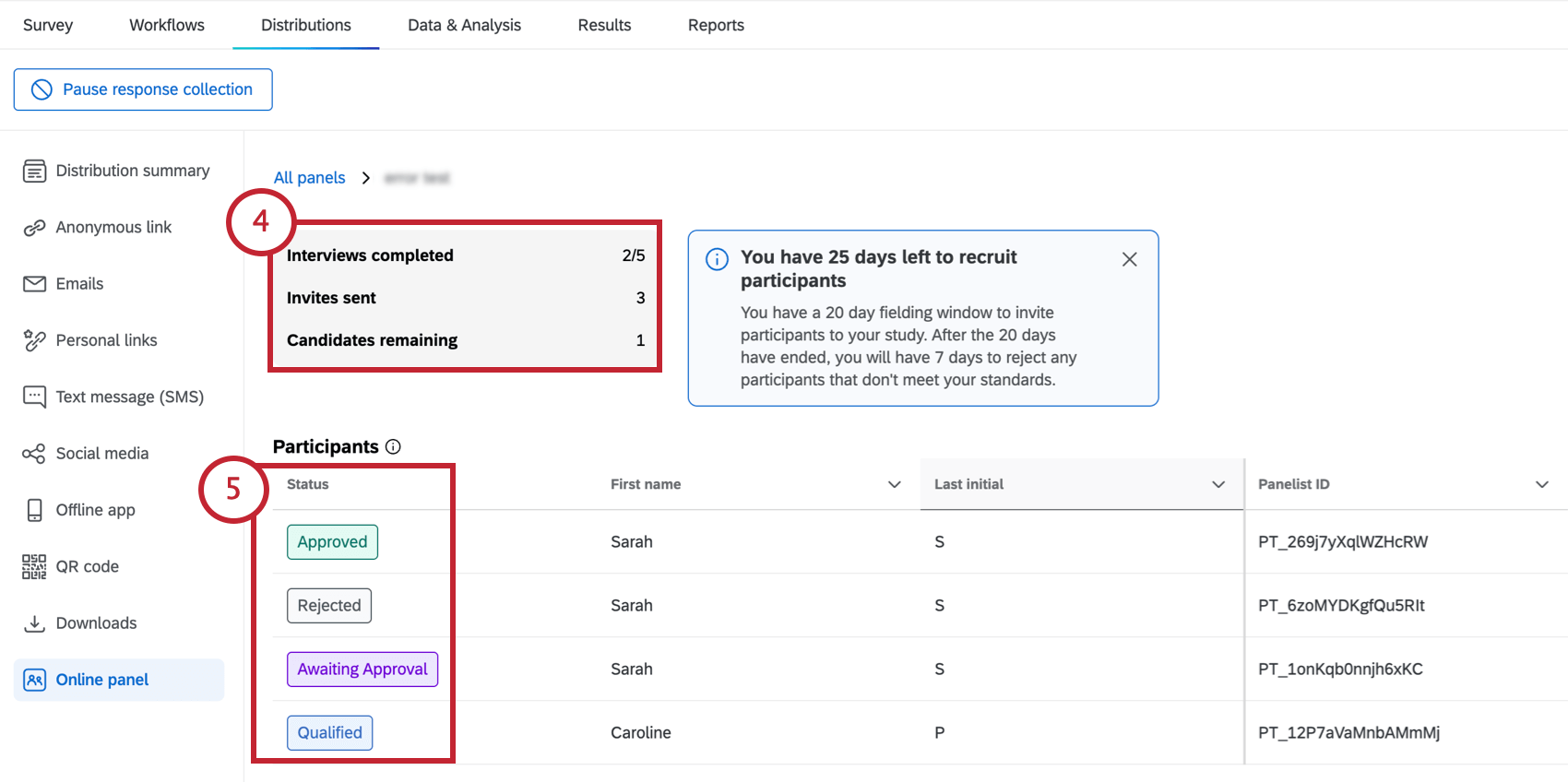
- Interviews completed: The number of responses collected from invited participants.
- Invites sent: The number of qualified participants you’ve invited to the study.
- Candidates remaining: The number of candidates in the list of potential participants who haven’t been invited or rejected yet. Qtip: If there aren’t any participants in the panel yet, there will be a message letting you know to come back and check later.

- Qualified: The candidate has been identified as qualified for this study. They have not been invited yet.
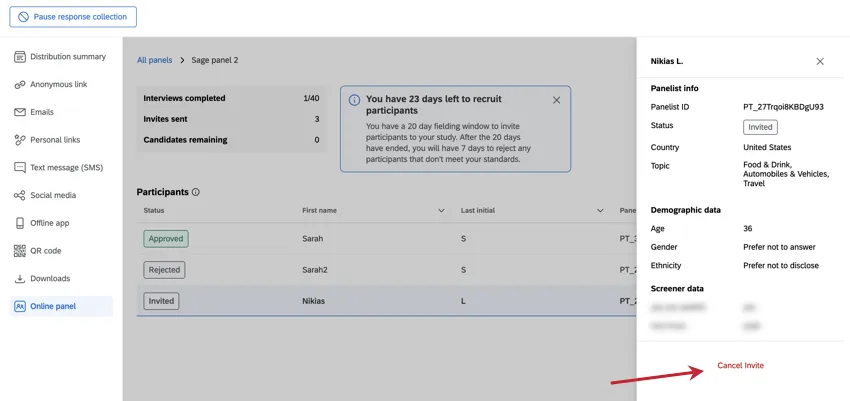
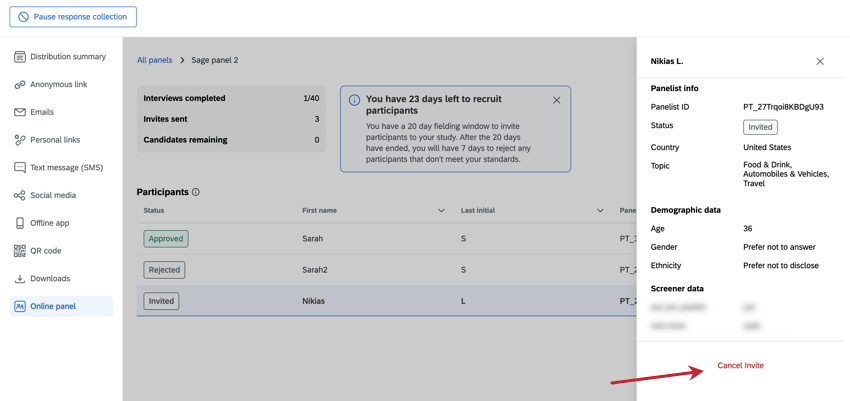
- Invited: The candidate has been invited to take the study. They have not provided a response yet.
- Awaiting Approval: The candidate has provided a response. Their response has not been approved yet.
- Approved: Either the candidate provided a response that you explicitly approved, or the candidate was “Awaiting Approval” when the panel closed. Attention: Once a participant is approved, their incentive is distributed to them and you cannot receive a refund for that response.

- Rejected: The candidate’s response has been rejected for this study. They will not receive an incentive and their corresponding response will be deleted from Data & Analysis. If the fielding window is still open, you can invite another qualified participant in their place.
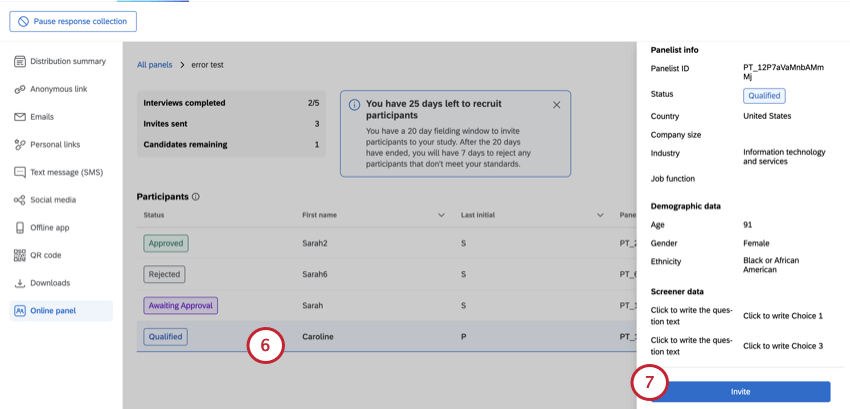
Qtip: You can ignore candidates you are not interested in.
Qtip: You can cancel an invite at any time before the participant’s response is submitted.
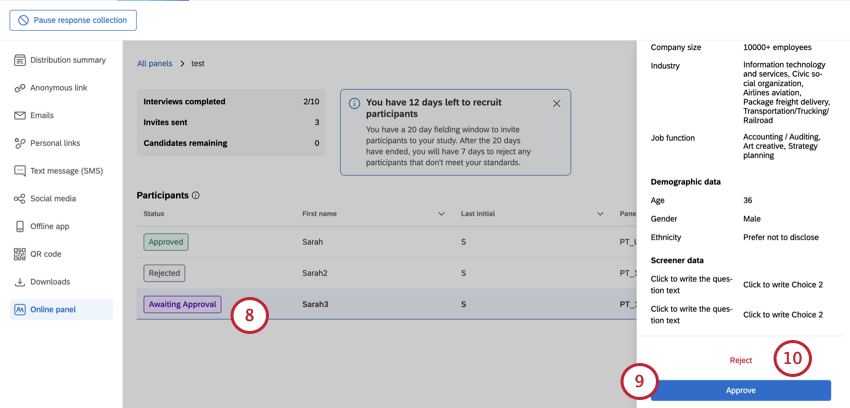
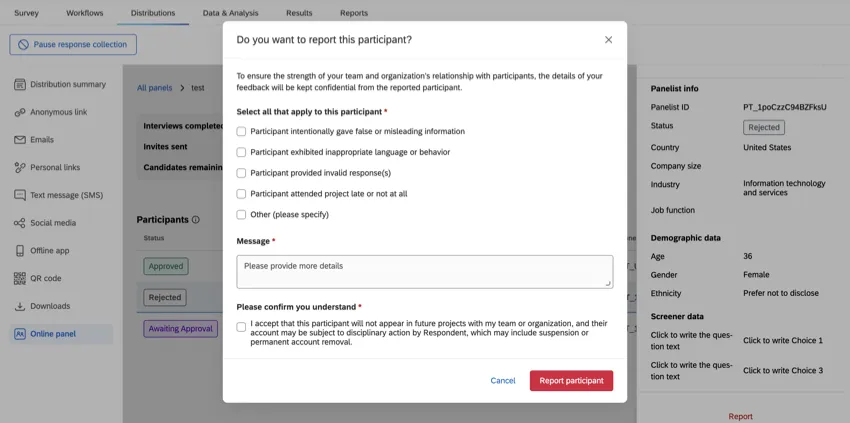
Qtip: If a rejected or approved participant did something you feel should disqualify them from future studies, you can report them. Keep in mind that you should only report participants in severe cases. You can only report a limit of 5 total participants across your entire Qualtrics brand (i.e., license).
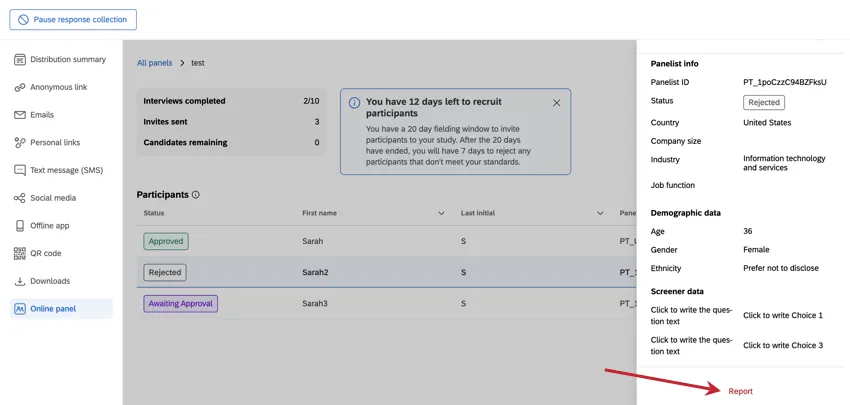
When you report a participant, you must provide details why.
That's great! Thank you for your feedback!
Thank you for your feedback!