

Recording Survey Sessions with Digital Experience Analytics
What's on this page
About Recording Survey Sessions with Digital Experience Analytics
When you have a survey deployed on your site, you may want to see how the visitor interacts with the survey in the broader context of the end-to-end digital session. For example, your site has a Feedback Button with an embedded survey. Normally, any interactions with the survey will not be recorded with the site session; however you can record the survey session by following the instructions on this page.
This is accomplished by deploying your project's code snippet as custom JavaScript within the survey. There are 2 different setups you can use:
- Recording survey sessions on their own.
- Optionally stitching them to the same continuous session as the site session.
Qtip: Survey session recording requires that DXA session capture is already enabled for your Website / App Insights project. See Digital Experience Analytics Overview to get started.

Attention: Custom coding features are provided as-is and require programming knowledge to implement. Qualtrics Support does not offer assistance or consultation on custom coding. You can always try asking our community of dedicated users instead. If you'd like to know more about our custom coding services, please contact your Qualtrics Account Executive.

Configuration 1: Recording Only Survey Sessions
This setup enables Digital Experience Analytics to record standalone interactions within your survey. Survey sessions will appear in Digital Assist and can be linked to survey response data.
Here is the JavaScript snippet you’ll for this setup:
  var script = document.createElement('script');
  script.src = 'https://[your-snippet-url]/SIE/?Q_ZID=[Your_Zone_ID]';
  document.head.appendChild(script);
In the Javascript snippet, replace the following:
- [your-snippet-url]
- [Your_Zone_ID]
These both can be found in your web project’s deployment code.
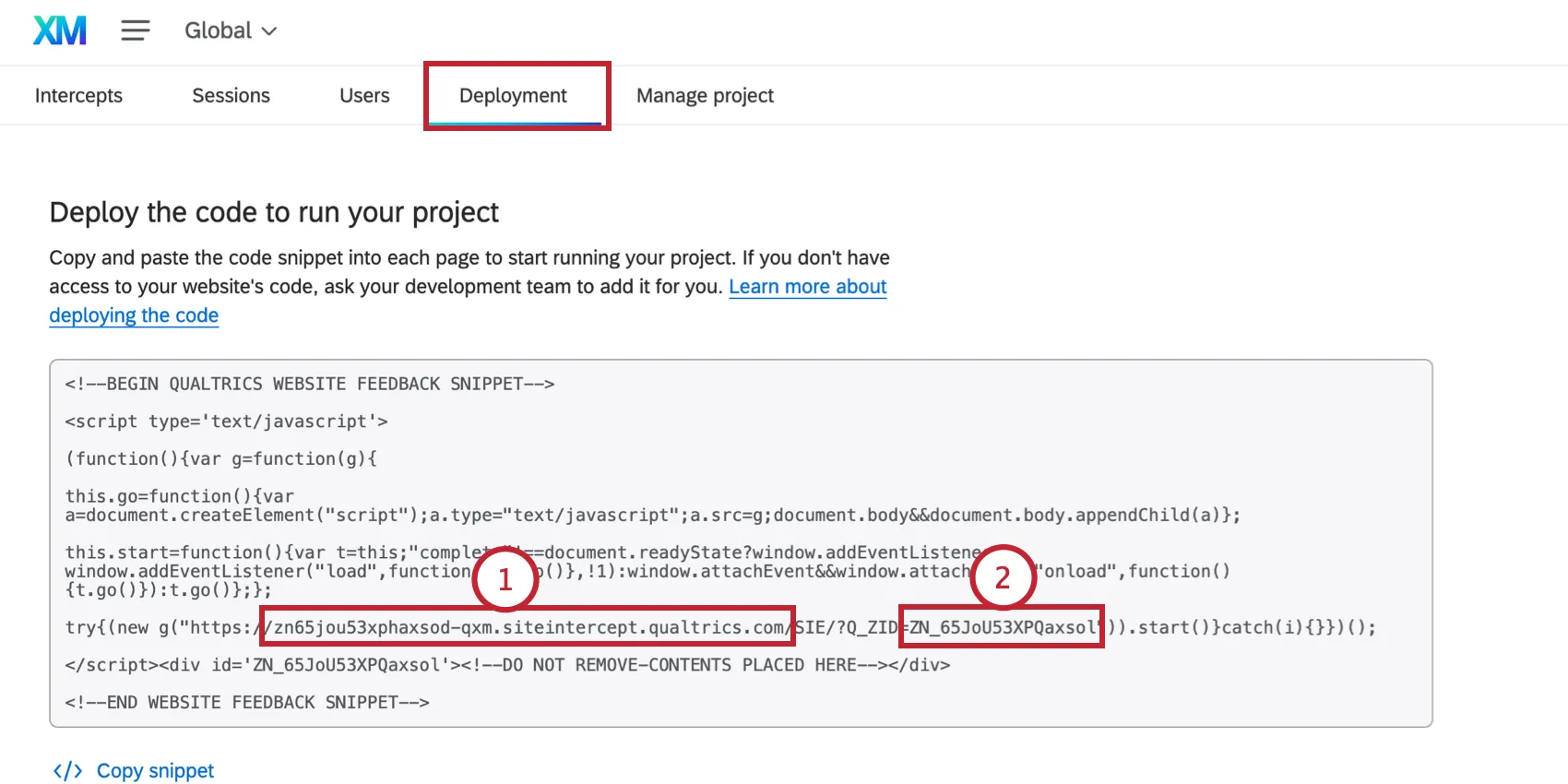
Step 1: Add the Snippet as Custom JavaScript in Your Survey
The JavaScript snippet only needs to be added to a single question on the first page of your survey. Do not add it to multiple questions in your survey.
In the survey builder, navigate to the first question on the first page.

- Select JavaScript to open the JavaScript editor.
Replace the contents of the addOnload function with the JavaScript snippet from earlier.
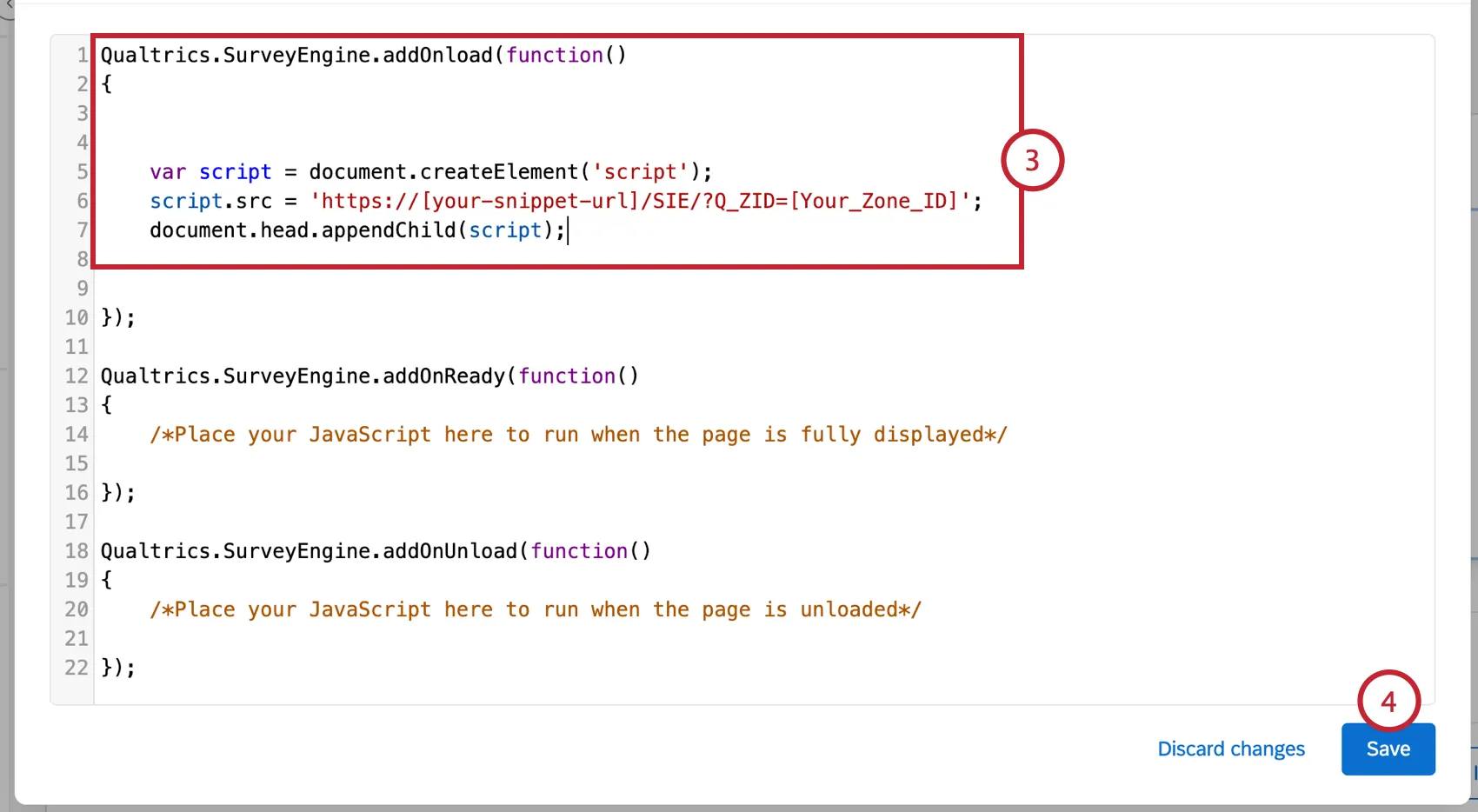
- Click Save.
- Make sure to Publish your changes.
Step 2: Add Embedded Data Fields to Your Survey Flow
To connect session replay data with survey response data and enable survey responses to appear as linked events in the session timeline, add the embedded fields Q_SR_ID and Q_SR_PlaybackUrl to your survey flow.
See “Joining Session Replay Data with Survey Data” for step-by-step instructions.
Configuration 2: Stitching Survey and Site Sessions
By default, the survey is recorded as its own session. If you want the survey recording to appear as a continuation of the visitor's session on your site as a single uninterrupted replay, then you must complete the steps below.
Attention: Session stitching requires the survey to open in a new window. Stitching is not supported if your survey is configured to display as a slider or overlay. See Survey Display options for more information.
Qtip: Session stitching requires your project code snippet to be deployed on the same page where your survey is triggered.
Here is the JavaScript snippet you’ll add to your survey:
  if (!window.opener) return;

  var snippetInjected = false;

  function injectSnippet() {
    if (snippetInjected || window.QSI) return;
    snippetInjected = true;
    var script = document.createElement('script');
    script.src = 'https://[your-snippet-url]/SIE/?Q_ZID=[Your_Zone_ID]';
    document.head.appendChild(script);
  }

  window.addEventListener('message', function handler(event) {
    if (!event.data || event.data.type !== 'QSI_SR_SESSION') return;
    window.removeEventListener('message', handler);
    document.cookie = 'QSI_ReplaySession_Info_ZN_[Your_Zone_ID]='
      + event.data.cookieValue
      + '; path=/; SameSite=None; Secure';
    injectSnippet();
  });

  window.opener.postMessage({ type: 'QSI_SR_READY' }, '*');
  setTimeout(injectSnippet, 1500);
In the Javascript snippet, replace the following:
- [your-snippet-url]
- [Your_Zone_ID]
These both can be found in your web project’s deployment code.
Step 1: Add the Snippet as Custom JavaScript in Your Survey
The JavaScript snippet only needs to be added to a single question on the first page of your survey. Do not add it to multiple questions in your survey.
In the survey builder, navigate to the first question on the first page.
- Select JavaScript to open the JavaScript editor.
Replace the contents of the addOnload function with the JavaScript snippet from earlier.
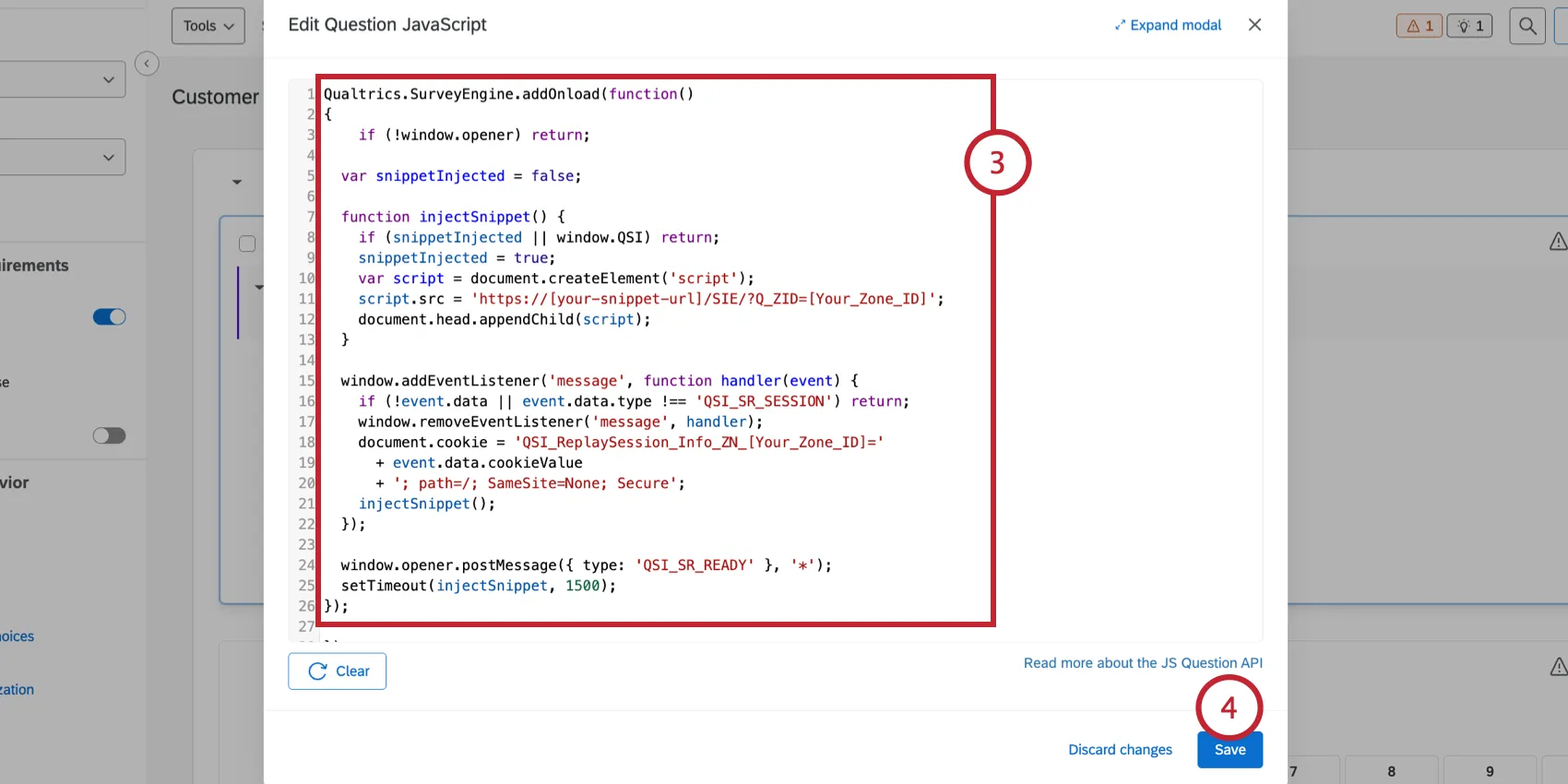
- Click Save.
- Make sure to Publish your changes.
Step 2: Add Embedded Data Fields to Your Survey Flow
To connect session replay data with survey response data and enable survey responses to appear as linked events in the session timeline, add the embedded fields Q_SR_ID and Q_SR_PlaybackUrl to your survey flow.
See “Joining Session Replay Data with Survey Data” for step-by-step instructions.
Step 3: Add the Session Listener to Your Intercept
For this step, here’s the JavaScript snippet you’ll add to your intercept:
window.addEventListener('message', function(event) {
  if (!event.data || event.data.type !== 'QSI_SR_READY') return;

  var match = document.cookie.split('; ').find(function(r) {
    return r.startsWith('QSI_ReplaySession_Info_ZN_[Your_Zone_ID]=');
  });

  if (match) {
    var cookieValue = match.split('=').slice(1).join('=');
    event.source.postMessage({ type: 'QSI_SR_SESSION', cookieValue: cookieValue }, event.origin);
  }
Replace [Your_Zone_ID] in the above snippet with the Zone ID from your deployment code. Then, follow these steps:
In the settings section of the intercept that triggers your survey, click the JavaScript button.
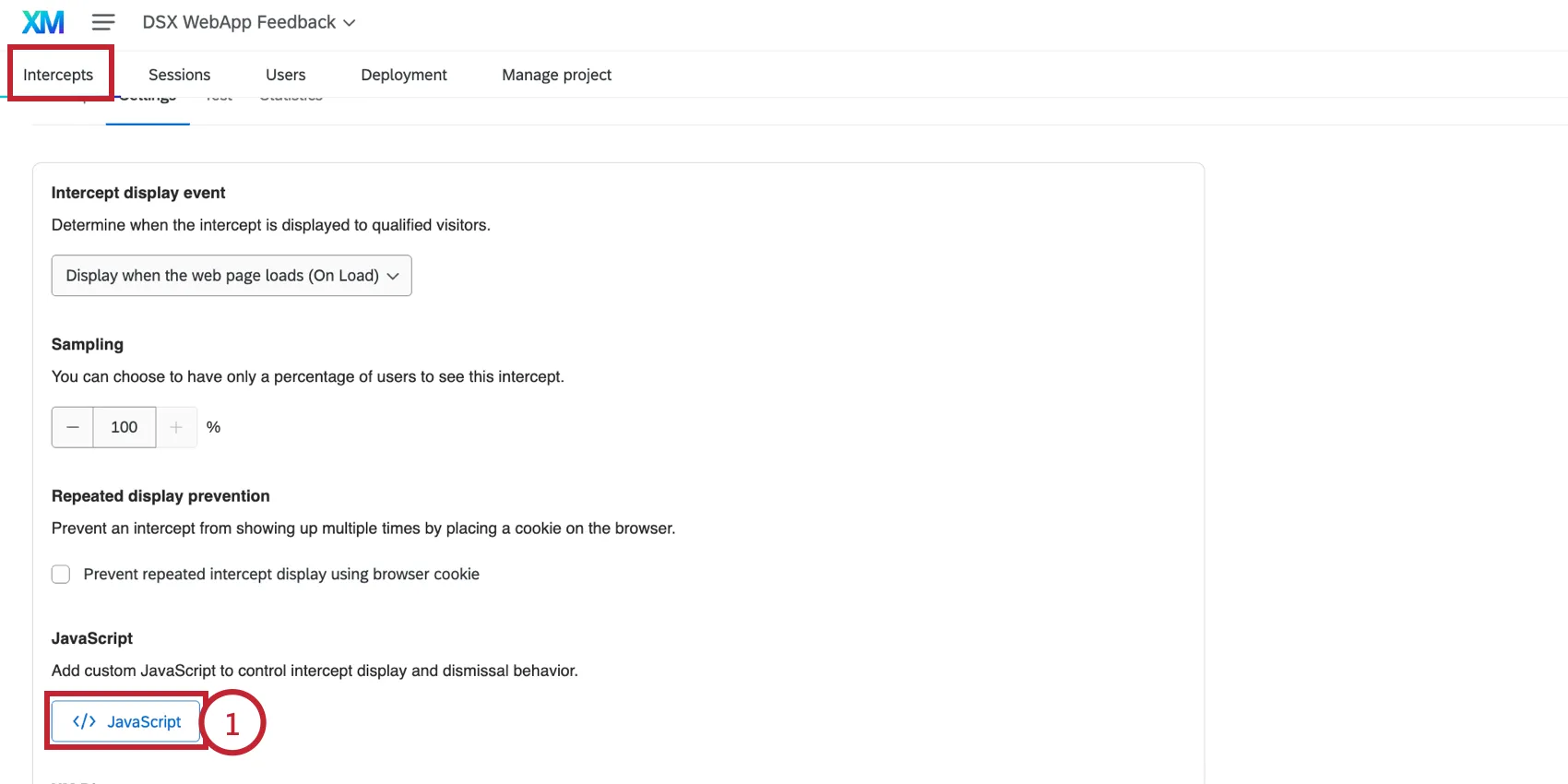
In the Before Display section, add the JavaScript snippet you prepared earlier.
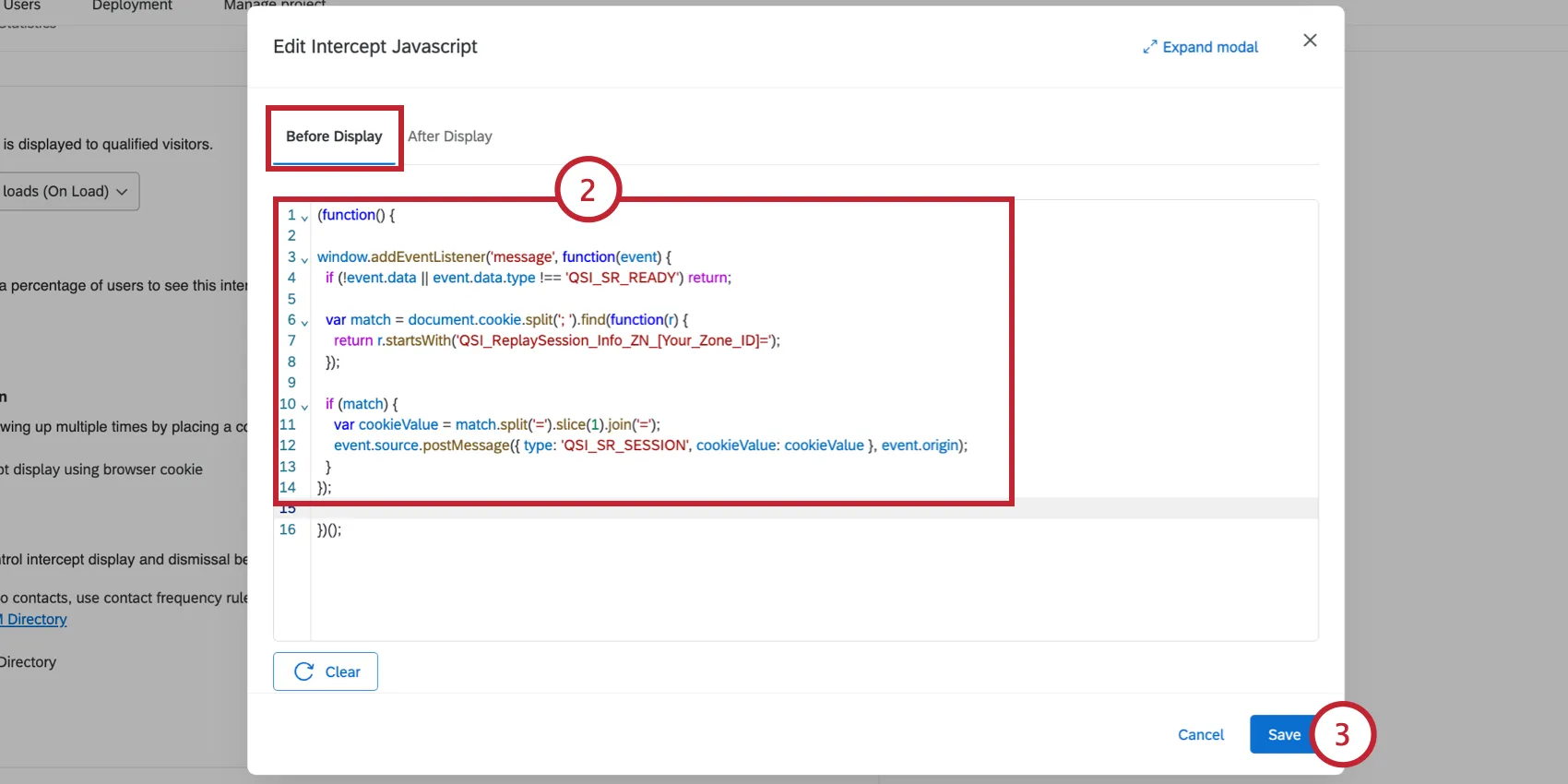
- Click Save.
- Make sure to Apply your changes.
Step 4: Exclude the Survey URL within Intercept Targeting
To prevent your intercept from appearing inside the survey itself, add targeting logic to exclude the survey URL. If your intercept is already scoped to specific pages that don't include your survey URL, then you can skip this step.
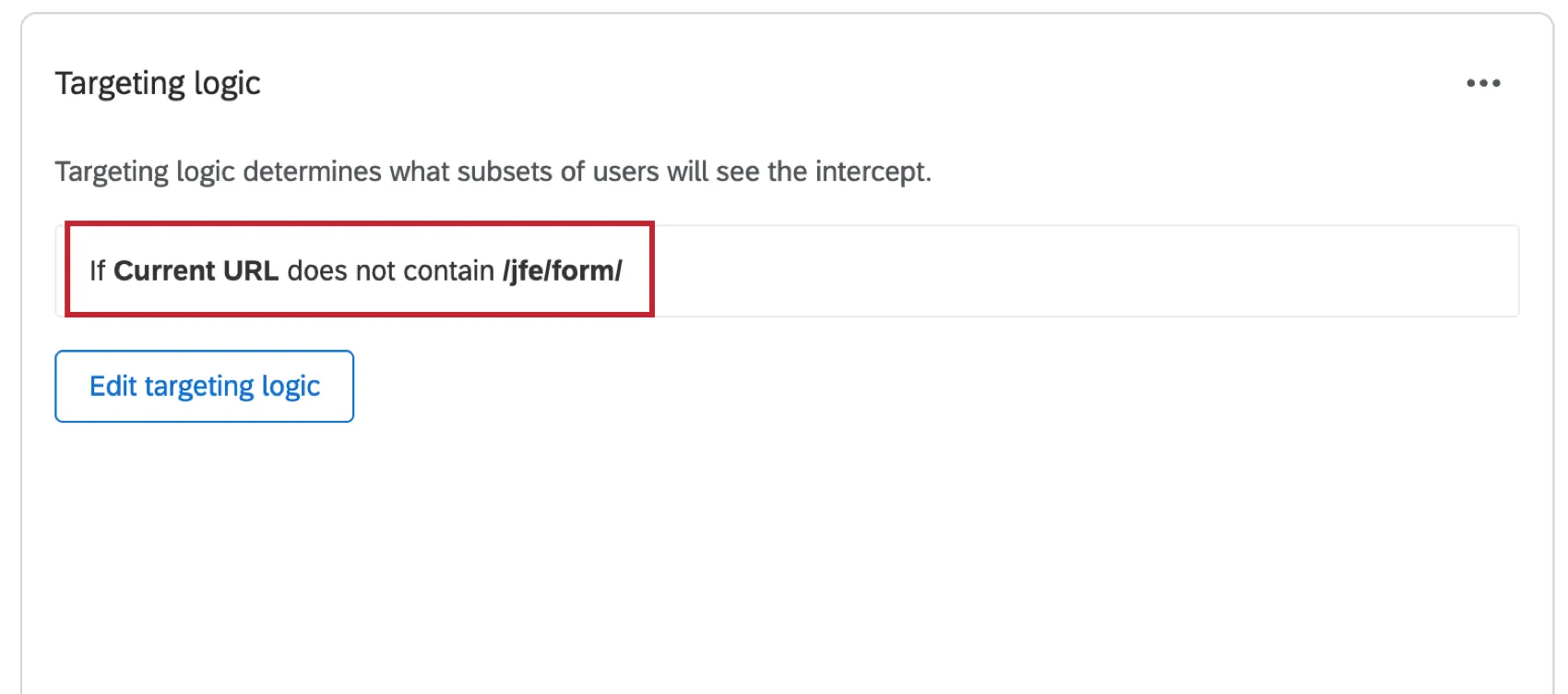
The logic to add is: “If Current URL does not contain /jfe/form/”
Viewing Survey Sessions
Once set up, survey sessions will appear in Digital Assist, where you can open any site session in the replay viewer. If the visitor opened your survey during that session, their survey interactions will appear as linked events in the session timeline.
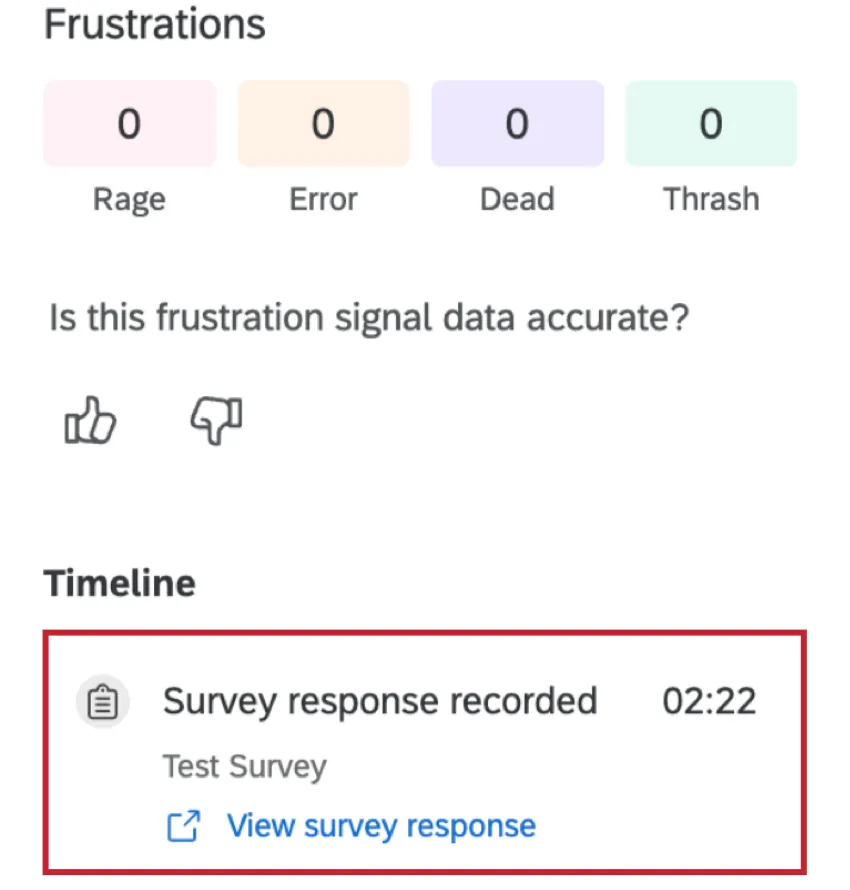
To find sessions that include survey interactions, filter by the survey URL in Digital Assist.
That's great! Thank you for your feedback!
Thank you for your feedback!