

Using Website/App Insights on Salesforce Pages
What's on this page
About Using Website/App Insights on Salesforce Pages
Salesforce is a highly-configurable Customer Relationship Management platform with multiple iterations and products, resulting in most organizations having a unique Salesforce setup. There are many different places within the platform where you may want to embed Qualtrics Website Insights; for example, listening to feedback from your customers who are visiting a community page or getting insights from your employees using internal workflows.
This guide covers how to embed Qualtrics Website/App Insights in the following types of Salesforce pages:
- “Legacy” VisualForce-based pages.
- Lightning-based Experience Builder pages and sites, such as “Salesforce Communities.”
Qtip: Custom Lightning Components, Aura components, and Strict CSPs are not supported. See Custom Components and Strict CSPs below for more information.

Qtip: This guide covers a basic setup and is not exhaustive of all Salesforce configurations. Please work with your in-house Salesforce team to investigate which particular sections are applicable for your Salesforce setup.
Setting the Trusted URLs to Allowlist Qualtrics
Qualtrics Website/App Insights utilizes JavaScript snippets coming from Qualtrics’ servers. Salesforce uses a Content Security Policy (CSP) to protect webpages and ensure that only expected code runs on them. Because of this, you must set up a “relaxed” CSP setting and define a list of “Trusted URLs” to allowlist running the code from qualtrics.com, as well as any images and surveys that are connected to the intercept.
- Navigate to the Trusted URLs page in Salesforce. See this Salesforce help article for more information.
Enter a name for the new Trusted URL.
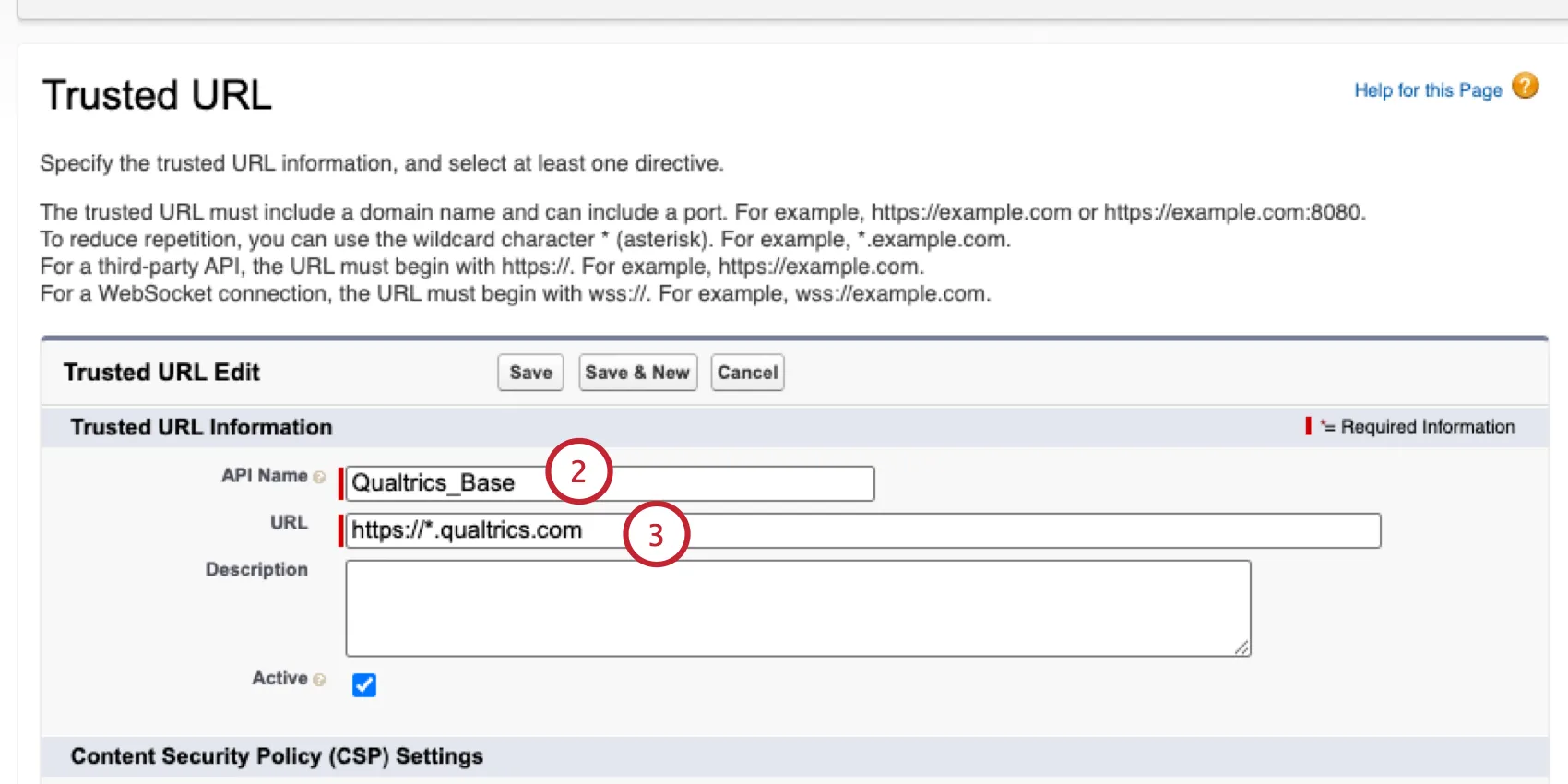
- For the URL, enter “https://*.qualtrics.com”.
Ensure the Context is set to All (so it will apply to both Visualforce and Lightning pages, helping with deduplication). If needed, you can add separate rules for Visualforce and Lightning pages.
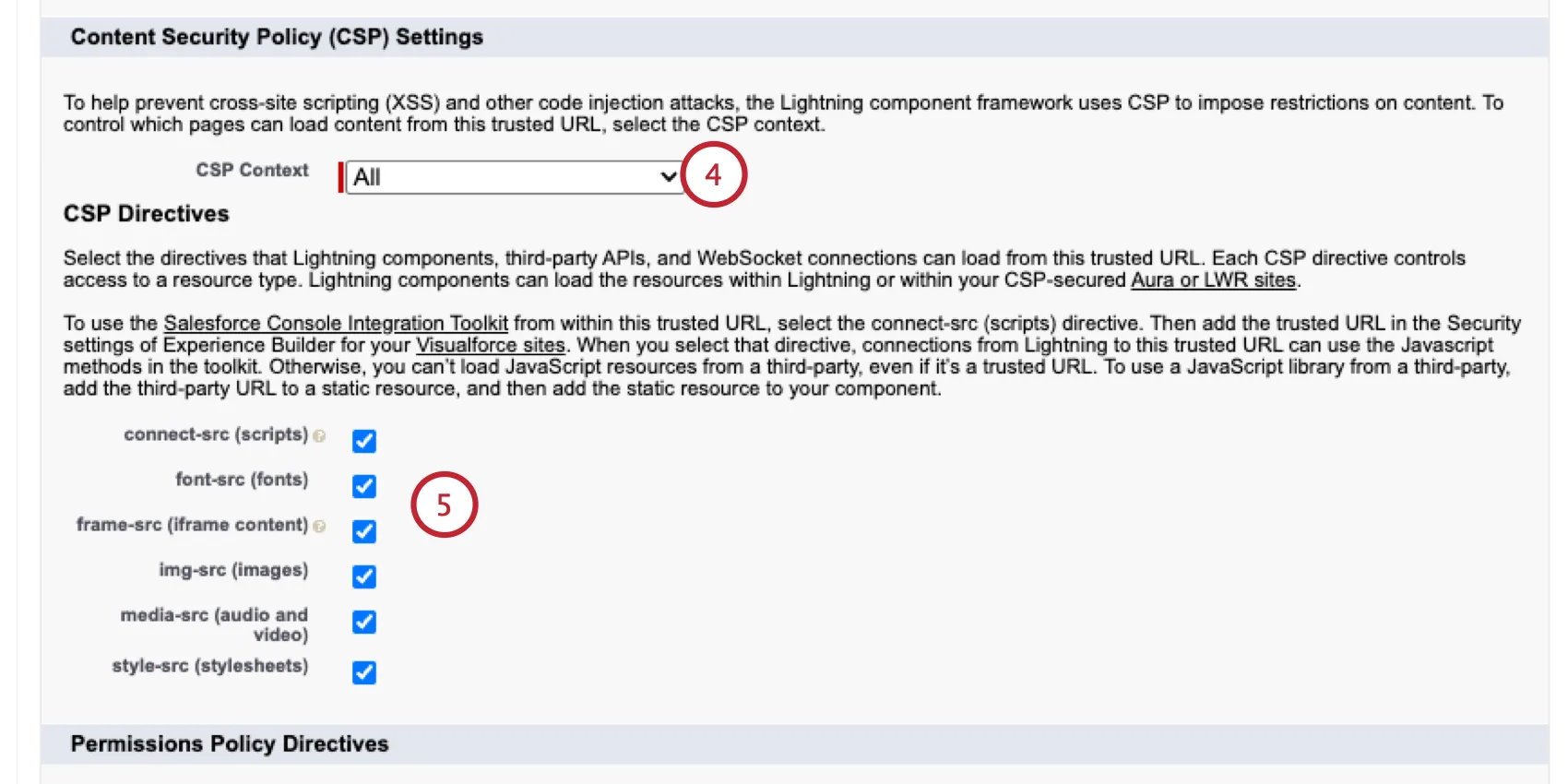
- Enable all of the checkboxes for the allowed policies.
- Click Save.
Qtip: If you need more restrictive CSP settings, please see Restrictive CSPs for defining separate policies per Qualtrics URL.
Running Website/App Insights on VisualForce Pages and Sites
The general steps to run Qualtrics on your Visualforce page are:
- Set up “Trusted URLs” for Qualtrics.
- Implement the Qualtrics tag on your page(s).
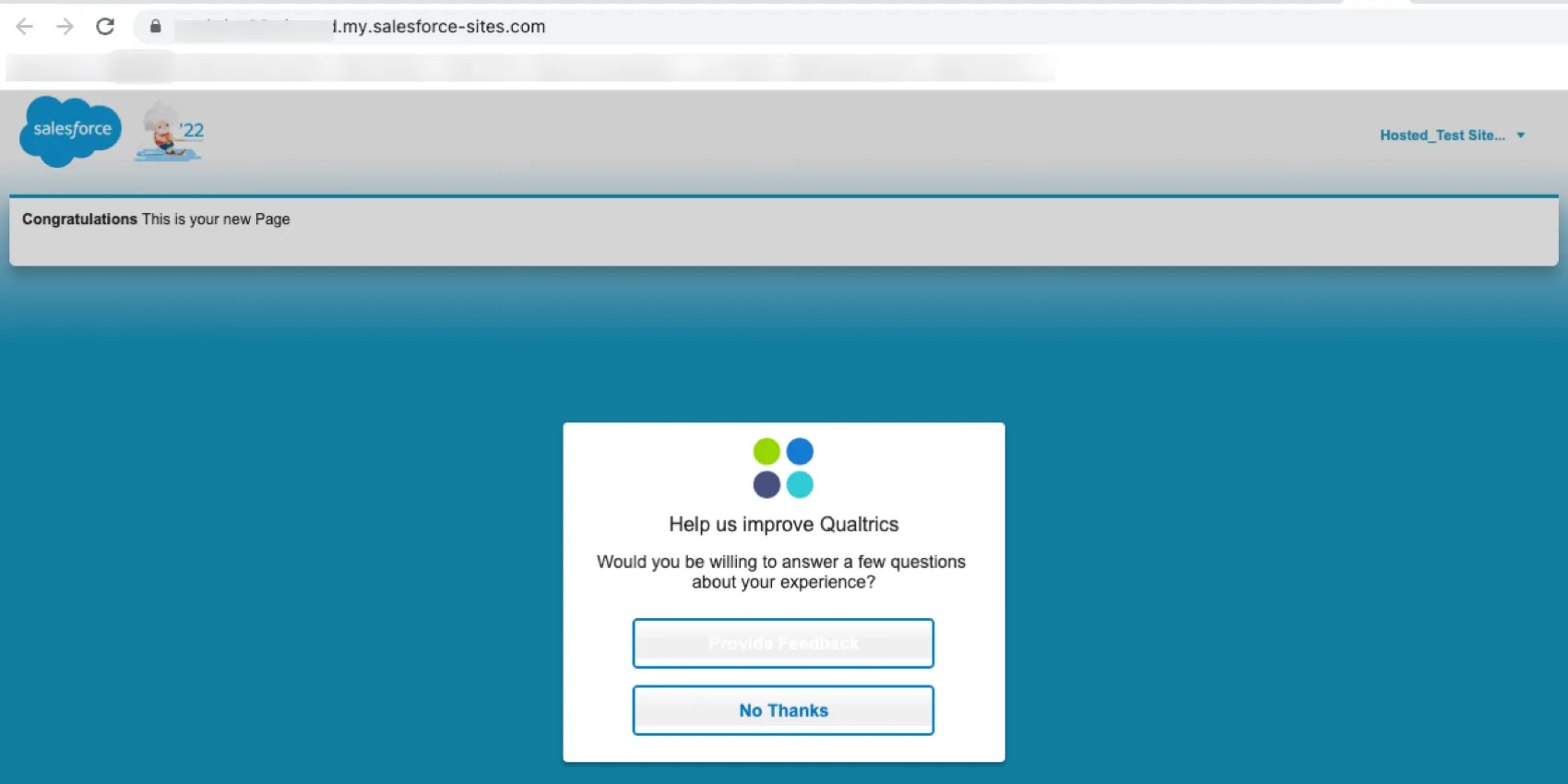
Example: Here’s an example of Qualtrics Website Insights running on a Visualforce page on a Salesforce Site.

Implementing the Qualtrics Tag on VisualForce
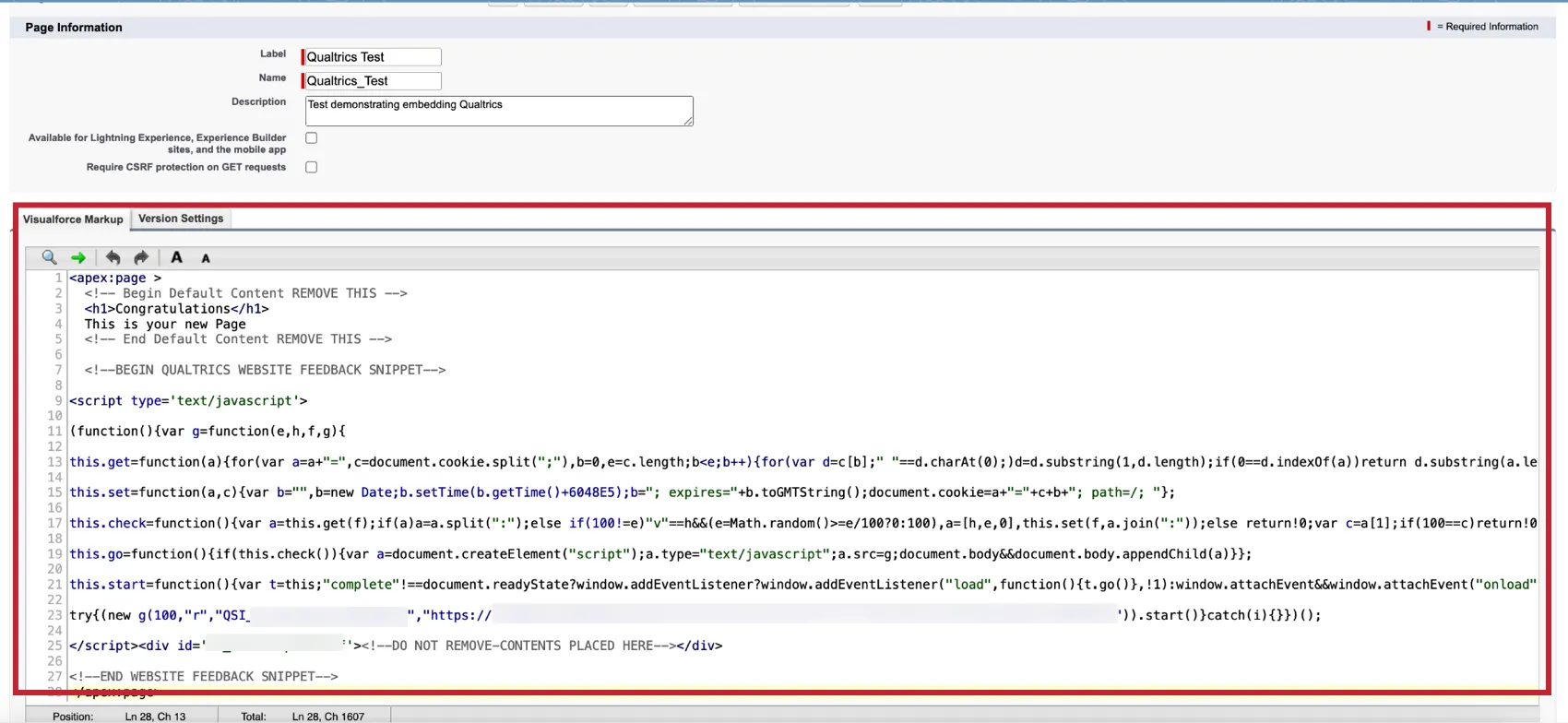
To implement the Qualtrics tag on your Visualforce page, copy the deployment code from your Website/App Insights project and paste it into the ‘Visualforce Markup’ of the page(s) you want to integrate with Qualtrics. This can be done via the Salesforce Developer Console.
Running Website/App Insights on Experience Builder Sites
The general steps to run Qualtrics on your Lightning page are:
- Set up “Trusted URLs” for Qualtrics.
- In the “Security & Privacy” settings, add qualtrics.com to your CSP and “Trusted Sites for Scripts.”
- Implement the Qualtrics tag on your Head Markup.
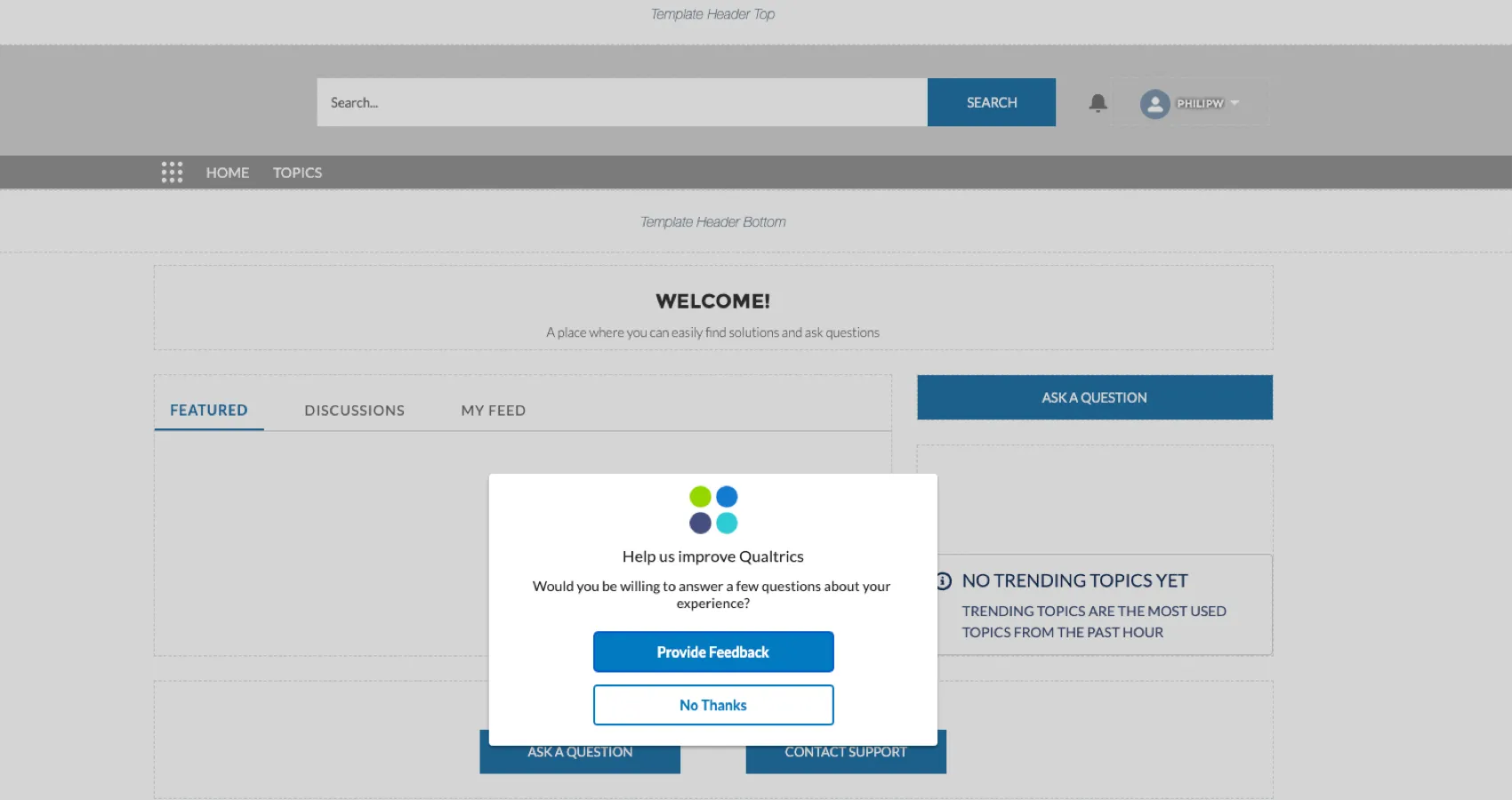
Example: Here’s an example of Qualtrics Website Insights running on a Salesforce Experience Builder site.
Configure Your Content Security Policy & Trusted Sites
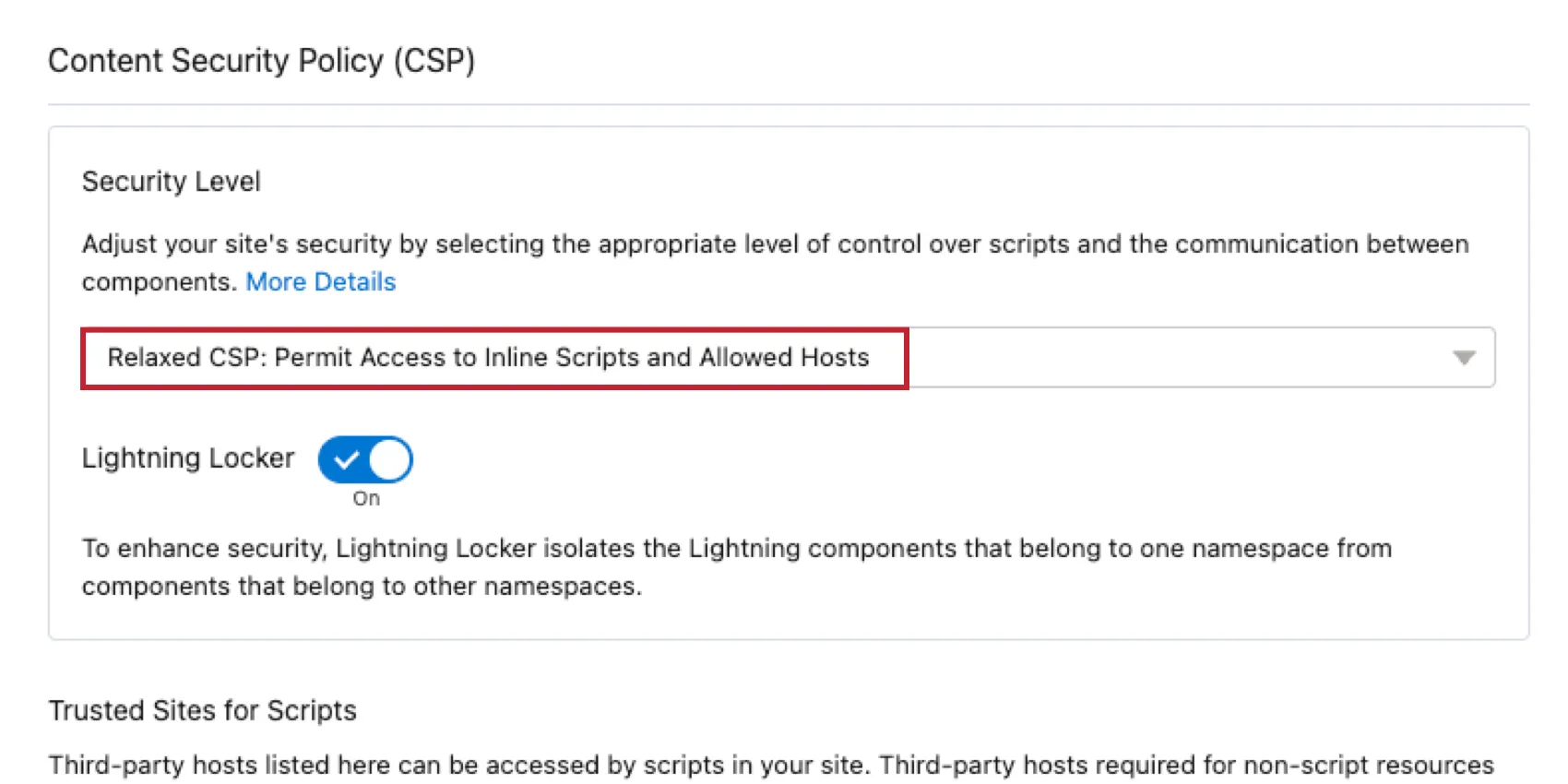
Navigate to your Experience Builder Site’s “Security & Privacy” section and change the ‘Security Level’ setting to Relaxed CSP. This policy allows for inline scripts like the Qualtrics snippet.
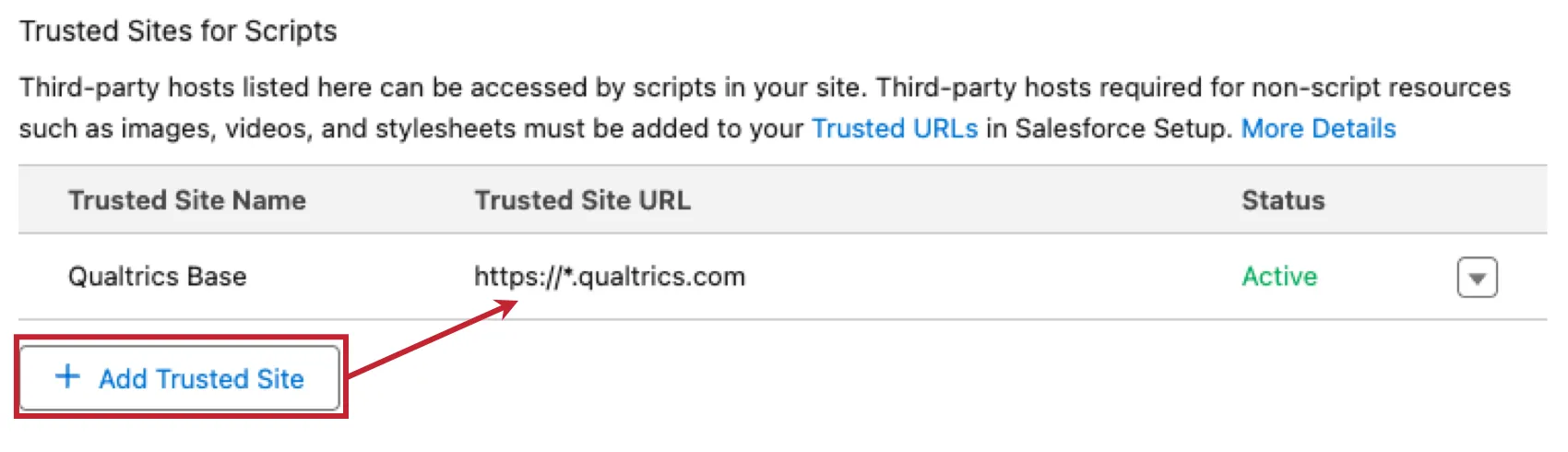
Scrolling down will show “Trusted Sites for Scripts”. Click Add Trusted Site and then add https://*.qualtrics.com as the Trusted Site URL.
Qtip: If you use a “Restrictive CSP”, then you must use those URLs instead of the Qualtrics wildcard shown here.
Implementing the Qualtrics Tag on Head Markup
In the Experience Builder, navigate to Settings, then Advanced, and then Edit Head Markup. This will open an editor for you to add the project deployment code from your Website Insights project.
Qtip: You must remove the “div” tags that are typically at the end of your zone snippet. This is covered in the steps below.
- Copy the project deployment code from your Website Insights project.
Paste the code at the top of the Head Markup editor.
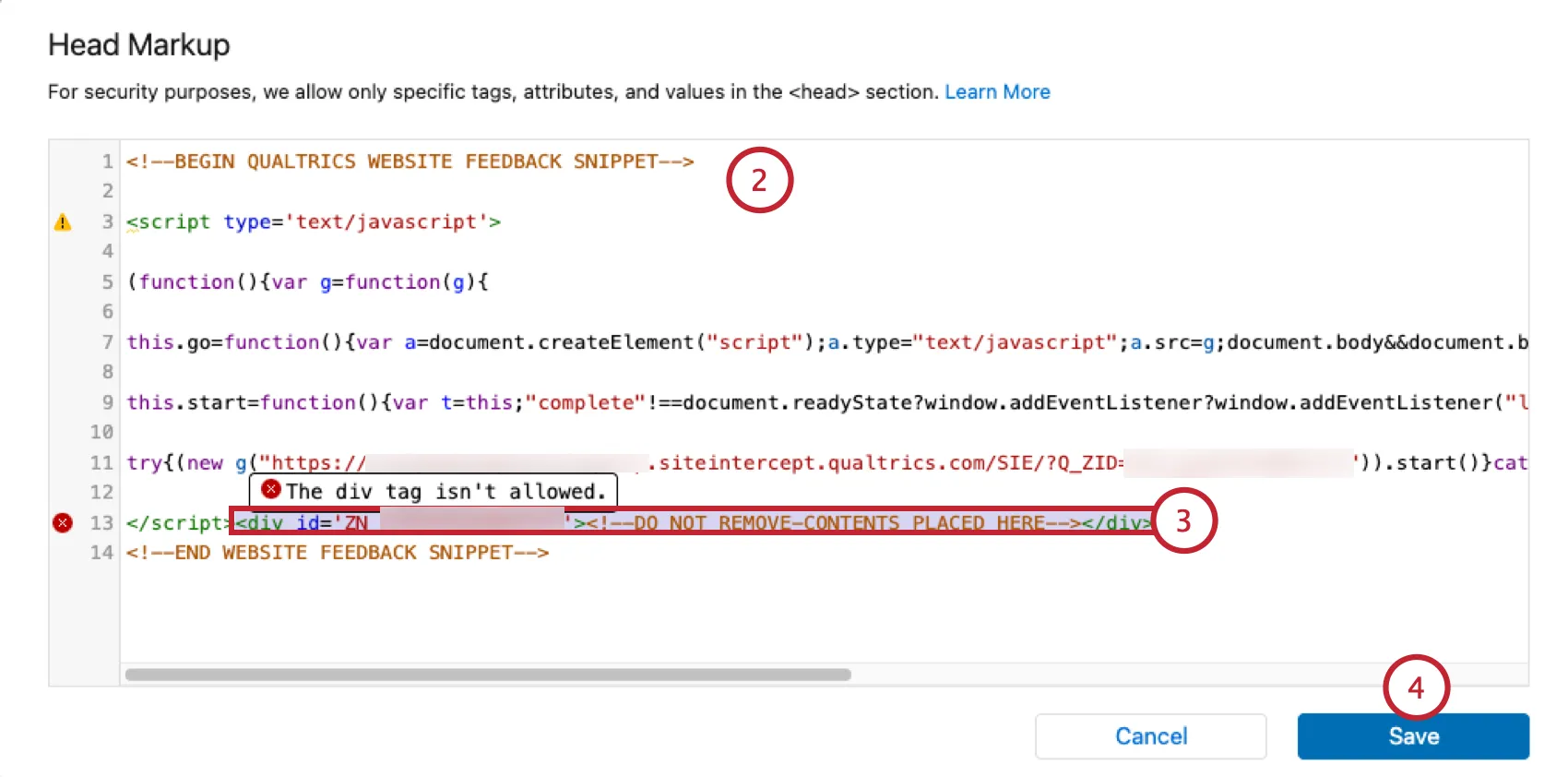
- Highlight and delete the <div id=”ZONE_ID”>...</div> tag.
- Click Save.
Now if you refresh the page in the editor, or publish and load the public URL, you will see your Qualtrics Intercept appear. Digital Experience Analytics will also work out of the box with this implementation.
Custom Components and Strict CSPs
The implementation outlined on this page will not work with custom components or strict CSP settings.
This is because of the restrictions these features introduce, which remove the ability to target code hosted on 3rd party hostnames. Custom Components require JavaScript to be hosted as Static Resources inside of Salesforce for reference and runtime. If this is a requirement for your organization, please contact your Qualtrics account team to explore purchasing our HostedJS solution, which allows for uploading as static resources within Salesforce.
That's great! Thank you for your feedback!
Thank you for your feedback!