

Finding Qualtrics IDs
What's on this page
About Qualtrics IDs
All Qualtrics API requests require specific parameters to construct the requests. Many of these parameters will be Qualtrics IDs. For example, if you’re downloading the raw data for your survey, you’ll need to know the survey ID. The majority of these IDs can be found in your account on the Qualtrics IDs tab.
Qtip: To see our current API documentation, click here.

Locating Qualtrics IDs
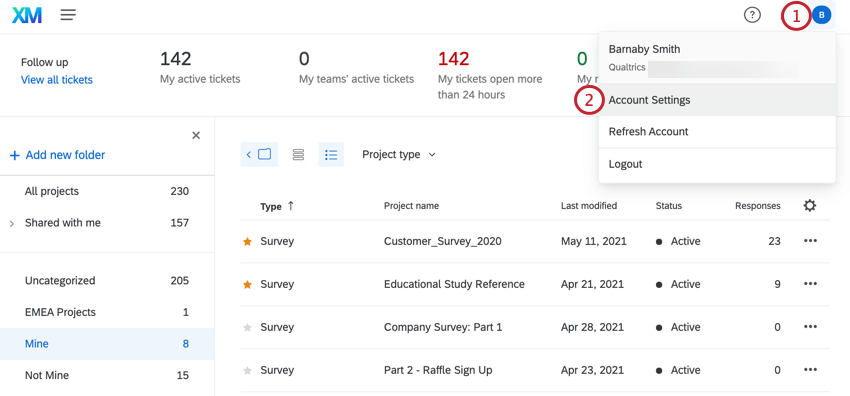
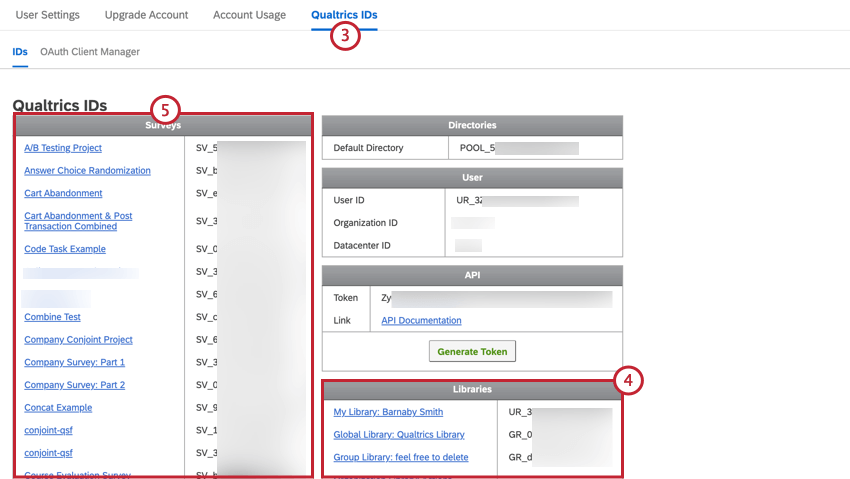
Qtip: Account Settings has been redesigned. To view Qualtrics IDs, click Switch to older version.

Locating Qualtrics IDs by Inspecting the Element
In some cases, the parameters you’ll need to create your API request will require IDs that cannot be found in the Qualtrics IDs tab. Some examples of these parameters are UserID, GroupType, and DivisionID. If you’re implementing a Brand Administrator API request under the Users, Groups, or Divisions sections of our documentation, you’ll likely need to use the Inspect Element tool.
Inspect Element is a developer tool that allows you to see the HTML, CSS, and JavaScript that is currently on a webpage. When looking for Qualtrics IDs, we’ll only be concerned with the HTML of a webpage.
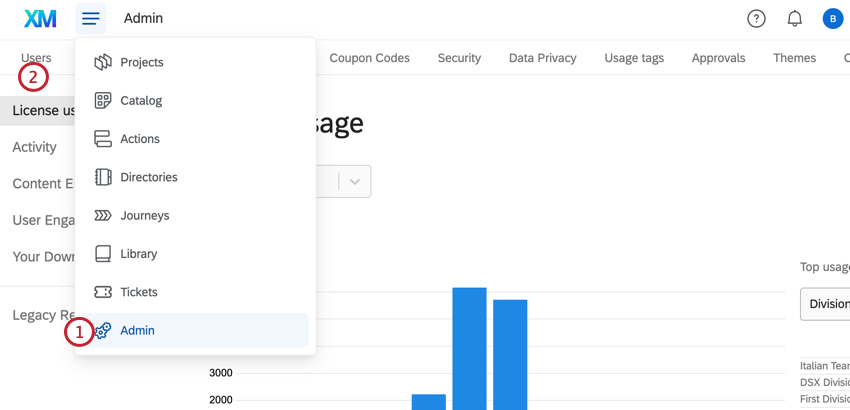
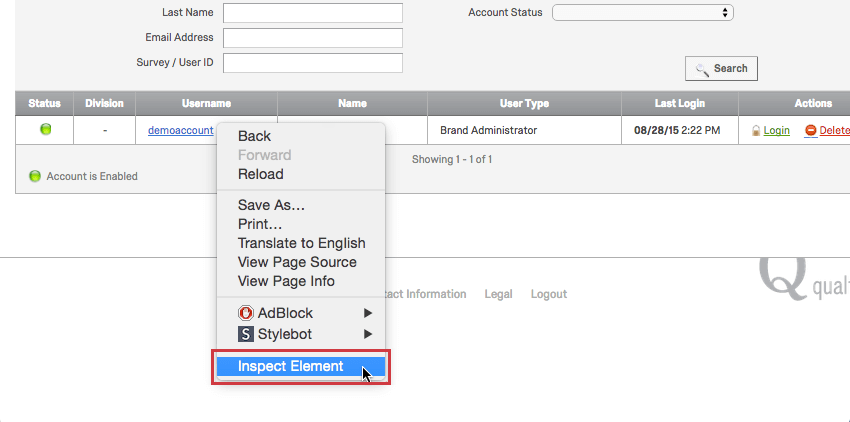
To access the Web Inspector
Qtip: You can inspect elements on any page inside of Qualtrics. For our purposes, we’ll be inside the Admin page looking for a parameter called UserID.
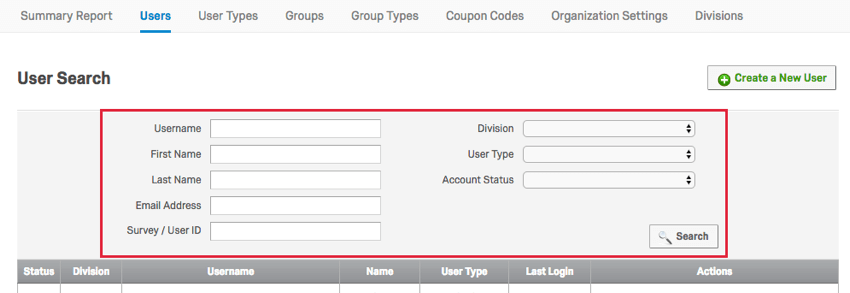
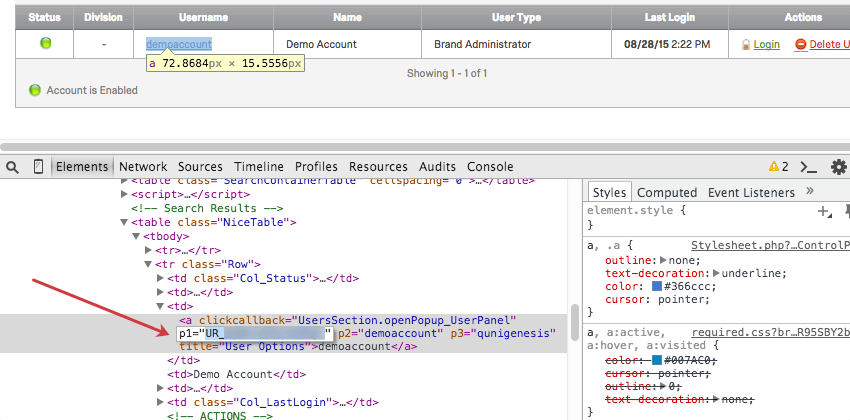
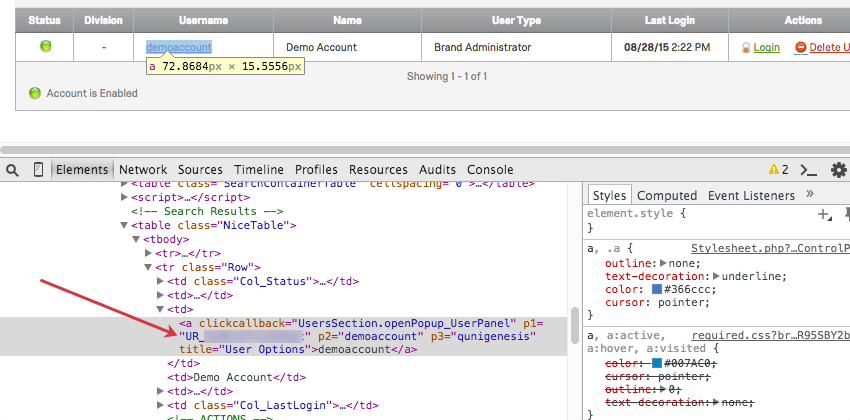
Qtip: Qualtrics IDs are 15 character alphanumeric codes used inside of Qualtrics. Each one of these IDs starts with a prefix.
Here are the common IDs you’ll find by inspecting the element.
- Qualtrics IDs
- Prefix
- UserID
- UR_
- UserType
- UT_
- GroupID
- GR_
- GroupType
- GT_
- DivisionID
- DV_
- ResponseID
- R_
- MessagesID
- MS_
- DistributionID
- EMD_
- SurveyID
- SV_
- MailingListID (RC)
- ML_
- MailingListRecipientID (RC)
- MLRP_
- ContactID (TA / XM Directory)
- CID_
- MailingListID (TA / XM Directory)
- CG_
Locating Your Organization ID
Your Organization ID (also called Brand ID) can be located by following these instructions.
Locating Survey IDs
This section covers the easiest ways to locate survey IDs for both survey owners and Brand Administrators.
Locating Survey IDs for Survey Owners
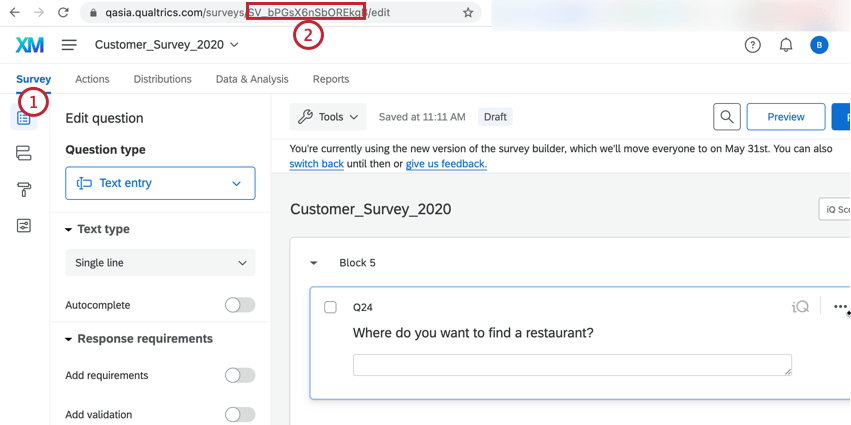
SV_.Locating Survey IDs for Brand Administrators
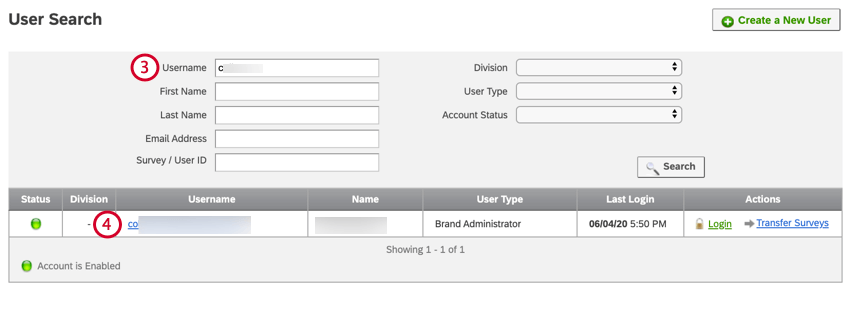
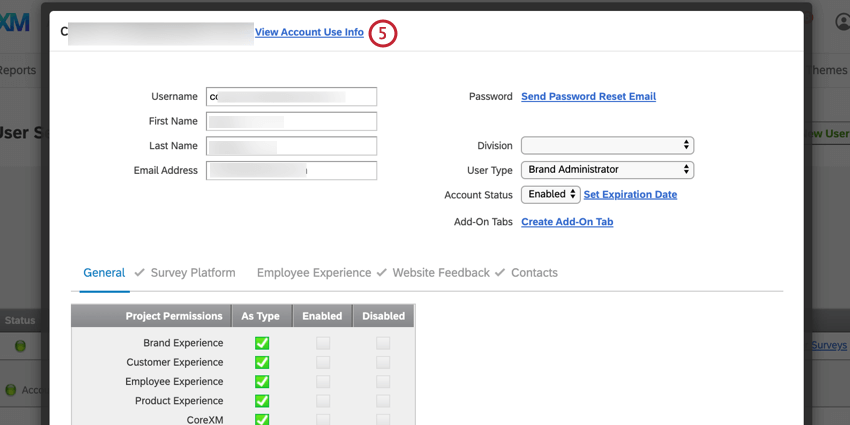
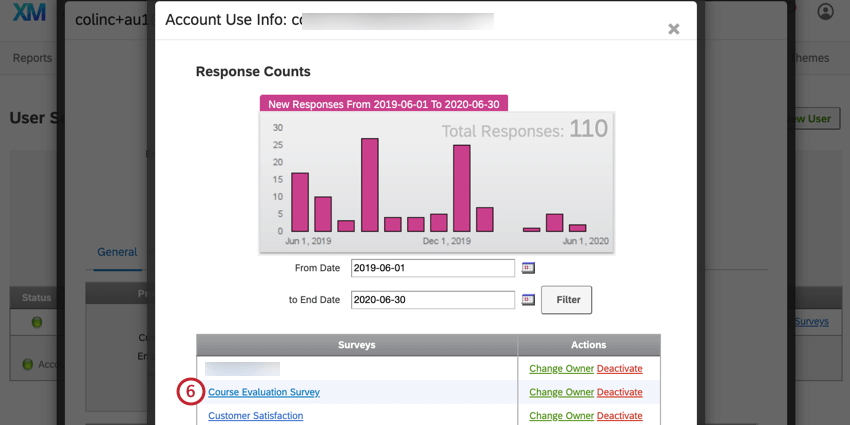
SV_.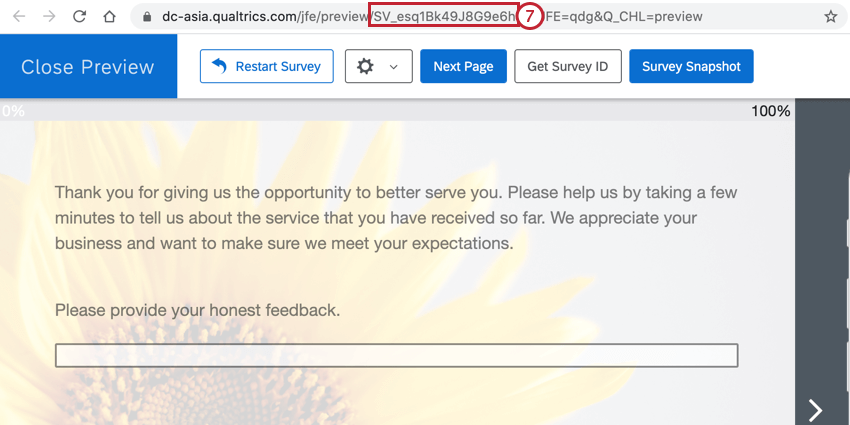
Locating the Datacenter ID
You can find your datacenter ID when you are logged into Qualtrics. The datacenter is found in your Account Settings and is 2-3 letters and a number. For example, az1, au1, co1, or ca1.
Qtip: API calls will still work, but be much slower if you have the wrong datacenter. See this page for more details.
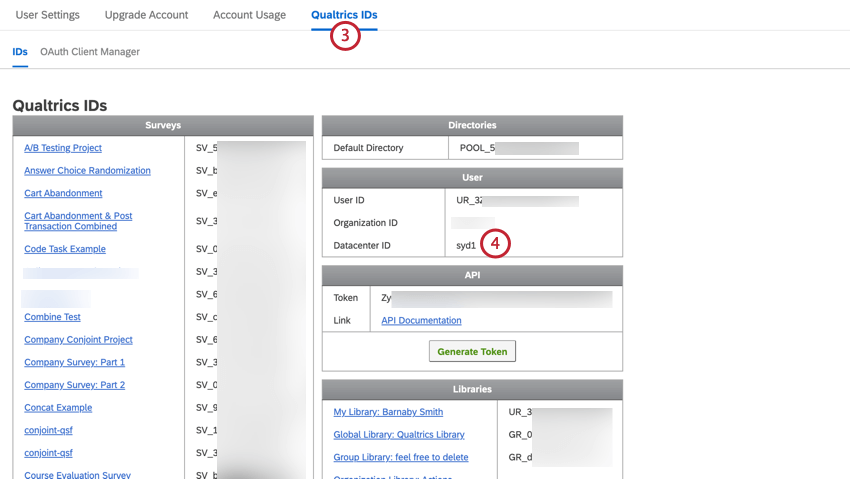
Qtip: Account Settings has been redesigned. To view Qualtrics IDs, click Switch to older version.
Locating the PoolID
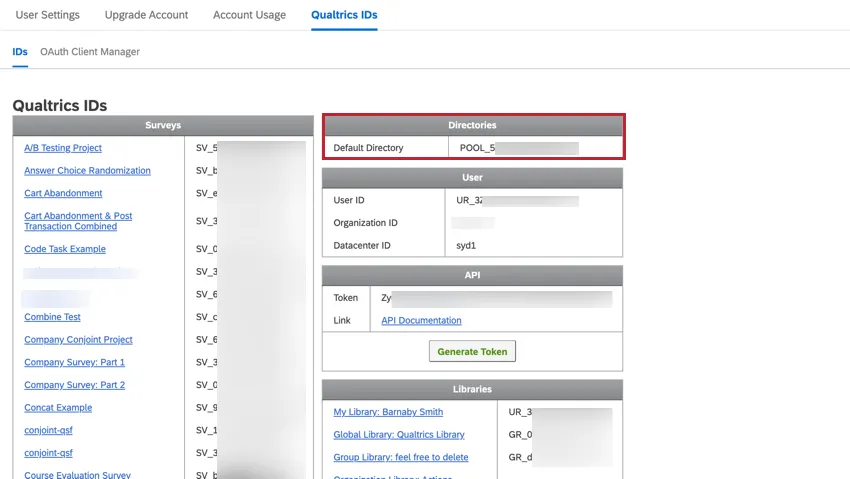
The PoolID (also known as the DirectoryID) is used in API calls relating to XM Directory. To locate it, go to the Qualtrics IDs section of your Account Settings. More information on how to find your Qualtrics IDs can be found in the Locating Qualtrics IDs section.
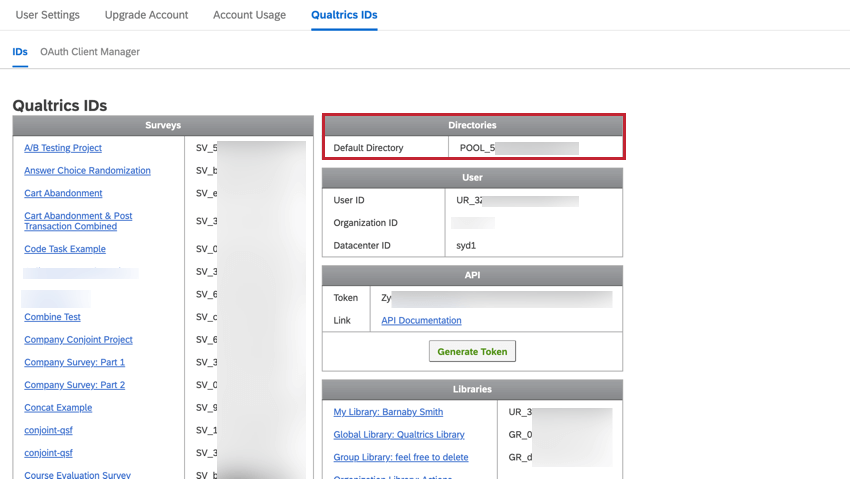
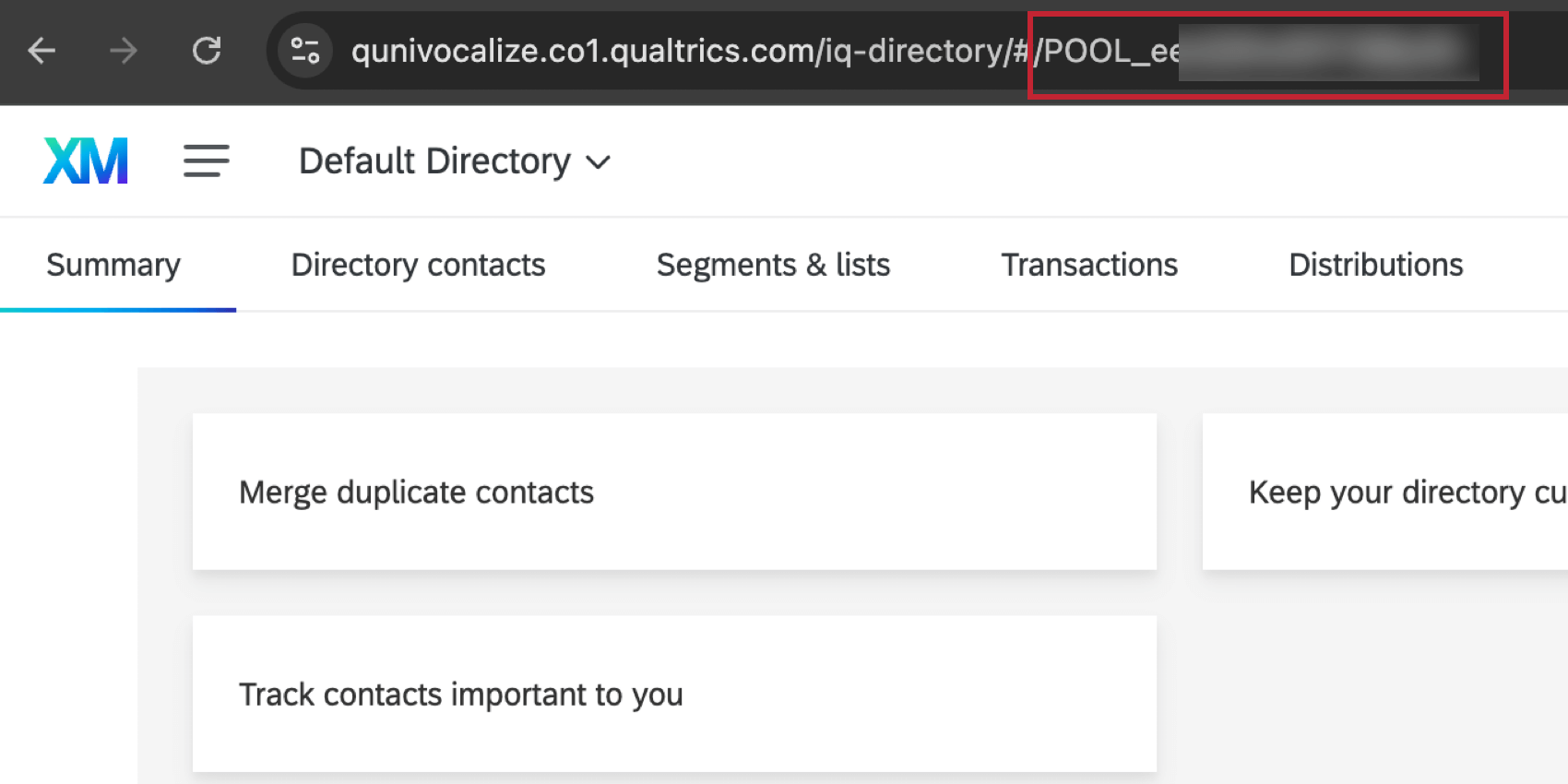
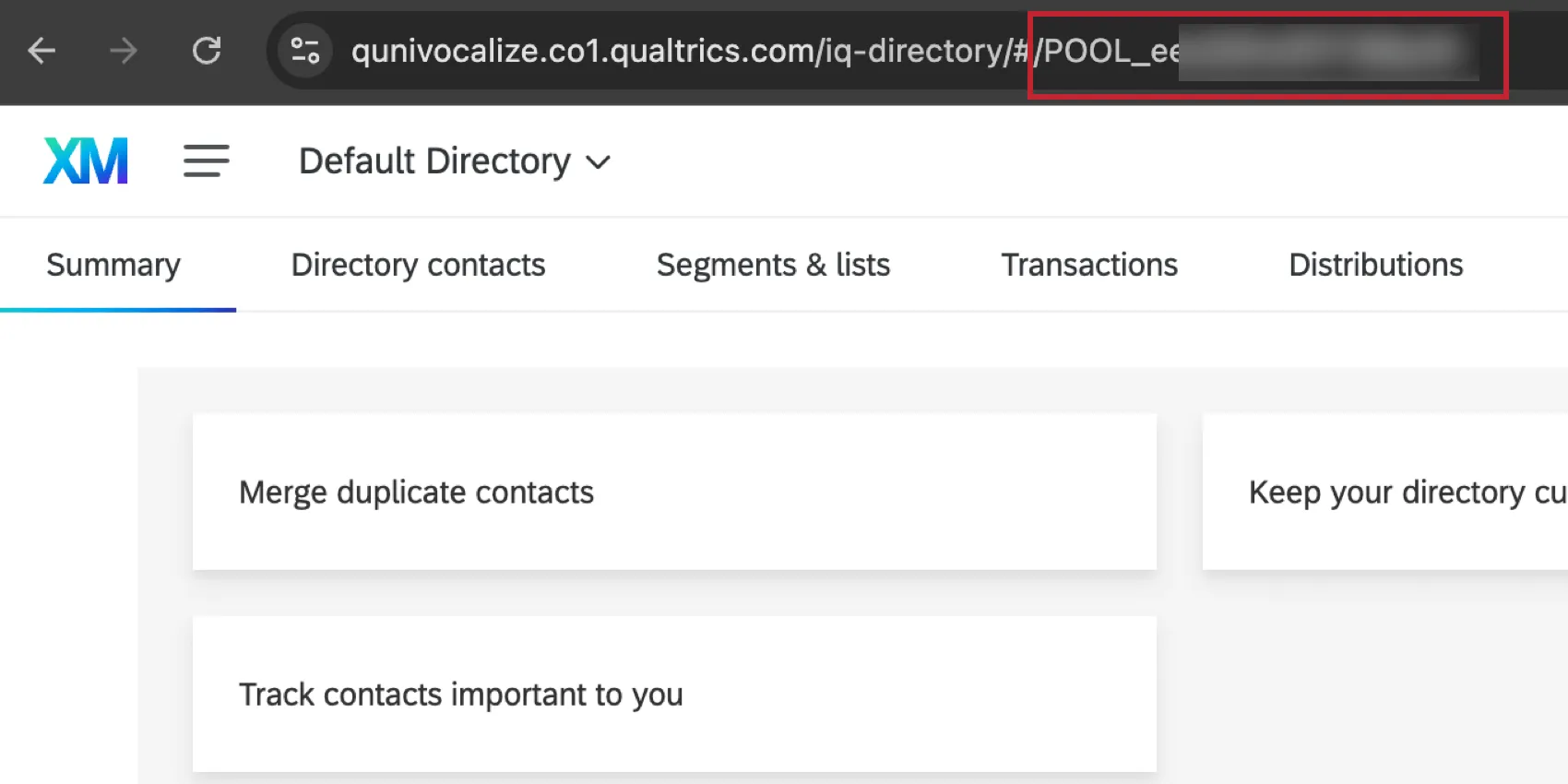
You can also find the PoolID by opening XM Directory and looking at the browser URL. This ID is formatted as POOL_XXXXXXXXXXXXXXX.
Locating the Project ID of a Website and App Insights Project
The project ID, or “zone ID,” can be found by opening your Website & App Insights project and going to the Manage project tab. The project ID is at the bottom of the page.
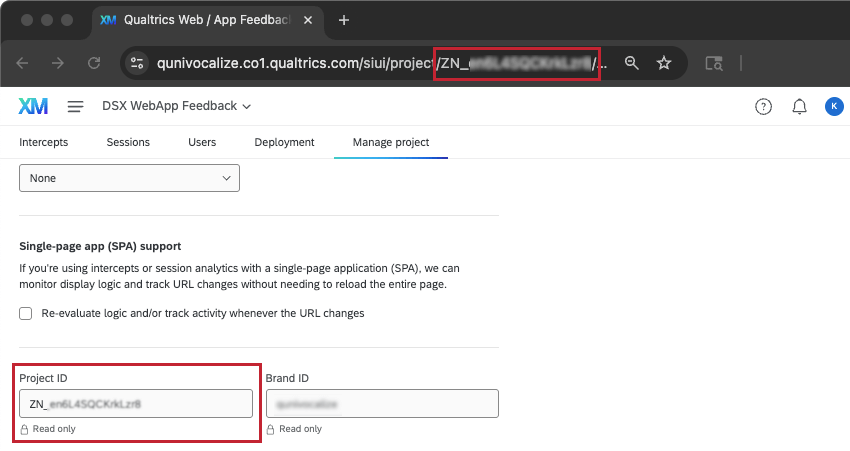
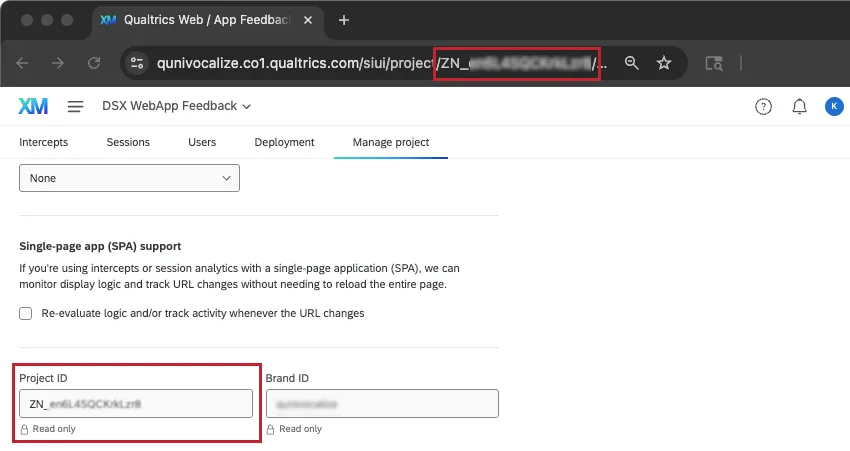
You can also find the project ID in the URL when you’re on almost any page of your project. This ID is formatted as ZN_XXXXXXXXXXXXXXX.
FAQs
What are the Qualtrics IDs for?
What are the Qualtrics IDs for?
Why are the changes I made in the Rich Content Editor not showing up in my free / trial account?
Why are the changes I made in the Rich Content Editor not showing up in my free / trial account?
Why is my HTML, CSS, and JavaScript not working in my free / trial account?
Why is my HTML, CSS, and JavaScript not working in my free / trial account?
That's great! Thank you for your feedback!
Thank you for your feedback!