

Developer Portal
What's on this page
About the Developer Portal
The Developer Portal is a place where software developers can build custom integrations and apps between third party software and Qualtrics. You can use the Qualtrics APIs or the Extension SDK to build your extensions. You can also build custom reporting widgets.
Attention: Qualtrics Support cannot aid with building or testing your custom extensions. For help with custom code from other Qualtrics users, check out the Developer Corner on the Qualtrics Community. If you’d like to know more about our custom coding services, please contact your Qualtrics Account Executive.

Logging in to the Developer Portal
Qtip: If you already have a Qualtrics account, you can access the Developer Portal with your regular Qualtrics credentials.

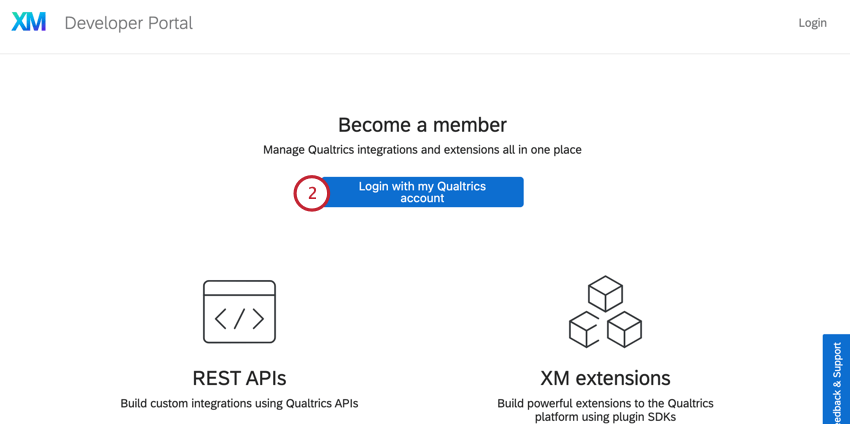
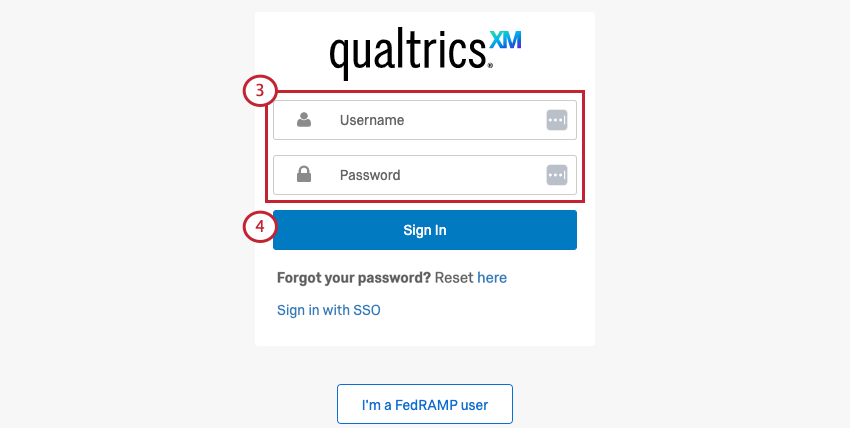
Sign in with SSO
If your organization uses SSO to log on (e.g., when logging into Qualtrics, you are redirected to your company’s login portal), you should click Sign in with SSO at the bottom instead. See the Logging in with your Organization ID page for more details.
Managing XM Extensions
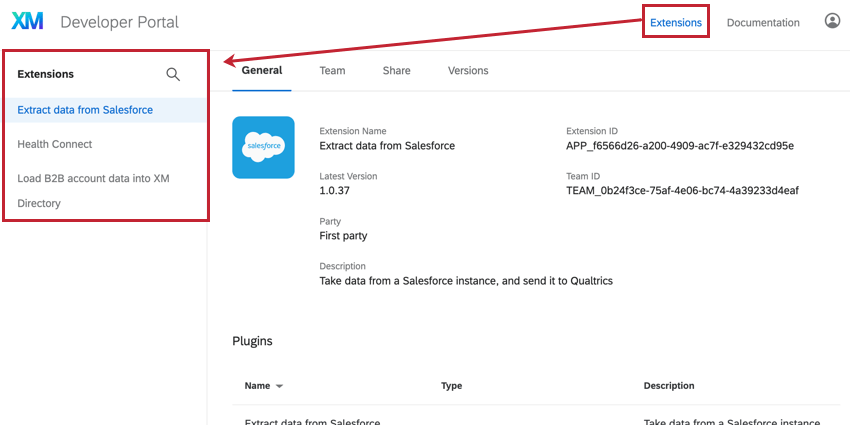
The Extensions section is where you’ll manage your custom extensions and applications. Here, you’ll see the different versions of your app, add other developers to work on the app, and share the app with other Qualtrics brands so they can use the app.
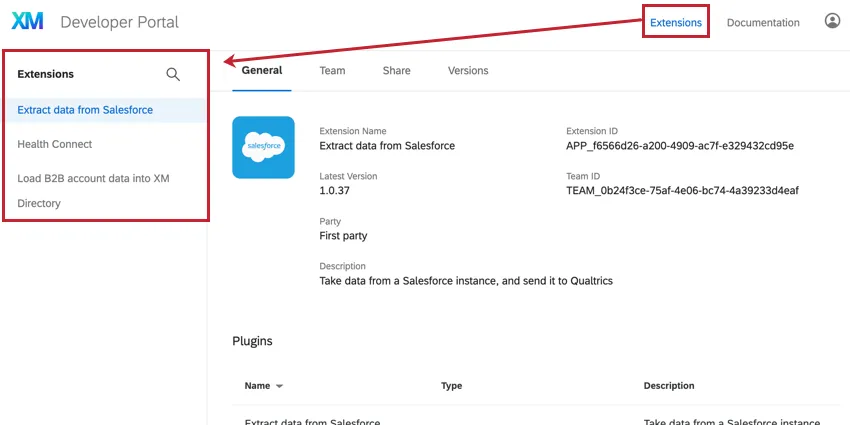
On the left hand side of the Extension tab is a list of your extensions. Click on an extension to see more details.
Qtip: You can also add an optional description of your extension that will be displayed during account creation. For instructions, see the Developer Portal documentation.
Qtip: For help creating apps, refer to the Documentation found within the Developer Portal.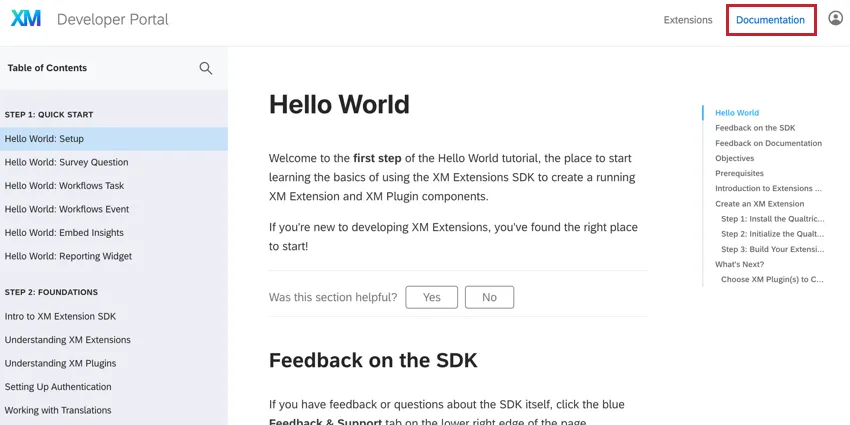
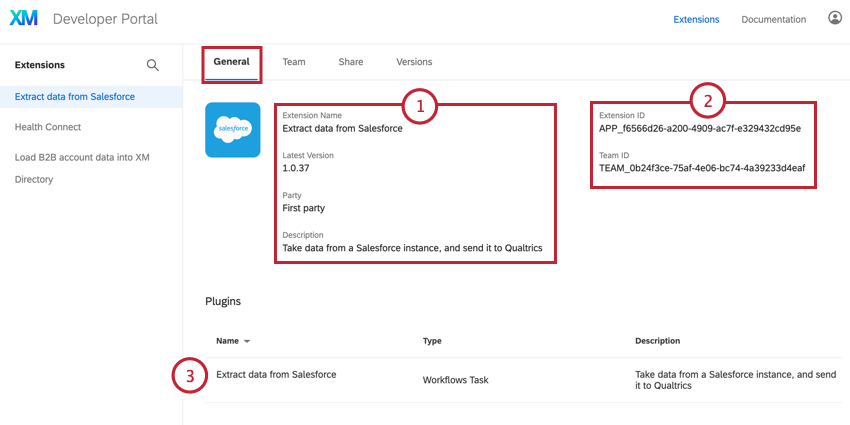
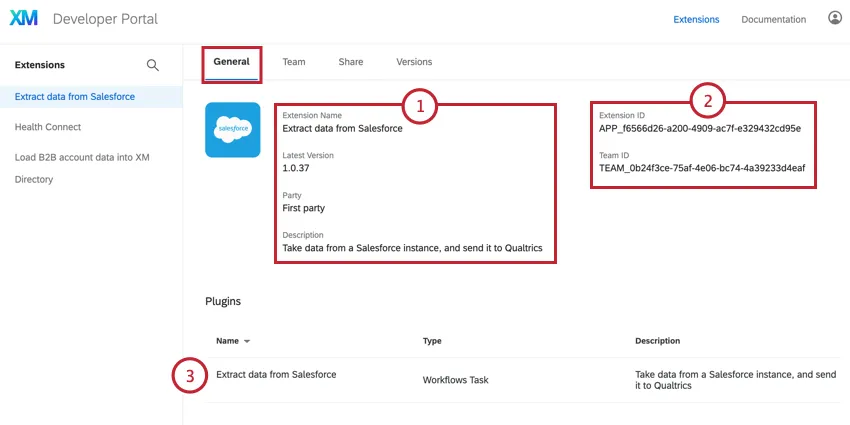
General Section
Once you’ve selected an app, the General section will show you basic information about the Extension.
Teams Section
The Teams section shows which users are working on your app.
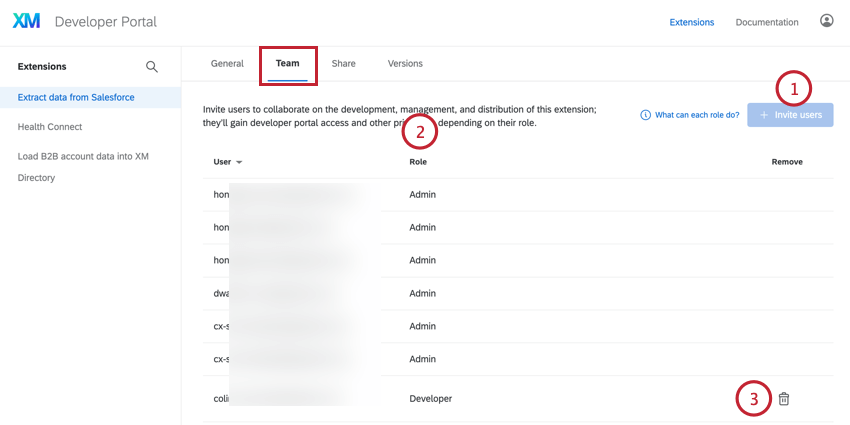
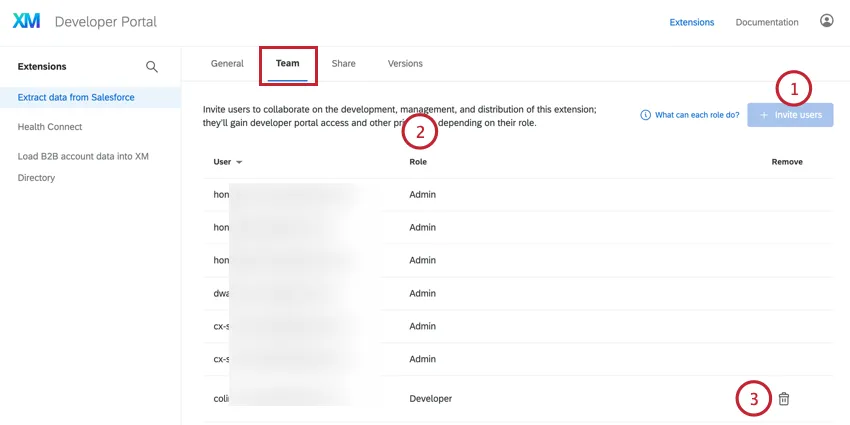
The table below displays the actions each role can take:
| Action | Owner | Admin | Developer |
|---|---|---|---|
| View app | Yes | Yes | Yes |
| Submit updates | Yes | Yes | Yes |
| Share the app | Yes | Yes | No |
| Invite teammates | Yes | Yes | No |
| Remove teammates | Yes | Yes | No |
| Update teammate roles | Yes | Yes | No |
| Change owner | Yes | No | No |
Share Section
The Share section allows you to share the extension with specific Qualtrics brands so they can use your app.
Qtip: You can share the extension to brands to which your team members belong, or to other brands via invitation, in that case the Brand Admin will have to accept and install the extension to make it available.
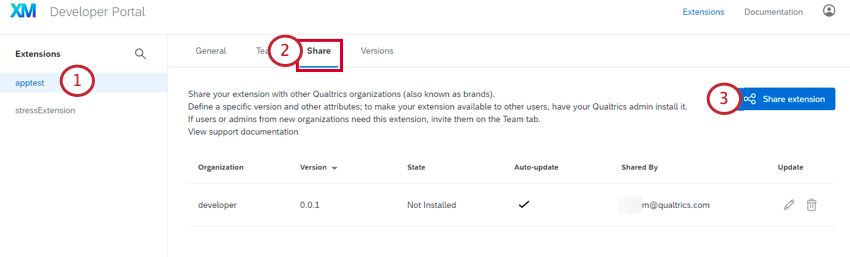
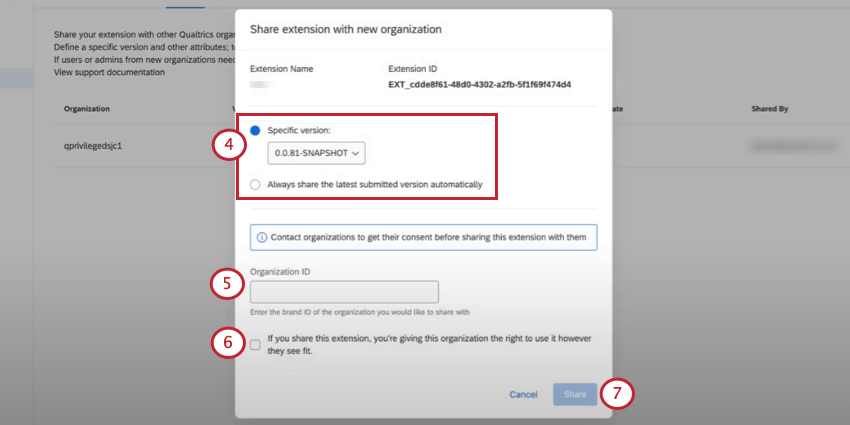
Attention: Make sure to contact the organization before sharing the extension with them.
Qtip: You may need to ask your teammates what their organization ID is. See How Do I Find My Organization ID for more information.
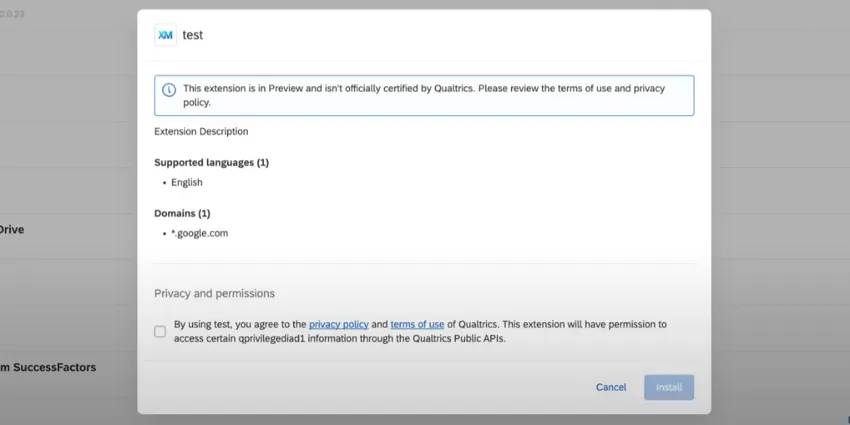
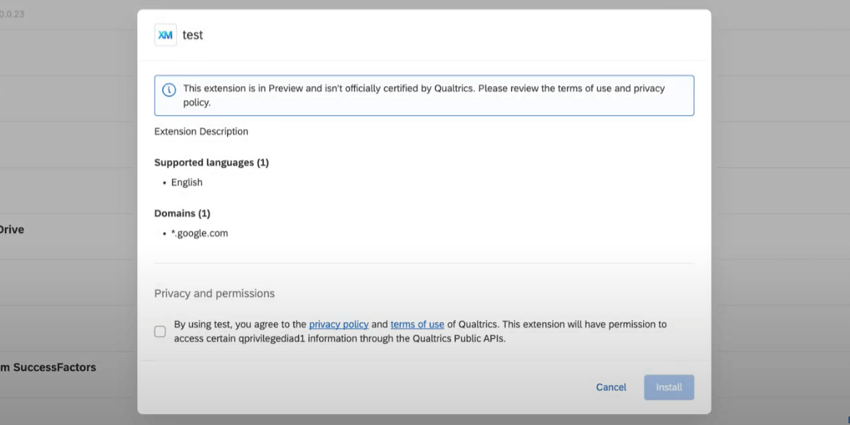
Qtip:If you share your extension with an organization that doesn’t have a Brand Administrator, it will be marked as being in Preview, and made available for installation by every administrator in the organization.

Before the user installs the extension, they’ll be warned that the extension hasn’t been officially certified by Qualtrics.

Versions Section
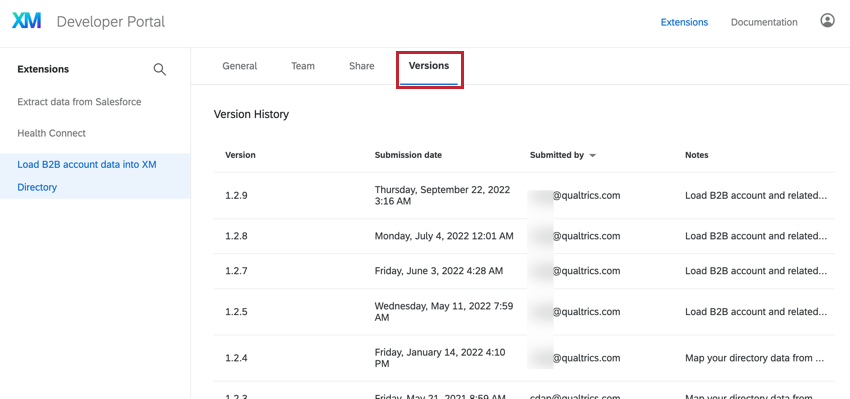
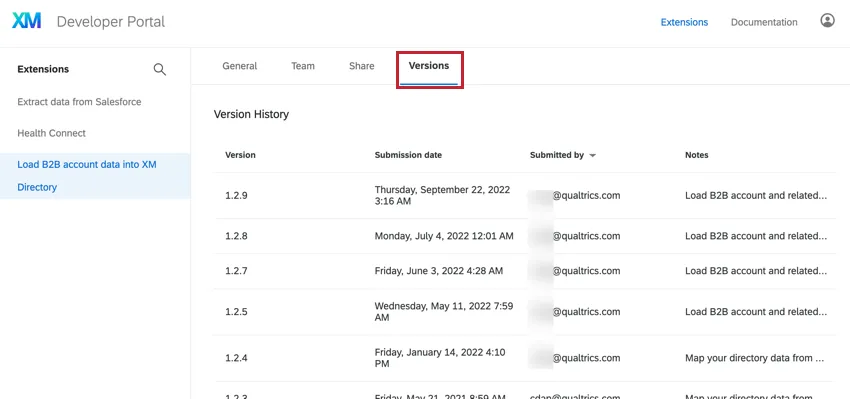
The Versions section contains a log of each version of your app. You can view the app version number, when the version was submitted, who submitted the version, and any notes about the app. From this section, you can also upload a new version of your app.
Building Dashboard Widgets
Within the Developer Portal you can build custom reporting widget plugins that can be added to any Qualtrics dashboard.
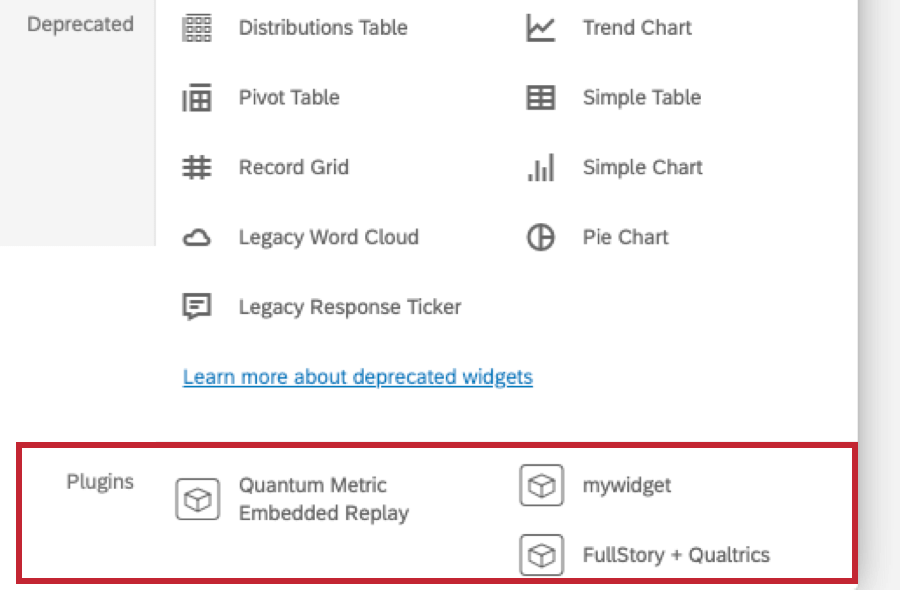
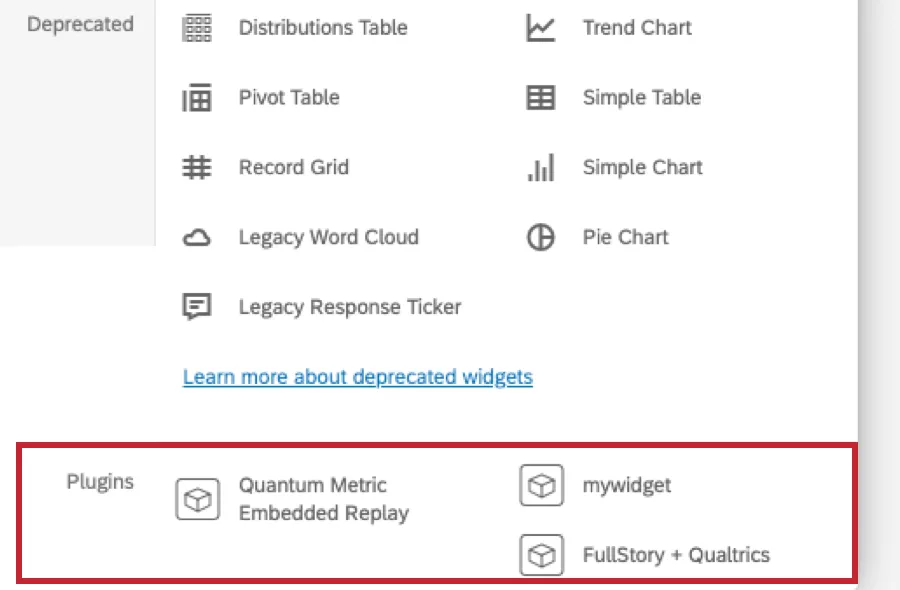
Once a widget is created, it can be added to a dashboard through the Add Widget menu. Any custom widgets available within your brand will be visible in the Plugins section of the widget menu.
Developer Portal Resources
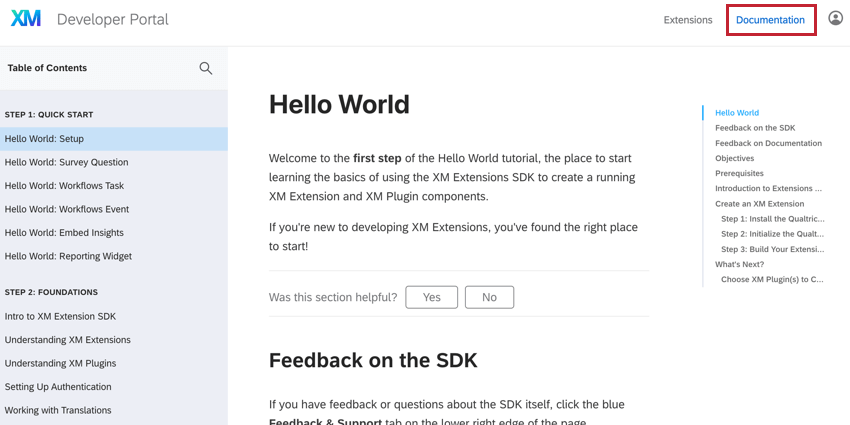
At the top of the Developer Portal are links to various resources for helping you build your custom integrations and apps.
Documentation
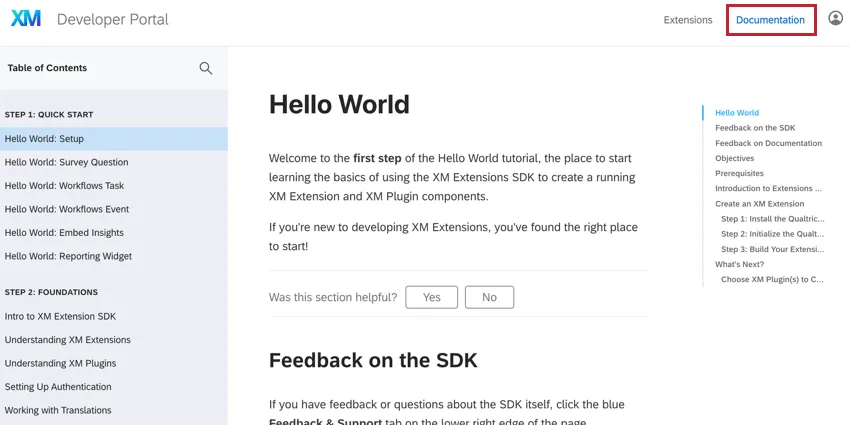
The Documentation link will bring you to the official documentation for building your custom extensions. This documentation should be your go-to place for learning how to build your apps using the Qualtrics APIs and SDKs. Use the table of contents on the left hand side of the page to navigate between help pages. Use the search bar at the top of the table of contents to search for a specific topic or page.
AI Assistant
The Developer Portal AI Assistant is a chatbot trained on the Developer Portal documentation. Since it knows the platform inside and out, it is ready to answer any question you may have about creating custom extensions. To launch the AI Assistant, click the chat icon in the bottom right hand corner of the Developer Portal.

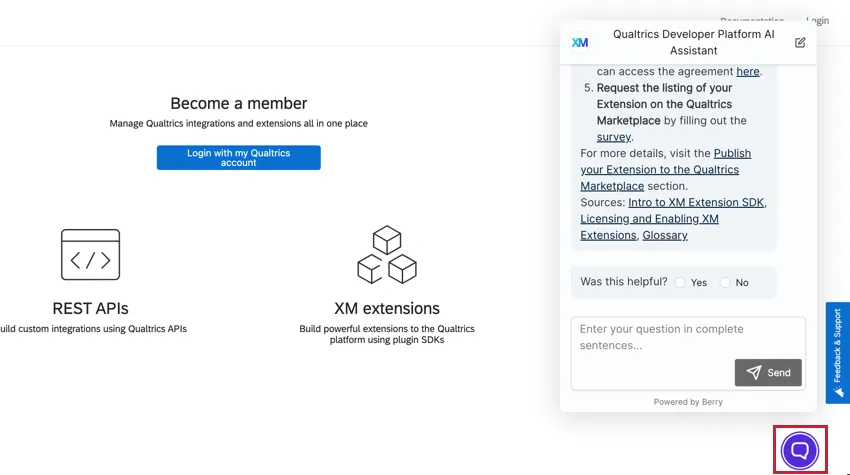
To use the chatbot, simply type a question and press Send or the Enter key on your keyboard. You can keep asking as many questions as you need. The chatbot often includes a link to the resources where it found its information if you’re interested in reading more. You can let us know if the chatbot answered your question. If not, you’ll have the option to either ask another question or reach out for more support.
Feedback & Support Intercept
The best way to get support with the Developer Portal is to use the Feedback & Support intercept within the portal.
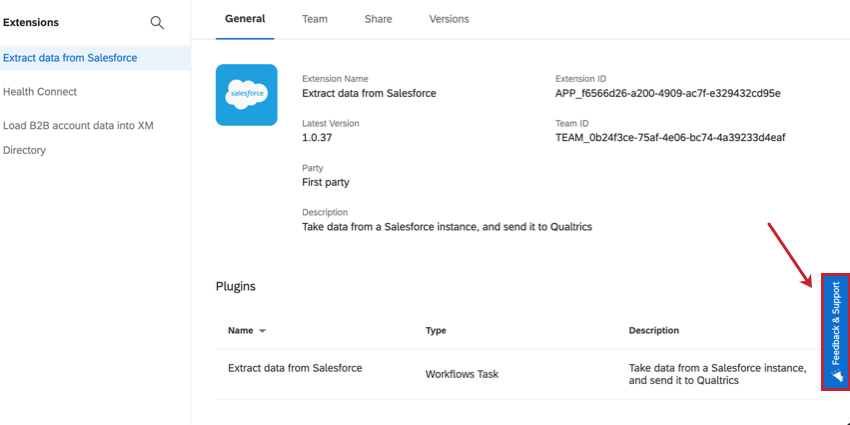
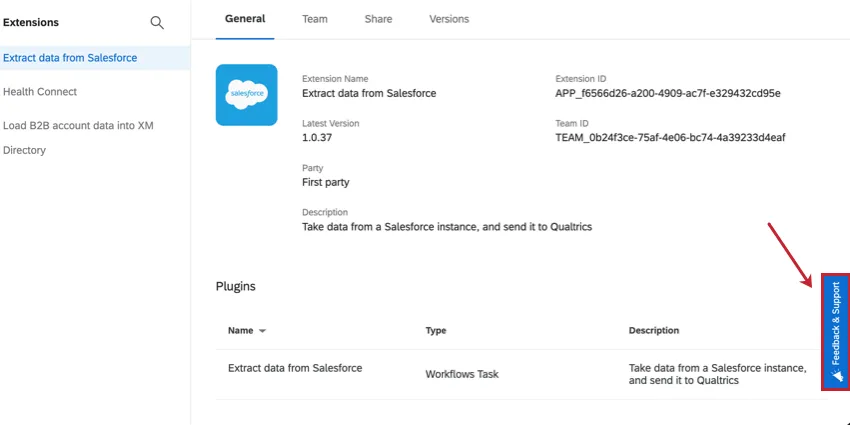
You can use this intercept to:
- Ask questions
- Report issues
- Provide feedback
- Make feature requests
Developer Advocacy Program
Apply for our Developer Advisory Program to be informed about XM Extension updates, new integration capabilities, and best practices.
That's great! Thank you for your feedback!
Thank you for your feedback!