

Adding Reviews from Sources
What's on this page
Qtip: If you are a customer interested in Reputation Management, reach out to your Account Executive.

About Adding Reviews from Sources
Reputation Management (RM) projects are a means of pulling online reviews for your business into your larger Qualtrics program. On this page, we’ll talk about how to build a project that adds reviews directly from their apps.
Integrating with an App
Attention: This step is crucial to a successful setup.

Before you can create your project, you need to have access to either a social data collection platform or a direct source where reviews are left by customers.
We currently support:
- Facebook for Business (See also FAQs)
- ReviewTrackers
The Facebook app is available to anyone who has created a page for their business on Facebook and then enabled ratings and reviews. The Google app is available for anyone who is an owner or manager for the locations whose reviews you want to pull into Qualtrics.
ReviewTrackers collects data from multiple sources and compile it into one source. Right now, you can only choose between one of the options listed above per Online Reputation Management project. If you create multiple projects, you can try out multiple apps.
For demos, pricing, and more, please make sure to check the appropriate site (e.g., the ReviewTrackers site for ReviewTrackers pricing, etc.). Alternatively, if you are getting an implementation with Qualtrics, we can help you get set up with any one of these platforms. Reach out to your Technical Success Manager to learn more about implementation options.
Once you have login credentials, you can head over to Qualtrics to create your project.
Creating a Reputation Management Project
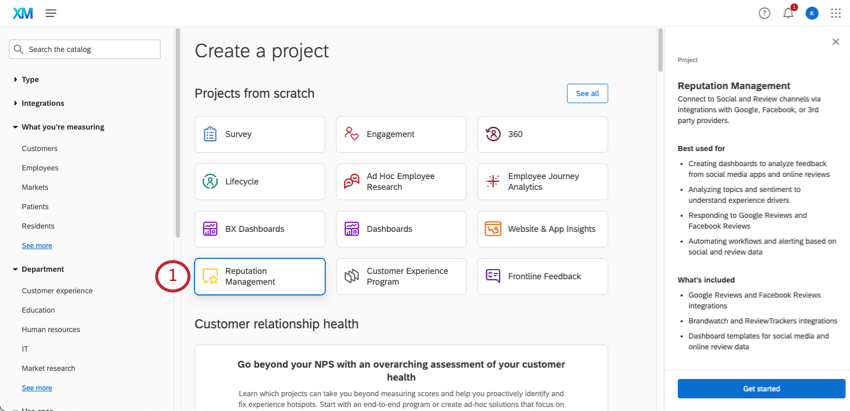
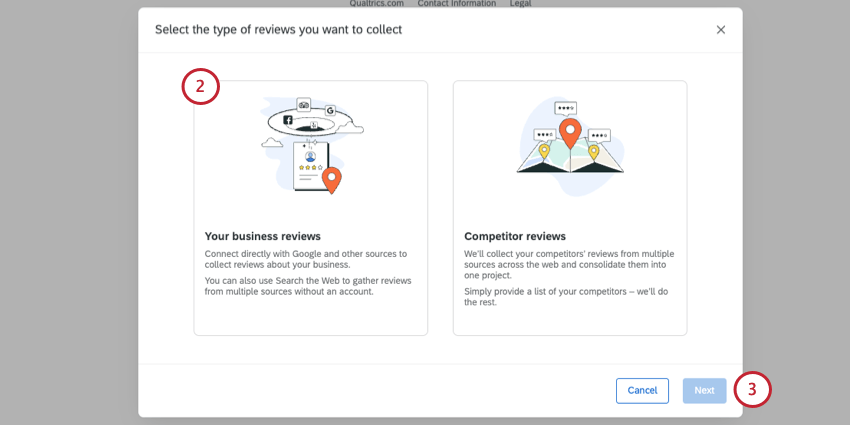
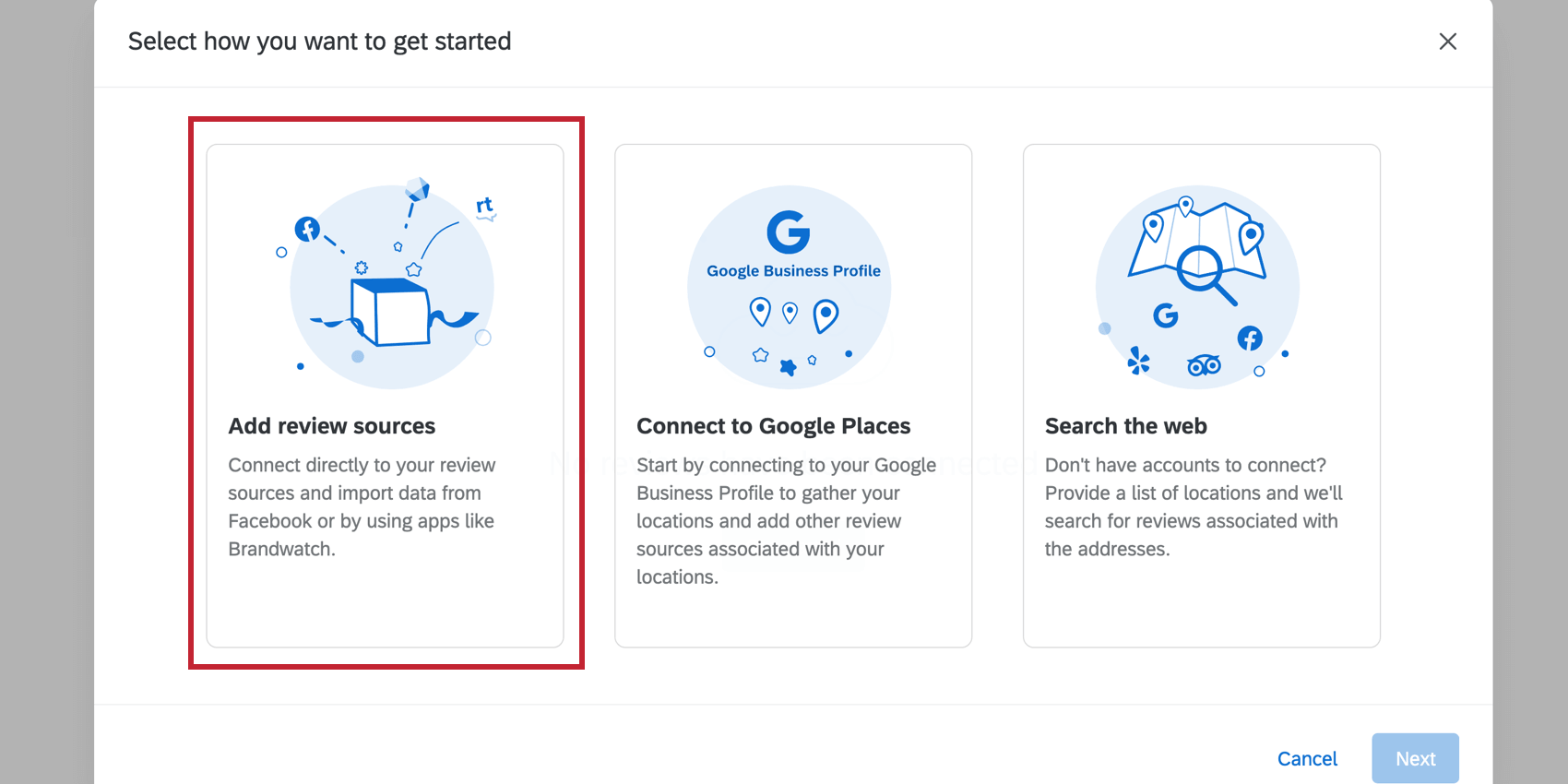
Choosing an App to Connect With
The Apps tab of your Reputation Management project is where you specify where these online reviews are coming from. Here, you will log into your Facebook or ReviewTrackers account and integrate it with Qualtrics.
Go to the Apps tab of your project.
Qtip: Are you a Brand Admin? Would you like the rest of your brand to be able to use these social data collector credentials? Complete the following steps on the Extensions page instead.
Select from the list of apps. You can choose Facebook, or you can choose just one from the second section (ReviewTrackers).
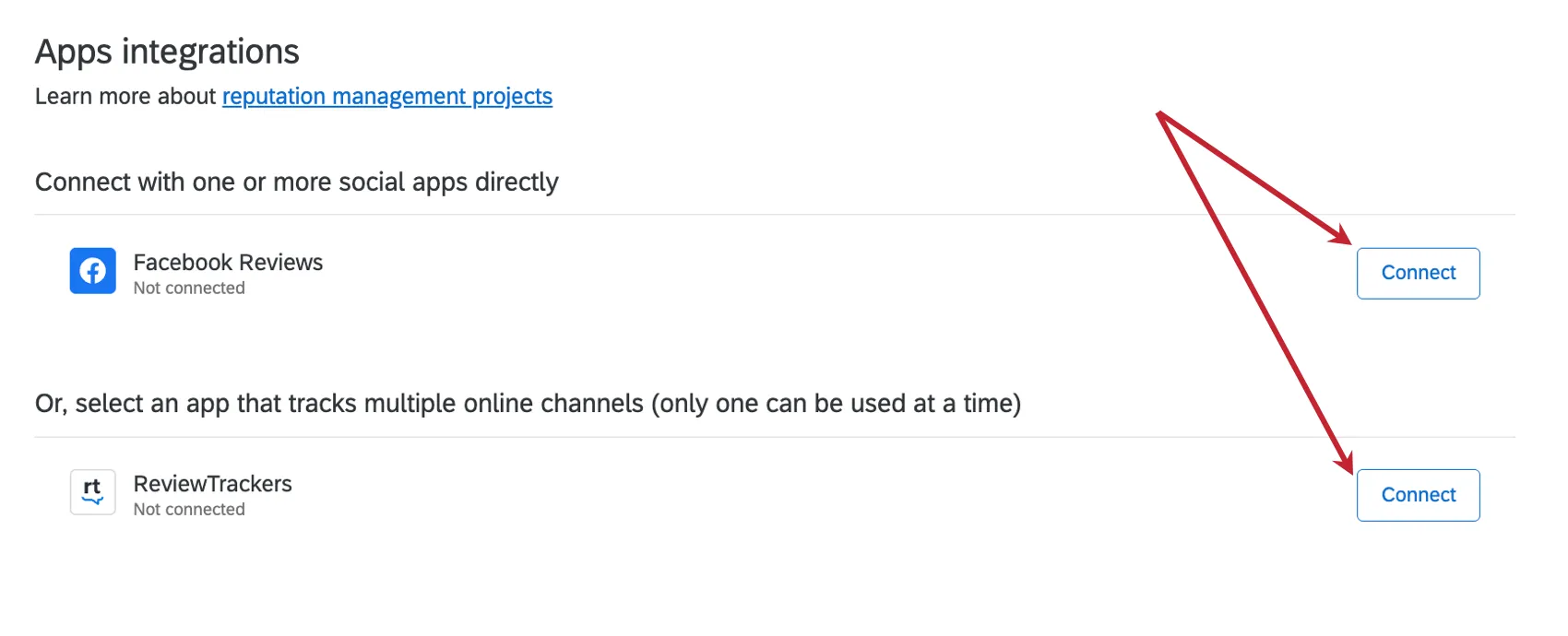
Attention: Remember you can always create additional Online Reputation Management projects to report on additional apps.
Qtip: The Facebook app requires that you have the Online Reputation Facebook permission enabled. This can both be found under “Extensions.”
Choose from an existing list of credentials, or click Add user account to integrate for the first time.
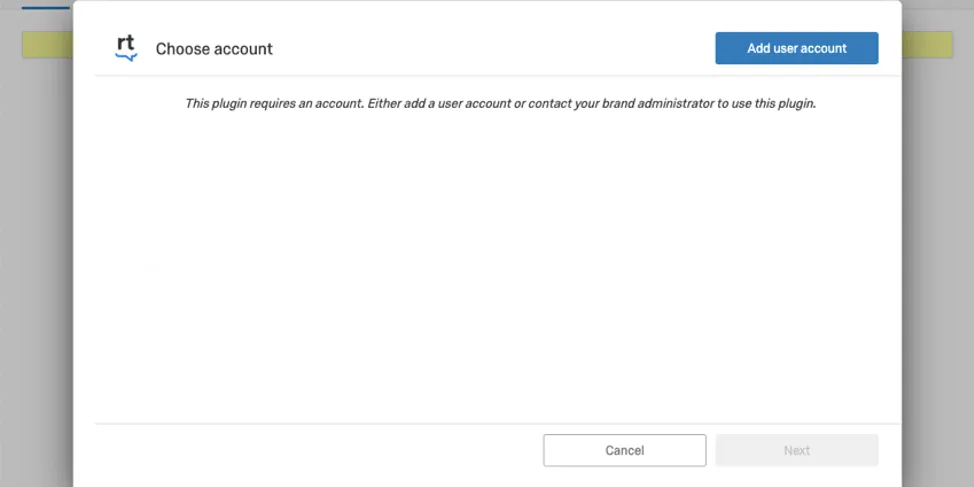
Give the account a name. This is for identifying purposes.
Enter your username and password.
Qtip: If you chose Facebook, log into the account that has administrative power over the business page. This may be a personal account where you created the page, or it may be a shared business account.
Click Connect account.
The next setup steps vary based on the app(s) you selected.
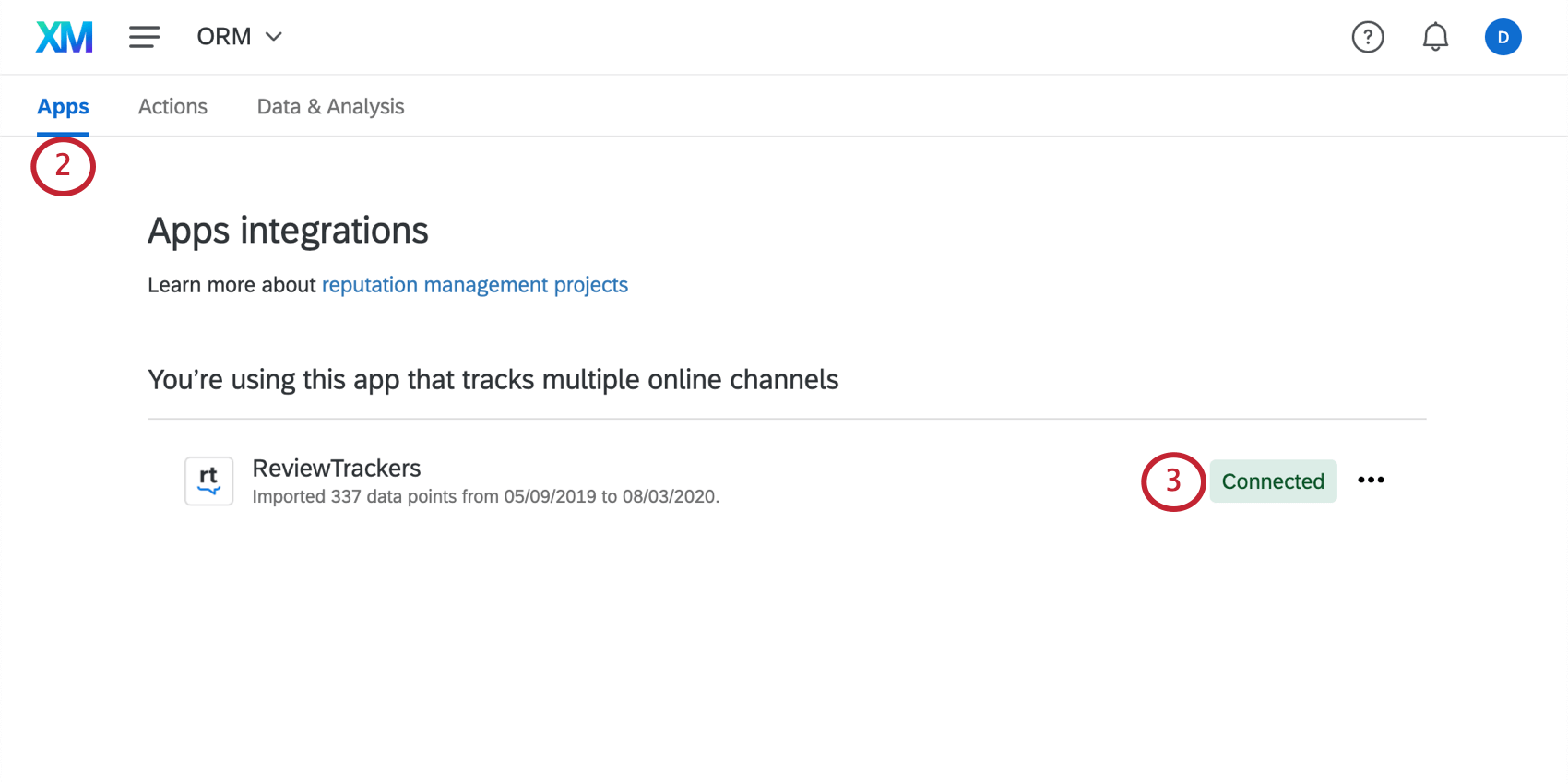
Qtip: Once you are finished, it may take some time for app data to load. If you check on the Apps tab, you can see this data’s progress. As the data loads, the number of data points successfully imported will be listed.

Qtip: The Facebook API doesn’t support old recommendations without text, so that data cannot be gathered via API.
Qtip: The Facebook API does not support old recommendations without content messages.
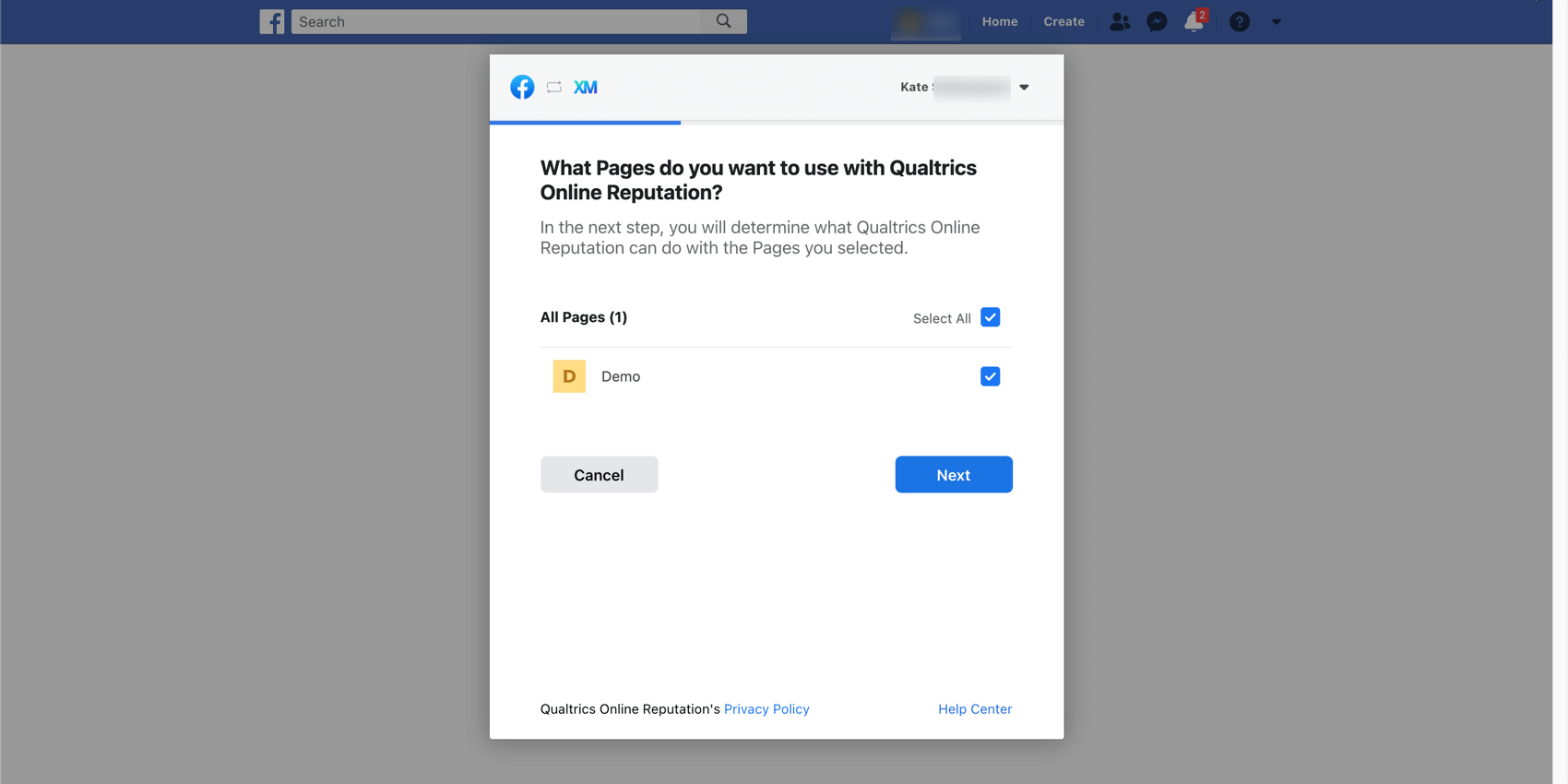
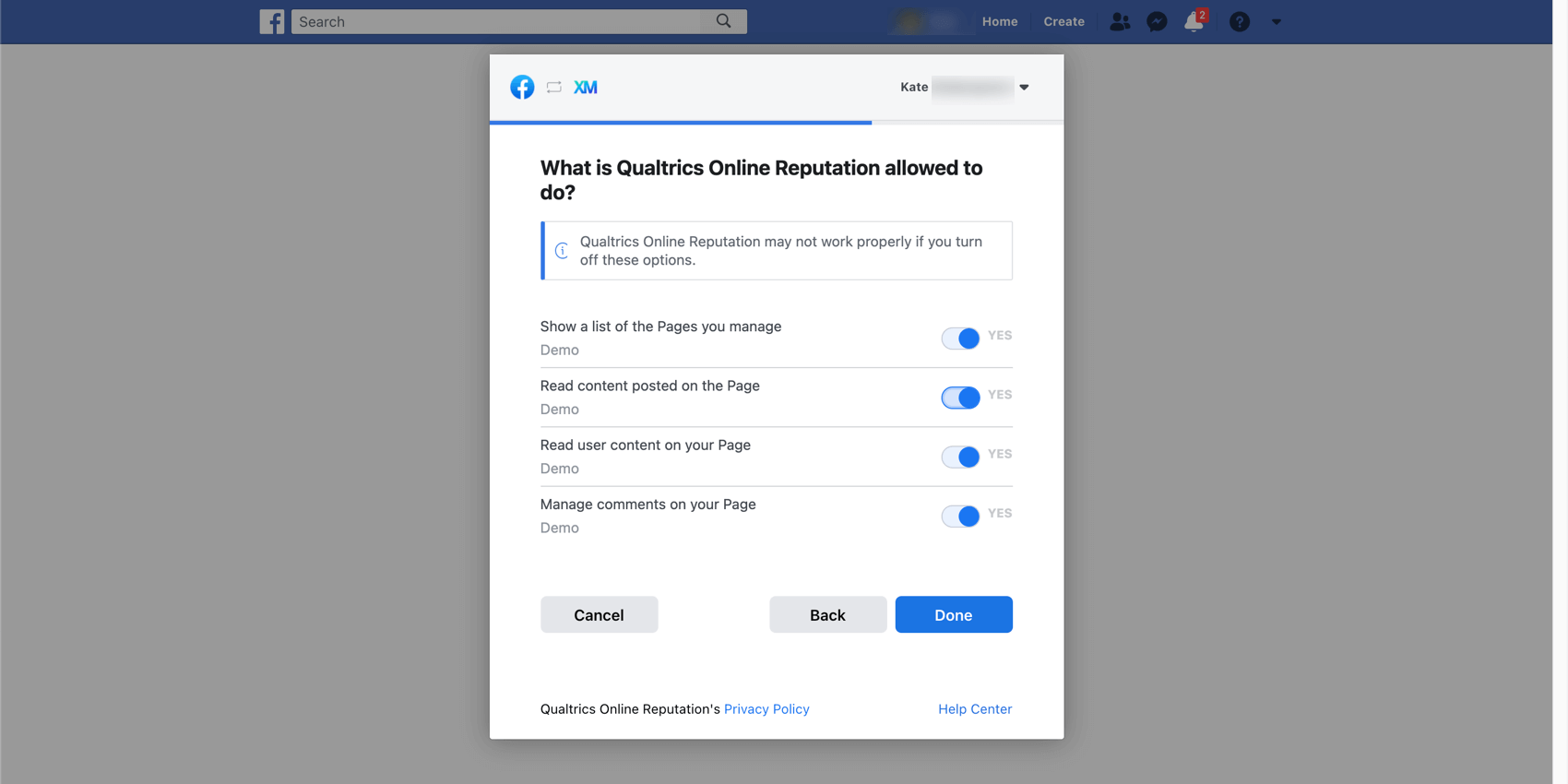
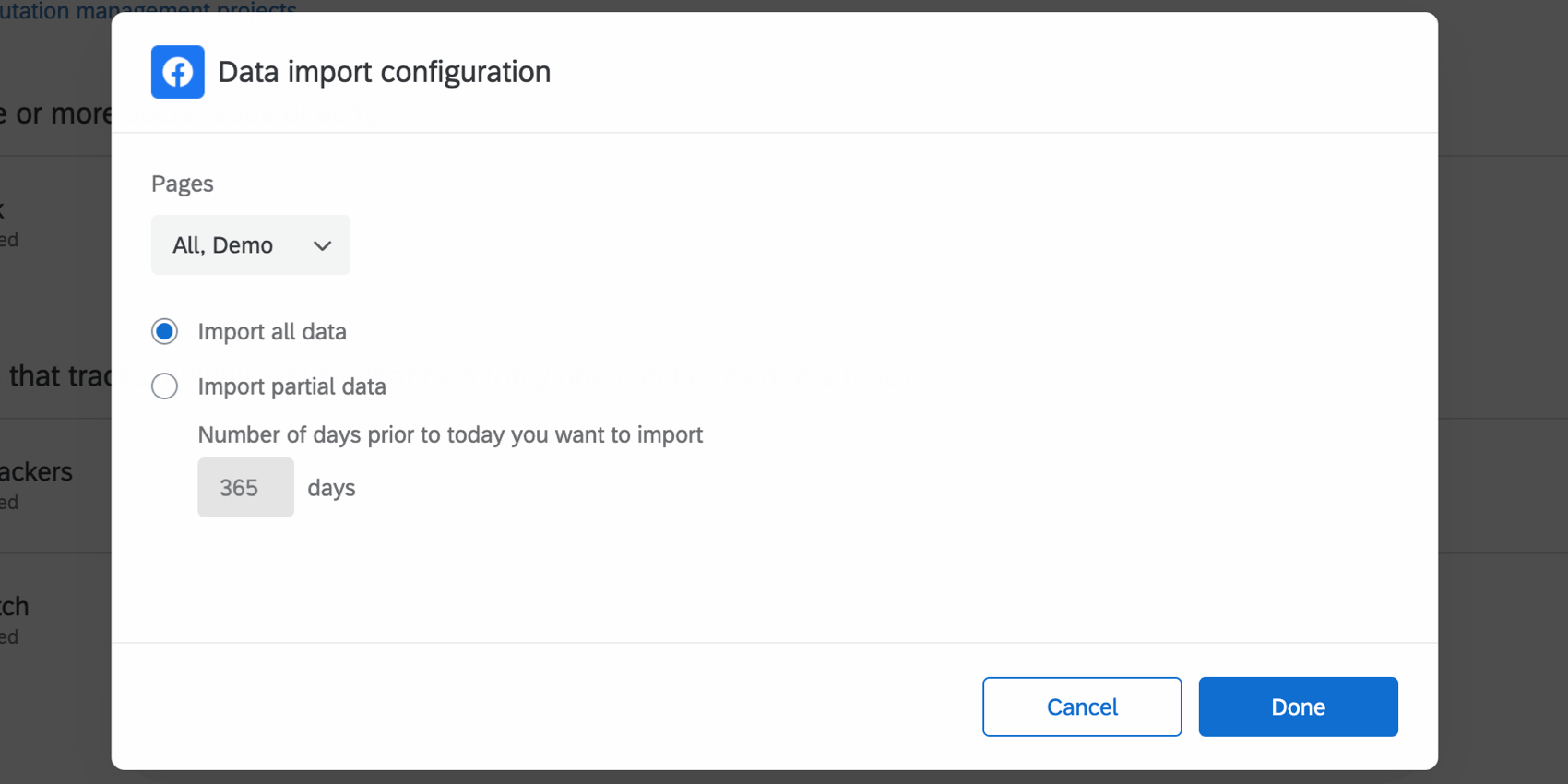
For Facebook, you’ll need to specify the pages you want to draw data from in the Online Reputation Management project. Only pages with the Reviews tab enabled will return data.
ReviewTrackers
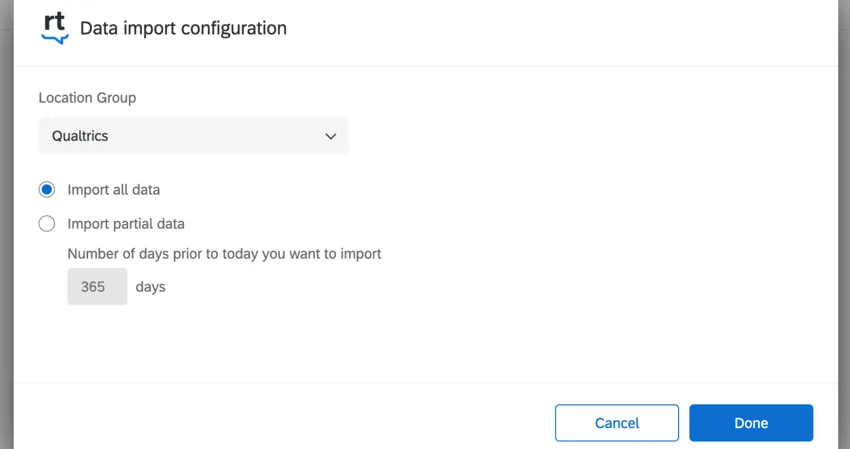
For ReviewTrackers, choose the Location Group and the amount of data you’d like to import. The Location Group specifies the locations you want to pull in data for, or you can leave this field blank to pull in all locations’ data. For the data import, decide how many days worth of data you want to use. Your options include:
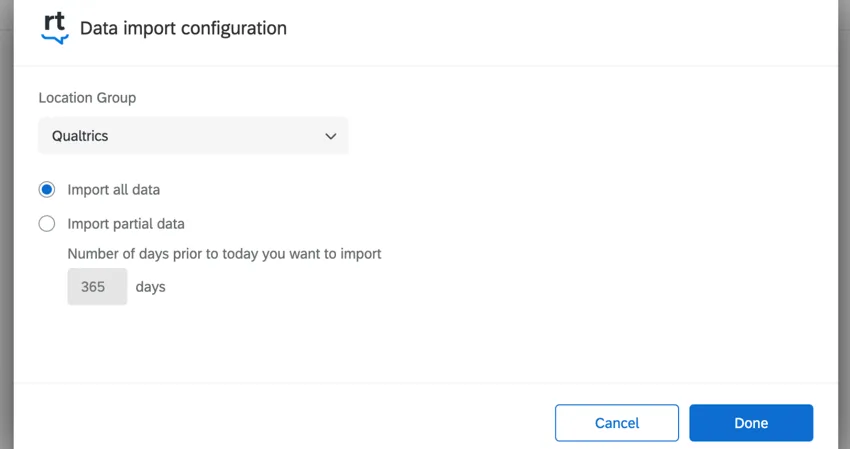
- Import all data: Imports all your ReviewTracker data.
- Import partial data: Imports a subset of your data relative to today’s date. Enter the number of days prior to today you’d like to import. You can enter any value you want.
Qtip: You can select one location group, or all of them. You cannot select multiple without selecting all.
Deleting Social Data
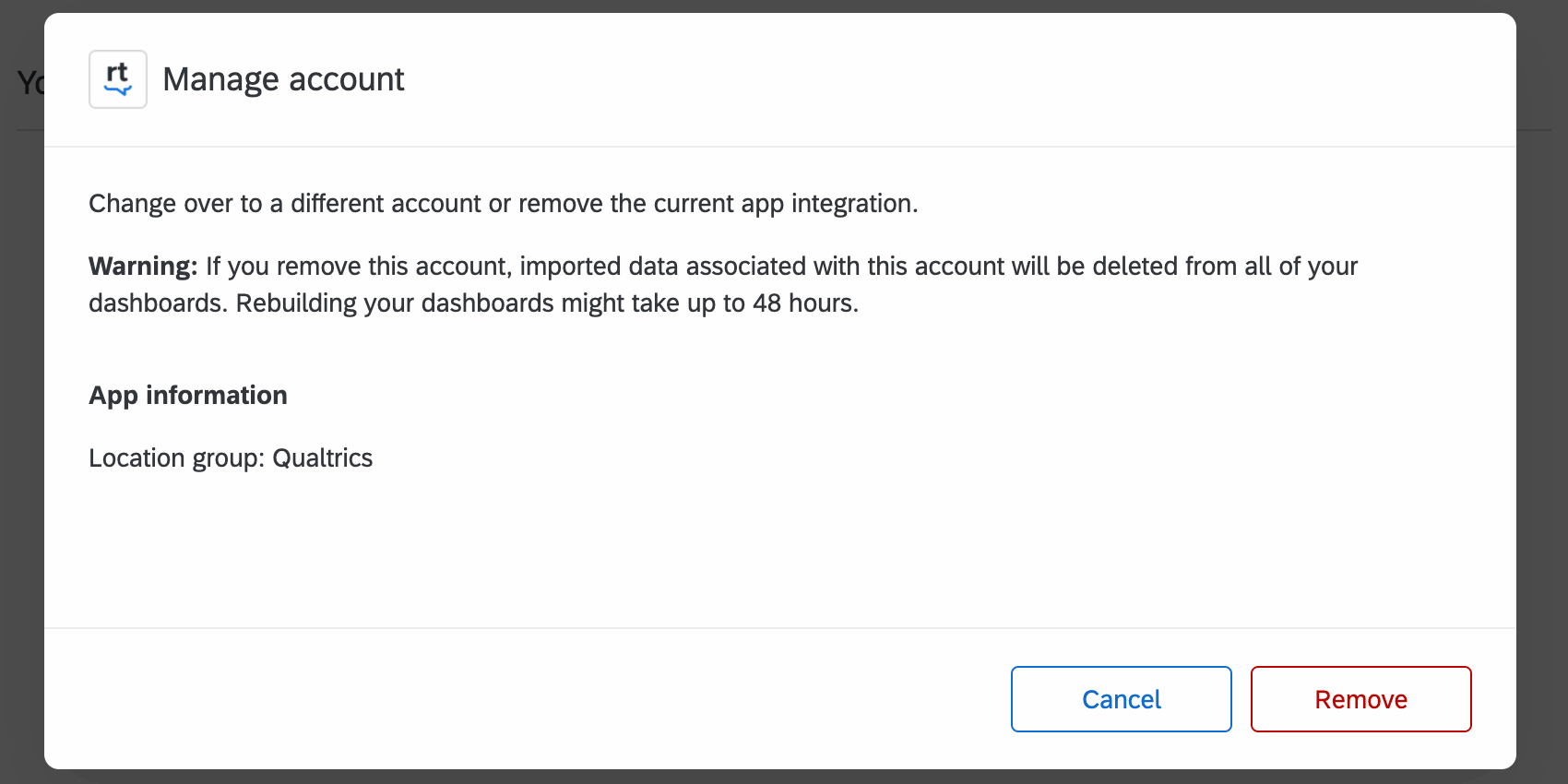
Once you’ve added social data to an Online Reputation Management project, that data is also available to be mapped into dashboards on your account. However, if you no longer want this data to exist either in your Reputation Management project or in your dashboards, you can delete this data.
Qtip: Deleting your data this way will also allow you to set a different app or a different timeframe of the same social data to your Reputation Management project.
Updating Credentials
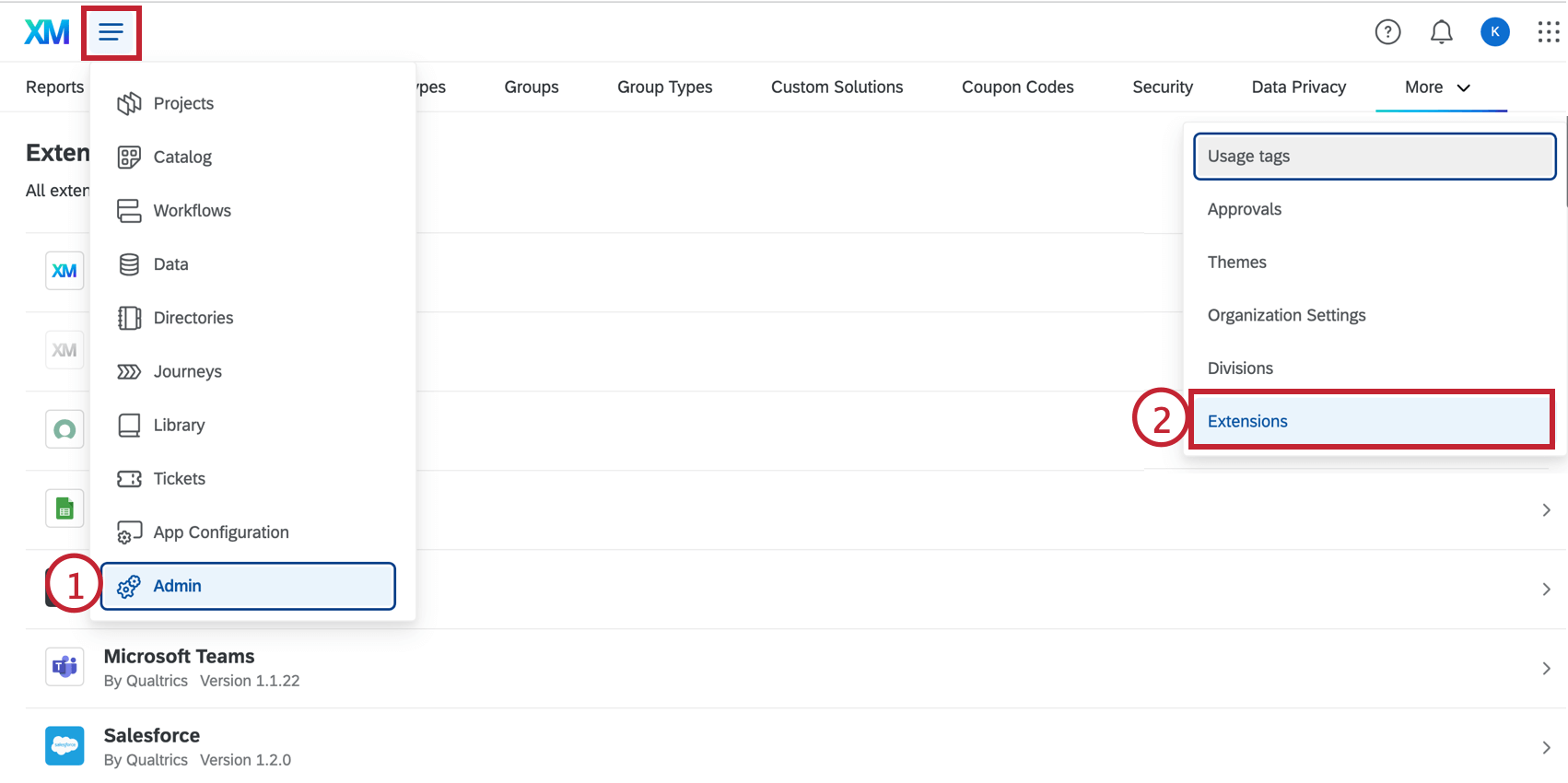
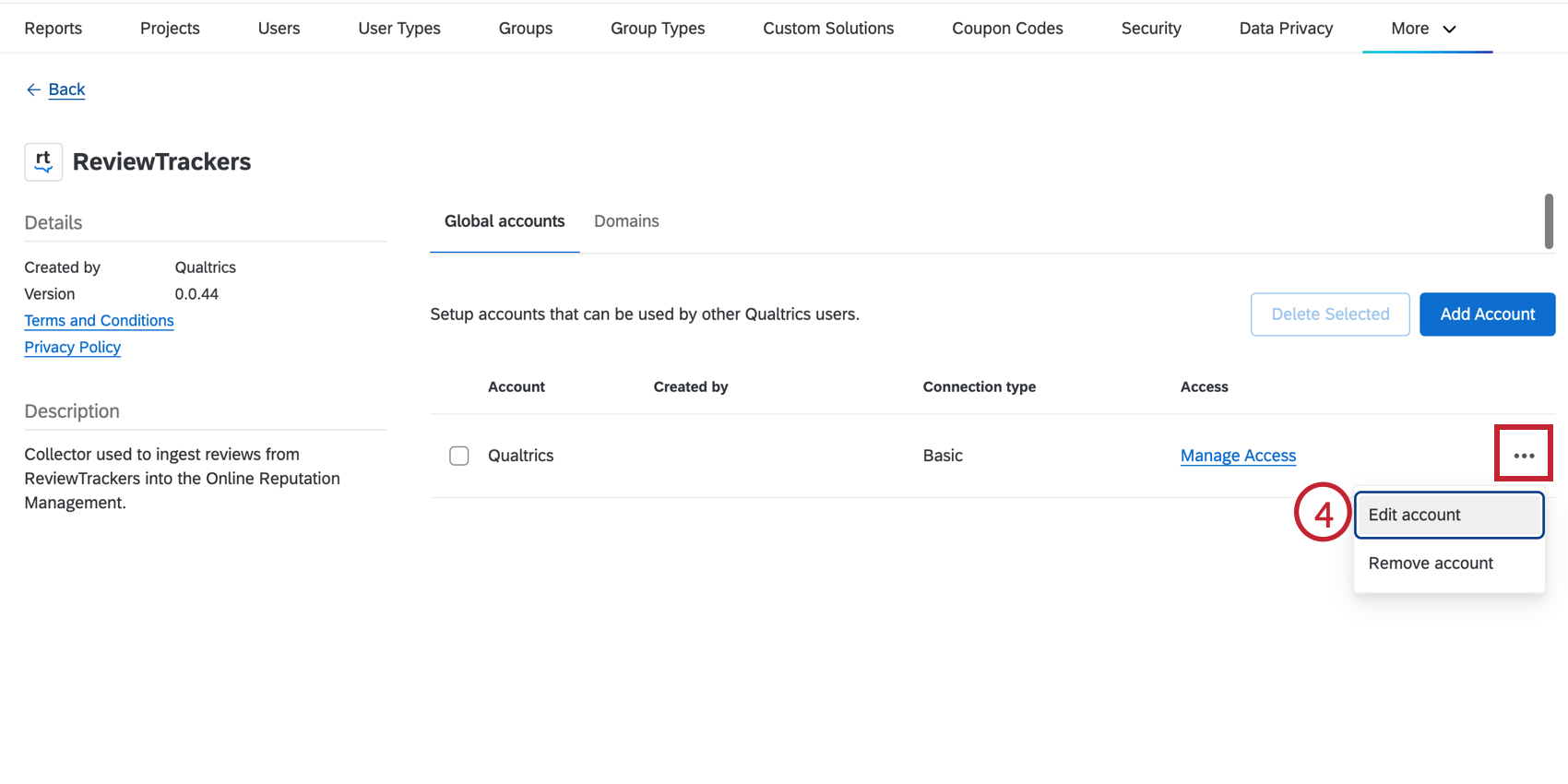
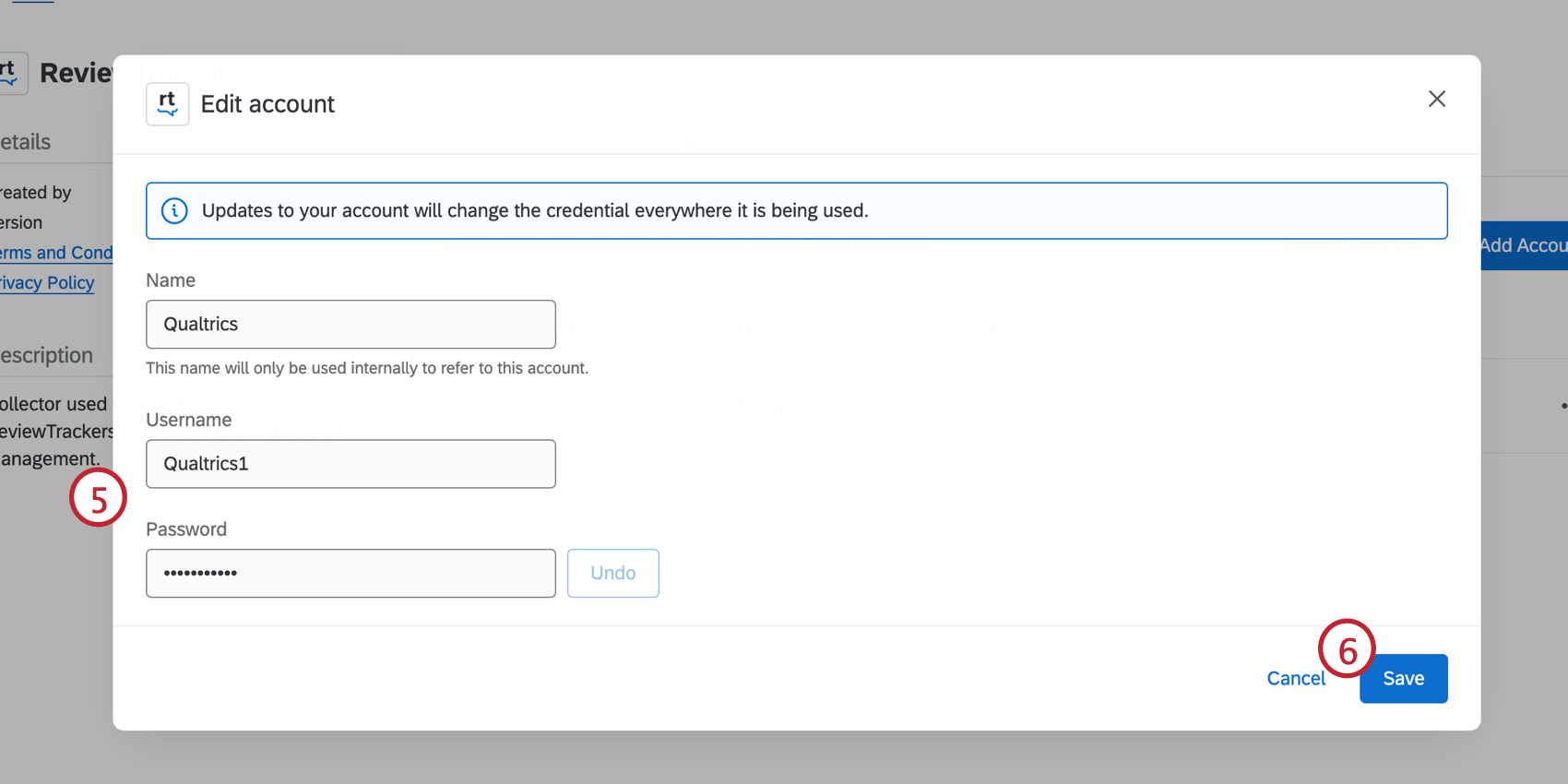
Attention: You must be a Brand Administrator to update credentials.
Qtip: Deleting and re-adding a location to fix invalid credentials will cause it to be treated as a new location. Historical reviews associated with the original location record may not carry over.
FAQs
How much history can you pull?
How much history can you pull?
How long does it take for Facebook reviews to populate in the dashboard? How long does it take to post?
How long does it take for Facebook reviews to populate in the dashboard? How long does it take to post?
How does this work for multiple Facebook pages / accounts?
How does this work for multiple Facebook pages / accounts?
Can this pull in information from posts that are made about us but not reviews left directly on our Facebook page?
Can this pull in information from posts that are made about us but not reviews left directly on our Facebook page?
Are review scores normalized for sites with different rating scales?
Are review scores normalized for sites with different rating scales?
That's great! Thank you for your feedback!
Thank you for your feedback!