

Filtering Stats iQ Data
What's on this page
Workspace Filters
Workspace filters apply to all analysis results in that workspace.

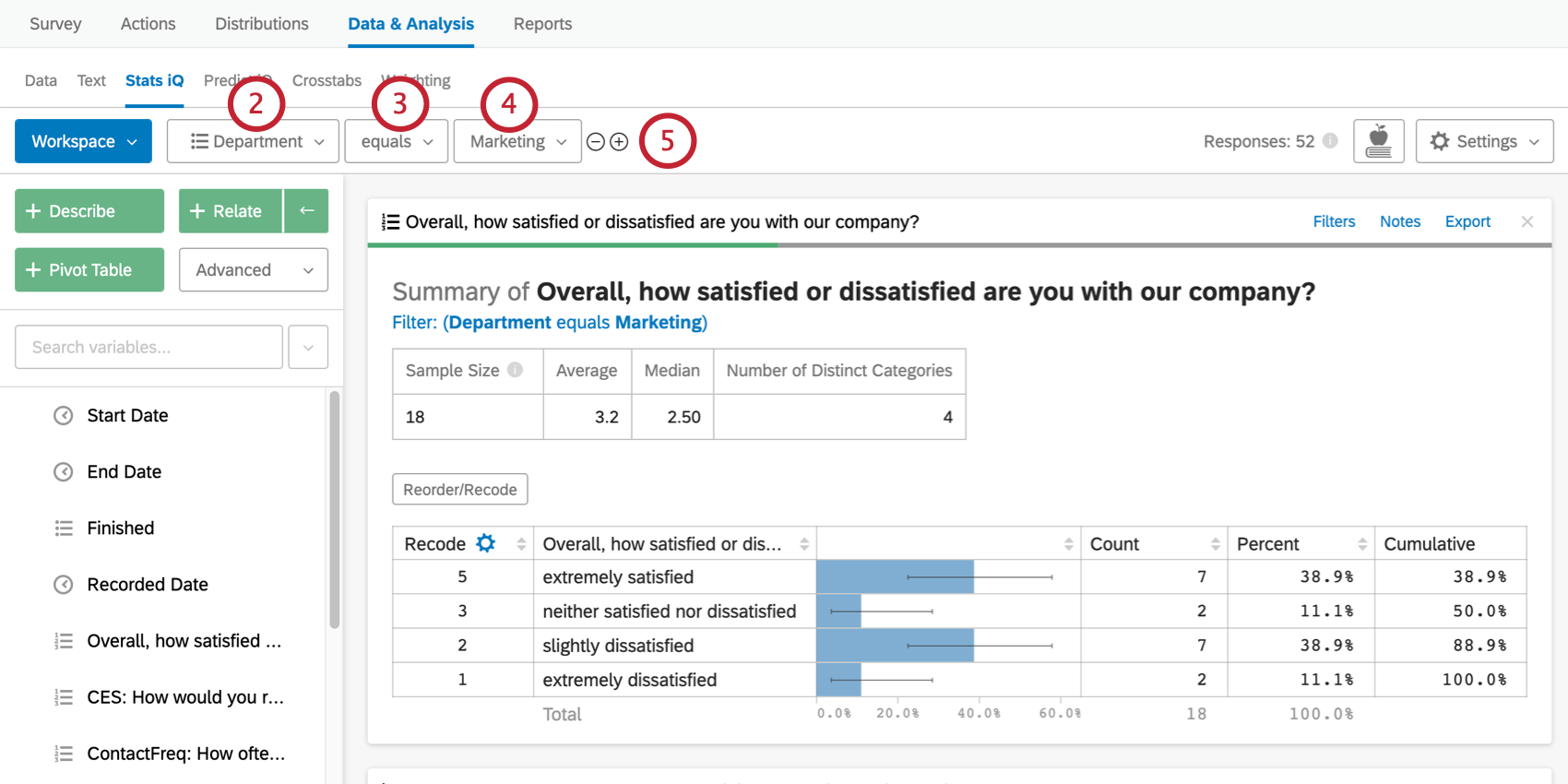
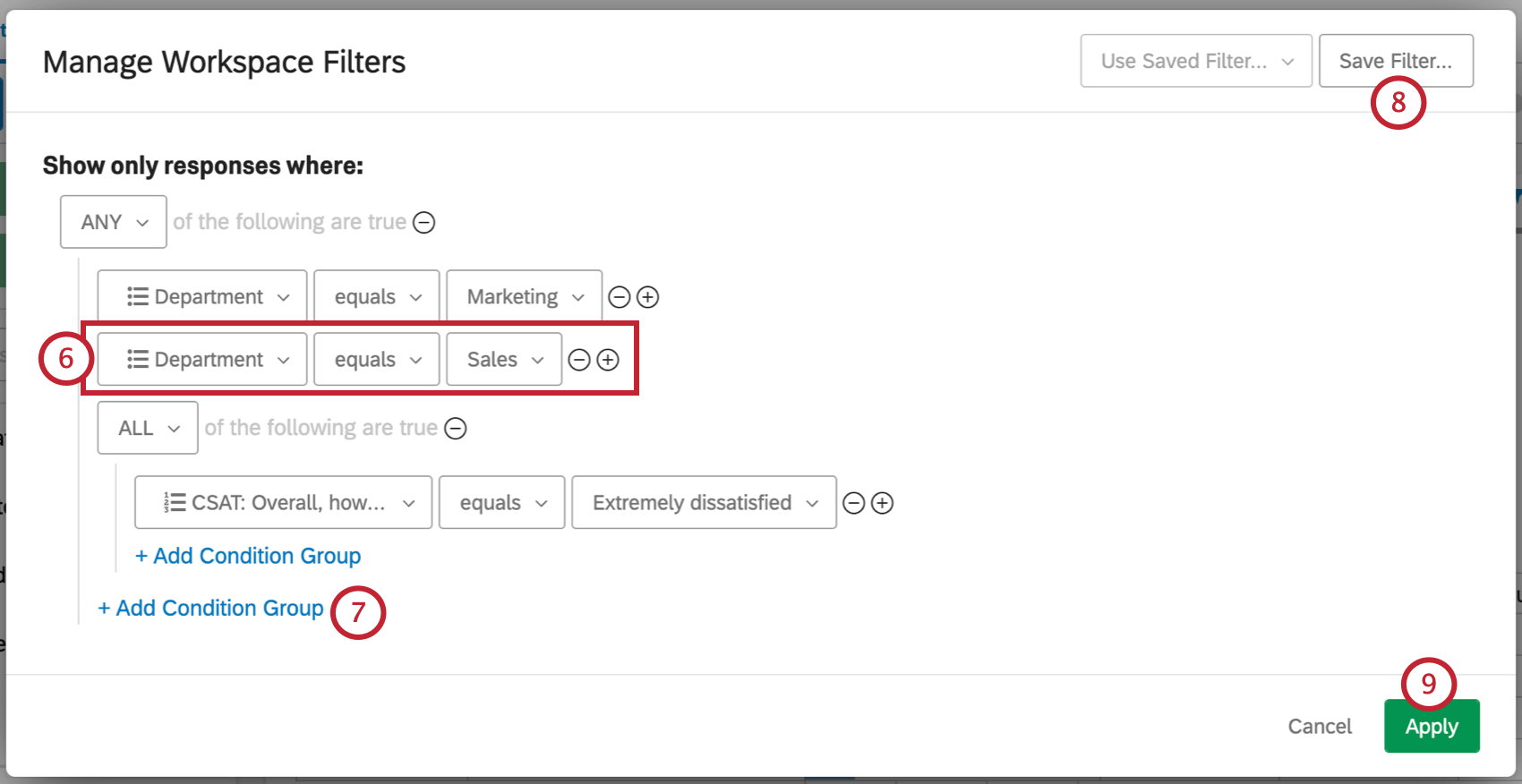
Qtip: Condition Groups are similar to Condition Sets in other Qualtrics filters. You can also see the following linked pages for more information on All vs. Any and Nesting Logic.

Card Filters
In addition to workspace-level filters, you can also add filters to individual analysis results. These filters only apply to the analysis they are added to. To add an analysis-level filter, click the Filters button in the upper-right corner of the analysis. The filter menu that appears will allow you to add filter conditions and condition groups in the same way that you can for a workspace.
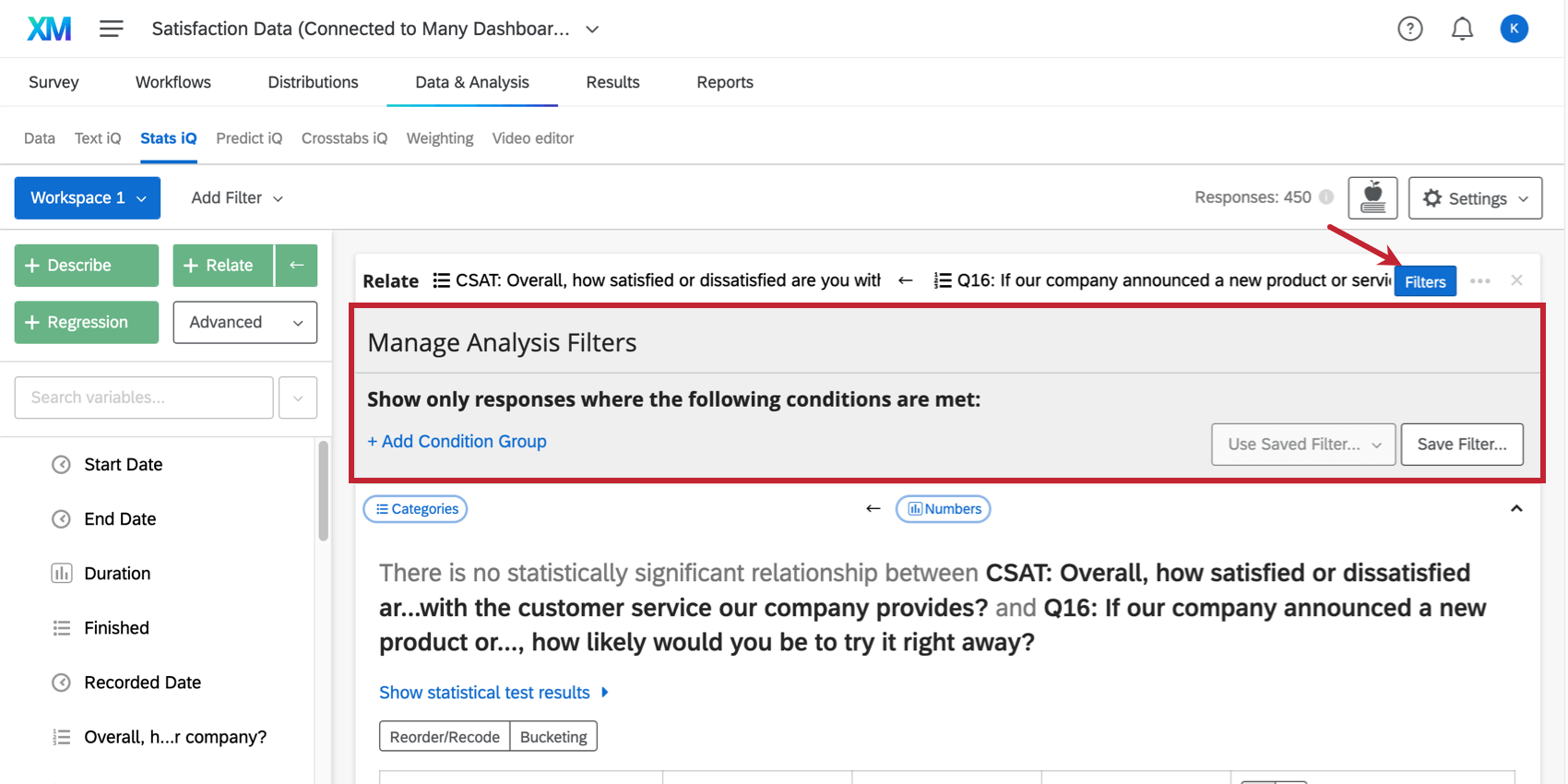
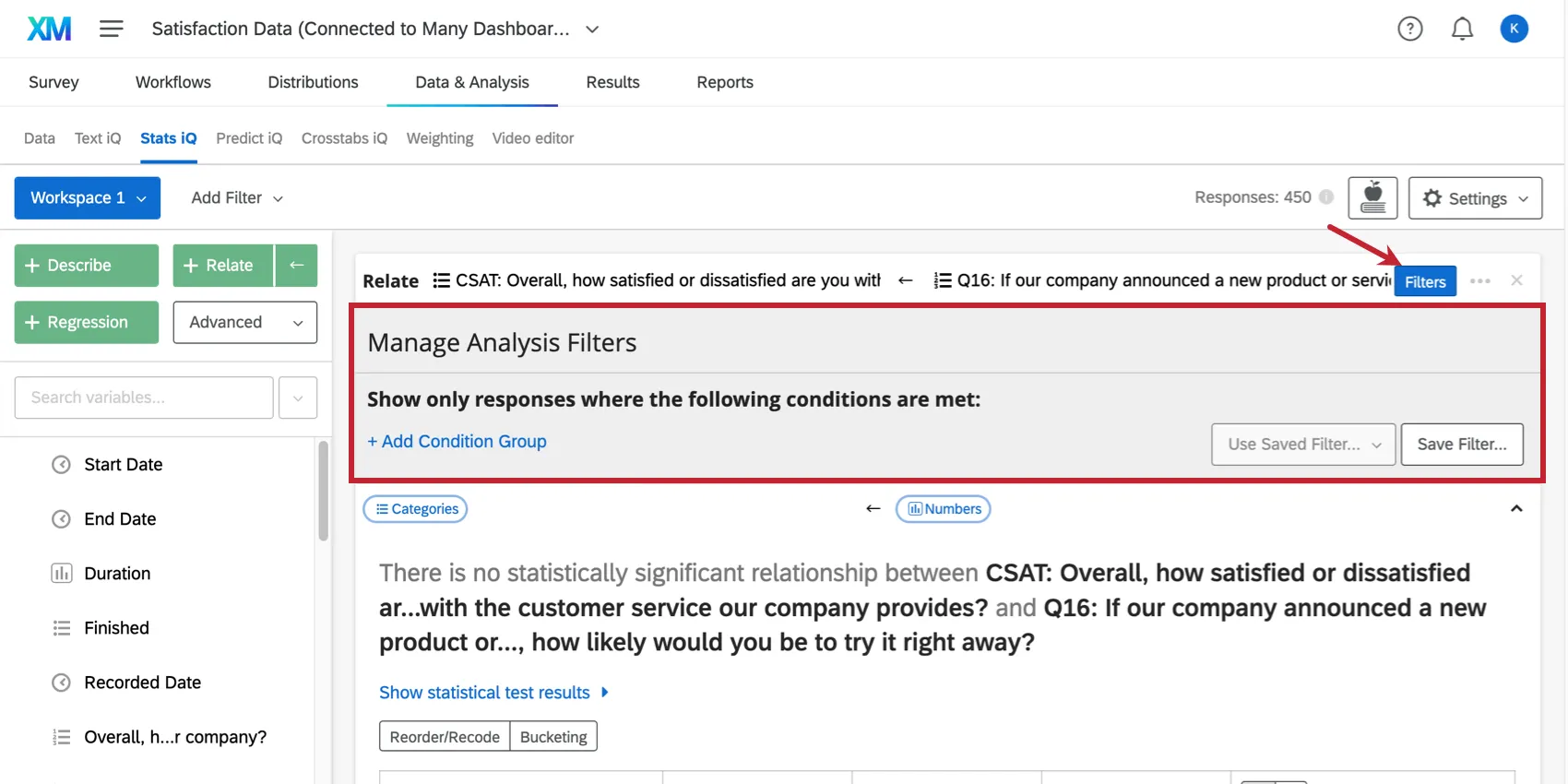
Clicking Use Saved Filter in the lower-right will allow you to apply any of the filters that you have saved previously.
Qtip: If you have already added a workspace level filter, this filter will appear on any card level filters as well. Data must meet both the workspace and the analysis filters in order to be included in the analysis.
Condition Groups
Condition groups allow you to add logic to your filters to create more complex conditions. There are two connecting words that you can use between groups of conditions.
- “Any” behaves in the same way as a logical “OR”; only one condition in an “Any” group needs to be true for a response to be included in the analysis, and responses that satisfy more than one condition will also be included.
- “All” behaves in the same way as a logical “AND.” All conditions in an “All” group must be satisfied for a response to be included in the analysis.
FAQs
Which question types are compatible with Stats iQ?
Which question types are compatible with Stats iQ?
How do I filter the data that appears in Stats iQ?
How do I filter the data that appears in Stats iQ?
How do I get my new responses to show up in Stats iQ?
How do I get my new responses to show up in Stats iQ?
I don‘t see Stats iQ in my account. How do I access Stats iQ?
I don‘t see Stats iQ in my account. How do I access Stats iQ?
What’s Stats iQ? / Where’s Statwing?
What’s Stats iQ? / Where’s Statwing?
What if I receive the message “No data is available”?
What if I receive the message “No data is available”?
How can I stay up to date on new Qualtrics features?
How can I stay up to date on new Qualtrics features?
To access these release notes, you need an XM Community account. These accounts are free for any users with a Qualtrics account. This support page contains information for how to register an XM Community account.
Once you're logged into the XM Community, head over to the Weekly Product Updates Introduction Post. This post contains all the information you need to get started with subscribing to product updates!
What do I do if my data isn't loading properly?
What do I do if my data isn't loading properly?
That's great! Thank you for your feedback!
Thank you for your feedback!