

Tickets Queues
What's on this page
About Tickets Queues
Ticket queues are perfect for large teams working on tickets. Ticket queues prevent multiple people from working on the same ticket at the same time. They also manage assignment of tickets so that they only go to owners who are ready to work on a ticket.
Qtip: Only Brand Administrators and CX Administrators can create and edit ticket queues.
Ticket Assignment
Click Queues.
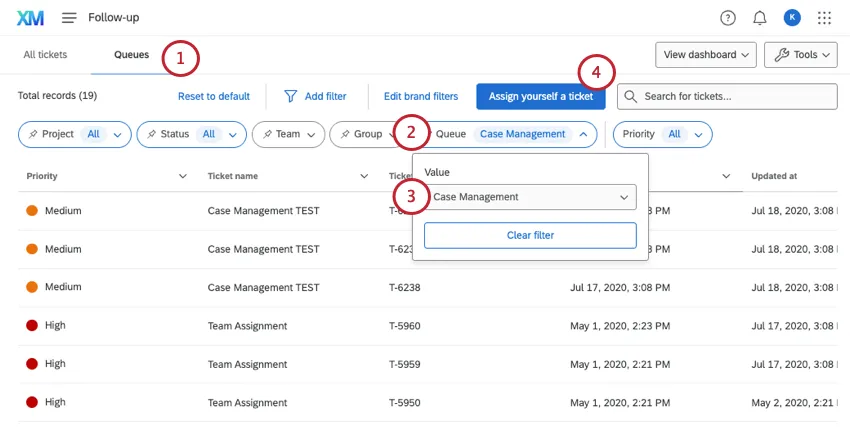
- Use the Queue filter.
- Select a specific queue.
- Click Assign yourself a ticket.
Qtip: When a queue is selected, the tickets list will be filtered to show only tickets that have been taken from that queue. Not all the tickets waiting in the queue will be visible, since you need to use the assignment button to claim them.
Qtip: The Ticket Assignment Order during the set-up determines what order these tickets are assigned.
Tickets included in the queue
Tickets that match the following criteria are included in queues and can thus be assigned to people accessing those queues:
- Tickets that match the conditions set
- Tickets that do not have an individual owner assigned to them. Teams assigned to tickets are not considered individual owners.
Once a ticket is assigned to an individual, it is no longer in the queue.
Setting up Ticket Queues
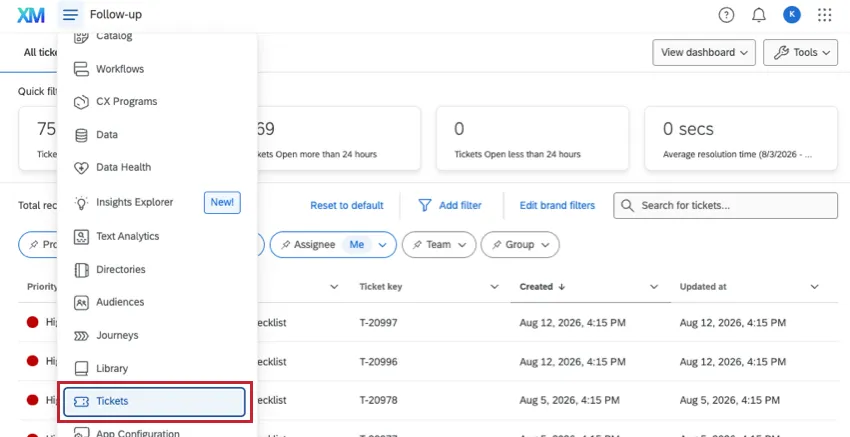
Go to Tickets.
Click Tools.
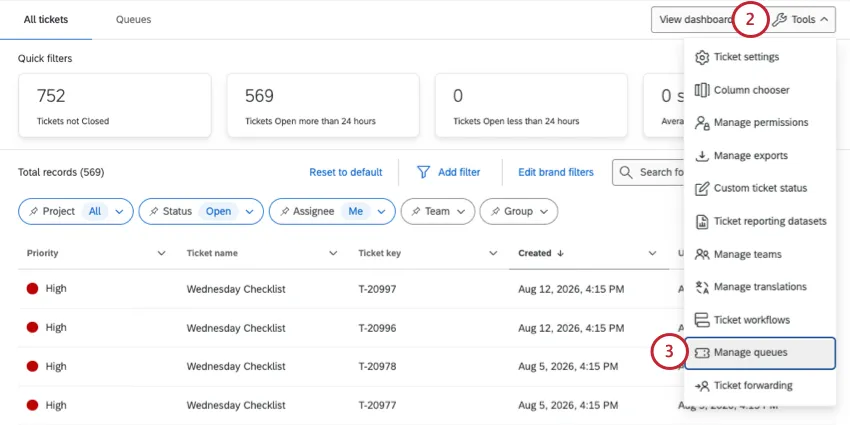
Select Manage queues.
Click Add Ticket Queues.
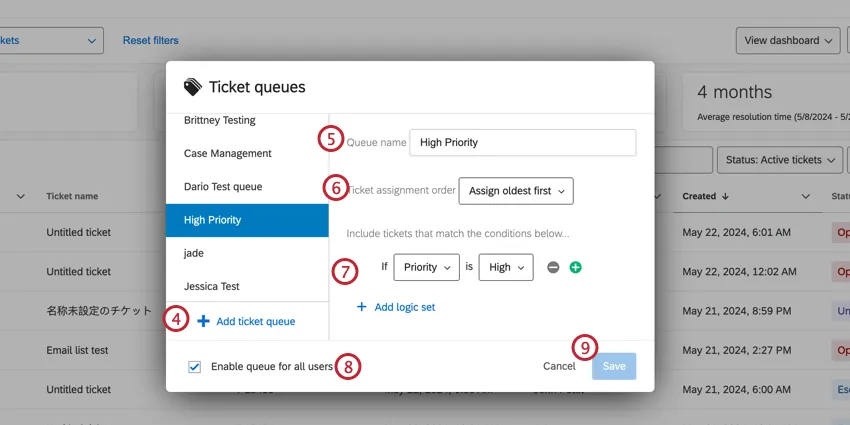
Give your ticket queue a name.
Decide what order tickets are assigned in. For example, when someone requests a ticket to work on, should they automatically get the oldest one? Or the highest priority?
Set up conditions to determine which tickets are added to a queue.
Qtip: You should add a condition related to ticket status – otherwise, closed tickets are included in assignment by default! For more on setting conditions, see the Conditions section below.
Select Enable queue for all users to turn this queue on for all users, regardless of whether they are Brand Administrators. If this option is disabled, only admin users (Brand Administrators, CX Administrators, or users with the Ticket Admin permission) can see the queue and pull tickets from it.
Click Save to save your queue.
Conditions
Conditions are important in determining when tickets are added to a certain queue. This section will go over the different components involved in building complex conditions.
Types of Conditions
Conditions can be based on any of the following:
- Project: The project the ticket was generated in.
Status: The status of the ticket.

Qtip: It is advised you add a status-based condition. For example, you probably only want to assign tickets if their status is open – not resolved or closed!
- Priority: The priority of the ticket.
- Team: The team assigned to the ticket. If the person viewing the queue does not belong to this team, they will not see these tickets.
Adding and Deleting Conditions
After you add the initial condition, you can add conditions by clicking the plus sign ( + ) and remove conditions by clicking the minus sign ( – ).
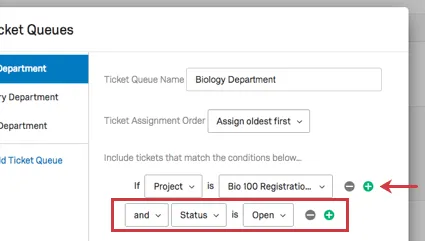
Conditions are joined by conjunctions and and or. In the example above, a ticket must be from the Bio 100 Registration project and have a Status of Open to appear in the Biology Department queue.
Adding Logic Sets
Logic sets add another layer of organization to your conditions. They are sets of multiple conditions joined by and or or. In the example below, there are two logic sets: the content above the or, and the content below the or.
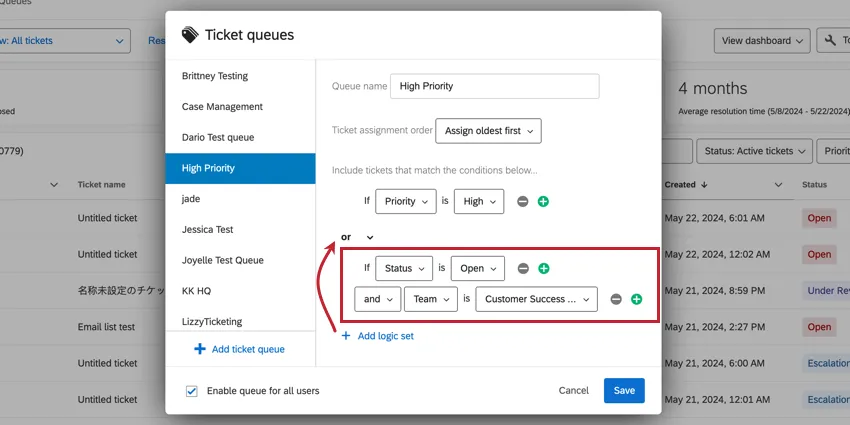
Click Add Logic Set to add another logic set.
Example: In the image above, the logic determines that a ticket will be part of the Biology Department queue if it is from the Bio 100 Registration project and has a Status of Open – OR, if it doesn’t meet both of those conditions, it must be both from the project Major/Correlate Evaluation and be assigned to the Team biology Department.

Ticket Reporting
Ticket queues function with ticket reporting in CX Dashboards. You are able to report on the name of the queue and the time the ticket was taken from the queue.
That's great! Thank you for your feedback!
Thank you for your feedback!