

Workflows in Global Navigation
What's on this page
About Workflows in Global Navigation
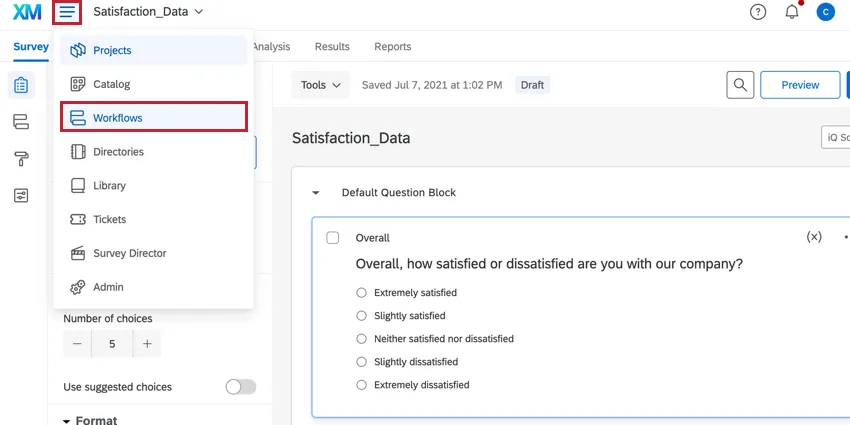
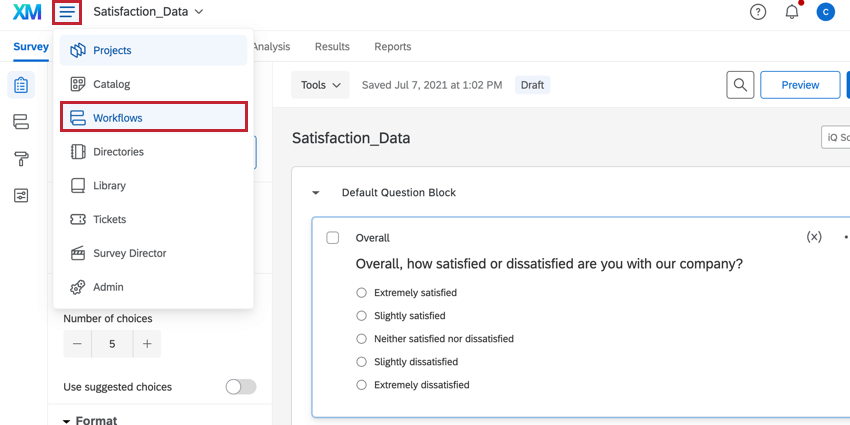
The global workflows page provides a centralized hub for you to view information about all of your workflows, such as your workflows’ run statuses and where they’re located in your account. To navigate to the global workflows page, click the navigation menu in the top-left corner and select Workflows.
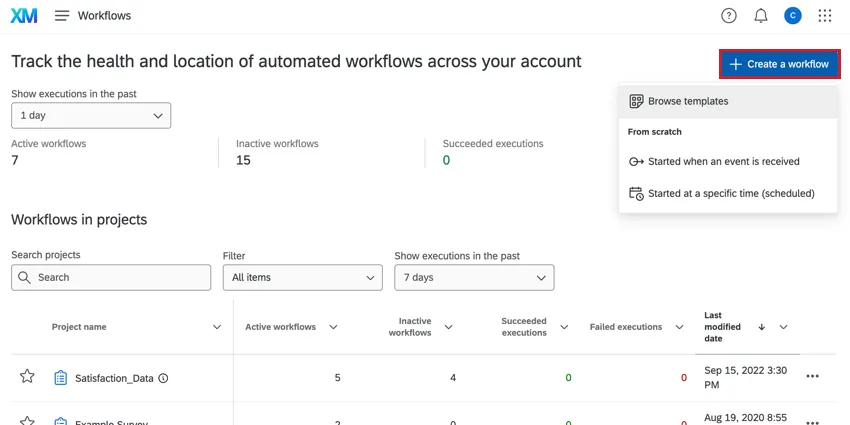
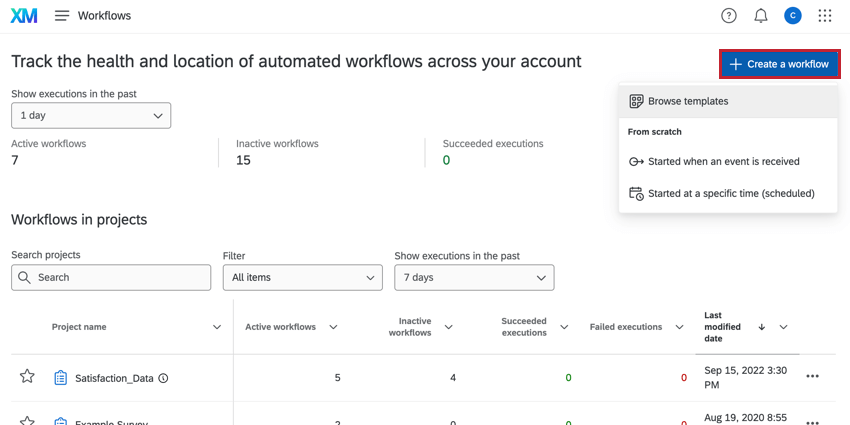
You can also create a workflow that is not associated with a specific project by clicking the Create a workflow button that appears on the global Workflows page.
Using the Workflows Dashboard
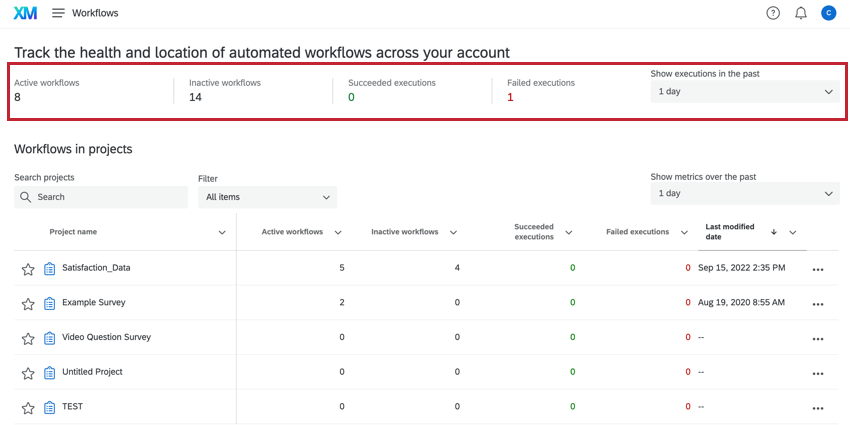
The workflows dashboard gives you insight into key metrics about all workflows across your account. This dashboard shows you all workflows you have access to, including workflows you’ve created yourself and workflows that have been shared with you.
At the top of the dashboard, you will see the following performance metrics:
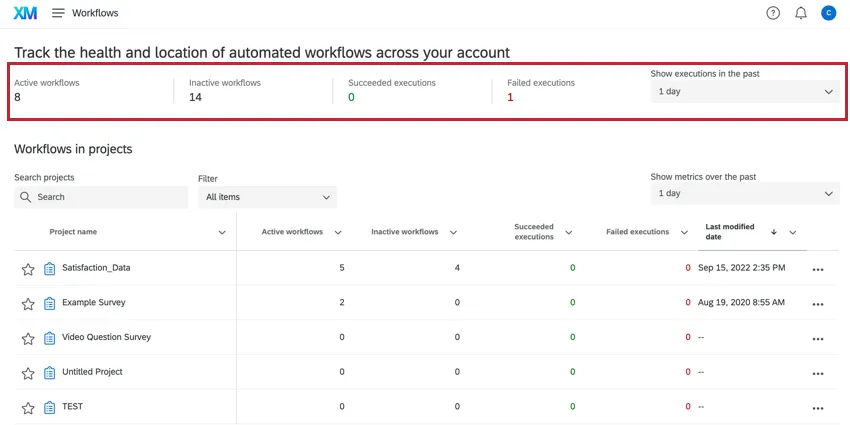
- Active workflows: The number of workflows in your account that are active. An active workflow is a workflow that is turned on in the workflow editor.
- Inactive workflows: The number of workflows in your account that are inactive. An inactive workflow is a workflow that is turned off in the workflow editor.
- Succeeded executions: The number of times your workflows successfully ran within the selected time period.
- Failed executions: The number of times your workflows failed to run within the selected time period.
You can change the time period for these metrics by using the Show executions in the past dropdown. The selected time period is saved for your account, meaning that if you navigate away from global workflows and then come back, your time period selection will be saved.
Workflows in Projects
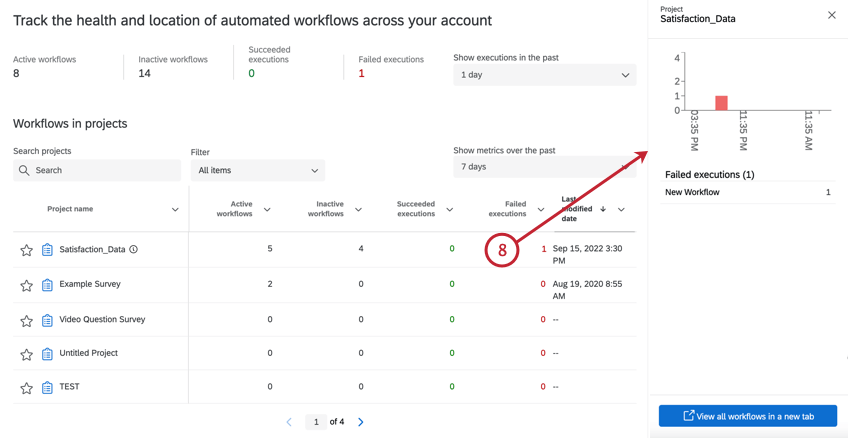
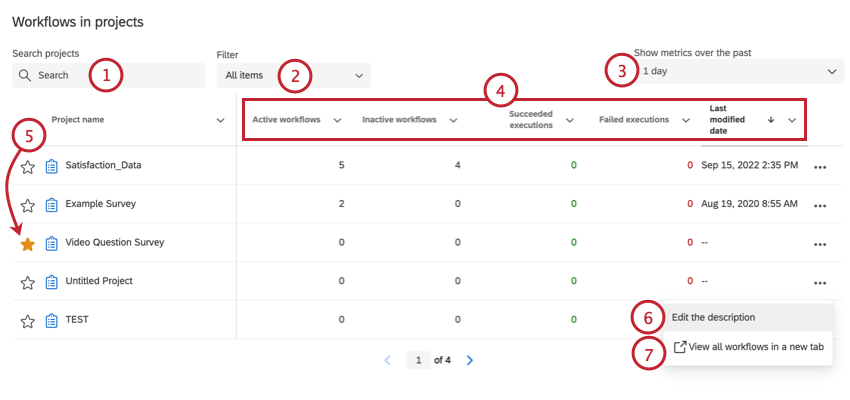
The Workflows in projects section displays all the workflows you have that are associated with a project (i.e., the workflow was created in the “Workflows” tab of the project). In this table, you can:
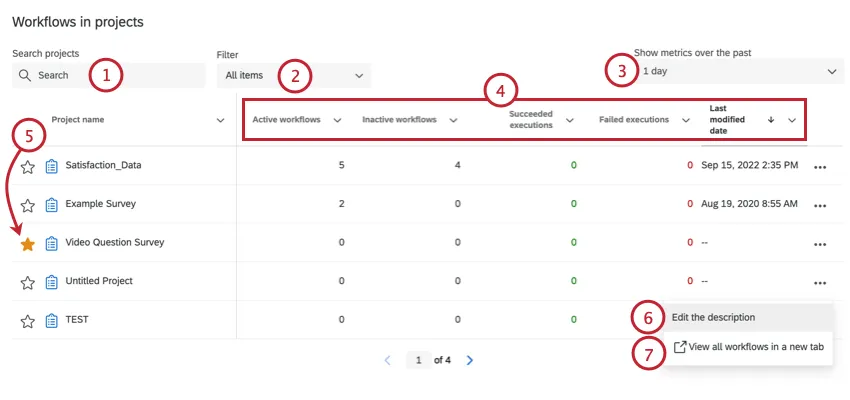
- Active workflows: The number of workflows in your account that are active. An active workflow is a workflow that is turned on in the workflow editor.
- Inactive workflows: The number of workflows in your account that are “inactive.” An inactive workflow is a workflow that is turned off in the workflow editor.
- Succeeded executions: The number of times your workflows successfully ran within the selected time period.
- Failed executions: The number of times your workflows failed to run within the selected time period.
- Last modified date: The date and time of the most recent change to the project’s workflows.
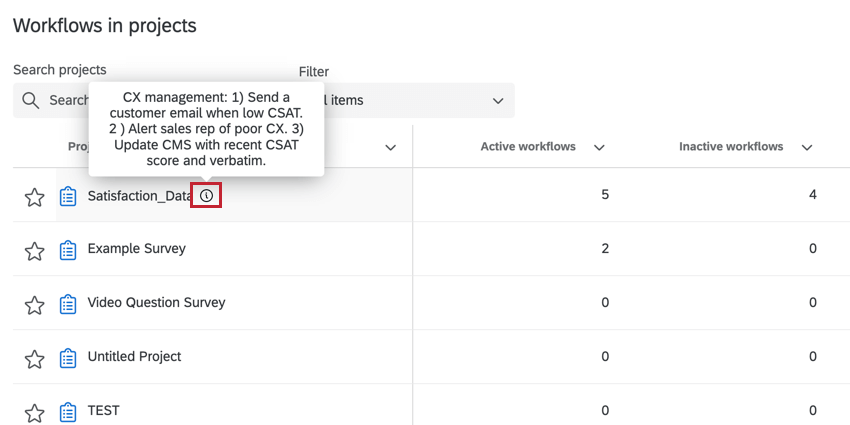
Qtip: If the numbers of workflows for your survey appear higher in this table than when you open the Workflows tab, you likely have response export/import automations in that survey. These are automations very similar to workflow, except they are set up in Data & Analysis instead.

Stand-Alone Workflows
The Stand-alone workflows section displays workflows that are not linked to a project. The table in this section functions the same as the “workflows in projects” table. See the above section for more details.
You can view all of your stand-alone workflows using 2 different options:
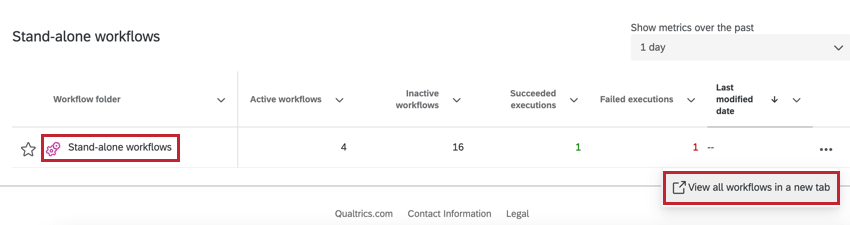
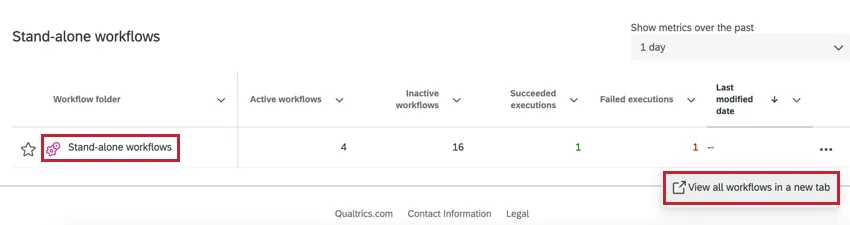
After choosing one of these options, you will be directed to a page that lists all stand-alone workflows you have access to. You can select a workflow to edit it and view more information about the workflow.
For more information on building and managing workflows, see Workflows Basic Overview.
FAQs
How quickly can I expect workflows to run?
How quickly can I expect workflows to run?
Is there a maximum size workflows can be?
Is there a maximum size workflows can be?
An individual workflow can only be up to 1 MB in size before it starts to fail. You can only export up to 1 MB of details when exporting data from a workflow task. If you try to export more than that, you will see the error message "The execution has surpassed the platform limit" in the reporting page.
This task is marked as “Preview.” What does that mean?
This task is marked as “Preview.” What does that mean?
That's great! Thank you for your feedback!
Thank you for your feedback!