

Configuration Tab (Product Testing)
What's on this page
About the Configuration Tab
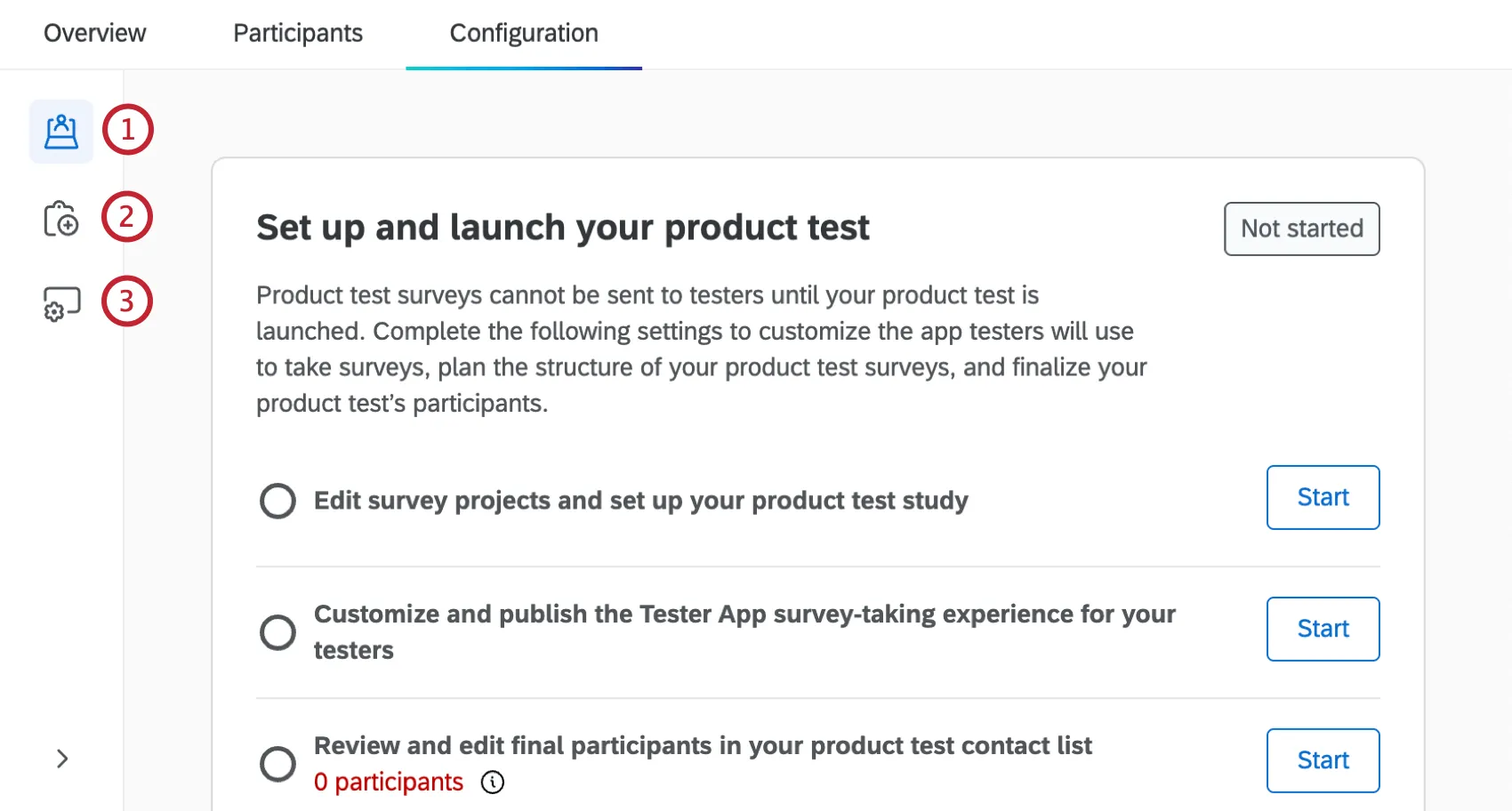
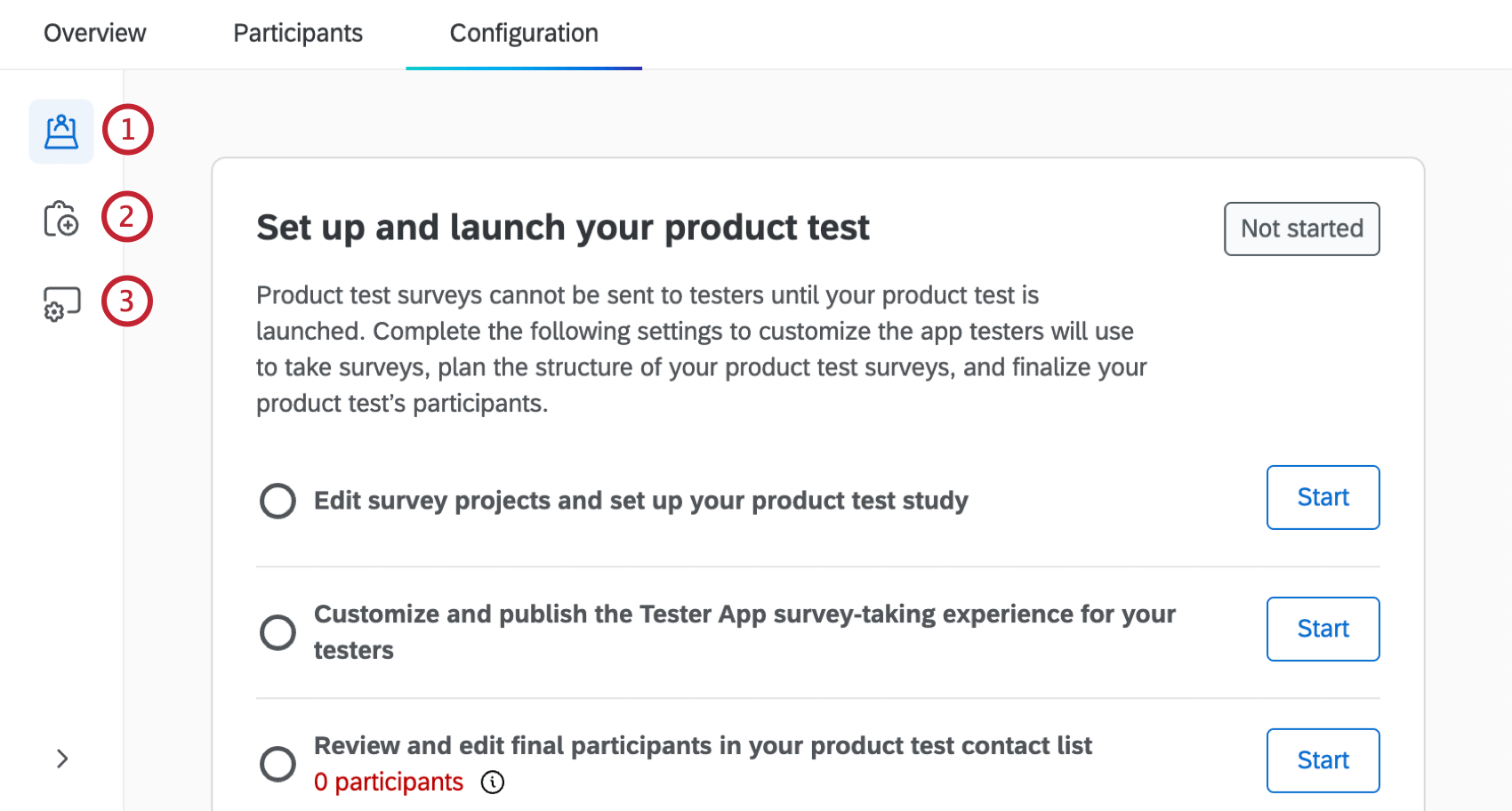
In the Configuration tab you can set up and launch your product test. This includes editing your product test surveys, customizing the app testers will use to take surveys, and finalizing your participants.
There are 3 sections within the Configuration tab:
For more information on Product Testing projects, see Product Testing Overview.
Adding Surveys to Your Product Test
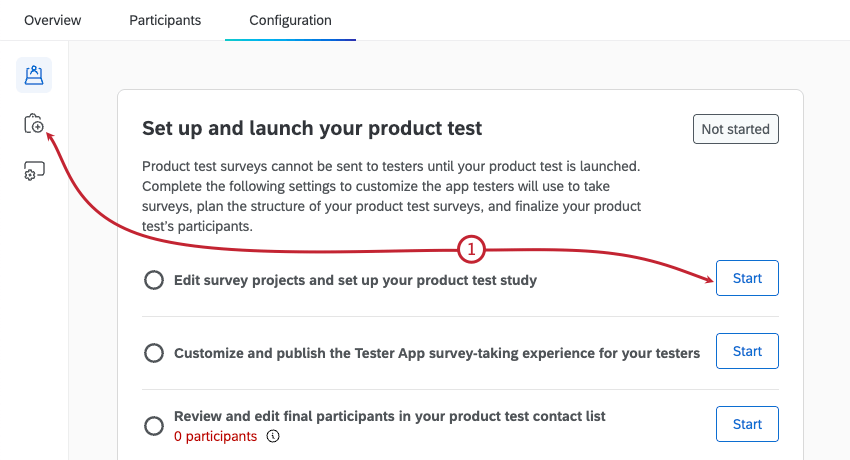
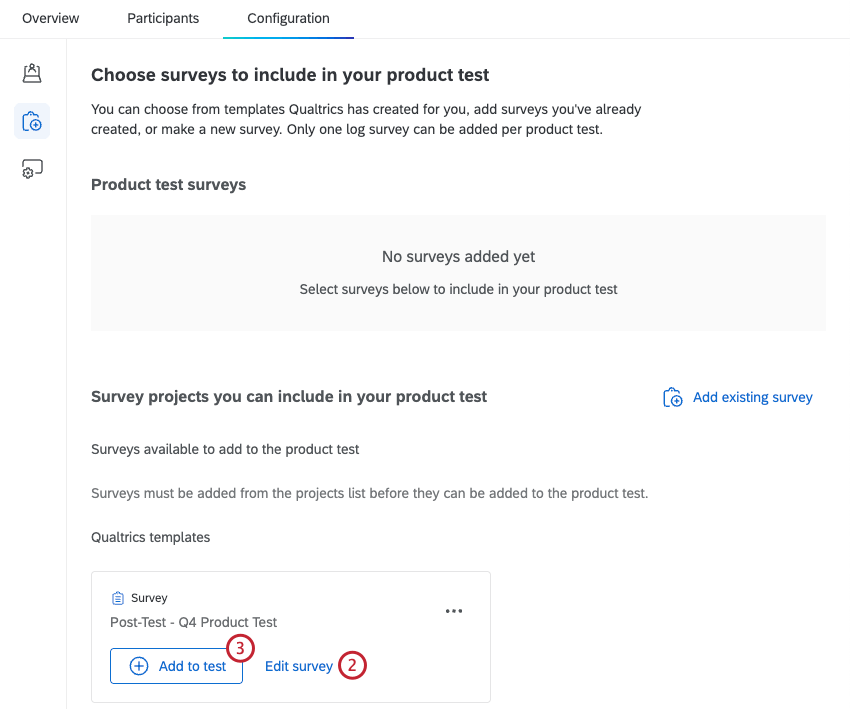
Before your product test is launched, you have to select which surveys to include. At this stage you should also make sure any survey projects you plan to include are finalized and ready to be distributed. Any surveys you add will be available to testers in the tester app.
Qtip: text here
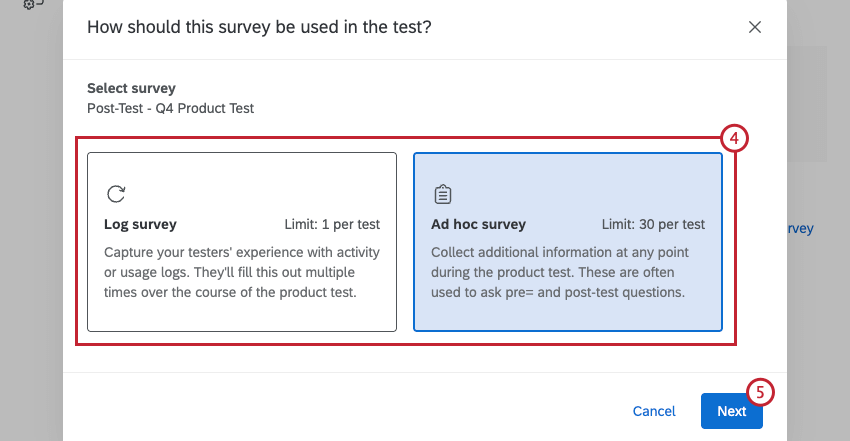
- Log survey: Capture testers’ experience with activity or usage logs. This survey will be filled out multiple times during the product test. Attention: You can only have 1 Log survey within your product test. The survey you use here should be the Activity / Usage log survey created when you set up your project.

- Ad hoc survey: Capture additional information from testers at any time during the product test. Qtip: You can have up to 30 Ad hoc surveys within your product test. These often ask pre or post-test questions.

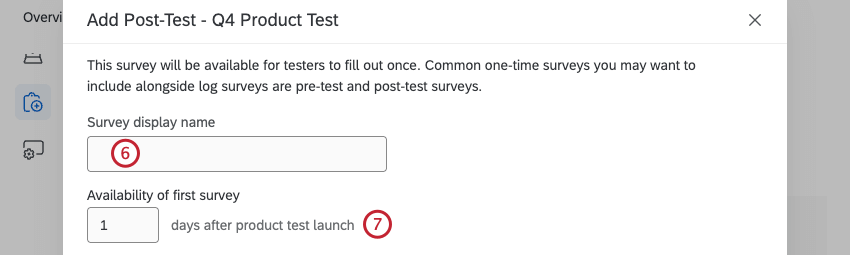
Qtip: To make your survey available on the same day the product test launches, enter 0 here.
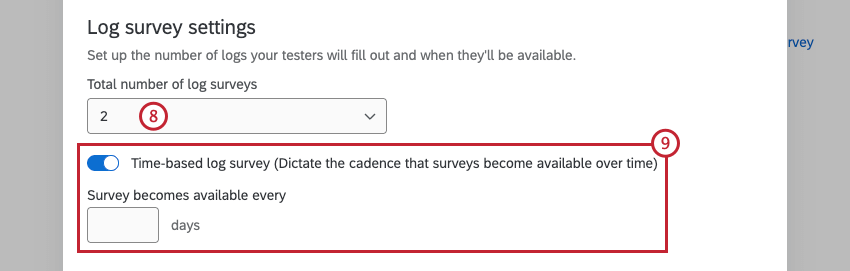
Adding Existing Surveys
Any surveys generated when you create your product test project will automatically show up within the Configuration tab. To use other existing surveys in your product test, you have to add them manually from the projects page.
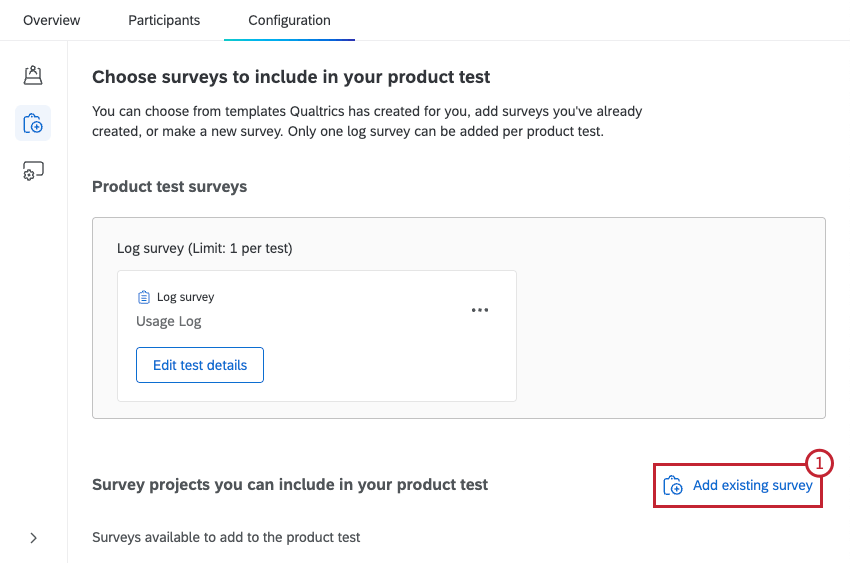
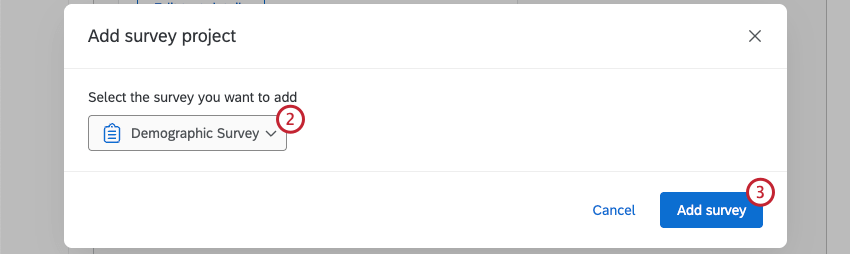
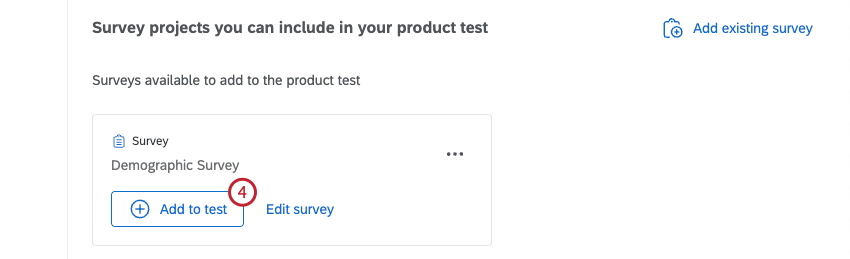
After surveys have been added to your product test, click the 3 horizontal dots next to one to edit the survey or remove it from the product test.
Customizing the Tester App
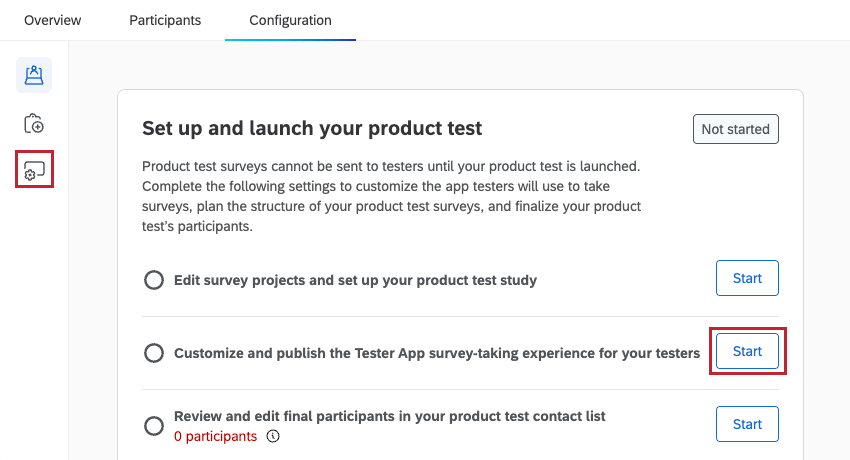
Before launching your product test, you can customize the app that testers use to see available surveys. Once the app is set up, product testers can use it as a centralized place to view all surveys available to them.
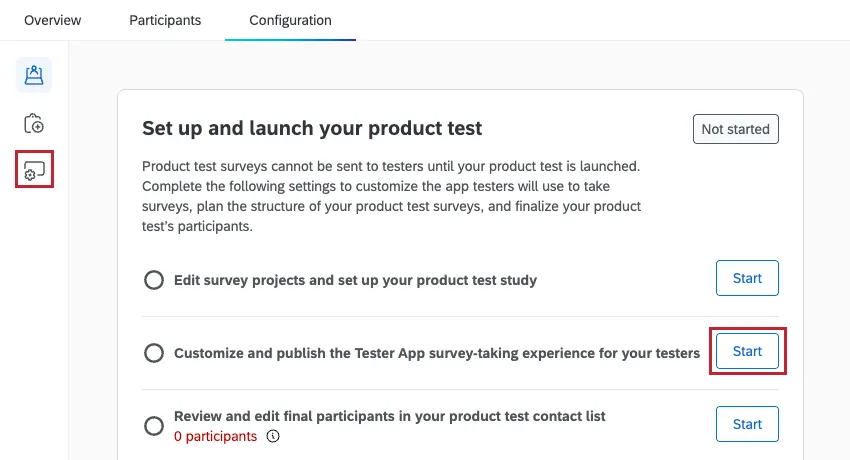
To start editing the tester app, select the Tester app setup section, or click Start next to “Customize and publish the Tester App survey-taking experience for your testers” within the Product test overview section. For step-by-step instructions on how to configure each component of the app, see Customizing the Product Test App support page.
Finalizing Your Product Test Contact List
When you’ve finished configuring your product test project, the last step is finalizing the contact list of testers who will be using your product. In this step you can view the contact list that was automatically created from the results of your screener survey, and make any necessary edits.
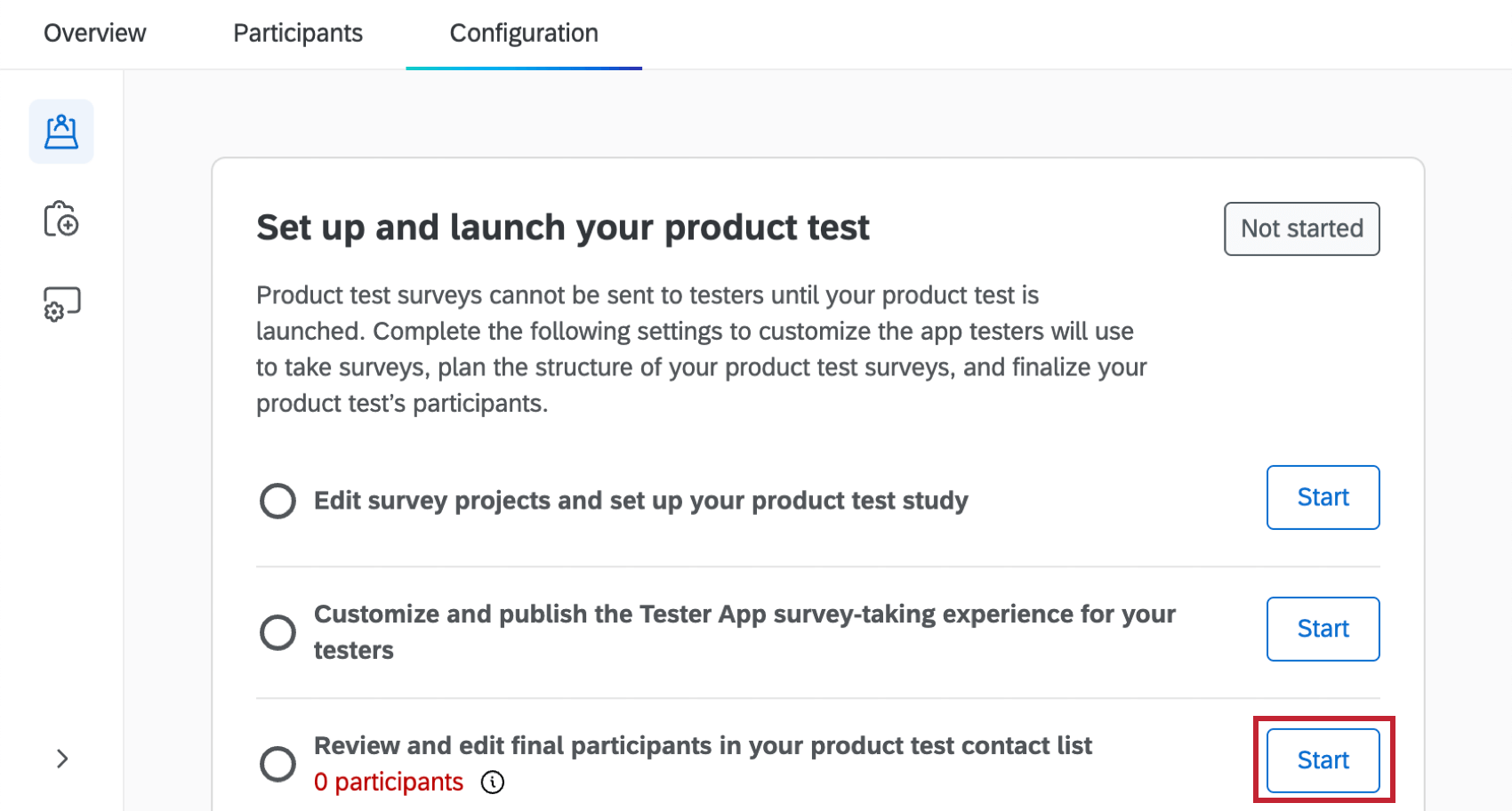
While you can access your product test contact list by clicking Start next to “Review and edit final participants in your product test contact list” within the Configuration tab, this list is finalized within the Participants tab. For instructions on finalizing the list, see Finalizing Your Product Test Contact List on the Participants Tab support page.
Launching Your Product Test
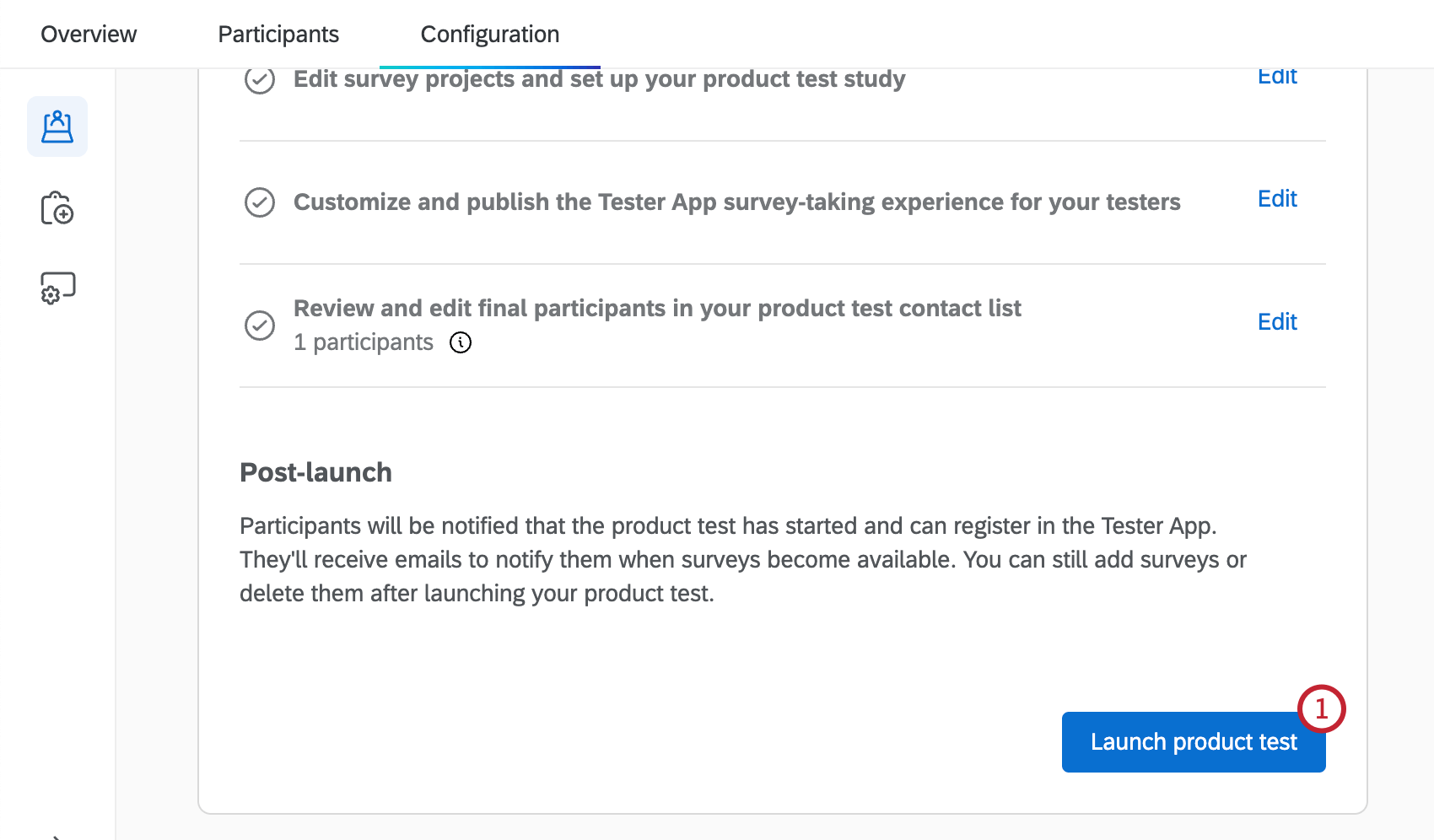
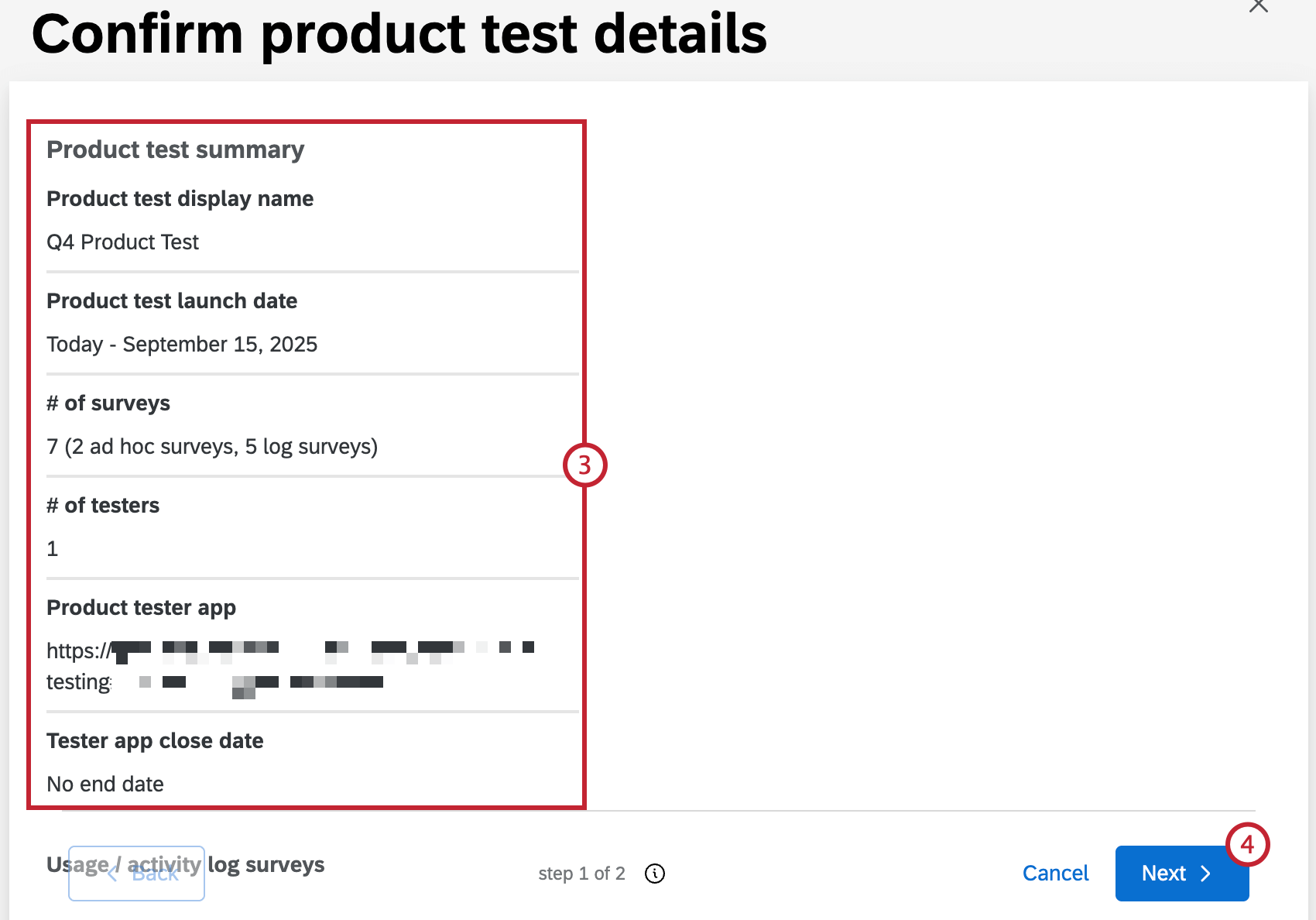
Once you’ve finished configuring your product test and tester app, you can confirm the details of your test and launch it to testers.
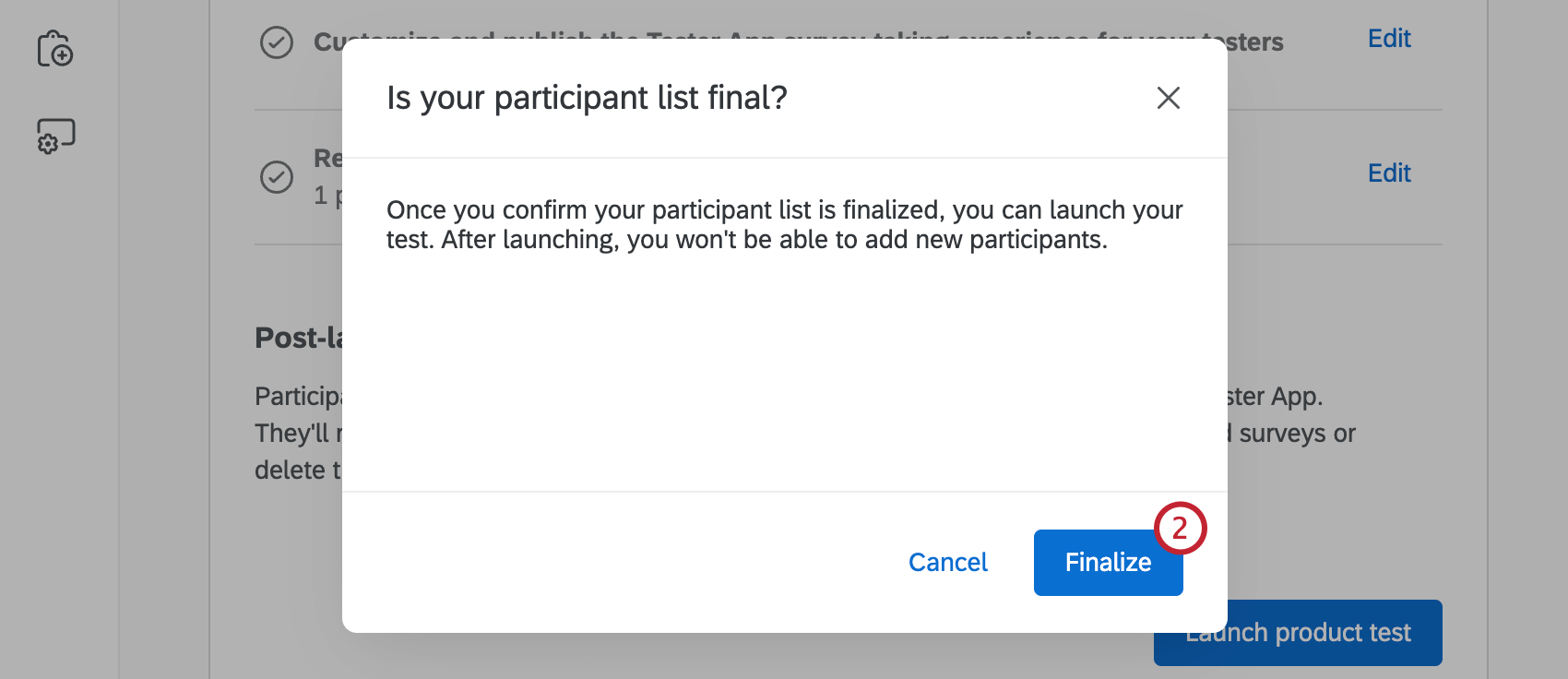
Attention: Once you finalize your participant list, you won’t be able to add new participants.
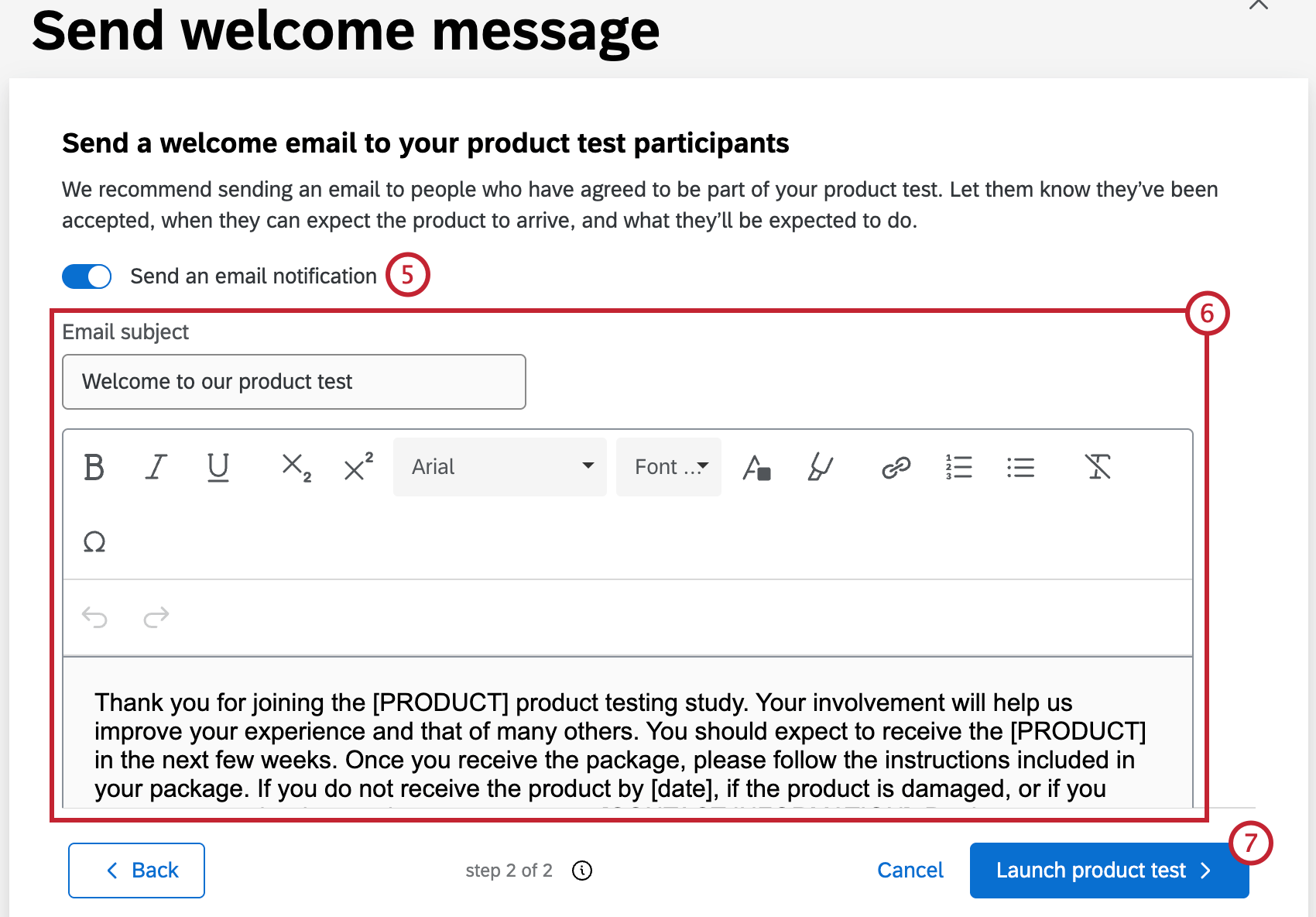
Qtip: This is recommended, because it lets testers know they’ve been accepted, when they can expect the product to arrive, and what they’ll be expected to do.
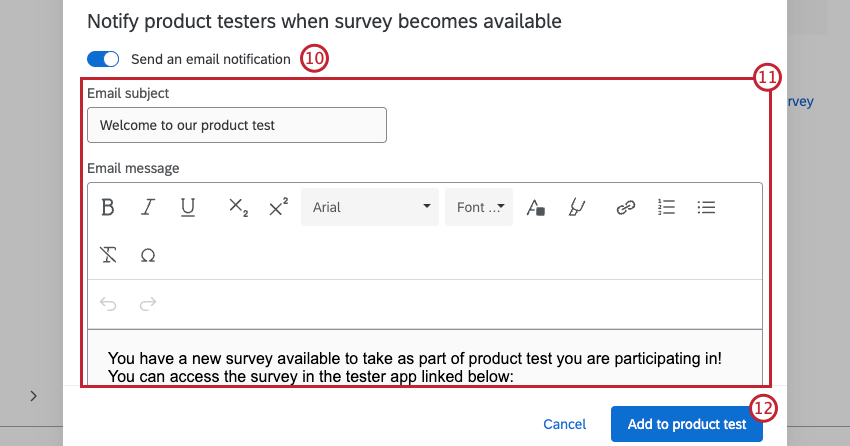
Participants will be notified that the product test has started and can register in the Tester App. They’ll receive emails to notify them when surveys become available. You can still add surveys or delete them after launching your product test.
After Launching Your Product Test
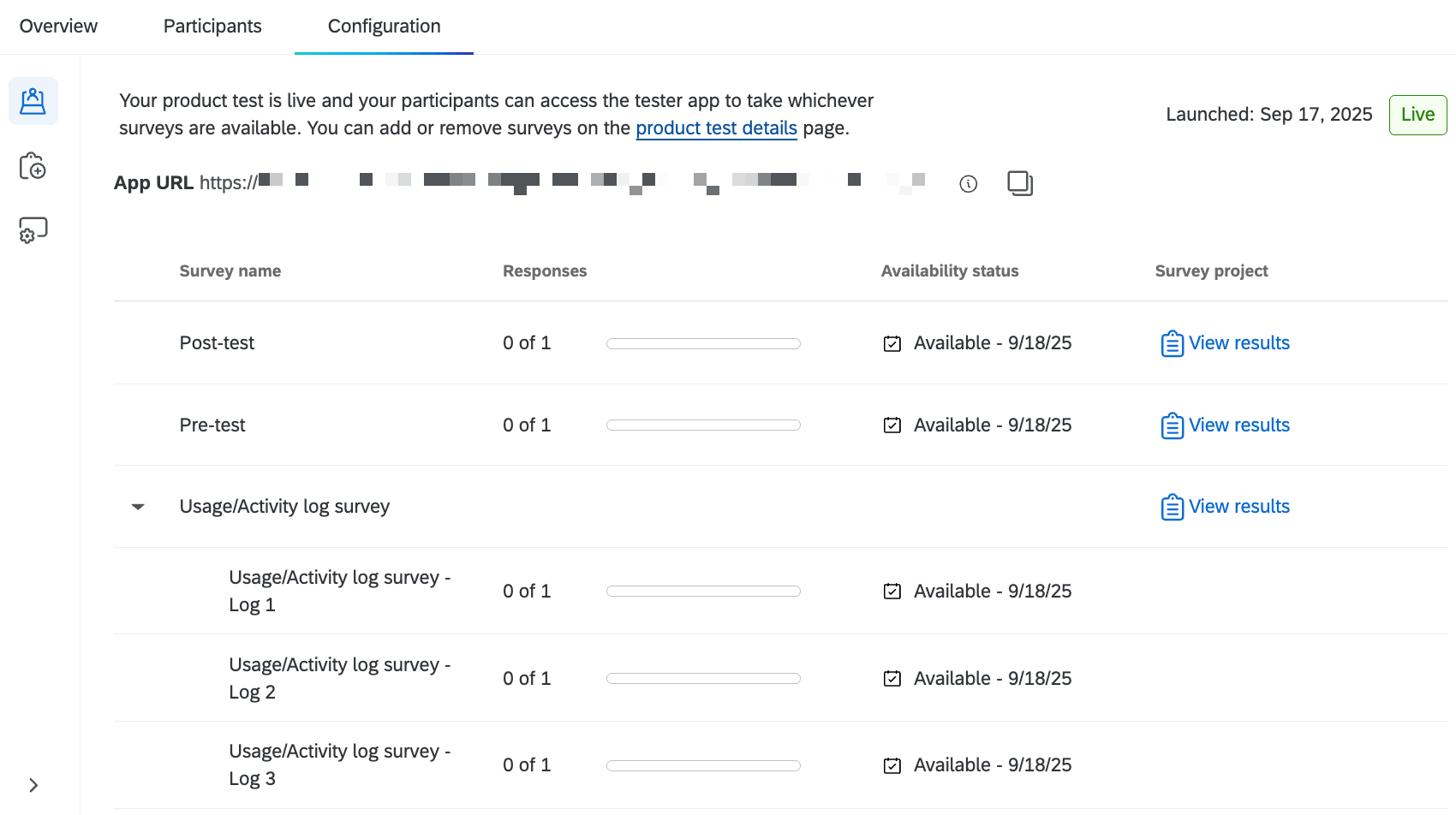
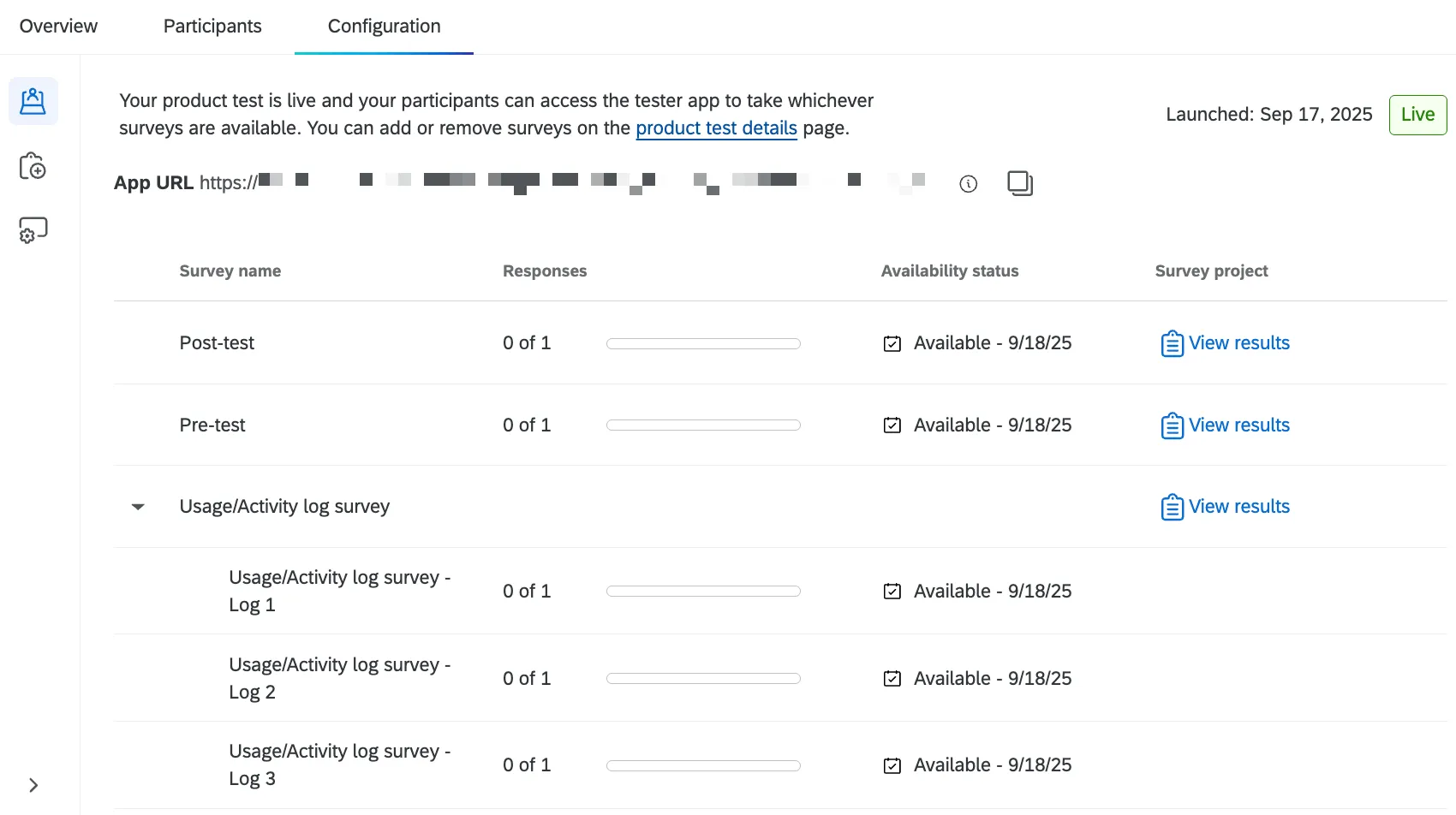
Once your product test is launched, you can still add additional surveys or make changes to the tester app. The Product test overview section will now display a summary of all the surveys involved in your product test, including how many responses you’ve collected.
You can also copy the tester app URL at the top of the page to share with participants. For more information, see Sharing the Tester App.
That's great! Thank you for your feedback!
Thank you for your feedback!