

Customizing the Product Test App
What's on this page
About the Tester App
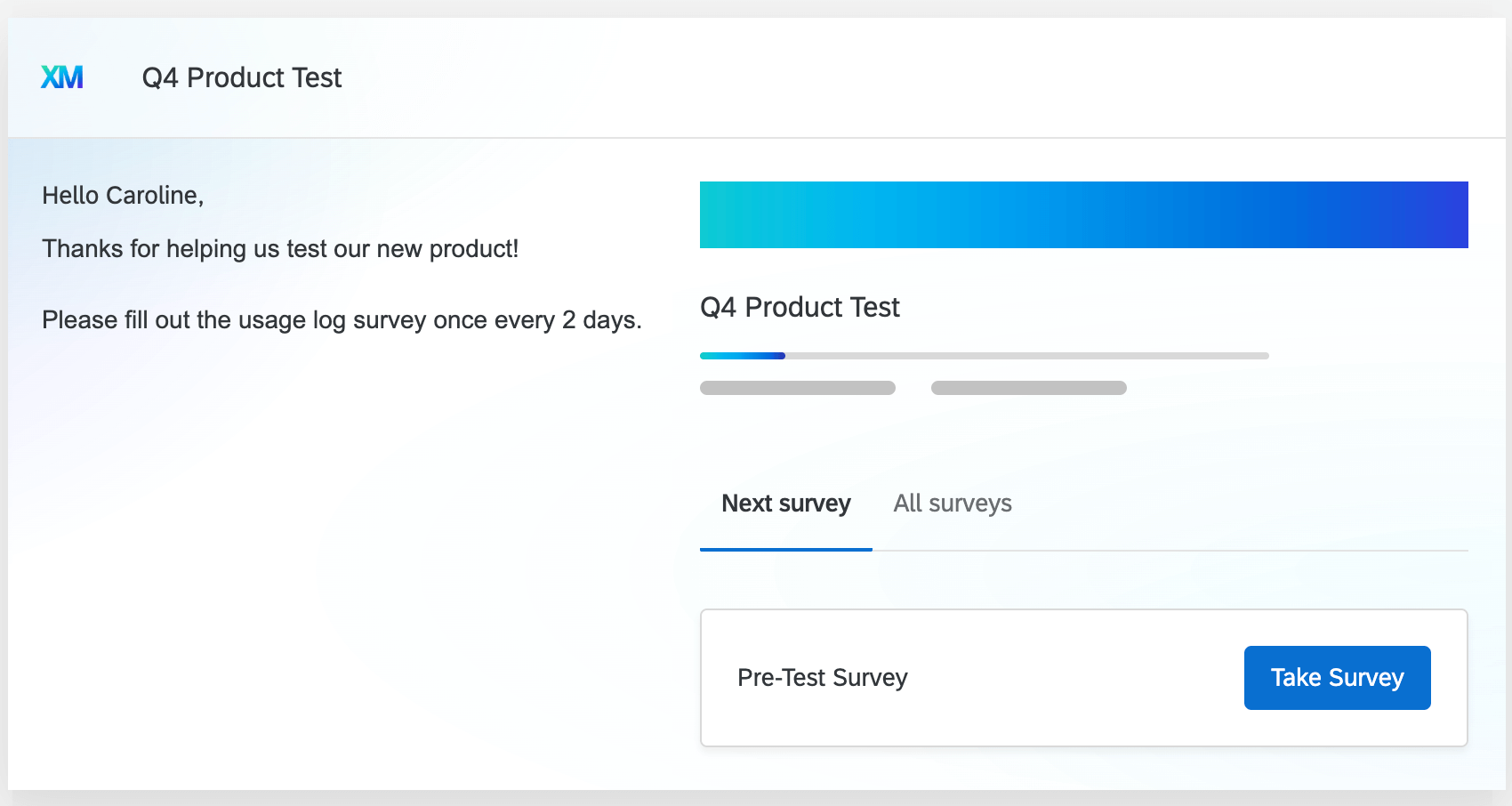
The tester app is a centralized place where participants in your product test can view all surveys available to them. Here they can view information about your product test, including instructions, and access your surveys.
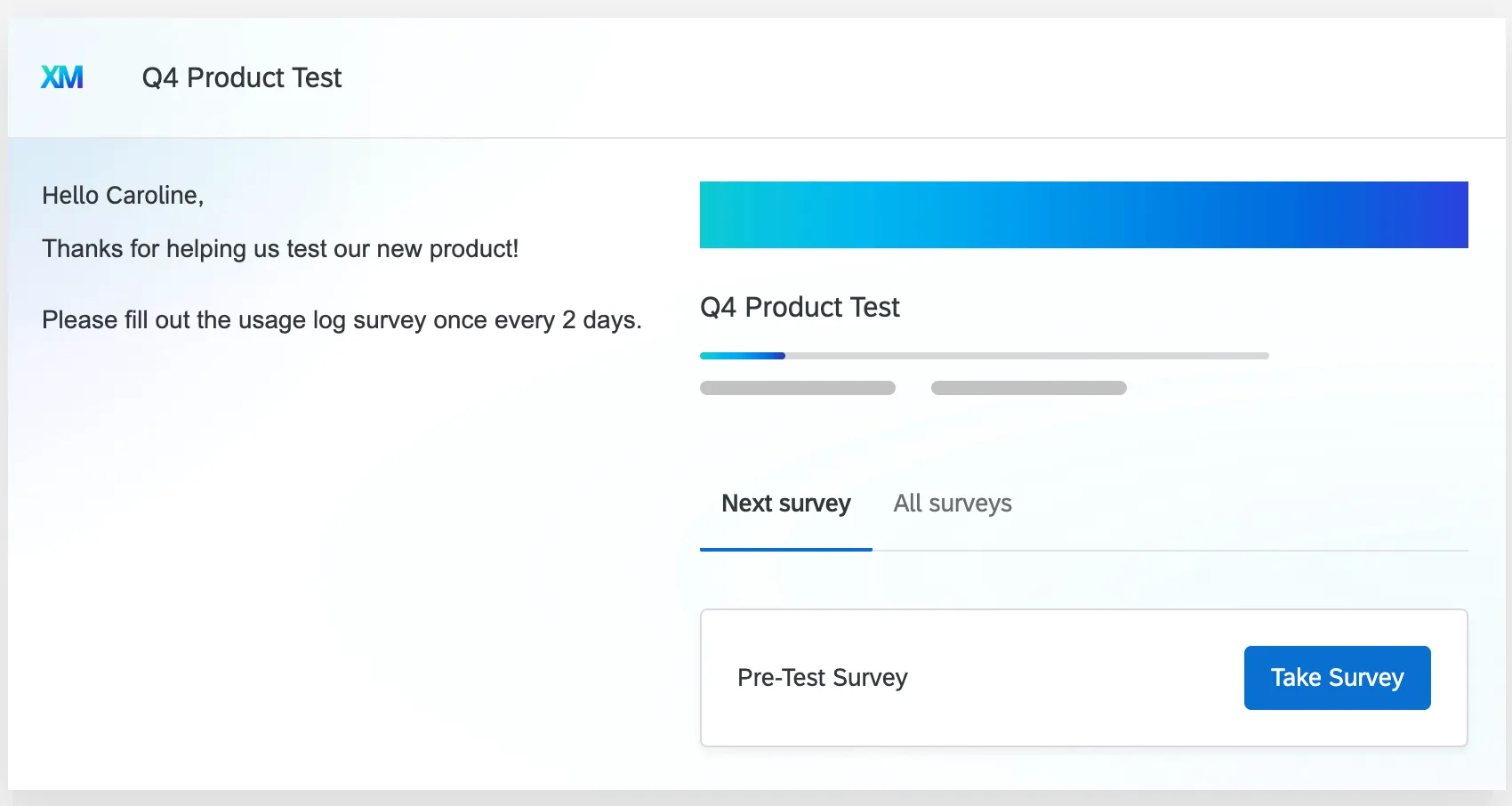
For information on viewing the tester app as a participant, see Accessing the Tester App as a Participant.
For more information on Product Testing projects, see Product Testing Overview.
Accessing the App Settings
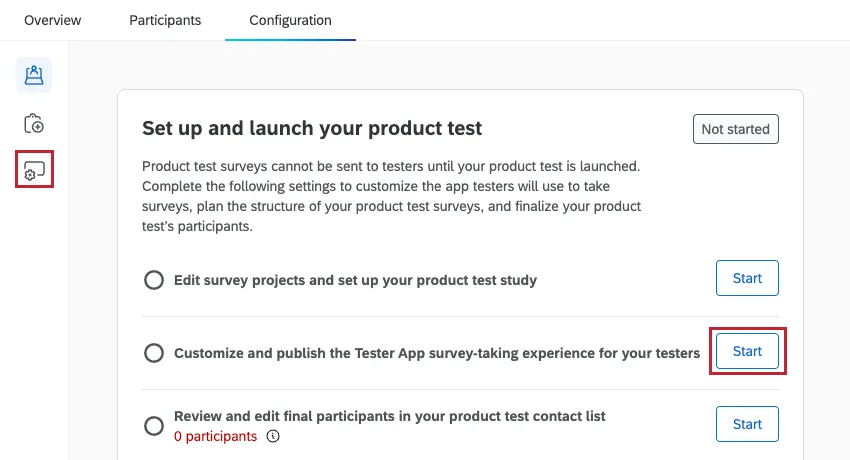
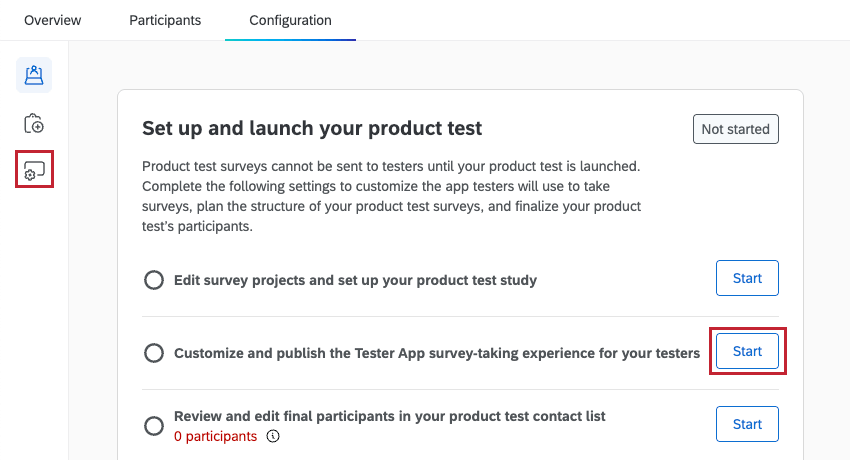
To start editing the tester app, select the Tester app setup section within the Configuration tab, or click Start next to “Customize and publish the Tester App survey-taking experience for your testers” within the Product test overview section.
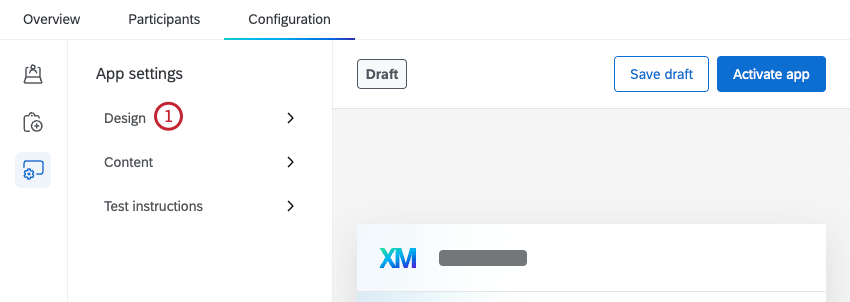
Design Section
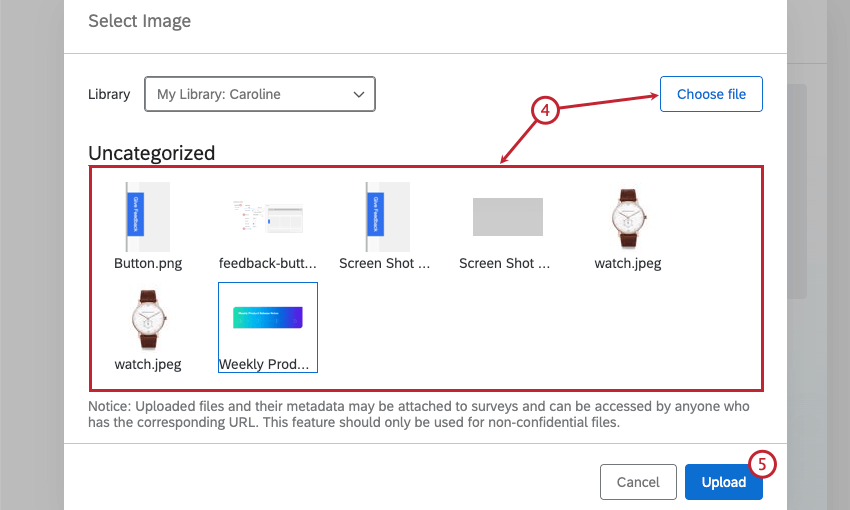
In this section you can add a logo or banner graphic to your tester app.
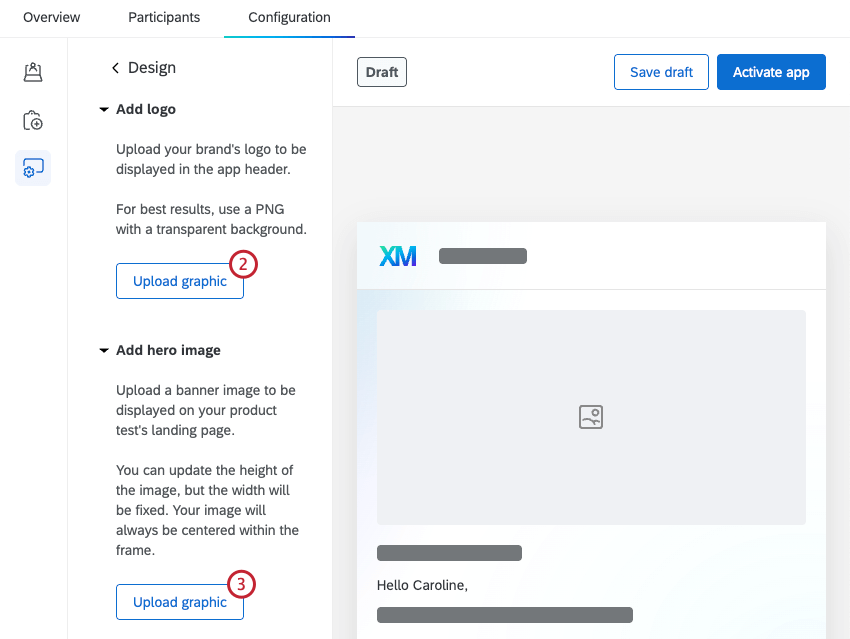
Attention: A hero image is required when setting up your tester app.

Content Section
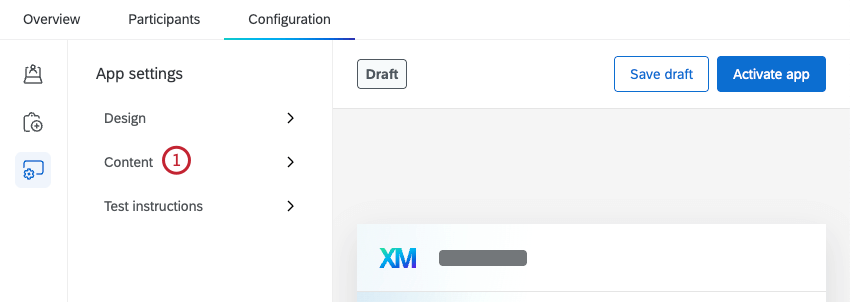
In this section you can edit details about your product test, like the test name and introduction, add a legal notice, or add support information.
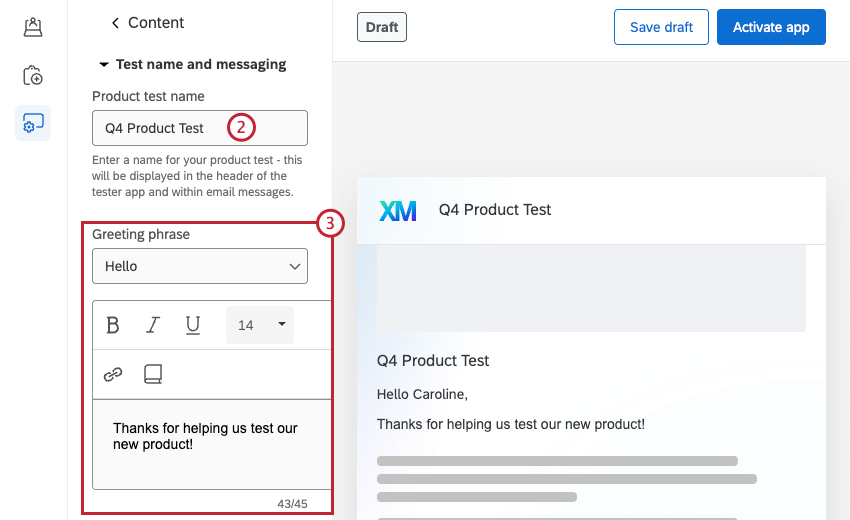
Qtip: Click the book icon to load a message from your library. See Library Messages for more information on adding messages to your library.

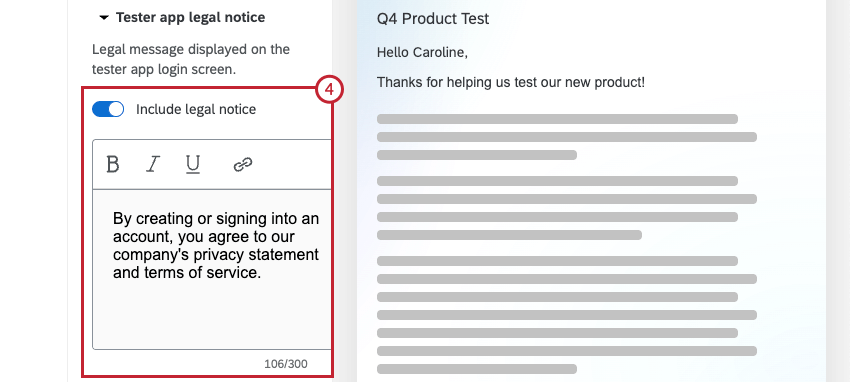
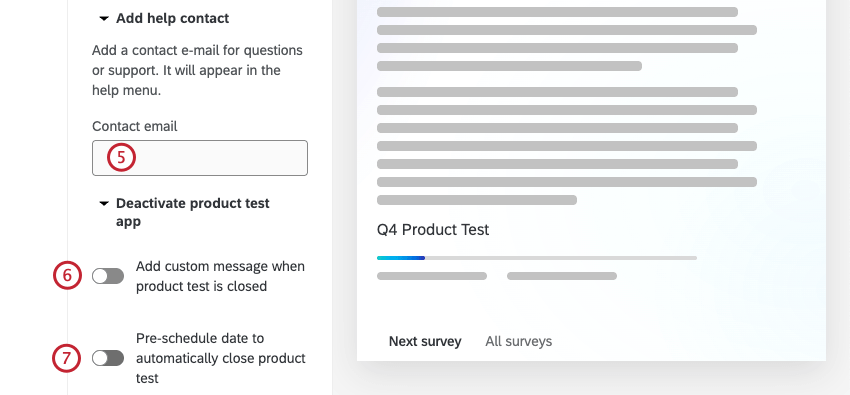
Attention: Once you select an end date and time for your product test, you cannot change it.
Test Instructions Section
In this section you can edit the instructions that are displayed to testers.
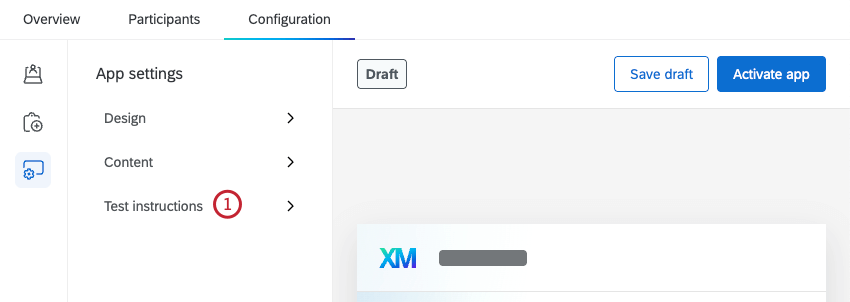
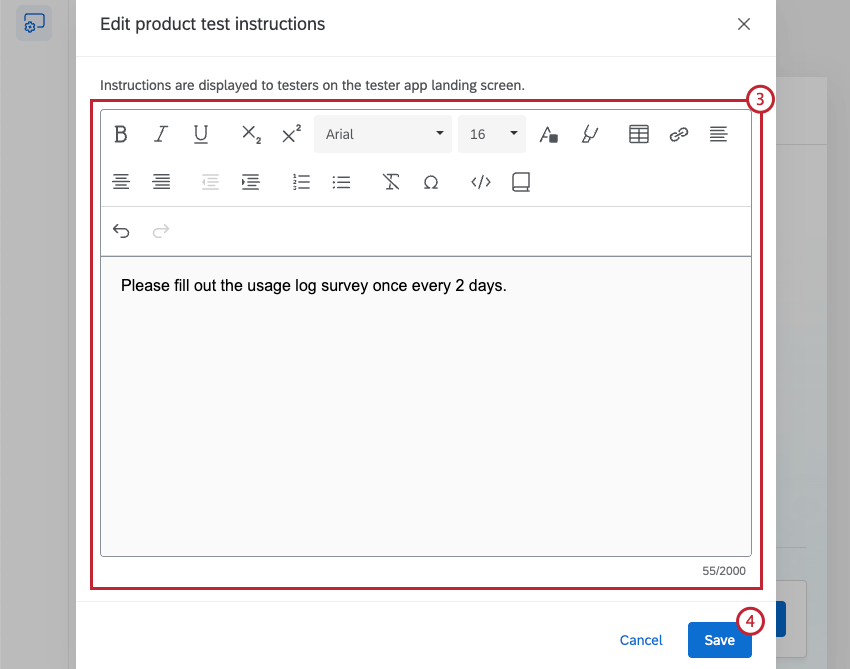
Qtip: Click the book icon to load a message from your library. See Library Messages for more information on adding messages to your library.
Saving & Activating the Tester App
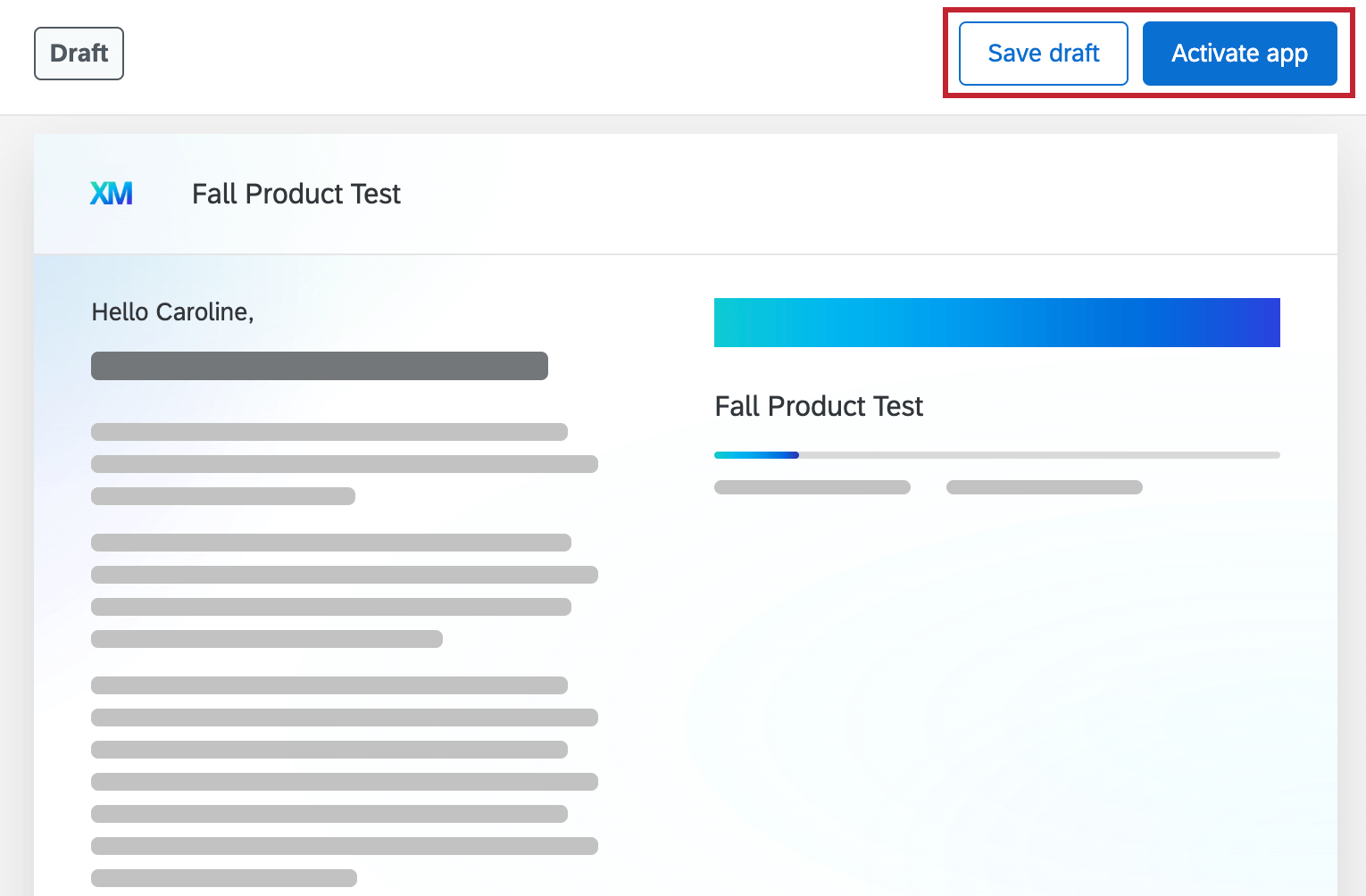
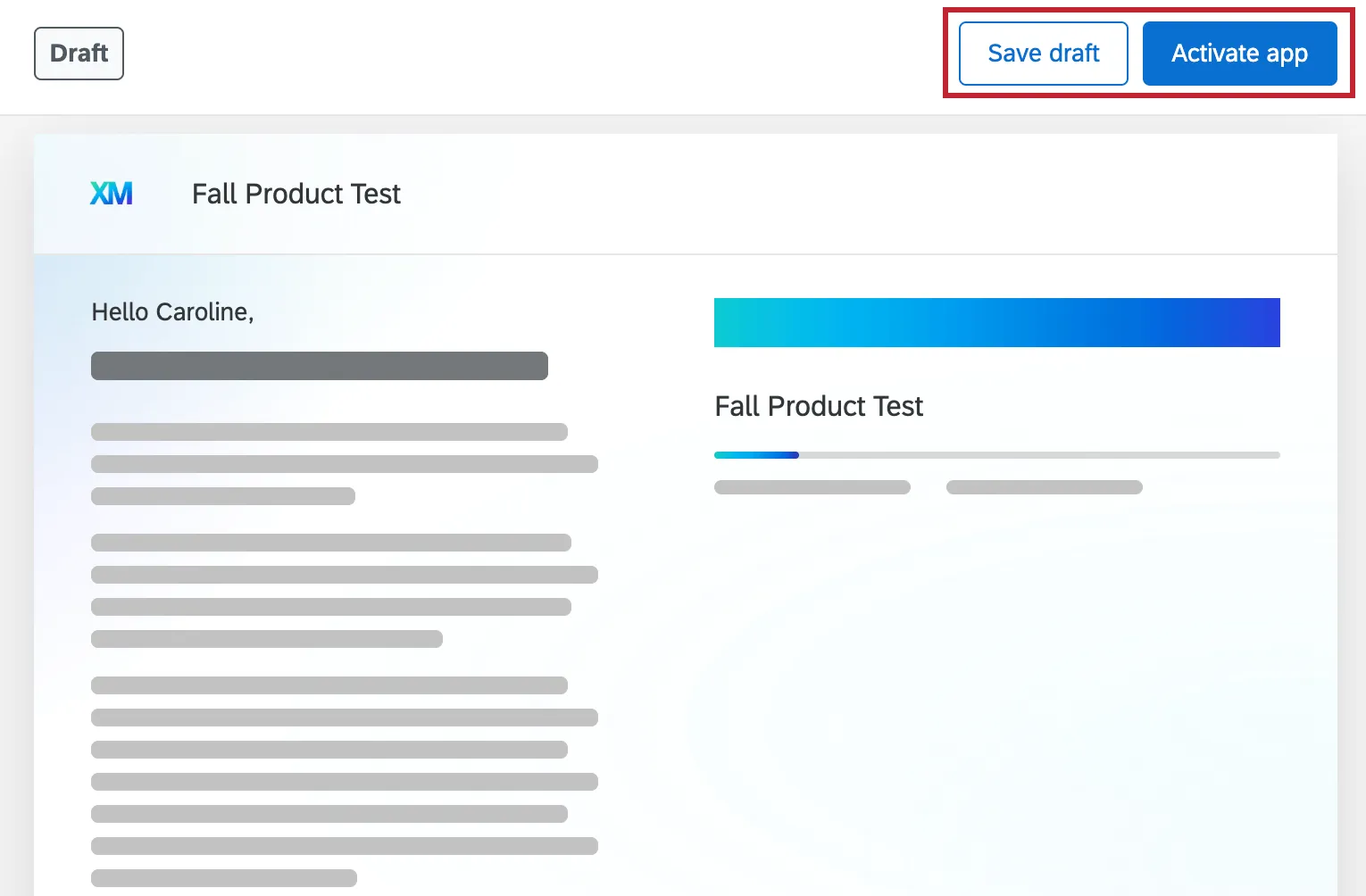
To save any changes you make as a draft, click Save draft. To activate the app for testers, select Activate app. Once your app is active, this button will say “Publish changes,” which you can press to save any additional changes you make.
Sharing the Tester App
Qtip: If you have a vanity URL set up for your brand, this will be used by default as the tester app URL. If your brand doesn’t have a vanity URL, your tester app will use a Qualtrics URL by default. If you are interested in setting up a vanity URL, contact your Brand Administrator.
Once your product test has been launched, you can share a link to the app with your testers. Navigate to the Configuration tab of your project to copy the link.
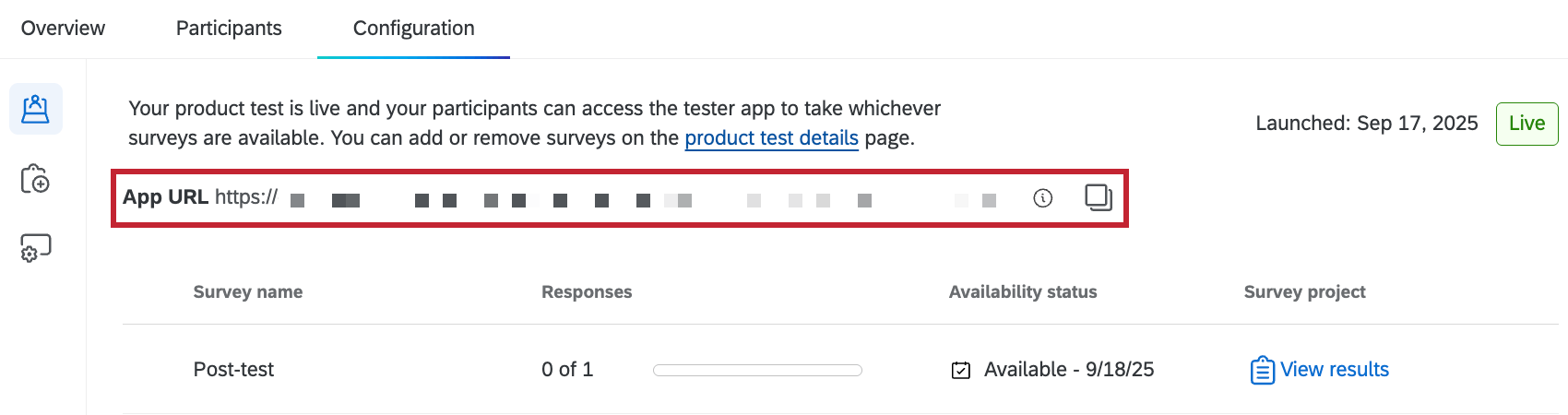
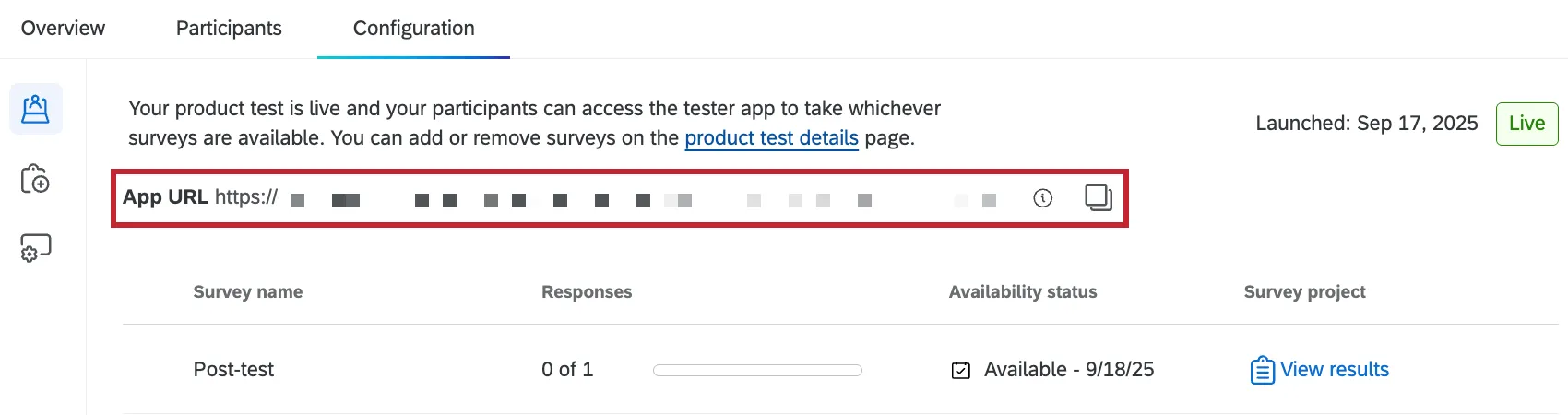
When the product test launches, testers will also receive an email invite with a link to the panelist app. You can also choose to notify them when new surveys are added to the app, and they will receive additional emails.
Accessing the Tester App as a Participant
To access the app, testers can click the link they receive in their invitation email. From there testers can create a participant account, which they can log into in the future to access product test surveys.
That's great! Thank you for your feedback!
Thank you for your feedback!