

Saving & Restoring
What's on this page
About Saving & Restoring
You have a number of options for saving and managing changes to your work in any type of Qualtrics project. This page outlines how Qualtrics saves your work, what types of saves you can make, and what options are available for restoring deleted content.
Automatic vs. Manual Saving
Because Qualtrics is a web-based platform, it functions differently than installation applications. Rather than relying on a Save button, Qualtrics automatically saves as you work. Whenever you click outside of a question or move to a different tab or section, Qualtrics checks for and then saves any changes.
There are a couple of things to keep in mind about this:
- Your survey shouldn’t be open in more than 1 tab on your browser at any given time; this will interfere with the check and save, possibly causing your current work to be overridden by your previous work.
- Most browsers have a timeout of about 1 hour. If you’re working on a question and don’t force a check and save within that hour, the browser will time out and all unsaved work will be lost. Please be aware of this timeout and use Qualtrics accordingly.
Restoring Versions
The Version History allows you to view old versions of the survey and restore them. See the Survey Publishing & Versions page for more information.
Trash / Unused Questions
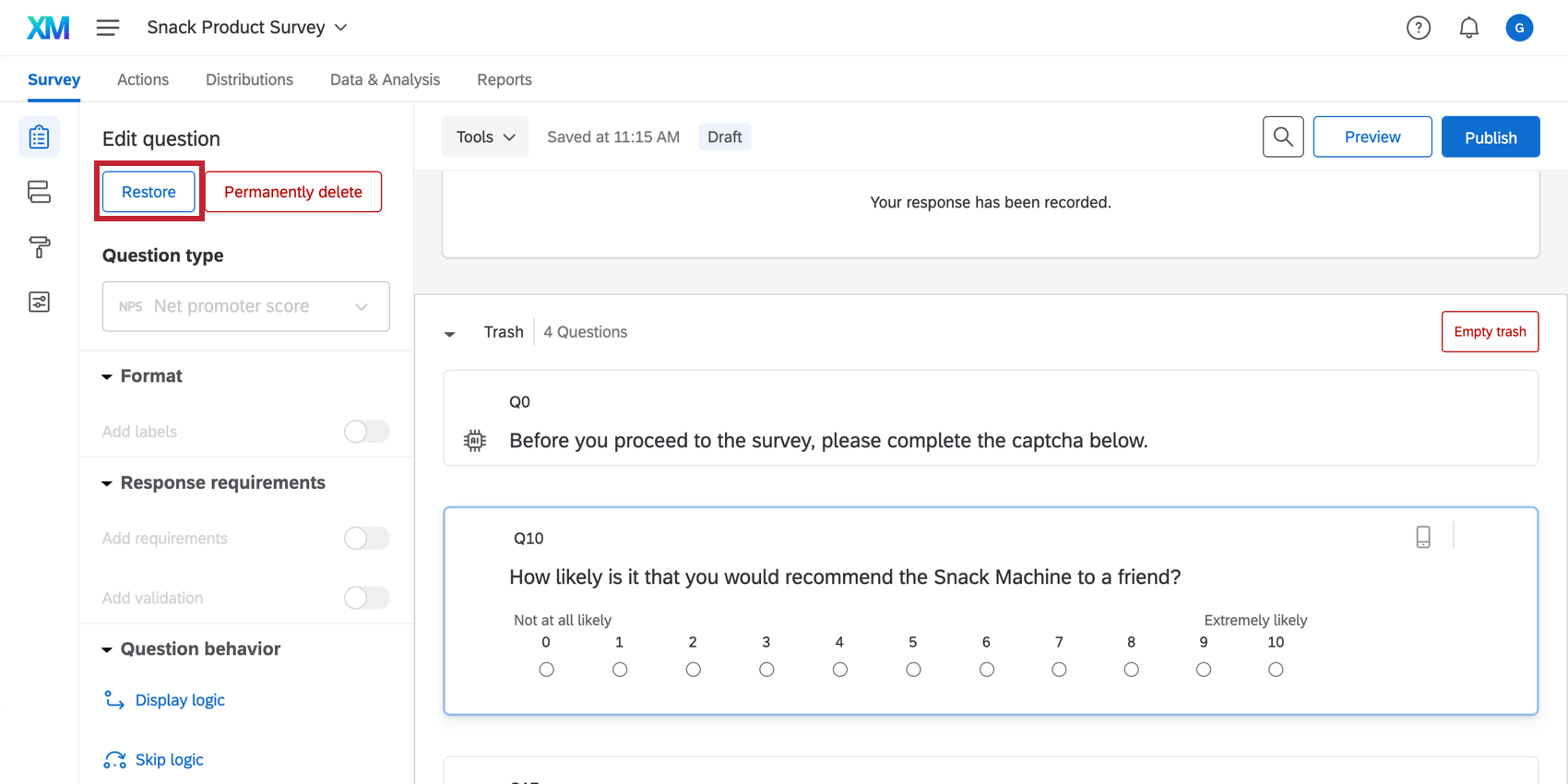
Whenever you delete a question (or a block using Block Options), it is moved to the Trash, located at the bottom of the Survey tab. Your Trash will hold all deleted questions until you empty it, at which point the items are permanently deleted. You can move any question in the Trash back into the survey by clicking on the question and selecting Restore in the Edit question pane on the left side of the survey editor.
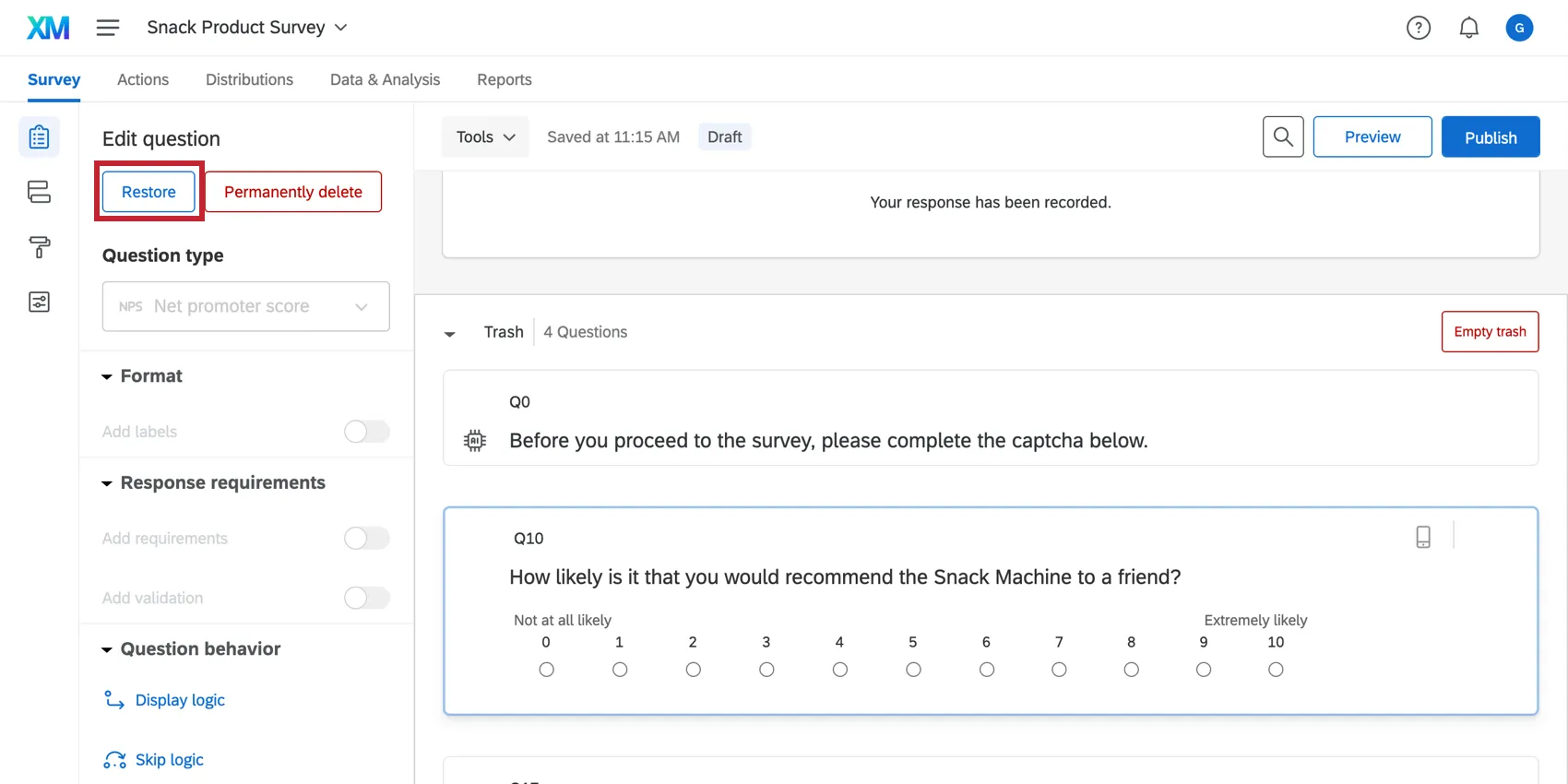
Qtip: If you delete a question, you also remove all associated collected data from your dataset. If the question is still in your trash and you restore it, all the associated data will also return. For further details on the possibilities and limitations of restoring deleted content, see below.

Restoring Deleted Content
It is not always possible to restore deleted content, but there are some options available that can be tried depending on the type of content that was deleted and what changes have been made since the deletion.
Ctrl + Z or Cmd + Z
In some cases, you can hit Ctrl + Z (PC) or Cmd + Z (Mac) to immediately undo a change. This includes changes to text when you’re still in a text editor and some changes to question settings in the editing pane.
Other types of changes, such as deleting a question or manipulating the survey flow, cannot be undone with Ctrl + Z.
Trash
You can restore content that has been moved to your trash. See the Trash/Unused Questions section above for more details.
Qtip: Rather than ever deleting a question that has data associated with it, we recommend hiding unwanted questions with Display Logic.
Not in Survey Flow
If you delete a block from your survey flow, all the data from all the questions in the block are removed from your dataset. The block is not completely deleted, however. If you scroll to the bottom of your survey editor, you will see the block with the “Not In Survey Flow” symbol at the top-right corner of the block.
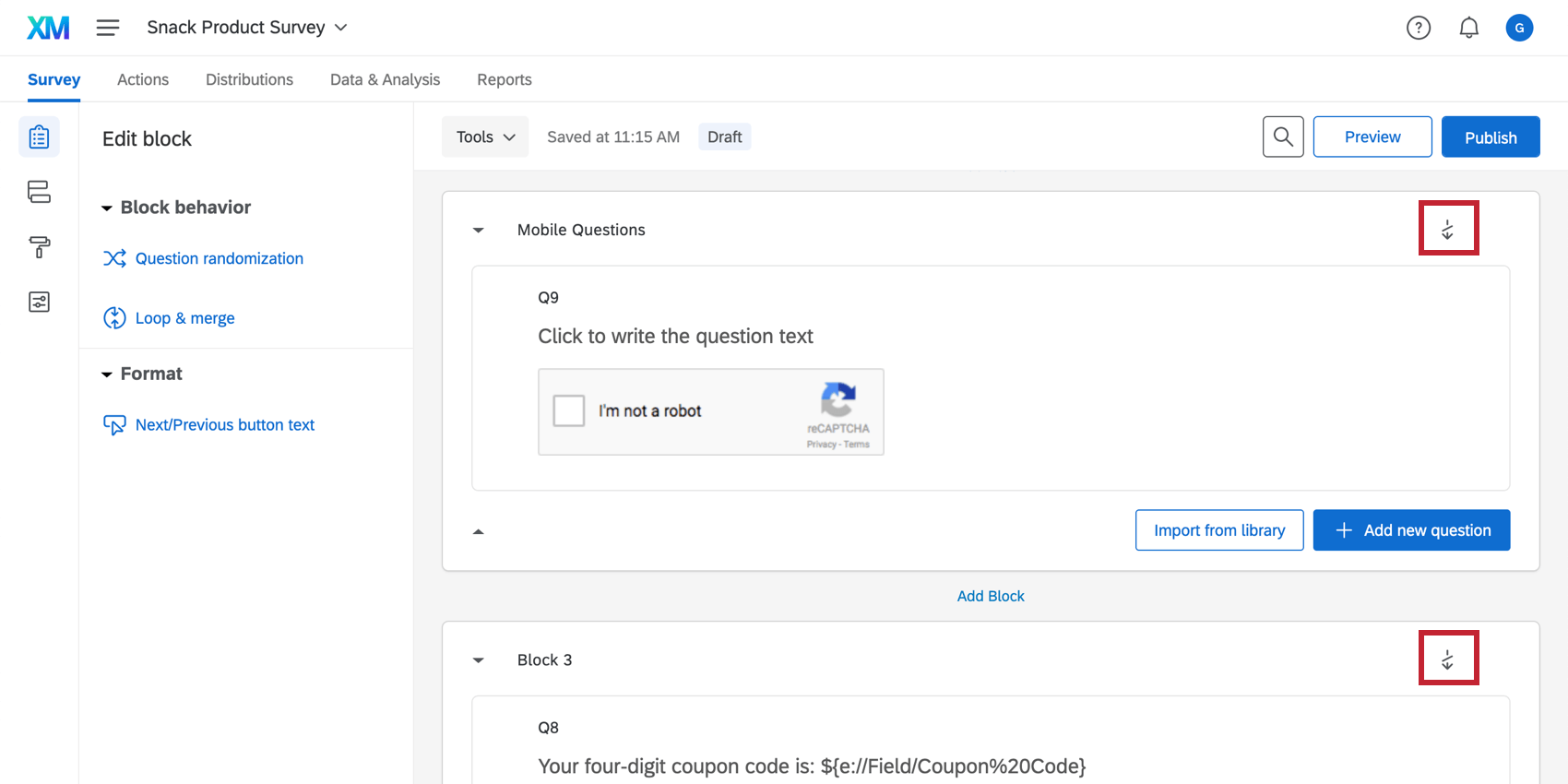
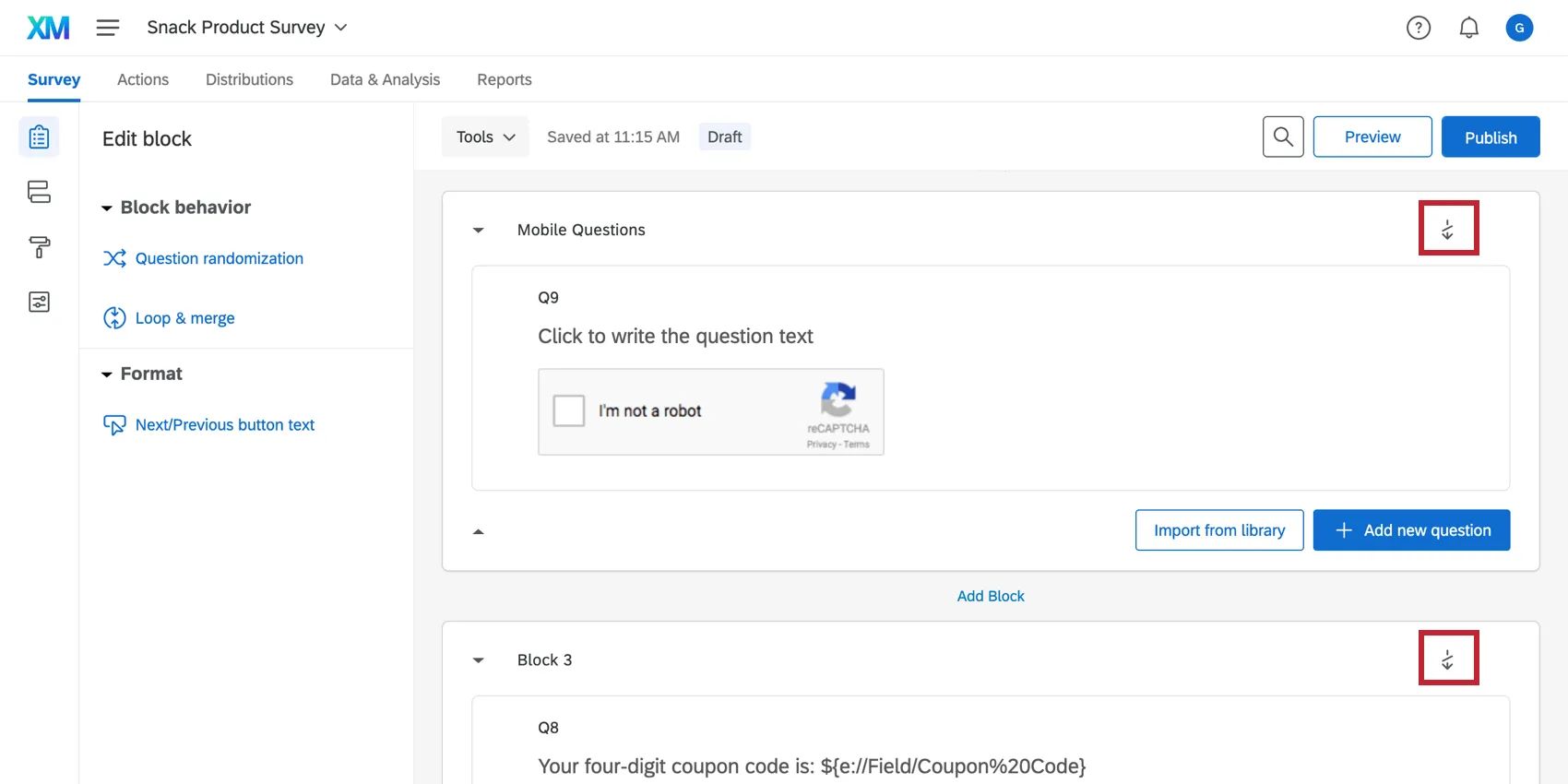
You can add the block back into your survey (and thus add your results back to your dataset) by returning to your survey flow, adding a block element, and selecting the block to be the one you deleted.
Qtip: Deleting a block in your survey flow is different than deleting a block through the block options in your survey editor. If deleted through the Block Options, the block will be dissolved and all its questions will be placed in the Trash. See the Trash/Unused Questions section above for more details regarding restoring questions.
FAQs
Can I edit a live survey that is currently being taken?
Can I edit a live survey that is currently being taken?
- Who will see the changes? Only those who have not yet started the survey will see the new changes. Anyone who started the survey prior to your changes will see the original survey, not the updated one.
- What kinds of changes are okay? Superficial text edits are fine (e.g., fixing a typo or changing the font), as are adding questions or answer options. However, deleting questions or answer options can harm previously collected data. We recommend never deleting answer choice options or questions (unless you are 100% positive that you will not ever need any of the collected data associated with those answer choice options or questions). Instead, we recommend hiding unwanted questions and answer options with Advanced Randomization.
How do I save/undo my edits to my survey?
How do I save/undo my edits to my survey?
Often, Qualtrics will allow you to undo a change if you hit Ctrl + z (PC) or Cmd + z (Mac) on your keyboard. However, not all changes are undoable.
Qualtrics automatically saves previous versions of your survey when you make edits or publish your survey. Survey versions are a snapshot of your survey and its settings and allow you to view any past version and restore your survey to that form. See the linked page for more information on this feature.
When I click the link, I see an old version of my survey! Are my changes not being saved?
When I click the link, I see an old version of my survey! Are my changes not being saved?
Next, check whether you have Allow Respondents to Finish Later turned on in your Survey Options. If you've been testing out your survey on the Anonymous Link while you make edits, then you're seeing an old version of the survey because a cookie was placed on your browser to save your progress. Open your Anonymous Link in an Incognito Window or a Private Window. If this window has your changes, then Save and Continue is just saving your place, and you don't have to worry about brand new respondents seeing an old version of the survey.
(Note: We recommend testing your survey using your preview link instead of your anonymous link for this reason.)
That's great! Thank you for your feedback!
Thank you for your feedback!