

Website / App Insights Accessibility
What's on this page
Website / App Insights Accessibility Features
Website Insights projects have many features built in to make accessibility easy. In particular, we recommend trying a responsive dialog or feedback button, which were designed with accessibility in mind.
On this page, we’ll cover specific settings and best practices to improve your Website Insights project’s accessibility.
Qtip: Legacy creatives like the pop over, slider, infobar, and custom embedded feedback are generally not accessible. While there are settings we describe on this page that you can use to improve their accessibility, we highly recommend using a responsive dialog or feedback button instead, especially because their accessibility settings are easy to adjust.
Creating an Accessible Responsive Dialog
Responsive dialogs are website overlays that were developed with accessibility in mind. Below, we’ll highlight some of the accessibility features you can expect to find:
- Easy to define Alt Text: If a custom icon is used within the dialog, we allow users to specify Alt Text to indicate the text that the screen reader should read when the focus is on the icon. Qtip: If you select to Include an icon to dismiss the intercept, the alt text for the X button that appears in the upper-right of the dialog is “close.” This alt text is also localized.

- ARIA labels for button controls: By default, screen readers will read the text that you specify for the button label. However, in some cases, you may want the screen reader to read additional context, such as, “Click on this button to open up a new survey window.” In this case, you can specify the ARIA label for the button controls.
- Iframe titles for embedded surveys: If you want to embed a survey in your dialogue, it’s easy to add an iframe title for screen readers.
- Color contrasts for elements within the Creative itself: While Qualtrics cannot provide direct contrast guidance, you can adjust the color of your dialog’s buttons and text as needed.
Creating an Accessible Feedback Button Creative
Feedback buttons are tabs on the side of a page that a user can click to leave feedback. Here are some accessibility features the feedback button has:
- Iframe titles: Ability to specify an iframe title in the Animation section.
- Custom Button Alt-Text: By default, screen readers will read the text that you specify for the button label. However, in some cases, you may want to use a custom image instead for your button. In this case, you can specify alt-text for that button image.
- Iframe titles for embedded surveys: If you want to embed a survey in your dialogue, it’s easy to add an iframe title for screen readers.
- Color contrasts for elements within the Creative itself: While Qualtrics cannot provide direct contrast guidance, you can adjust the color of your button’s background and text as needed.
Adding Alt Text and Roles to Target Buttons for Legacy Creatives
Qtip: If you don’t have access to any of the features described in this section, reach out to your Account Executive. For more information about the differences between Digital Feedback and CustomerXM for Digital, see Digital Feedback vs. CustomerXM for Digital.
Qtip: Responsive Dialogs and Feedback Buttons do not require this step.
Attention: Custom coding features are provided as-is and may require programming knowledge to implement. Our support team does not offer assistance or consultation on custom coding. You can always try asking our community of dedicated users instead. If you’d like to know more about our custom coding services available for purchase, please contact your Qualtrics Account Executive.

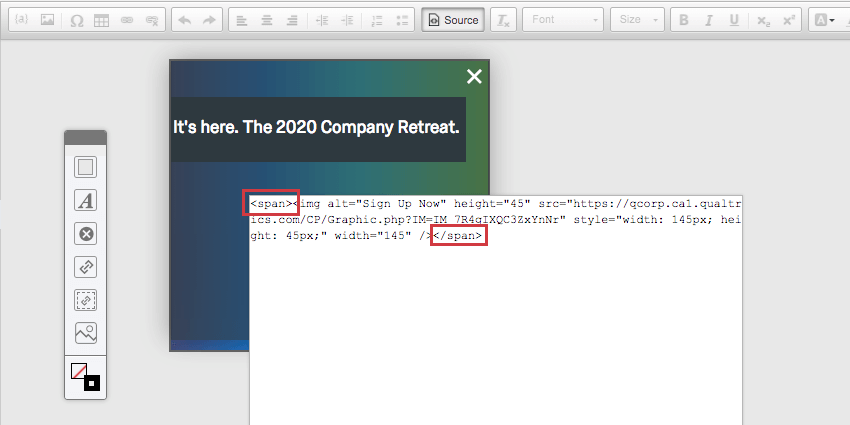
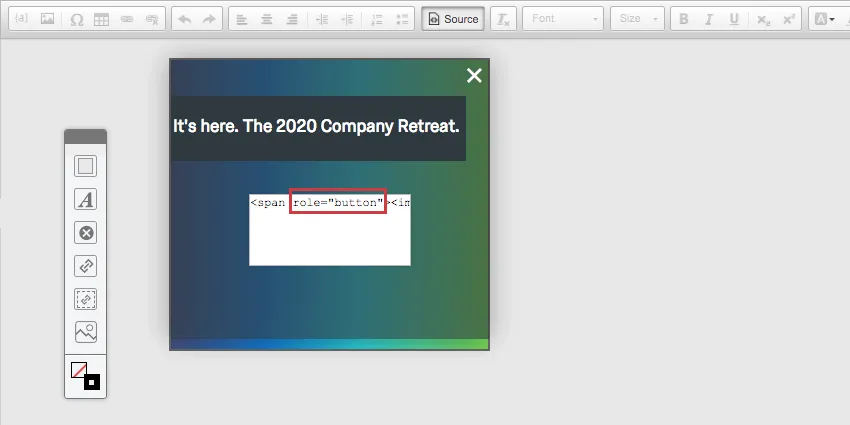
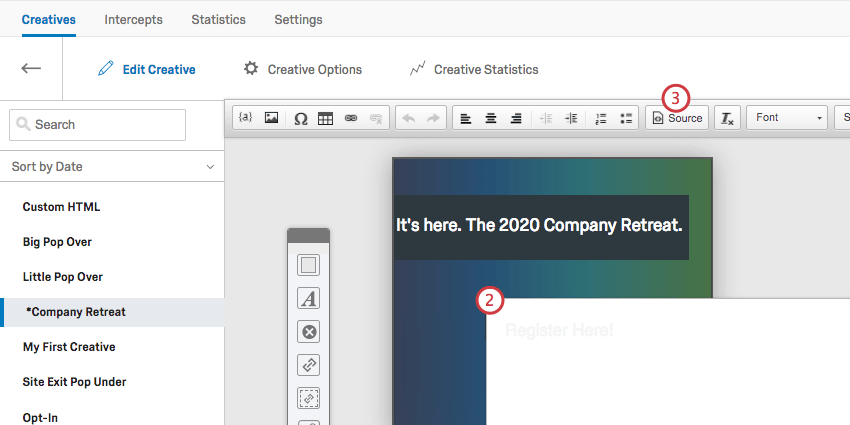
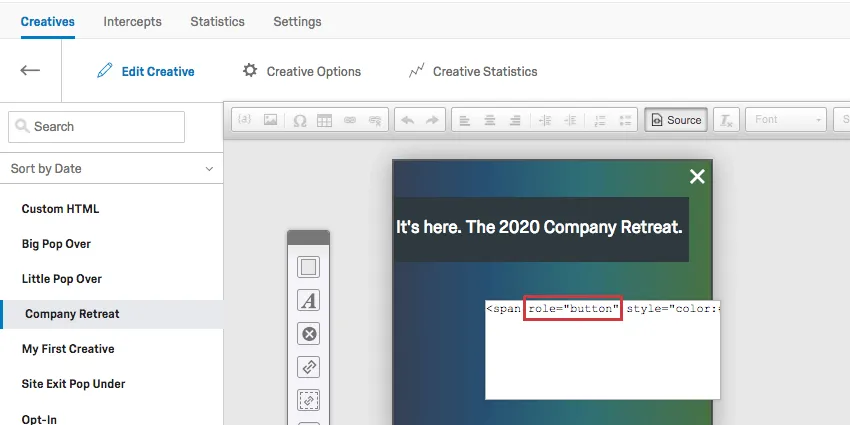
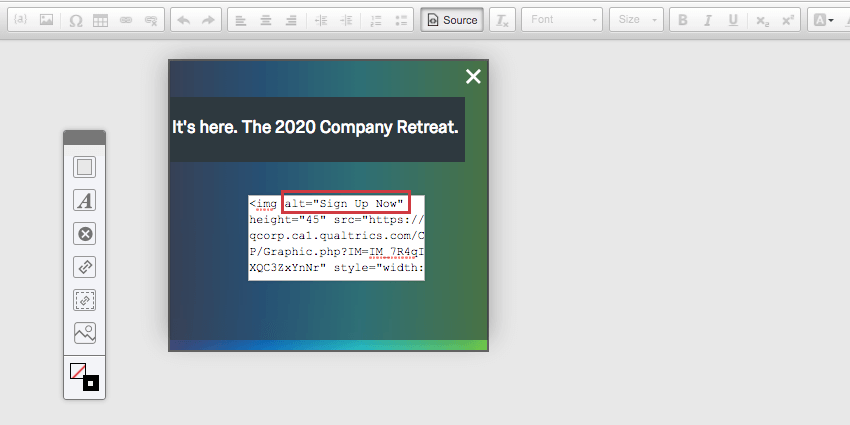
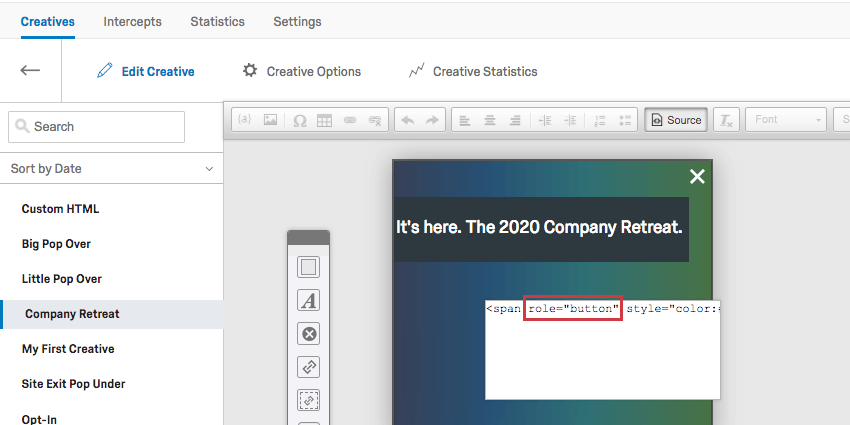
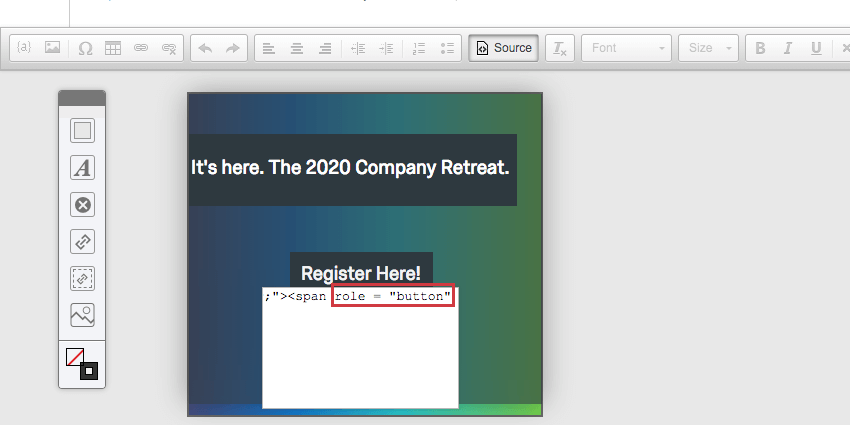
If your Target is in the form of a button image you’ve uploaded, adding alt text and a role attribute helps the screen reader understand what the button’s supposed to say and do. This advice is for legacy creatives, like the pop over or infobar.
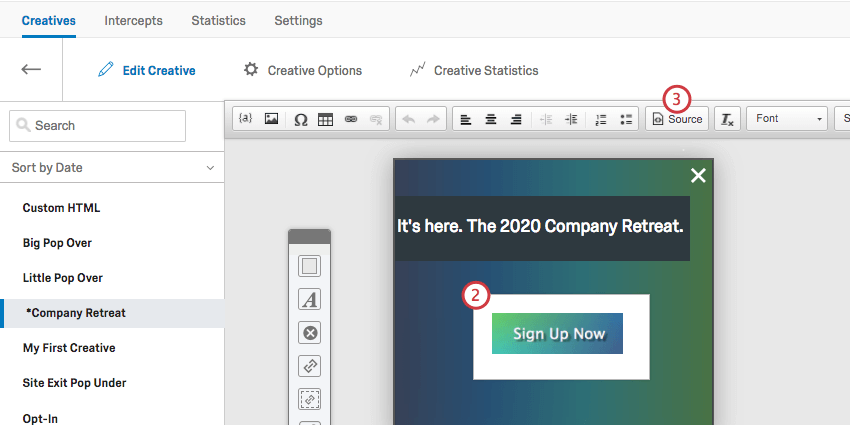
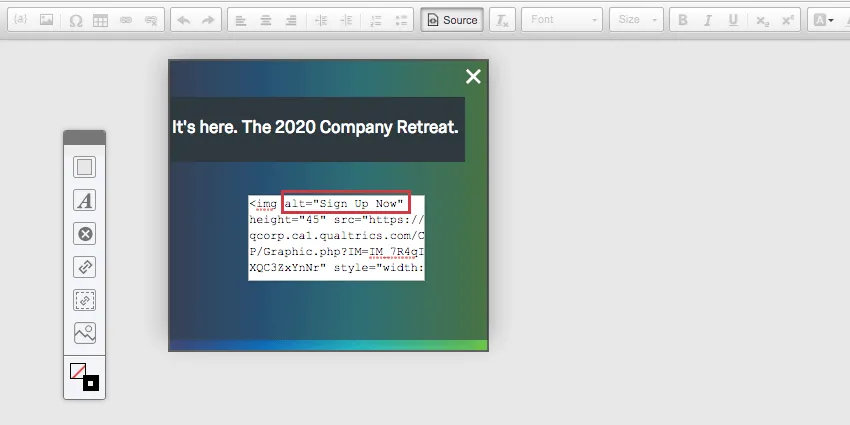
<img alt="text here" /> to the tag and set the value equal to the text of the image. <img alt="Sign Up Now" ... /> Qtip: Screen reading software will read aloud what is contained in the alt attribute when it arrives at the picture.
Standard Targets (Link Text)
Adding Alt Text and Roles to Close Buttons for Legacy Creatives
Qtip: Responsive Dialogs and Feedback Buttons do not require this step.
Attention: Custom coding features are provided as-is and may require programming knowledge to implement. Our support team does not offer assistance or consultation on custom coding. You can always try asking our community of dedicated users instead. If you’d like to know more about our custom coding services available for purchase, please contact your Qualtrics Account Executive.
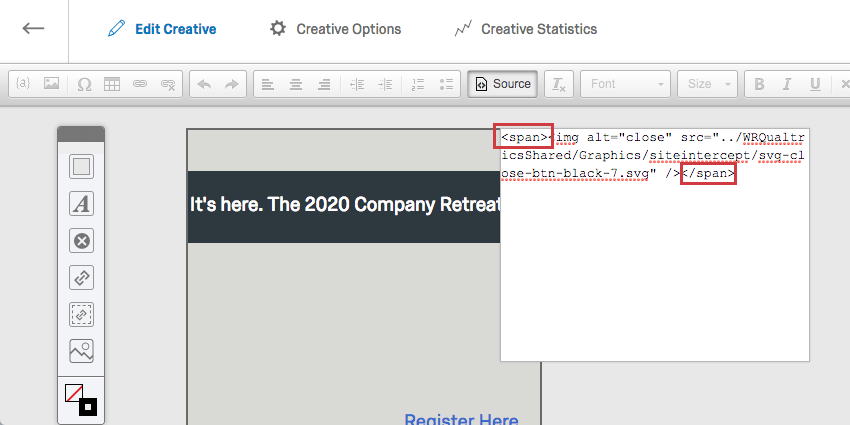
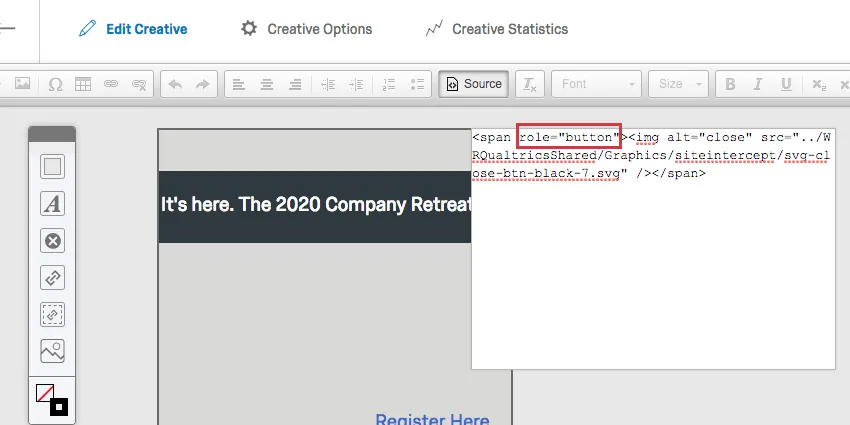
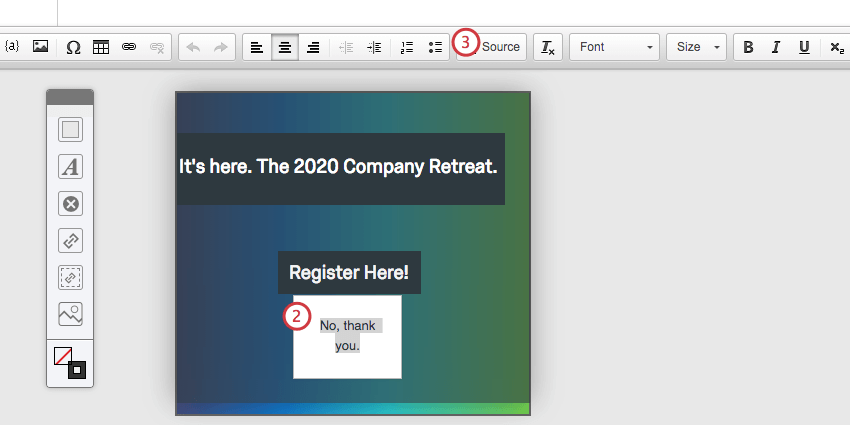
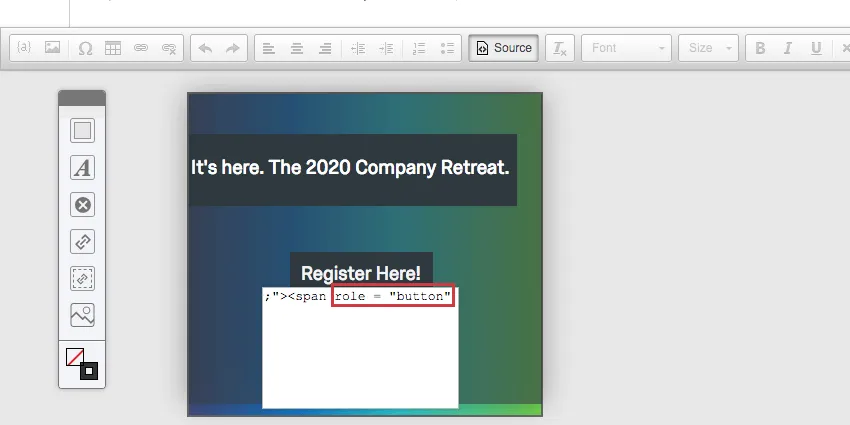
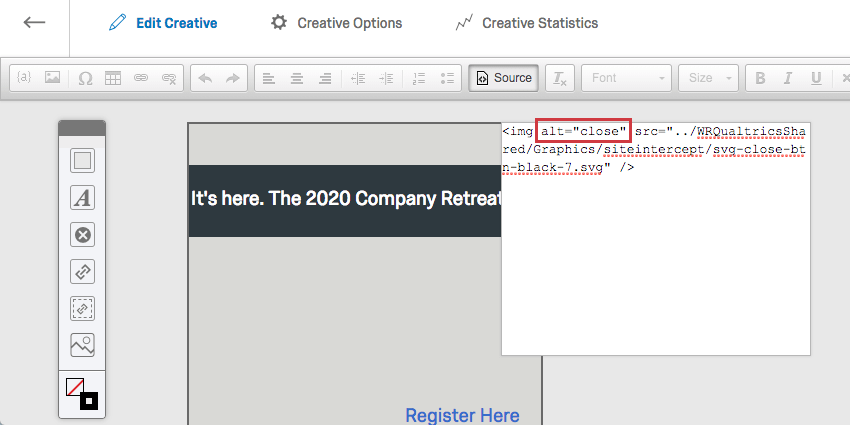
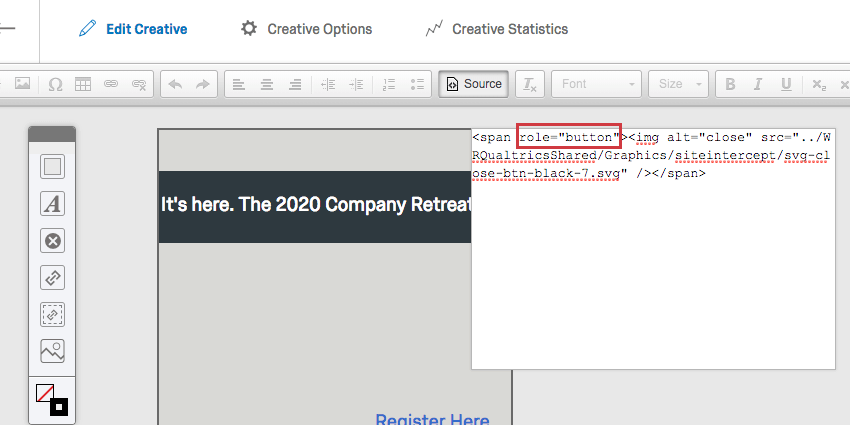
Legacy creatives like pop overs and sliders require extra customization to make their close buttons accessible.
Close Button as Image
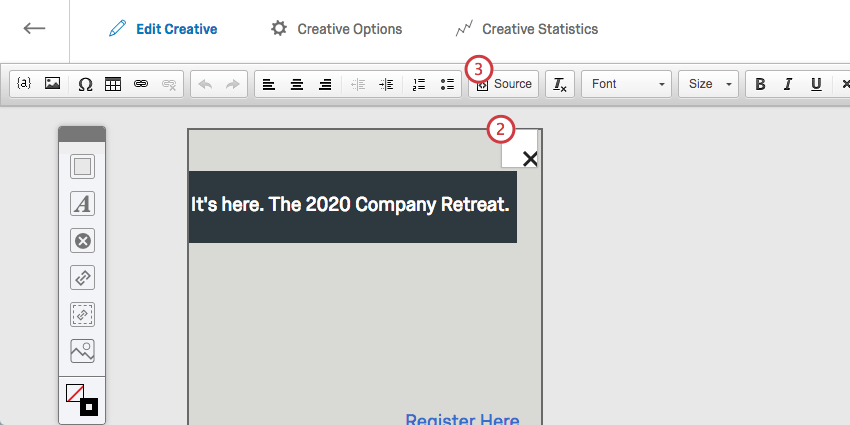
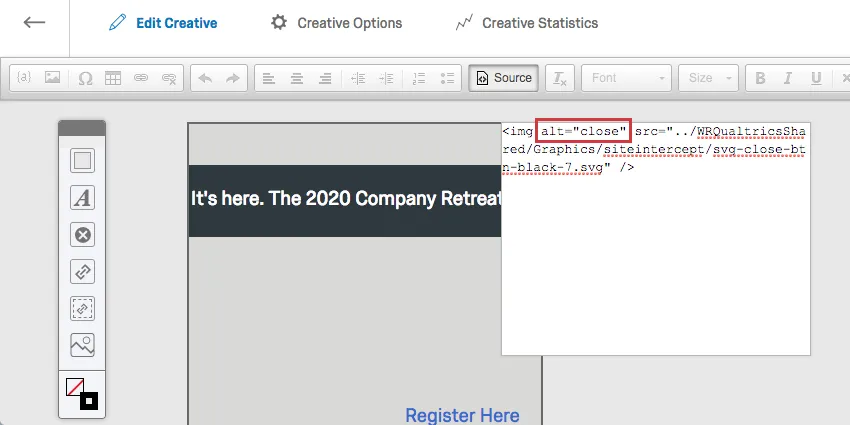
<img alt="close" ... /> Qtip: Screen reading software will read aloud what is contained in the alt attribute when it arrives at the picture.
Close Button as Text

FAQs
I have built my intercept but would like to test it before activation. How can I do that?
I have built my intercept but would like to test it before activation. How can I do that?
That's great! Thank you for your feedback!
Thank you for your feedback!