

Action Set Options Menu
Suite
Customer Experience
Strategy & Research
Product
Qualtrics
What's on this page
Qtip: If you don’t have access to any of the features described on this page, reach out to your Account Executive. For more information about the differences between Digital Feedback and CustomerXM for Digital, see Digital Feedback vs. CustomerXM for Digital.
About Action Set Options
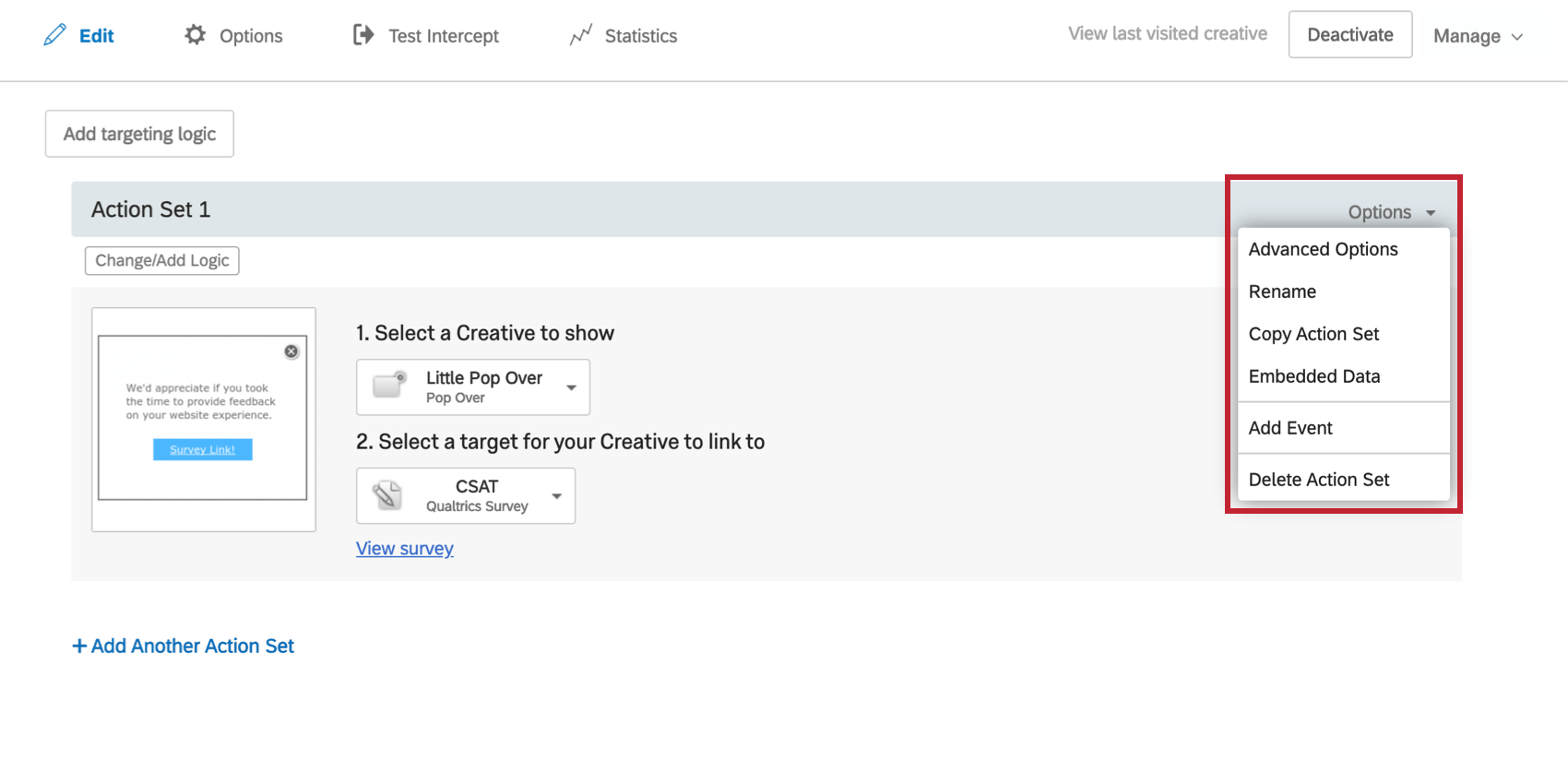
When editing your intercept, every action set has an Options button. This page will explain how each one can impact your intercept.
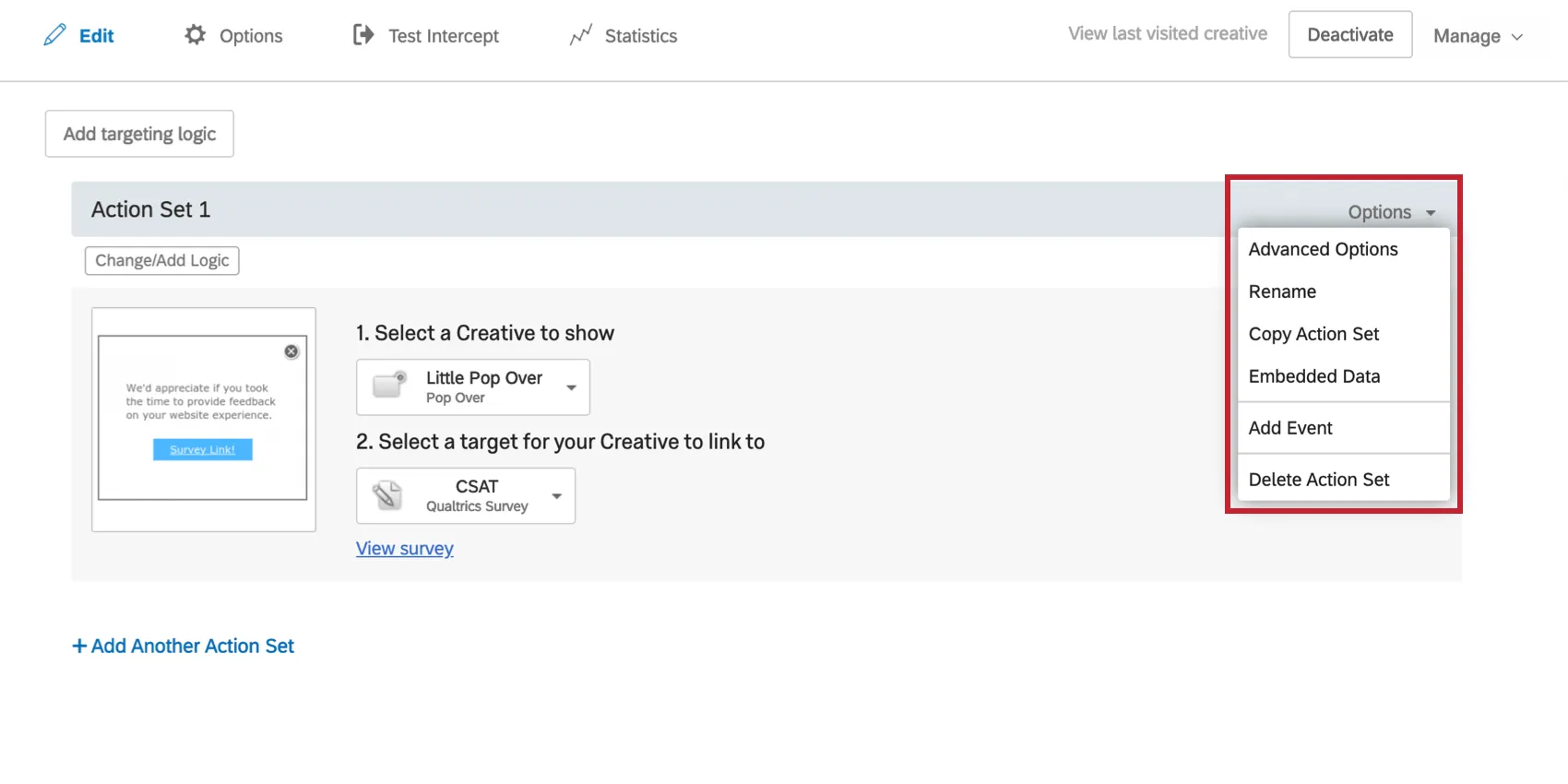
Action Set Options
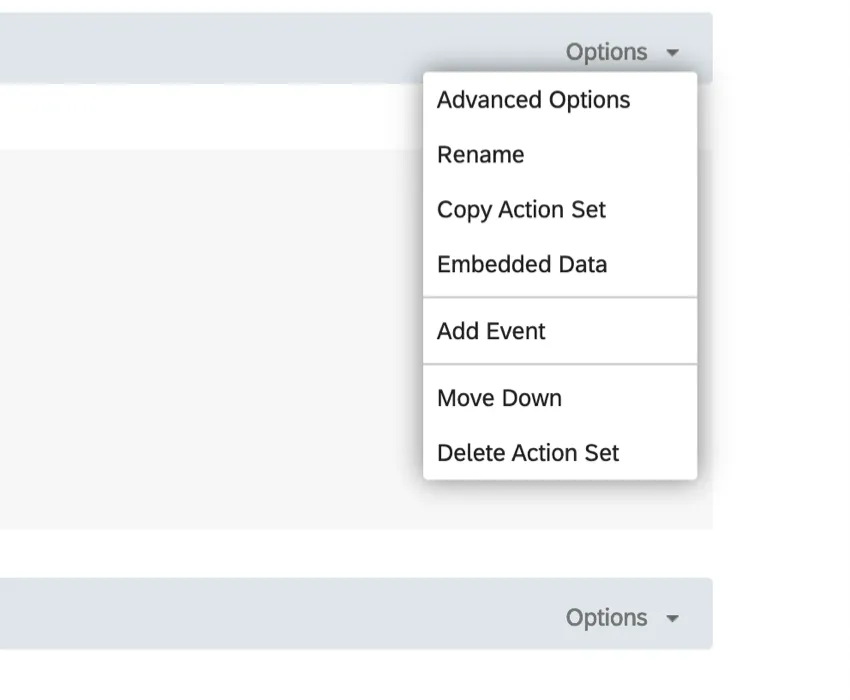
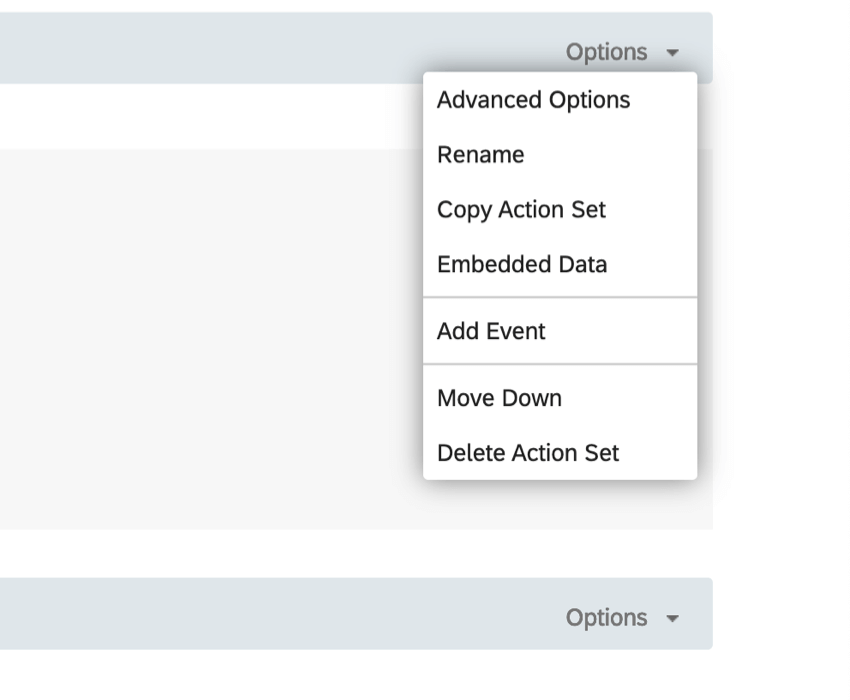
- Advanced Options: These options allow you to do everything, from deciding how the target window opens to deciding what browsers and platforms are compatible with your intercept. See the Action Set Advanced Options page for additional information.
- Rename: Rename the action set. This can be helpful for your own organizational purposes.
- Copy Action Set: Duplicate the action set within the same intercept. This can help you quickly build many similar action sets without rebuilding from scratch every time.
- Embedded Data: Set embedded data on your action. See the Embedded Data in Website Feedback for more details.
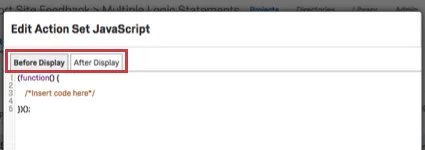
- Add Javascript: Add custom Javascript either Before Display (before the project code implements) or After Display (after the code implements). For example, if you want to run a tag event on the page once the code fires, you’d put your code in the After Display tab.
 Attention: Qualtrics Support does not provide assistance on custom coding. You can always try asking our community of dedicated users instead.
 Qtip: If you do not see this option, reach out to Account Services to request the “Allow Custom JavaScript” brand permission be enabled for your brand.
- Add Event: Allows you to add an event. See the Event Tracking and Event Triggering page for extensive instructions.
- Move Up: Move the action set above the action set directly over it.
- Move Down: Move the action set below the action set underneath it.
- Delete Action Set: Delete the action set.
FAQs
Can I capture information from my website visitors in my intercept's survey? How?
Can I capture information from my website visitors in my intercept's survey? How?
If you are looking to capture information from your website visitor's in your survey, embedded data should be added to each action set in your intercept.
Aside from simply setting a static value that you want carried into the survey, the embedded data menu also comes pre-built with other options that can be carried into the survey. For example, you will be able to automatically capture the ID of both the intercept and creative shown, the URL of the page that displayed the intercept, the person‘s site history, or even how much time was spent on the site. You will even be able to capture information from a cookie that appears on that person‘s web browser or you can write a JavaScript expression that captures a particular variable that you are interested in.
If you are running a survey in Qualtrics, then you can also add the embedded data in the Survey Flow to save this information to the survey response.
Aside from simply setting a static value that you want carried into the survey, the embedded data menu also comes pre-built with other options that can be carried into the survey. For example, you will be able to automatically capture the ID of both the intercept and creative shown, the URL of the page that displayed the intercept, the person‘s site history, or even how much time was spent on the site. You will even be able to capture information from a cookie that appears on that person‘s web browser or you can write a JavaScript expression that captures a particular variable that you are interested in.
If you are running a survey in Qualtrics, then you can also add the embedded data in the Survey Flow to save this information to the survey response.
I have built my intercept but would like to test it before activation. How can I do that?
I have built my intercept but would like to test it before activation. How can I do that?
There is a tool called a bookmarklet that allows you to test any intercept without having to activate it.
That's great! Thank you for your feedback!
Thank you for your feedback!