

Embedding Qualtrics Dashboards in XM Discover
What's on this page
About Embedding Qualtrics Dashboards in XM Discover
Users with access to XM Discover and CX or EX dashboards can use Studio as the single reporting platform by embedding their dashboards in Studio books.
Studio books with embedded Qualtrics dashboards behave like regular Studio books with the following caveats:
- Embedded Qualtrics dashboards cannot be edited within Studio.
- Tabs with embedded Qualtrics dashboards cannot be exported.
- Color theme and pattern fills cannot be applied to embedded Qualtrics dashboards.
Any dashboard from an EX or CX project can be embedded and can be viewed correctly in Studio. For information on how to enable embedding Qualtrics dashboards in Studio, see Master Account Properties.
Widgets Supported for Embedding
The following CX widgets are supported for embedding:
- Breakdown Bar
- Breakdown Table
- Breakdown Trends
- Focus Areas
- Gauge Chart
- Image
- Image Slideshow
- Key Drivers
- Map View
- Multiple Source Table
- Number Chart
- Pie Chart
- Pivot Table
- Record Grid
- Response Ticker
- Rich Text Editor
- Scatter Plot
- Simple Chart
- Simple Table
- Star Rating
- Trend Chart
- Word Cloud
- Text IQ Table
- Text IQ Bubble Chart
The following EX widgets are supported for embedding:
- Heat Map
- Demographics Breakout
- High Low Table
- Engagement Summary
- Response Rates
- Bubble Plot
Qtip: If a dashboard contains any widget not supported for embedding, that particular widget will show an error on rendering.
You will only have to sign in with your Qualtrics credentials in XM Discover the first time you try to load embedded content from Qualtrics. After that, your session will be remembered for the next 365 days until you get prompted to sync your accounts again.
Before You Begin
You need to complete the following steps before you can embed Qualtrics dashboards in XM Discover:
- Embedded Widgets
- Embedded Dashboards Qtip: For information about these permissions, see User, Group, & Division Permissions.

Qtip: For information about sharing CX dashboards, see Sharing Your Dashboard Projects.
Getting the Dashboard ID From Its URL in XM Engage
Dashboard ID is the code found between the /dashboard/ and ?pageId part of the URL.
For example, in the following URL dashboard ID is 63f4f8df7053eb0008e93abc:
demo.qualtrics.com/reporting-dashboard/#/dashboard/63f4f8df7053eb0008e93abc?pageId=Page_a2566972-bf9c-48b0-8877-f40c9964c975
Embedding a Qualtrics Dashboard as a Tab in an XM Discover Book
Qtip: This action requires the Create Dashboard and Edit Dashboard permissions.
Once you have the ID of the Qualtrics dashboard, you can embed it as a tab inside a book in Studio.
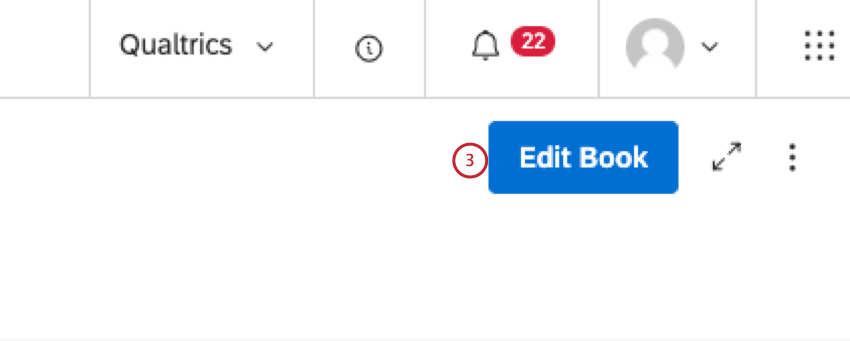
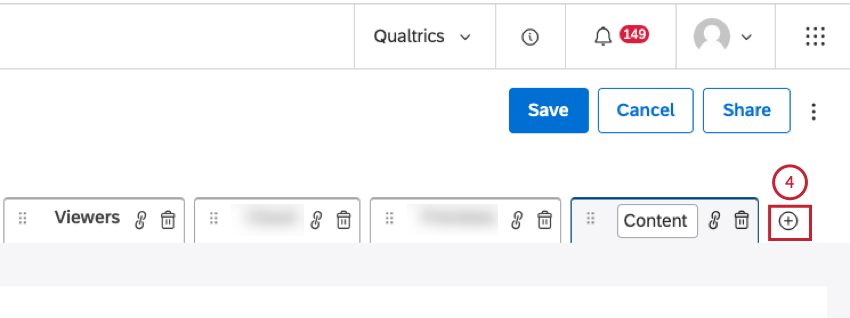

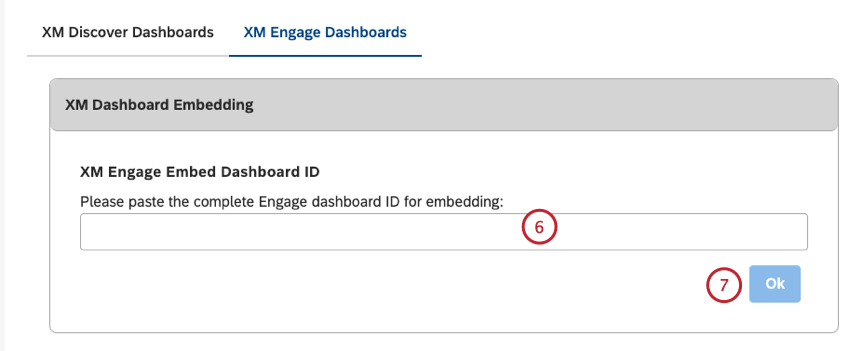
How Data Access Works for Embedded Qualtrics Dashboards in Studio
Having access to a book that contains an embedded Qualtrics dashboard in Studio is not enough. To protect sensitive data, viewers in XM Discover need a Qualtrics user license to sync to and inherit the right data access to the embedded widgets and dashboards.
When a user tries to view a Studio book tab that contains a Qualtrics dashboard, Studio checks the user’s browser for an active user session in Qualtrics. If a user is authorized, they will see the dashboard. If a user is not authorized, they will be required to sign in to Qualtrics.
Once authorized, the user will be able to view the Qualtrics dashboard inside the Studio book tab. Studio will remember the user session for one month, so the user will not need to sign in with Qualtrics credentials for the next 30 days.
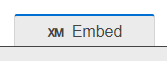
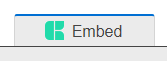
Qtip: Studio book tabs that contain a Qualtrics dashboard are identified by an icon in front of the tab title.
When a tab has not been loaded yet by the user, the icon displays the “XM” logo.
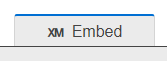
When the tab has been loaded during a current session, the icon displays the CX or EX logo instead.
FAQs
What is XM Engage?
What is XM Engage?
That's great! Thank you for your feedback!
Thank you for your feedback!