

Collecting Responses
What's on this page
About Collecting Responses
By default, you must activate and distribute your survey before respondents can take it. Once your survey is ready to go, head over to the Distributions tab to start collecting responses.
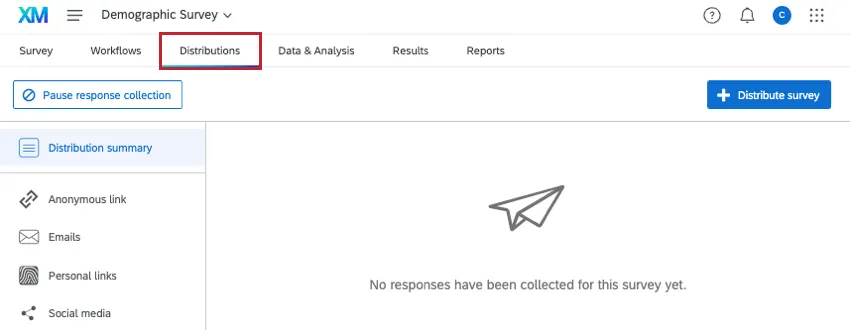
This page outlines how to start, pause, and resume response collection for your survey, which will change the status of your project, as well as the effects of those actions. It also covers how to edit an active survey and set a survey availability date.
Types of Projects Covered on This Page
Attention: Not all features described in this section are included in every license. Please contact Account Services if you are interested in getting access to any of these features.

This support page only covers how to collect responses in a few types of projects, including:
- Survey projects
- XM Solutions
- Conjoint and MaxDiff projects
Any projects not listed above are not guaranteed to behave as described on support page.
Starting Response Collection
Qtip: See the distributions basic overview page for information about every method you can use to collect responses with Qualtrics.

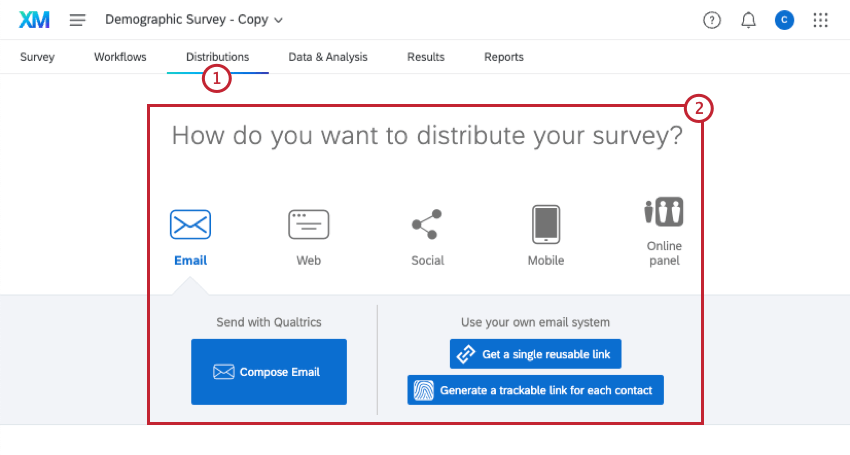
- Email: Send the survey via email to your respondents.
- Web: Post the survey on the Internet for respondents to take.
- Social: Post the survey on social media sites for respondents to take.
- Mobile: Send the survey to your respondents’ mobile devices.
- Online Panel: You may only see this option if you’ve purchased a panel. Talk to your Account Executive if you’re interested in learning more about purchasing a panel.
Qtip: The available distribution methods will depend on your account permissions and license. If you want to use one of these methods but don’t have it available, contact your Brand Administrator. If you are a Brand Administrator with questions about what’s included in your license, contact your Account Executive.
Qtip: If you’ve already accessed the Distributions tab in your project, the distribution methods will be on the left-hand side of the page.
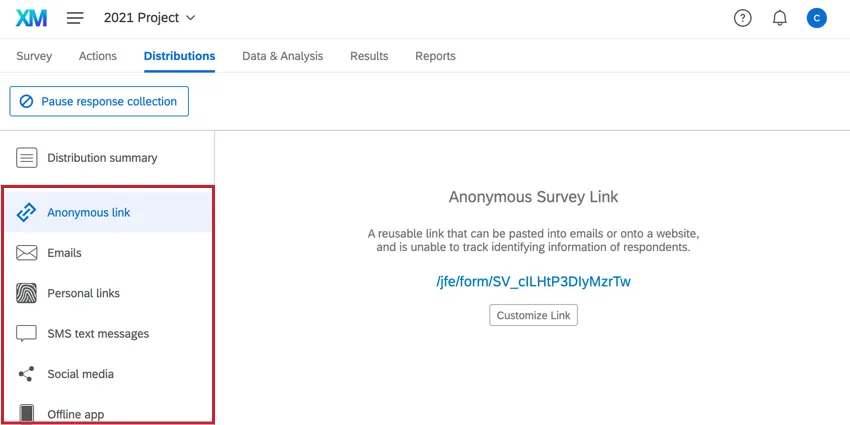
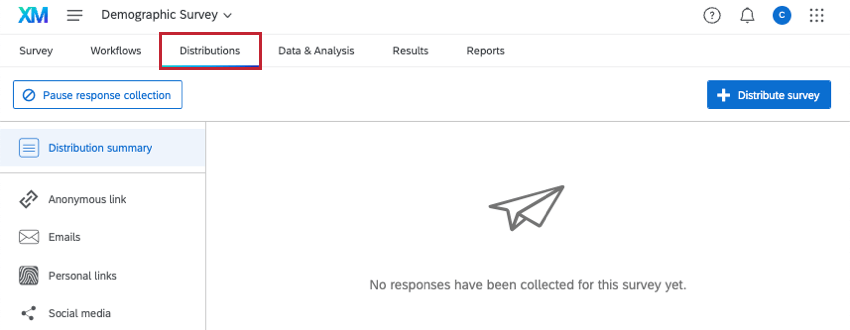
Once you distribute your survey, it will automatically be activated, allowing respondents to submit responses.
Editing an Active Survey
Even though Qualtrics allows you to edit a survey once you’ve distributed it, we recommend not making any edits once you’ve begun collecting responses, since that may invalidate your collected data. If you need to edit a survey that has already collected responses, see the testing and editing an active survey page to learn which changes can be made without invalidating data.
Pausing Response Collection
Attention: Before pausing response collection, check your survey’s incomplete response settings. If this option is set to delete incomplete responses, then your responses in progress will be deleted upon pausing response collection.
Pausing response collection turns your survey “off” so that it no longer accepts new responses. No one will be able to start your survey while it is paused. The anonymous link will be disabled, as well as any other survey links you’ve distributed. This ensures anyone who hasn’t started their survey yet won’t be able to do so.
For responses in progress (i.e., participants who have started their surveys but not yet finished), you can choose to close their survey sessions or let those participants finish.
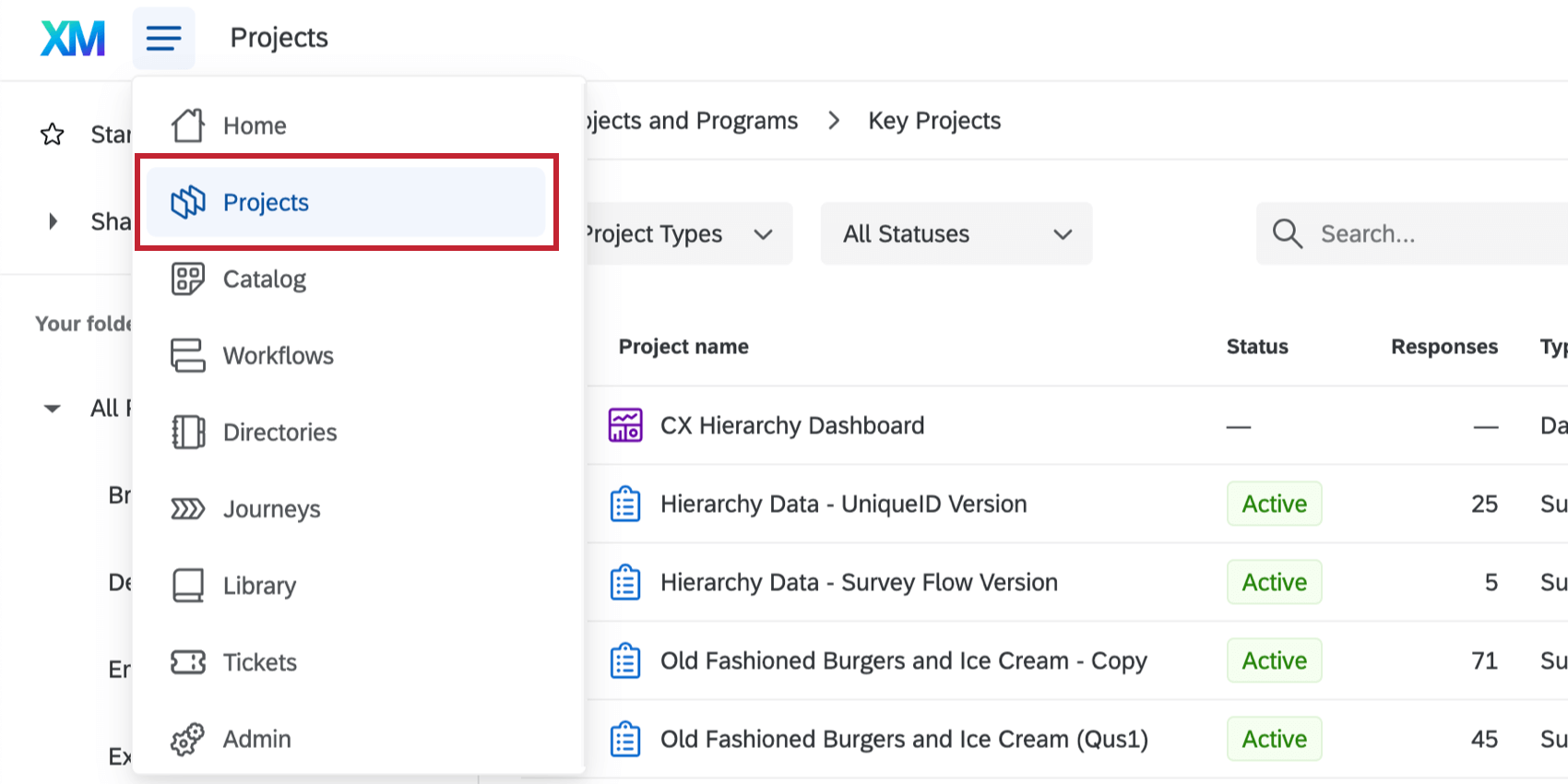
You can pause response collection from either the Projects page or the Distributions tab.
Pausing response collection from the Projects page
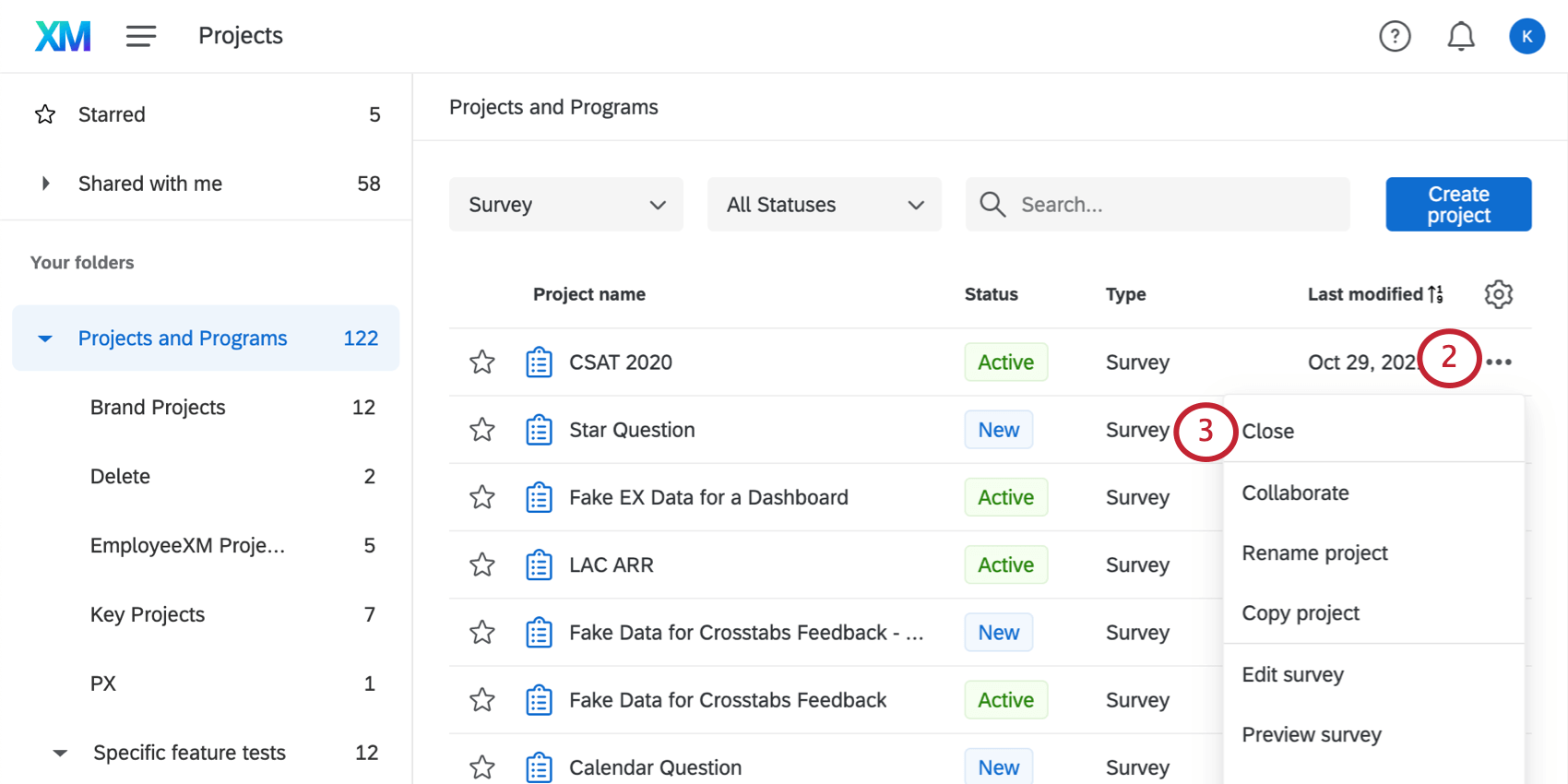
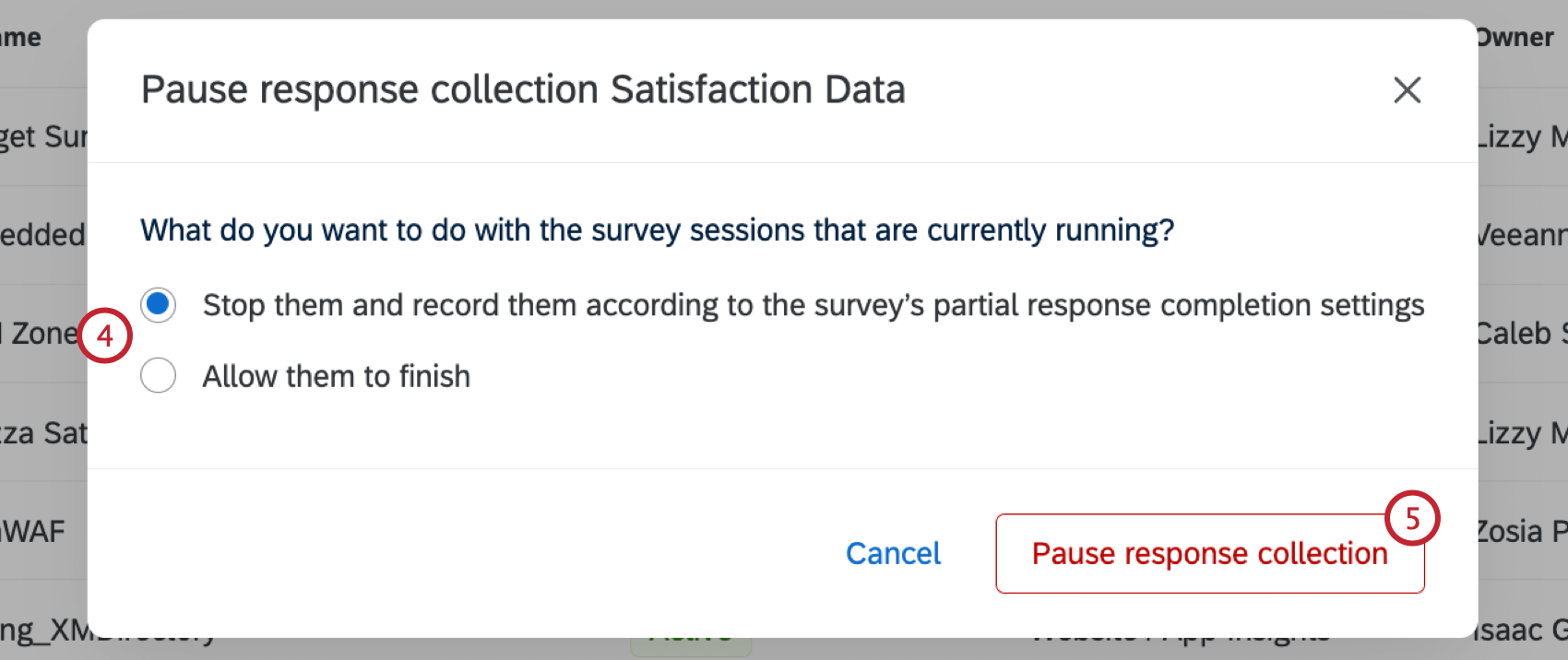
- Stop them and record them according to the survey’s partial response completion settings: This option will close and record any responses in progress. Note that if your incomplete survey response settings are set to delete incomplete responses, then your responses will be deleted!
- Allow them to finish: This option allows responses in progress to be finished by the respondent. Respondents won’t be able to start new survey responses; they’ll only be able to finish existing ones. Note that even if you choose to allow active survey sessions to be finished, respondents need to complete their response before the time frame specified in the survey options.
Pausing response collection from the Distributions tab
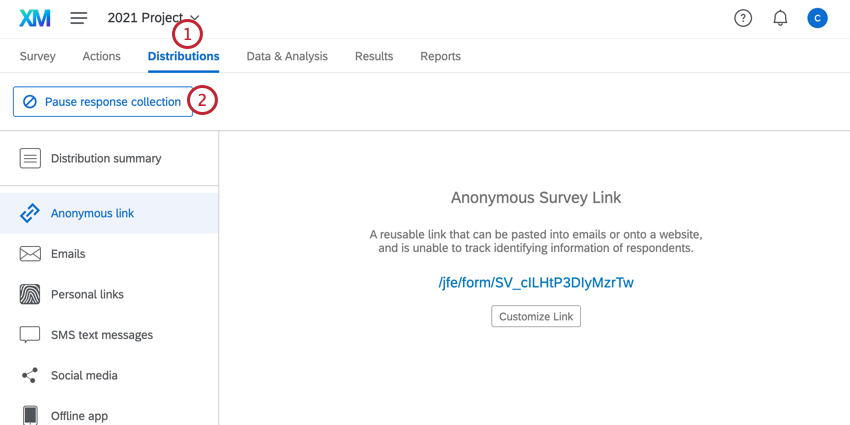
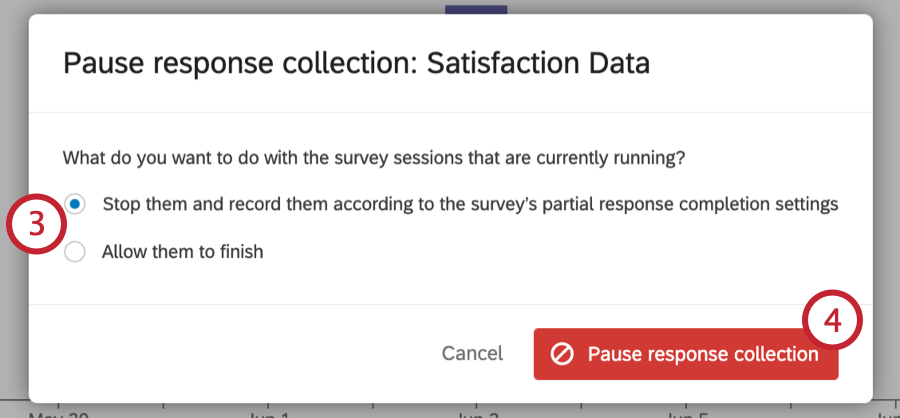
- Stop them and record them according to the survey’s partial response completion settings: This option will close and record any responses in progress. Note that if your survey options are set to delete incomplete responses, then your responses will be deleted!
- Allow them to finish: This option allows responses in progress to be finished by the respondent. Respondents won’t be able to start new survey responses; they’ll only be able to finish existing ones. Note that even if you choose to allow active survey sessions to be finished, respondents need to complete their response before the time frame specified in the survey options.
Resuming Response Collection
When you’re ready to start gathering new data, you can resume response collection. This will re-enable any individual survey links you’ve distributed (provided the respondent didn’t complete their response yet), as well as let you use any other distribution method available to you.
Qtip: Your survey links will always remain the same, regardless of how many times your survey is paused and resumed. They don’t need to be re-created and distributed again.
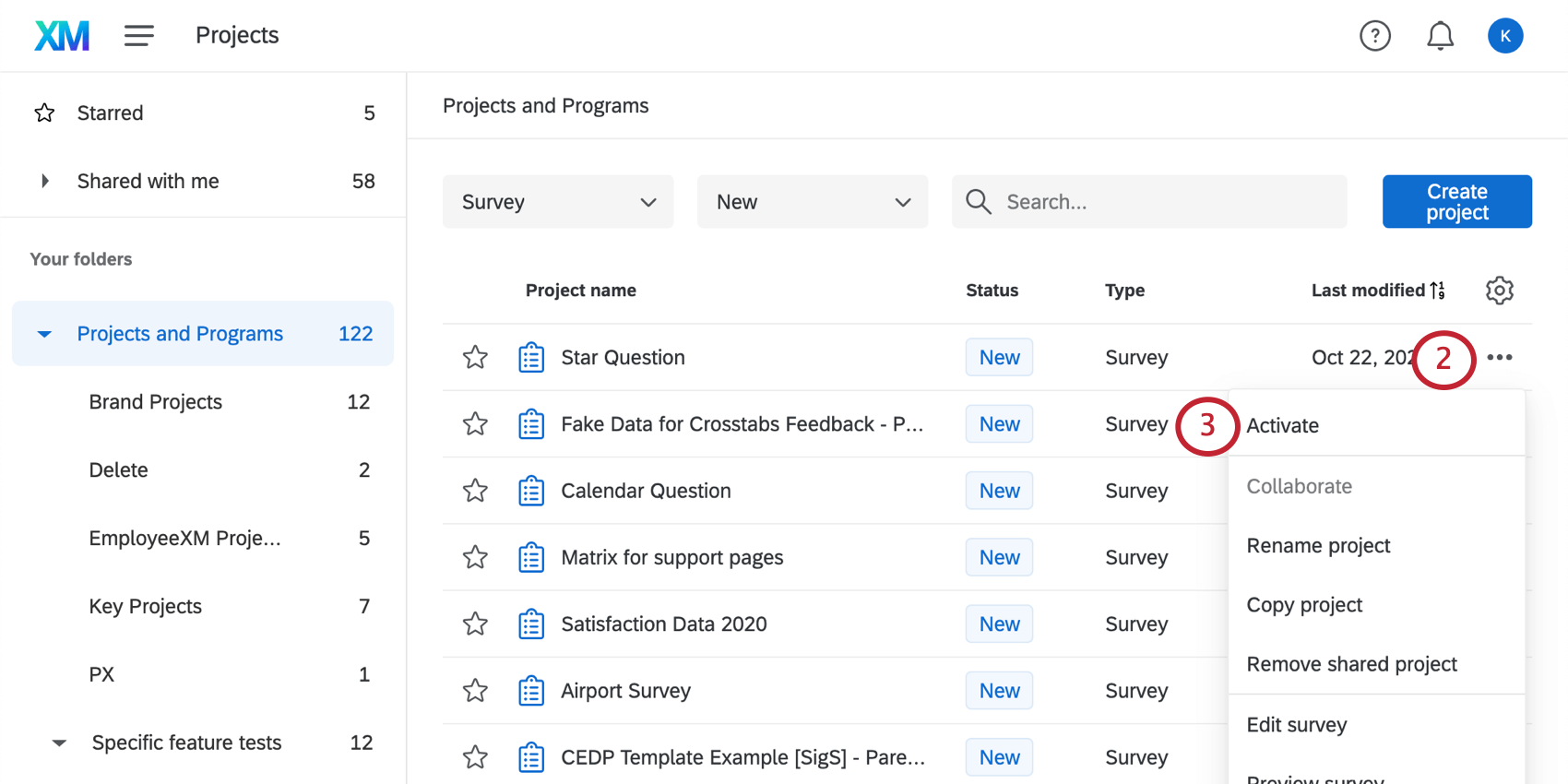
You can resume response collection from either the Projects page or the Distributions tab.
Resuming response collection from the Projects page
Resuming response collection from the Distributions tab
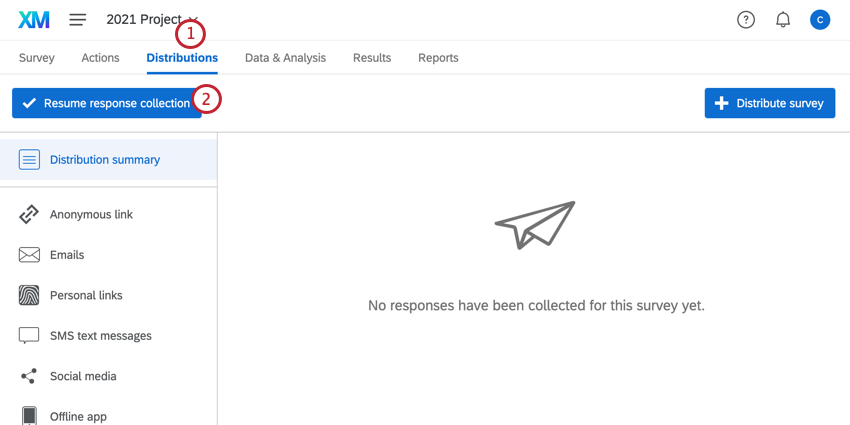
Setting a Survey Availability Date
In addition to manually closing the survey, you can set a survey availability date. The survey availability date determines when respondents can start the survey. Once the date passes, respondents can no longer start a new response; however, they’ll still be allowed to finish a response they’ve already started as determined by the survey options.
To set an availability date, follow the steps outlined on the survey availability page.
Qtip: If you are interested in setting an availability date for your survey links to limit when respondents can start your survey, see distribution and survey availability.
Project Statuses
Projects can have 3 distinct statuses: New, Active, and Closed. To find your project’s status, look at the project in the Projects page.
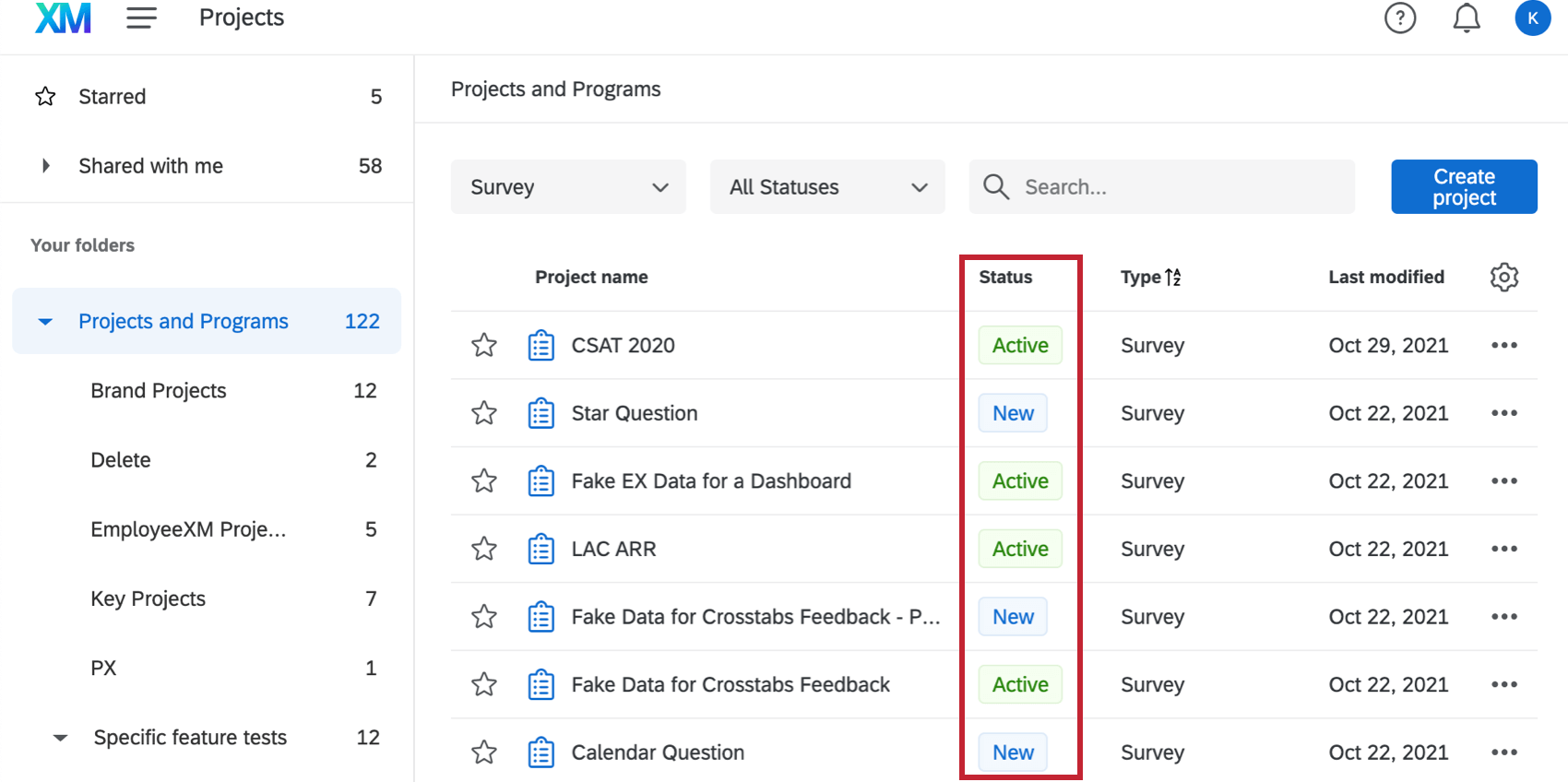
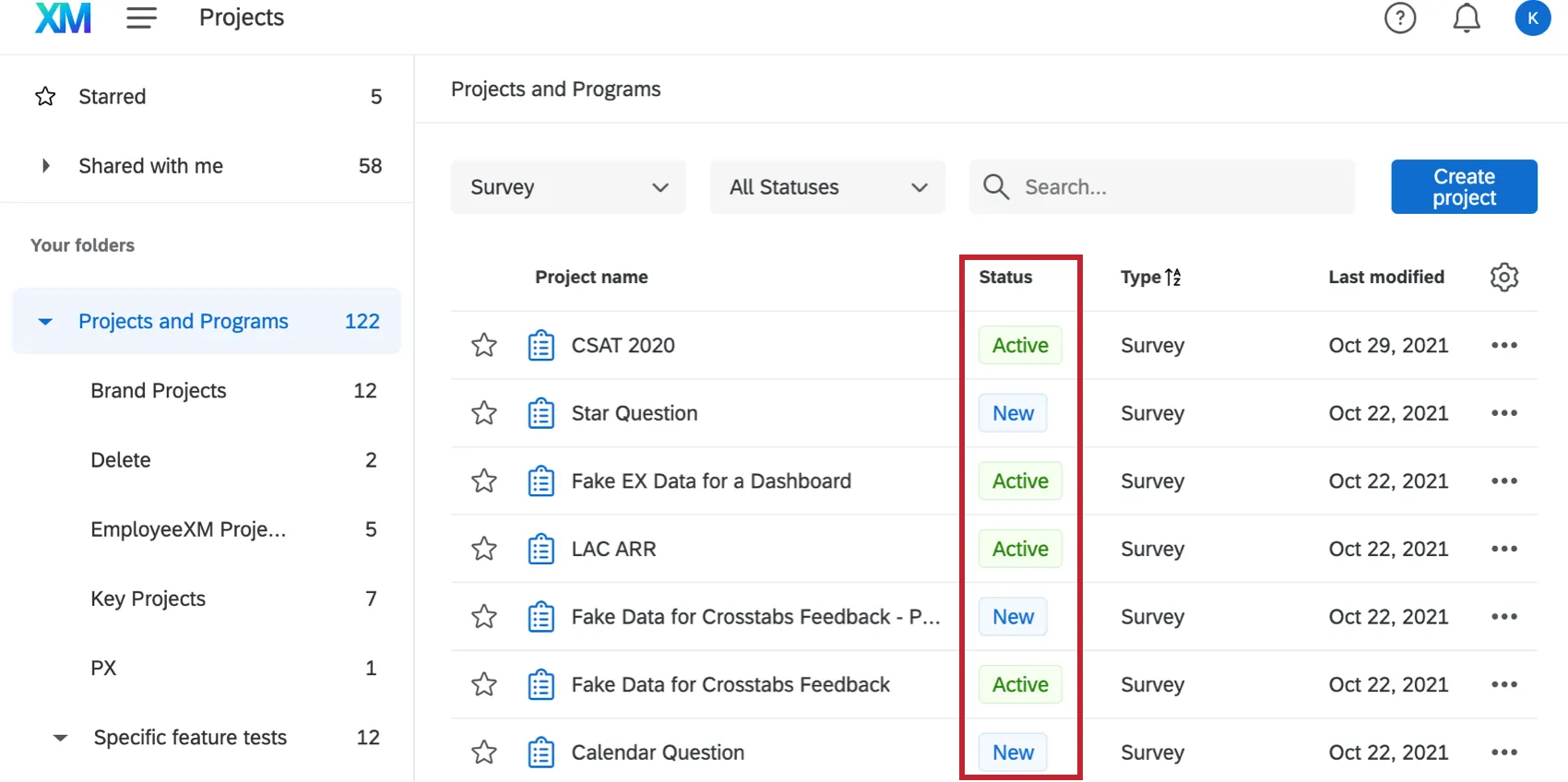
- New: Projects are “New” when they’re newly created and have not yet been “Active” or “Closed”. You cannot revert a project’s status back to “New” once it’s been changed.
- Active: Projects are “Active” when they are open to collecting responses. Projects can be activated in a few ways:
- Selecting Activate in the project actions menu. You can only activate your project if its status is “New” or “Closed.”
- Distributing the survey through any distribution method.
- Publishing your survey for the first time.
- If your survey is currently “Closed”, you can re-activate it by clicking Resume response collection in the Distributions tab.
- Closed: Projects are “Closed” when they are no longer accepting responses. Projects can be closed in multiple ways:
- Selecting Close in the project actions menu. You can only close your survey if its status is “Active.”
- Selecting Pause response collection in the Distributions tab.
FAQs
My participants are telling me that their survey link is not working. What could be causing this?
My participants are telling me that their survey link is not working. What could be causing this?
- Prevent Multiple Submissions: The participant may be attempting to take a survey on the same computer and browser with the Prevent Multiple Submissions feature enabled in the Survey Options. Prevent Multiple Submissions places a cookie on the participants browser that will prevent another survey session from being started from that device. The participant will need to clear their browser cache.
- Used Individual Links: The participant may be trying to access the survey through a used or expired Individual Link. Individual Links are created automatically for every person in your contact list when you send the survey out through the Qualtrics mailer or create Personal Links. This kind of survey link can be used only once and then becomes invalid. We recommend not forwarding any Individual Link to avoid this situation. In addition, if your respondent clicks onto the link, decides not to fill anything out, and leaves the survey for a long time (one week by default), this can also cause the link to close, because the incomplete survey response timeframe has passed. In both of these scenarios, the participant will need to receive another survey link (either through a new email distribution, Personal Link, or the Anonymous Link) in order to access the survey.
- Expiration: The participant may be trying to access a survey that is expired. In the Survey Options, there is an option to set an Expiration Date (after which participants can no longer start new surveys). Turn off the expiration to allow them access to the survey. (Please note that copying a project will copy over all survey settings, including the Expiration Date.)
How can I make sure the participant only takes the survey once?
How can I make sure the participant only takes the survey once?
If you are distributing your survey through the Qualtrics mailer or Personal Links, then Individual Links will automatically be generated for each participant. These Individual Links can be used only once and then become invalid.
If you are distributing your survey through the Anonymous Link, there are 2 options to prevent participants from retaking the survey:
- Prevent Multiple Submissions: You can enable Prevent Multiple Submissions in your Survey Options. This option will place a cookie in the participant’s browser that will restrict them from retaking the survey on that browser. However, the participant could still clear their cookie cache, use a different browser, or use a different computer in order to take the survey again.
- Authentication: You can use the Authenticator element in the Survey Flow. This option will require the participant to be a member of a contact list you have previously set up within your account. The Authenticator prevents contacts from retaking the survey by using the contact list as an authentication database. (Unless the Reload any previously saved progress upon authentication option is enabled, a single response from each contact is not guaranteed.)
How can I see who has received an email or who has finished the survey?
How can I see who has received an email or who has finished the survey?
A CSV file will download to your computer. This file will contain a list of all the contact list members you sent the survey to. The Status column will tell you whether they’ve received the email, started the survey, or finished the survey.
I set a survey expiration date, but some responses are still coming in. What is happening?
I set a survey expiration date, but some responses are still coming in. What is happening?
When the survey expiration date arrives, respondents who have already started their surveys will be able to complete their responses for a limited period of time. How long they have is determined by the Incomplete Survey Response setting (also found in Survey Options).
For example, let's say Survey Availability is set to 60 days and Incomplete Survey Response completion is set to 2 weeks. You receive your survey link and wait 55 days before clicking on it. As soon as you move past the first page (i.e., click the first "next" button), the Incomplete Survey Response setting takes over. You now have 2 weeks to finish taking the survey (even though the survey expires in 5 days). In this situation, participants can submit survey responses after a survey has expired or been deactivated.
If you want to avoid this scenario, you can pause response collection and choose to close all incomplete responses. This will close all surveys regardless of Incomplete Survey Response status and stop anyone from submitting after that point. All the partial data will be added to the Recorded Responses page with all the other survey data.
What happens if I collect more responses than my account allows?
What happens if I collect more responses than my account allows?
I want to remove a question or answer choice from a survey, but I’ve already collected some data. What do I do?
I want to remove a question or answer choice from a survey, but I’ve already collected some data. What do I do?
That's great! Thank you for your feedback!
Thank you for your feedback!