

App Configuration Overview
What's on this page
About App Configuration
Apps allows users to view specified workspaces within Qualtrics. Within these workspaces they can view collections of specific data and insights. See Available Apps for a list of the app types that are currently available.
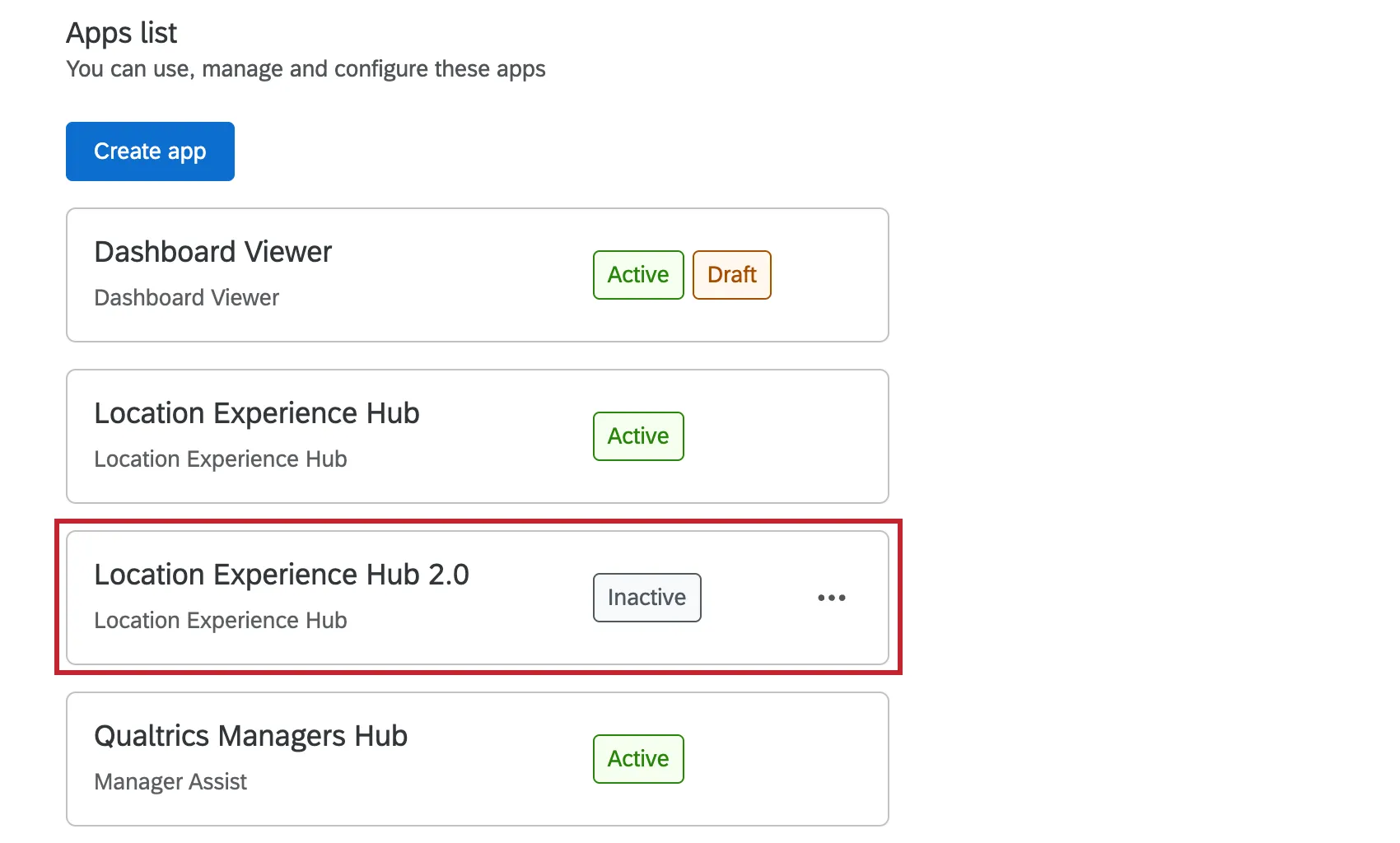
Brand Administrators, as well as some other user types, can configure and activate apps for their organization. Navigate to the App Configuration tab from the global navigation menu to view a list of apps you have access to configure.
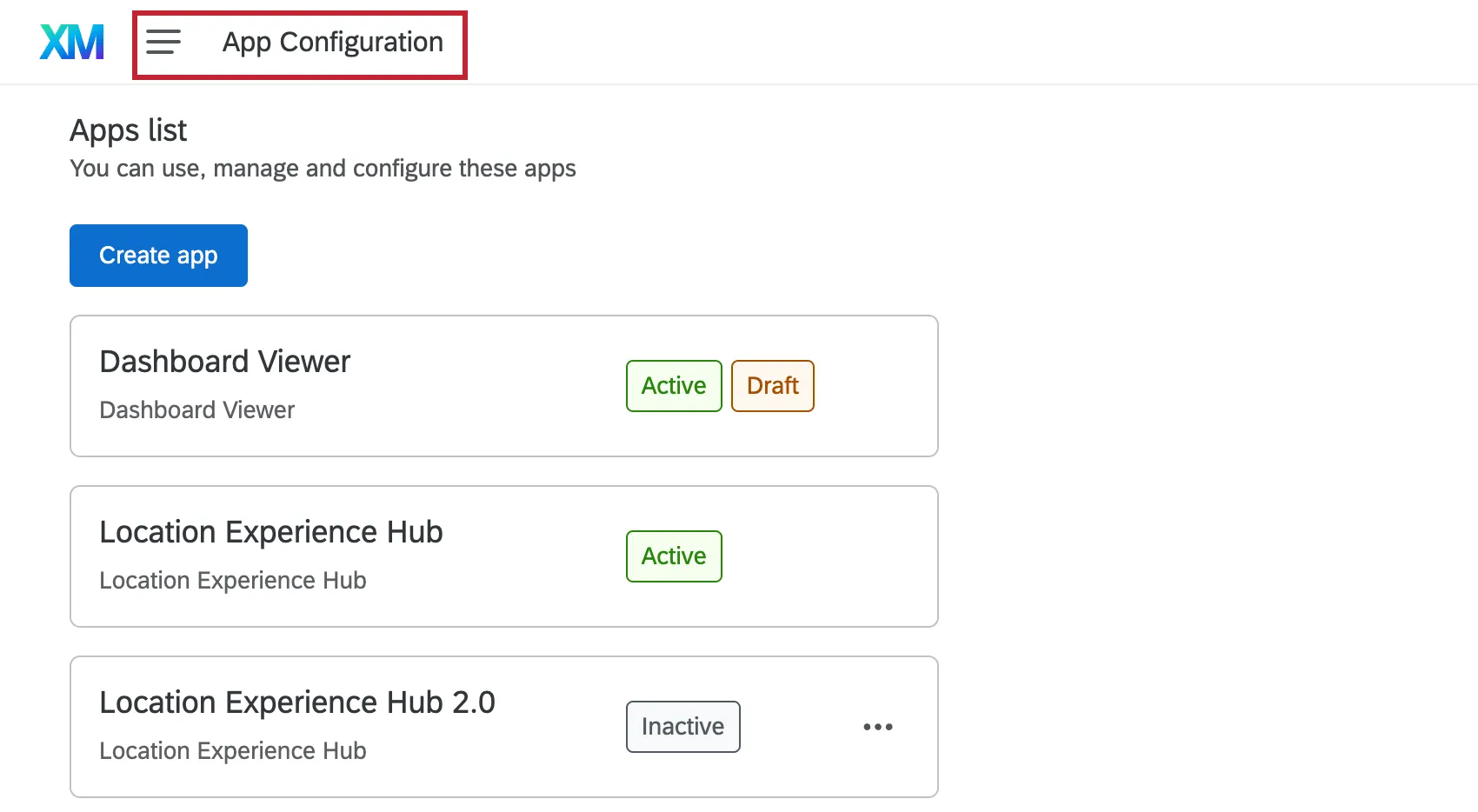
Attention: This page covers creating and configuring apps as an administrator. For information on viewing apps as a standard user, see the app-specific support page in the Available Apps section.

Single Instance vs. Multiple Instance Apps
Apps that can have multiple instances created are called Multiple Instance apps. Creating multiple versions of the same app allows you to have different app configurations, and these apps can then be shared with different groups of users that may have unique needs. Thus, when you give users access to these apps, you not only give them basic app permissions, but role-based access.
Apps that can only have a single version are called Single Instance apps. These apps only allow for a single configuration, and administrators can not create new instances of them. Thus, when you give users access to these apps, you only need to add basic app permissions, not role-based access.
See the table in Available Apps for information on which apps can have single vs. multiple instances.
Available Apps and Permissions
This table contains all the currently available app types. Click the relevant support page to learn more about each individual app.
| App Name | App Type |
|---|---|
| Customer Care App | Multiple Instance |
| Dashboard Viewer | Single Instance |
| Location Experience Hub | Multiple Instance |
| Manager Assist | Single Instance |
| Participant Portal (360) | Single Instance |
| Patient Experience Hub | Single Instance |
| Research Hub | Single Instance |
Creating Apps with Multiple Instances
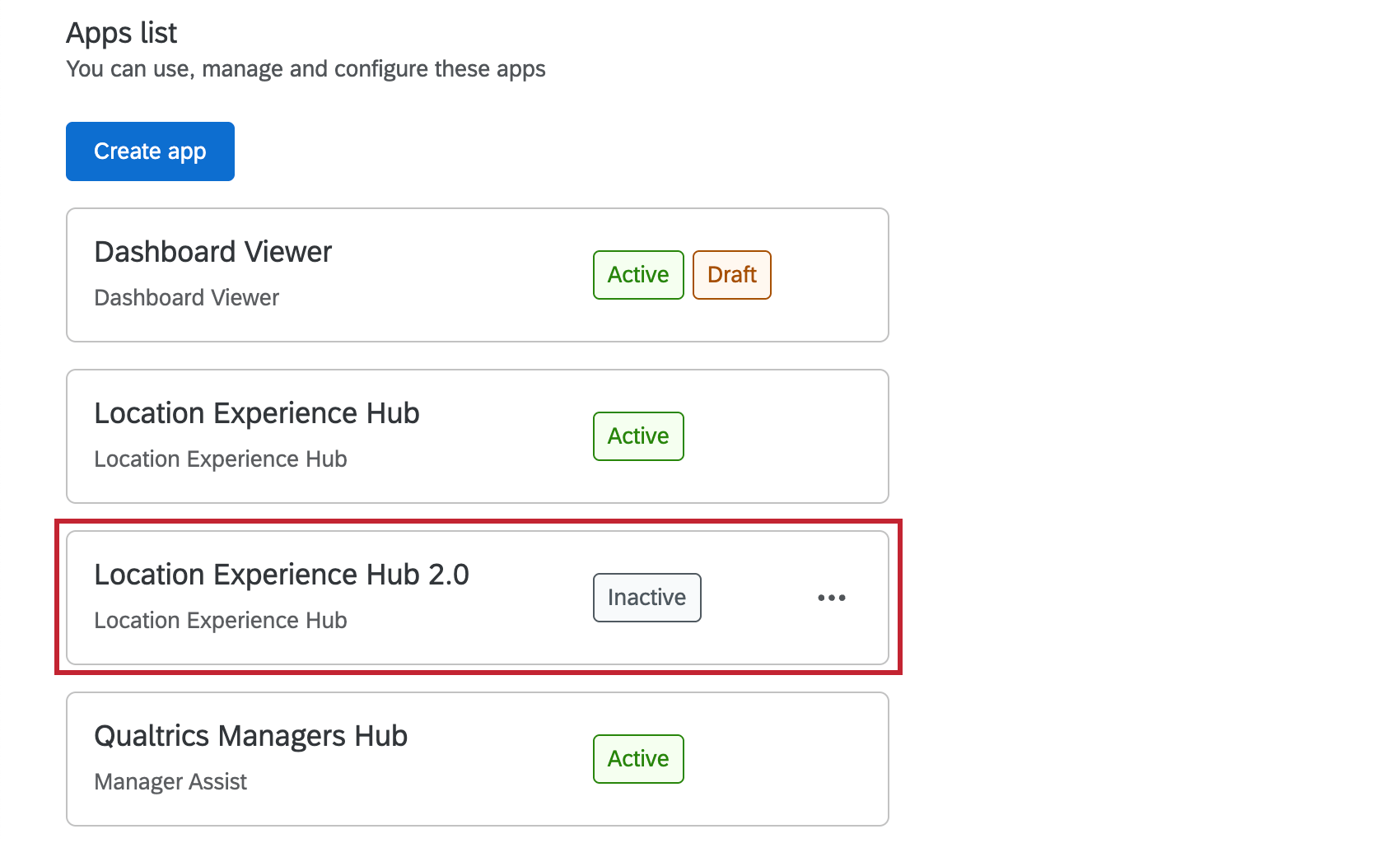
For apps that allow multiple instances (such as Location Experience Hub and Customer Care App), administrators can create new versions of the app within their brand. Follow the below steps to create a new instance of an app.
Attention: You can’t create multiple versions of all app types. See Available Apps for a list of which apps allow for multiple instances.
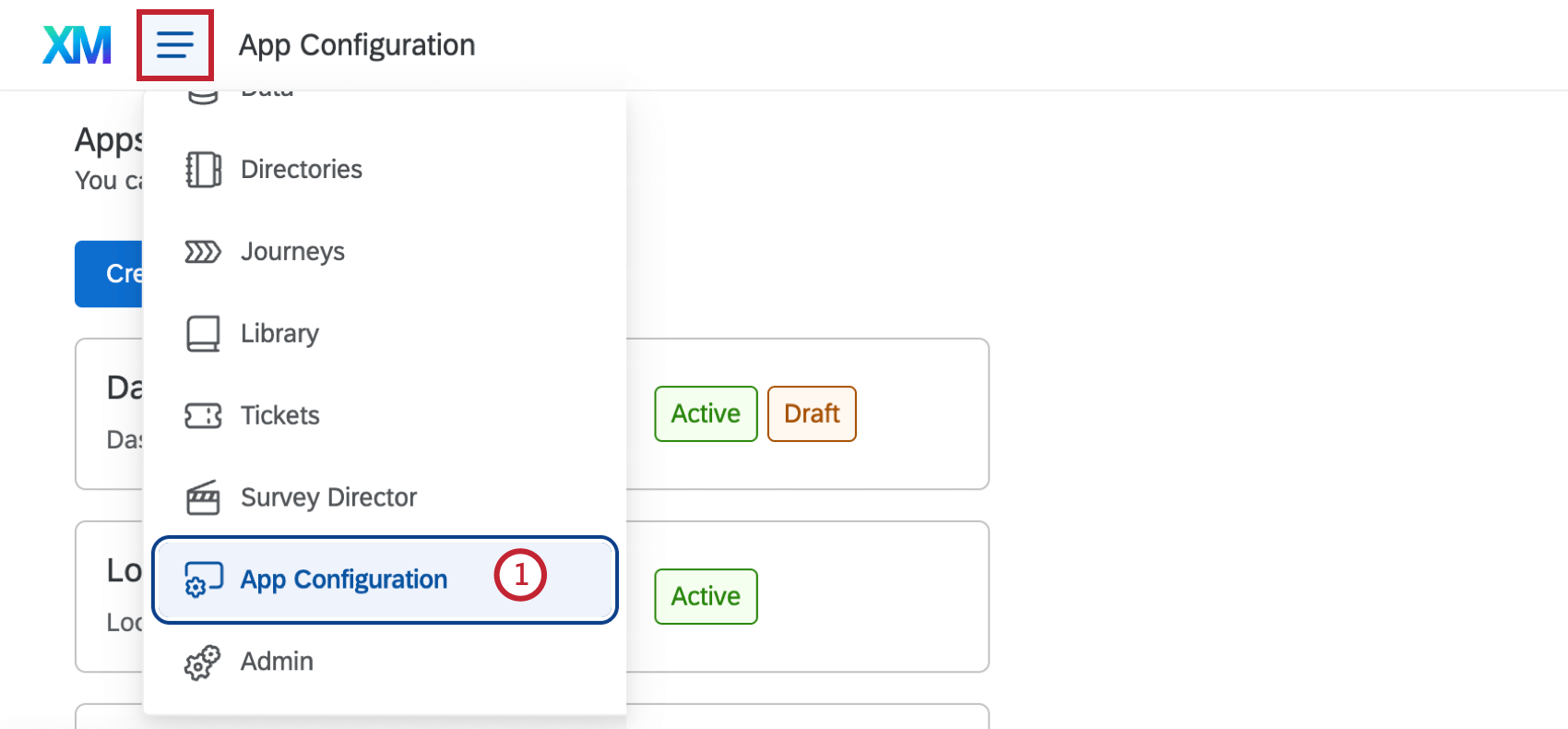
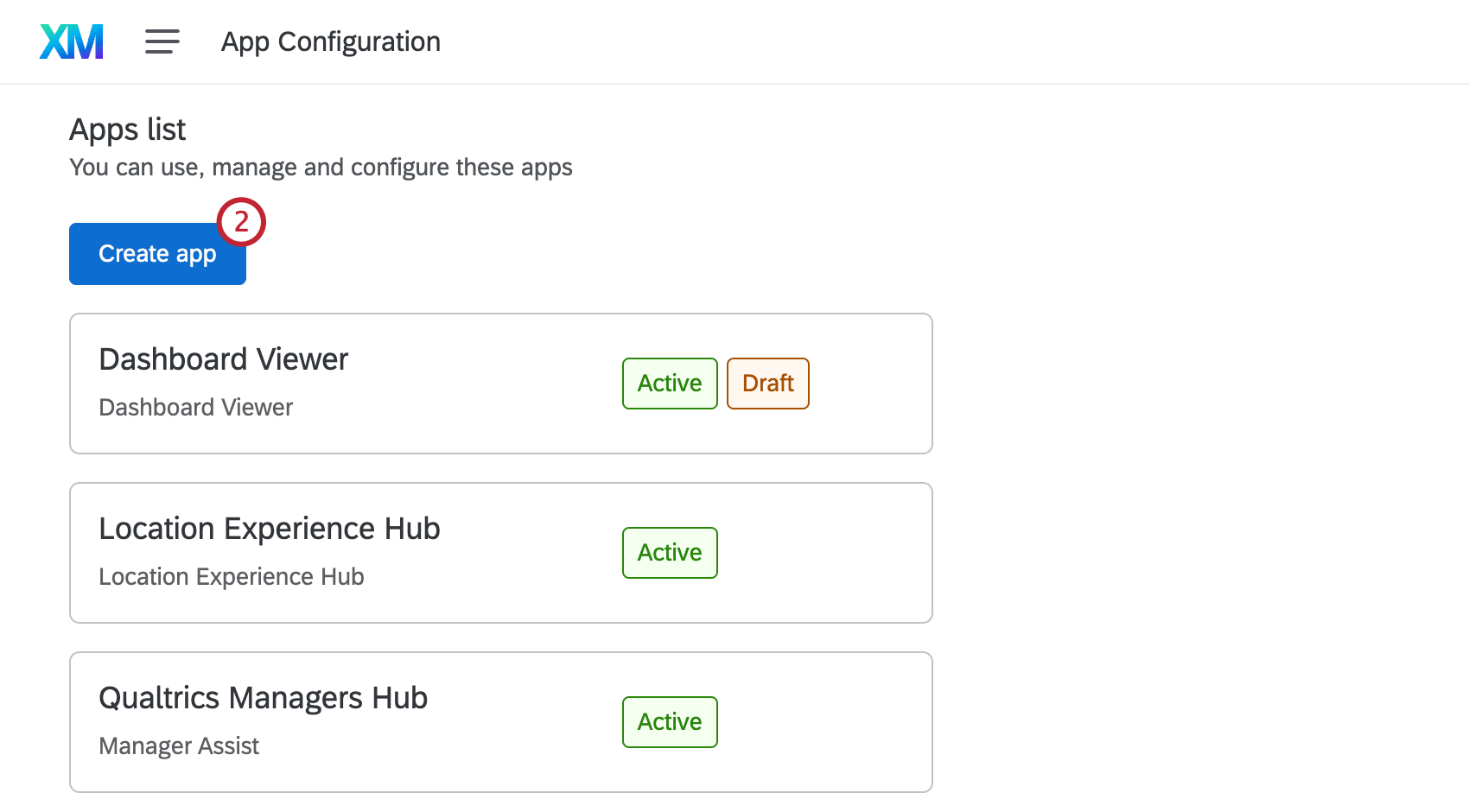
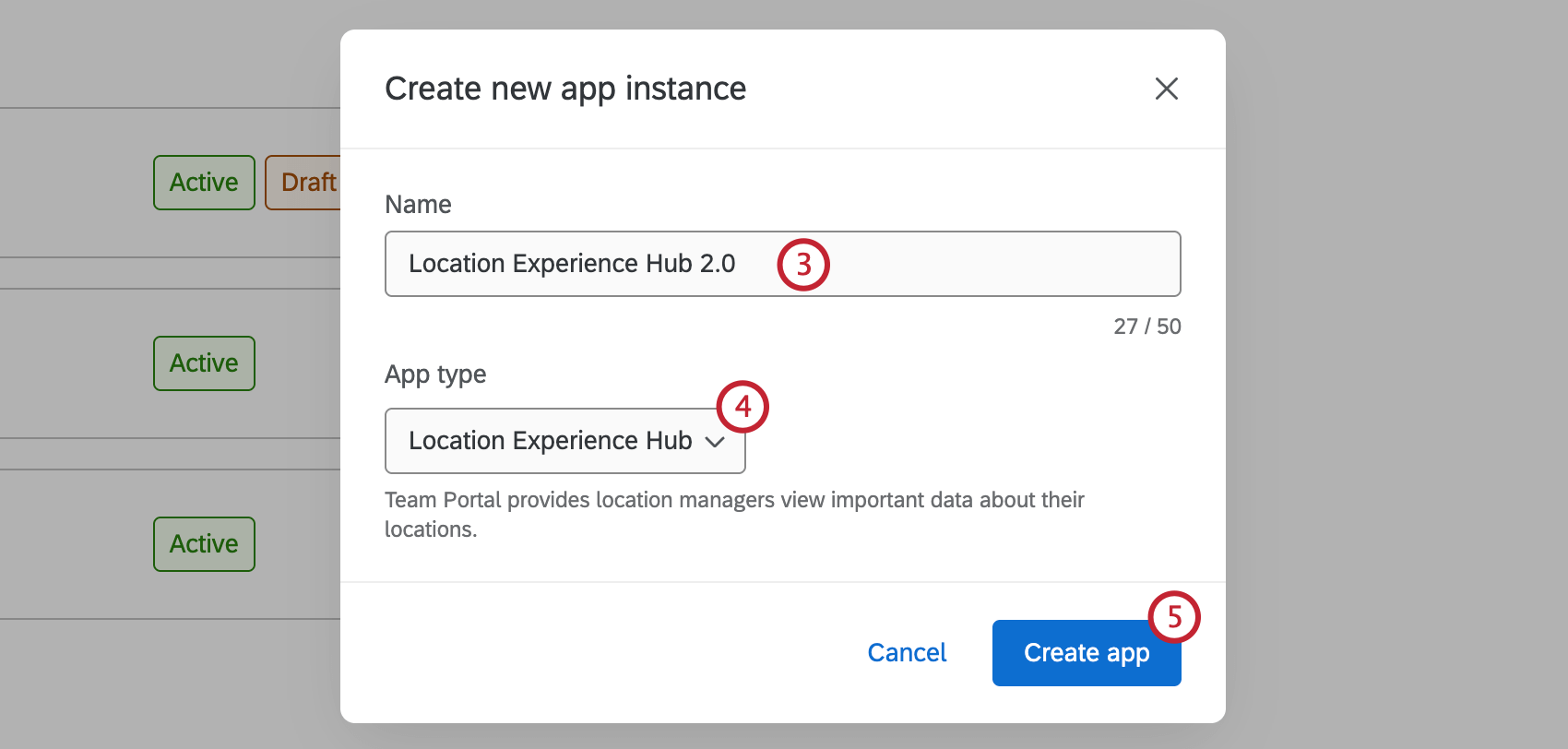
Once your app is created, you’ll be taken directly to the settings so you can configure your app. See Setting Up Apps for more information about configuring each app type.
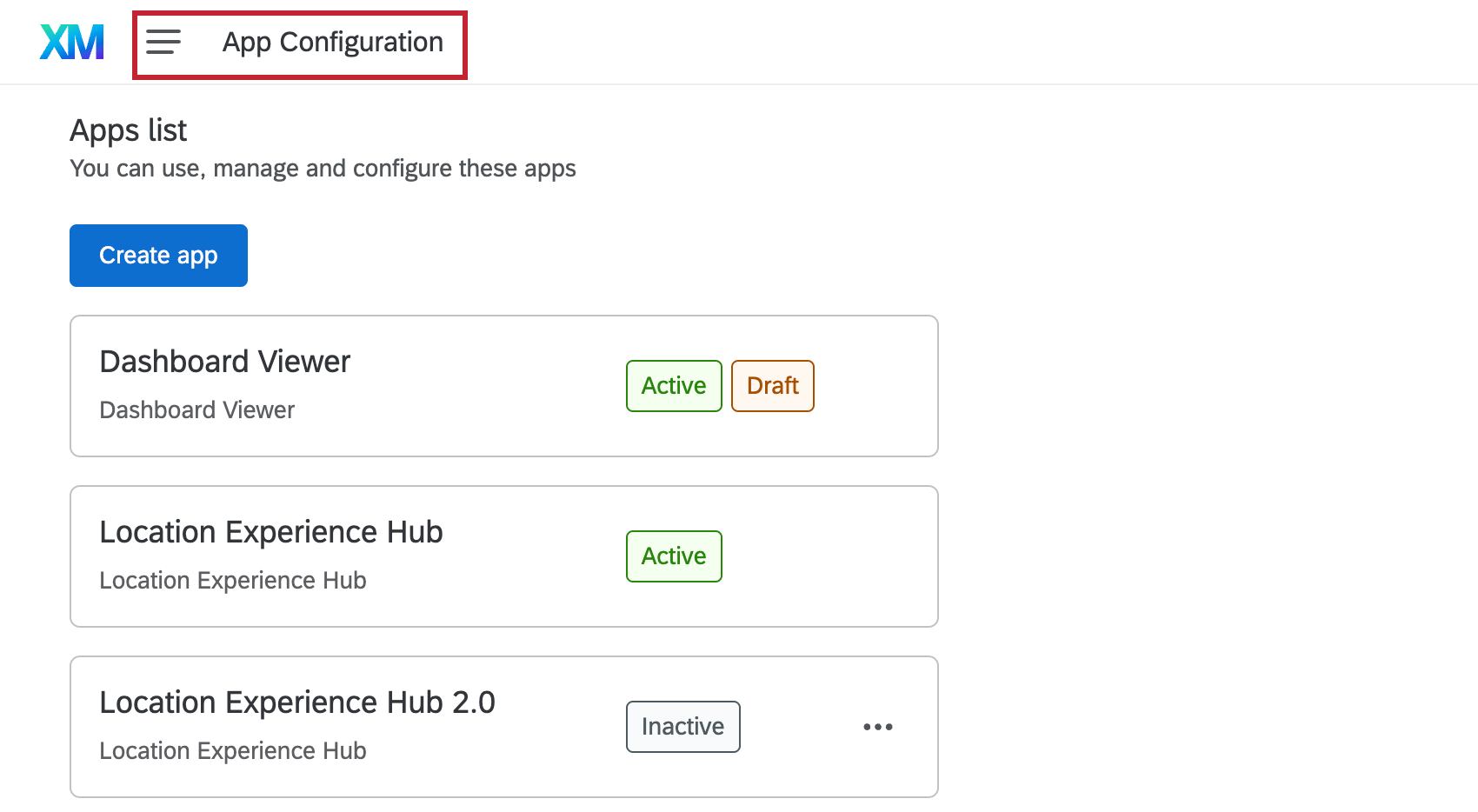
You can also return to App configuration to view your newly created app in the apps list.
Setting Up Apps
Once your app has been created, you can configure how it will appear to your users. Click the relevant support page below for more information on setting up each type of app:
- Configuring Customer Care
- Setting Up Dashboard Viewer
- Configuring Location Experience Hub
- Setting Up Manager Assist
- Configuring Research Hub
Qtip: There isn’t a specific page on setting up the 360 Participant Portal. This portal is automatically configured, and there are no additional customization options.
Previewing Apps
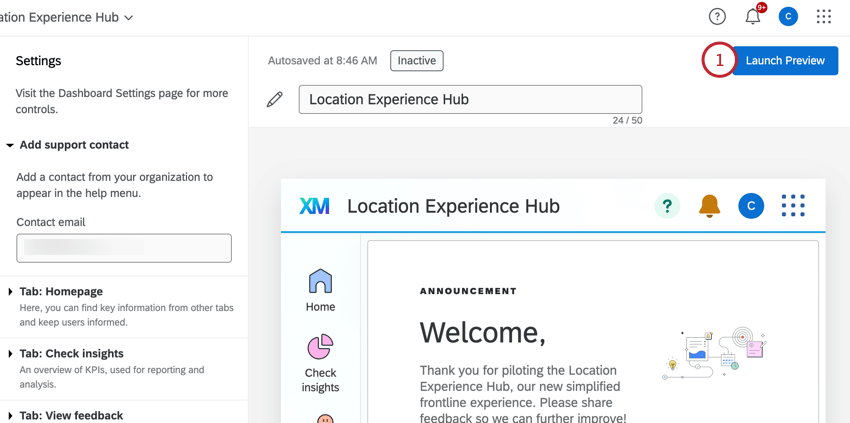
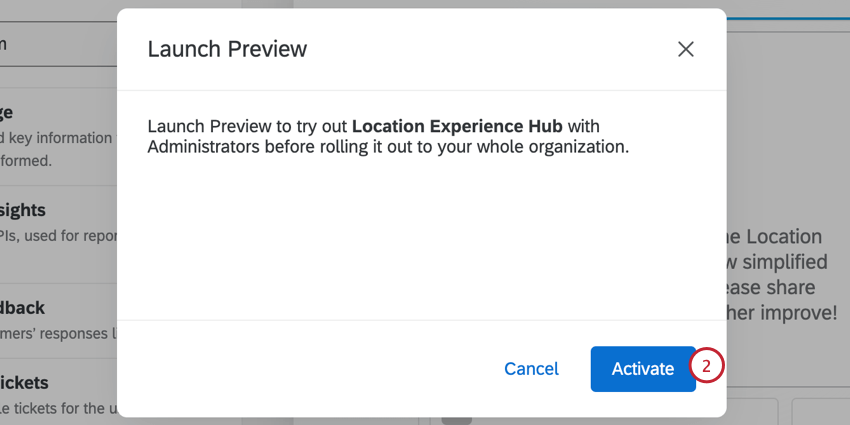
When you’ve finished configuring your app, you can enable a preview before the app is available for your whole organization. This preview will only be available to users with Manage App permission. See App Permissions for the relevant permission for each app type.
Activating Apps
After configuration, apps will be deactivated by default. After activating the app preview, you can activate the app for your organization. Note that it will only be visible to users with the permission to access the app. See App Permissions for the relevant permission for each app type.
Qtip: The participant portal and research hub do not have to be activated. Only other apps need activation, such as customer care, location experience, dashboard viewer, and manager assist.
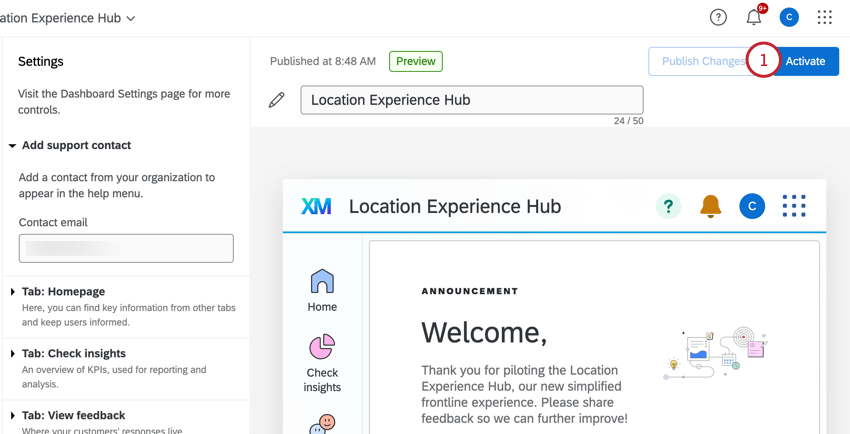
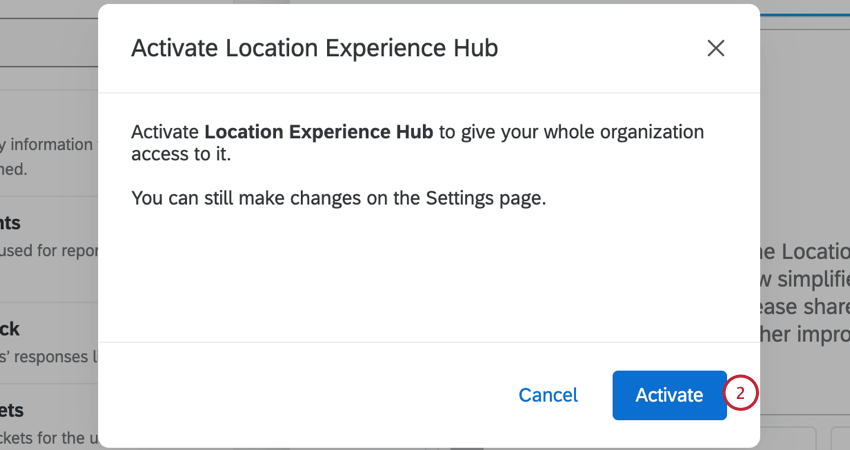
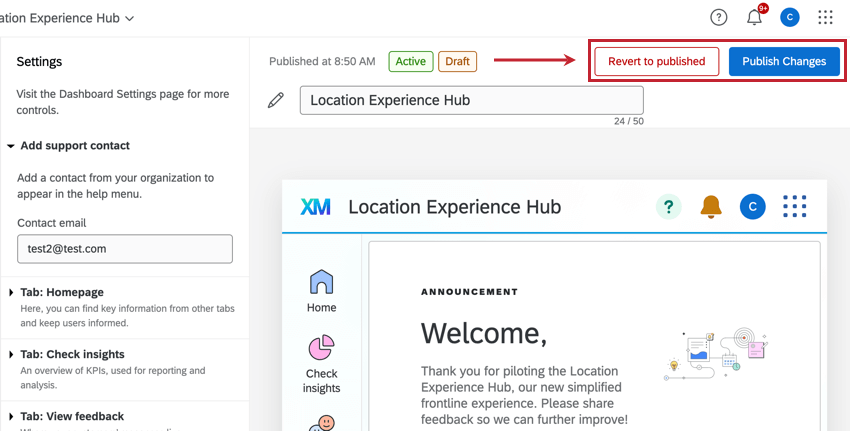
Qtip: Any changes you make will be autosaved, but they will not be live to users until you click Publish Changes.
Required Permissions for App Users
Single instance apps
For apps that only have a single instance, access can be shared by assigning an individual user or an entire user type the relevant permission in the Admin tab. See the linked support pages below for more information on which permission is needed for each app.
Multiple instance apps
For apps with multiple instances, in addition to assigning users the relevant permissions, they also need to be given role-based access to each app they should have access to. See Role-Based App Access for instructions.
Role-Based App Access
Qtip: In addition to giving users role-based access, they also need to have the relevant permissions enabled in the Admin tab. See App Permissions for more information.
For apps that allow multiple instances, access can be managed in the Users or Role access tabs within the app.
Users Tab
In the Users tab you can view all CX Dashboard Users within your brand. This tab functions the same as the User Admin tab in CX Dashboards. See Managing CX Dashboard Users for more information on creating and managing users.
Role Access Tab
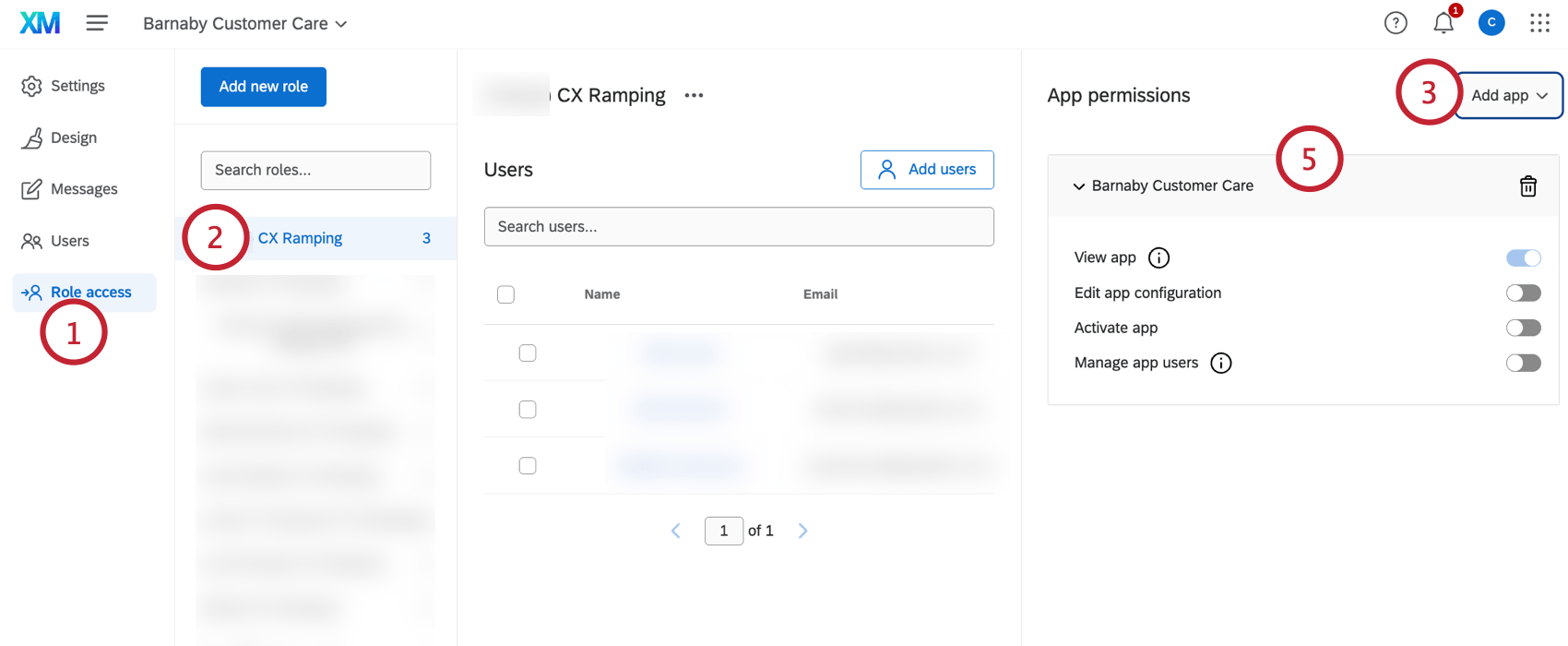
In the Role access tab you can view all CX Dashboards Roles created within your brand. See Creating Roles for more information on roles and how to create new ones. Select a role to view the users within the role, add users, or edit users.
To add an app to a role, follow these steps:
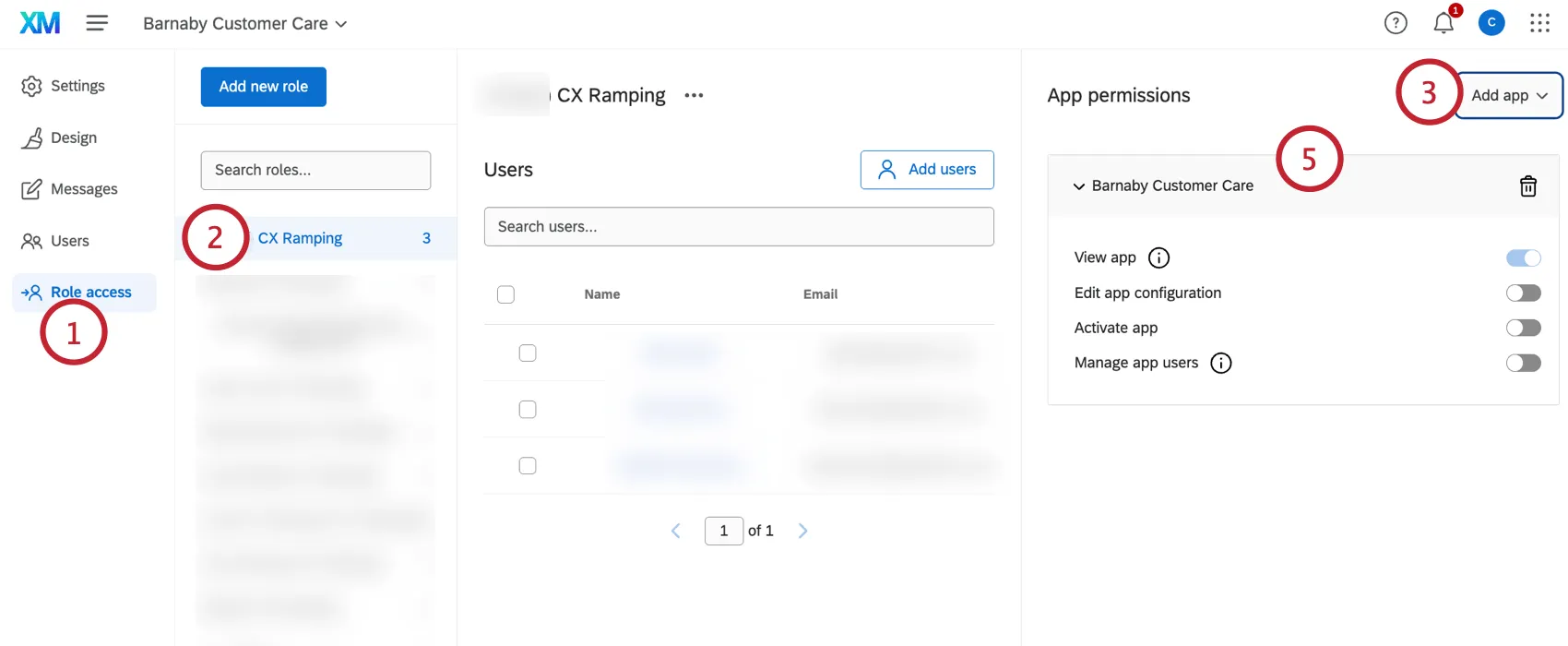
- View app: View the app once it has been activated. Qtip: When you add an app to a role, all users in that role will have this permission. To remove it, delete the app from the role.

- Edit app configuration: Edit the settings and appearance of the app. This permission should be given to administrators of the app.
- Activate app: Activate the app.
- Manage app users: Share the app and manage users who have access to it.
App-Only Users vs. XM Platform Users
Qtip: This section describes functionality that is currently in early access. You can request access to this functionality by contacting your Qualtrics account team. Qualtrics may, in its sole discretion and without liability, change the timing of any product feature rollout, change the functionality for any in preview or in development product feature, or choose not to release a product feature or functionality for any reason or for no reason.
You may decide that you want users to only have access to purpose-built apps, such as Manager Assist or Dashboard Viewer. Or you may want users with these apps to still have access to the larger XM platform, where they can set up projects, directories, workflows, and more. In this section, we’ll explain how to configure either of these scenarios.
Qtip: If you only give a user access to one app, they won’t have the app-switcher. Instead, when they log on, they’ll go right to the app you want them to access.
User Permissions
- App-Only Users: These are users who should only have access to a single app or multiple purpose-built apps, not the larger Qualtrics platform. To set up app-only users, you need to make sure they have the following permissions:
- View XM Platform permission must be disabled.
- Individual app permissions enabled.
- For multiple instance apps, make sure you also apply role-based access.
- App and XM Platform Users: These are users you want to access the larger XM platform, in addition to the a purpose-built app. These users will switch between different options using the app-switcher. These users should have the following permissions:
- View XM Platform permission must be enabled.
- Individual app permissions enabled.
- For multiple instance apps, make sure you also apply role-based access.
User Types
- Custom user types: You can create your own custom user types using the permissions described above. User types are a great way to apply the same permissions to many users at once. You can also freely edit their permissions as needed, which you cannot do with existing user types. Learn more about building custom user types.
- Participant: This is an existing user type you cannot edit. Participants have the View XM Platform permission disabled by default. You have to edit an individual user to give them access to the XM Platform, if you want them to have it.
- Most default user types: Most existing user types (including admins and standard users) have the View XM Platform permission enabled by default. You cannot edit default user types, so you have to edit an individual user to remove their access to the XM Platform, if you do not want them to have it.
Deactivating Apps
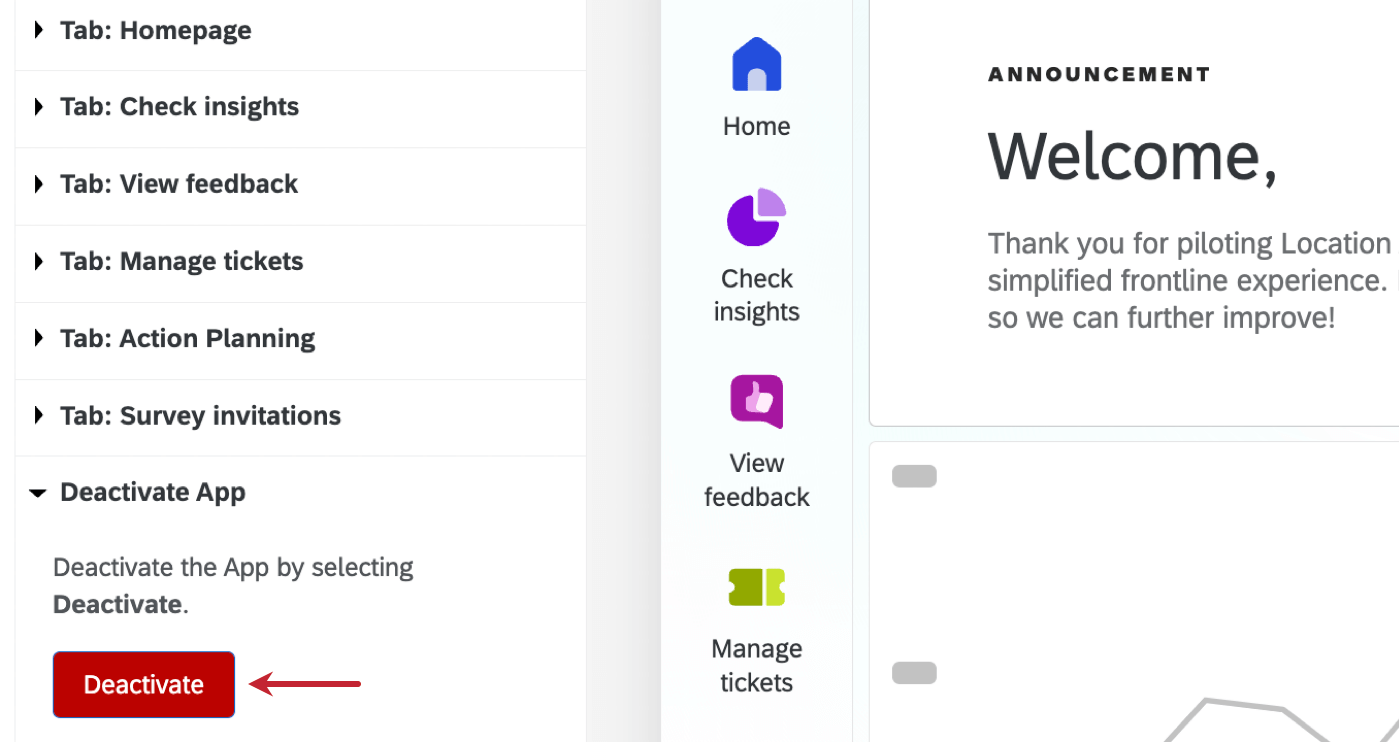
Attention: Deactivating an app will revoke access for all users. We do not recommend deactivating this unless you absolutely need to.
Select Deactivate from the bottom of the settings menu to deactivate an app. This option is available when it is active or in preview.
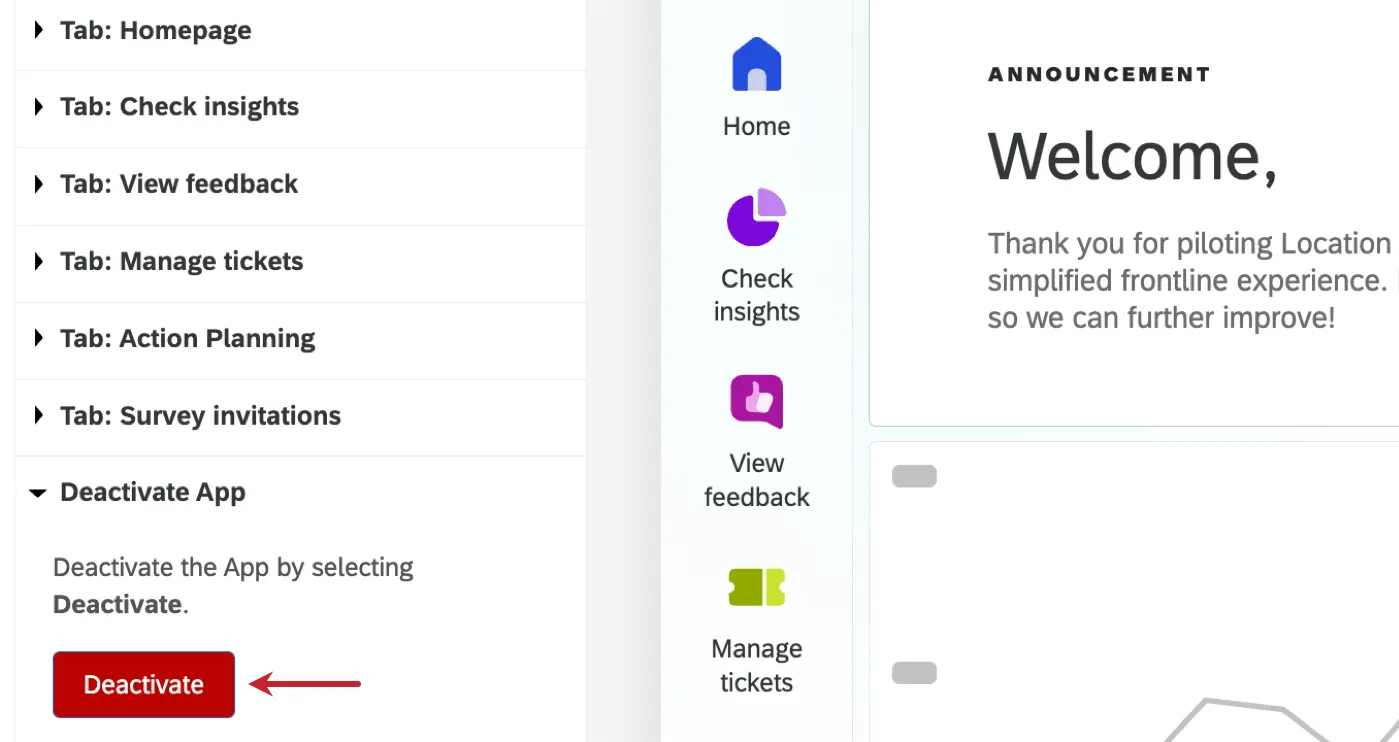
Qtip: To remove user access to the participant portal and research hub, edit user, user type, or group permissions. Only other apps ca be deactivated, such as customer care, location experience, dashboard viewer, and manager assist.
Copying and Deleting Apps
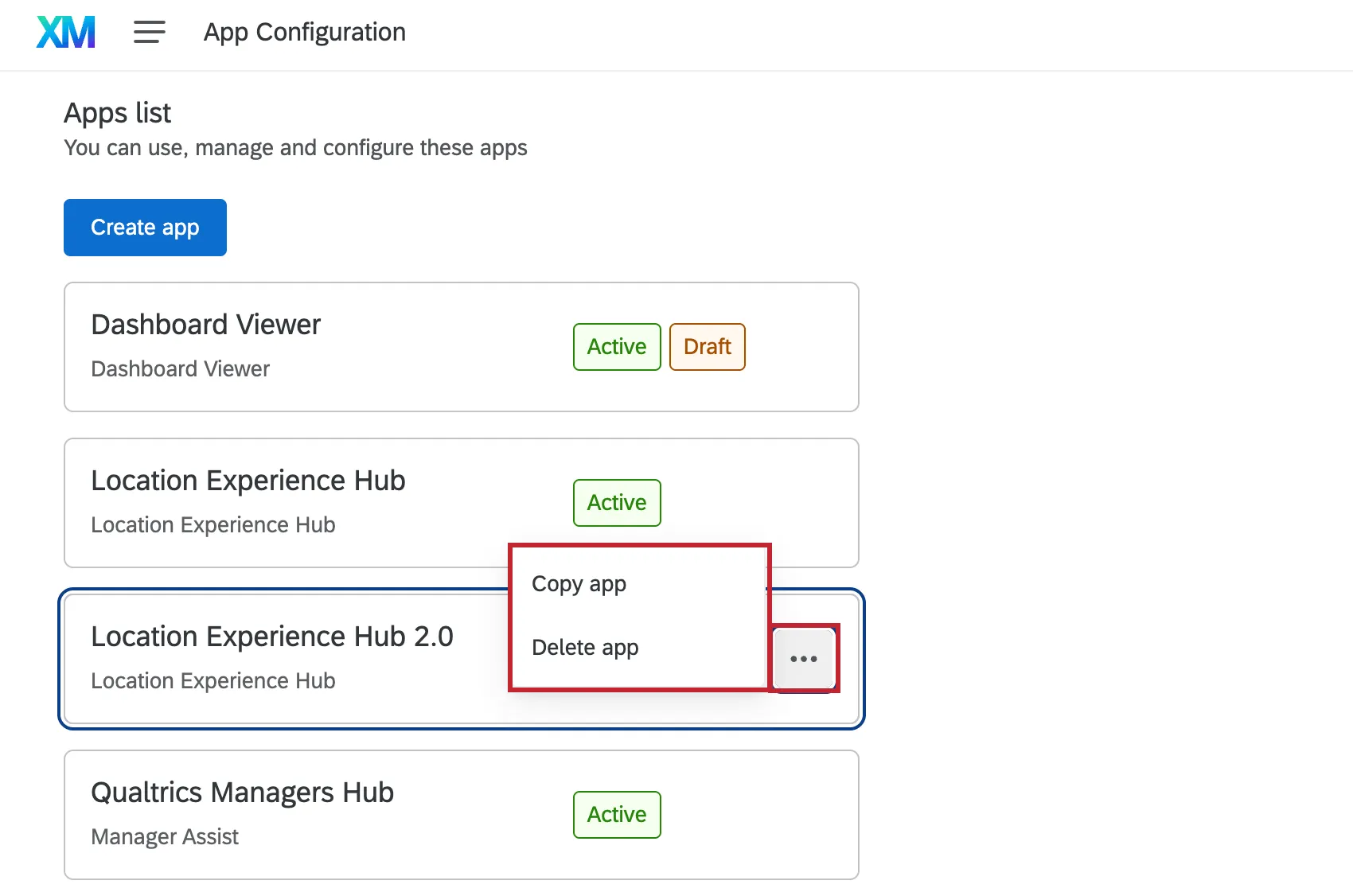
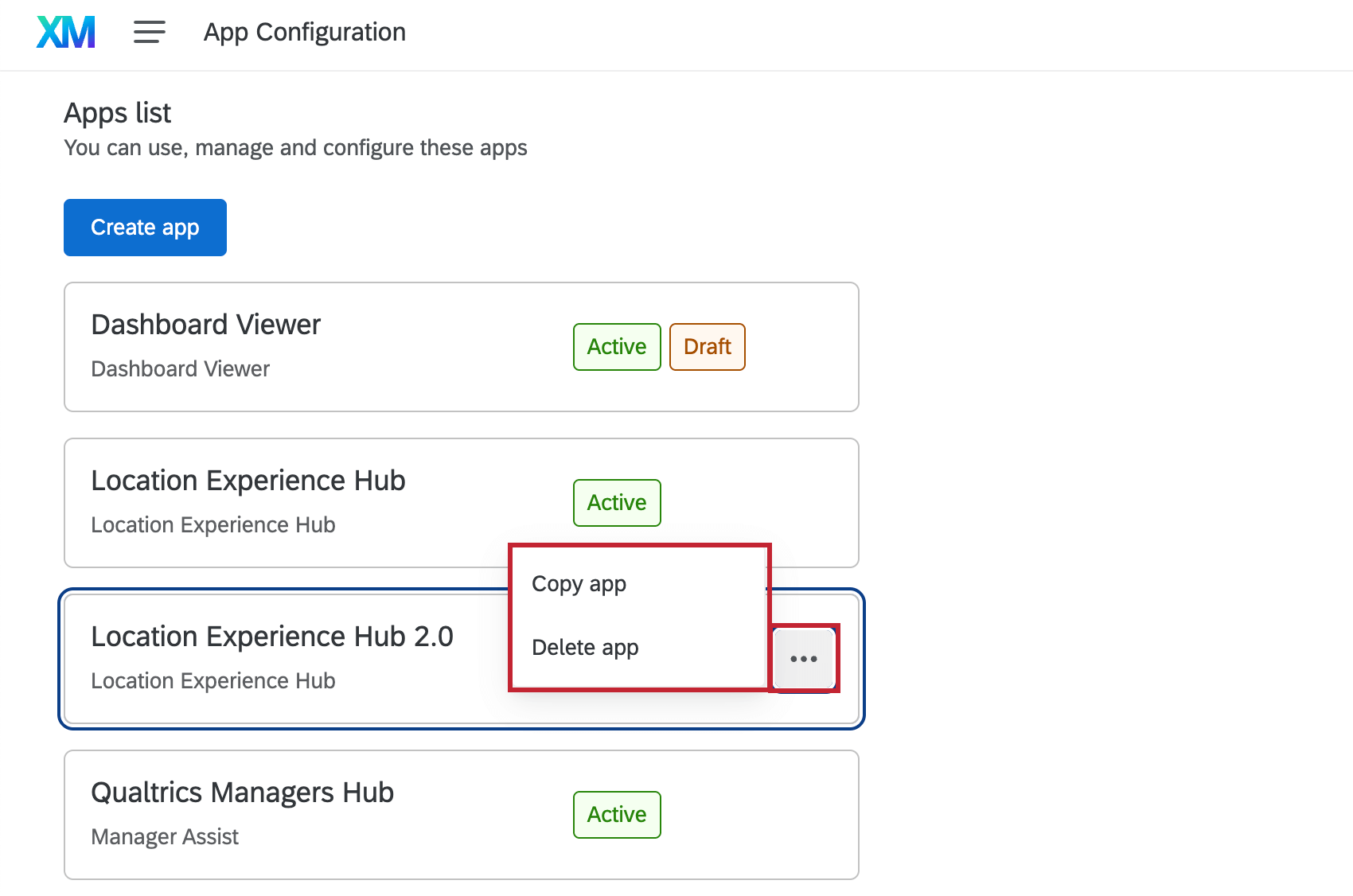
Within the App Configuration page, click the 3 horizontal dots next to an app for additional options. Click Copy app to create a copy of the app, or Delete app to delete the app.
App Switcher
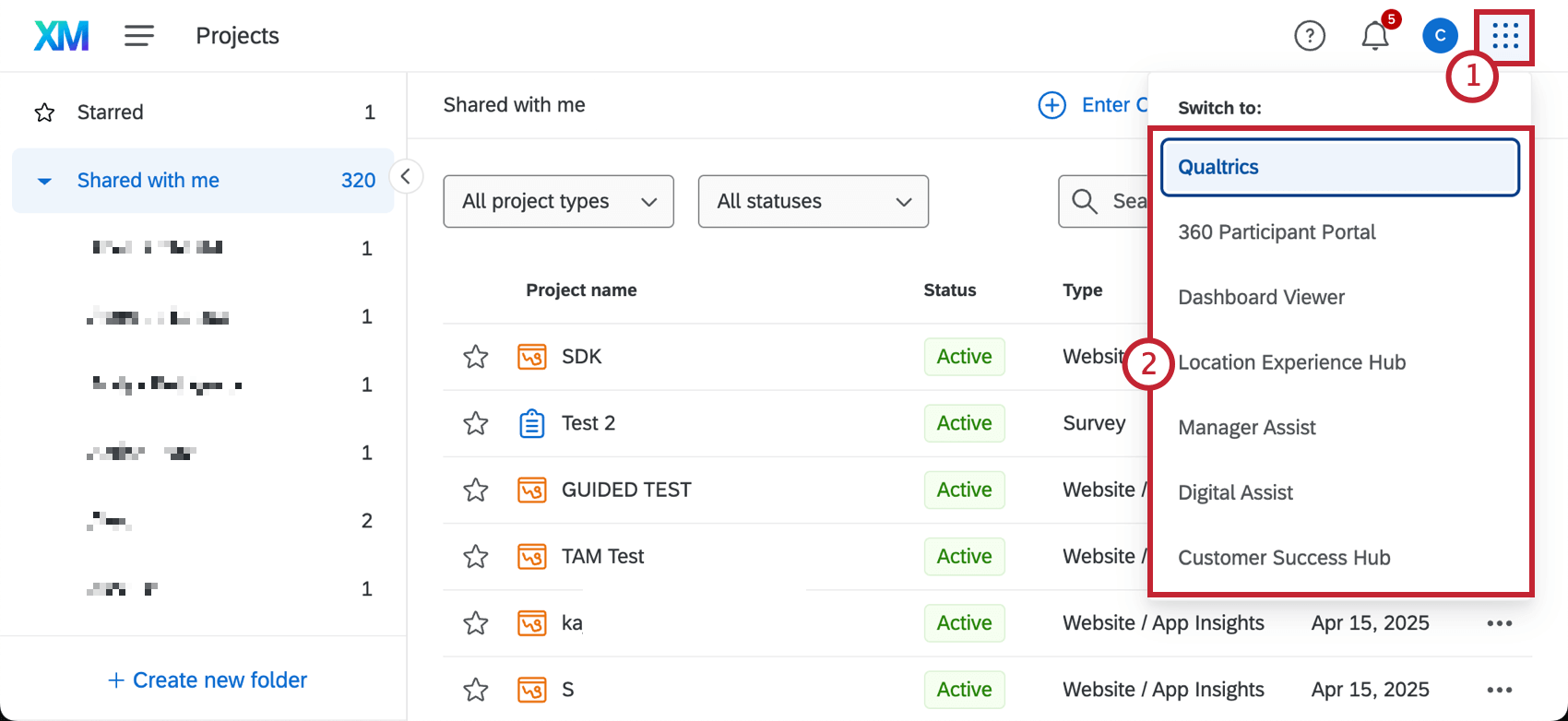
If you have access to multiple apps, you can switch between them using the app switcher menu.
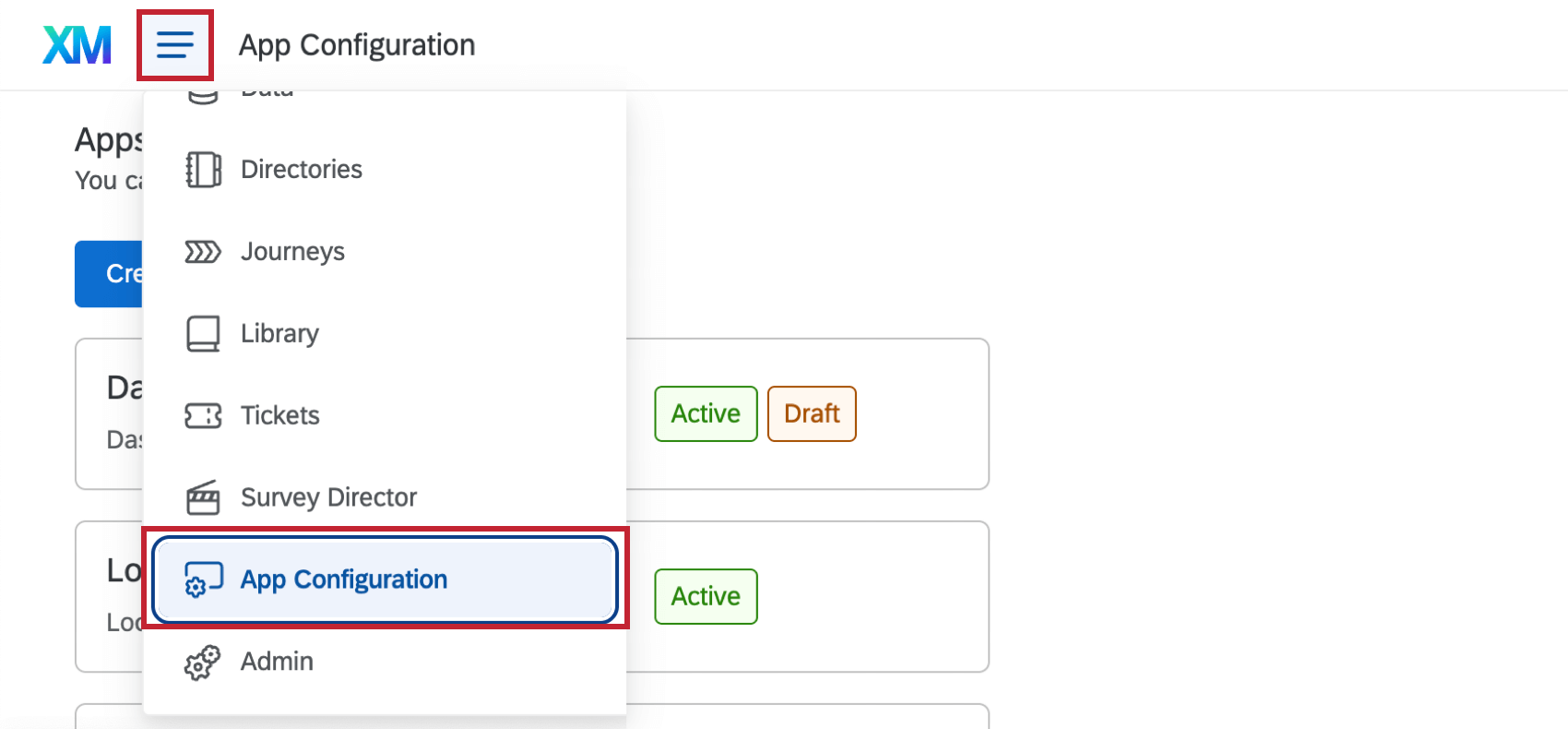
Qtip: Note that this will take you to the activated version of each app; to edit settings or configure an app, navigate to the App configuration tab from the global navigation menu.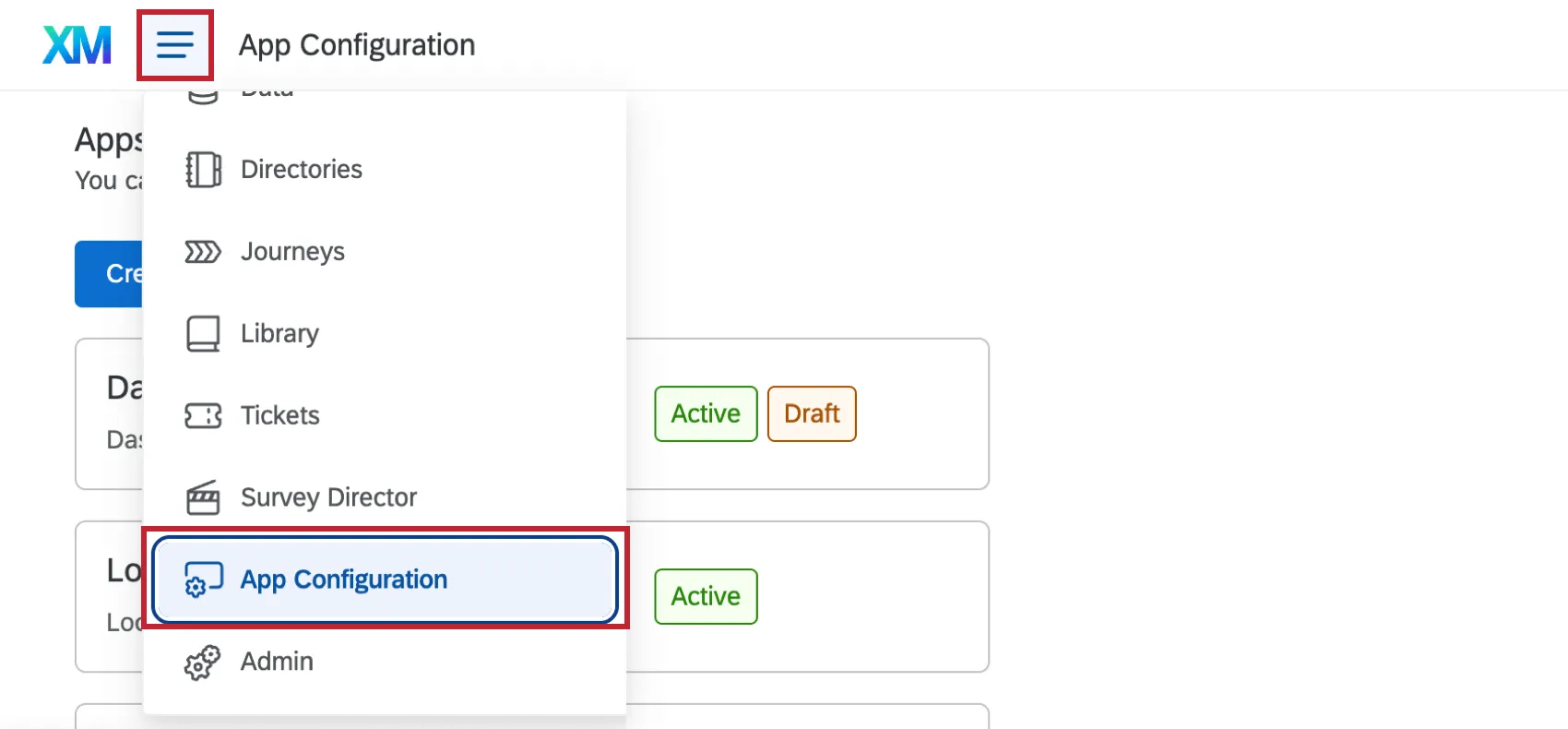
That's great! Thank you for your feedback!
Thank you for your feedback!