

Confidentiality Overview (EX)
What's on this page
About Confidentiality
Qtip: Confidentiality used to be called Anonymity.

There are 2 levels of confidentiality: basic and enhanced. Basic confidentiality is enabled by default in each dashboard, while enhanced confidentiality can be turned on for additional layers of protection. For more information, see Basic vs. Enhanced Confidentiality.
Any changes you make in confidentiality settings will immediately be applied to your dashboard.
Qtip: Confidentiality is available in Engagement, Lifecycle, Pulse, and Ad Hoc Employee Research projects. It is included in all EX licenses.
Attention: The Confidentiality tab in dashboard settings is only available for Brand Administrator, EX Administrator, and Employee Insights Admin user types.

Basic vs. Enhanced Confidentiality
Basic Confidentiality
Basic confidentiality thresholds determine how many responses must be included for a given data point before it can appear in your dashboard. This is a great way to protect the privacy of employees’ responses. The confidentiality threshold applies to each data point for metrics (favorability score, average, etc.) but not counts of data (number of responses).
Basic confidentiality is a simple way to protect employee responses while still allowing flexibility with data analysis.
Example: If your threshold is 5 and you have 5 responses, you could see that 3 responses are from males and 2 from females, but you could only see a favorability score for all 5 responses together.

When adding filters to a page, you are able to select values below the threshold, but you won’t see any data until the total value of all data selected in the filters meets your confidentiality threshold. See Filtering Dashboards for more information.
When breaking out data on a single field, any metrics below the confidentiality threshold will be hidden and counts will be shown. When breaking out data on multiple fields, both metrics and counts below the confidentiality threshold will be hidden.
Response Rates widgets will show counts below the confidentiality threshold.
Attention: When Enhanced Confidentiality is enabled, org hierarchy filters will not allow you to select units below the threshold.
Enhanced Confidentiality
In addition to the features covered by basic confidentiality, enhanced confidentiality adds additional layers to sensitive fields, org hierarchies, filters, and widgets broken out by this information in order to protect participant responses.
For enhanced confidentiality when using filters or widgets broken out by metadata, you can note that fields that are the most sensitive. Enhanced confidentiality will look for subgroups in these fields that don’t meet the response threshold, and group their responses accordingly in order to protect those participants.
By marking org hierarchies as sensitive, you can protect units and everything rolling up to them. Enhanced confidentiality will look for units that don’t meet the response threshold. Then, with the help of a setting known as the suppression threshold, you can determine what size difference should exist between two related teams before responses are suppressed.
Basic Confidentiality Thresholds
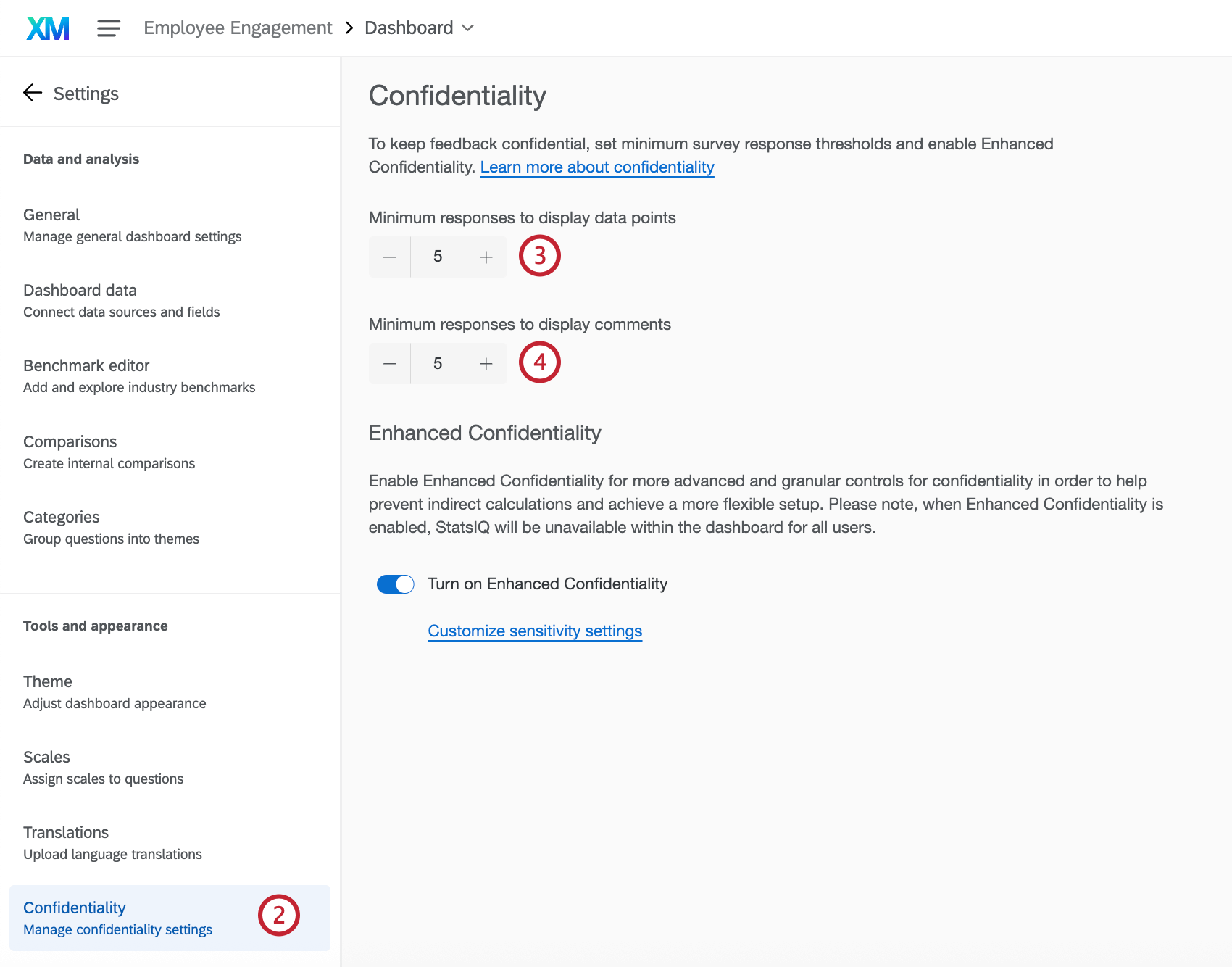
The confidentiality threshold determines how many responses must be included for a given data point or comment before it can appear in your dashboard. Data points can be as broad as a widget or as specific as a bar within a chart.
The default confidentiality threshold is set to 5 for both data points and comments.
Qtip: Any responses that include answers that are marked as “Exclude from Analysis” will not count towards the response threshold. For more information, see Formatting Answer Choices.
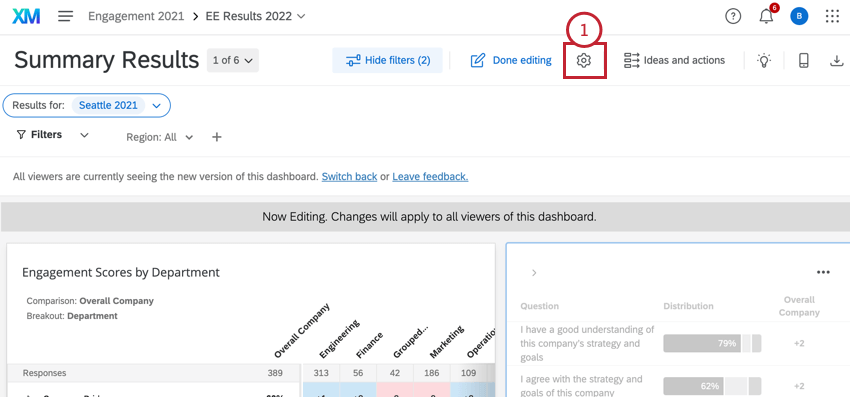
To view and modify confidentiality thresholds, follow these steps:
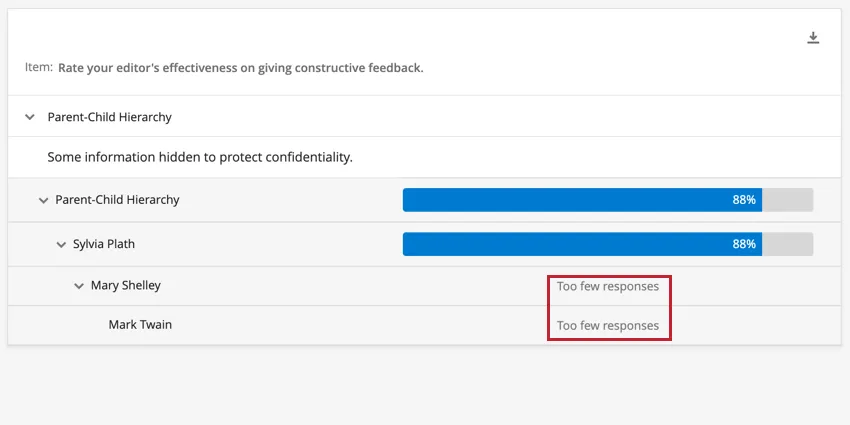
Example: The image below shows a Comparison widget that is broken out by the active Org Hierarchy. If units have response counts below the Anonymity Threshold, then those units will display no data in the widget. Units with a response count above the Anonymity Threshold will display data as normal. Since the number of responses for the Mary Shelley and Mark Twain units falls below the Anonymity Threshold, the widget displays the message, “Too few responses” for these units.
Enhanced: Filters and Breakouts
Enhanced confidentiality adds additional protections that can improve confidentiality under filters and breakouts. By flagging fields as sensitive, you can determine what information can be used to identify participants. Data from sensitive groups that don’t meet the confidentiality threshold is combined with the next smallest group to hide their answers when breaking out data or using filters; this prevents viewers from calculating hidden scores.
Example: If your threshold is 5 and you have 5 responses, and if Gender is an identifiable field, then you could not see that 3 responses are from males and 2 are from females, and you could only see a score for all 5 together.
To learn more, see Enhanced Confidentiality for Filters & Breakouts.
Enhanced: Org Hierarchies
Enhanced confidentiality adds additional protections that can improve confidentiality when breaking out by or filtering by org hierarchies. The suppression threshold determines how small the difference between two teams can be in order to protect against back calculation. If the difference is at or below the suppression threshold, the smaller team will be suppressed.
Example: You’re a manager of direct reports and managers. If your direct report unit has 7 responses and the team below it has 5 responses, the difference between them is 2. If the suppression threshold is 2, the sub-team will be suppressed.
To learn more, see Enhanced Confidentiality for Org Hierarchies.
Confidentiality Settings for the Entire Organization
You can set the confidentiality threshold for your entire organization, ensuring all EX projects meet the same privacy standard. See Anonymous Responses (Admin).
FAQs
Why isn’t my widget grouping for anonymity?
Why isn’t my widget grouping for anonymity?
Why aren’t my filters showing “grouped for anonymity?”
Why aren’t my filters showing “grouped for anonymity?”
Are any EX dashboard widgets incompatible with enhanced confidentiality for org hierarchies?
Are any EX dashboard widgets incompatible with enhanced confidentiality for org hierarchies?
No, no widgets are incompatible. You can use any EX widget with this feature.
How is action planning affected by confidentiality settings?
How is action planning affected by confidentiality settings?
Action planning-specific fields, including the default ones listed here and any custom fields you create, cannot be marked sensitive.
You can create action plans based on any items you'd like on the action planning page. However, if confidentiality settings are hiding items from a widget, like a question list widget, you won't be able to create action plans for those items from the widget itself.
That's great! Thank you for your feedback!
Thank you for your feedback!