

Idea Boards
What's on this page
Qtip: This page describes functionality available to Engagement, Pulse, and Lifecycle projects. For more details on each, see Types of Employee Experience Projects.

About Idea Boards
Action idea boards help managers crowdsource ideas from their team on what exactly they should do to improve employee engagement. Managers can create an idea board to send to their teams in Qualtrics. The idea board is structured around a managers’ focus areas for improvement. Teams can log into the board, give ideas anonymously, and vote on each others’ ideas. After collection ideas, a manager will have a set of potential solutions for their focus areas that they can act on.
Qtip: You do not need action planning enabled on your dashboard to use action idea boards, although it is recommended.
Attention: There is a limit of 100 ideas per board.

Enabling Idea Boards in a Dashboard
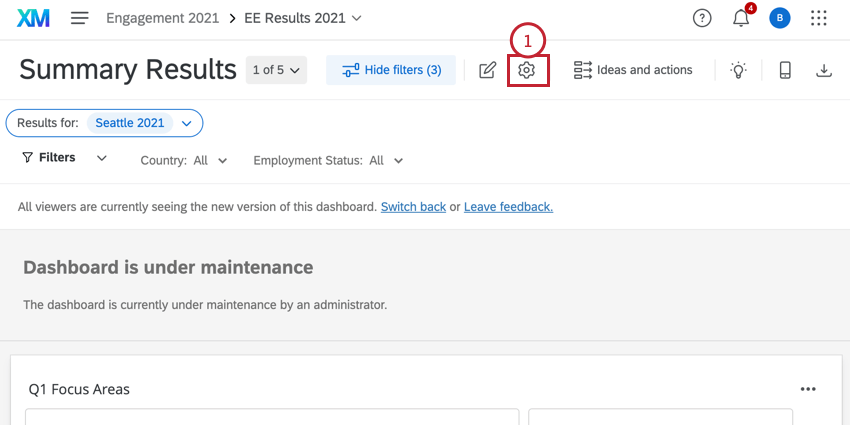
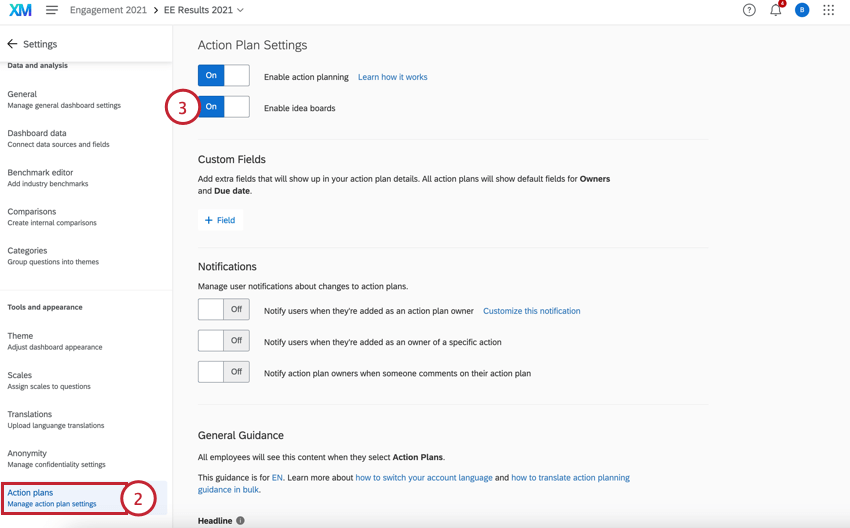
To enable idea boards:
First, you must enable idea boards for your dashboard.
Granting permission to create boards
After enabling idea boards for your dashboards, you can determine which participants in your project can create idea boards. To do so:
Creating an Idea Board
There are multiple ways to create your idea board, depending on your dashboard settings. This section will cover how to create your idea board for each scenario. To create an idea board, users must have the action planning role permission enabled and have access to the dashboard.
Qtip: Once idea boards are enabled for a dashboard, all dashboard users with action planning role permissions enabled will automatically have access to an idea board.
Dashboard with Action Planning and Idea Boards Enabled
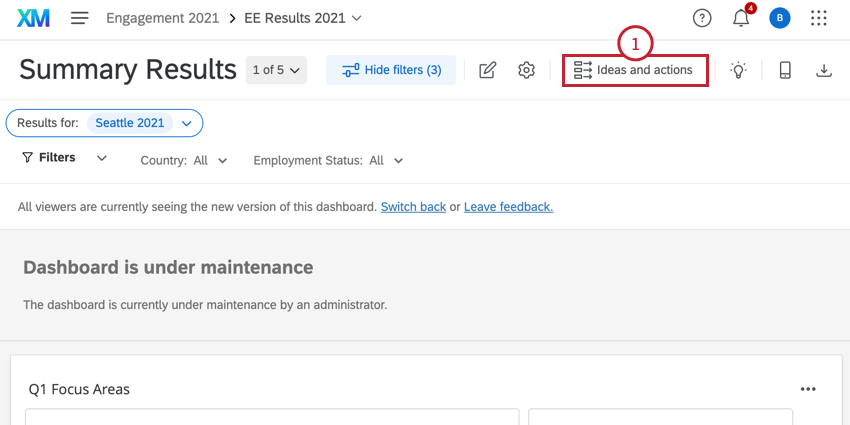
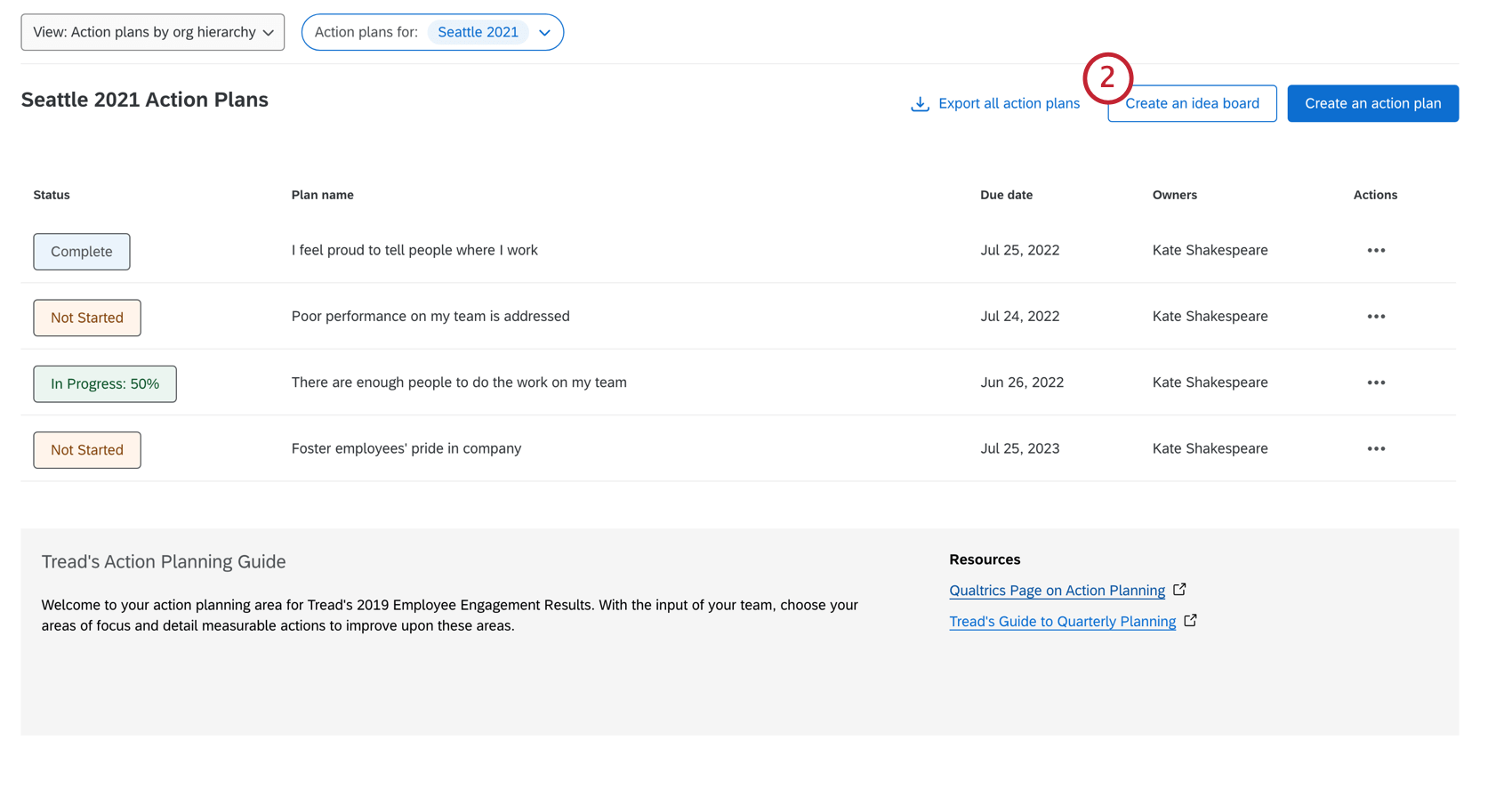
If your dashboard has action planning and idea boards enabled, create your board using the following steps:
Dashboard with only Idea Boards enabled
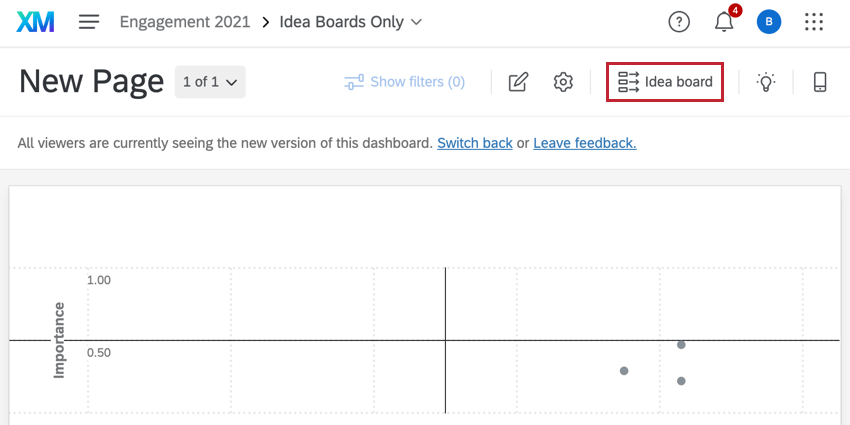
Via a Widget
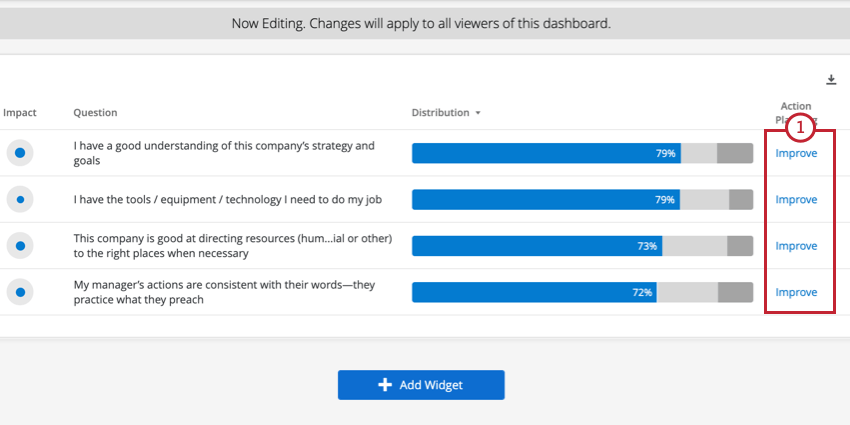
No matter your dashboard settings, you can create your idea board through the following widgets with action planning enabled:
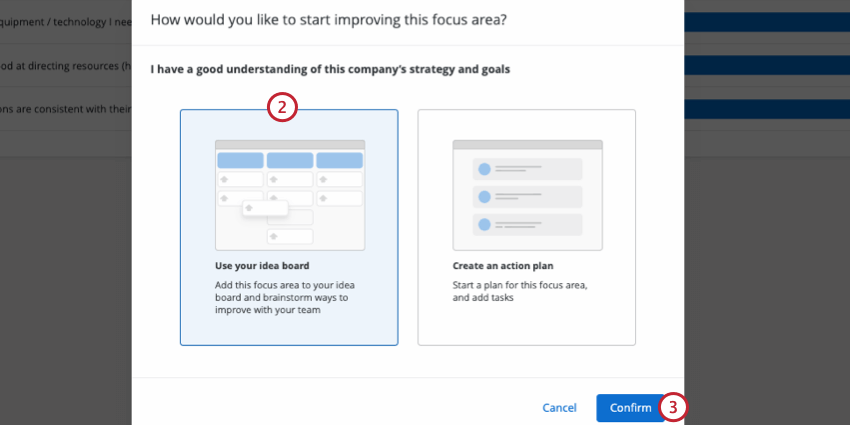
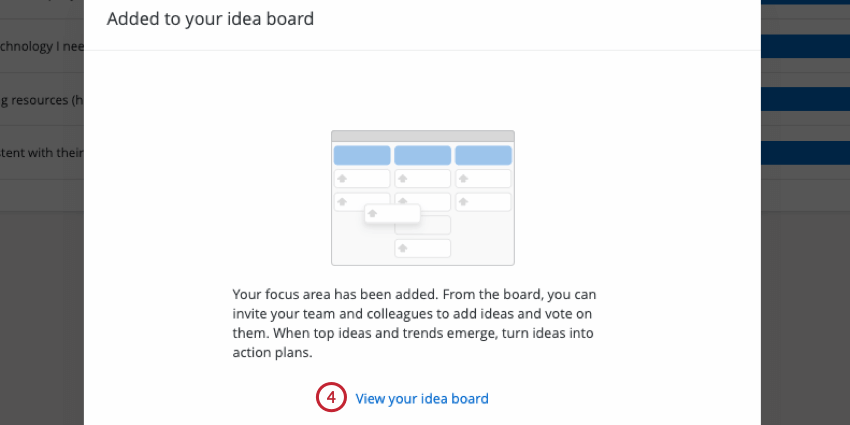
To create your board:
Setting up an Idea Board
After creating your idea board using the instructions above, you are ready to customize it for your organization’s needs.
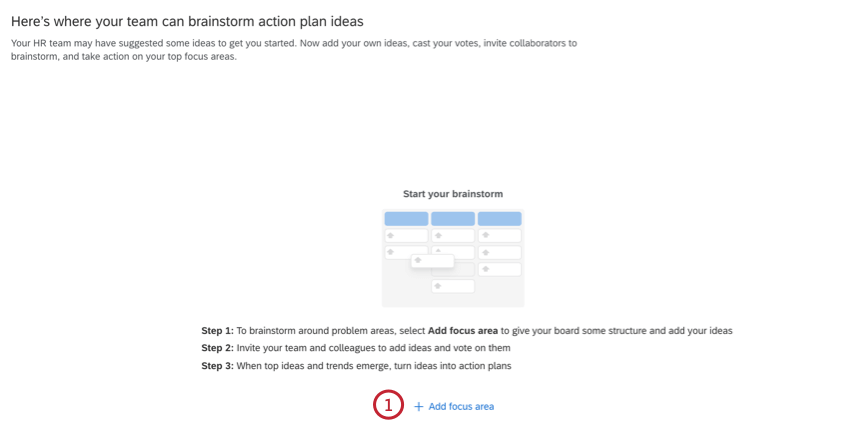
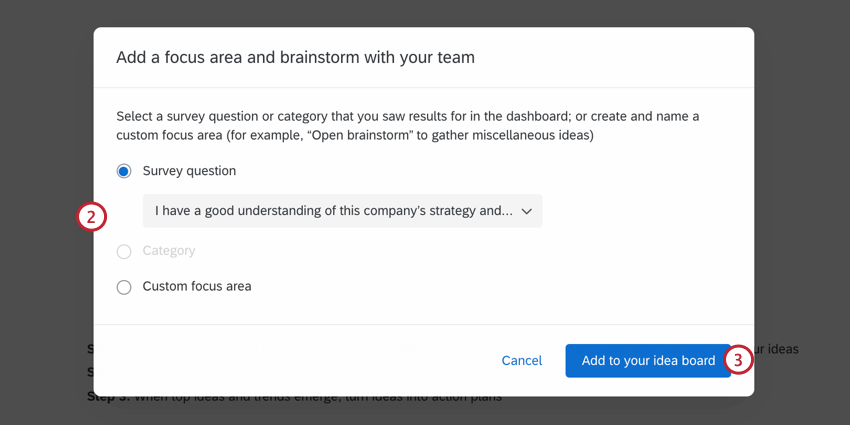
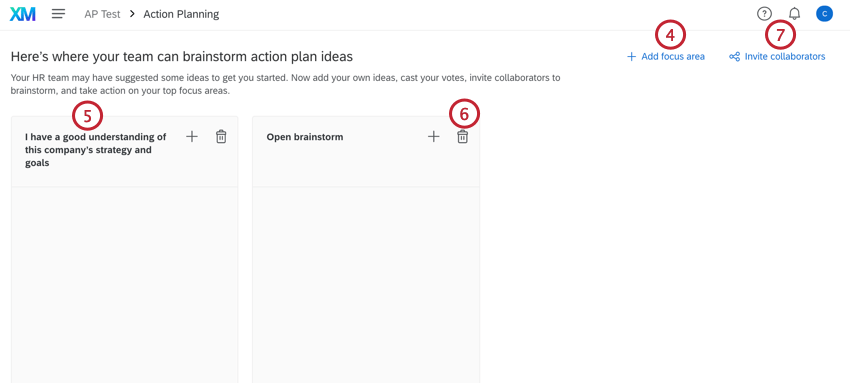
Attention: Deleted focus areas are irretrievable! Any ideas will be lost.
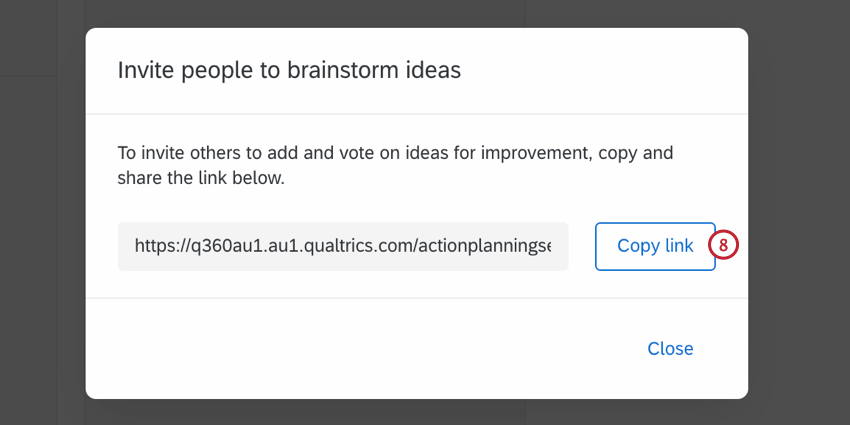
Qtip: Idea boards are only accessible to users with a Qualtrics account in your license.
Submitting Ideas
Attention: There is a limit of 100 ideas per board.
This section covers how to submit an idea once an idea board link has been shared with you.
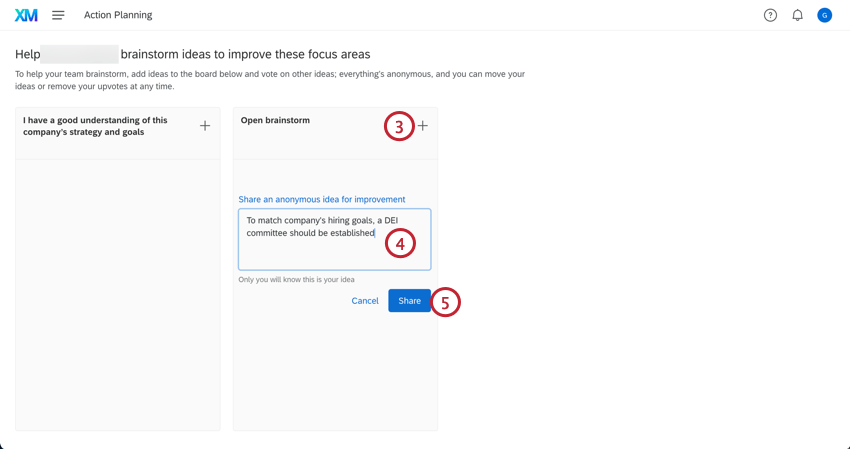
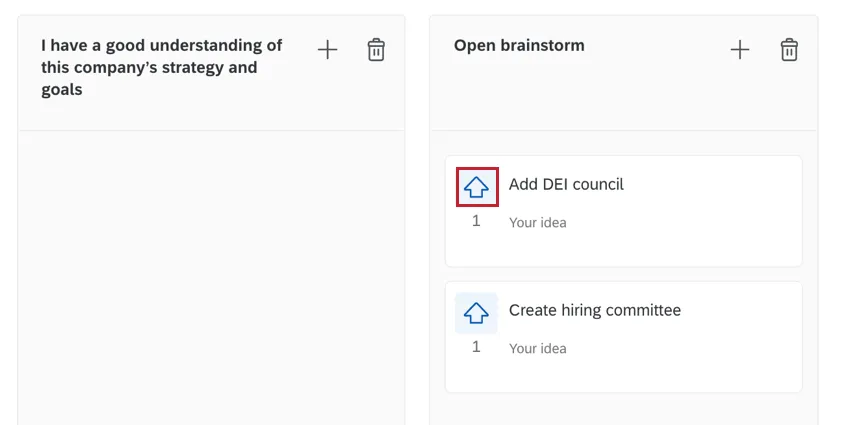
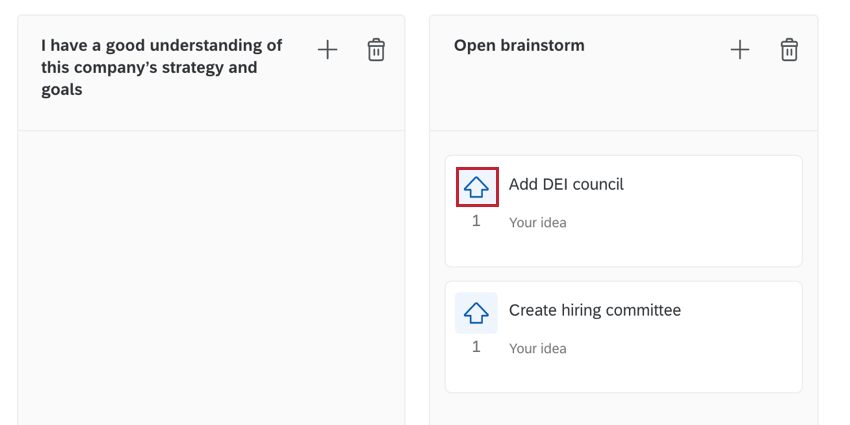
Qtip: If someone has already submitted your idea, upvote it to show your support by clicking the arrow next to the idea. Ideas with the most upvotes will appear at the top of the focus area.
Managing Ideas
As the owner of an idea board, you can manage the ideas in the board. You can move ideas to different focus areas, and create action plans based on your focus areas.
Creating Action Plans
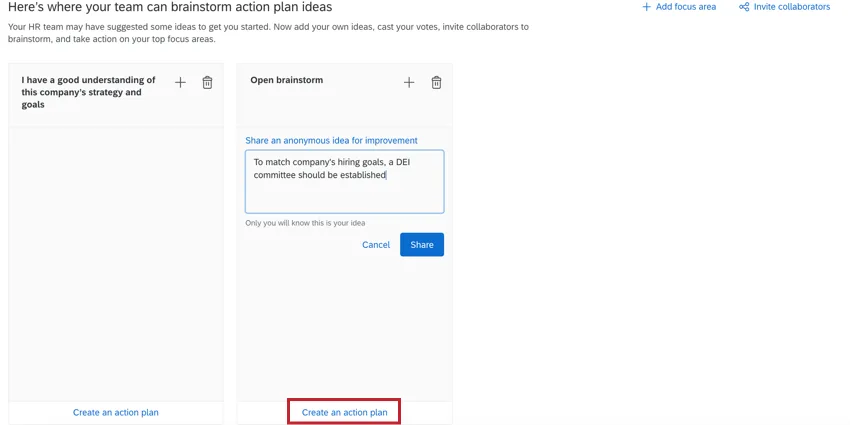
After ideas are collected, the idea board owner can click Create an action plan at the bottom of a focus area to create an action plan based on the ideas.
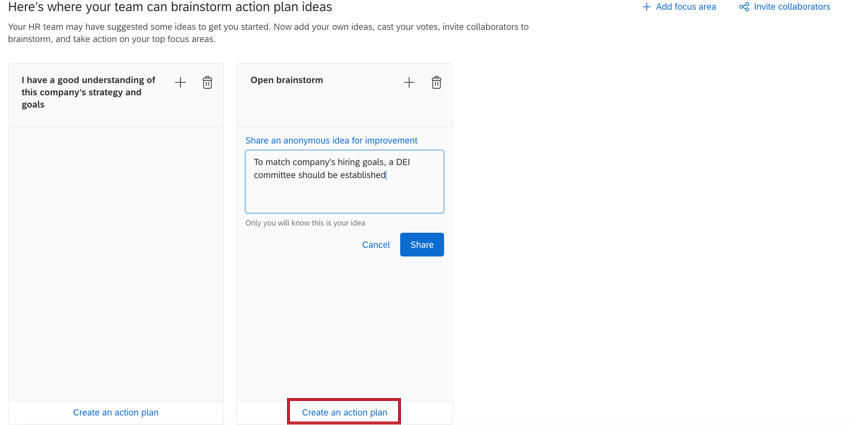
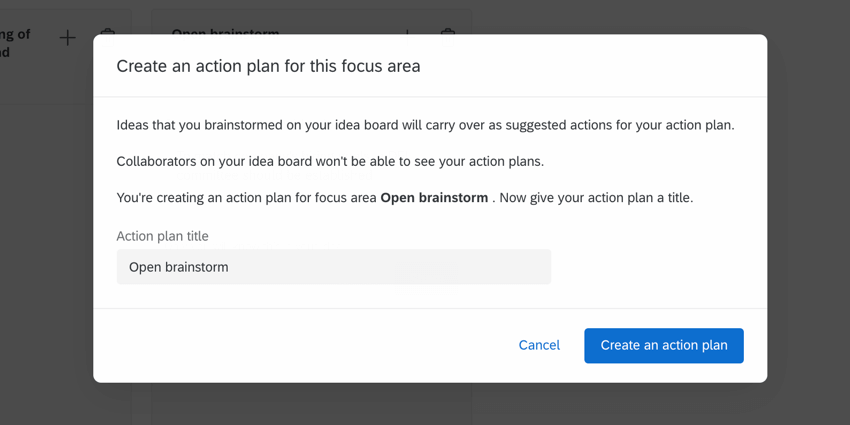
Then, give your action plan a name and click Create an action plan again. This will then create an action plan that you can edit normally.
Moving Ideas
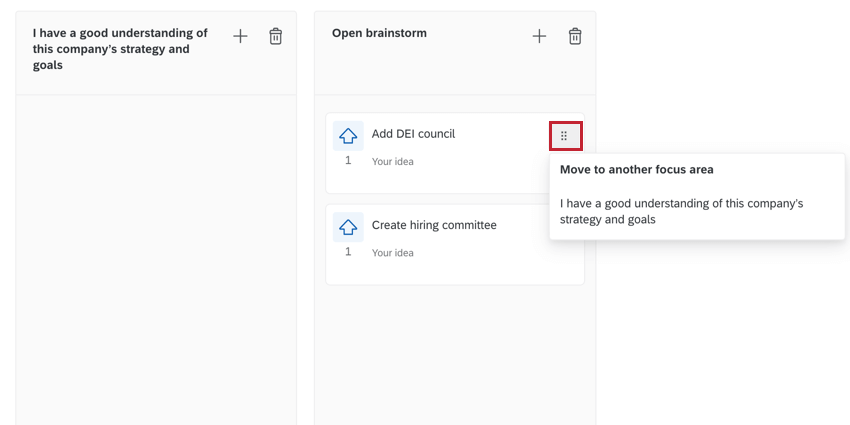
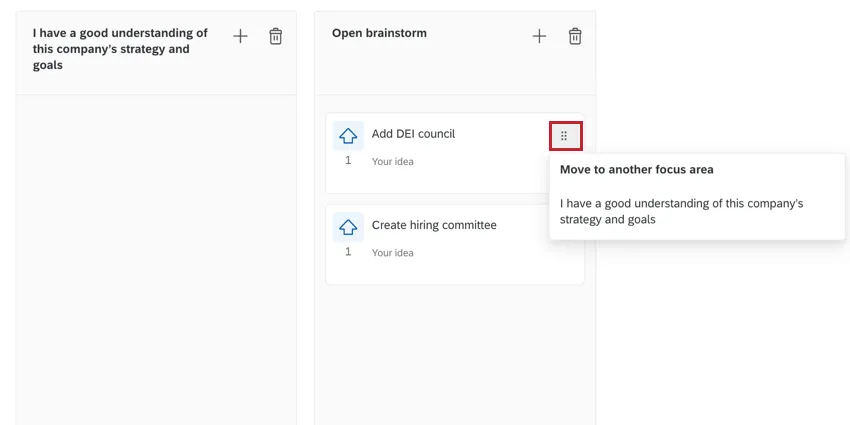
You can move ideas to a new focus area by clicking the dots next to the idea, and then choose the focus area you want to move it to.
That's great! Thank you for your feedback!
Thank you for your feedback!