

Focus Areas Widget
What's on this page
Attention: This widget is called the Upgraded Focus Areas Widget. The legacy version of the widget is called Focus Areas Widget. While you can still create legacy focus areas widgets, we recommend using the upgraded version of the widget. Widgets will not be automatically migrated to the new version, and will have to be recreated.

About Focus Areas Widgets
The focus areas widget informs dashboard users about the areas of the company on which to focus their efforts. The widget measures the impact of a selected set of drivers on a chosen outcome metric, such as NPS, Engagement, or Satisfaction. It also compares data between specific business units through the use of page filters (CX|EX).
Using the focus areas widget, it’s possible to measure the “impact,” or the correlation between a driver and the target metric, as well as whether the selected business unit is performing better or worse than the overall organization on the selected drivers of the outcome metric.
Qtip: The upgraded focus areas widget includes statistical significance testing and R-squared model quality indicators that do not exist in the legacy version. Drivers that are not statistically significant are now assigned a value of zero, which can affect priority groupings.
Types of Dashboards
This widget can be used in a few different types of dashboard. This includes:
Field Type Compatibility
The following data types can be used within the key drivers widget:
- Number sets
Qtip: Data used in this widget must have discrete values because this widget uses top box as the method of comparison. Fields with infinite values do not work well with this widget, but those set on scales do. See Field Types & Widget Compatibility for more information on number sets and field types available in dashboard data (CX|EX).
- Topics with sentiment
Generally, outcome metrics are survey questions or variables that relate to the overall experience, sentiment or attitude, such as NPS, Overall Satisfaction, and Intent to Return or Purchase. Drivers are often survey questions, variables or topics that relate to a specific feature, characteristic or attribute of the experience, such as friendliness of customer service, availability of purchase options, and competitive pricing. Ideally, the selected drivers are characteristics of the experience that your team, business unit, company have the ability to influence.
Qtip: This widget is not compatible with categorical variables, such as age groups, education, region, etc. If you believe categories like these will impact your selected outcome, you can use widget filters or page filters to isolate each category to understand the relative impact of your drivers within each category.
Requirements
The following are required to configure a focus areas widget:
- Dashboard Data: Data sources must be mapped to your dashboard.
- Sufficient response data: A minimum of 30 responses per driver are recommended.
Example: If you have 10 drivers, you should have at least 300 responses in your dashboard data.

If you want to use Text iQ topics as drivers, you must configure Text iQ for the open text question(s) you want to analyze and make sure they are added as a field source in your dashboard data. For more information, see Text iQ in Dashboards and Text iQ Functionality.
Attention: When adding Text iQ topics as drivers, you can select a parent topic only if it has no child topics. If a parent topic has children, you must select the individual child topics instead.
If you've reorganized your topic hierarchy and a parent topic you previously selected as a driver has had child topics added to it, you'll need to update the widget configuration. Go back into the widget and replace the parent topic with the appropriate child topic(s) as your drivers.
Widget Customization
For general information on how to add and edit widgets, visit the Building Widgets page. Continue reading for information about how to customize this specific widget.
Source
If you have mapped multiple sources into your dashboard data, you will have to select a source for your widget. This is the project from which the data will be pulled. You can only select a single source for each focus areas widget.
Outcome
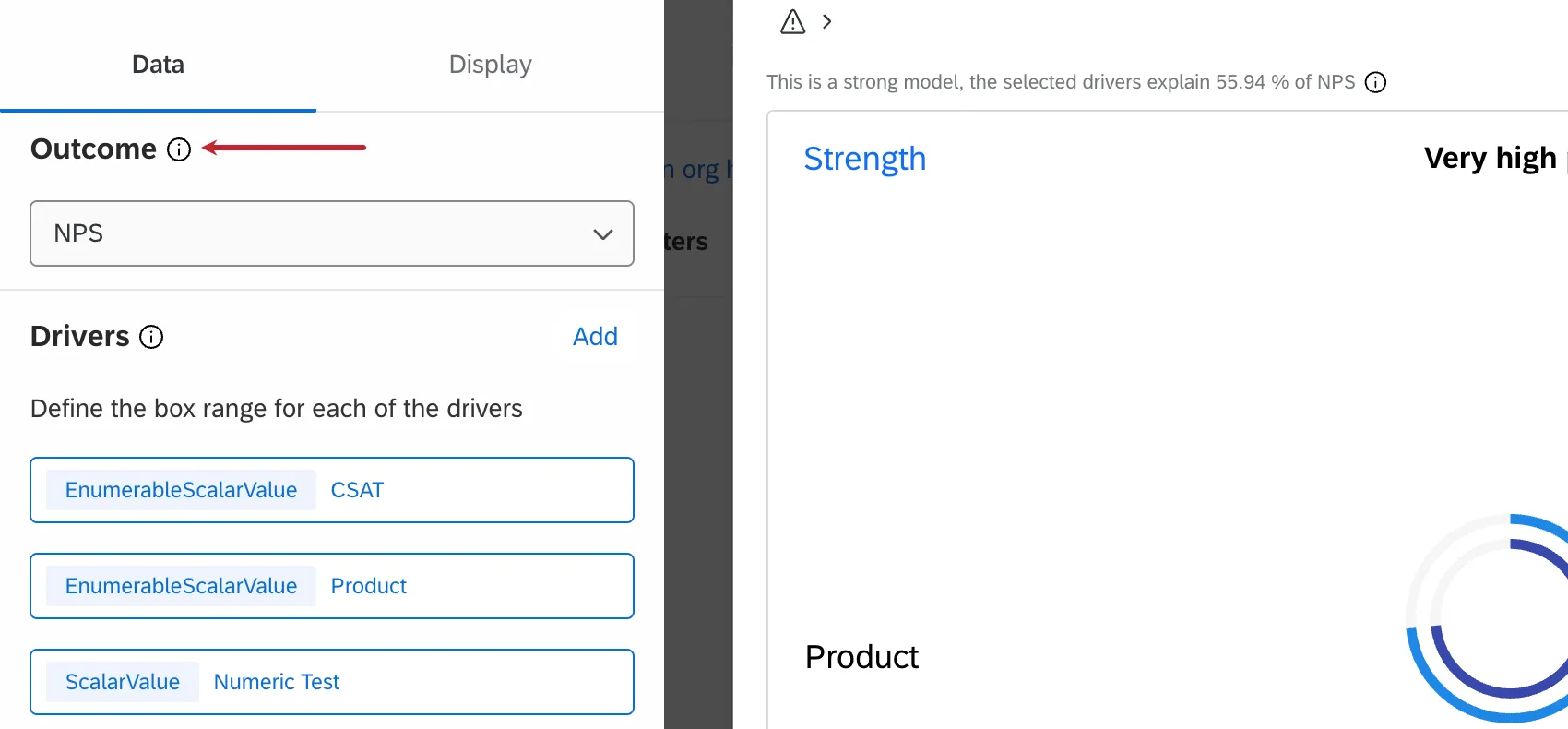
The first field to determine is the outcome metric. Generally, these are metrics such as NPS, customer satisfaction (CSAT), or employee engagement. The outcome metric is typically some type of overall score you’re evaluating in your survey. Only 1 outcome metric can be selected per widget.
For EX dashboards, your outcome metric is often a category that you created in your dashboard settings.
Drivers
The other important aspect of the focus areas widget are the drivers. Drivers are the factors that drive your overall outcome metric. Usually, drivers are the individual questions you ask in your survey that contribute to the outcome metric. You may select multiple drivers to display within your focus areas widget.
When selecting your drivers, it’s important to specify the top box measurement. This can be an actual top box (only the highest value) or can be a range. Additionally, you should relabel your drivers to make them actionable and easy to understand.
Good key drivers labels often have the following characteristics:
- Written in third person (i.e. you are telling your team what to improve)
- Have an action verb (e.g. deliver, keep, run, provide)
- Reflect the source question in a way that makes sense to your company
| Key Driver | Focus Areas Label |
|---|---|
| Product Importance – Reliability | Provide a reliable product for our customers. |
| Sales Importance – Sales Team | Ensure that your team is an important part of the sales process. |
| Q76 – Embedded Data – Support | Deliver superior and timely support to our clients. |
| My manager consistently acknowledges me for doing good work. | Acknowledge employees for doing good work. |
| I am able to shape how I do things in my role. | Allow employees to shape their role. |
To add your drivers:
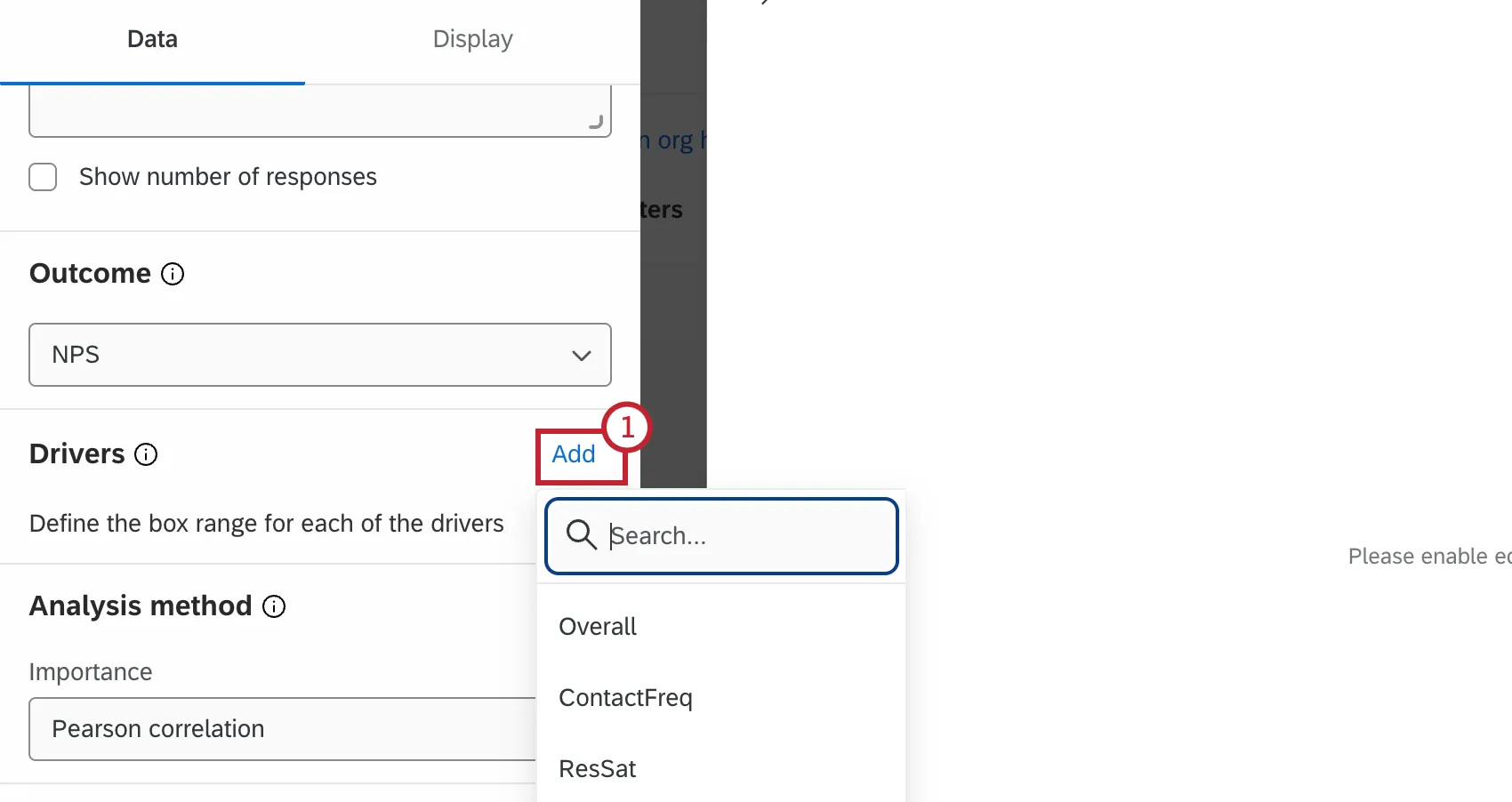
Select Add and choose the desired field.
Click on the newly added field to edit it.
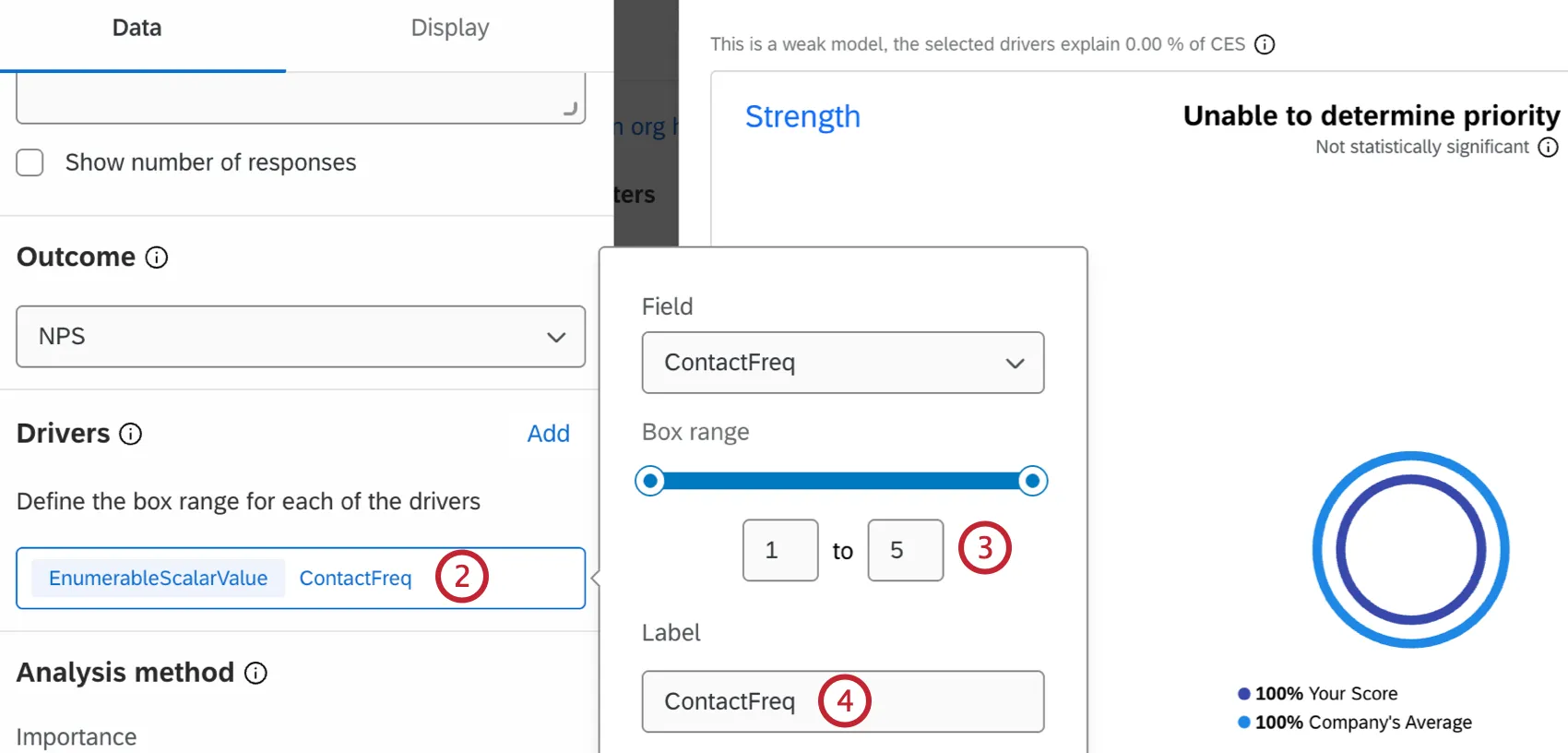
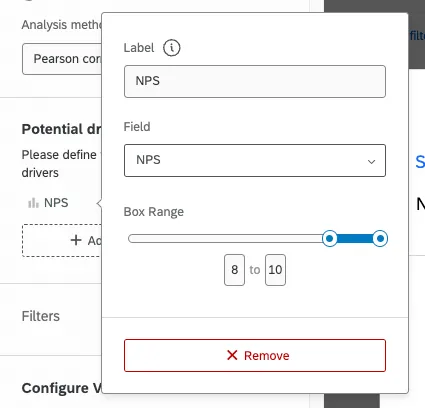
Use the sliders or the numbers below the sliders to change which values are displayed on the widget.
Attention: In EX dashboards, you need to configure your dashboard’s scales. Scales will need to be configured for each driver in the widget, and will define the box range for your key drivers.
If desired, relabel your key driver in a way that makes the most sense to you.
Example: In the below example, on a scale from 0-10, the top box is 8, 9, and 10.
Display Options
In the Display tab of the widget you can further customize how the impact of your drivers is displayed.
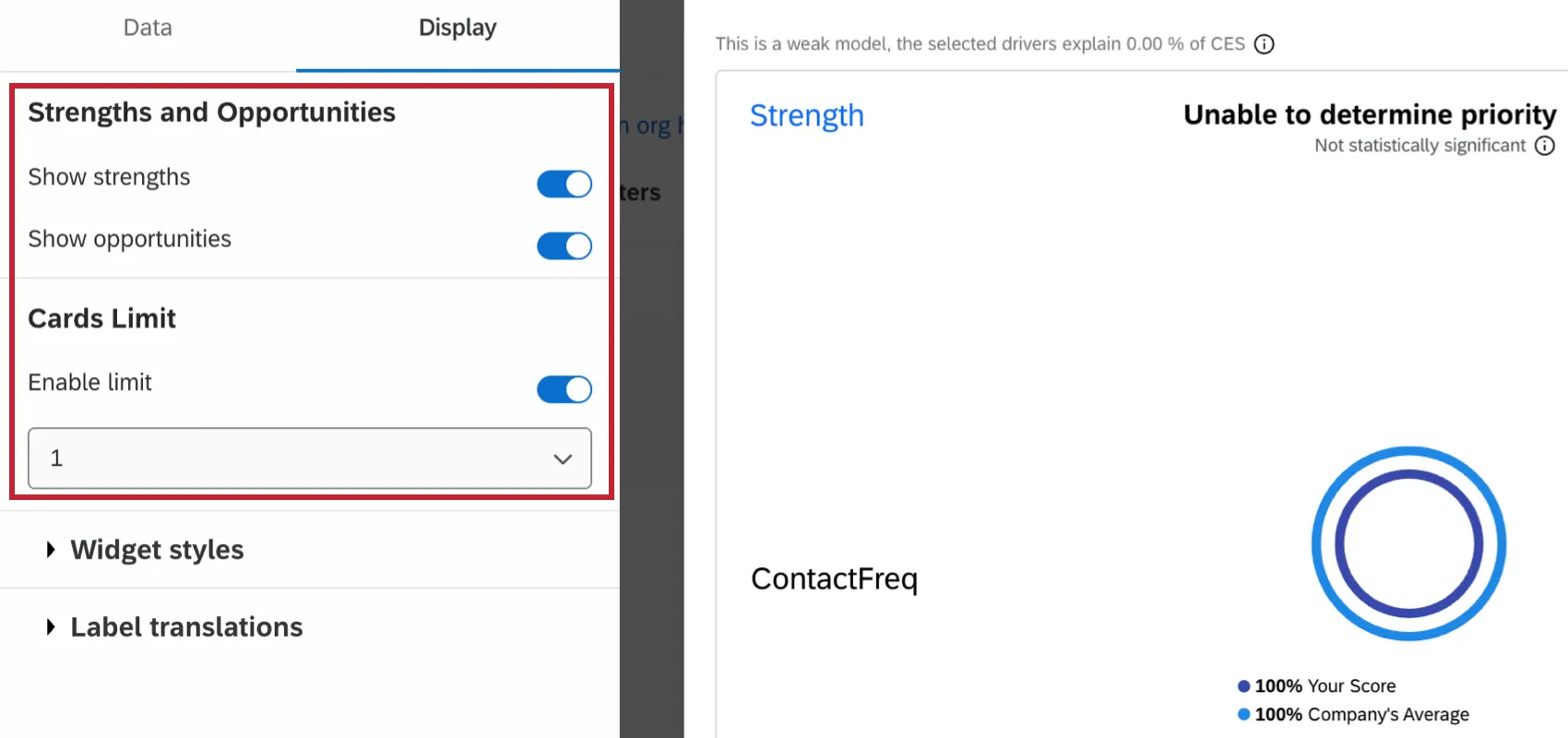
- Strengths and Opportunities: Determine whether you want the widget to show just strengths, just opportunities, or both.
Qtip: Selecting both Show strengths and Show opportunities will show you both opportunities and strengths in order of importance, measured by the impact correlation score. This can mean working on something you could improve (i.e. an opportunity); however, sometimes keeping a strength strong can be more impactful than working on an opportunity that won’t drive outcomes.
- Cards Limit: Set a maximum number of cards to display on the widget. Click Enable limit and select a maximum number from the dropdown.
Analysis Method
Qtip: The ability to adjust analysis method is only available in the CX version of the focus areas widget. It is not available in the EX version.
The focus areas widget has 2 different analysis methods that can be applied to it. This affects the order of focus area cards and the impact score.
Qtip: Pearson Correlation has better performance than Relative Importance for large datasets. When the total dashboard response count across all data sources exceeds 5 million, Relative Importance analyses may time out or fail.
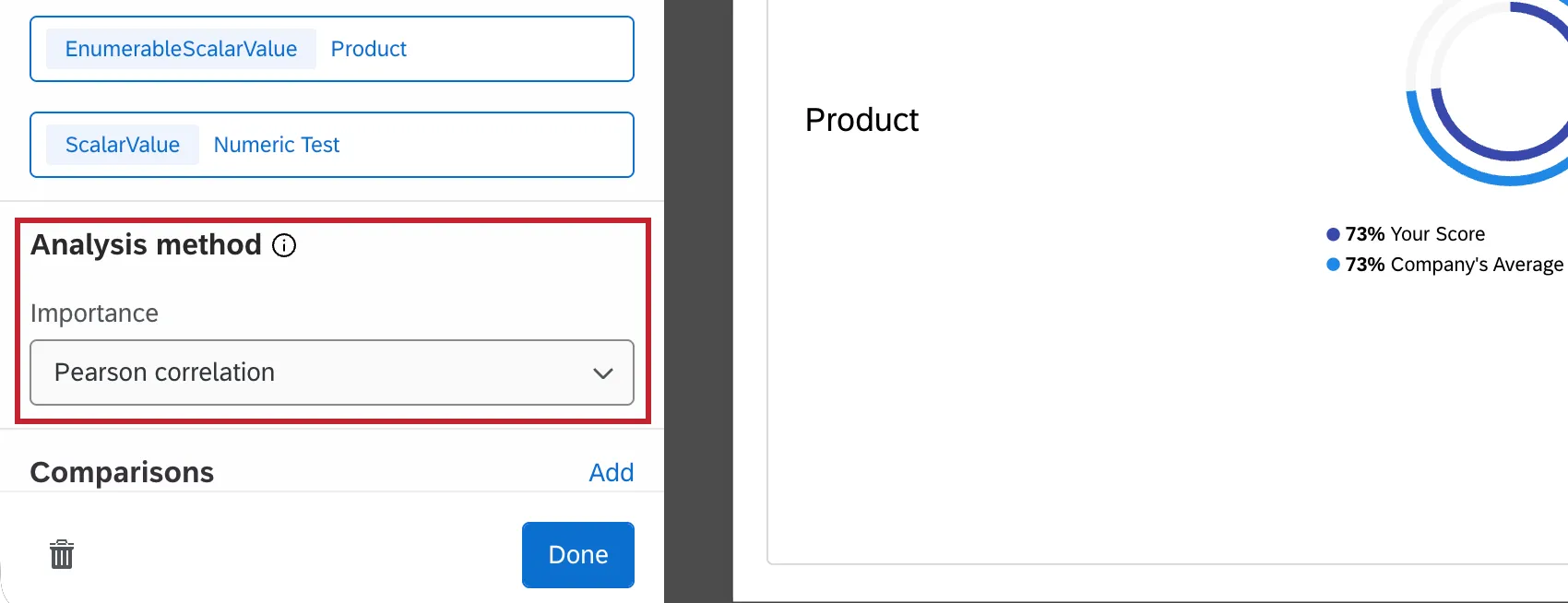
Relative importance analysis: This is the default calculation selected when using the standard, Single Driver setup. Because all the drivers are likely to be highly correlated, Relative Importance Analysis runs models with every combination of the independent variables to determine the independent impact on the r-squared (variance explained).

Qtip: Learn more about this method of analysis, also called Johnson’s Relative Weights, see our Stats iQ page.
Pearson correlation: Measures the linear correlation between the drivers and the outcome metric. The default (and only) option when using text topics as drivers, or a Driver Group.
Qtip: For all focus area widgets created before this feature was enabled, the default and only calculation was Pearson Correlation. All widgets created before this date have been left as Pearson, but you can now switch the calculation if desired.
You can change the calculation used in your widget at any time – just keep in mind that the impact score and the order of the cards may change.
Qtip: Please note that when you’re first setting up your widget with Relative Importance Analysis, it may take some time before it loads and displays data.
Deciding between calculations
Pearson Correlation does not account for multicollinearity, which is when the independent variables (in this case, drivers) being compared to the dependent variable (an outcome metric) are already highly correlated themselves. Relative Importance, in contrast to Pearson, does consider multicollinearity. That’s why it is the industry standard for survey data.
Example: Let’s say you’re trying to use whether a customer’s heard of a given brand and their preference for a given brand to predict their purchase intent. Are customers who haven’t heard of your brand very likely to indicate it as their top preference? It’s unlikely; naturally, the less aware of a brand a customer is, the less likely they are to show a preference for that brand. This is the problem multicollinearity presents. Because of this, it is important to tease out those relationships between drivers in order to determine which will have the greatest impact on the outcome metric.
Comparisons
If no filters are actively applied to the dashboard, then the inner and outer rings of the Focus Areas widget may match and show the same score. However, if you want any applied filters to affect only the inner ring, and have the outer ring represent the entire company’s average, add a comparison with no filters to the widget.
Hierarchy Comparisons
Qtip: This section is only relevant for Focus Areas widgets in EX dashboards.
If no filters are actively applied to the dashboard except for the hierarchy filter, then the inner and outer rings of the Focus Areas widget may match and show the same score. However, if you want the org hierarchy filter to affect only the inner ring, and have the outer ring represent the entire company’s average (ignoring the hierarchy filter), add a comparison with no filters to the widget.
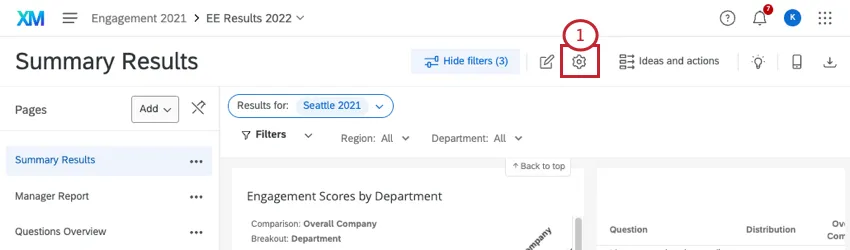
Go to your dashboard settings.
Go to the Comparisons page.
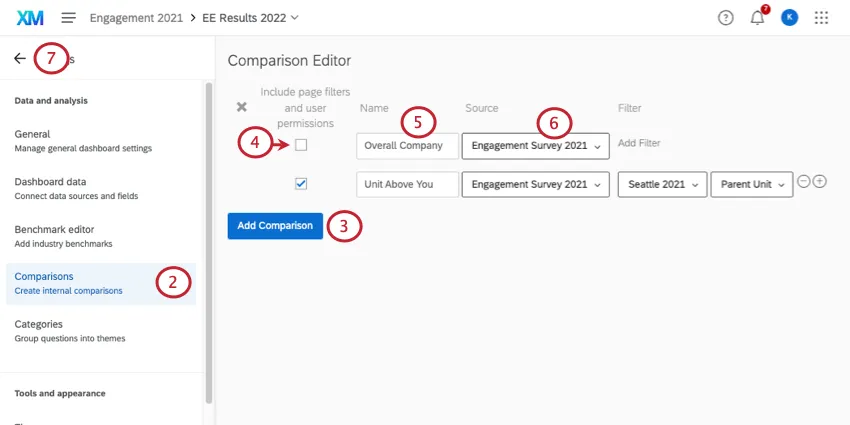
Click Add Comparison.
Keep Include page filters unchecked.
Name the filter to indicate it’s an overall company performance comparison.
If you have multiple sources mapped to your dashboard, select the source(s) of the hierarchy.
Return to your dashboard.
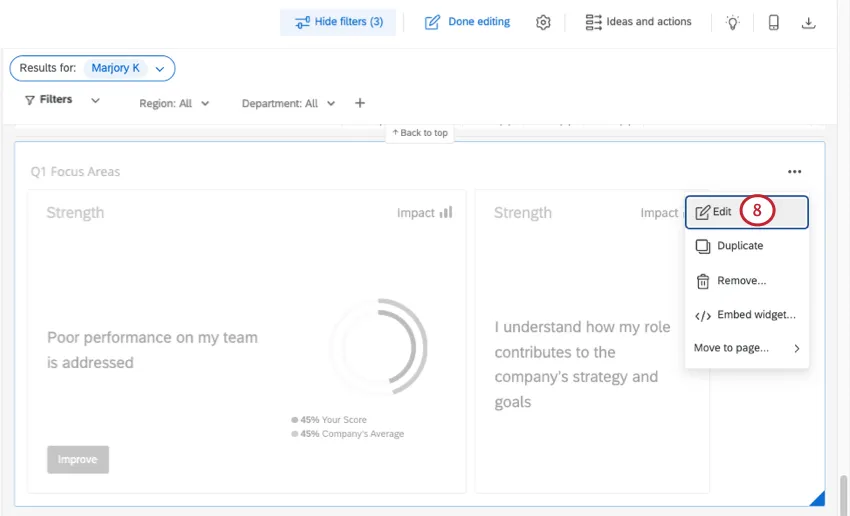
Edit your focus areas widget.
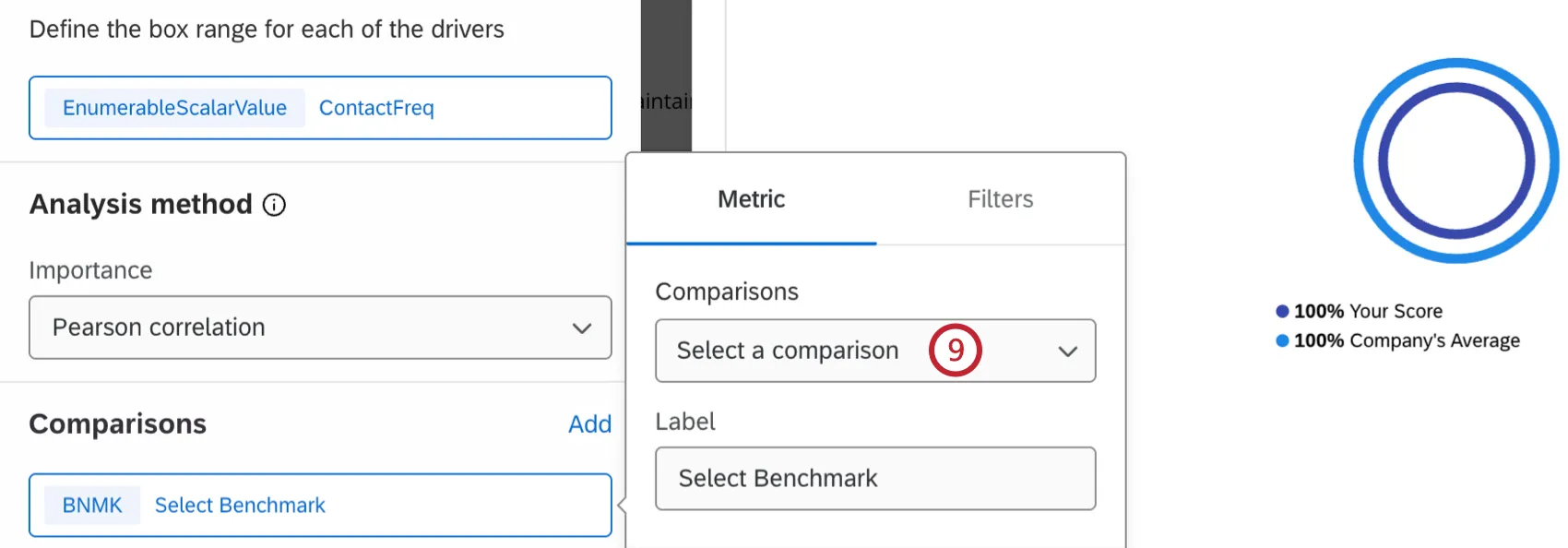
Under Comparisons, select the overall comparison you just created.
Benchmark Comparisons
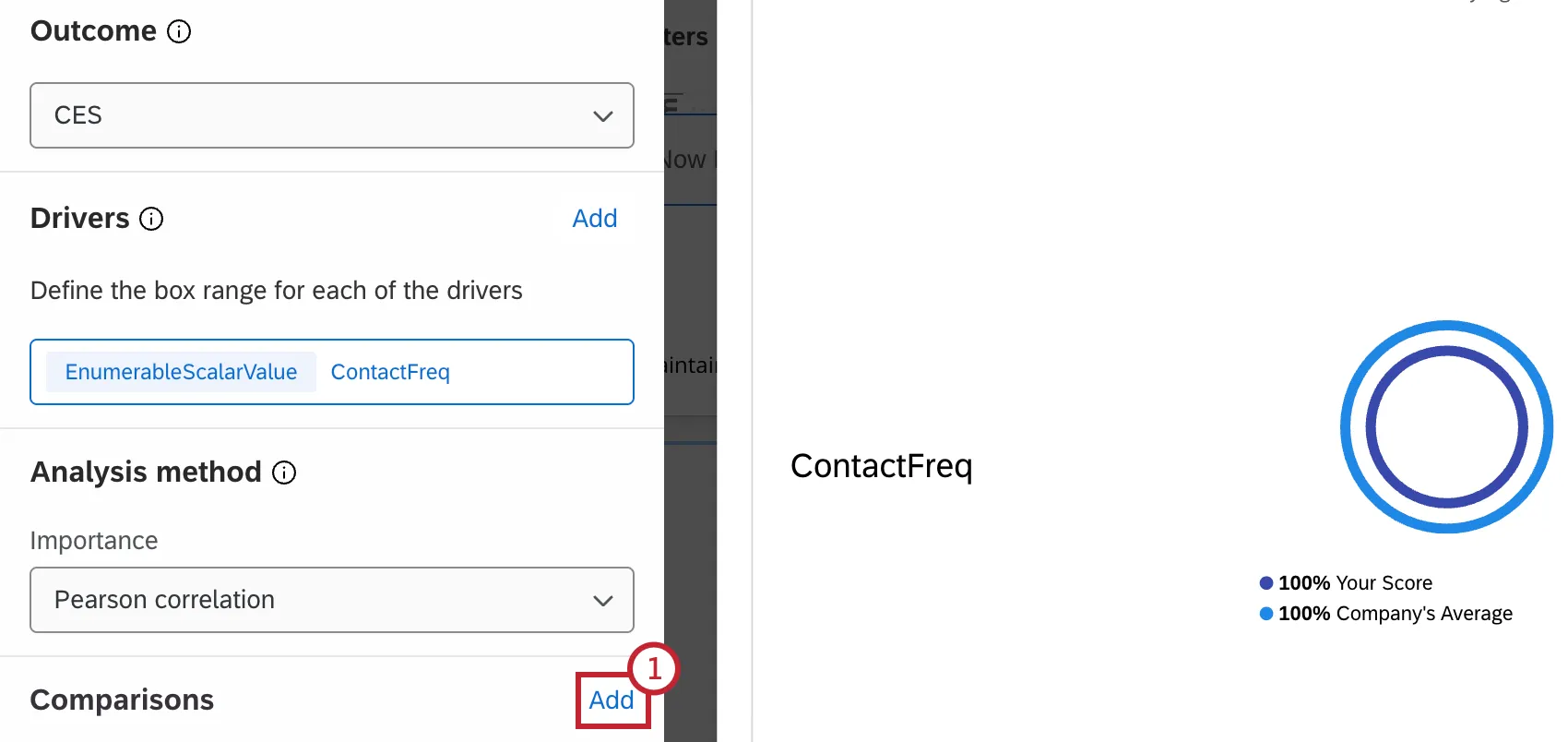
Click Add within the Comparisons section.
Click Select a comparison.
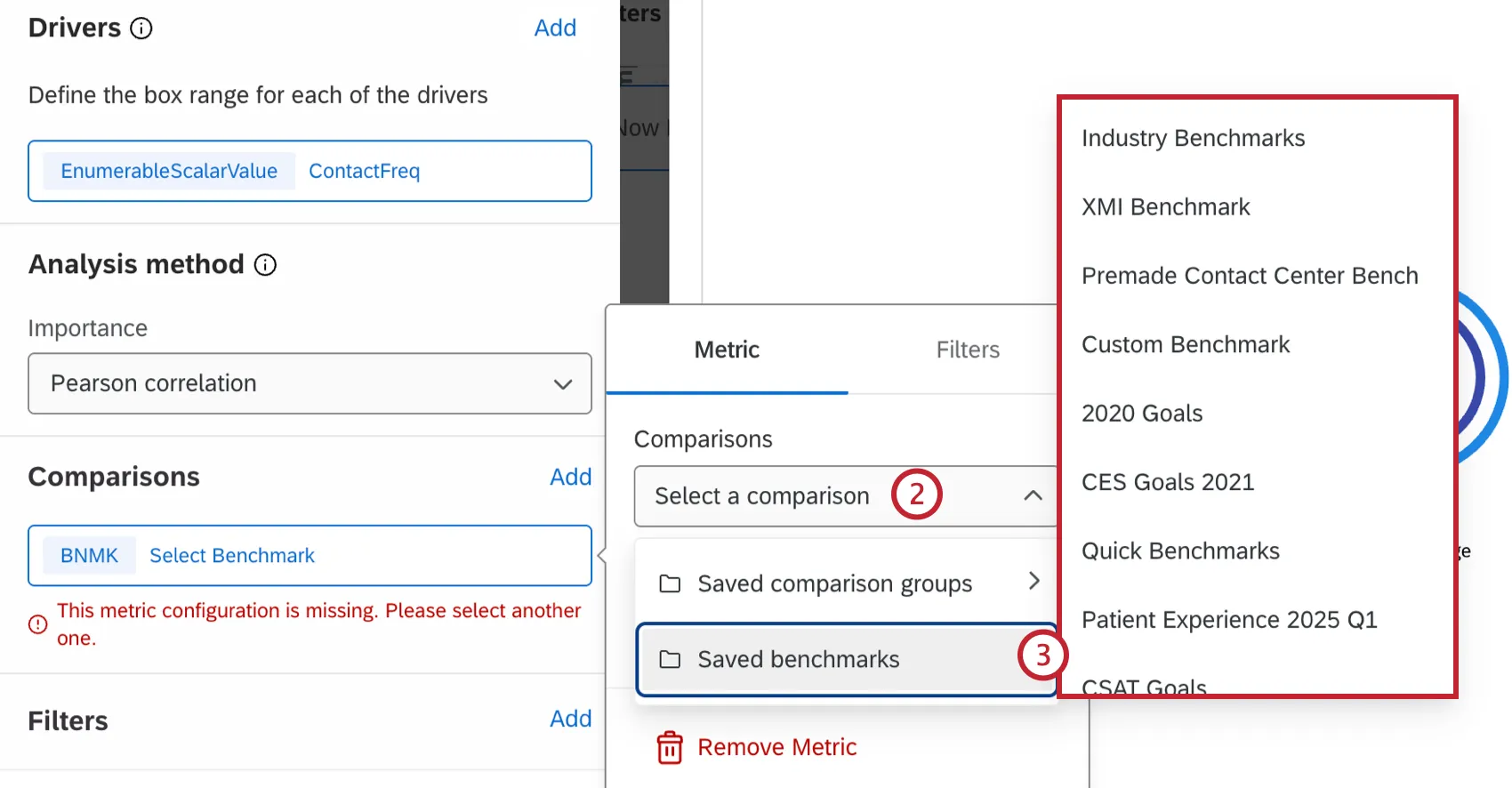
Select a saved benchmark.
Filtering Focus Areas Widgets
You can filter a focus areas widget by both dashboard page filters and widget-specific filters.
Qtip: You can’t use custom period filters in focus area widgets. To filter by a custom period, you can use a custom date range.
Page Filters
To work properly, the focus areas widget must be used with page filters. Usually, these filters are fields such as location, response date, questions asked in your survey, or participant metadata. For more information about creating page filters, read the Filtering Dashboards page (CX|EX).
Example: A common use case for this widget is to compare individual department performance to the company’s overall performance. In the example below, the Sales’s team score for the statement “How often have you contacted our company directly with specific questions or concerns” is 19 points higher than the company average. The scores for other departments can be viewed by changing the selected value in the department page filter.
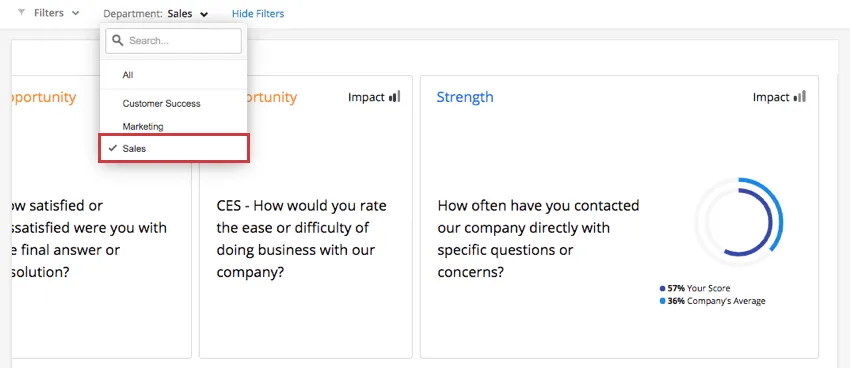
If no filters are actively applied to the page, then the inner and outer rings will match and show the same score. You must filter the dashboard for the widget to update and show a comparison.
Qtip: Your cards will rearrange when filters are applied to show cards with the highest impact first. However, if the filtered data is too small, the ordering will continue to be based on the unfiltered dataset.
Qtip: The page filters will only affect the score. These filters will not affect the company average.
Widget Filters
You can add filters directly to a Focus Areas widget as you would any other widget. See Adding Widget Filters for more details.
Using Text Topics as a Key Driver
The focus areas widget allows you to use text topics from Text iQ as the widget’s driver. This allows for dynamic key drivers as your business evolves without needing to ask additional survey questions. As new topics develop in your open text questions, they’ll be incorporated into the widget. Text topics with sentiment can be added as drivers within your widget the same as number sets. See Widget Customization for more information on adding drivers.
Attention: In EX dashboards, you need to configure your dashboard’s scales before you can adjust the box range for your key drivers.
Widget Interpretation
The focus areas widget shows at a glance the areas in which your department, team, or other specified group can improve, and helps you prioritize your improvements. For example, you can see how different experiences impact important outcomes like satisfaction or engagement for a single group in the company.
Multiple drivers can be added to a single widget to see how different drivers impact a single group in the company. Each driver is represented in its own card, and only 1 card can be viewed in full at a time. Prioritization is determined by the room for improvement and the impact score.
Each card within the focus areas widget has the following elements:
- Strengths & Opportunities: Shows which drivers to focus on based on your business unit performance compared with your overall comparison performance.
- Priority Score: Shows which drivers to focus on first that are most important to your selected outcome.
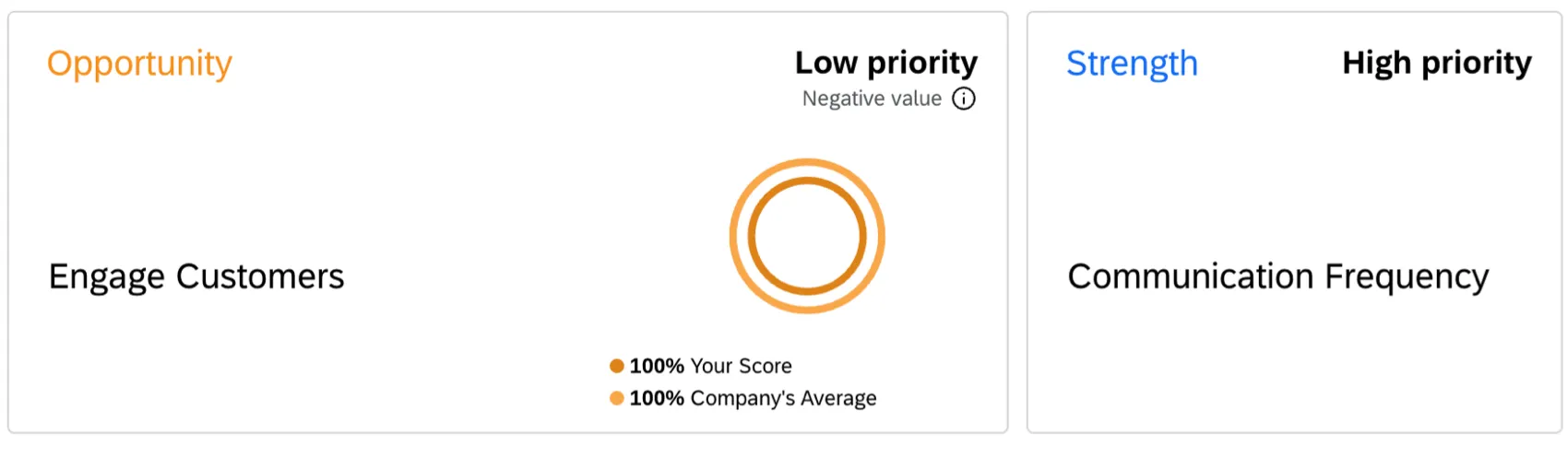
- Comparison Rings: Shows the gap between your score and your compared score.
R-Squared Value
The strength of your model will be displayed in the top-left corner of the widget. This quality indicator is based on the overall R-squared value. The R-squared value offers insight into how well your drivers account for variations in your selected outcome. It will be a value between 0% and 100%.
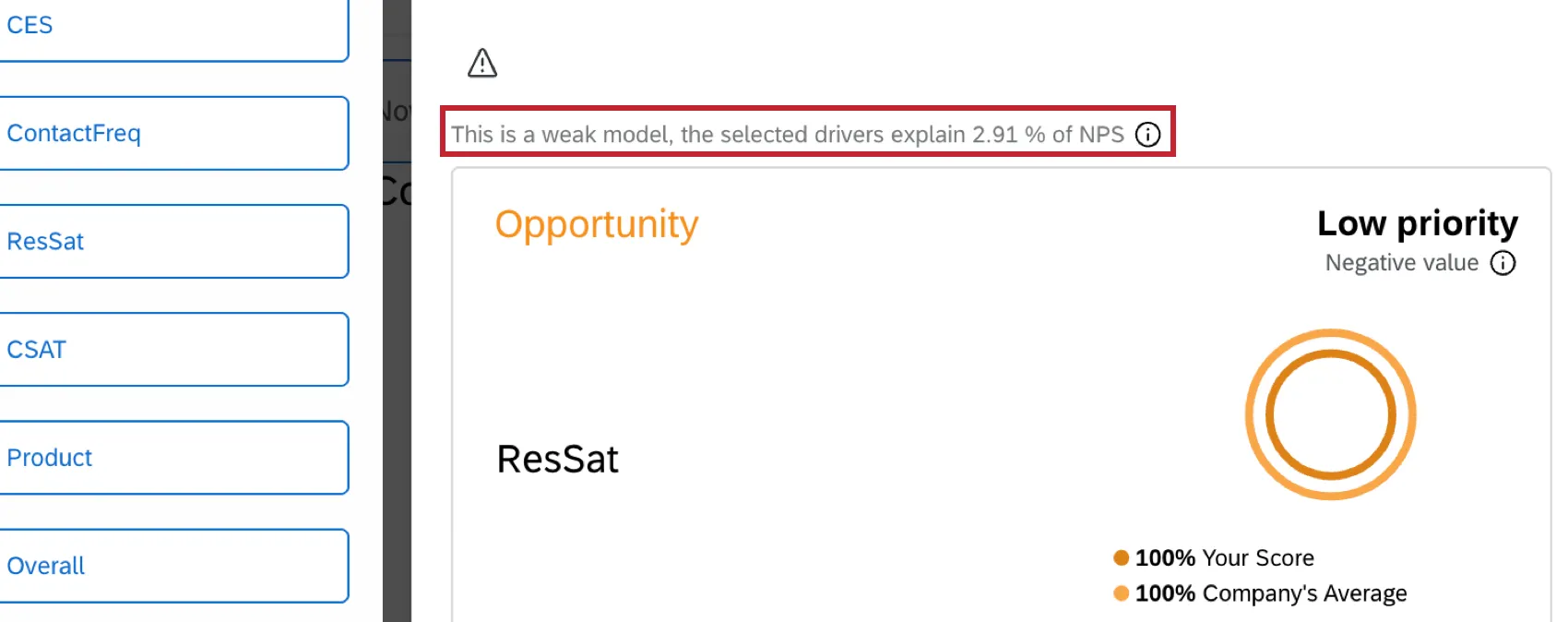
Each R-squared value tells you how much predictive power your selected drivers have on your selected outcome:
- 100%: Your drivers perfectly predict every observed value of your selected outcome.
- Greater than 60%: Your drivers are very strong predictors of your selected outcome. Taking action to improve your top drivers will have the desired impact on your selected outcome.
- Between 36% and 50%: Your drivers are strong predictors of your selected outcome. Taking action to improve your top drivers will likely impact your selected outcome.
- Between 20% and 35%: Your drivers are acceptable predictors of your selected outcome. Taking action to improve your top drivers will have some impact, but the impact may be small.
- Less than or equal to 19%: Your drivers are weak predictors of your selected outcome. Taking action to improve your top drivers will have some impact, but the impact will be small and hard to detect. Exploring additional or different drivers is recommended.
- 0%: Your selected drivers have no predictive power.
Strengths & Opportunities
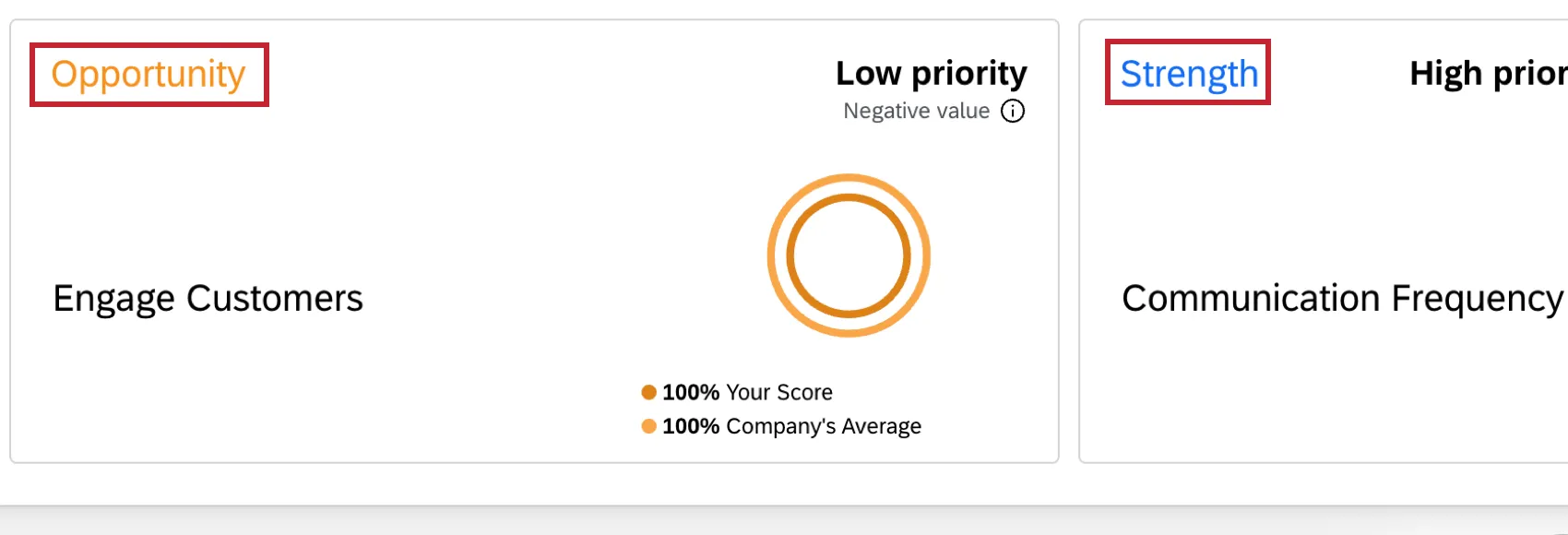
Each card will be labeled as a strength (overperforming compared to the overall company average), highlighted in blue, or as an opportunity (underperforming compared to the company average), highlighted in gold / orange.
Opportunities are displayed first, with the highest positive scores at the top. A higher score indicates more opportunity for improvement. Strengths are displayed next, with the most negative scores at the top. A more negative score indicates a stronger performing area.
- Strengths: Areas where your team outperforms the benchmark or company average on drivers that have a large impact on the outcome. These are successful practices that deserve recognition and continued support. While these areas are performing well, it's important to continue monitoring them to ensure sustained success.
- Opportunities: Areas where your scores are lower compared to the benchmark or company average on drivers that have a large impact on the outcome. Each opportunity represents a potential area for improvement that could positively impact overall performance.
For example, in the widget below, the key driver “Communication Frequency” is a strength for your department, meaning your department overperformed in this area compared to the company overall.
Priority Score
The priority score determines the order of the driver cards you see within your widget. This score is calculated by multiplying the room for improvement score by the effect score for each driver.
Room for improvement score: The gap between your current score and the selected comparison group.
Qtip: When viewing your data without a comparison or with a highly representative sample (75% or more of the viewable population), this score is the gap between your current score and 100%.
Qtip: When using benchmark comparisons or working with smaller sample sizes, this score is the benchmark score + 15 percentage points - the target Ggroup’s score. The maximum possible score cannot exceed 100%.
Effect score: The impact of each driver. This is represented as a value between -1 and 1, where a positive value means as a driver increases the outcome increases, while a negative value means as the driver increases the outcome decreases.
Positive scores highlight opportunities while negative scores showcase strengths. If your team has multiple opportunities and strengths, the priority score helps determine where to focus your efforts.
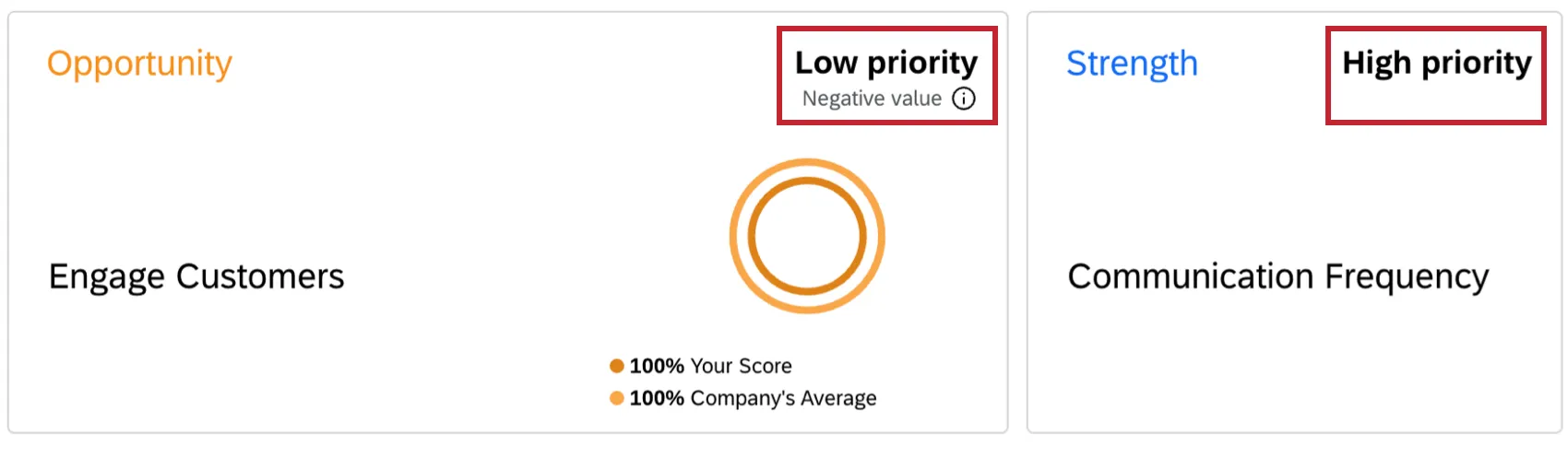
- Very High Priority: This driver shows the greatest opportunity for improvement and has the strongest impact on overall performance. Focus on this driver first, as addressing it will likely yield the most significant results.
- High Priority: This driver shows the greatest opportunity for improvement and has the strongest impact on overall performance. Focus on this driver first, as addressing it will likely yield the most significant results.
- Medium Priority: This driver still presents opportunities for improvement, but its impact is more moderate. Consider addressing it after higher-priority items or when resources become available.
- Very Low Priority: This driver shows either minimal room for improvement or has a smaller impact on your selected outcome. While still worth monitoring, it typically don’t require immediate attention.
- Low Priority: This driver shows either minimal room for improvement or has a smaller impact on your selected outcome. While still worth monitoring, it typically don’t require immediate attention.
- Unable to determine priority: There either isn’t enough data to calculate statistical significance, or the relationship between the driver and outcome is unclear.
Attention: There may be times when the widget doesn’t find a difference between your score and the selected comparison group, so your room for improvement score is 0. For example, if you don’t have a filter on your widget, and your comparisons are not significantly different, there won’t be any opportunities or strengths to display. In that case you’ll see the message “No strengths / opportunities found with the chosen filters and comparisons.”
Comparison Rings
The comparison rings show how your selected unit compares to the company average. Click a specific card to see its comparison rings.
- Outer ring: This ring displays the comparison score of the drivers you selected for the entire company, selected comparison group, or selected benchmark. This ring is not impacted by filtering.
- Inner Ring: This ring displays the target score or your selected drivers. Usually this is the score of a specific business unit, location, or team on your selected drivers. When filters are applied to the dashboard, this ring is calculated using the filtered data.
The percentages on a comparison ring represent the favorability scores for the question. (For EX dashboards, favorability is defined by green / favorable areas of scales.)
Qtip: If your rings match, you likely still need to apply your page filter for your department / desired area.
Qtip: Comparison rings report the results of analyzing a given driver, which will remain unchanged regardless of the outcome metric selected in your widget.
Warnings
If any drivers are impacting your analysis, you’ll see a warning icon in the top-left of the widget. Click this icon when you are not editing the dashboard to view more information.
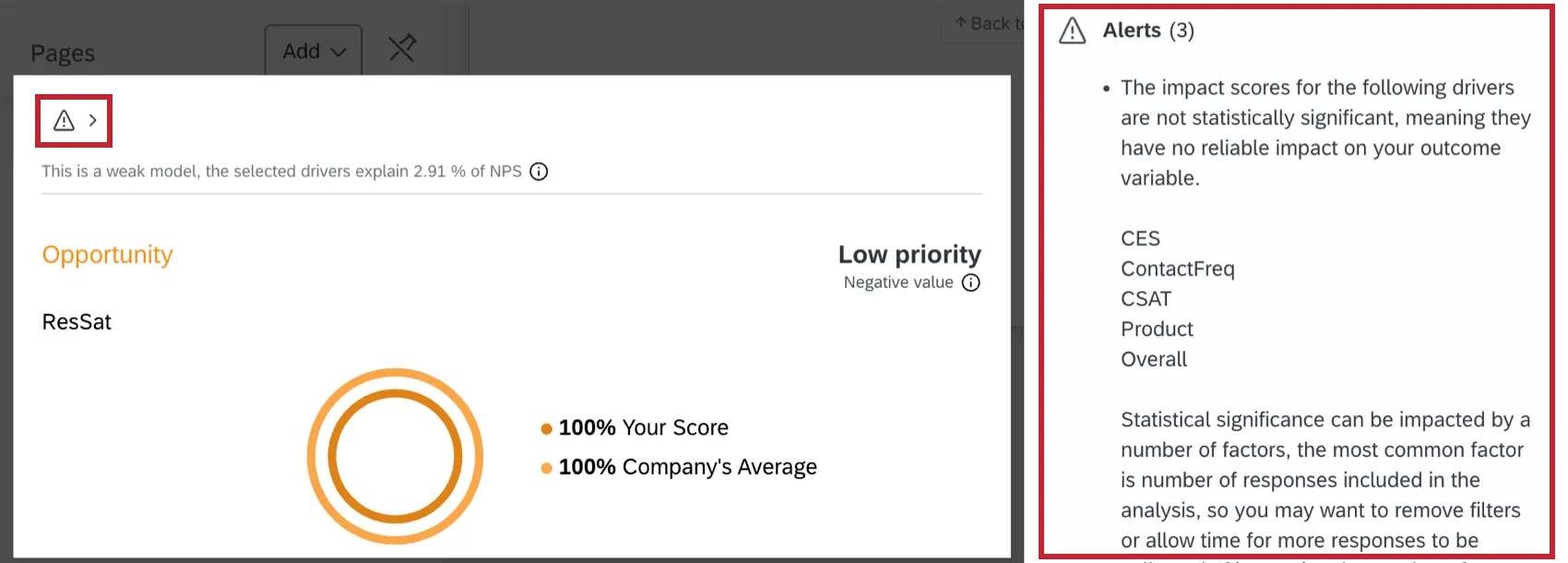
There are 2 types of warnings you may see:
- Driver Warnings: Warnings that specifically call out drivers that are concerning. These should be kept in mind when analyzing your results and taking action.
- Analysis Warnings: Warnings that specifically call out overall analysis quality in relation to your R-squared value.
Action Planning
Attention: The Upgraded Focus Areas widget currently cannot be used to create action plans. Instead, you can use the Action planning section of your dashboard to create new plans.
Guided Action Planning (EX)
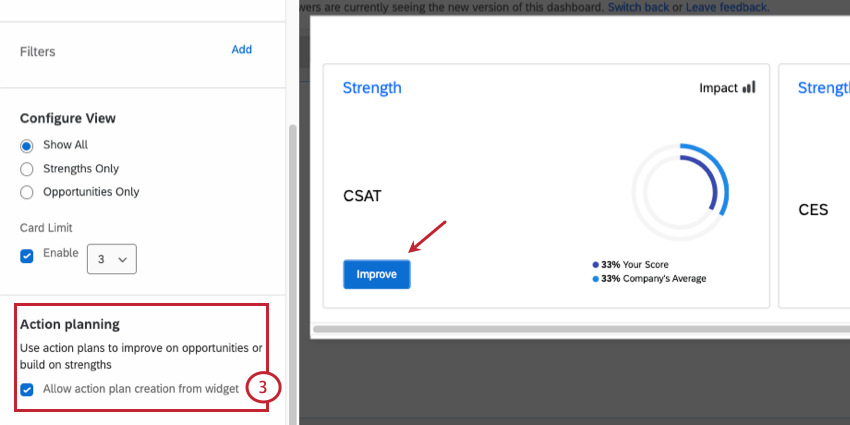
When you have guided action planning enabled, a new button will appear on your focus areas widget. Click Improve to create an action plan based off of that focus area.
Qtip: If Personalized Action Recommendations are enabled for the dashboard, the Improve button is replaced with Generate Recommendations.
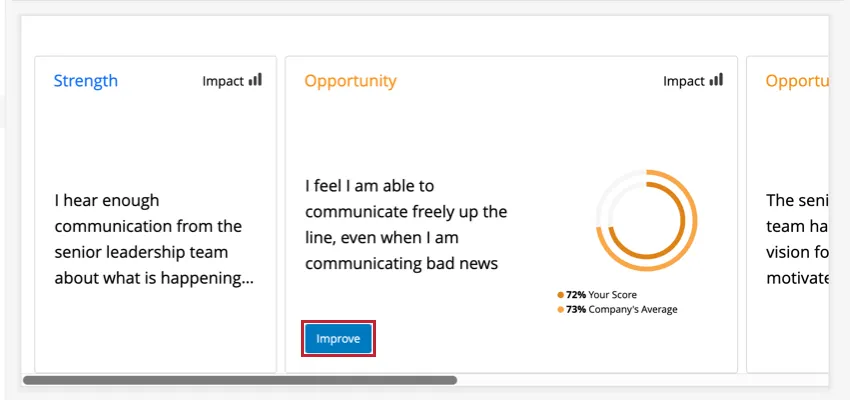
Both strengths and opportunities allow you to improve. A focus area card will be missing the Improve button if you have not made that item available for action planning.
Measurable Action Plans (CX)
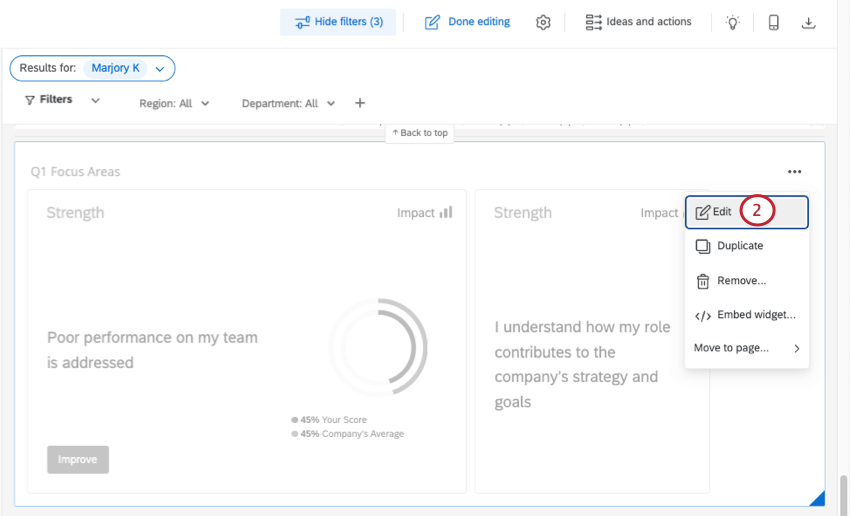
Measurable action plans can be created by clicking Improve on any focus areas widget. However, this functionality must first be enabled for the widget.
Legacy Focus Areas Widget
Legacy focus areas widgets are very similar to the new and improved focus areas widget, with a few less features. Here is a guide to help you edit any legacy widgets you may still have.
Warning: This widget is being deprecated and is no longer supported. For the same functionality with a more flexible setup, use the focus areas widget described earlier on this page.
Field Type Compatibility
Due to this widget using top box as the method of comparison, it requires data that has discrete values and that have been mapped as a Number Set field type in your dashboard data (CX|EX). Fields with infinite values do not work well with this widget, but those set on scales do.
Widget Customization
For basic widget instructions and customization, visit the Building Widgets support page. Continue reading for focus areas-specific customization.
Basic Setup
To get your focus areas widget started, you will first need to select a source. This is the project from which the data will be pulled. If you have mapped additional sources into your dashboard data, you will have more than 1 option here. You can only select 1 source per focus areas widget.
After selecting a source, the first field to determine is the outcome metric. Generally, these are metrics such as NPS, customer satisfaction (CSAT), or employee engagement. The outcome metric is typically some type of overall score you’re evaluating in your survey. Only 1 outcome metric can be selected per widget.
The other important aspect of the focus areas widget are the key drivers. Key drivers are the factors that drive your overall outcome metric. Usually, key drivers are the individual questions you ask in your survey that contribute to the outcome metric. You may select multiple key drivers to display within 1 focus areas widget.
When selecting your key drivers, it’s important to specify the top box measurement. This can be an actual top box (only the highest value) or can be a range. Additionally, you should relabel your key drivers to make them actionable and easy to understand.
Attention: In EX dashboards, you need to configure your dashboard’s scales. This will define the box range for your key drivers so that you don’t have to set it in the widget.
Configure View & Card Limit
- Configure View: Determine whether you want the widget to show everything, just strengths, or just opportunities.
Qtip: Choosing Show All will show you both opportunities and strengths in order of importance, measured by the impact correlation score. This can mean working on something you could improve (i.e. an opportunity); however, sometimes keeping a Strength strong can be more impactful than working on an opportunity that won’t drive outcomes.
- Card Limit: Set a maximum number of cards to display on the widget.
Using Text Topics as a Key Driver
To add text topics into your widget:
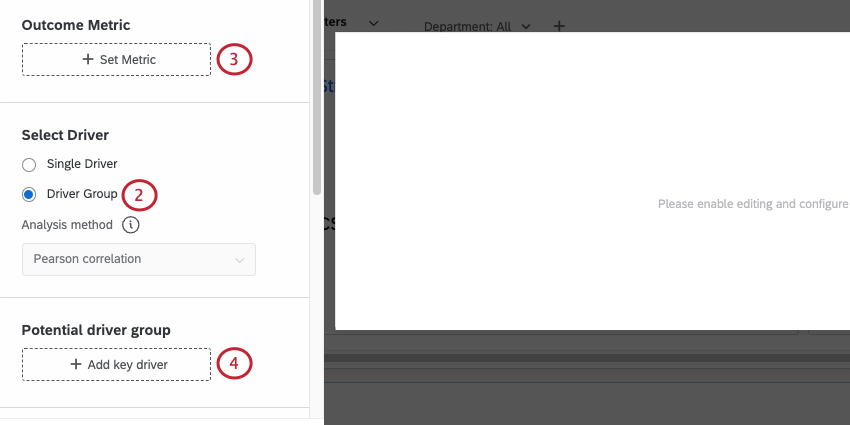
Attention: “Select Driver” is not available for EX Dashboards.
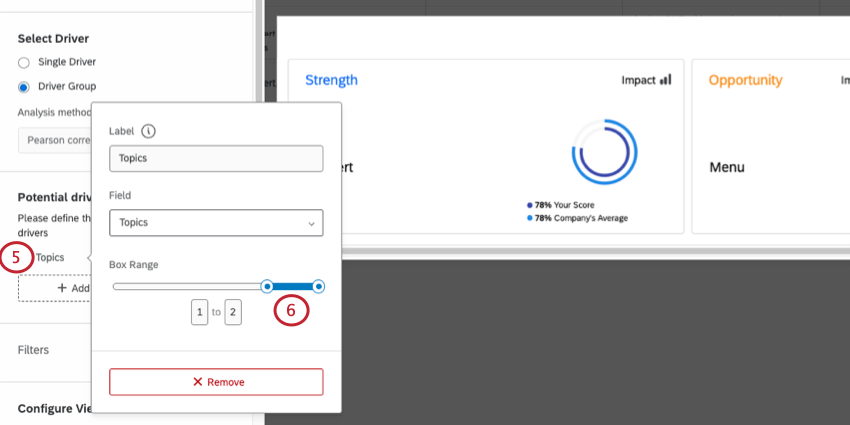
Qtip: The box range is determined by your selected outcome metric.
Example: In the above step, the box range ends at 2. Therefore, the adjusted box range should be 1 to 2. If the box range ends at 5, your adjusted box range should be 4 to 5.
Widget Interpretation
Attention: There may be times that the widget doesn’t have enough significant data to show results. For example, if you don’t have a filter on your widget, and your comparisons are not significantly different, there won’t be any opportunities or strengths to display. Thus you’ll see the message, “No strengths / opportunities found with the chosen filters and comparisons.”
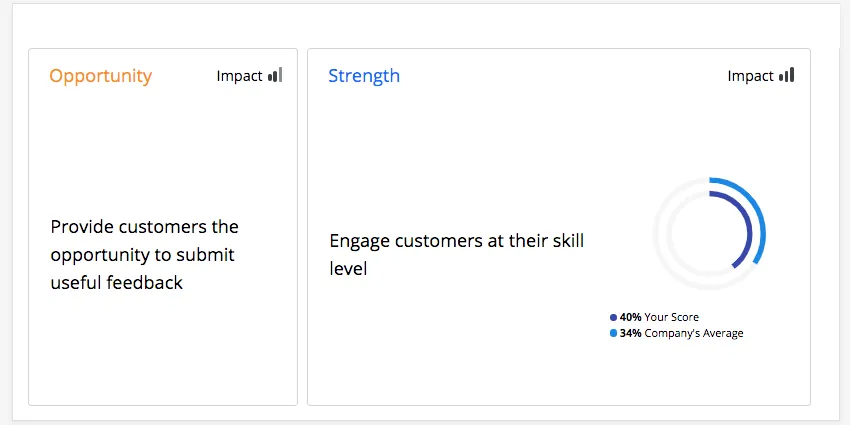
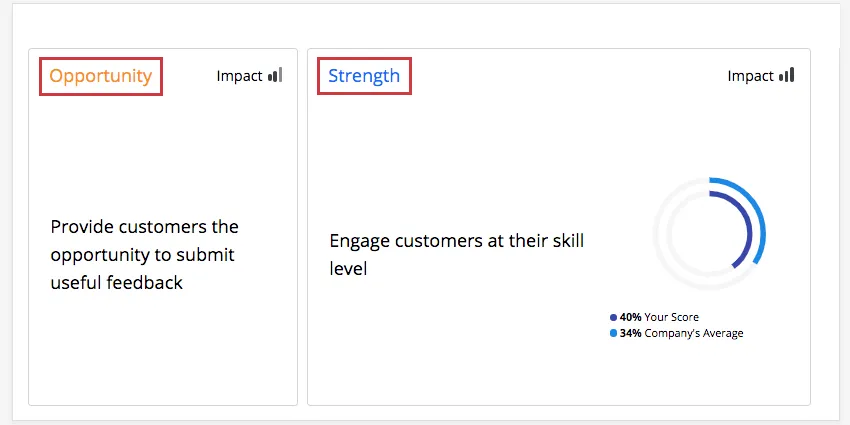
The focus areas widget shows at a glance the areas in which your department, team, or other specified group can improve, as well as the impact the selected key driver has on that group. Multiple key drivers can be added to a single widget to see how different drivers impact a single group in the company. Each key driver is represented in its own card, but only 1 card can be viewed in full at a time. In the widget below, 2 key drivers, “Provide customers the opportunity to submit useful feedback” and “Engage customers at their skill level,” are displayed in the widget. “Engage customers at their skill level” is the currently selected key driver.
Strengths & Opportunities
Each card will be labeled as a strength (overperforming compared to the overall company average), highlighted in blue, or as an opportunity (underperforming compared to the company average), highlighted in gold / orange.
For example, in the widget below, the key driver “Engage customers at their skill level” is a strength for your department, meaning your department overperformed in this area compared to the company overall.
Impact
Impact measures the correlation between the selected key driver and the target metric. A given card will base its impact on the current filter if there are 100+ responses, or at an an organization level if there are fewer. This ensures that there is enough data to return a statistically valid result.
For example, in the widget below, “Engage customers at their skill level” has a low impact for all departments in your company, meaning there was not a clear pattern of responses for this specific key driver.
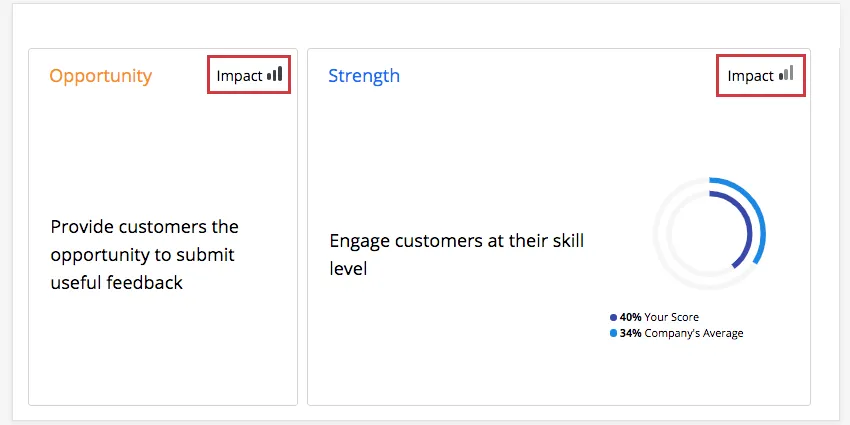
- High Impact: Respondents give a good overall score and are consistent in their rating of the key driver (either high or low).
- Low Impact: There is not a clear pattern of responses. Some respondents may give a good overall score and rate an area highly while other respondents may rate the same area poorly but still give a good overall score.
Impact is an r-value, which measures the correlation coefficient between each item in the table and a chosen outcome metric. Impact calculates the score for the category first, and then a correlation calculation is performed against that score using the chosen analysis method.
The size of the impact is based on the absolute value of the correlation. For example, a strong negative correlation is still a strong correlation and thus a strong driver of your engagement outcome.
If a respondent skips the question used as the impact measure, or any of the items in the table, their response won’t be included in the correlation calculation for the question(s) they skipped. Thus, impact follows a standard statistical approach called pairwise deletion, where missing data points are excluded from the calculation.
Attention: A given card will base its impact on the current filter if there are 100+ responses, or at an organization level if there are fewer. This ensures that there is enough data to return a statistically valid result.
Comparison Ring
The comparison ring will show you how your selected unit compares to the company average. Only 1 comparison ring can be viewed at a time. Click a specific card to see its comparison ring.
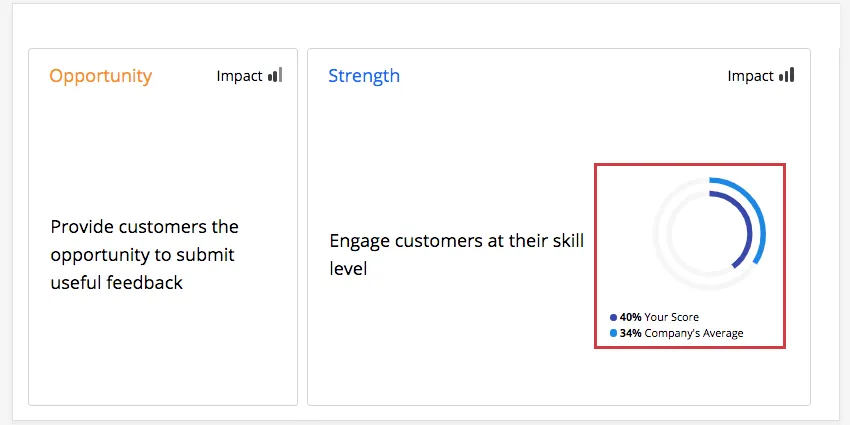
The percentages on a comparison ring represent the favorability scores for the question. (For EX dashboards, favorability is defined by green / favorable areas of scales.)
Qtip: If your rings match, you likely still need to apply your page filter for your department / desired area.
Qtip: Comparison rings report the results of analyzing a given driver, which will remain unchanged regardless of the outcome metric selected in your widget.
Order of Cards
The focus areas widget allows you to compare your performance on your key drivers to your organization as a whole. Using that comparison, Qualtrics determines the “room for improvement,” or your score minus the comparison score. Qualtrics then multiplies the “room for improvement” by the impact to prioritize your key drivers. The most impactful drivers with the most room for improvement are shown first, making it easy to know where to focus.
FAQs
Why is there only one source listed on my widget in my EX dashboard?
Why is there only one source listed on my widget in my EX dashboard?
I have multiple datasets on my dashboard. Can I use this feature with all of my widgets?
I have multiple datasets on my dashboard. Can I use this feature with all of my widgets?
Multiple datasets can be used with your widgets in a couple of ways:
- Changing which dataset your widget shows: Not all widgets can have their referenced dataset switched. Some can only use the default dataset. For a compatible list, see Adjusting a Widget’s Referenced Dataset.
- Showing multiple datasets in the same widget: Not all widgets can show multiple datasets’ results at the same time. For a compatible list, see Adding Multiple Datasets to the Same Widget.
(Multiple datasets are not the same as multiple data sources. Multiple datasets are a CX-only feature.)
That's great! Thank you for your feedback!
Thank you for your feedback!