

Employee Directory Tools (EX)
What's on this page
About Employee Directory Tools
Once you navigate to your Employee Directory within the Directories page, you’ll have access to some tools that help you manage the people in your directory. These can be found under Tools and Bulk Actions.
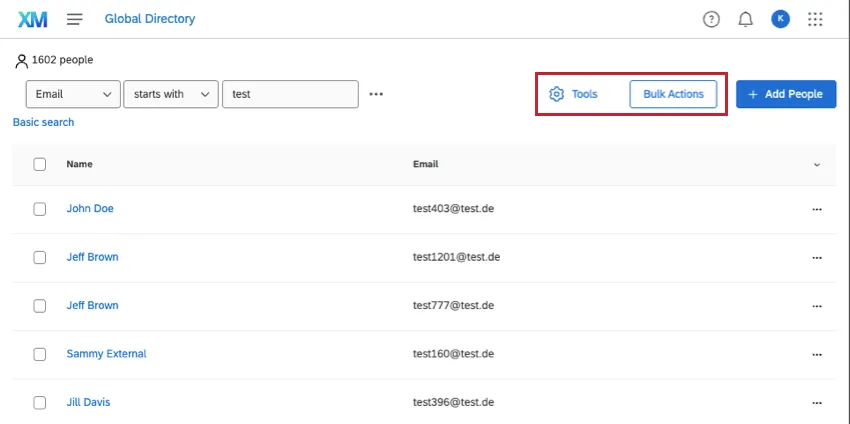
Qtip: This page is about employee directory tools. To learn about adding and removing people from your employee directory, visit the linked support page.

Attention: The tools on this page affect your directory, not your participants list in a project. When you make edits here, you are affecting your whole organization, not just one project. Edit with caution!

Manage Metadata
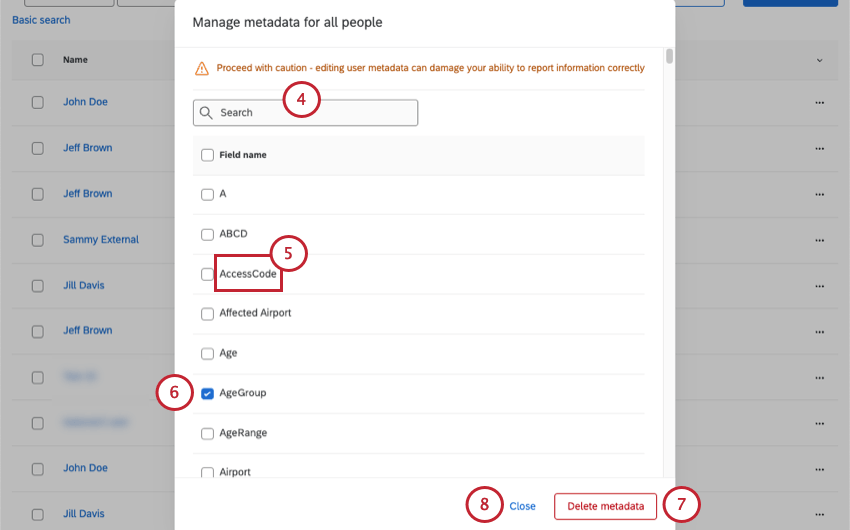
You can see all the metadata for your Employee Experience projects using the Manage Metadata tool. Use this tool to see the values used for a metadata field, or to permanently delete a field from all of the people in your employee directory.
Edits made here won’t affect participant metadata in projects, so you don’t have to worry about data being removed from responses you’ve collected.
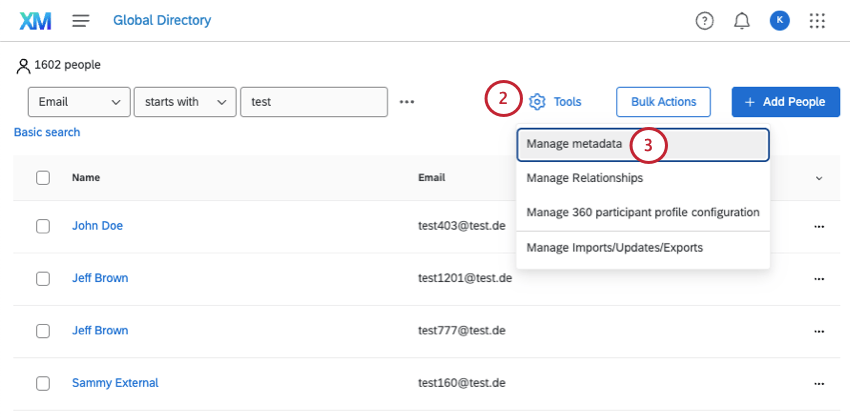
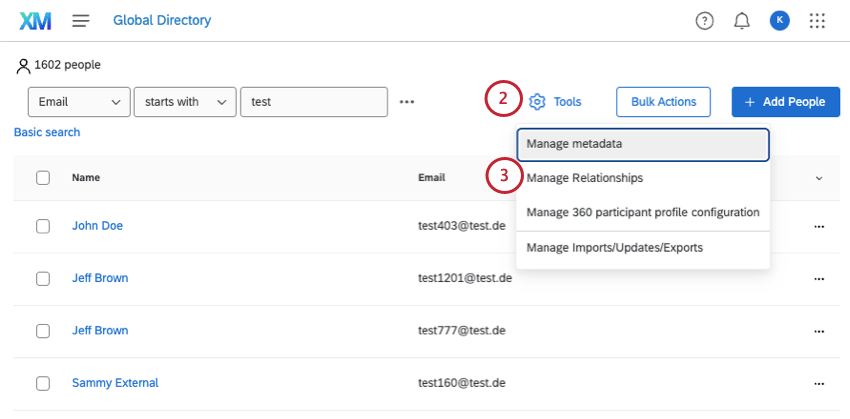
Manage Relationships
Manage Relationships is very useful to 360; it is not used in any other part of the Qualtrics platform. With this tool, you can manage all the custom relationships ever created in your brand’s 360 surveys.
Adding and Removing Relationships
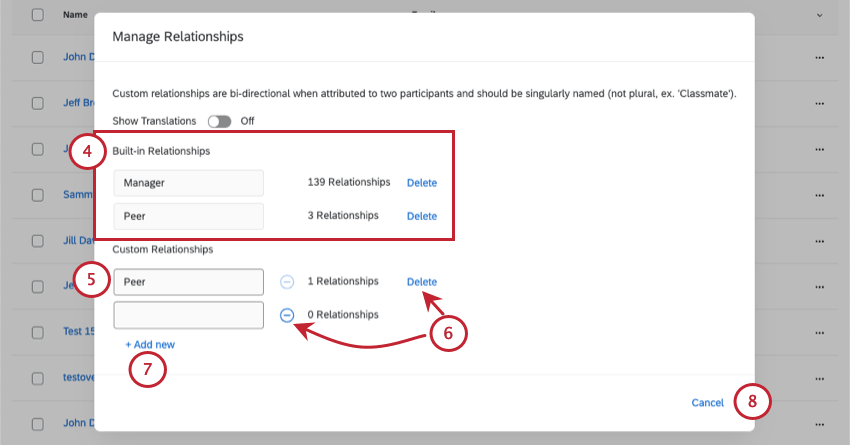
- If the relationship has not been used, then click the minus (–) sign to delete the field. This action happens instantly and is irreversible.
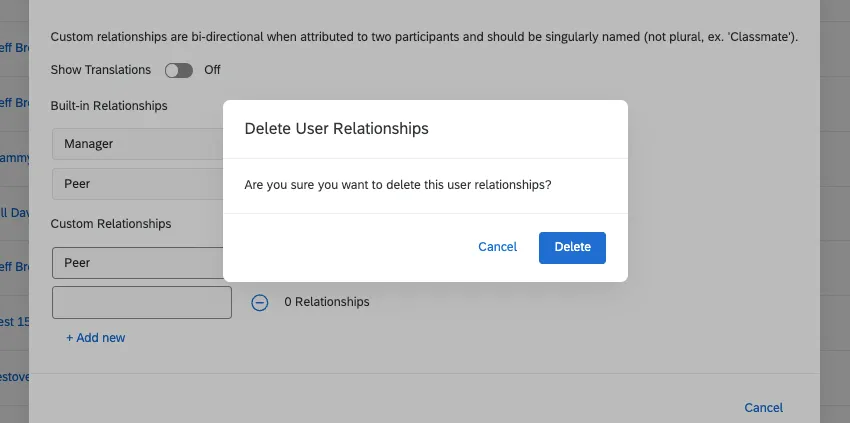
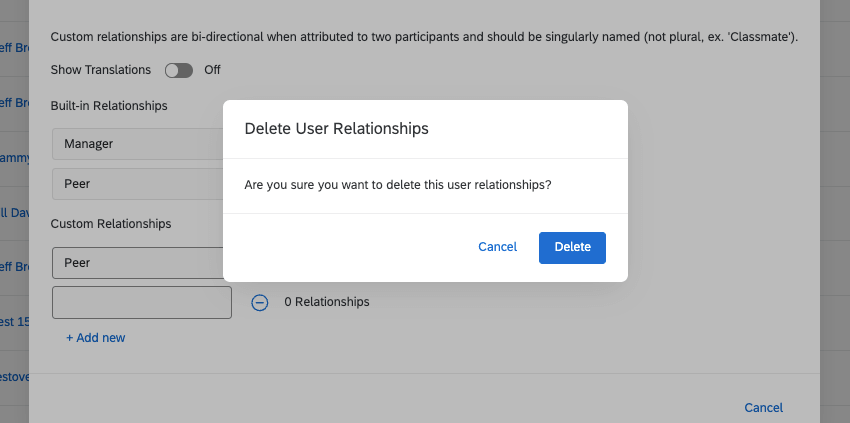
- If the relationship has been used, then click Delete next to the field. You will be asked to confirm to delete the relationship. This will remove the relationship from any projects it is being used in. This action is irreversible.
Translating Relationships
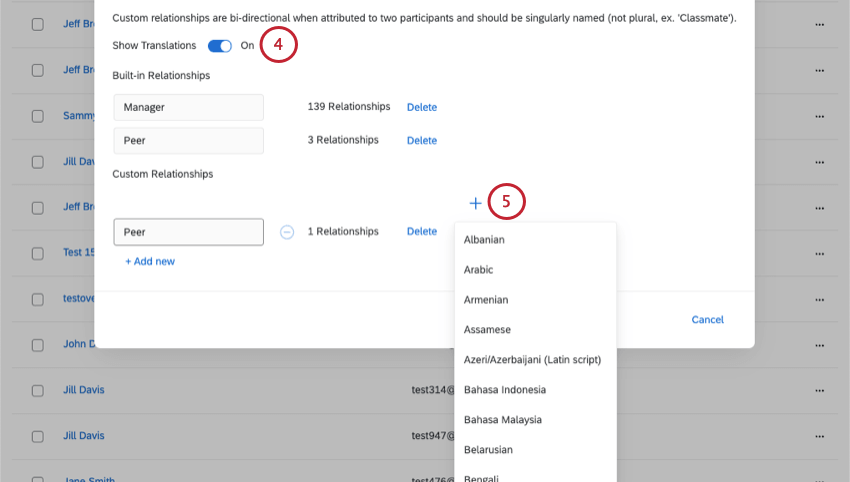
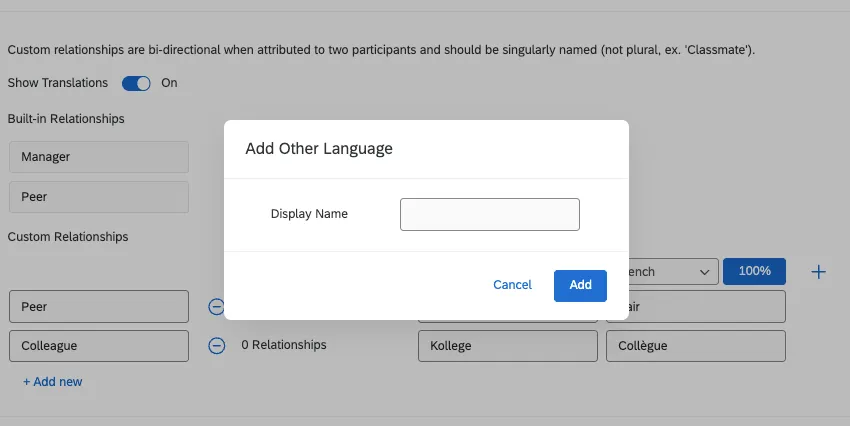
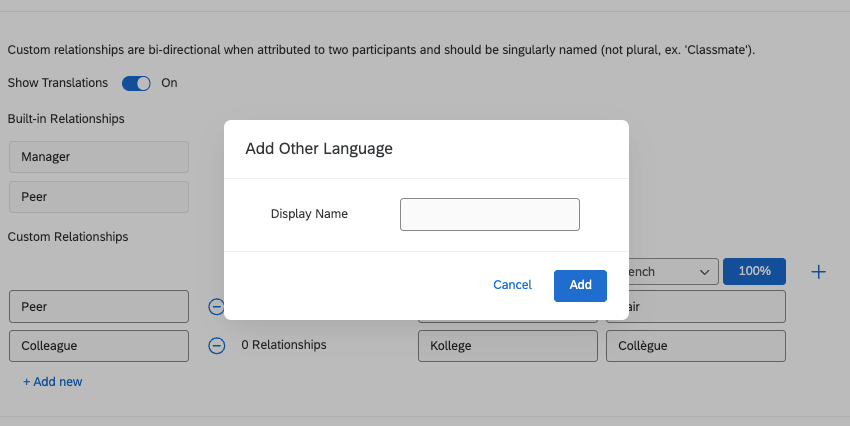
Qtip: If your survey has a custom language, then select Add other language in the language menu and write the language’s display name.
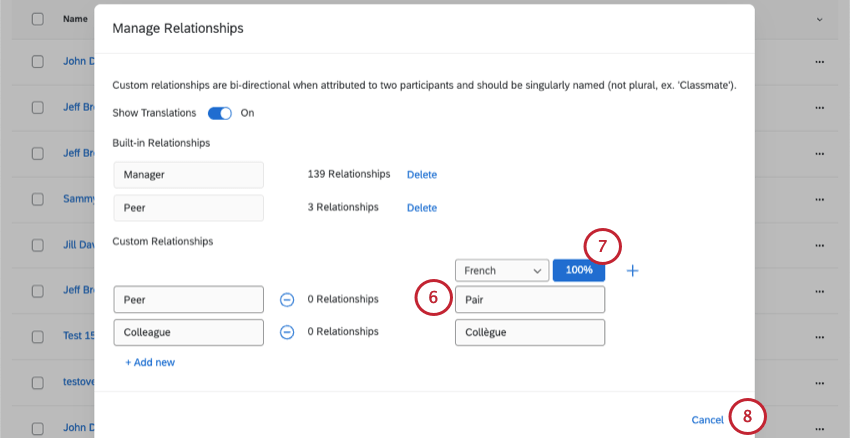
Attention: The Qualtrics auto-translate feature is completed by Google Translate. The text of relationships is sent to Google Translate and will be returned in the language you select. Please be aware that your text may remain on Google servers. The Qualtrics auto-translate feature sends only your relationship text. Respondent data is not sent and remains secure at Qualtrics.
Translation Options
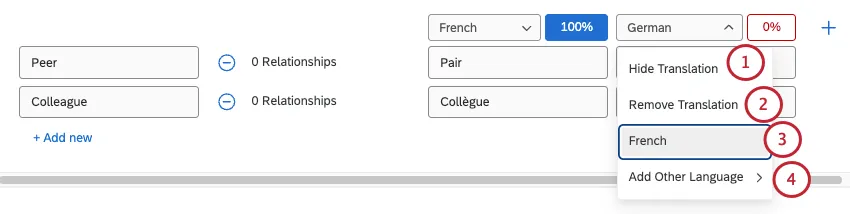
If you click on the header of any of your translation columns, you will have several options for managing your translations.
Manage 360 Personal Information Configuration
Under Tools, Manage 360 personal information configuration gives you a couple options for customizing the 360 participant portal experience:
- Enable different language options for the 360 portal.
- Customize the personal data fields participants can edit, or fields required for login.
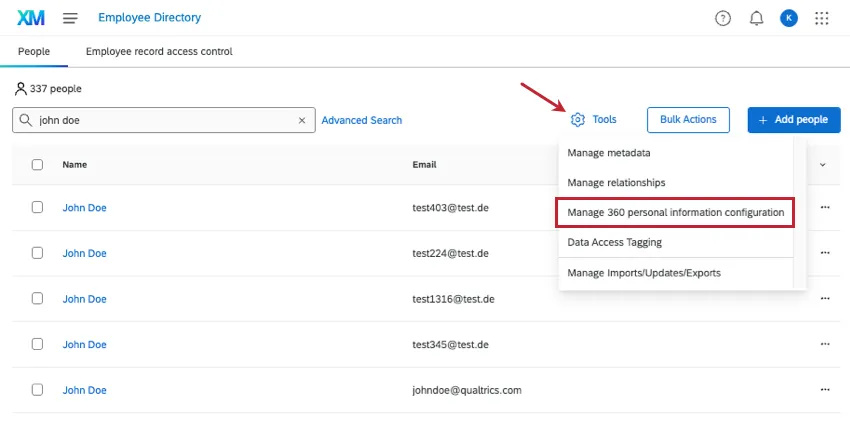
360 portal language options
Go to the Language section.
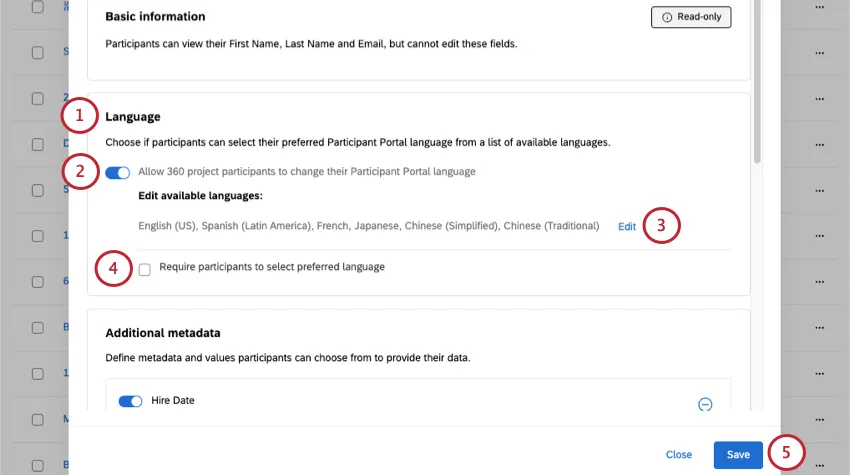
Select Allow 360 project participants to change their Participant Portal language.
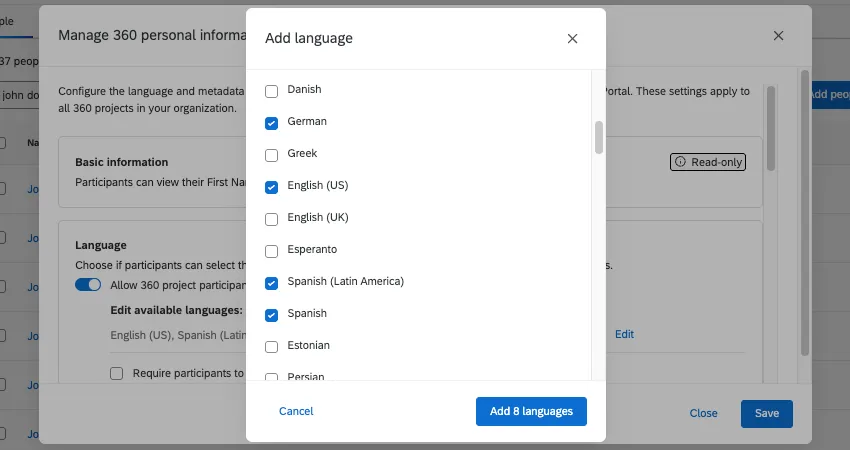
To change the available languages, select Edit.
Qtip: This will open a new modal where you can select all the languages you want to offer in the portal.
You can also enable Require participants to select preferred language.
When you’re finished, click Save.
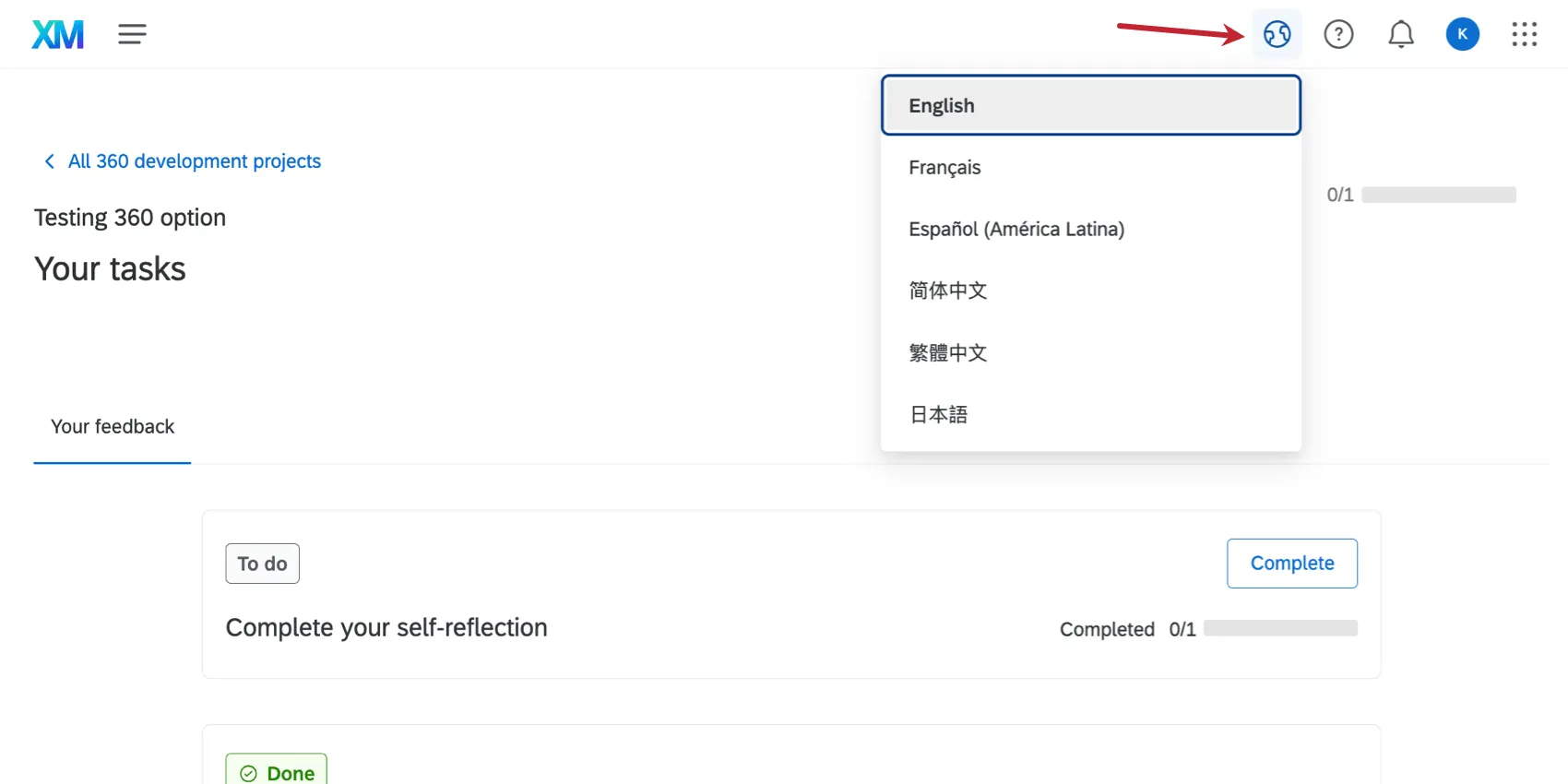
Participants will automatically see the portal in the language specified by their Language metadata field, if it is available. Users will be able to switch between any available languages by clicking the globe icon (“Language Switcher”) at the top of the portal.
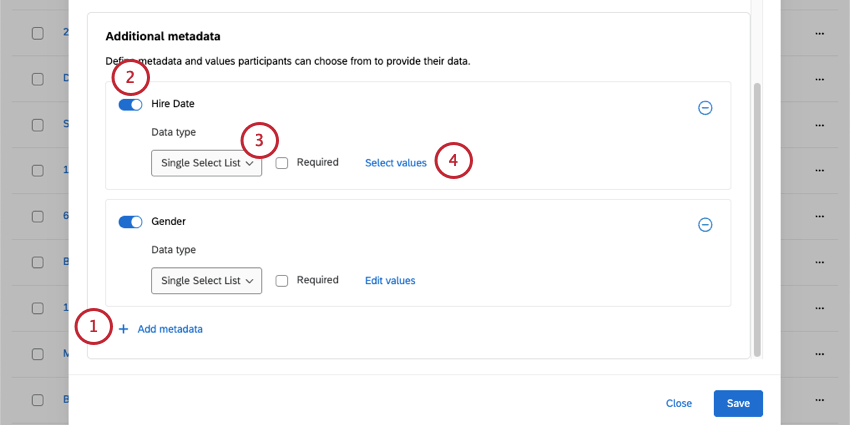
Additional metadata
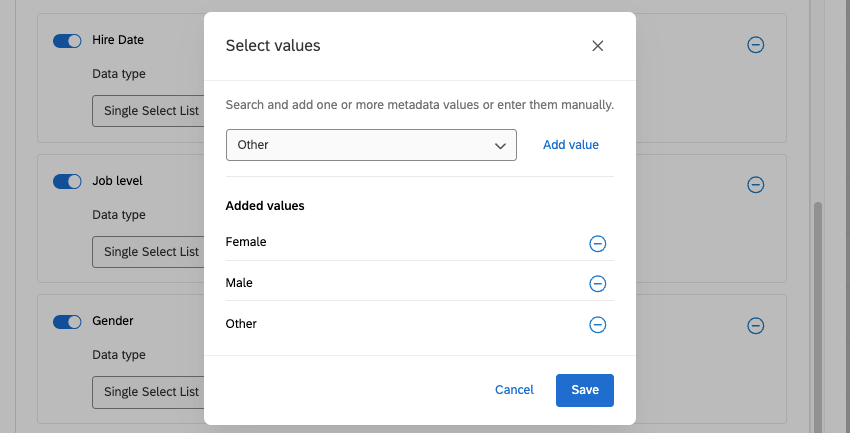
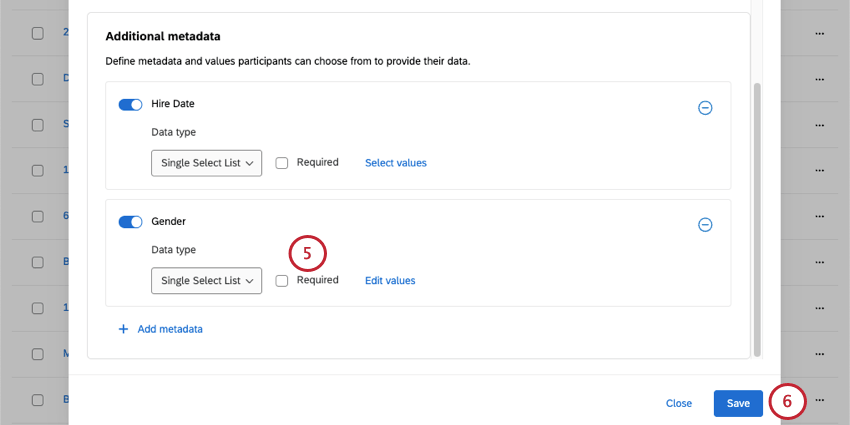
In the Additional metadata section, you can define metadata and values participants can adjust when they log into their portal. You can also require certain metadata when they login.
Qtip: When a user logs into 360 for the first time, they are prompted to change their password. Any fields they’re allowed to edit are also shown in that initial pop-up window.
Manage Previous Imports/Updates/Exports
Qtip: See this support page if you need help importing participants.
The Manage Imports/Updates/Exports option allows you to review when participants were imported to the directory, exported from the directory, deleted from the directory, or had their unique identifiers updated.
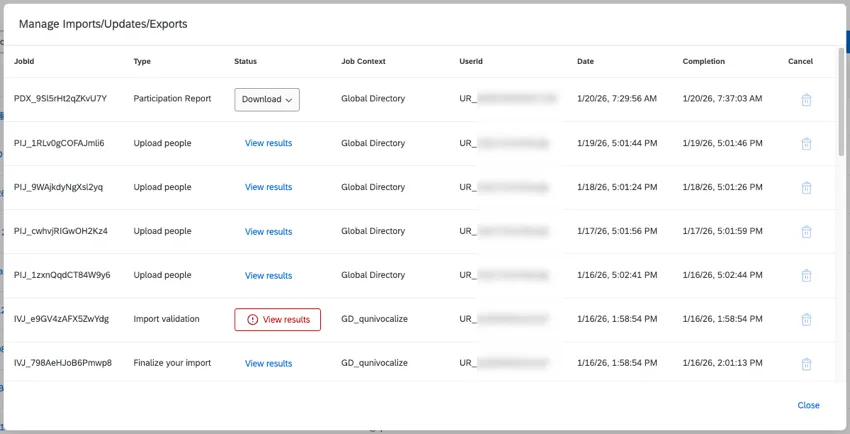
The following information is available for each job:
- Job Id: The JobId is an internal ID for this specific job run. This ID can be useful to provide to Qualtrics Support if you need help identifying why a job failed.
- Type: The type of job (such as uploading people to the directory, or exporting people from the directory).
- Status: Allows you to view the results of the job, or download the export file (if the job is an export job). See below for more information about using the data in this column.
- Job Context: Describes where the job took place, either in your directory or in a specific project.
- User Id: The UserId is the Qualtrics user ID of the user who requested the job.
- Date: The date and time that the job was requested.
- Completion: The date and time that the job completed. If the job is in progress, this column will show the job’s completion status as a percentage.
- Cancel: If your job is running or queued to run, you can click the trash icon in this column to cancel the job.
Qtip: This window displays jobs within the last 14 days.
If you click View Results underneath the Status column, you will receive a report of what this upload accomplished. If there were any errors that prevented the upload, they will be mentioned here.
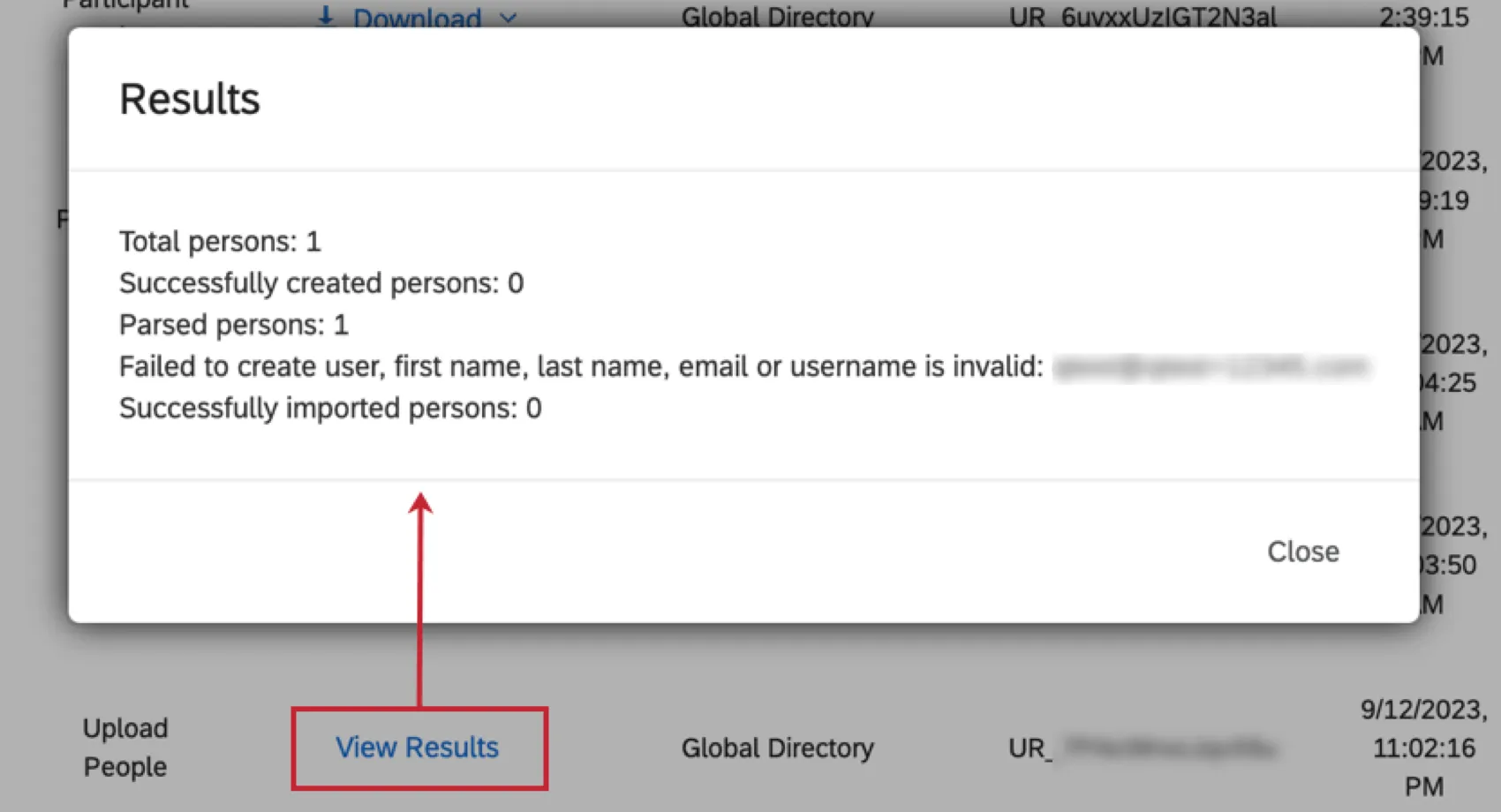
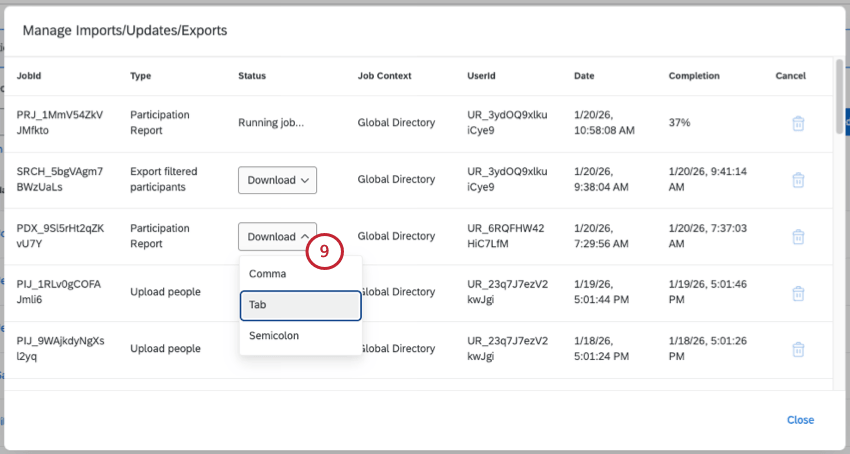
For any participant export jobs, you can click Download to download the exported participant list to your computer. Files can be downloaded in comma, tab, or semicolon separated formats.

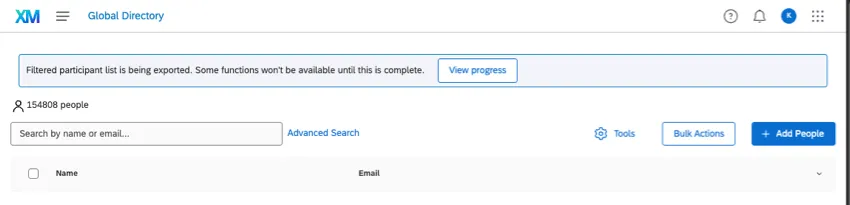
Qtip: If an import, export, or update job is in progress, a banner will appear at the top of your directory. Click View progress in this banner to be brought to the Manage Imports/Updates/Exports window. While a job is in progress, another one cannot be started.
Data Access Tagging
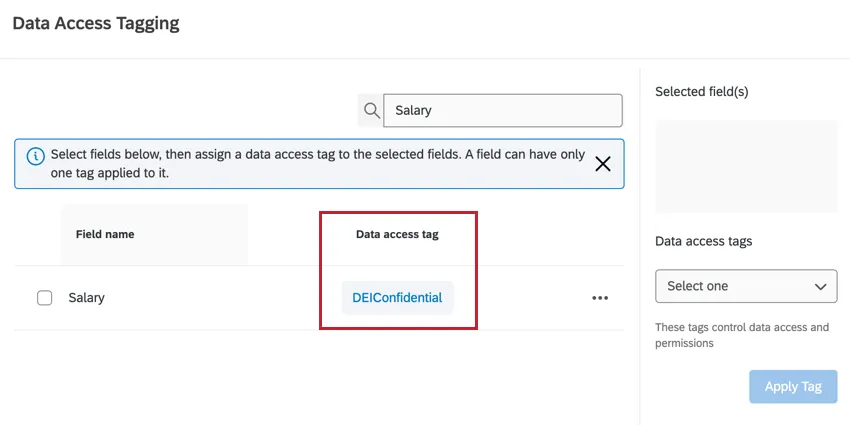
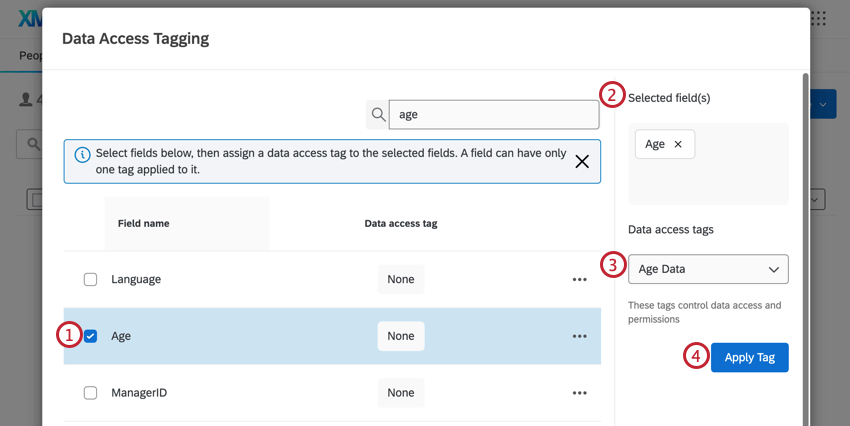
The Data Access Tagging tool determines which fields are assigned a data access tag, which prevents people who are not assigned to the data access role from viewing that data. For more information, see Data Access Settings.
Update Unique Identifiers
The Update Unique Identifiers option allows you to update the unique identifiers for people in your employee directory by uploading a file containing their old unique identifier and their new unique identifier.
Example: If you don’t like the unique identifiers that Qualtrics automatically generates, use this option to update them.

See this support page for step by step instructions on how to update unique identifiers.
Delete People From Directory
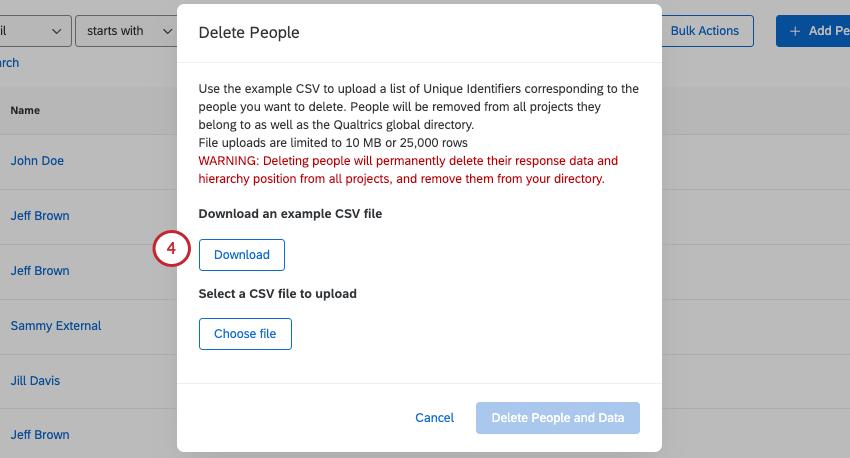
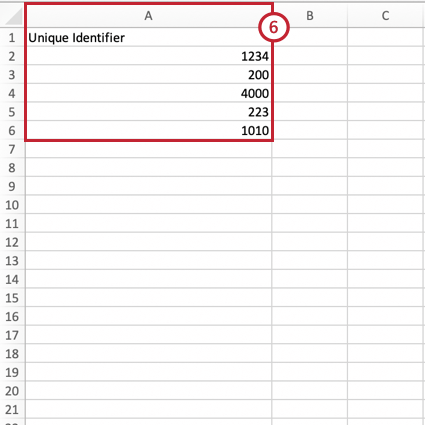
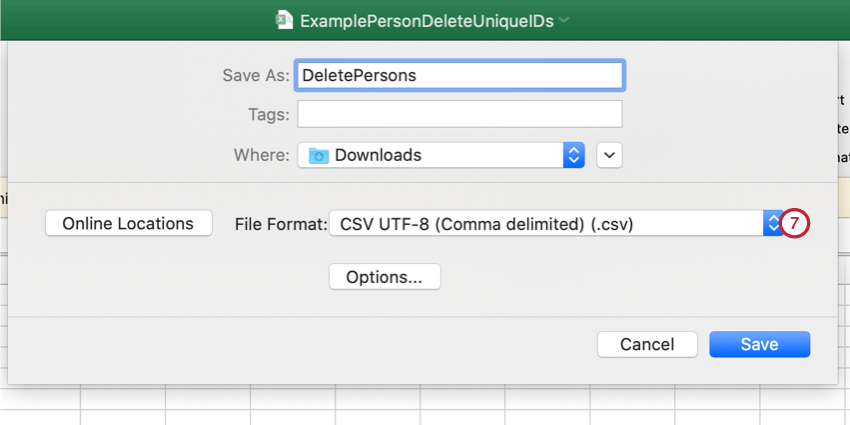
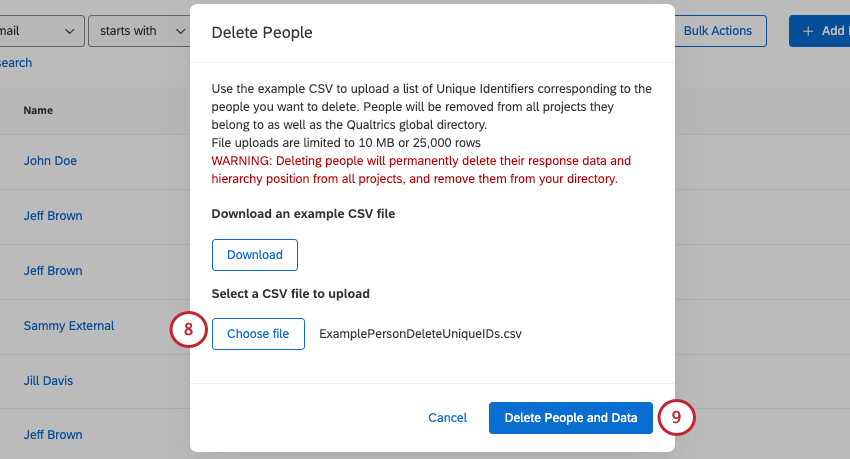
Delete People from Directory allows you to remove people from your employee directory in bulk. This feature works by uploading a CSV file containing the unique identifiers of every person you’d like to remove.
Warning: Deleting people will permanently delete their response data and hierarchy position across all projects, and it will remove them from your directory.
Qtip: File uploads are limited to 10 MB and 25,000 rows.
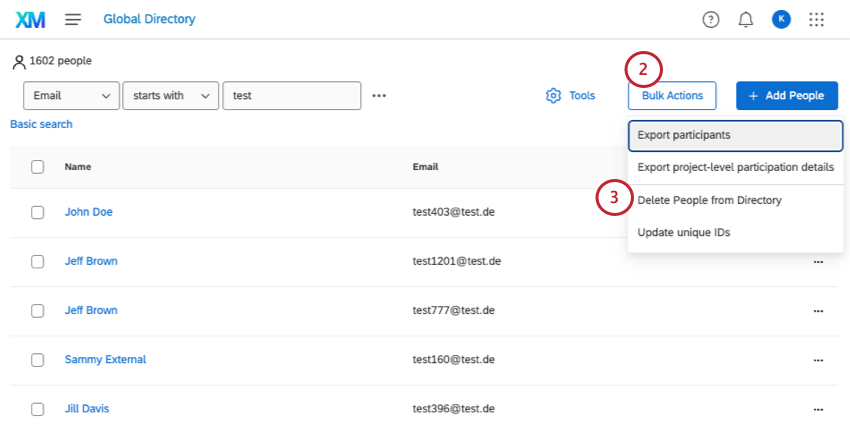
Attention: Make sure you do not have any people selected when you click Bulk Actions. If you select people, you will see a different deletion option.
Export Participants
You can export a CSV of your entire directory using the tools menu. This export will contain the columns for each member of the directory’s First Name, Last Name, Unique Identifier, User Name, User Type, Last Login, and all metadata columns ever added to a participant in the brand.
The User Type column shows a system-assigned ID (e.g., UT_XXXXX) for custom user types. For the default (and most common) user type Participant, the ID is UT_PARTICIPANT.
Qtip: This export will contain every participant in your Qualtrics license. If you’d like to export a subset of your directory, check out the Export Filtered Participants List option.

Attention: Do not select people before you click Bulk Actions. You cannot export selected participants; instead, see Export Filtered Participants.
Qtip: For more on the second option, see Export Filtered Participants.
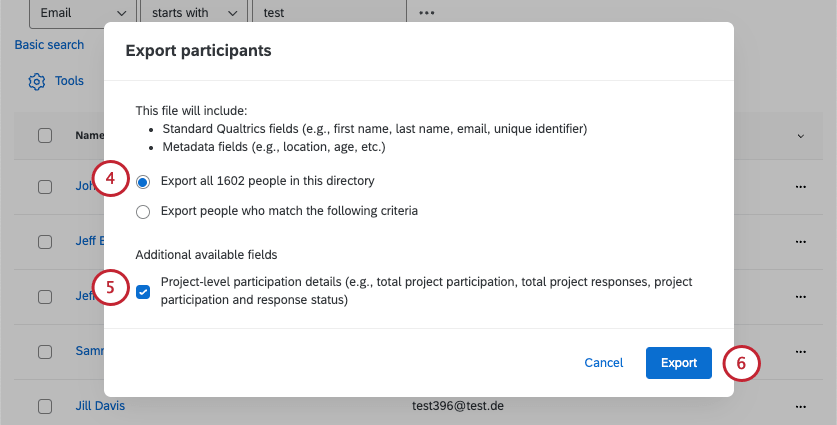
These additional fields include:
- Total Project Participations: The number of projects they’ve been added to as a participant.
- Total Project Response: The number of EX responses submitted.
- Project Participation Detail: A list that contains each project they’re in, the ID of that project, and the number of responses submitted for that project.
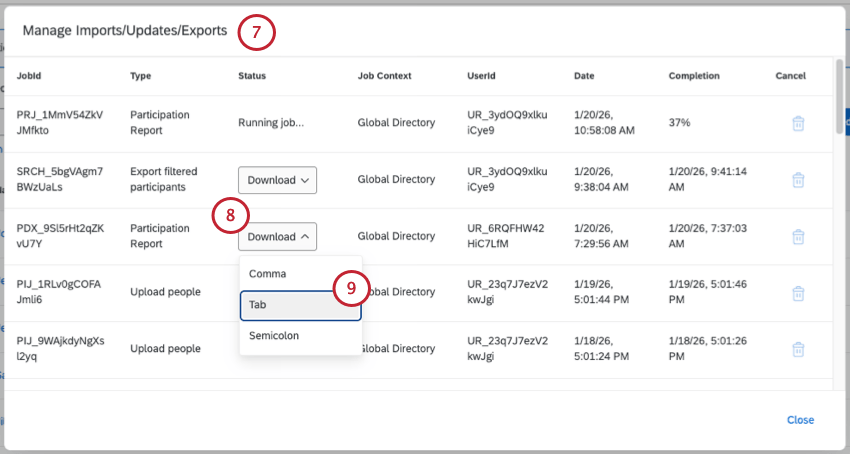
Qtip: This file type is “Export Participants” if it excludes project data, and “Participation Report” if it includes project data.
Export Filtered Participants List
You can export a filtered list of the participants in your directory to a CSV file. This export file will contain the following participant data: First Name, Last Name, Unique Identifier, User Name, User Type, Last Login, and all metadata fields for the selected subset of participants.
The User Type column shows a system-assigned ID (e.g., UT_XXXXX) for custom user types. For the default (and most common) user type Participant, the ID is UT_PARTICIPANT.
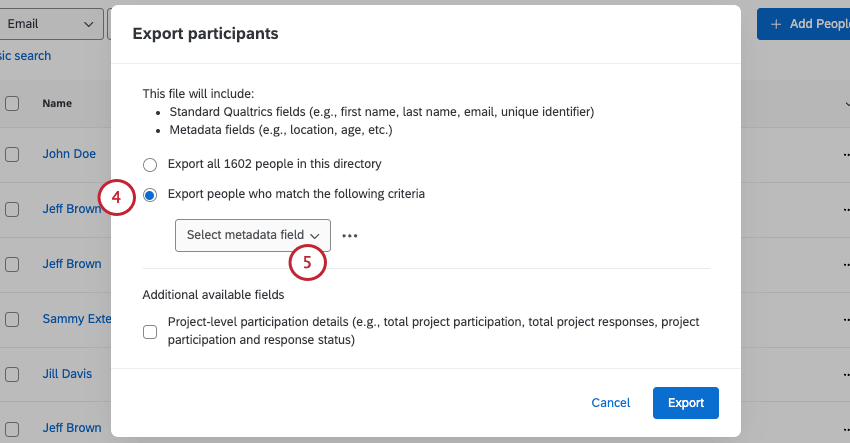
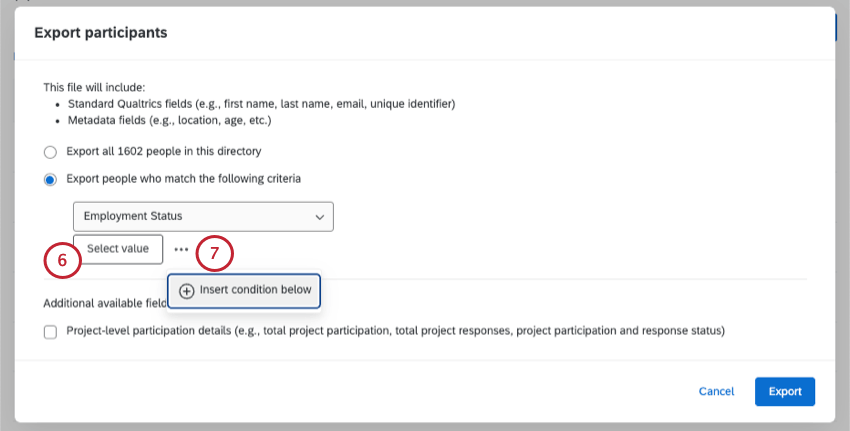
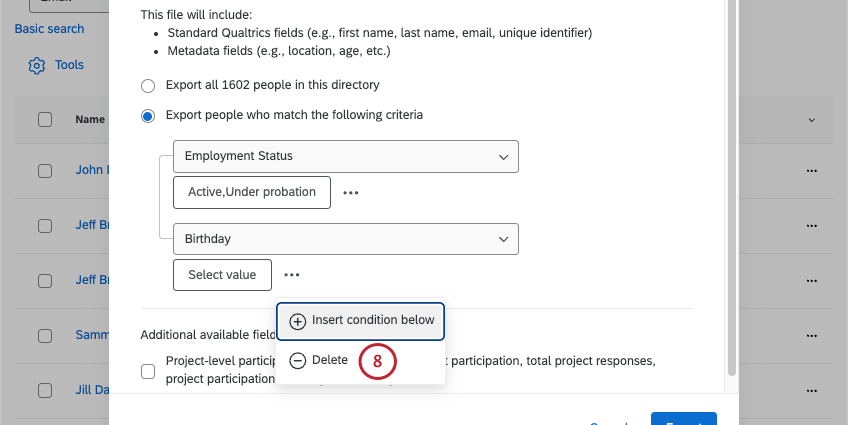
Example: The condition “Department Accounting” will export any participants who have a value of “Accounting” for the “Department” metadata field.
Qtip: When adding multiple conditions, keep in mind that multiple conditions are separated by “AND,” meaning that a participant must meet all conditions to be exported.
These additional fields include:
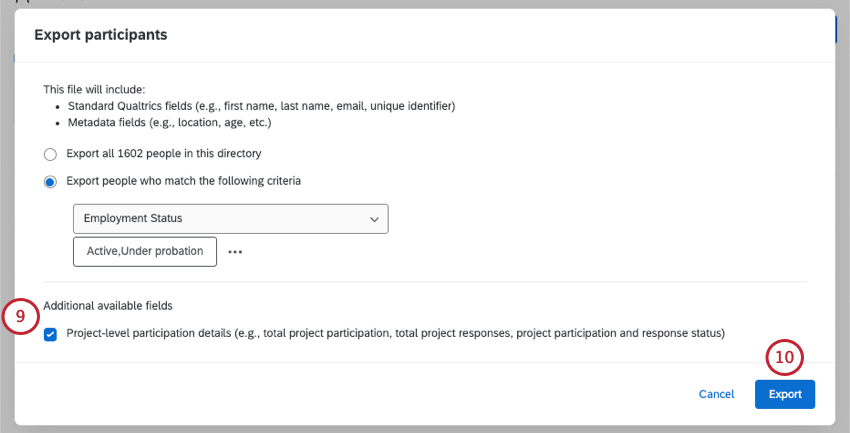
- Total Project Participations: The number of projects they’ve been added to as a participant.
- Total Project Response: The number of EX responses submitted.
- Project Participation Detail: A list that contains each project they’re in, the ID of that project, and the number of responses submitted for that project.
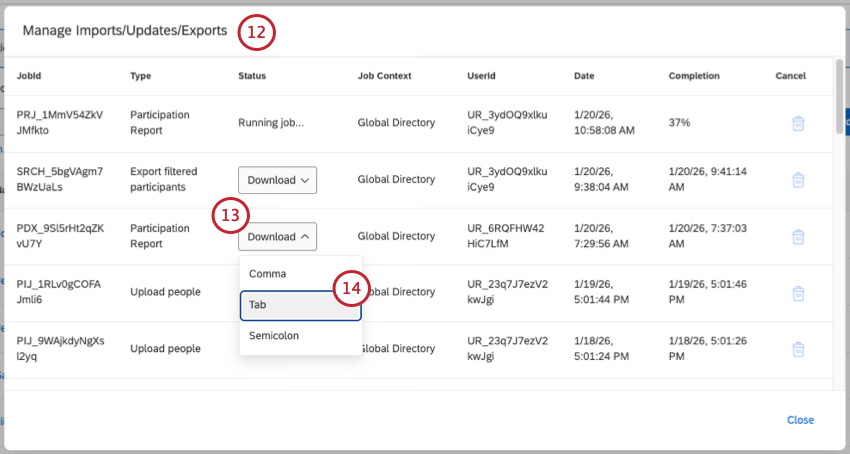
Qtip: This file type is “Participant List” if it excludes project data, and “Participation Report” if it includes project data.
Export Project-Level Participation Details
The Export Project-Level Participation Details option allows you to export a file containing project data about the EX projects your employees are participating in. You can export data for your entire EX directory, or just a subset of participants.
This file contains basic information about the included participants (Last Name, First Name, Email, Unique Identifier, and User Name) in addition to the project data. If a participant is in multiple projects, then there will be 1 unique row for each project the participant is in. Every row contains the following project-related columns:
- Project ID: The ID of the project.
- Project Name: The name of the project.
- Respondent Status: Indicates if the participant is marked as a respondent in the project (true or false).
- Response(s) Submitted: The number of responses submitted by the participant in the project.
- Response Date(s): The date(s) that the participant submitted their response(s).
- 360 Evaluations Received: The number of evaluations received. This column only contains data for 360 projects.
- 360 Evaluations Given: The number of evaluations submitted. This column only contains data for 360 projects.
To download participation data for EX projects in bulk:
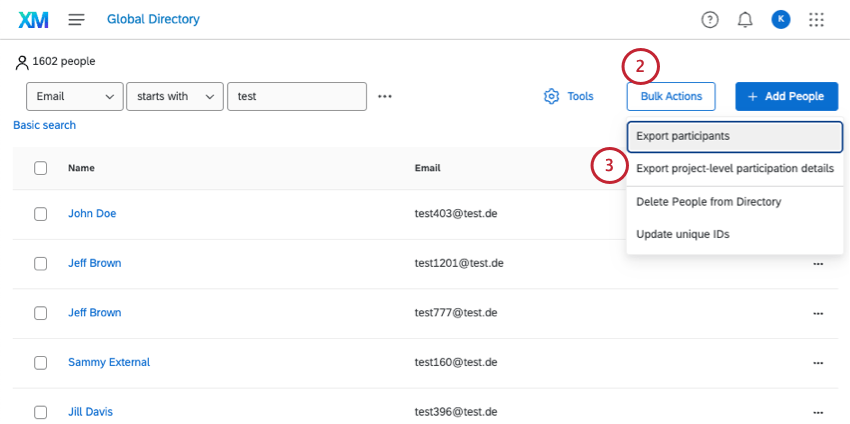
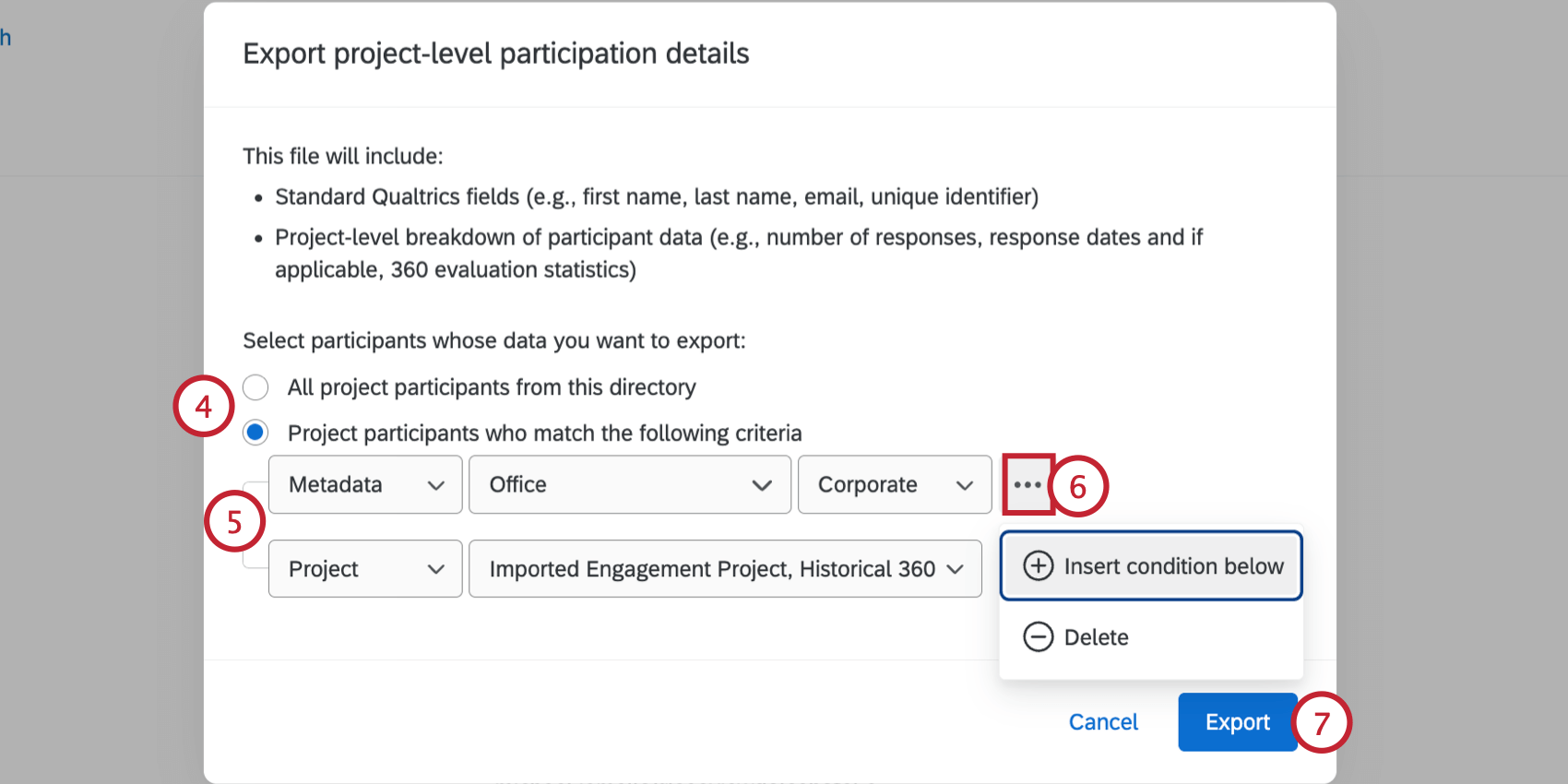
- All project participants from this directory: Include every participant from your directory who is in at least 1 project.
- Project participants who match the following criteria: Only include project participants who meet the criteria that you set.
Example: In the above example, participants will be included if they have the value “Corporate” for the “Office” metadata field. Additionally, they must be a participant in either the “Imported Engagement Project” or the “Historical 360” project.
FAQs
Are changes to members of my employee directory reflected in my project’s participants?
Are changes to members of my employee directory reflected in my project’s participants?
If you update someone’s unique identifier, first name, last name, or login information, this information will always be reflected in any projects that person is a participant in.
That's great! Thank you for your feedback!
Thank you for your feedback!