

Employee Record Access Control
What's on this page
Qtip: This page describes functionality available to all Engagement, Lifecycle, Pulse, and Ad Hoc Employee Research projects. For more details on each, see Types of Employee Experience Projects.
About Employee Record Access Control
By default, EX project admins can import all participants from your employee directory without any limitations. However, you may want to add limits to this. For example, let’s say my company has 3 different offices, and each one runs their own office experience survey. The project admins who run each survey should only have access to employees for employees in their office.
Employee record access control (ERAC) enables you to limit the persons available to your project admins by setting up roles with access to different sets of employees. This feature allows you to satisfy data access requirements within your company.
ERAC restrictions only control participant imports. ERAC does not affect the ability to view participant responses in Data & Analysis, or to see the entire participant list in the Participants tab of their project.
Qtip: This page is about setting up roles in the EX directory to limit the data available to project admins. For creating roles within a project for dashboard access, see Participant Roles (EX).
Enabling Employee Record Access Control
Attention: This feature requires your brand to be on the updated backend infrastructure. Please fill out this survey to see if your brand is eligible. If your brand needs to be updated, a Brand Administrator can request your brand to be updated via the survey.

Only Brand Administrators and EX Administrators should set up employee record access controls.
To get access to this feature, you will need the Manage Data Access Control user permission enabled, in addition to directory access from the Access Directories permission.
Creating Employee Record Access Control Roles
Warning: Make sure to create your roles before turning on employee record access control.
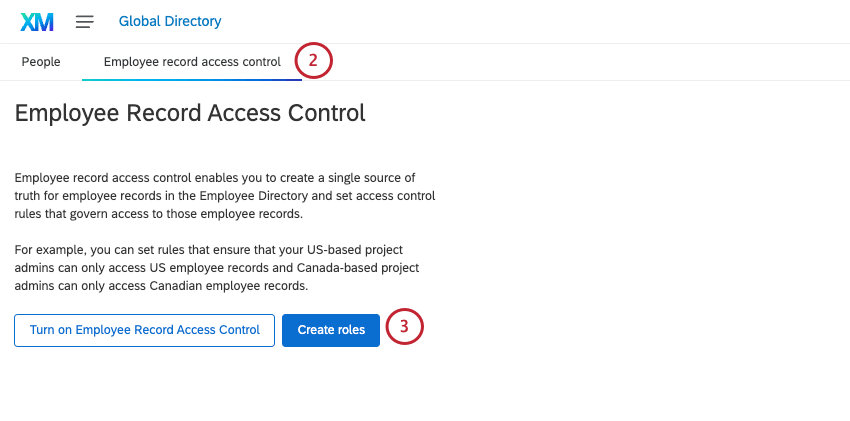
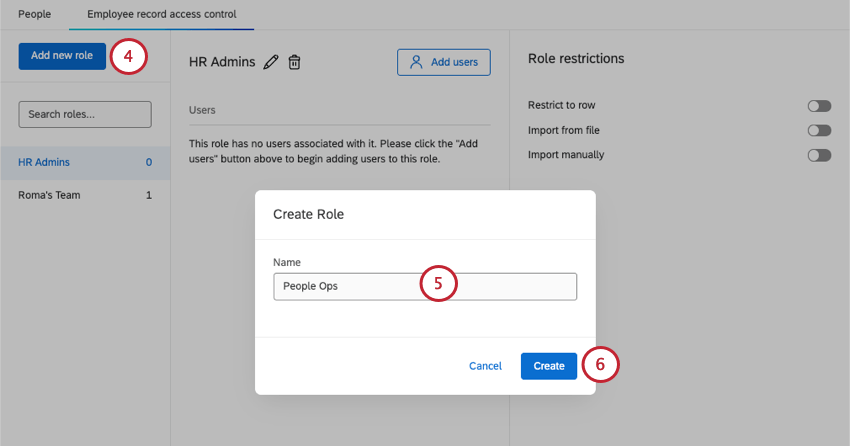
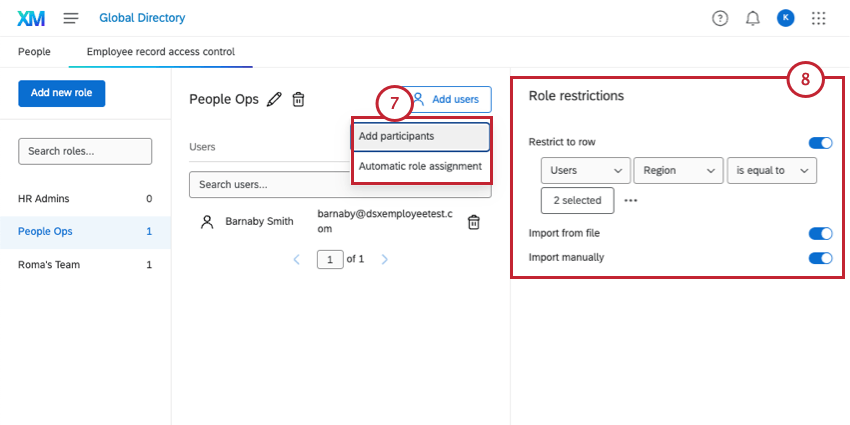
- Add participants: Manually select users to be in this role. See Adding & Removing Participants for more information about this option.
- Automatic role assignment: Create rules to automatically assign users to roles based on their metadata. See Automatic Role Assignment for more information about this option. Qtip: While the linked pages are for adding users to roles in a project, the core functionality is the same.

- Restrict to row: Limits the data available to the user when importing participants based on metadata. See Restricting Directory Access Using Metadata for more information. Qtip: If you do not enable “Restrict to row,” then project admins in that role will be able to import all participants from your employee directory without restrictions.
- Import from file: When enabled, allows the user to import participants into a project via a file upload.
- Import manually: When enabled, allows the user to manually import participants into a project. Note that when adding participants via manual import, users will only be able to add participants based on their role restrictions (for example, if limiting by “Region” is “US”). Qtip: If you disable both “Import from file” and “Import manually,” then the only way the project admin will be able to add participants to a project is to import directly from the employee directory.
Qtip: Check out the Impact on Project Admin Experience section for more information about how each of these restrictions impacts importing participants into a project.
Restricting Directory Access Using Metadata
This section covers how to set up conditions to limit data based on metadata. This option limits the employees that are available to a project admin when they add participants to a project via the employee directory.
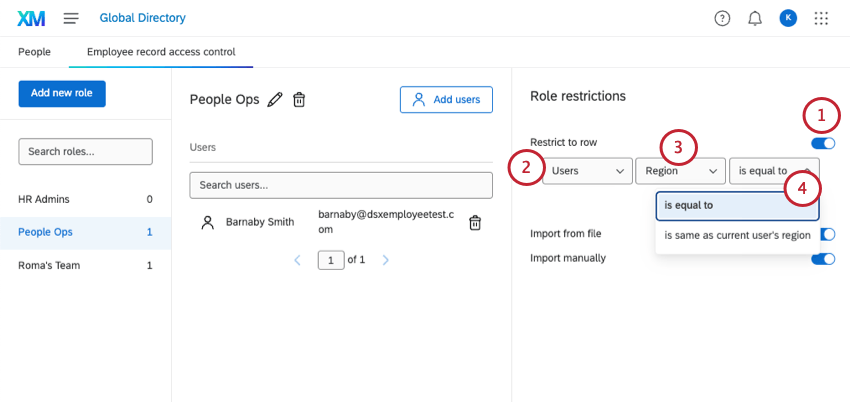
Qtip: Common choices are “Department,” “Region,” and “Office.”
- is equal to: This option allows you to choose a specific value (e.g., “Region” is equal to US).
- Is same as current user’s: This option limits the value to the same value as the user in the role (e.g., if limiting by Office and the user’s office is Seattle, then they will only be able to see data for other employees in Seattle).
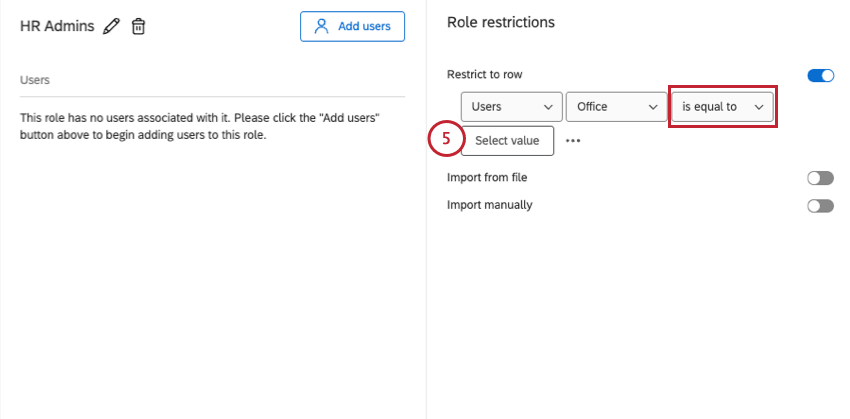

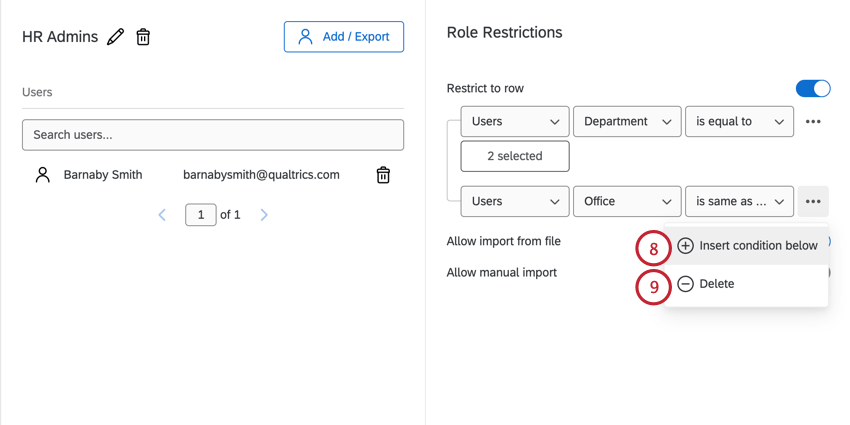
Qtip: If you include multiple conditions, they are separated by an implicit “and” meaning all conditions must be true.
Qtip: If you only have one condition, you cannot delete it. To remove the condition, disable “Restrict to row.”
Turning on Employee Record Access Control
Attention: You should not enable employee record access control until you’ve created your roles. If you turn on this feature without creating roles, then no one in your organization will be able to add participants to their EX projects.
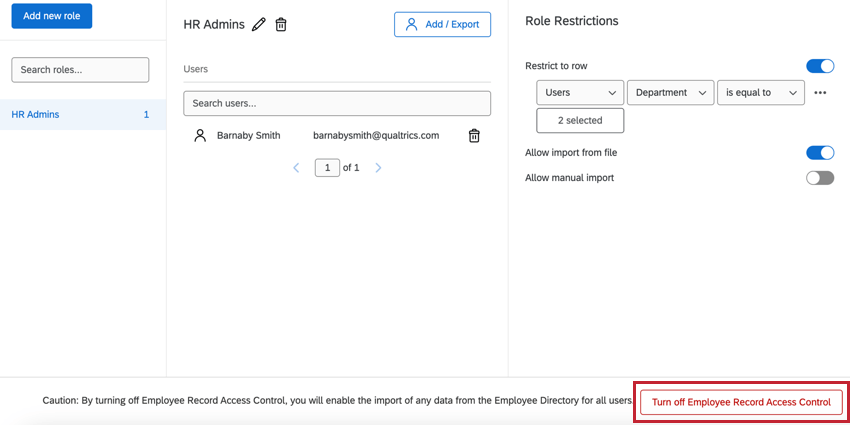
Once you’ve created your directory roles, you can enable employee record access control so that its settings take effect.
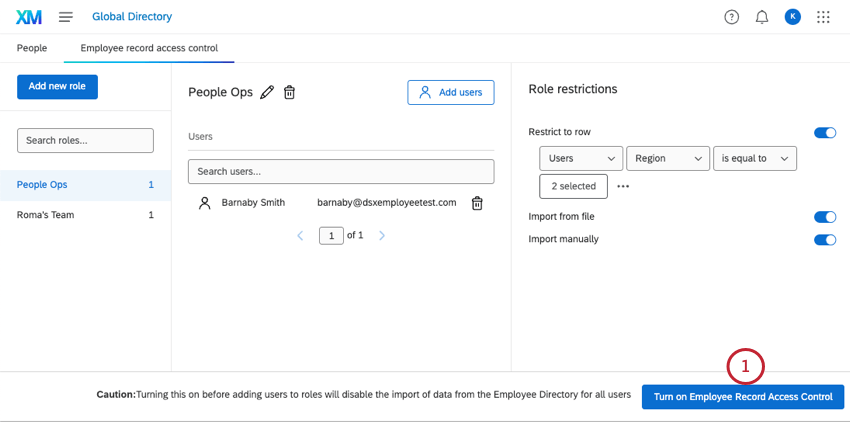
Qtip: You might need to scroll down to see this button.
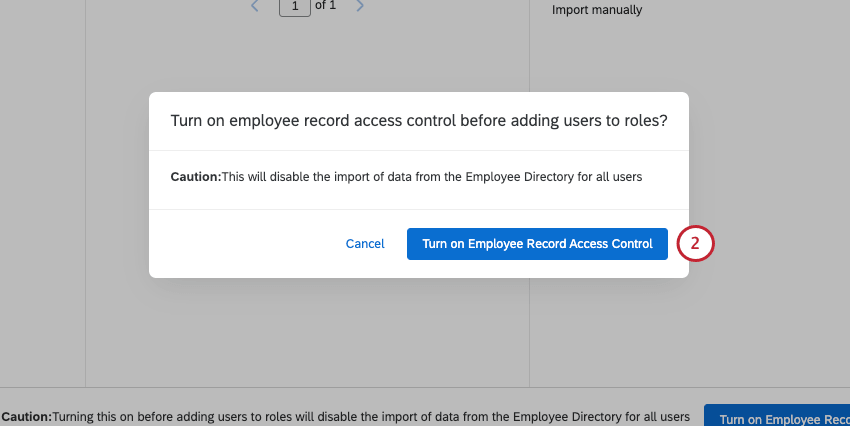
To disable employee record access control, scroll down to the bottom of the page and click Turn off Employee Record Access Control. Confirm your choice in the pop-up that appears.
Impact on Project Admin Experience
This section covers how the different role restrictions impact a project admin’s ability to import participants into a project.
Restrict Row
The Restrict row restriction impacts the Import from Global Directory option when importing participants into a project.
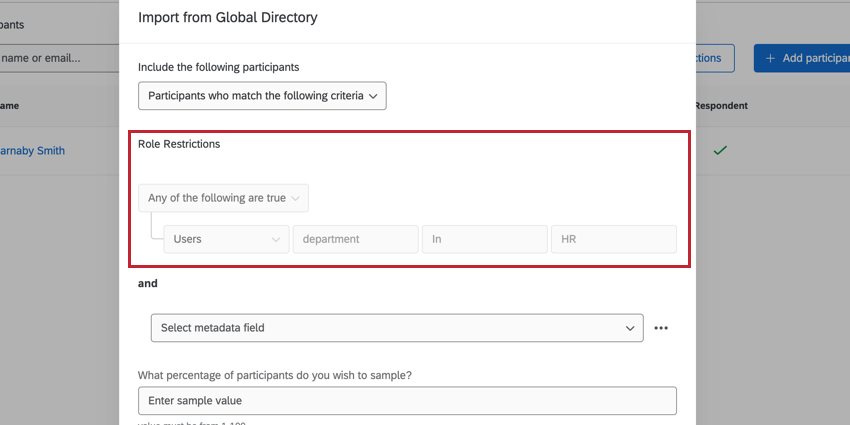
When importing participants from the employee directory, any field restrictions will appear in the Role Restrictions section. You cannot change this criteria unless you edit the employee record access control that is applying the restriction. You can add additional criteria that will apply in addition to your role restrictions.
Allow import from file
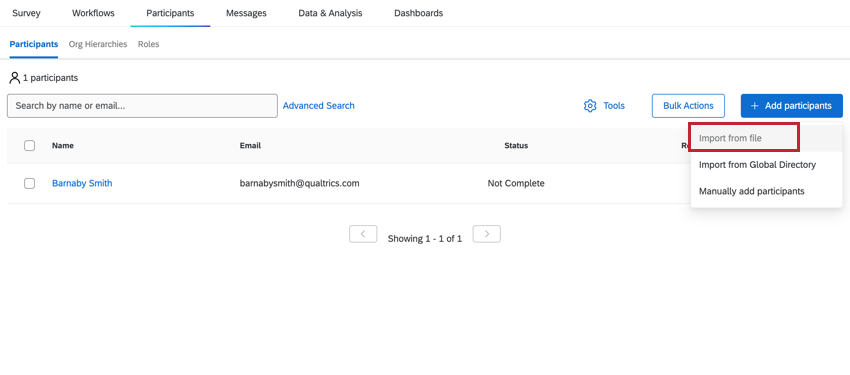
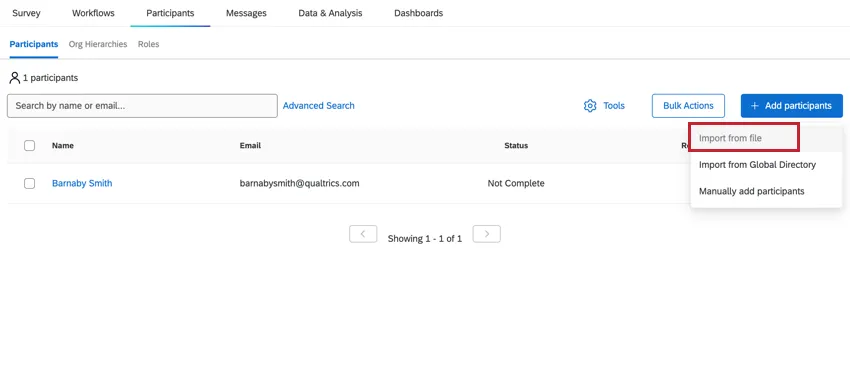
If Import from file is disabled, then the Import a file option will be disabled in your EX projects.
Allow manual import
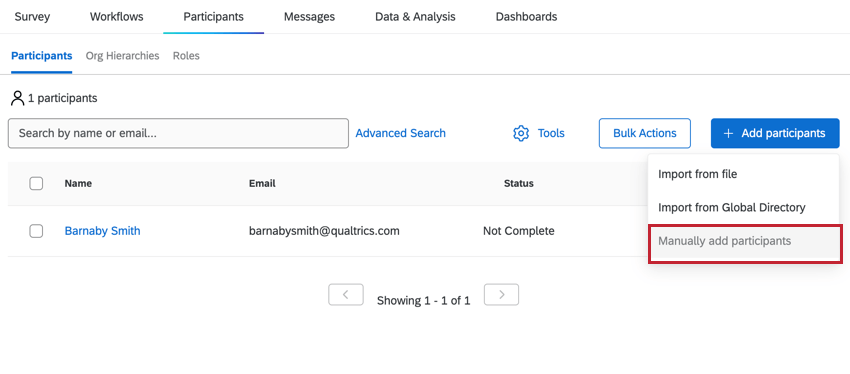
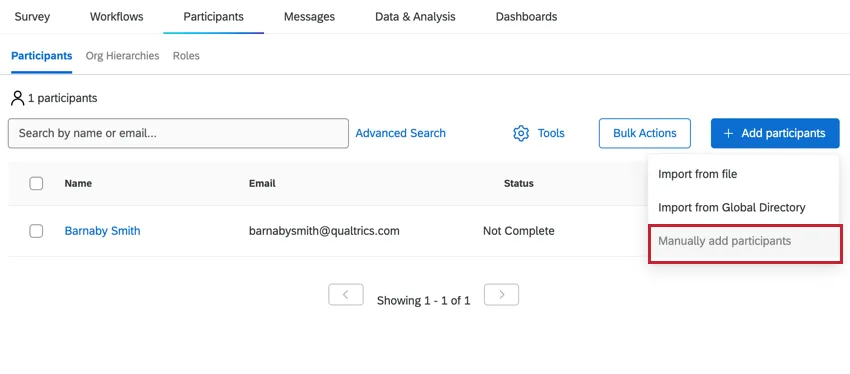
If Import manually is disabled, then the Manually add participants option will be disabled in your EX projects.
If Import manually is enabled and there are restrictions set by the Restrict Row setting, then the project admin will only be able to search for users in the employee directory based on the role restrictions. For example, if there’s a condition for Region = US, then they will only be able to manually add participants who have Region = US.
That's great! Thank you for your feedback!
Thank you for your feedback!