

My License
What's on this page
About the My License Page
My License is a page on the Customer Success Hub where you can review your contract details, update renewal information, reach out if you have questions about your quote or invoice, or view privacy and security documentation.
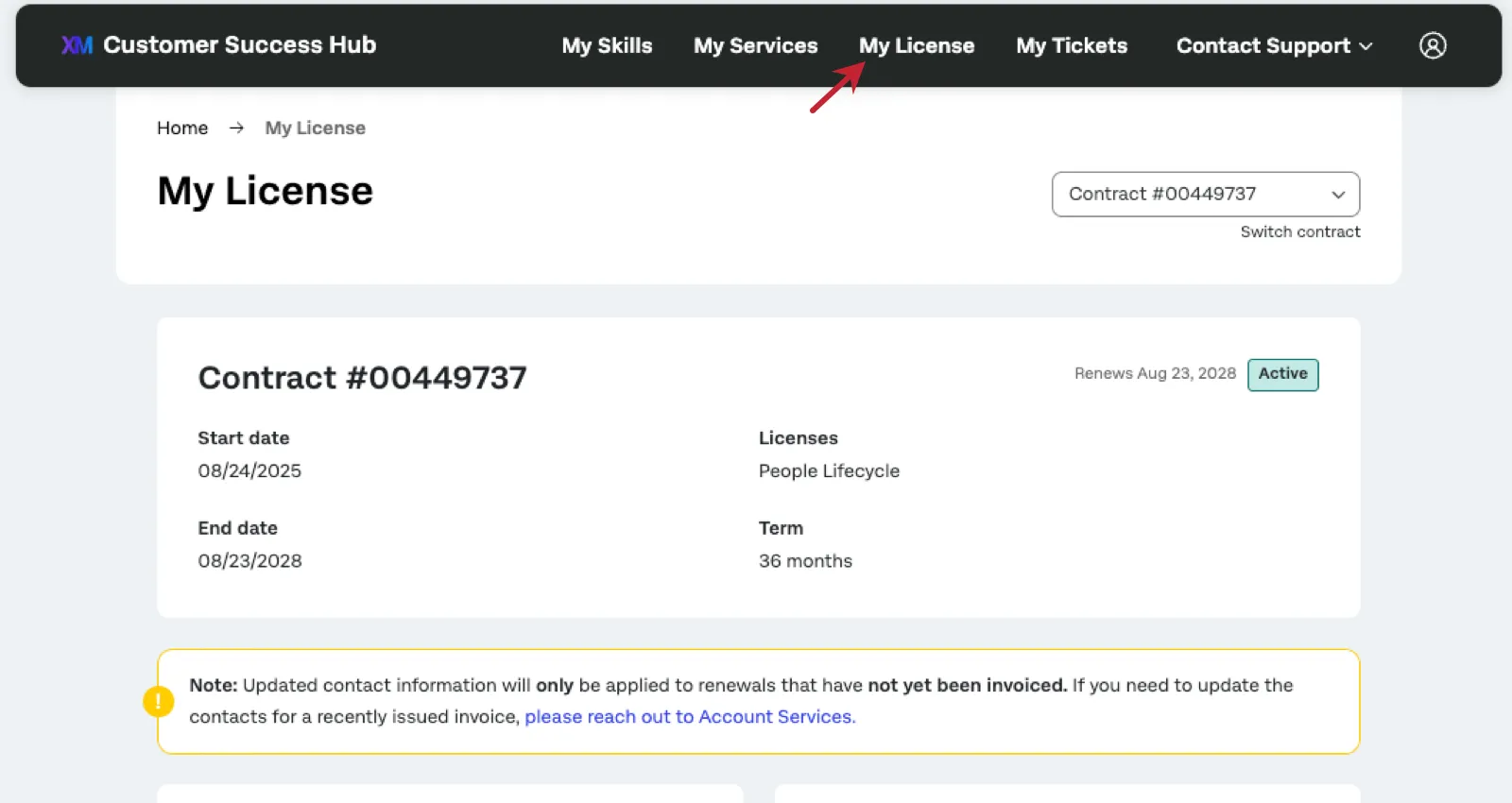
Qtip: The experience on this page varies for self-service licenses. See Managing Your License for more information.
Qtip: This page only appears in your Customer Success Hub if you’re a Brand Administrator or listed as the primary or billing contact. The contact email must match the email address associated with the user’s account in order for this page to appear.
Questions about your quote or invoice
If you have questions about payment, billing, or renewal inquiries, click Contact Us on the My License page.
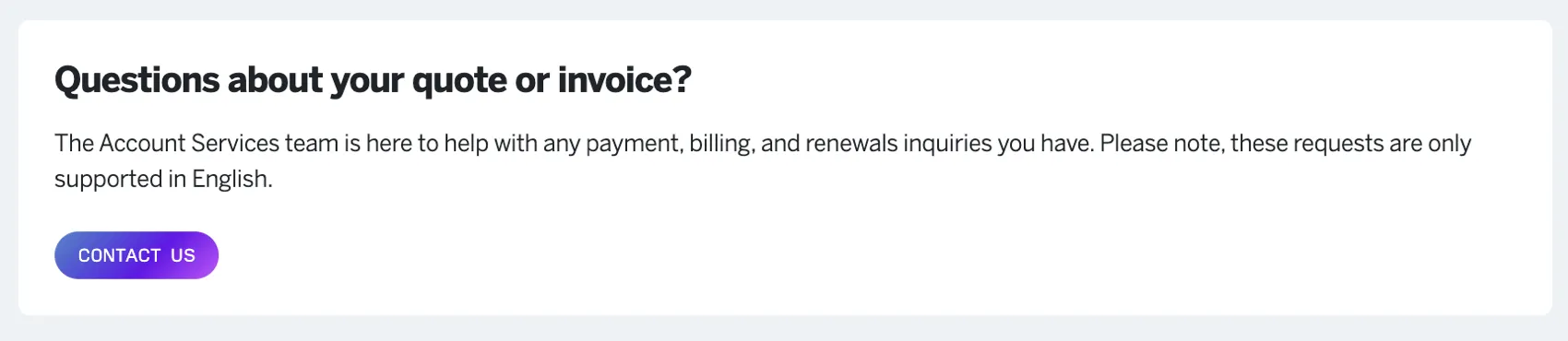
The requests submitted through this form are only supported in English. For quote and invoice support in other languages, reach out to Account Services.
Qtip: Technical support cannot help with quote and invoice questions.
Contract Information
If you are a Brand Administrator or listed as the primary or billing contact for a Qualtrics contract, then you will be able to find information about your contract in the Hub.
You can use the Switch contract menu to switch between available contracts. If you do not see this menu, either your organization only has a single contract, or you do not have access to additional contracts. For example, someone else may be the billing contact for your company's other contract.
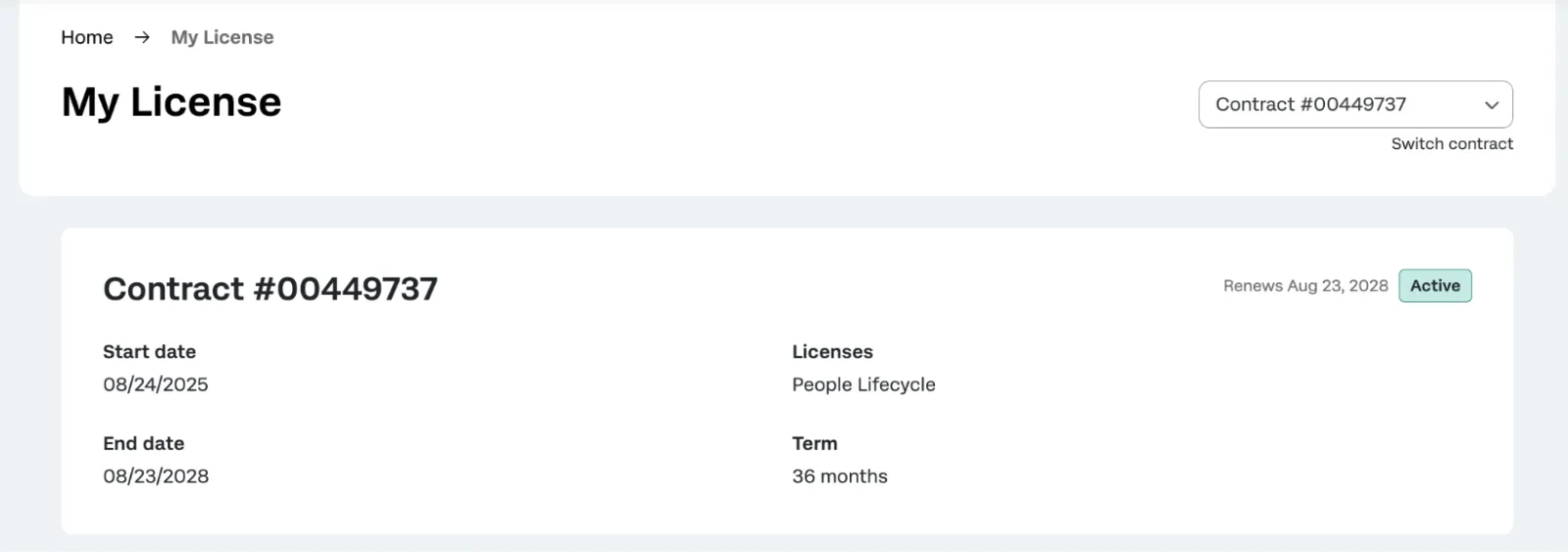
When viewing a contract, the following are displayed:
- Contract Number: A numeric identifier for your contract.
- Start Date: The date your contract begins.
- End Date: The date your contract ends.
- Licenses: The licenses associated with your contract.
Qtip: Reach out to Account Services if you have questions about the features included in your license.
- Term: The length of the contract in months.
Primary and Billing Contacts
Qtip: Make sure the primary or billing contact you enter has a Qualtrics user account with the same email address listed. If an automated inbox is listed as a contact, it does not need an associated Qualtrics account.
You can set the main contacts in your organization that should receive important billing information and invoices for your Qualtrics license. Any changes you make here will be immediately applied to the next upcoming contract renewal for your organization.
In the Customer Success Hub, open My License.
Click Edit under one of the following contacts:
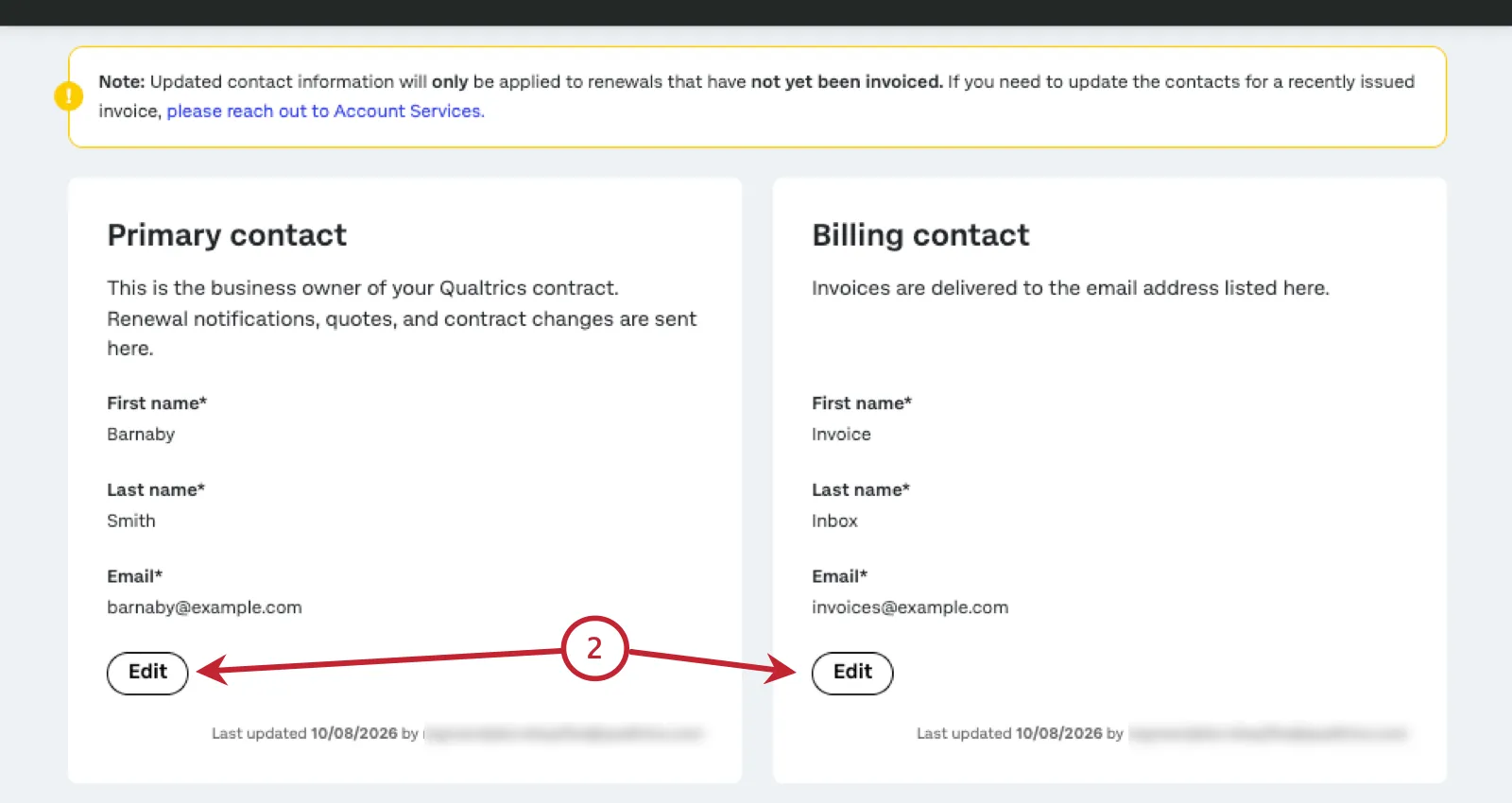
- Primary Contact: The business owner of your organization’s Qualtrics contract. This person will receive renewal notifications, quotes, and contract changes.
Billing Contact: Where you’d like your invoices sent. This can be the same person as your primary contact. If your renewal is close, then you will see the option to Confirm Contact instead.

Qtip: For example, if you have an automated inbox where you send all invoices for accounts payable, you can add it as the billing contact. You will still need to fill out an approximate first and last name, such as “Account Payable” or “Invoice Inbox.”
Click Save when you’re finished.
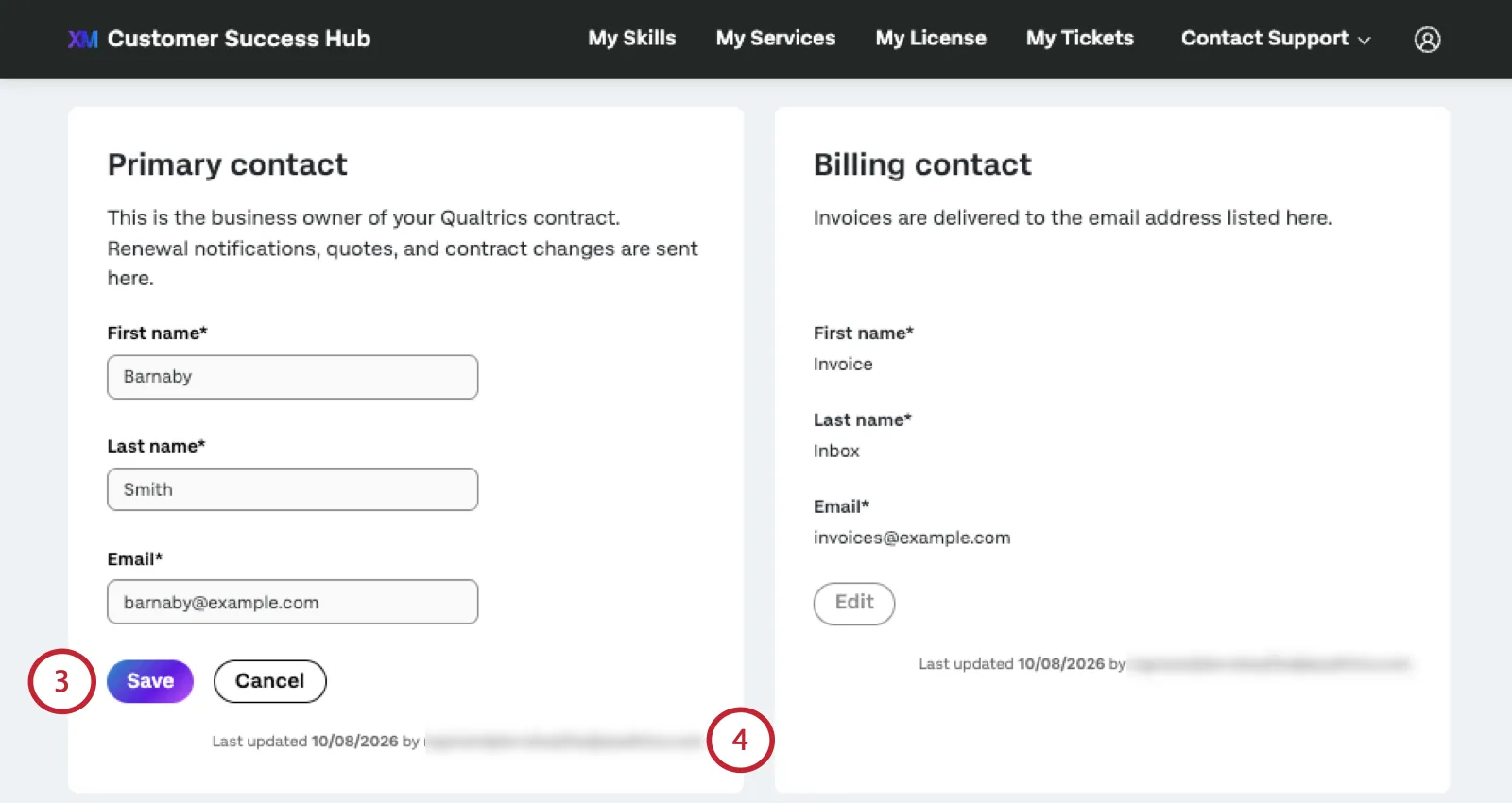
Qtip: First name, last name, and email address are required before you can save changes.
In the bottom-right of each contact, you’ll see when each contact was last updated. If there’s no information here, billing details have not been updated since the last renewal.
Qtip: Updated contact information will only be applied to renewals that have not yet been invoiced. If you need to update the contacts for a recently issued invoice, please reach out to Account Services.
Qtip: 150 days before your contract is scheduled to renew, you’ll see a message in the Customer Success Hub reminding you to make sure your billing contact information is correct. This contact info only needs to be confirmed once per renewal cycle. If the information is correct, select Confirm Contact. If these contacts have changed for your organization, you can make edits.
Renewing Your License in the Customer Success Hub
You can prepare for an upcoming Qualtrics license renewal from right inside the Customer Success Hub. Starting 120 days before your renewal, a section will be available in the Hub where you can state whether or not you plan to renew, as well as confirm key information related to your renewal, such as primary and billing contacts, PO numbers, and addresses.
The ability to confirm intent to renew is only available if you’re a listed Primary Contact or Billing Contact.
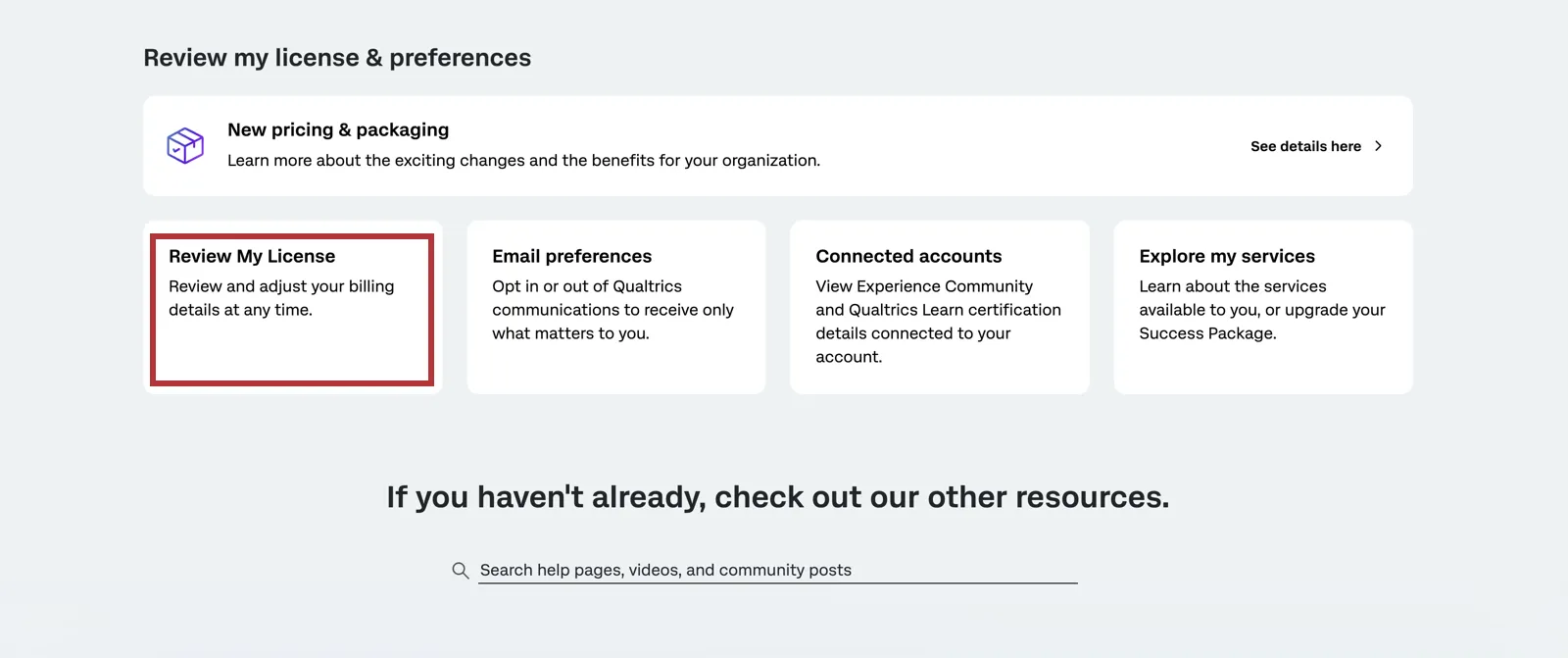
Select My License.
Qtip: You can also select Review My License from the hub homepage.
You’ll see a section named Your Renewal is Upcoming with the date your renewal is scheduled.
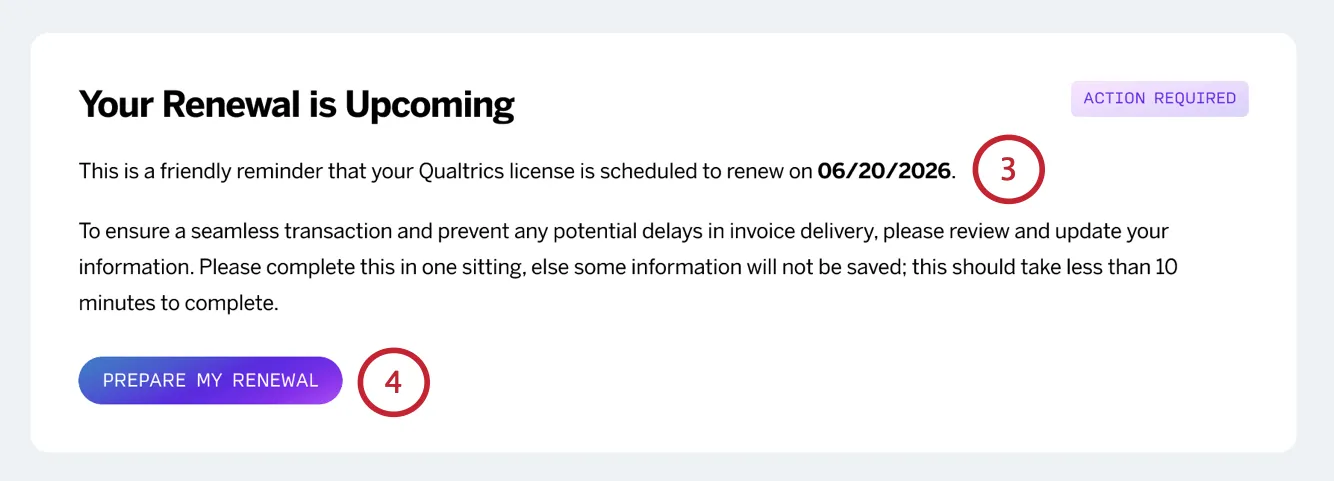
Click Prepare My Renewal.
Confirm or edit your organization’s primary contact for this renewal.
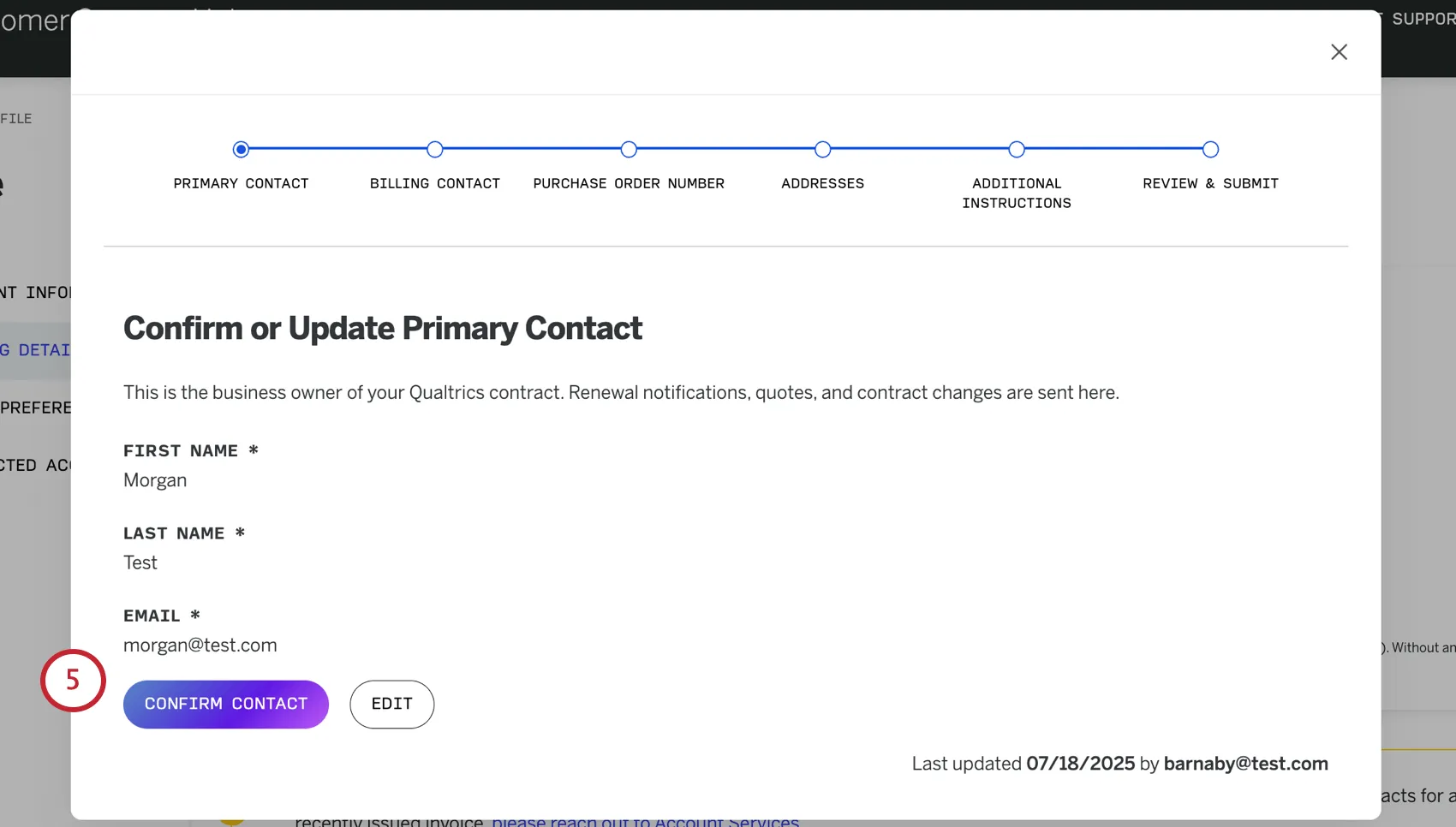
Confirm or edit the billing contact.
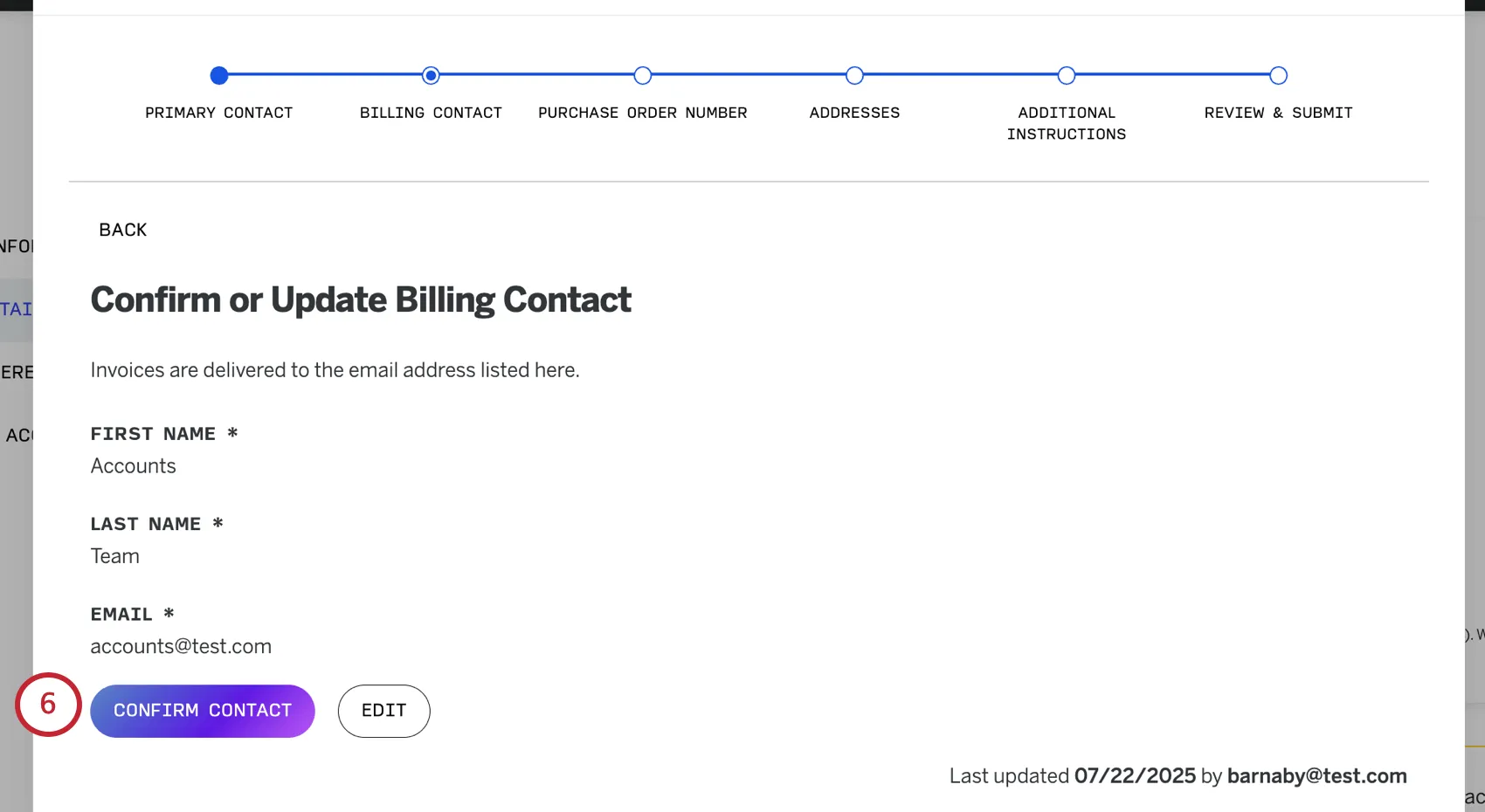
Attention: Once you confirm your contact information, it may take a few moments to load. Please do not navigate away from the page.

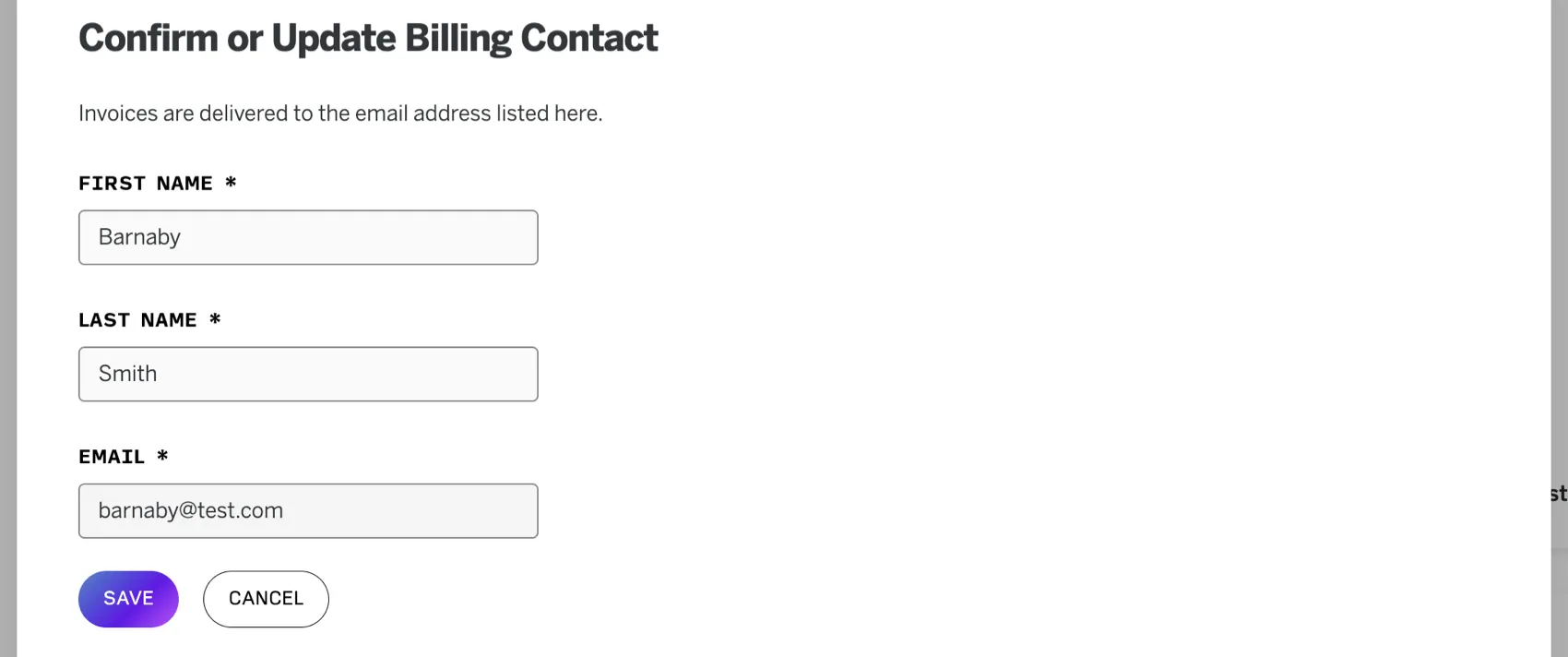
Example: In the screenshot below, we hit Edit and changed the contact information. When we hit Save, we’ll go to the next step.

Here, you can add a purchase order number.
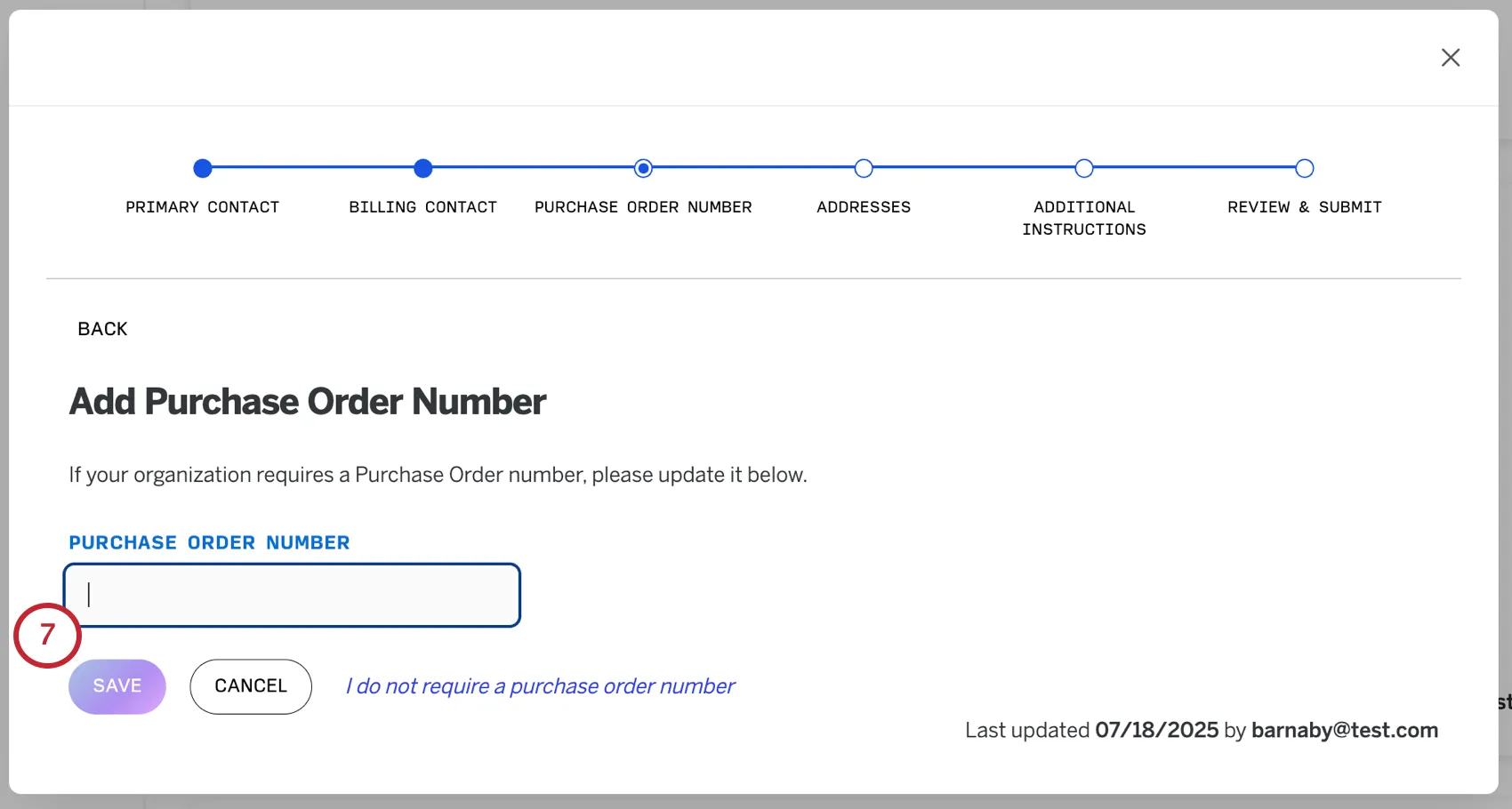
- Edit: Provide a PO number. When you’re finished, click
- I do not require a purchase order number: Skip to the next step.
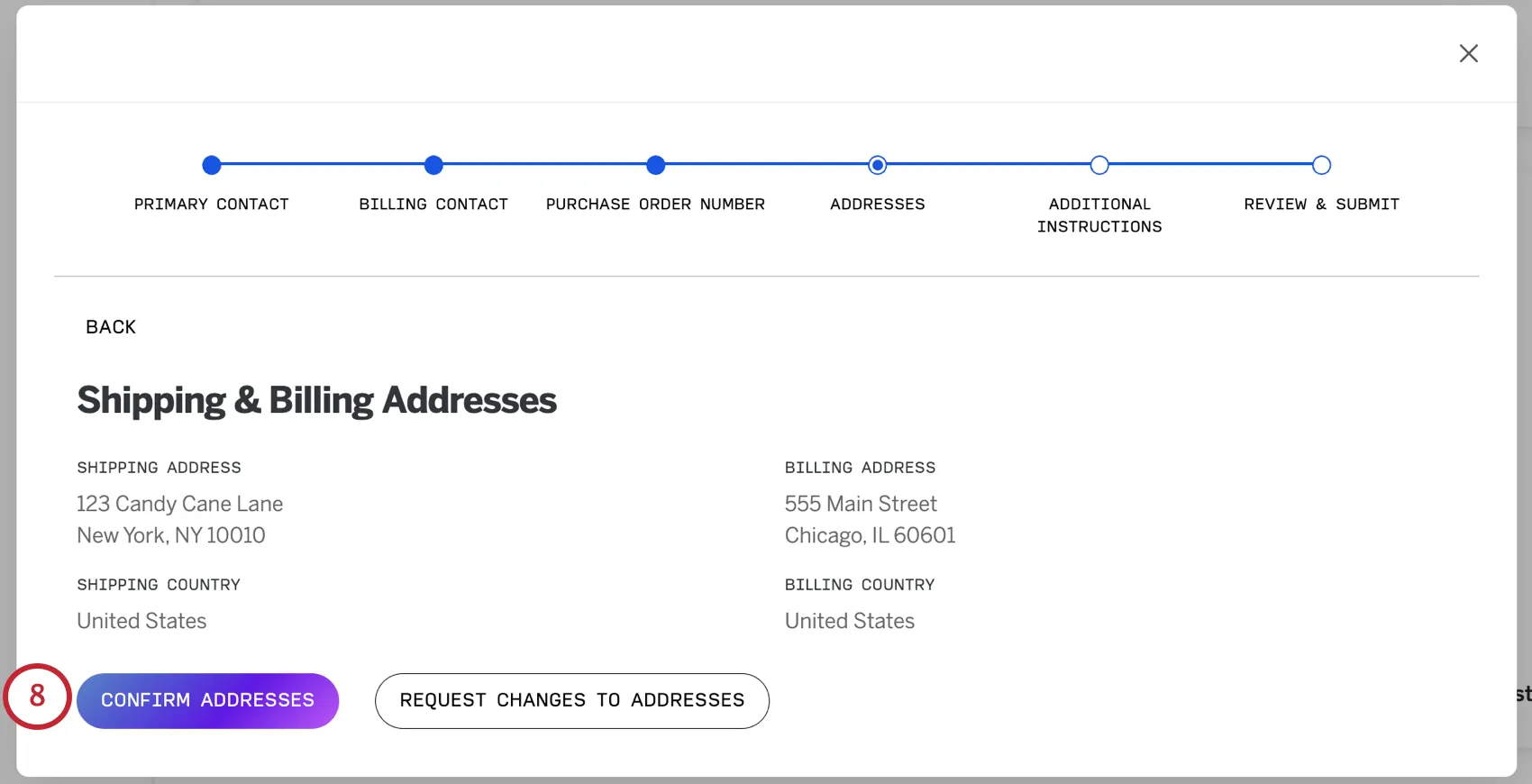
Confirm or request changes to the shipping and billing addresses.
Here, you can add additional instructions for invoicing.
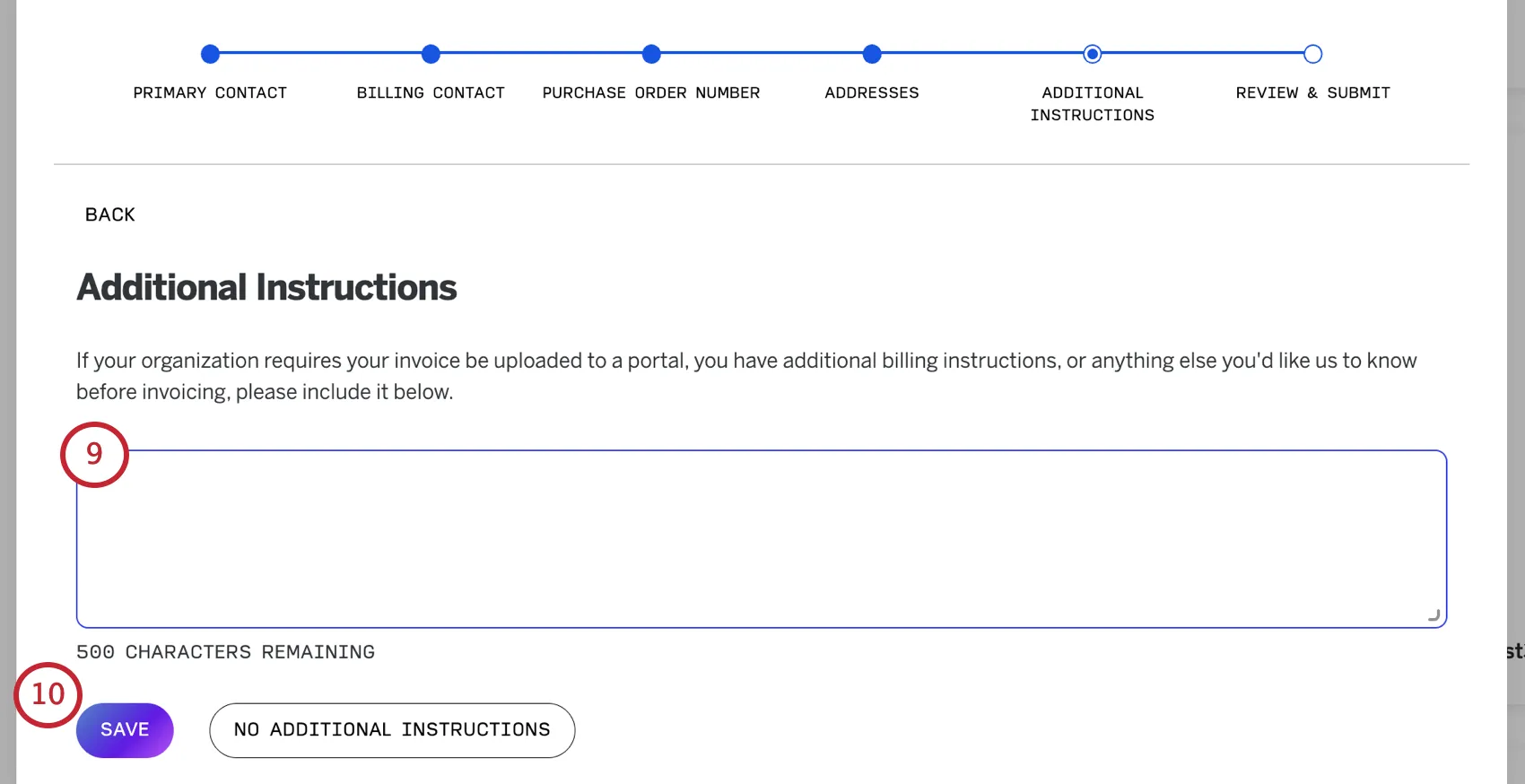
Example: If your organization requires the invoice be uploaded to a portal, you could outline that here.
Select either Save or No additional instructions, depending on your needs.
Review the information you provided. If it looks ready, click Confirm & submit.
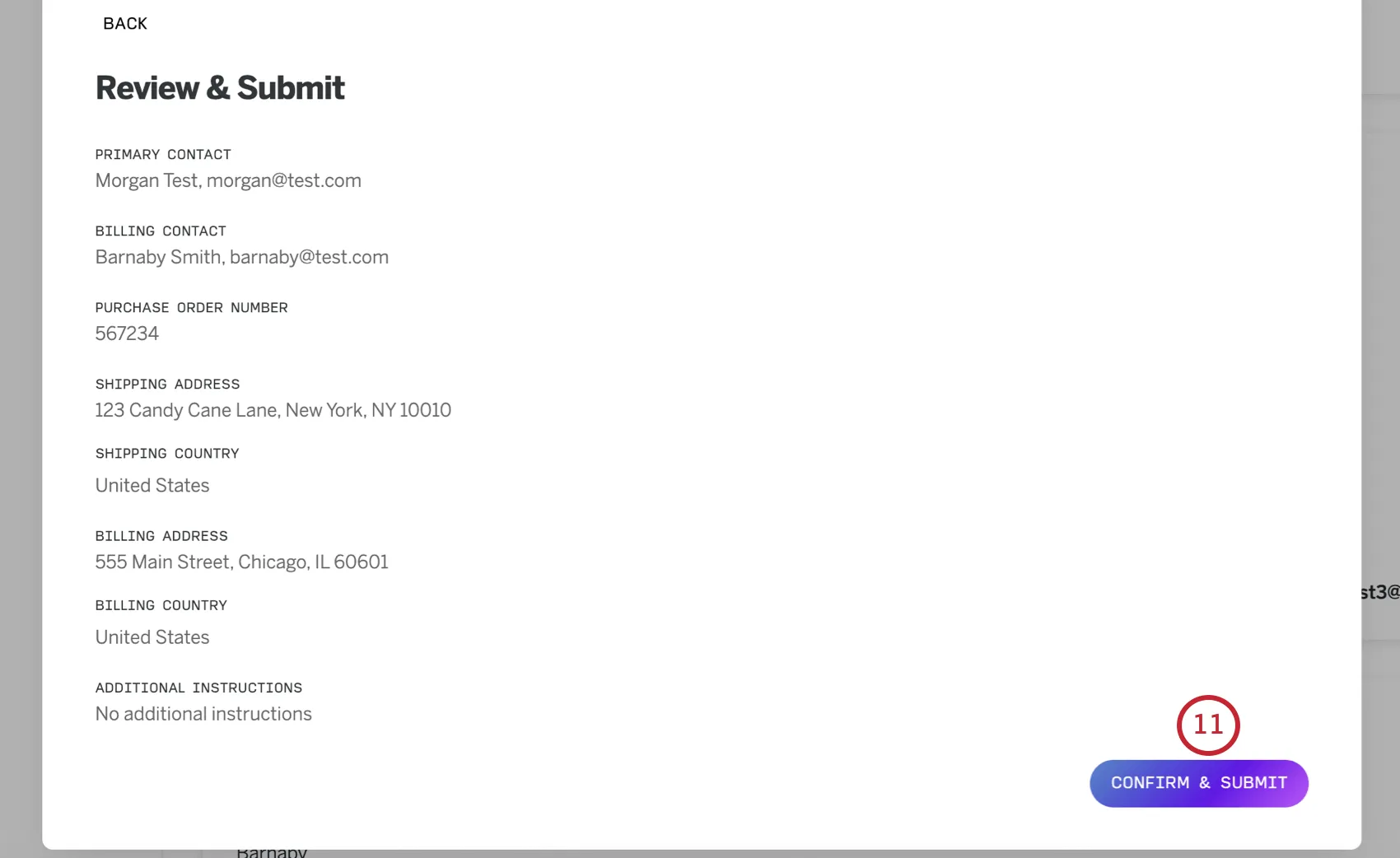
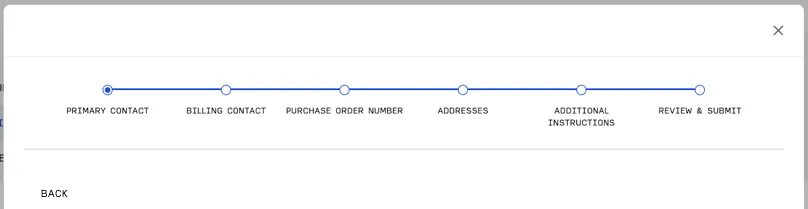
Qtip: You can click Back to make edits, or click the specific section you want to edit in the header.
You’ll see a confirmation of the email address that will receive the invoice and the date the invoice will be sent.
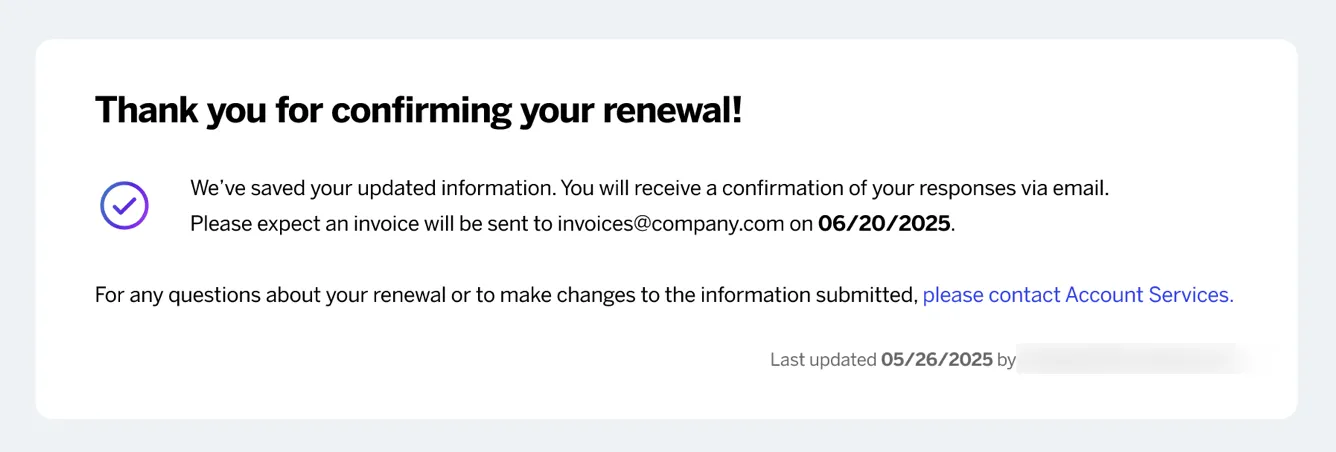
Qtip: Throughout this page, you’ll see the last time the information related to your renewal was updated for your organization, and which user changed it.
Qtip: If you have questions or want to make additional changes, you can reach out to the Account Services Team. You can also reply directly to the confirmation email you receive.
Viewing Your Invoice in the Customer Success Hub
If you are the listed primary or billing contact for your organization, then you can view the invoice for your upcoming renewal directly in the Customer Success Hub. A copy of this invoice is also emailed directly to the listed billing contact.
Qtip: Invoices typically become available 30 days prior to your renewal date and will disappear from the Hub once paid.
Navigate to the My License page.
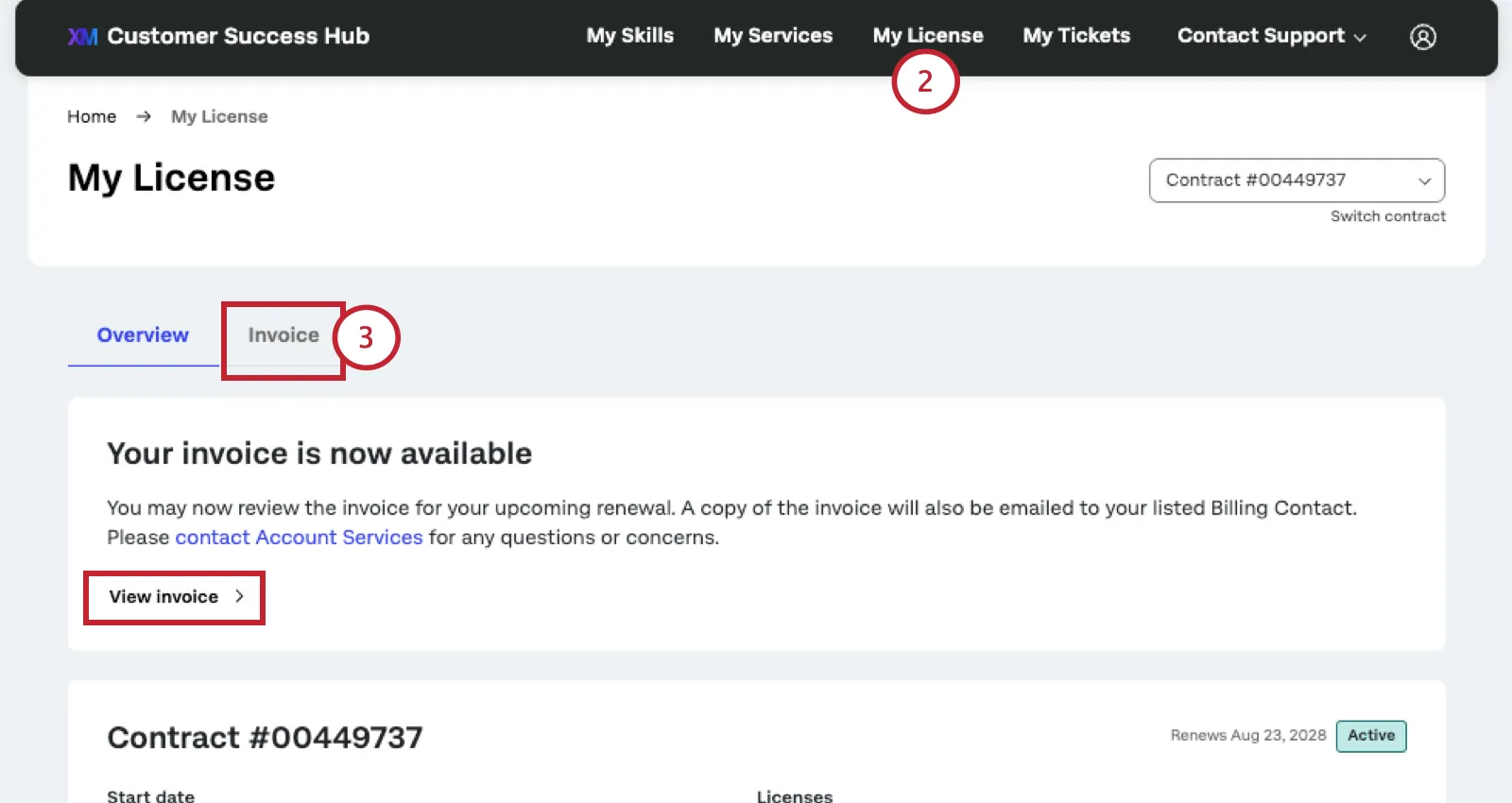
Click the Invoice tab or View Invoice button.
Here, you can view your invoice. If any details are incorrect, you can have it fixed by contacting Account Services Support via the button at the bottom of the invoice.
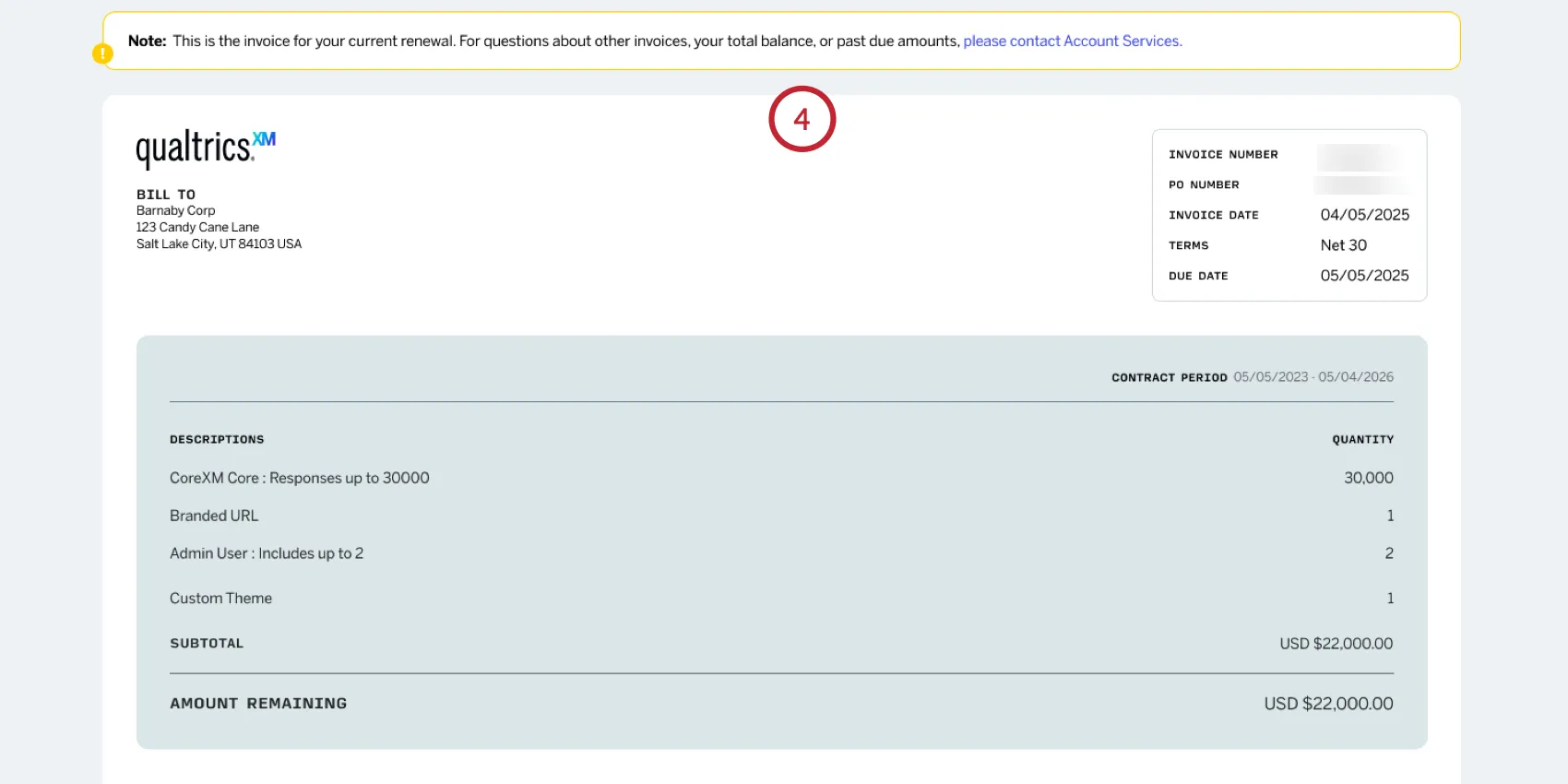
Qtip: This is the invoice for your current renewal. For questions about other invoices, your total balance, or past due amounts, please contact Account Services.
Qtip: For multi-year contracts, your invoice will display the dates for the full contract period. The amount listed in your invoice represents a single billing installment, not the total contract price. This installment is based on the billing schedule outlined in your specific agreement. Please reference your contract for full payment details.
Below the invoice, you can view the different available payment methods.
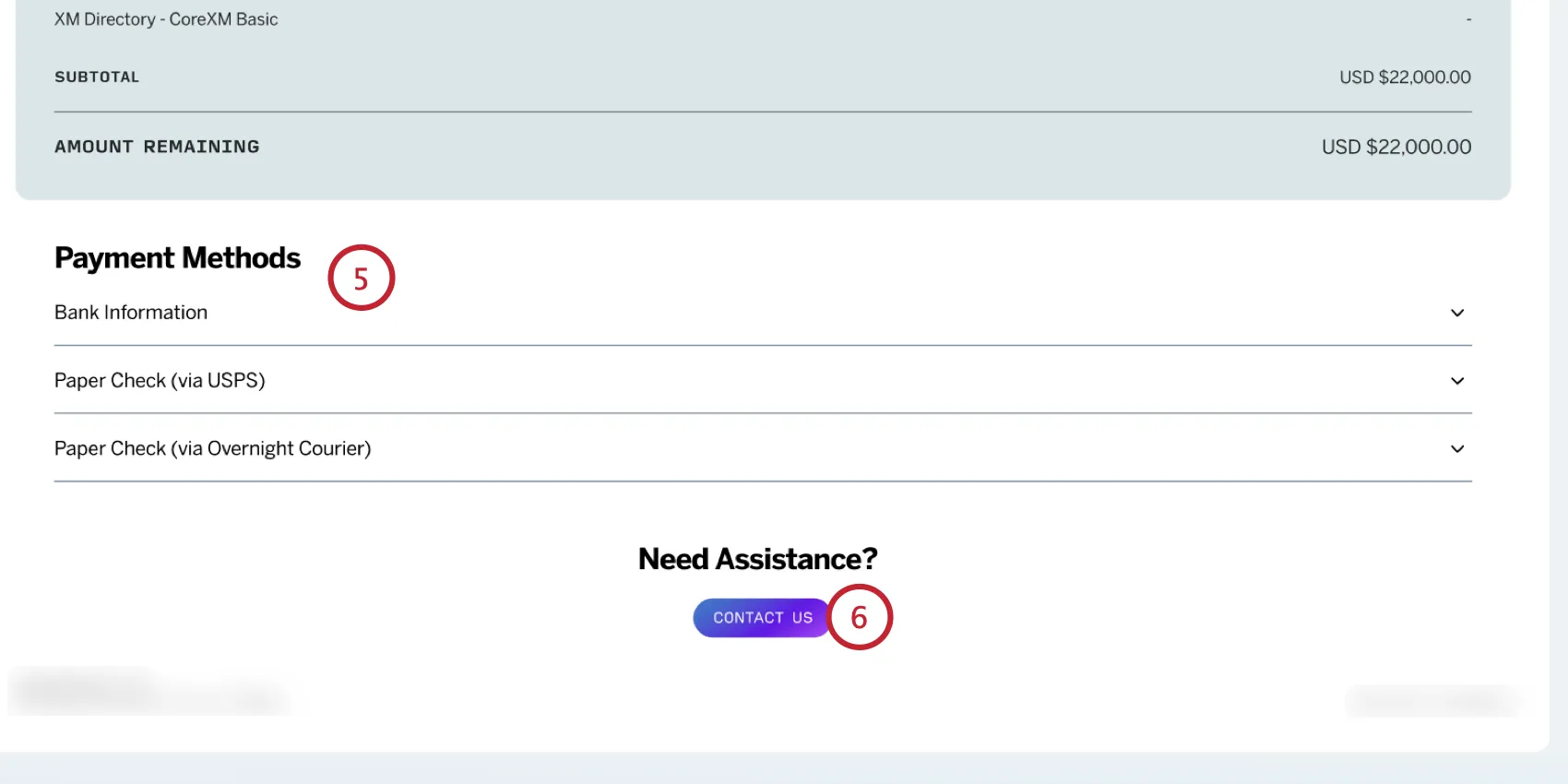
If you need assistance with your invoice, click the Contact Us button to contact Account Services support.
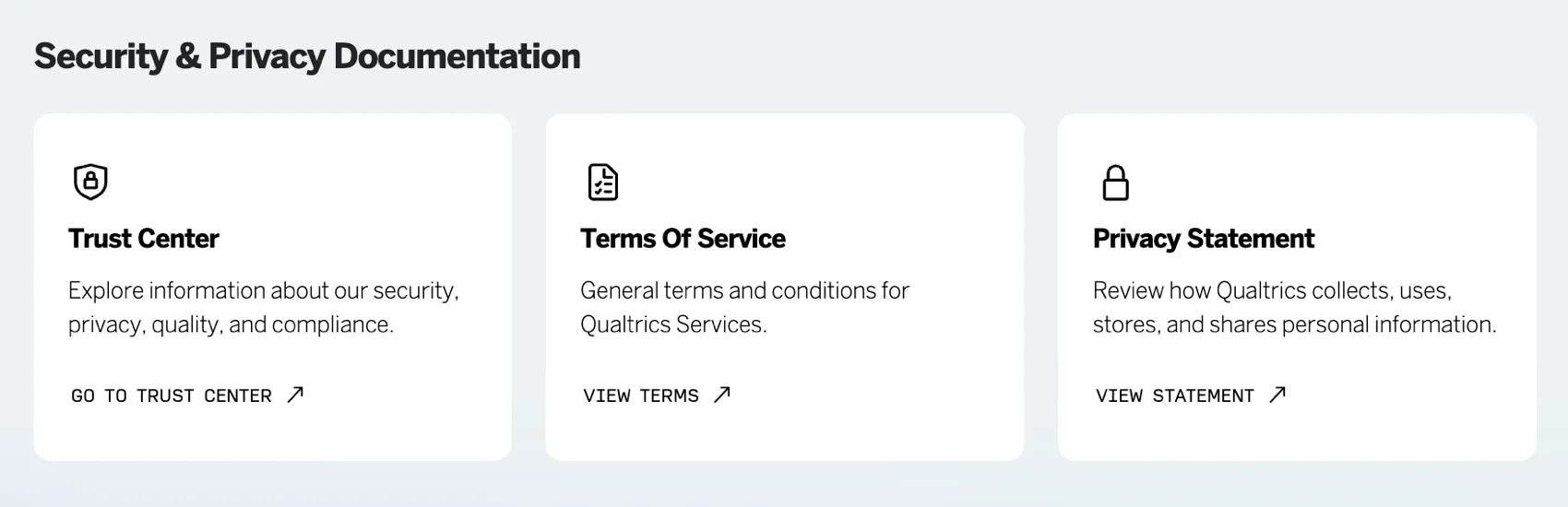
Security and Privacy Documentation
At the bottom of the page, you’ll see security and privacy documentation. Here you’ll find links to resources that can be helpful to your renewal, such as the Qualtrics Terms of Service, Privacy Policy, and more.
That's great! Thank you for your feedback!
Thank you for your feedback!