

Topics in Text iQ
What's on this page
About Creating Text Topics
Topics are a great way of tagging your text responses in Text iQ. They help you figure out common themes in feedback, and can be used in graphs and tables in reporting.
There are several ways to create topics.
- Searching text responses: Build out topics by searching for complex, related terms. This can be useful for tagging many responses at a time, or for automatically tagging responses that match the parameters.
- Using recommended topics: Qualtrics will recommend topics to you based on frequently discussed terms.
- Importing topics: Import topics used in other analyses, or use topics from the Qualtrics topic library.
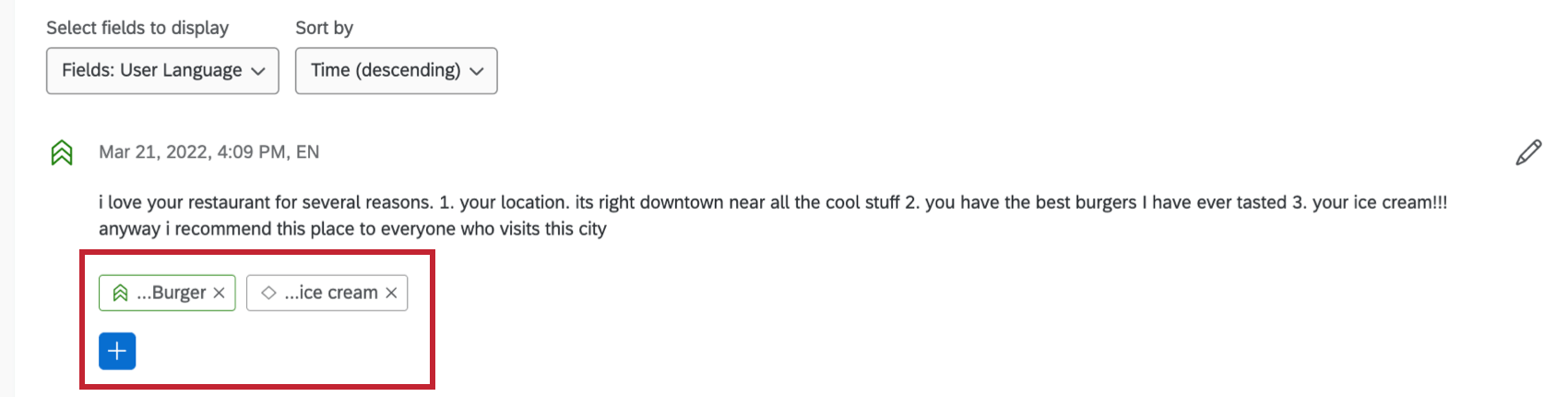
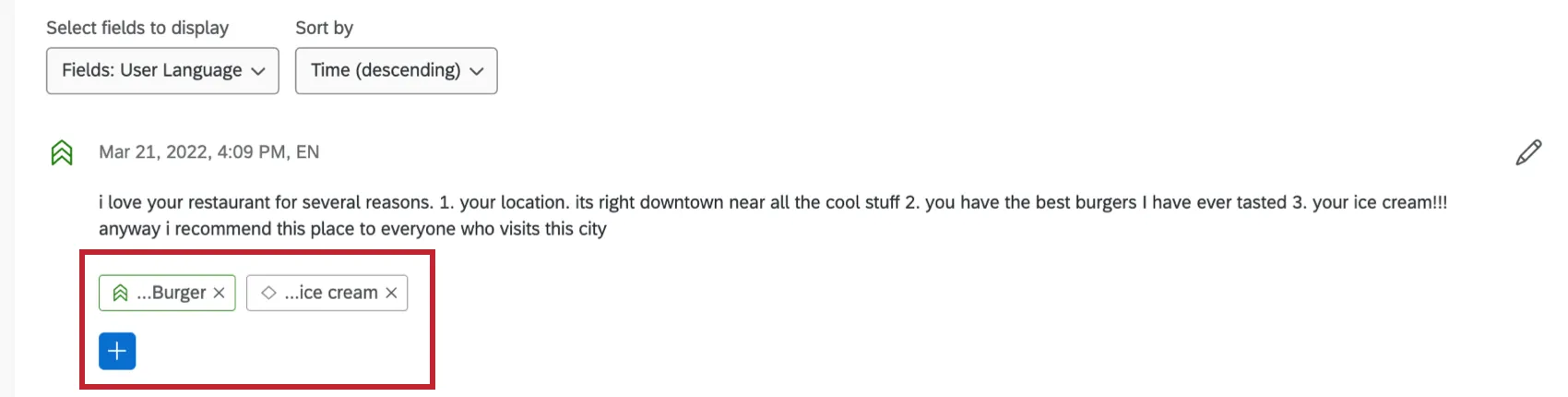
- Manually adding topics to responses: You can manually add and remove topics from a specific response. This gives you the freedom to categorize feedback outside your initial search.
Qtip: Text iQ’s capabilities vary based on whether you have Basic or Advanced Text iQ. To Learn more about the differences, see Basic vs. Advanced Text.
Attention: We’ve created text topics specifically for analyzing responses about COVID-19. See the section on Importing Topics for information on how to use these topics.

Video Walkthrough
Need help getting started with text topics? Check out this 2-minute video walkthrough:
Creating Topics from Searches
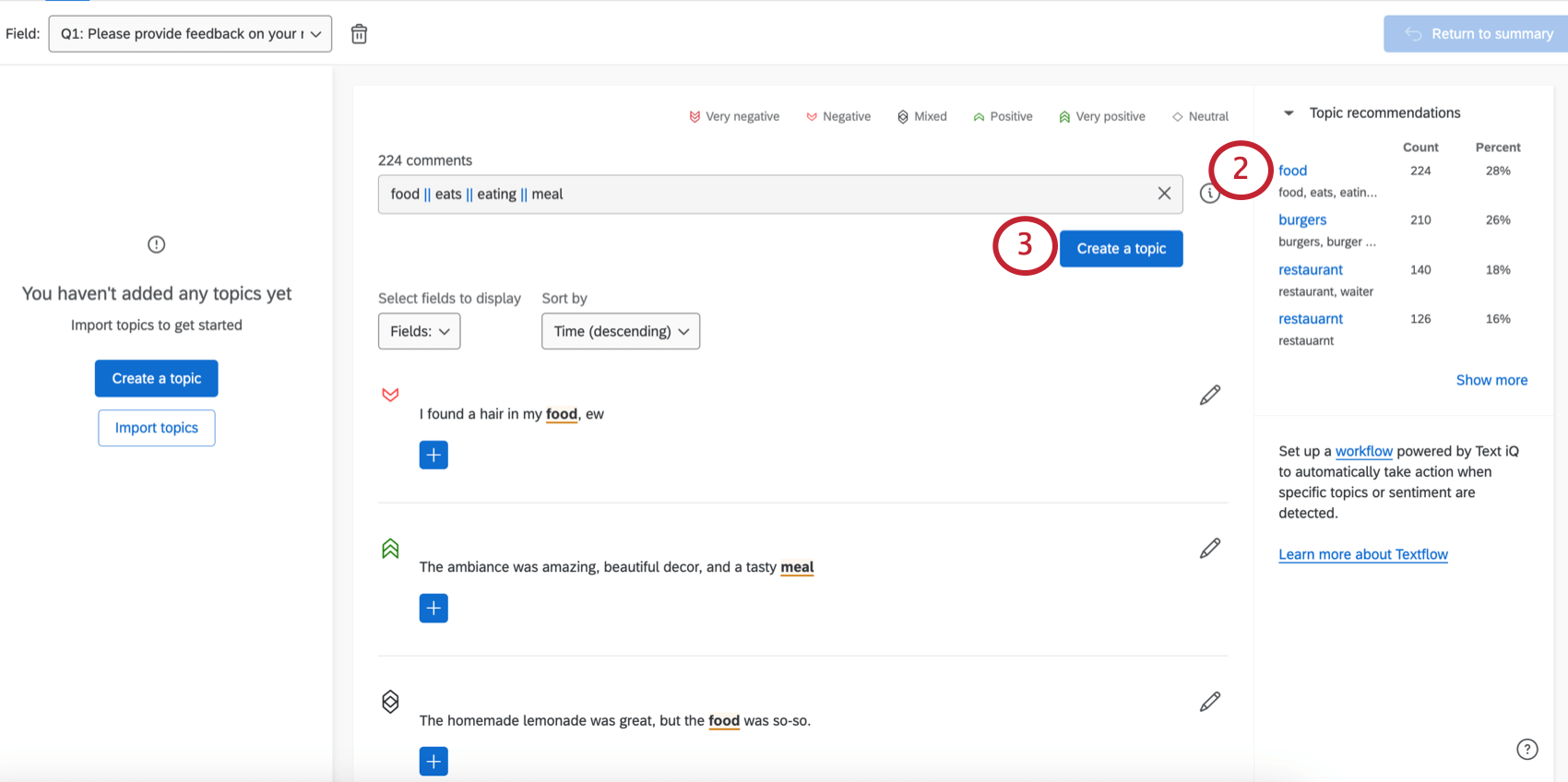
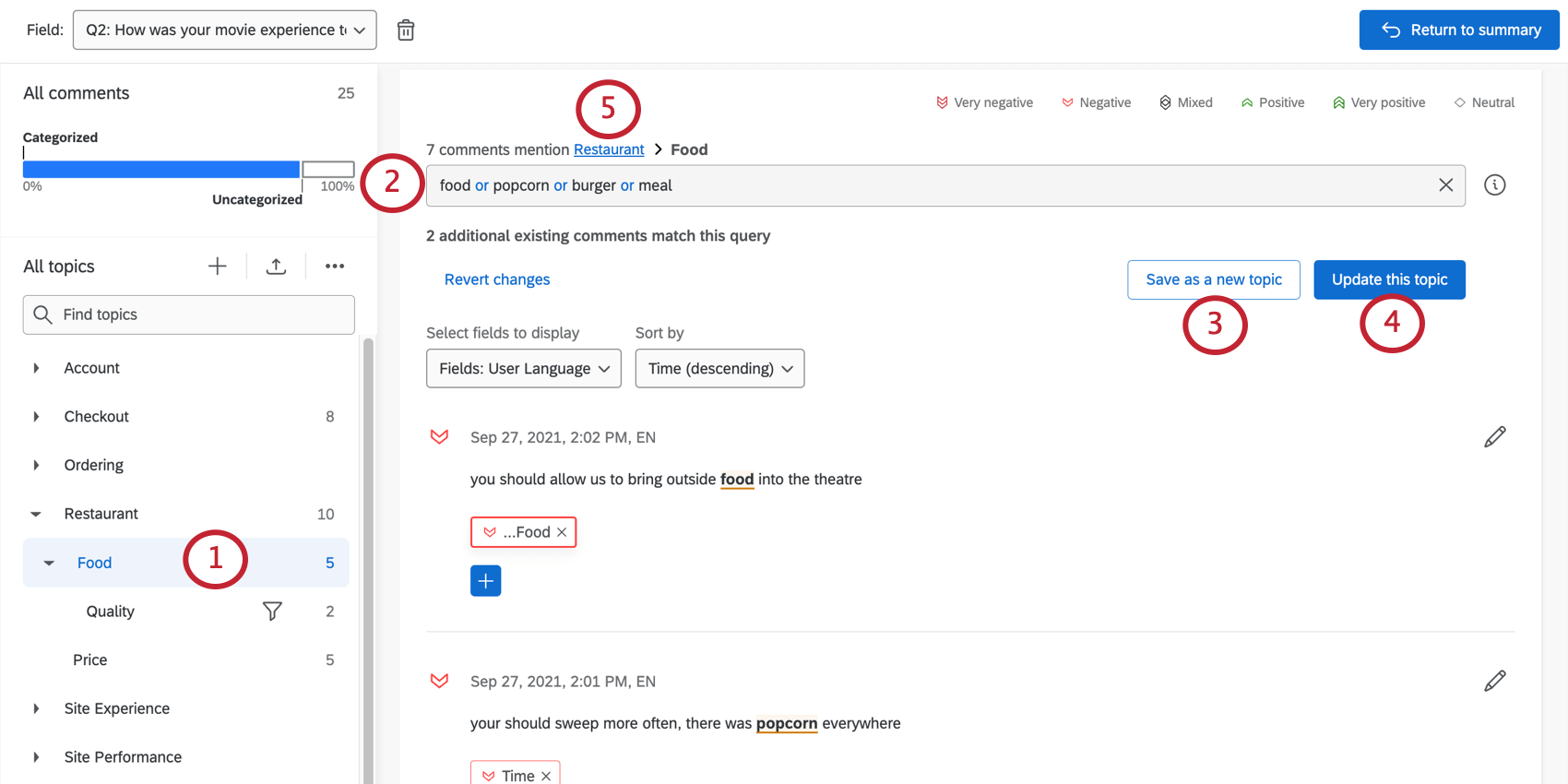
You can use the search function to create topics that update as you add new responses. That means you don’t have to manually tag every piece of feedback talking about your food as “food” – it’ll happen automatically!
Qtip: Responses without any text (i.e. the respondent only entered a space) can only be tagged with topics manually. Responses in which the respondent did not answer the question will not appear in Text iQ.
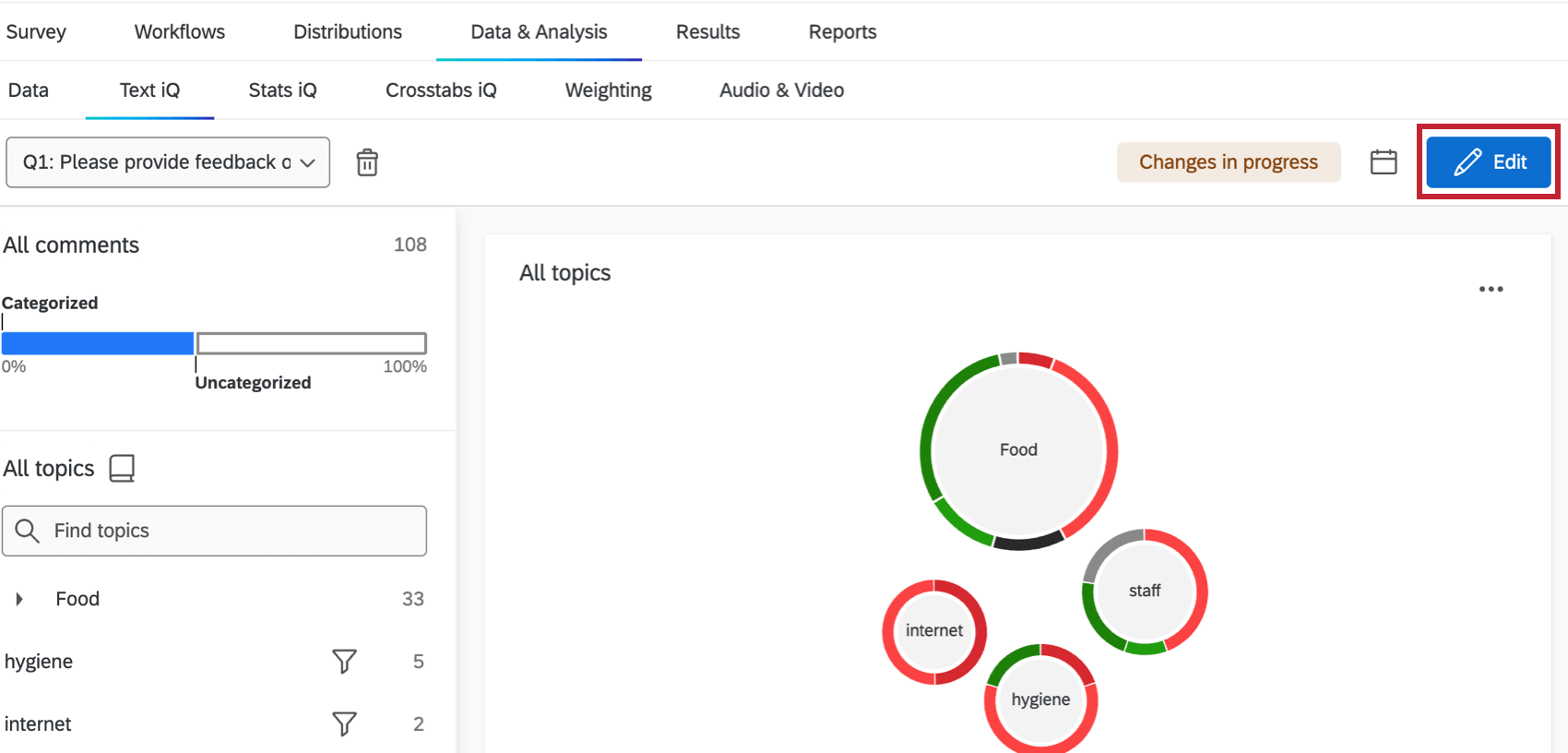
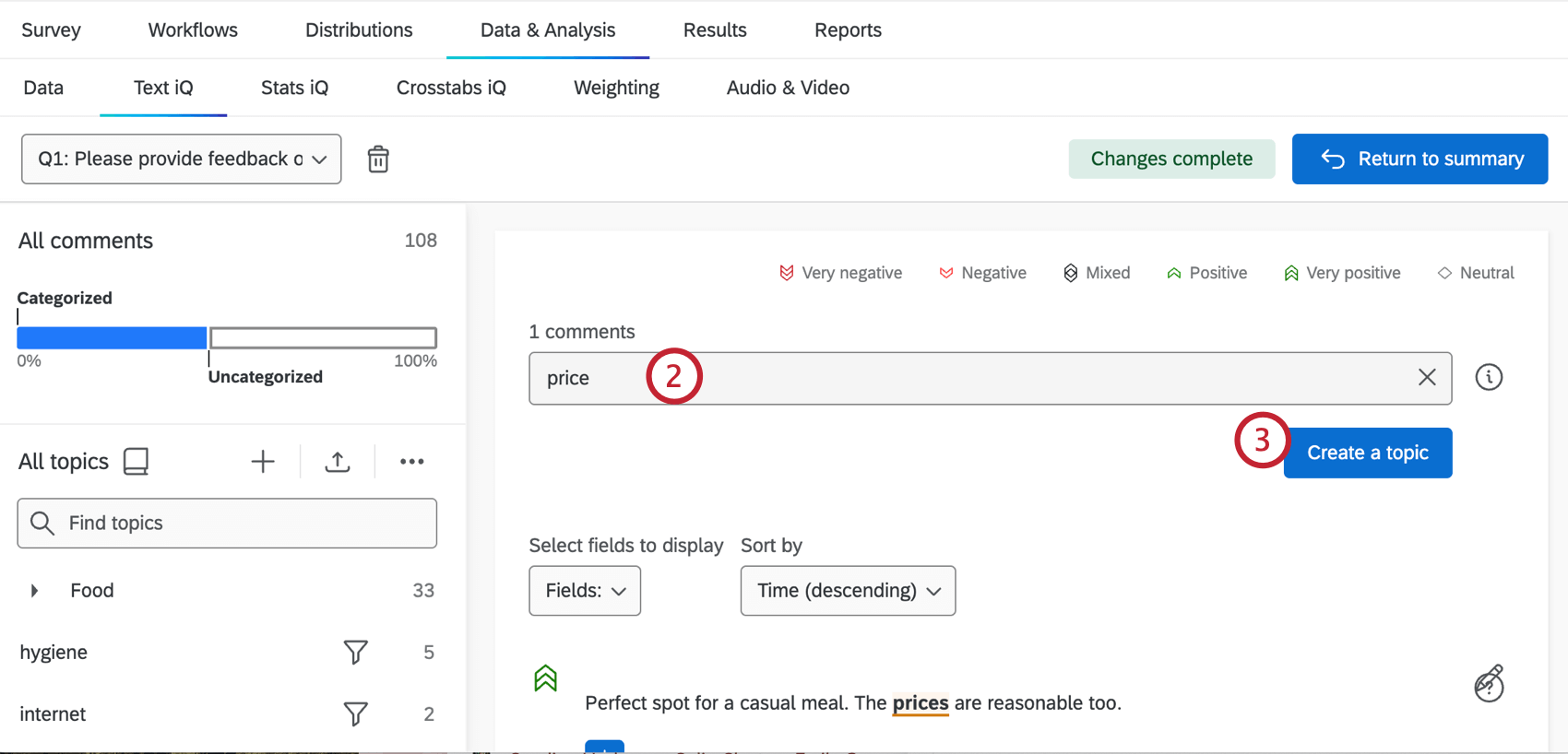
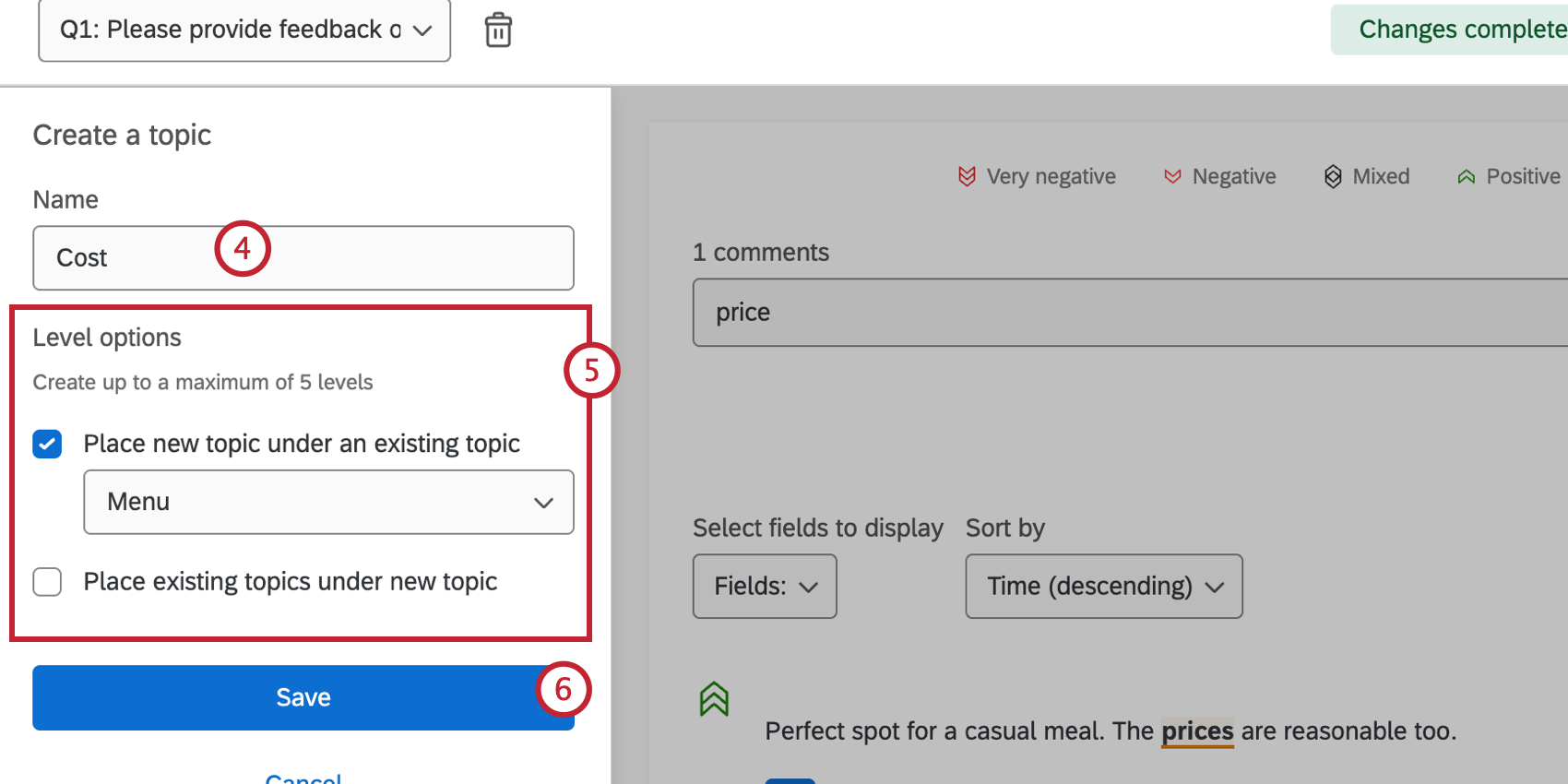
Now whenever a response with the matching search query is created, it will be tagged with this topic.
Qtip: Build stronger searches with complex logical strings and the query builder.
Attention: Highlighting logic is different from tagging logic. Occasionally, a word will get highlighted, but it may fail the tagging logic.
Building Queries
Qtip: The maximum length of a query is 10,000 characters total.
Like a lot of keyword systems, Text iQ can recognize complex logical strings built using a few simple commands.
- Single Word
- For example, if you search the word dress, you would not only find responses with the word dress, but misspellings and variations (driss, dresses, etc.).
- Phrase
- For example, if you search the phrase formal dress, you would find responses that contain the phrase “formal dress.”
- And / & / &&
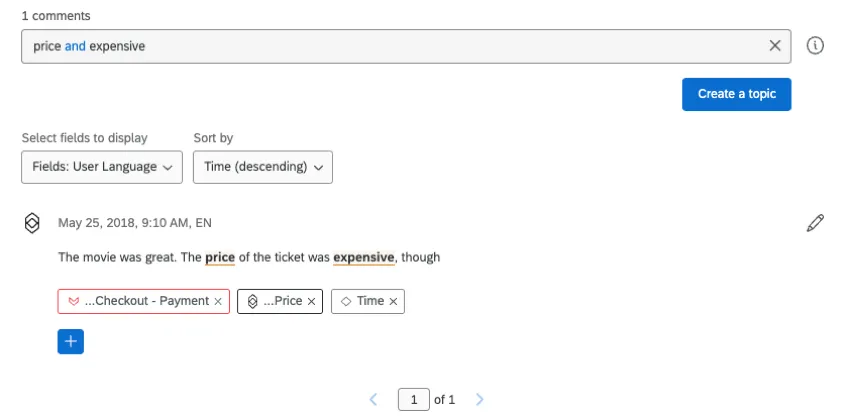
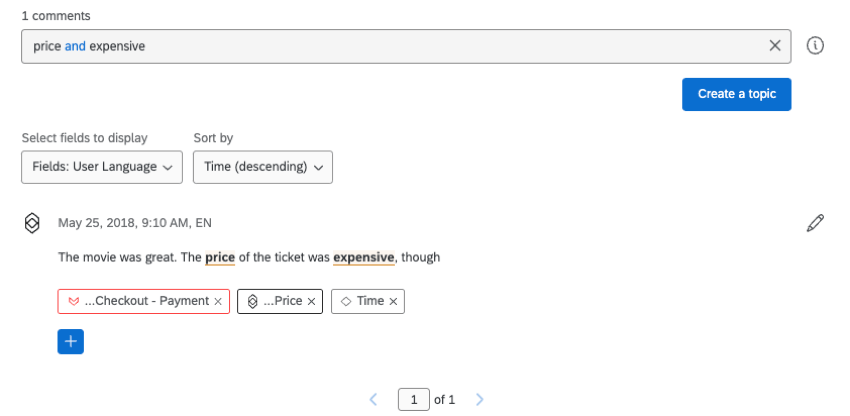
- Conjoins 2 words together. Rather than searching for just price, it would be more useful to search for price and expensive to ensure we get just the comments we want.
- Or / | / ||
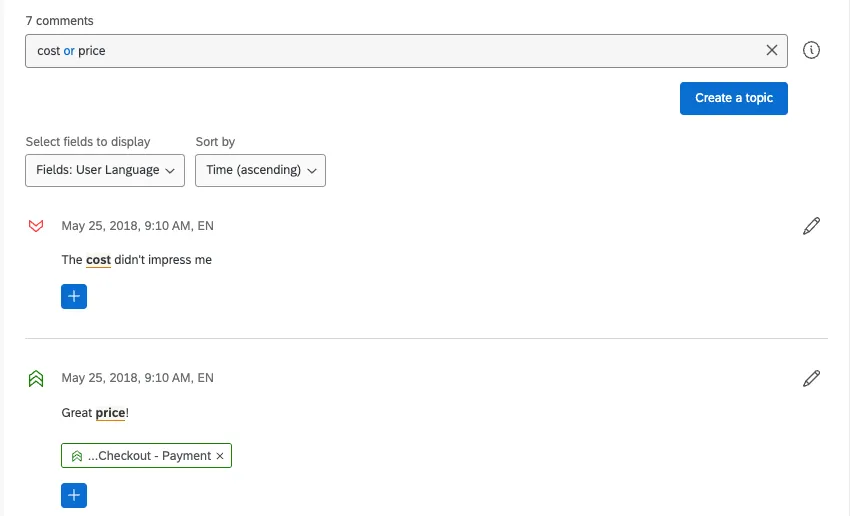
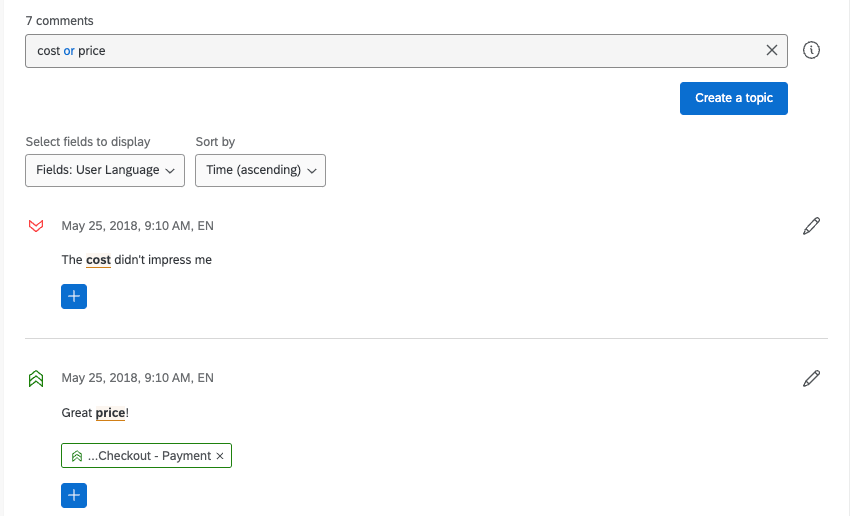
- Searches for 2 words independently. Rather than searching for just cost, it might help to look for cost or price, as the words tend to be used interchangeably.
- Not / – /
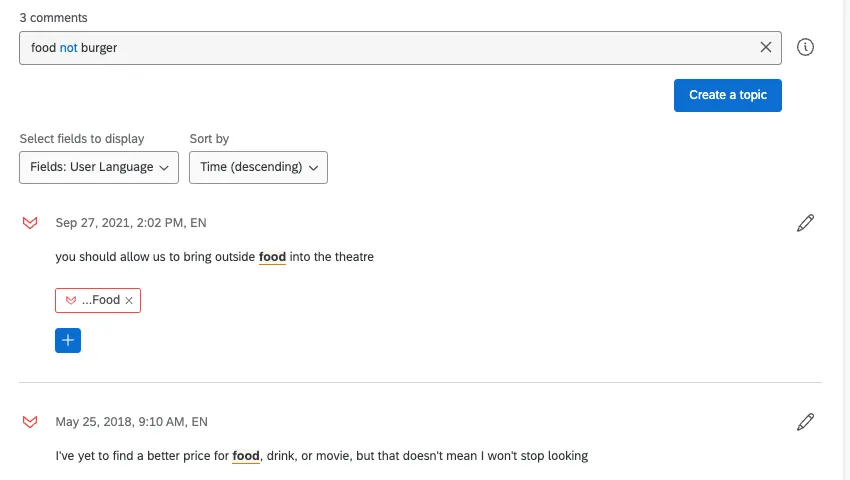
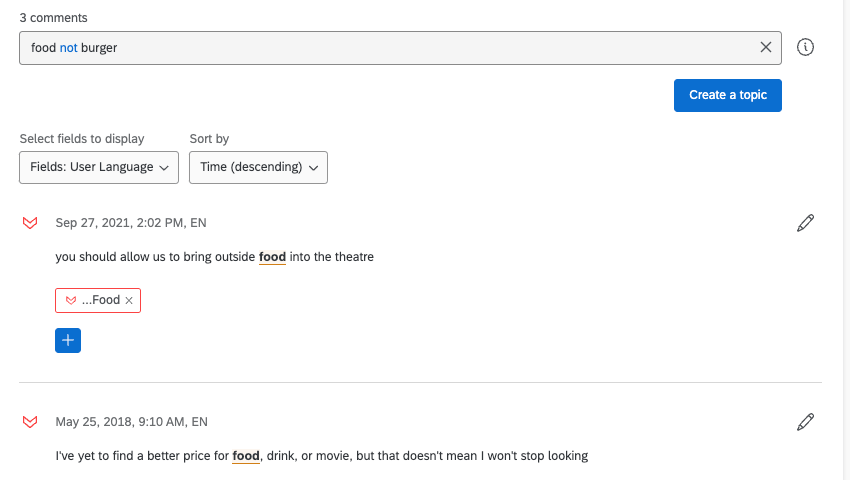
- Searches for 1 word without the other. Rather than searching for just food, we might want to say food not burger to see comments about our food but not our hamburgers. You could also word this search as food -burger to achieve the same results. Like many other operators, you can also use this with parentheses; for example, food -(burger || sandwich) to search for food but exclude both burger and sandwich.
- Parentheses
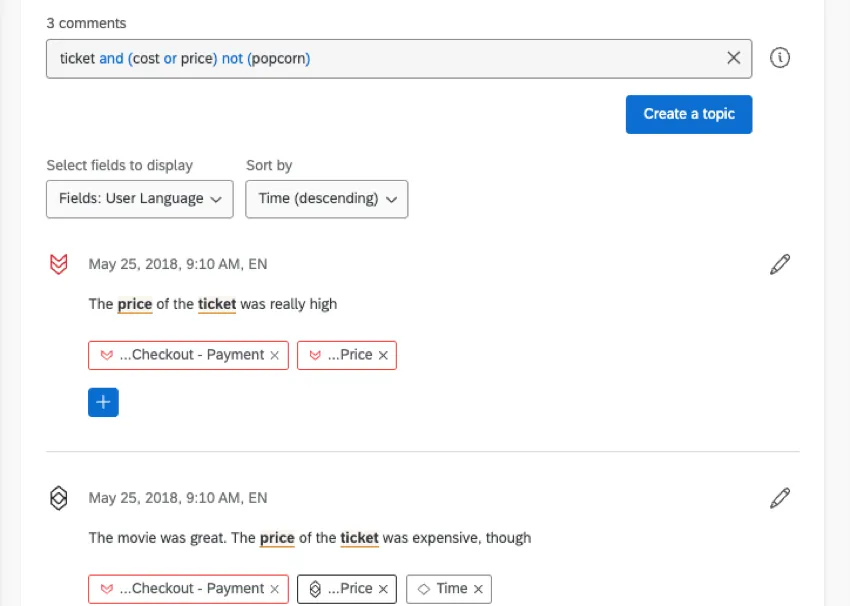
- Allows you to group logic statements and ensure your query is specific enough for your purposes. Using a string like ticket and (cost or sale or price) not (popcorn) allows us to define exactly what we want to tag—ticket sales information.
- Exact Operators
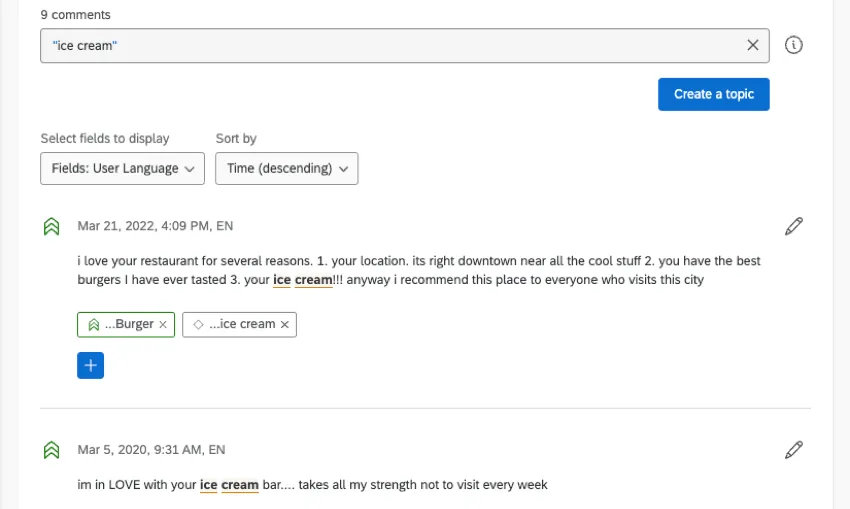
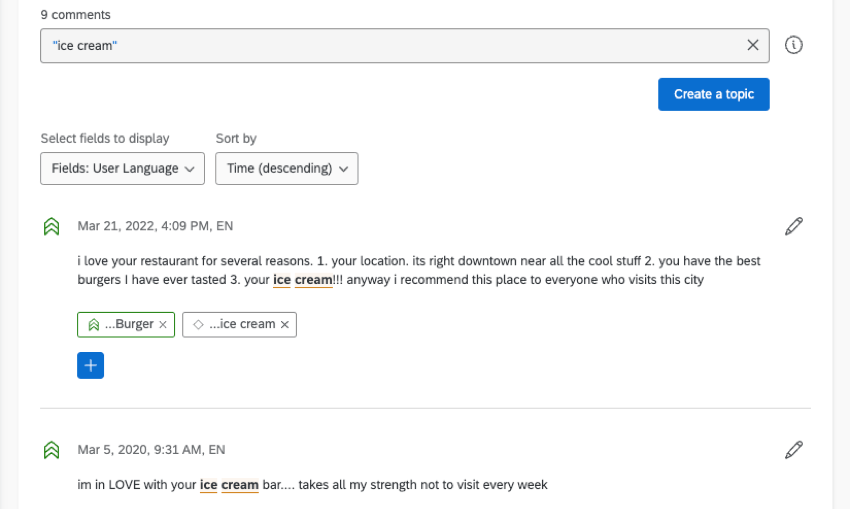
- Exact operator pairs such as “”, «», and 「」, are used to match terms exactly as written. For example, searching “ice cream” would turn up responses with that exact phrasing, but not a response with “ice creams” or “ice-cream” or other similar, lemmatized results. Furthermore, reserved keywords such as and, or, and not can be searched for within exact operators (e.g. “not”). To search for double quotes, include a pair of double quotes back to back (e.g. “”””). For example, “””not happy””” will match I am “not happy” but not I am not happy.
- Near Operators
- Sometimes you won’t want an exact phrase, but for words to show up close in a sentence together. For example, you’re interested in complaints of slow internet, but don’t want to tag a response where maybe someone mentions the internet and complains about slow dining service in the same response. You can specify how close words are together using ~#.
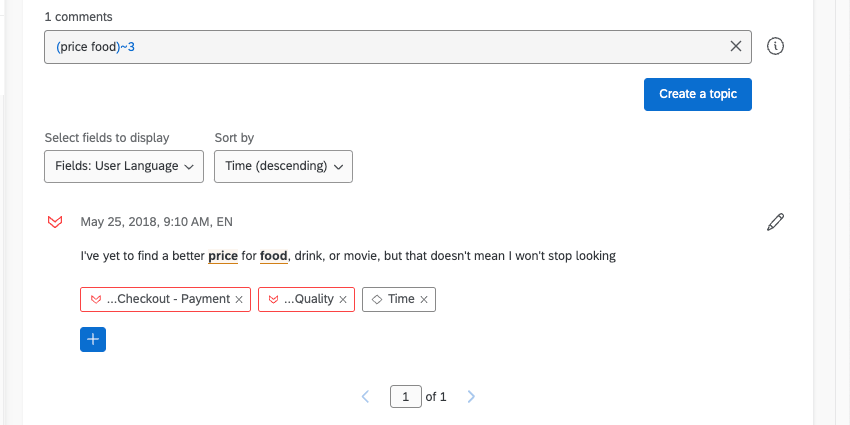
Using exact operators will match the exact terms with the maximum distance, whereas using parentheses will employ lemmatization to find qualifying results. For example, search “food price“~3 to find responses where “food” and “price” are a maximum of 3 words apart, and search (food price)~2 to include all responses where the root words “food” and “price” are a maximum of 2 words apart.
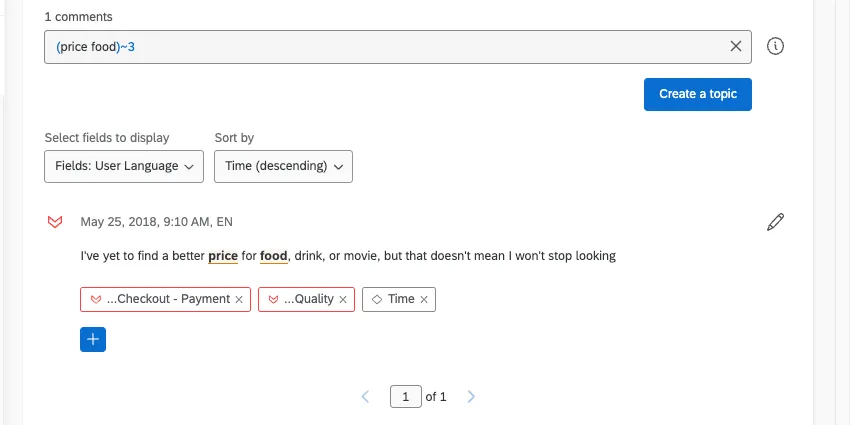

Qtip: Searching ~3 would qualify results where the words were 1, 2, or 3 words apart. Searching ~1 would only qualify results where the words were 1 word apart or right next to each other.
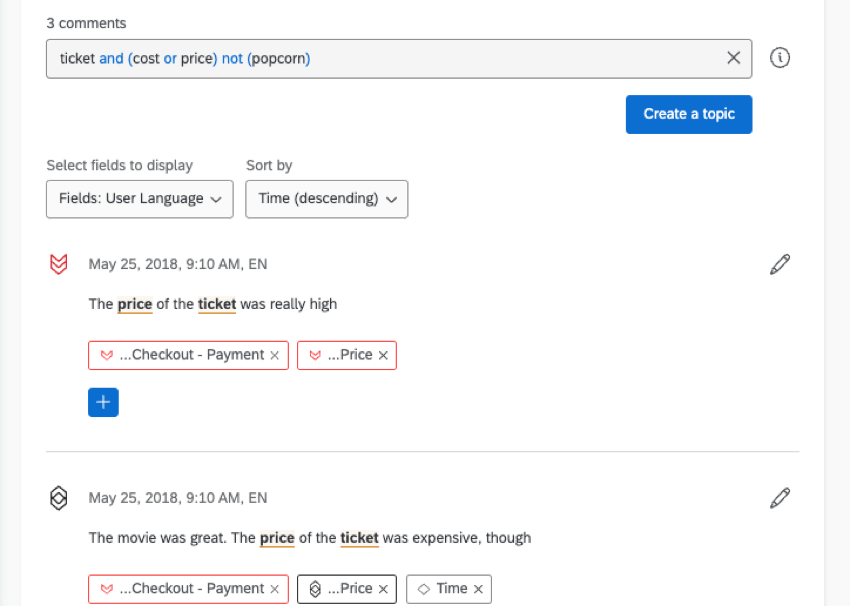
You can also find more examples in the Text section by clicking the information button next to the search bar.

Qtip: The words and, or, and not are treated specially and cannot be searched for directly unless included in exact operators. All reserved words and search operators are highlighted in blue.
Qtip: The query dress will return results that include the word dress and variants of dress like dresses as well as some misspellings like driss. Results that include the characters dress as part of another unrelated word, like address, will not be included.
Query Builder
Qualtrics will also offer you Related Terms as you search to help you build better topics. These terms are suggested based on the English language model and frequency of co-occurrence between these terms in the data set.
Attention: The Query Builder is a feature of the Advanced Text iQ. Contact your Qualtrics Account Executive or Brand Administrator for information on how to access these features.
Using Related Terms
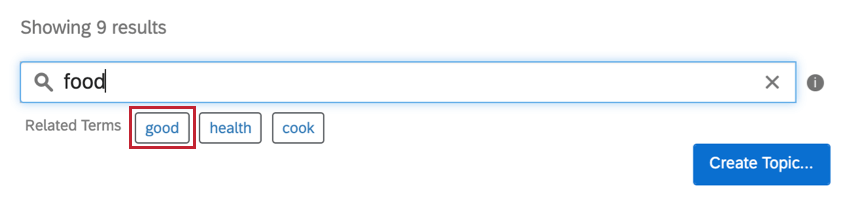
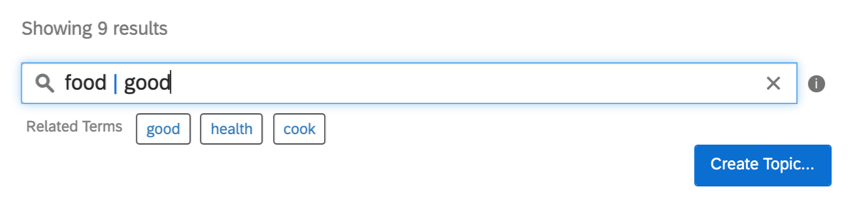
Qtip: If you put your cursor over a word in the search box, related terms will appear. This can be helpful if you’re building long queries and want suggestions for each part.
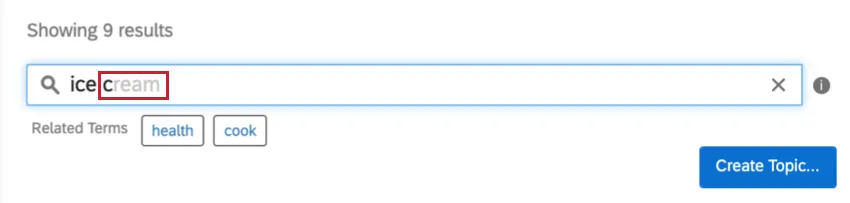
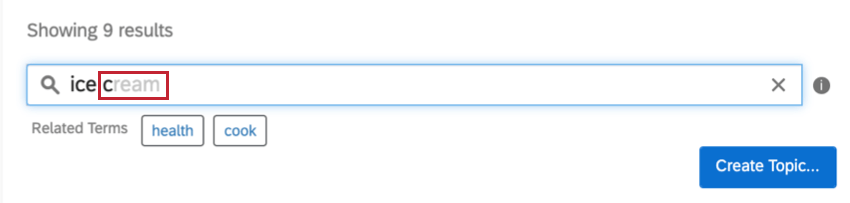
Qtip: Text iQ will often try to predict what you are going to type based on terms that appear in your responses together. These predictions will appear in gray. Click Tab on your keyboard to accept this spelling and prepopulate the search bar.
Recommended Topics
Qtip: Recommended Topics are only available to Advanced Text clients.
Attention: Recommended Topics will generate once there are at least 500 comments without topics (in a single language), and may take some time to load after you add your responses to Text iQ. The comment’s language is determined by the UserLanguage field. In order for Recommended Topics to generate, the UserLanguage field must be accurate and cannot be recoded.
Qualtrics will recommend topics to you based on terms that frequently appear in feedback you receive. Recommended topics are available for responses in English, French, German, Spanish, Portuguese, Japanese, Dutch, Thai, Simplified Chinese, and Korean.
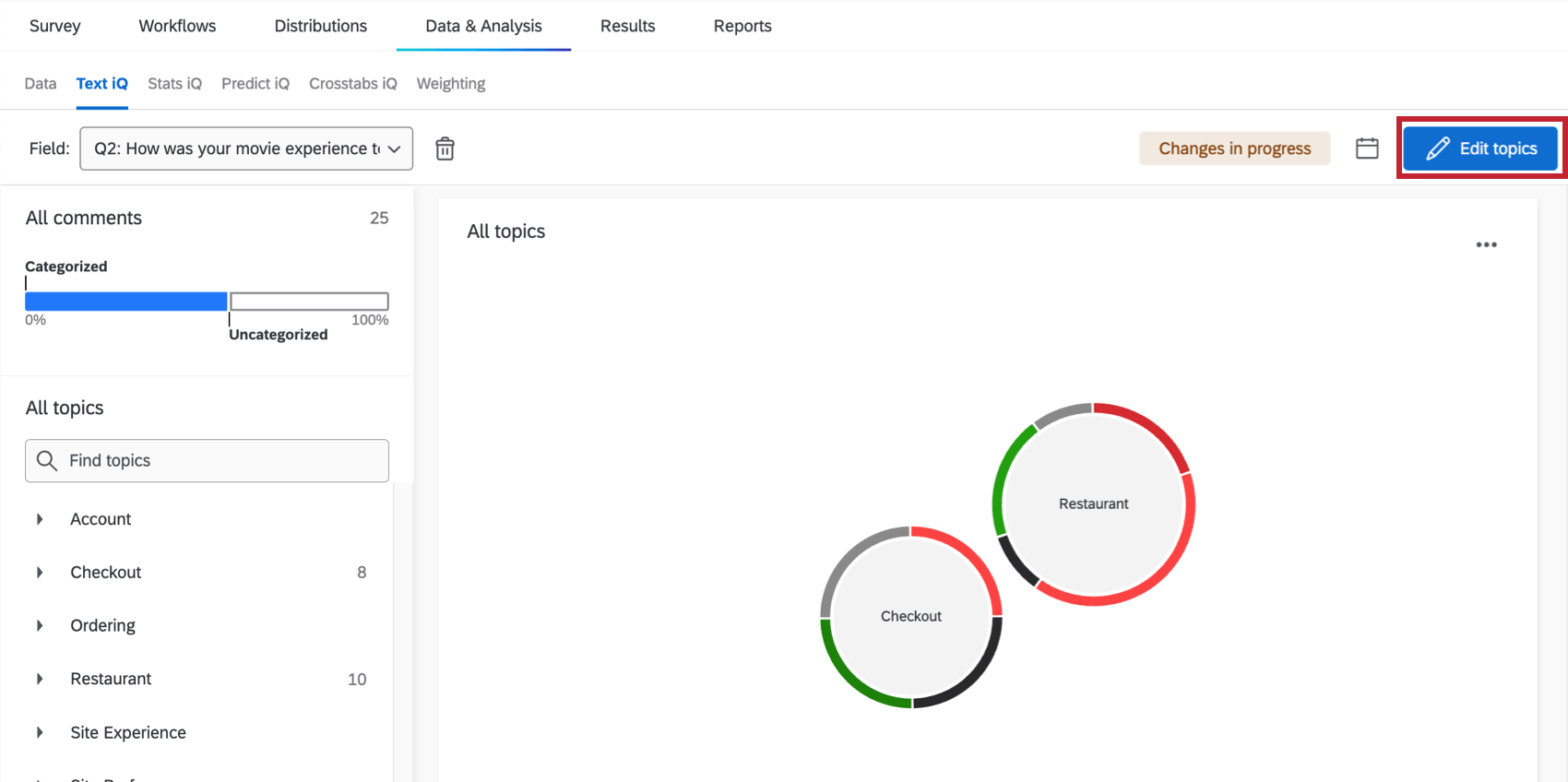
Managing Topics
Expanding and Editing Topics
The search terms attached to a topic allow it to tag new responses automatically as they come in.
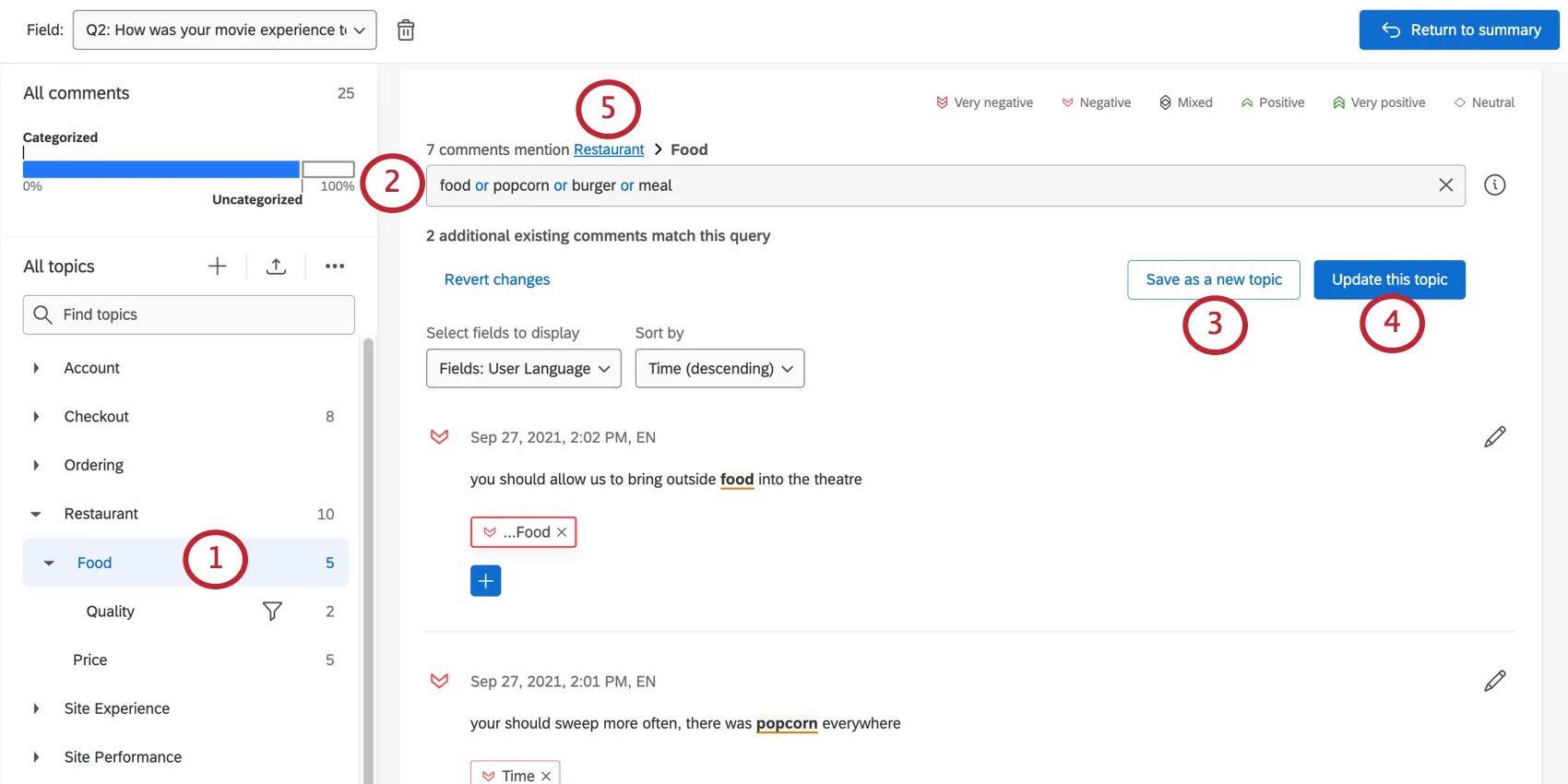
Qtip: See the Building Complex Searches page for more details on what to enter here.
Qtip: Topics inherit logic from their ancestors. See Hierarchical Topics for more information.
Deleting Multiple Topics at a Time
Attention: If you delete a topic, the only way to restore it is through the topic version history.
You can delete all topics in your hierarchy, or choose certain topics to delete. When deleting topics in a hierarchy, the hierarchy will automatically move topics so that no topics are orphaned.
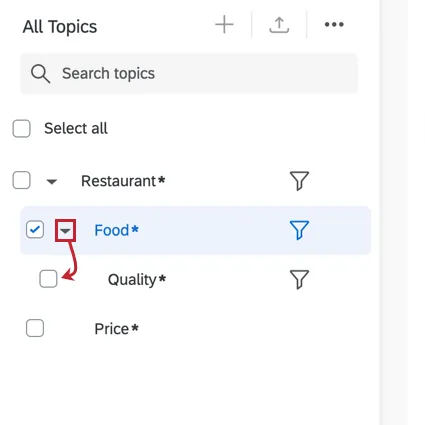
Example: Let’s say my topic hierarchy is: Restaurant > Food > Quality, Price. If I delete the “Food” topic, then my new hierarchy is: Restaurant > Quality, Price.

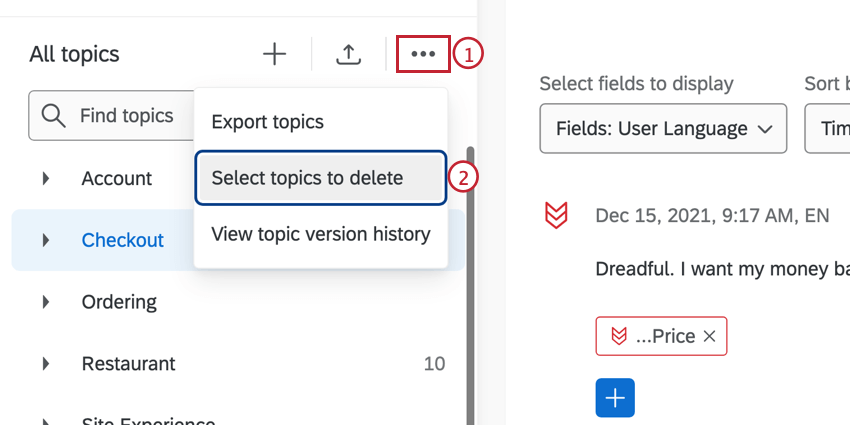
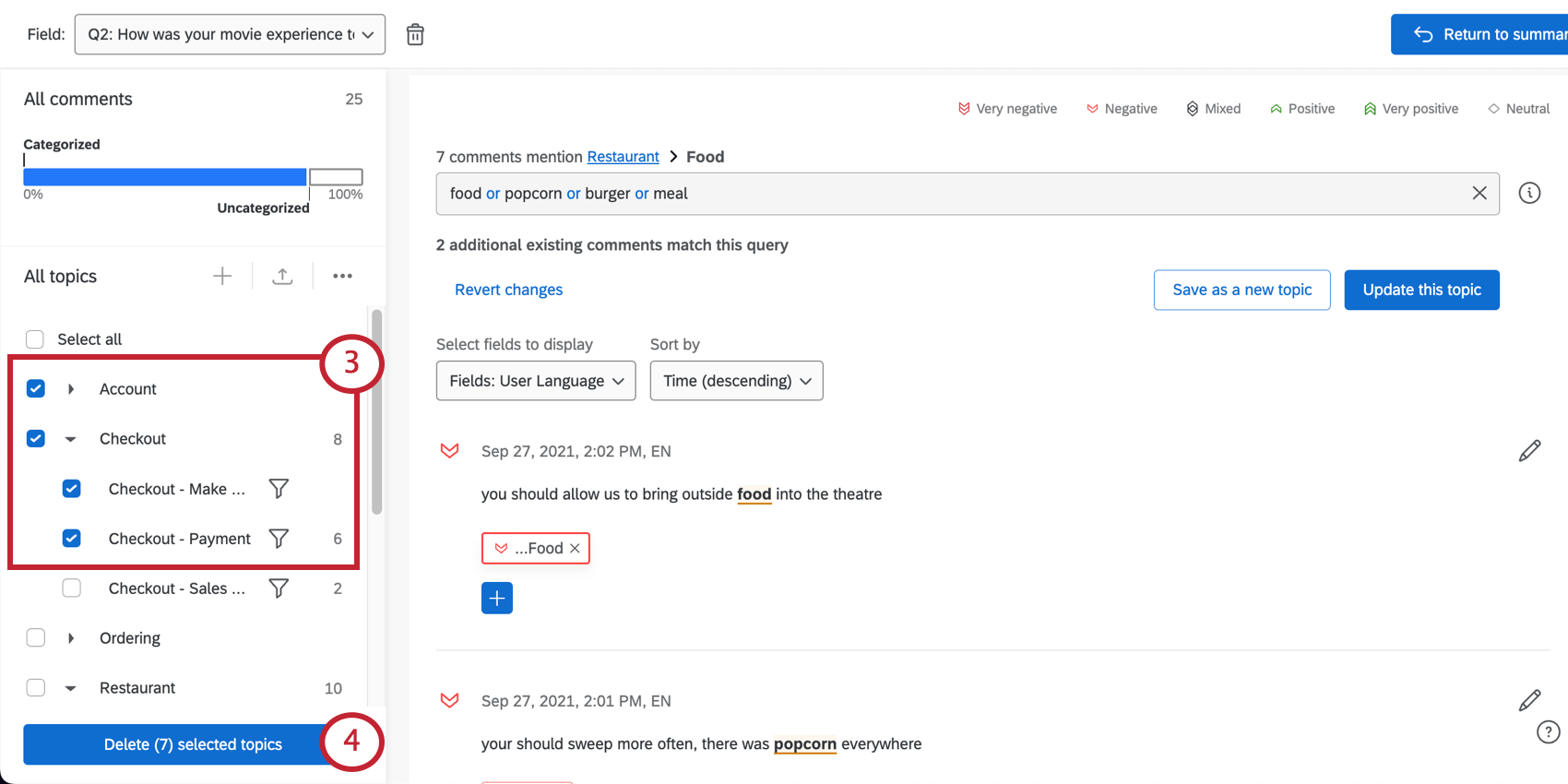
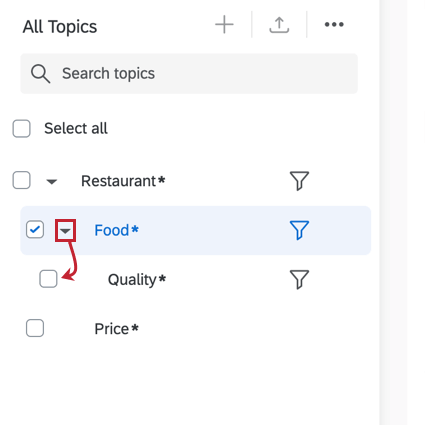
Qtip: When you select a topic to delete, all topic descendants are automatically selected. If you do not want to delete your descendent topics, expand the ancestor topic and deselect the descendent topics.
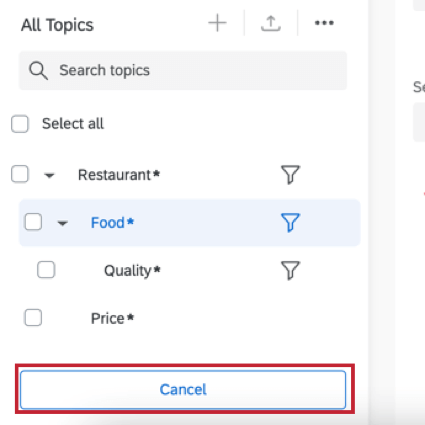
Qtip: To cancel deleting topics, deselect all topics. The delete button will turn into a Cancel button.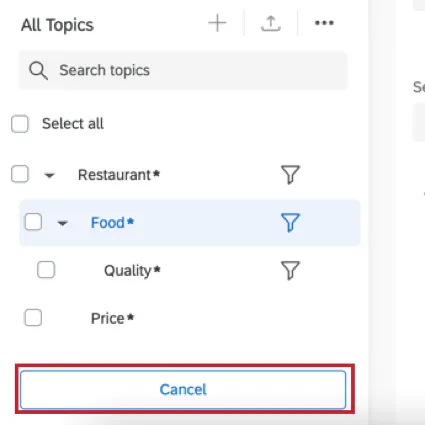
Renaming or Deleting 1 Topic at a time
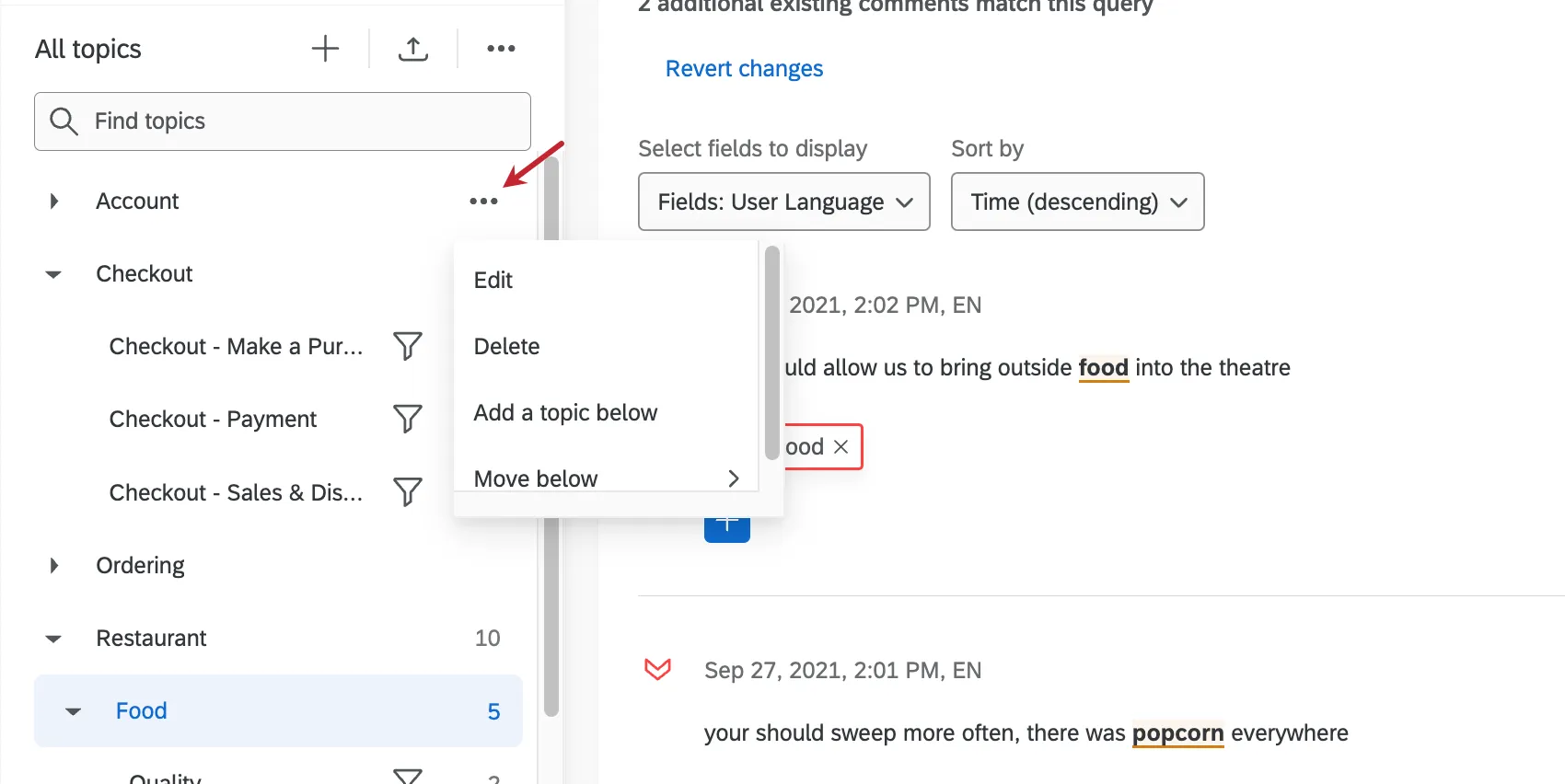
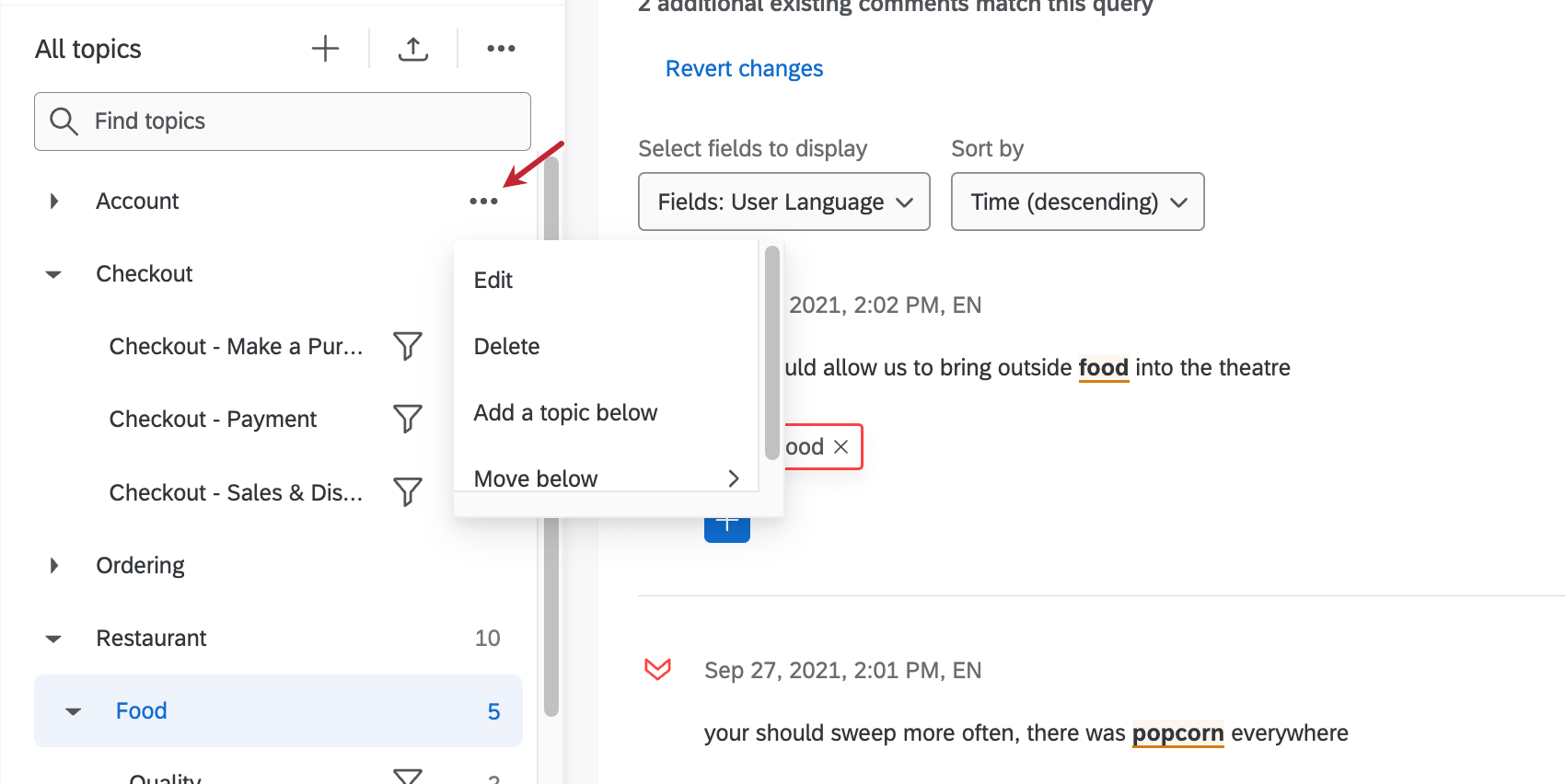
Hover over a topic, click the 3 dots, and select either Edit or Delete, depending on what you want to do to the selected topic. When you edit a topic, you can rename it as well as move it in your topic hierarchy.
Topic Menu Features
On the menu to the left, you can:
- Search for topics in the hierarchy
- Click “All Comments” to view all responses
- Click the blue line to view all tagged responses (regardless of topic).
- Click the gray line to view all untagged responses.
- Click a topic to view its responses.
Hierarchical Topics
Topics can be nested within one another to create a hierarchy with up to five levels. A parent topic is a topic that includes other topics – the topics below a parent topic are referred to as its children. Similar to a family tree, descendants of a topic include its children, its children’s children and so forth. Ancestors of a topic refer to the parents of a topic, the parents of its parents and so forth. You can have a maximum of 5 levels in your topic hierarchy.
Any topic, regardless of where it is in the hierarchy, can have a query. Topics will inherit the query logic of their ancestors. Using query inheritance allows for easier organization of complex topic structures.
Example: You are an airline company collecting experience feedback after a flight. You have topics related to different aspects of the airport lounge – Availability, Staff, Refreshments, etc. You want to group these topics together, so you add a topic called “Airport Lounge” and set the query to “Lounge | Club” so you don’t have to duplicate the same logic in all of its ancestors in the hierarchy.
Qtip: Parent topic queries are joined to child topic queries using “AND” logic. In order to be tagged to a child topic, the requirement for the child topic AND the parent topic have to be met.
Topic Level Options
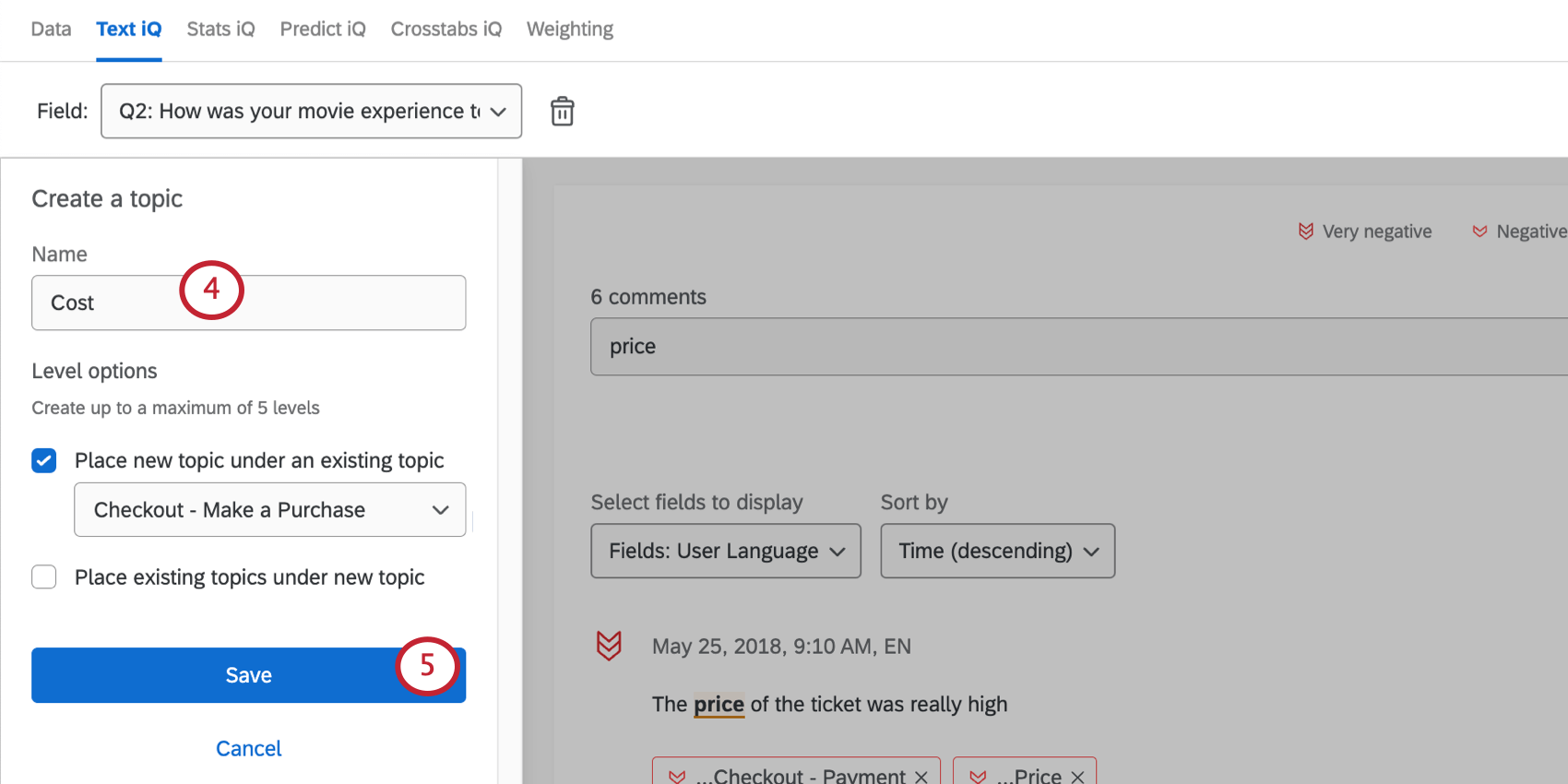
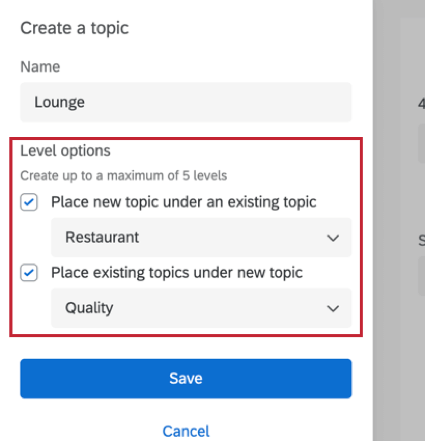
When adding a new topic, you can use the topic level options to adjust the existing topic hierarchy:
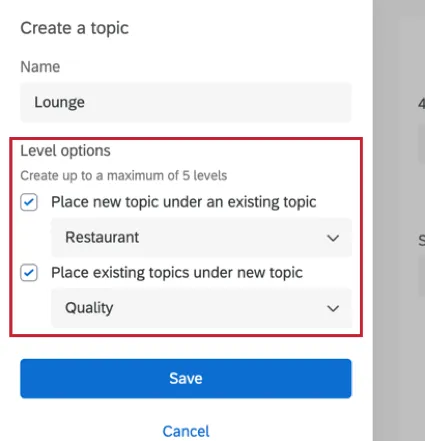
- Place new topic under an existing topic: This allows you to place your new topics below an existing topic in the hierarchy. From the dropdown, select which topic you want to place the new topic under.
- Place existing topics under new topic: This allows you to place your new topic above existing topics in the hierarchy. From the above example, you could create your new “Airport Lounge” topic and move the existing topics about Availability, Staff and Refreshments beneath it by selecting them from the dropdown.
Moving Topics
You can move your topics in the hierarchy by using menu options, or dragging and dropping your topics.
To move your topics using menu options:
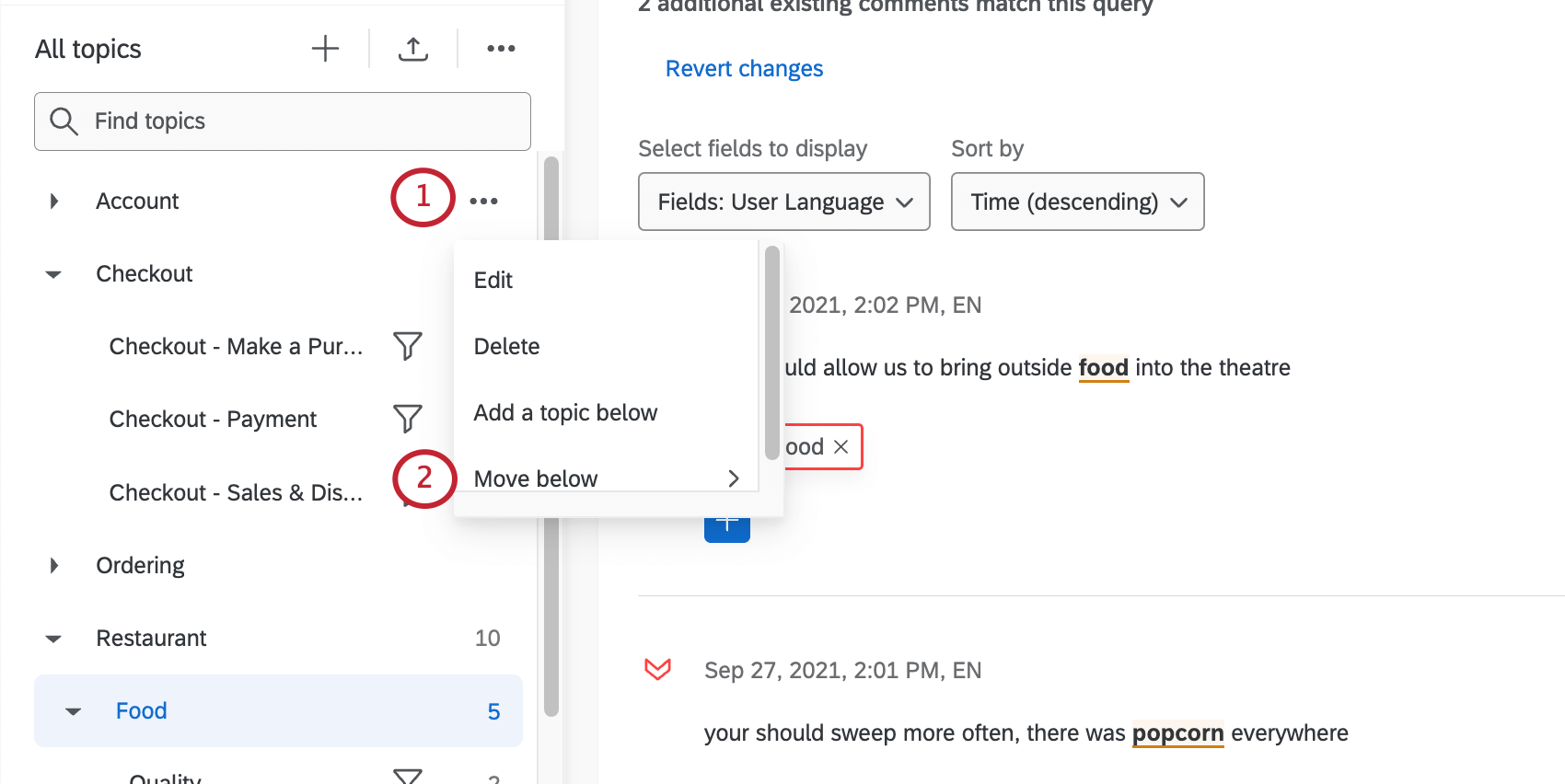
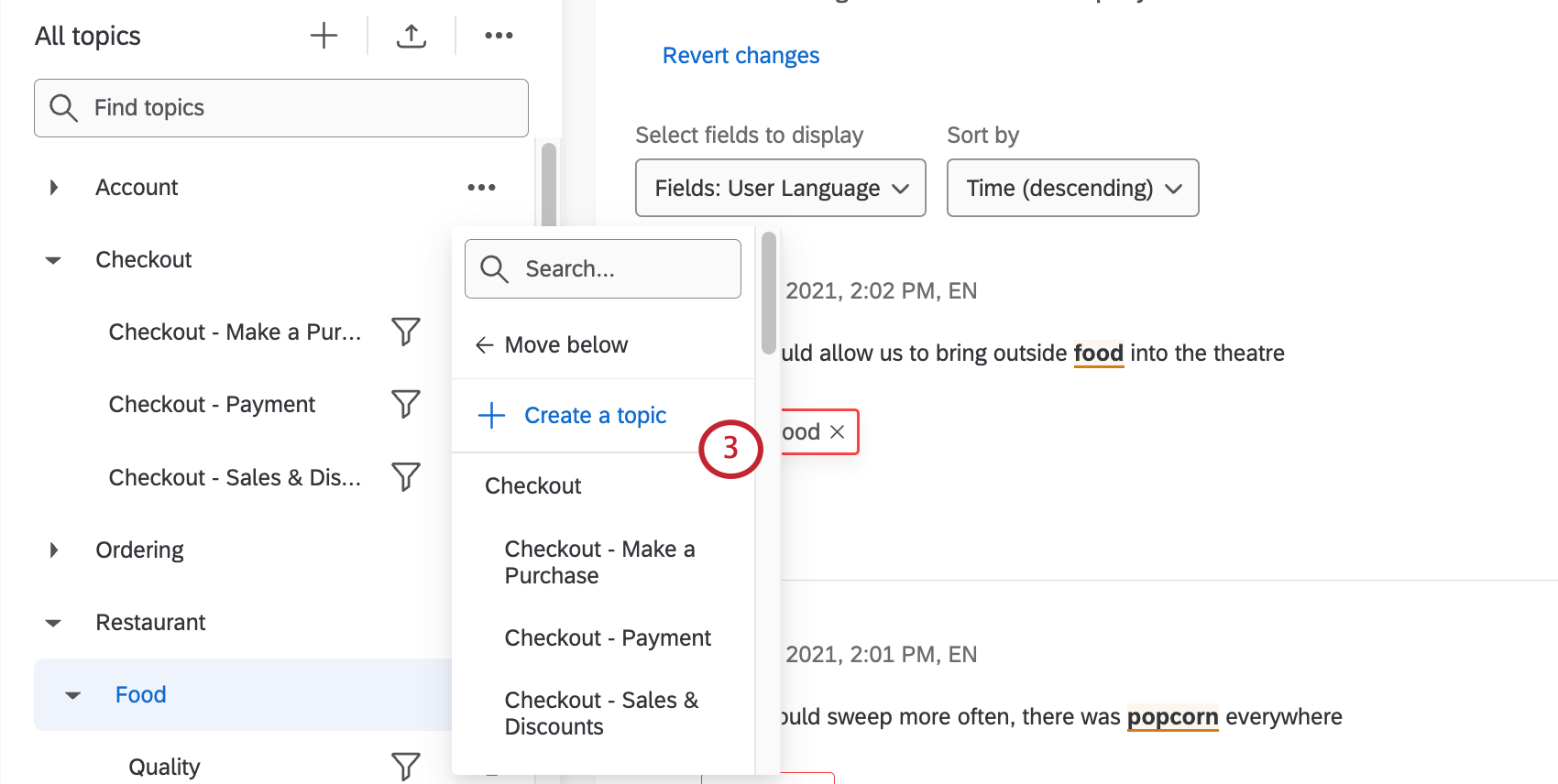
Qtip: In the menu, topics that are indented are a level lower in the hierarchy.
In addition, you can drag and drop topics to organize them below existing topics. Once you’ve created your topics, you can move them by clicking on the topic and dragging it to the topic you want it to fall under.
Brand Topics
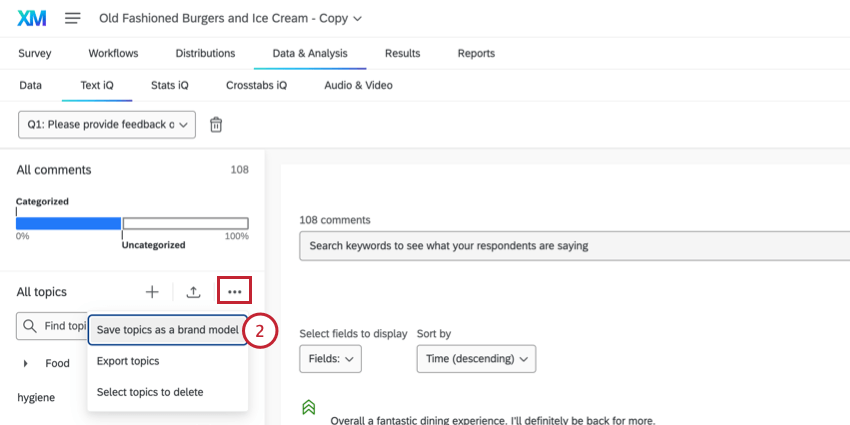
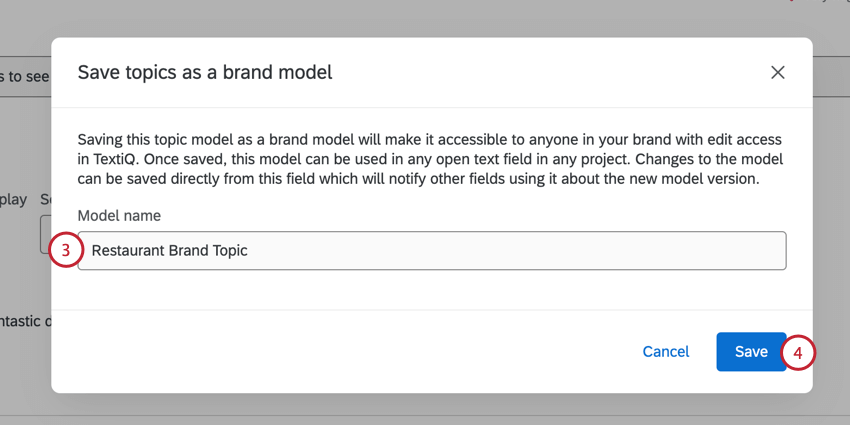
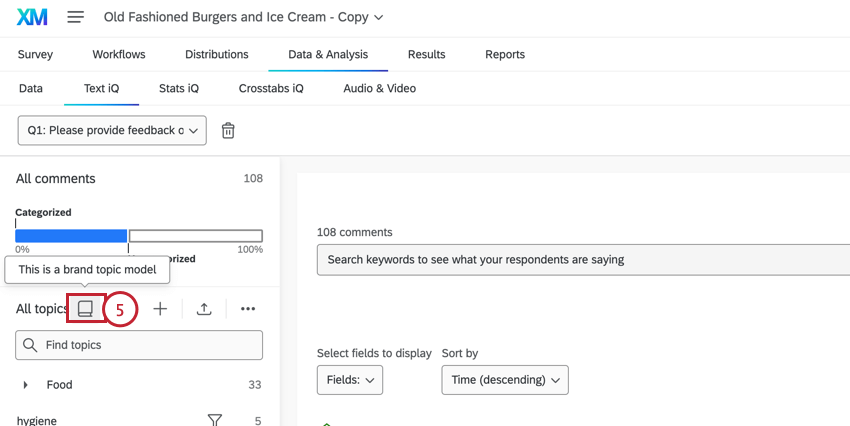
Topic models are typically isolated to a single field in a single project. If you’d like to reuse a topic model across multiple projects, you can save the model as a brand topic model, helping standardize text analysis for users in your brand. Once a brand topic model is created, other Text iQ users in your brand can import the topic model to their projects. If needed, users can then customize the model for their specific analysis.
To save a new brand topic model:
Using a Brand Model
Any user with access to Text iQ can use a brand model once it is created.
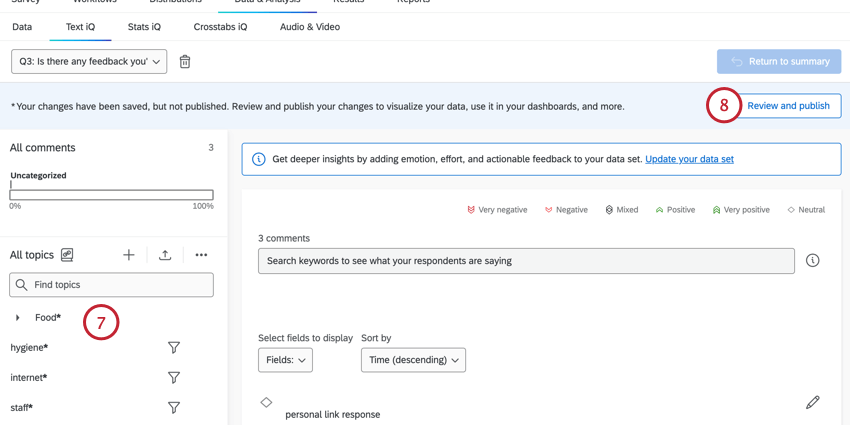
Attention: Importing a brand model will replace any previously configured topics you’ve created for the chosen field. If you’d like to keep your manual topics, then export them before you import the brand topic. After adding the brand topic, you can re-import your other topics.
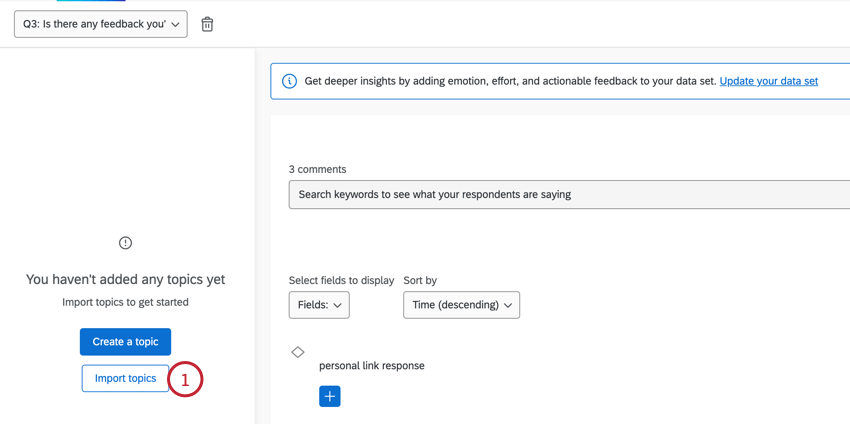
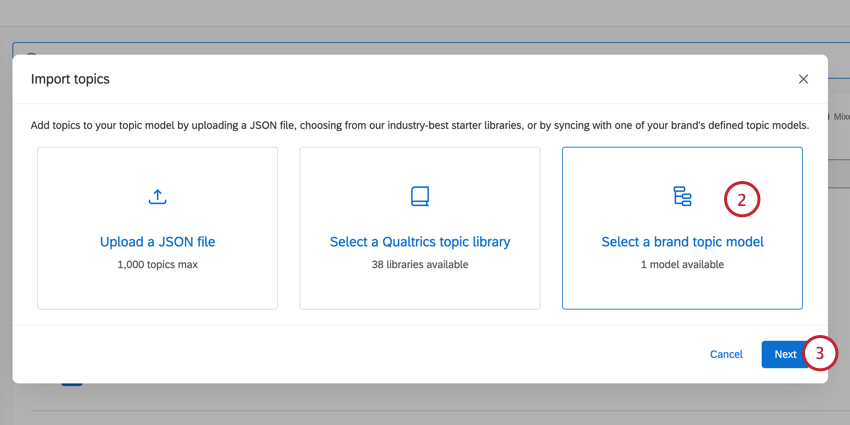
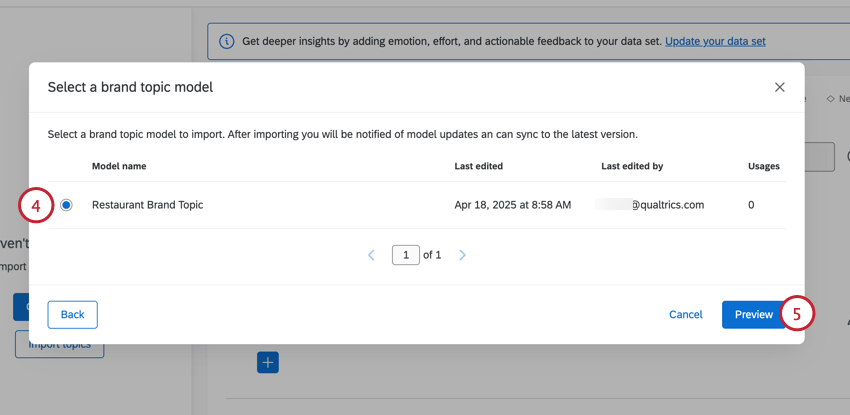
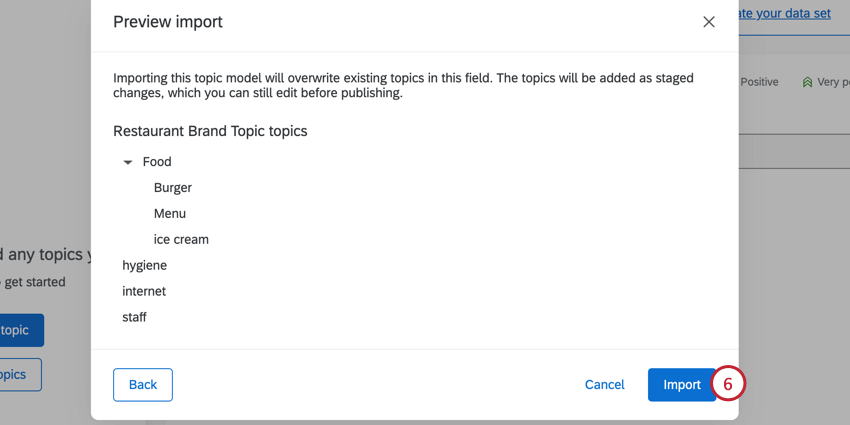
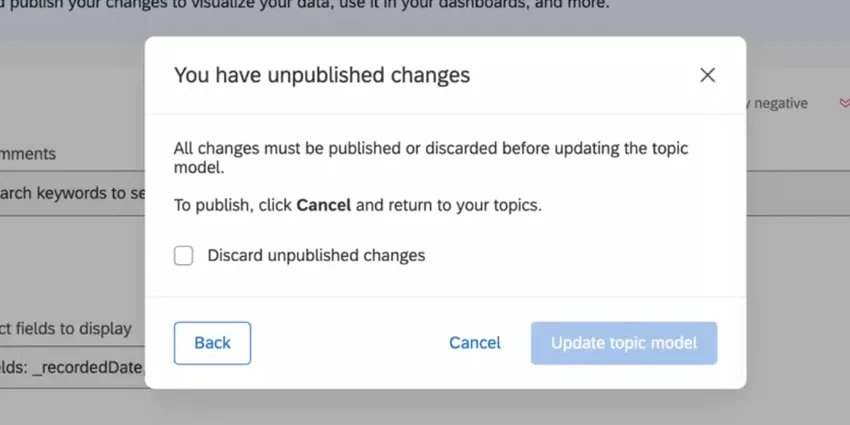
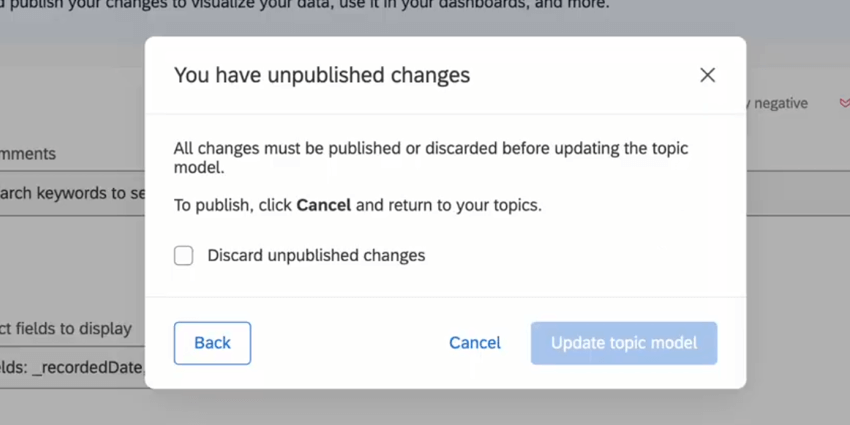
Qtip: If your analysis previously had unsaved changes, you’ll be asked to discard those changes before you import the brand model.
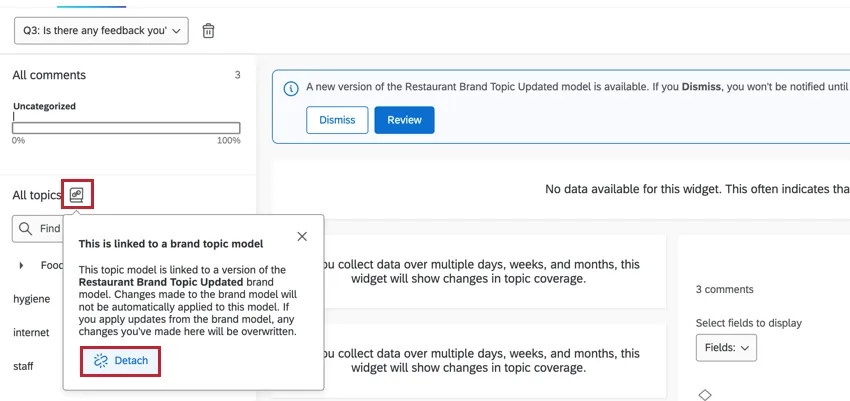
Qtip: If needed, you can detach a brand model by clicking the brand topic icon and selecting Detach. This will make it so the topics are no longer impacted by changes made to the brand model. You can continue to customize the topics as needed for the specific field analysis.
Editing a Brand Model
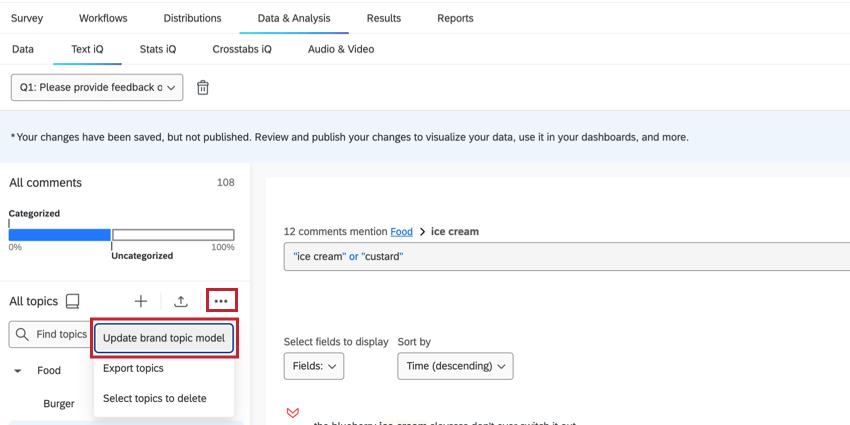
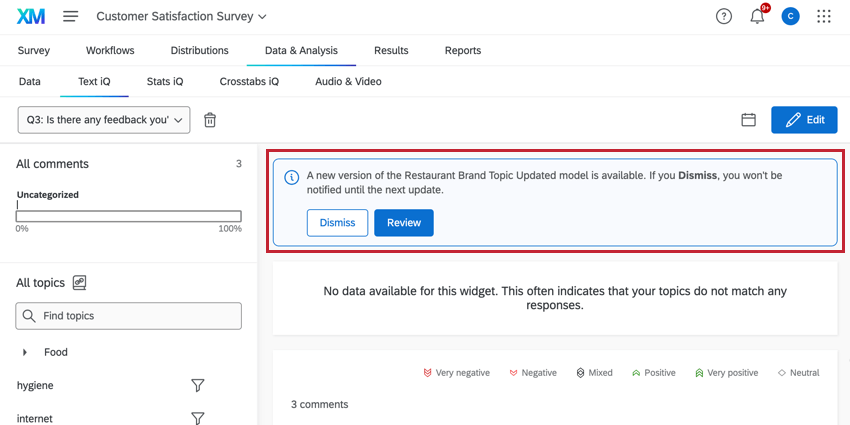
After creating a brand model, you can use and edit it like any other text model. If you edit the model, you can choose to have your edits only apply to the current project, or have them apply to all fields that use the model.
Attention: A brand model can only be updated from the same field where it was created. Edits made to the model in other fields will only be available in that field.
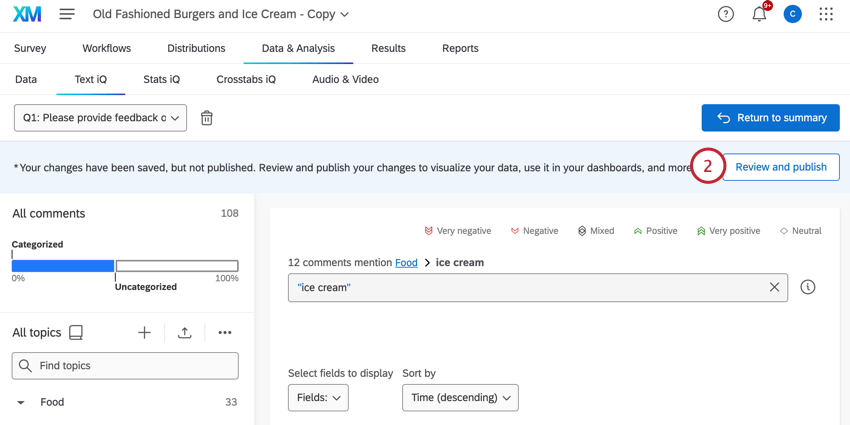
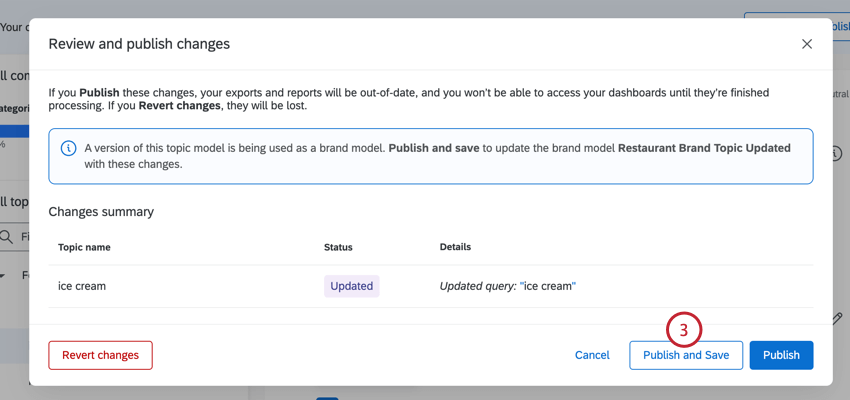
Qtip: If you want to publish changes to this field only, then click Publish instead. You can still apply these edits brand-wide later by selecting Update brand topic model. You can also use this option to change the brand model’s name.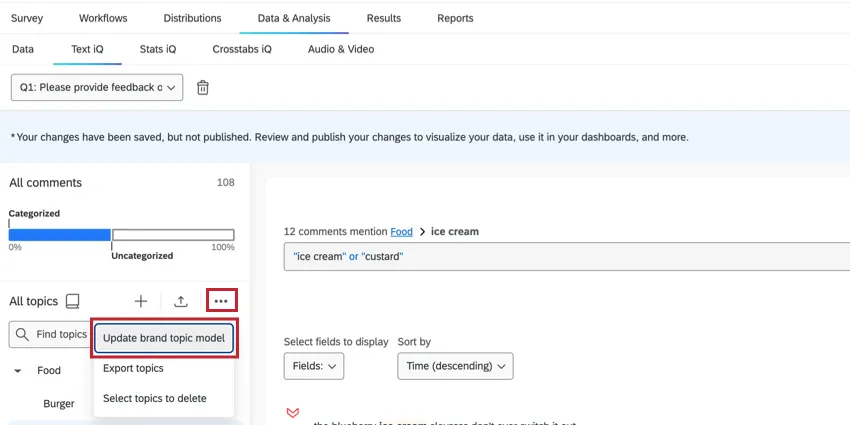
Version History
Use the topic version history to view the last 10 times the topics were published, along with which editor published those changes. You can restore previously published versions, if you’d like.
Qtip: The topic version history will only contain versions published after July 2023.
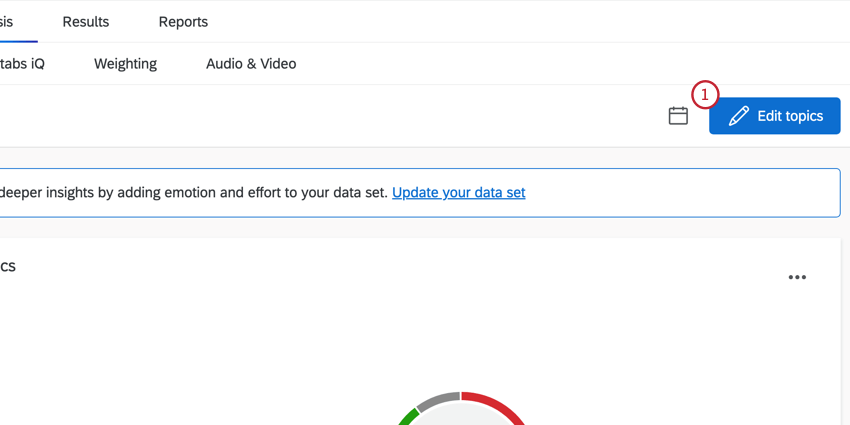
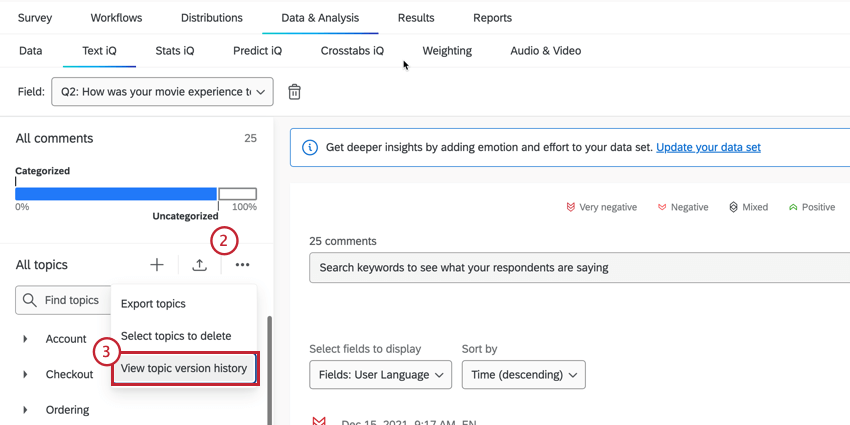
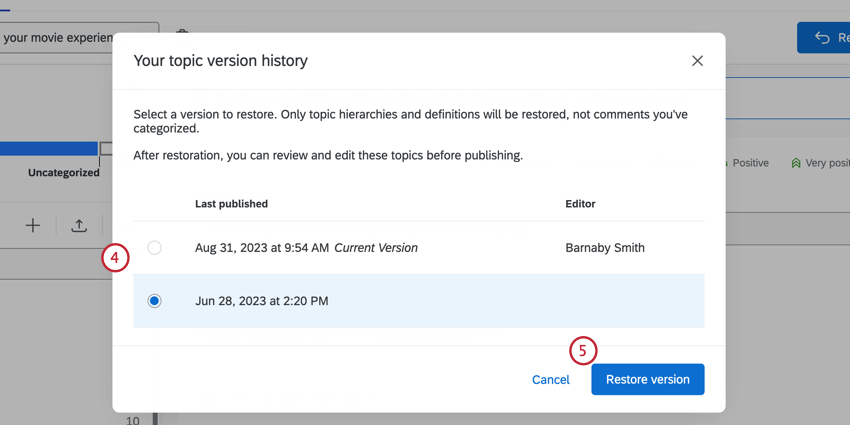
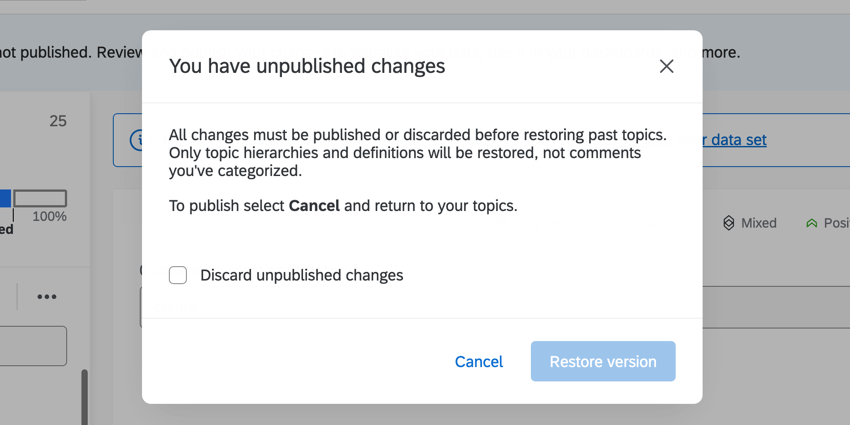
Qtip: Any unpublished changes will be discarded when restoring a past version. If you have unsaved changes, you will be asked to confirm that you wish to discard them before restoring a version.


Exporting Topics
Attention: We do not recommend editing this file unless you are adept at coding. While Qualtrics Support isn’t trained to help with coding, you can reach out to our user community for assistance.
You can export topics and their parents for use in other surveys’ text analyses. You can’t export topics if you have changes to be published. Publish your changes before trying to export topics.
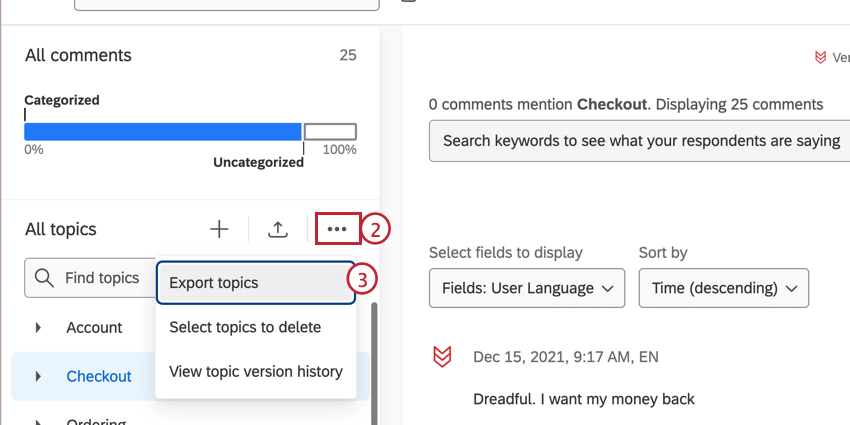
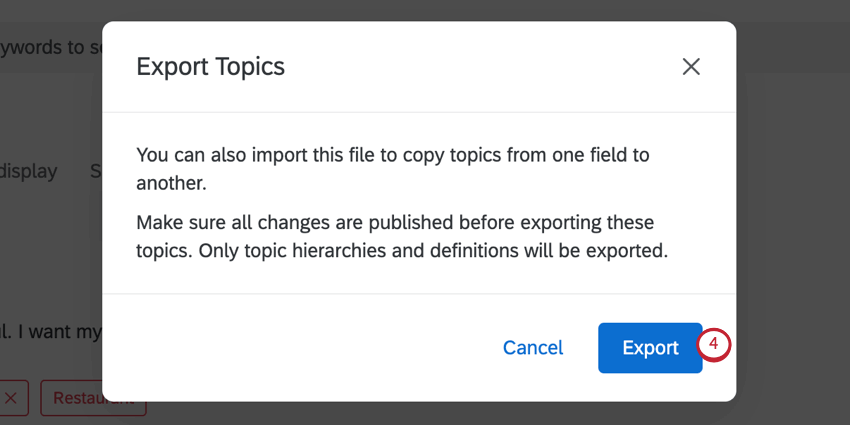
This will download a JSON file of your topics.
Importing Topics
You can import topics and their parents that you created in other surveys, or you can import topics from a starter pack created by Qualtrics XM Scientists.
Qtip: Each question in Text iQ has a limit of 1,000 topics total. If an import contains more than the maximum or will bring a question to more than the maximum, no topics will be imported, and you will receive a message explaining why. Each question cannot exceed this 1,000 limit, but there is no limit at the survey or brand level.
Importing Topics from Other Surveys
Qtip: This file is in JSON format. We do not recommend editing this file unless you are adept at coding. While Qualtrics Support isn’t trained to help with coding, you can reach out to our user community for assistance.
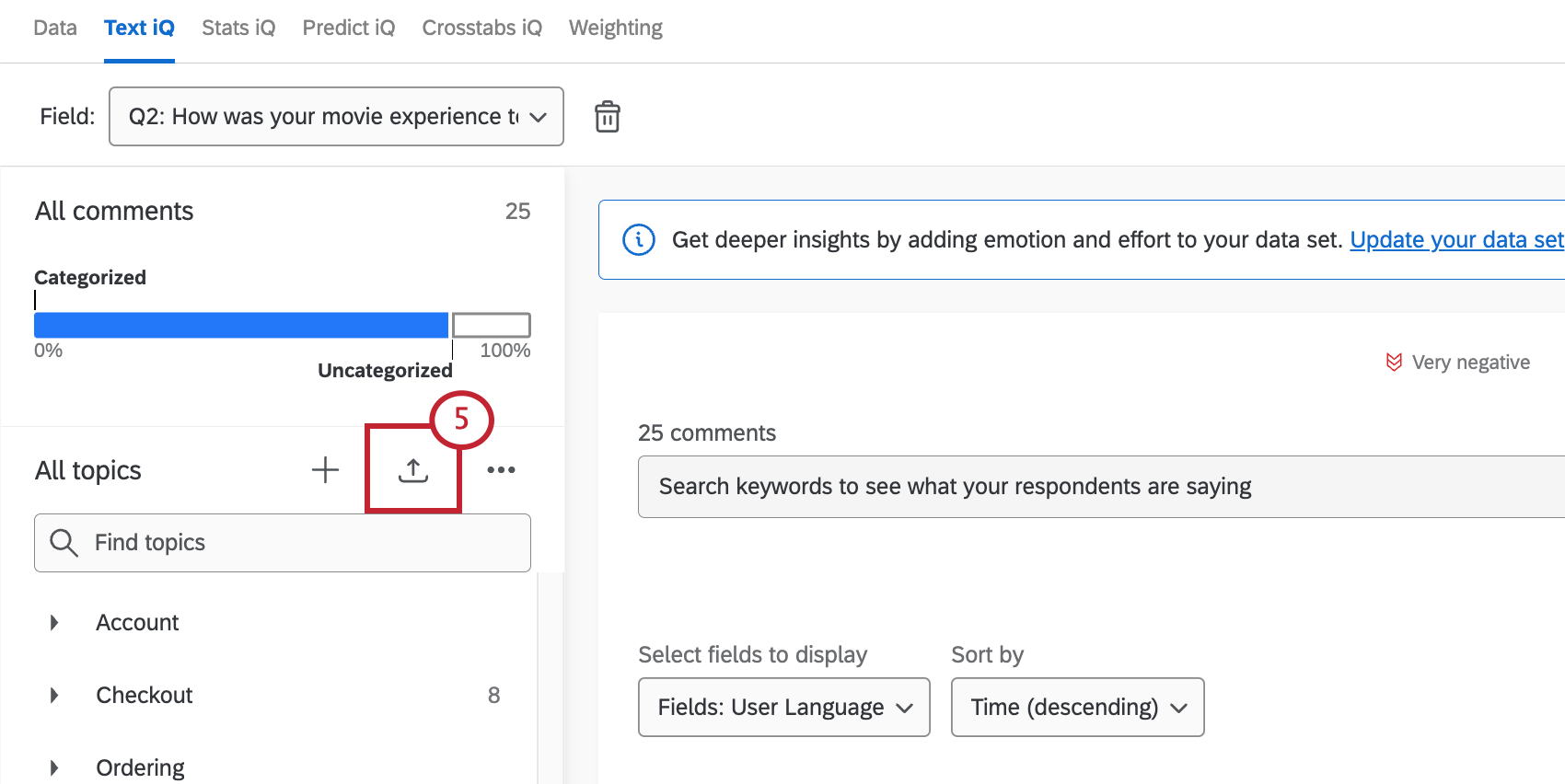
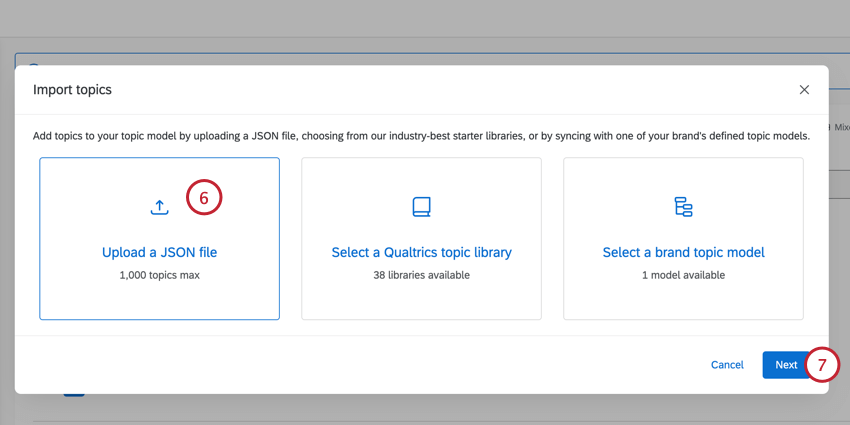
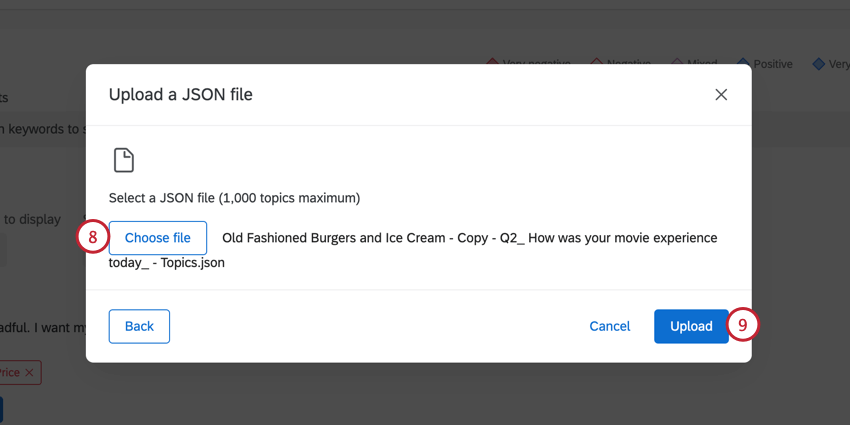
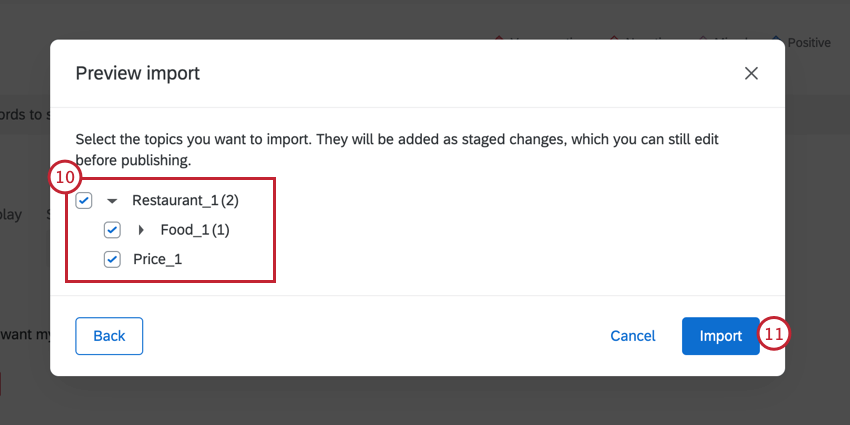
Once imported, your topic changes will not be automatically published to Text iQ. You can still edit your imported topics before publishing your changes.
Starter Pack Topics
Do you want to get a jump start on Text iQ, but aren’t sure where to start with building topics? You can import pre-built topics developed by Qualtrics subject-matter experts.
Qtip: Some libraries are currently only available in English. Additional libraries are available in Dutch, French, German, Japanese, and Spanish. To access, you must adjust your account language to one of these languages.
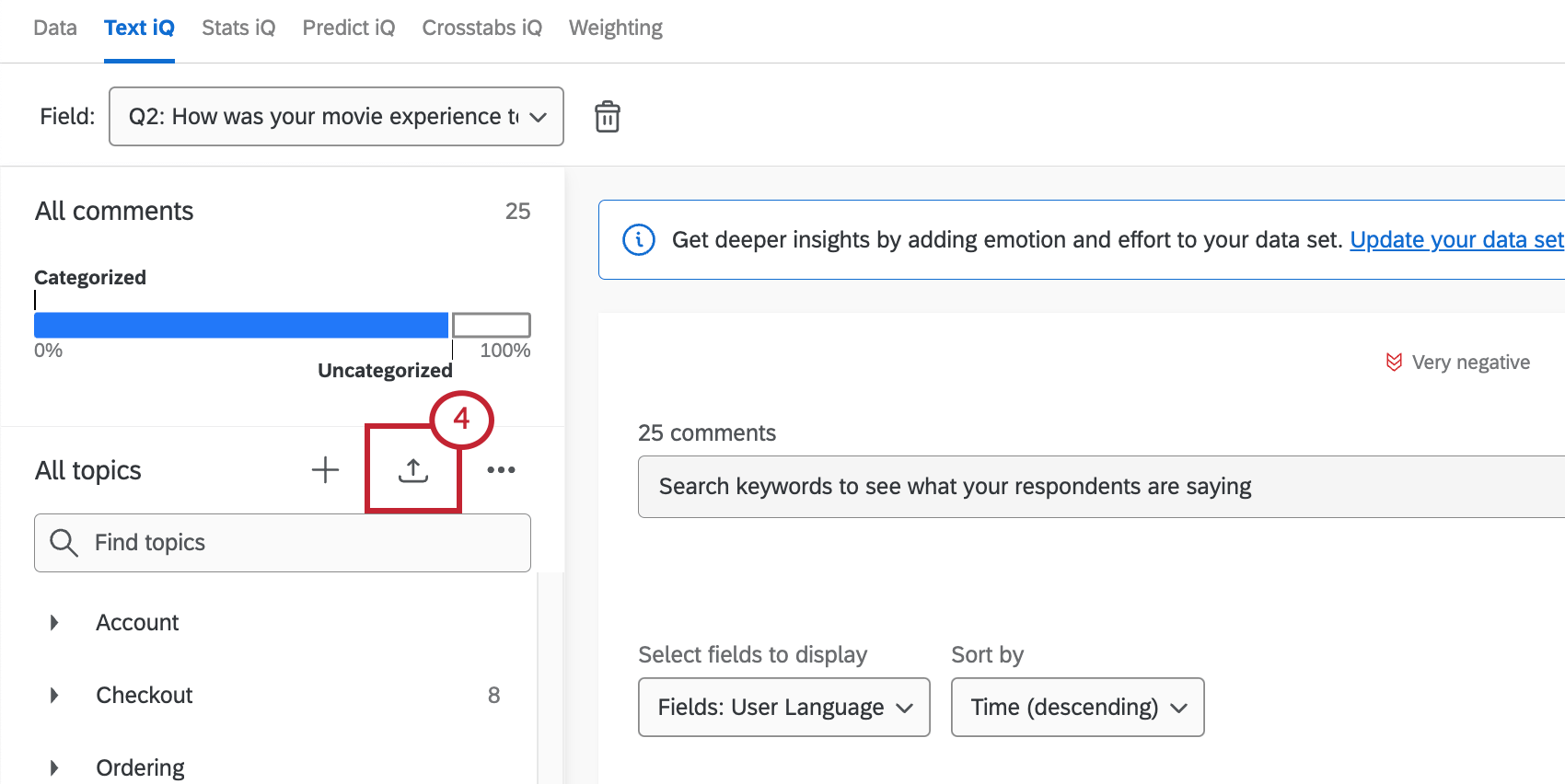
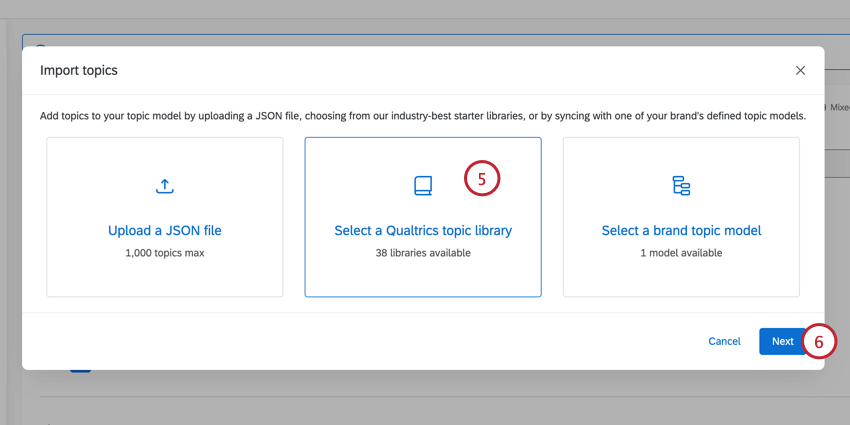
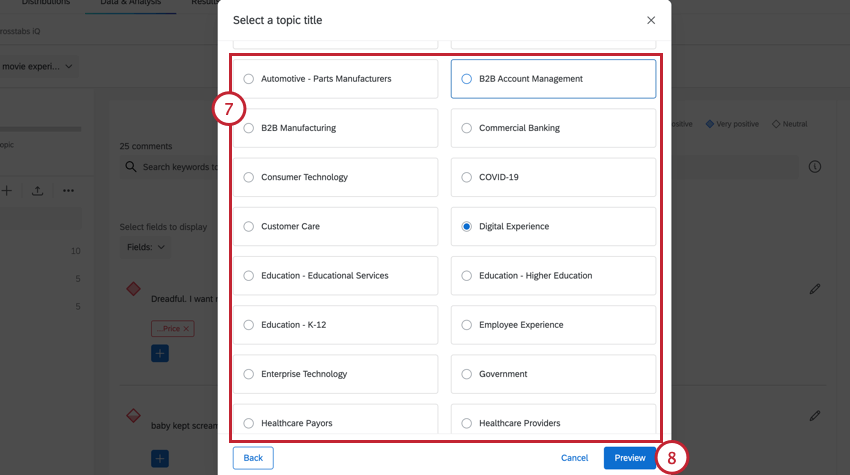
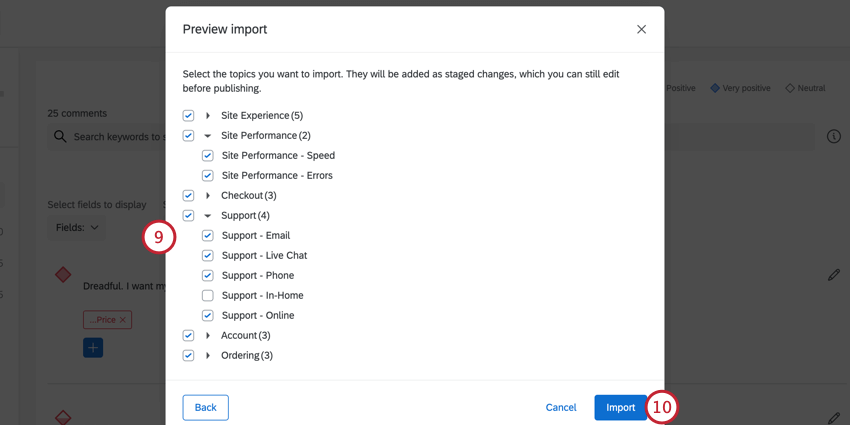
Qtip: You will be able to narrow these topics down if you want after you import.
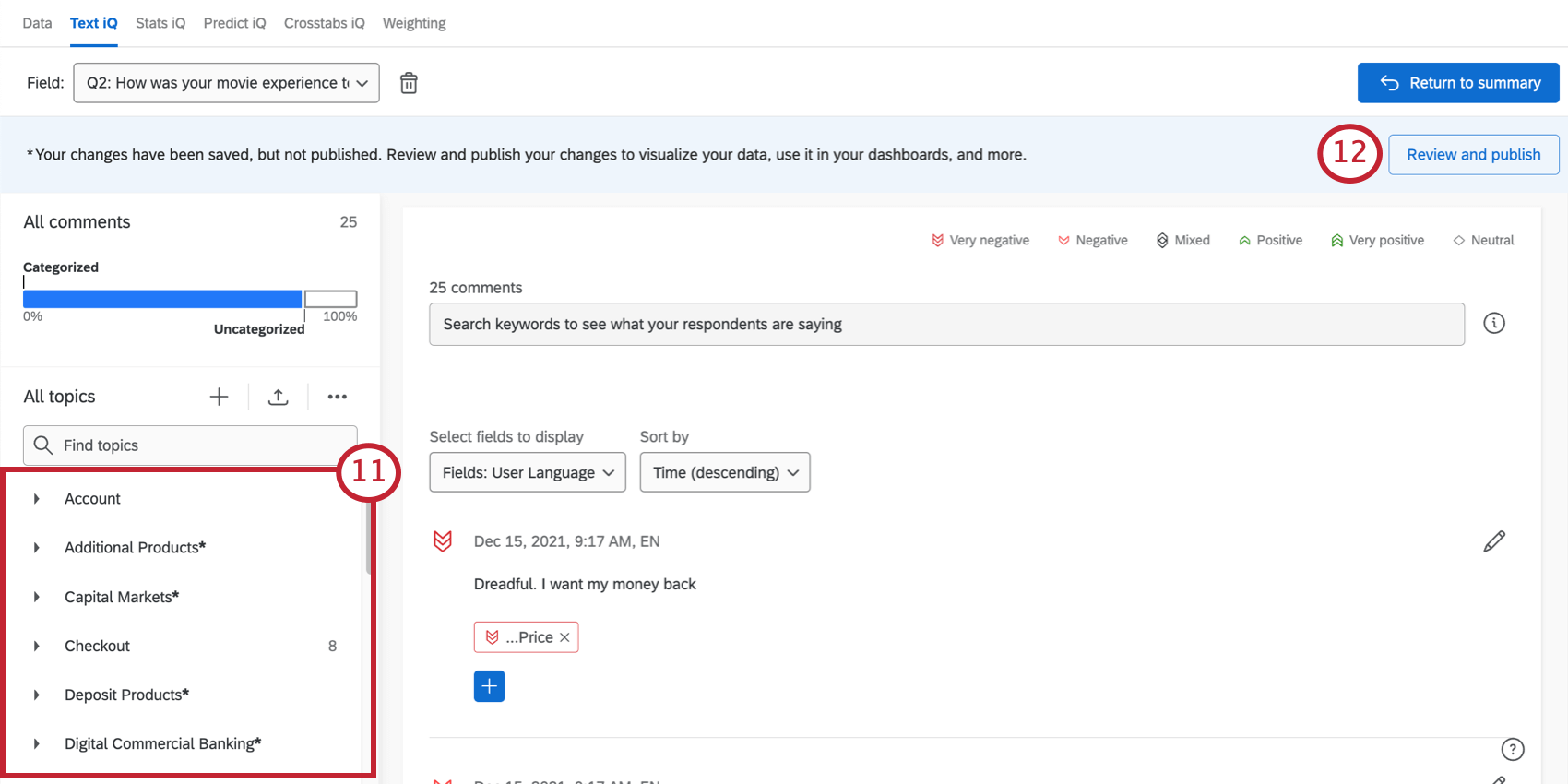
Qtip: See Managing Topics for instructions on each of these types of edits, plus more.
Qtip: If you don’t want to add these topics, after all, you can discard your changes after Step 10 instead of confirming the change.
Manually Adding and Removing Topics from a Response
You can add and remove whatever topics you want on a given feedback response. For instructions on this, see Viewing Responses in Text iQ.
FAQs
How do text topics work for responses collected in multiple languages?
How do text topics work for responses collected in multiple languages?
For example, if you have one response in English that references the word "good" and another response in Spanish that references the word "bueno," these responses will be tagged with separate topics.
If you have collected data in multiple languages and would like your responses to share topics, you will need to do the following:
That's great! Thank you for your feedback!
Thank you for your feedback!