

Unmoderated User Testing Overview
What's on this page
About Unmoderated User Testing
Unmoderated User Testing allows you to conduct user experience research through remote unmoderated sessions with respondents. In an Unmoderated User Testing project, a study is created and distributed to participants, who can then complete the study on their own time. Testing sessions are recorded and stored within the Audio & Video library, where they can be analyzed.
Unmoderated User Testing projects contain the same tabs as a regular survey. User testing is configured within specific Unmoderated User Testing survey blocks.
Permissions
To create Unmoderated User Testing projects, you will need the following permissions, which can be enabled by a Brand Administrator:
- Access Data & Analysis - Audio & Video
- Create Surveys
- Edit Surveys
- Delete surveys
- Unmoderated Project
- Unmoderated User Testing
Creating a New Project
From the Projects page, click Create project. Alternatively, click Catalogs from the main navigation menu.
Select Unmoderated User Testing.
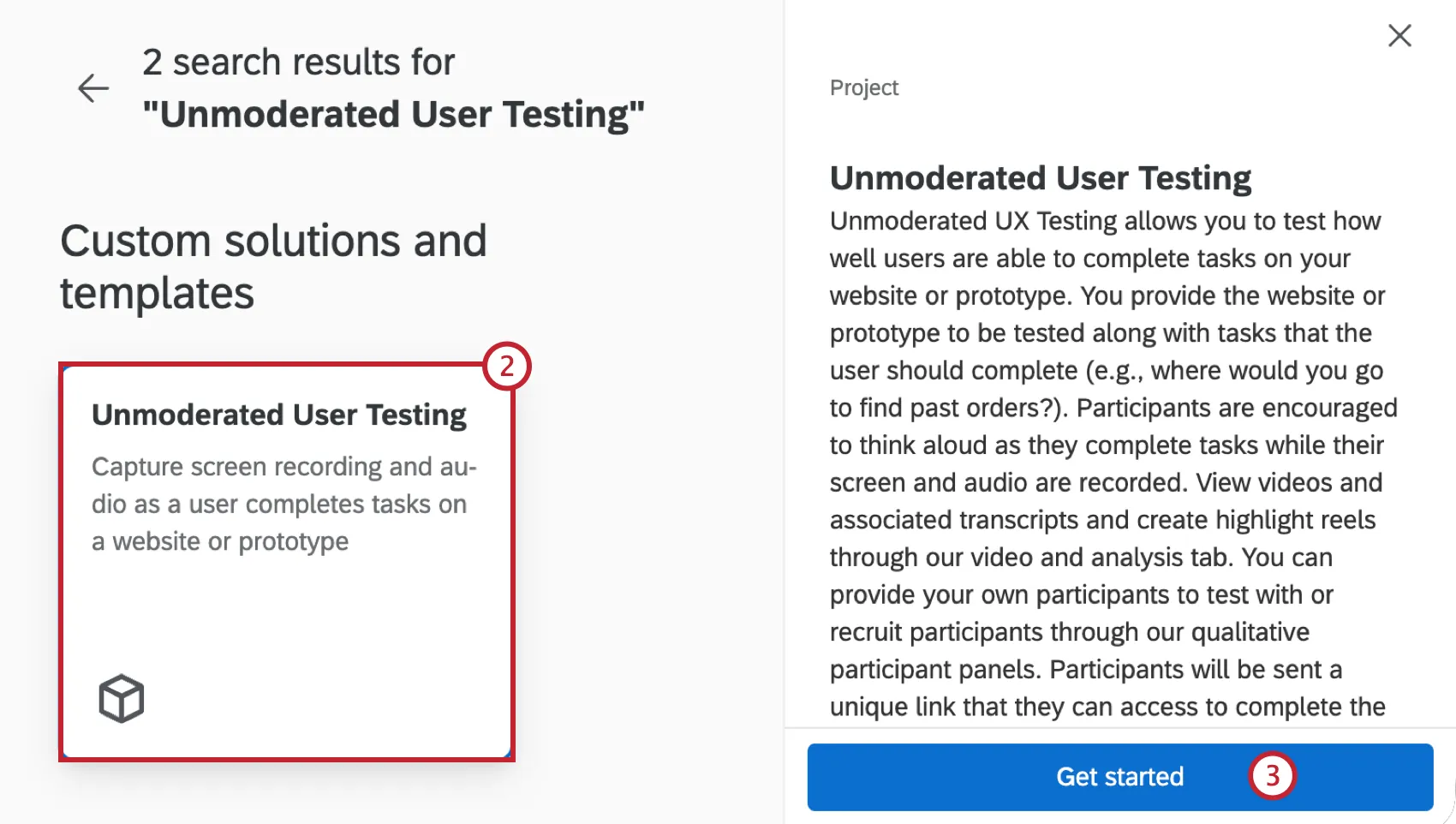
Attention: The Unmoderated User Testing project is within the Custom solutions and templates category. The Unmoderated User Testing project within the Guided projects category is being deprecated.

Click Get started.
Enter the title of your project.
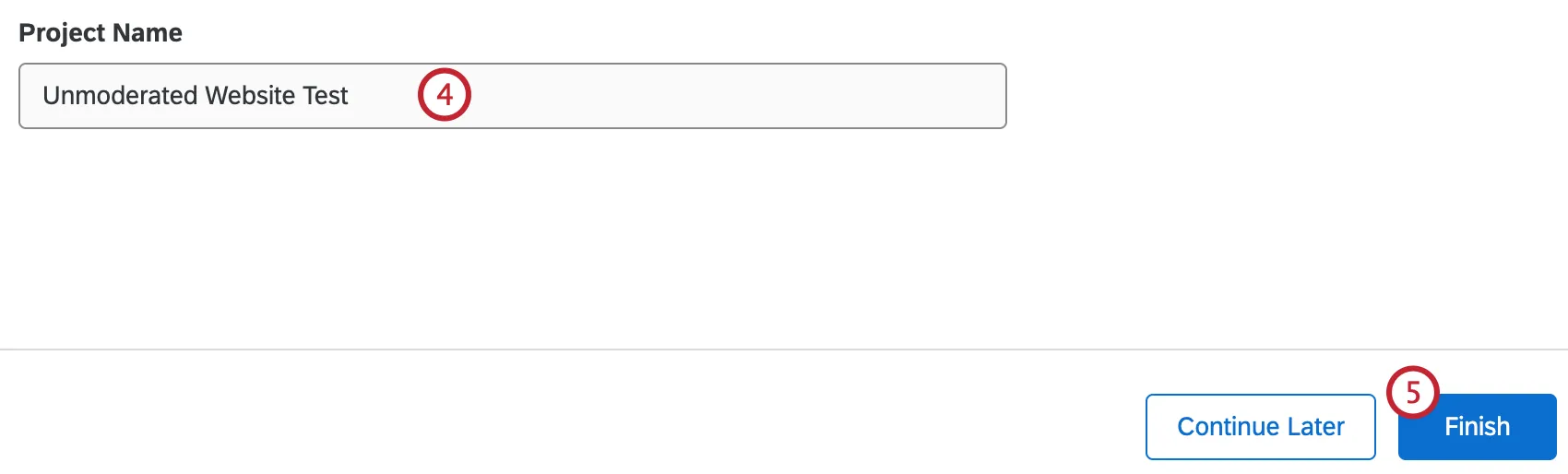
Click Finish.
Unmoderated Testing Blocks
What differentiates your unmoderated user testing project from a simple survey project is the inclusion of an unmoderated user testing block. Unmoderated testing blocks have a special icon in the top right corner to distinguish them from default question blocks.
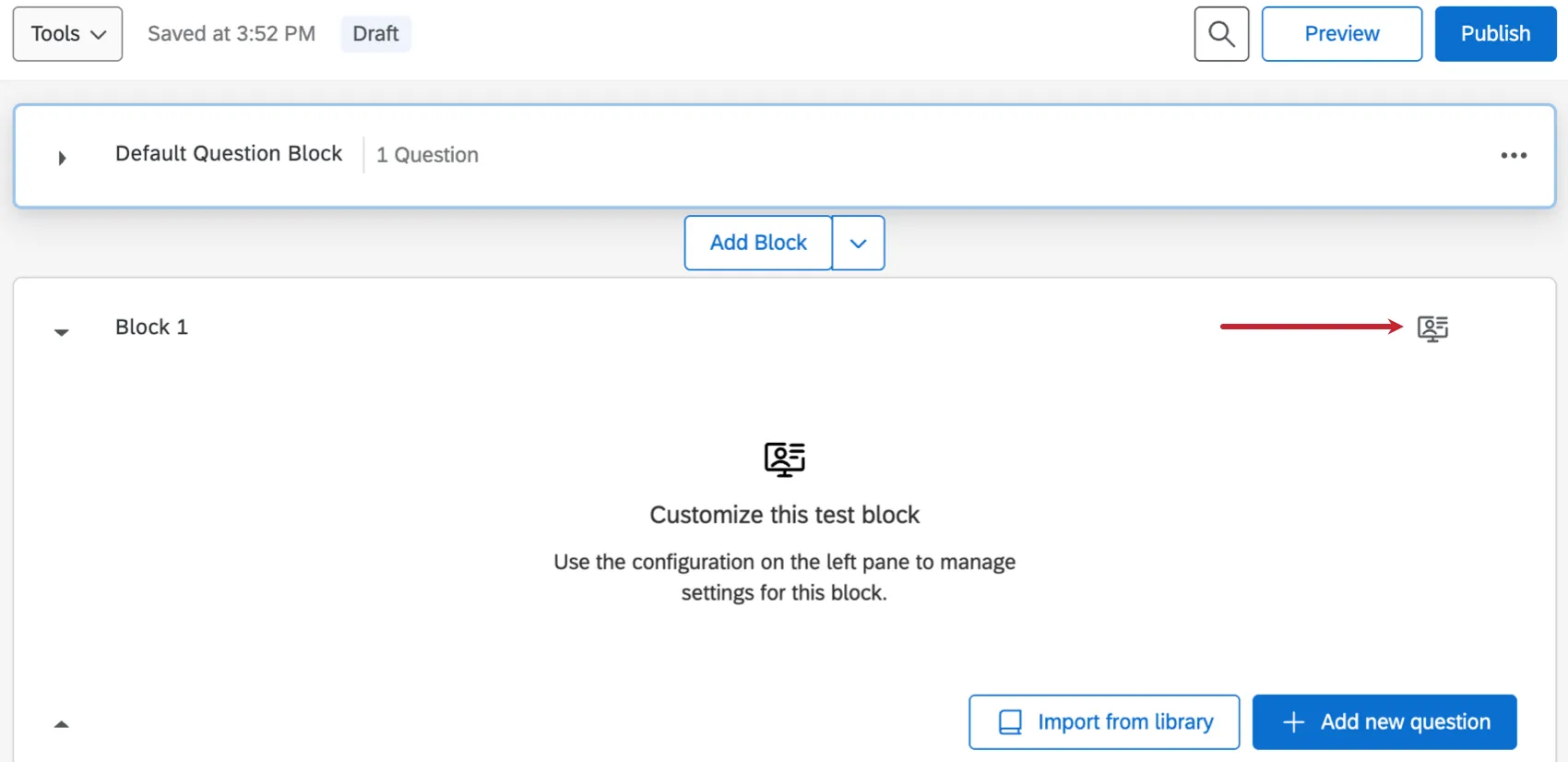
Adding questions to an unmoderated user testing block is the same as a question block, however any question you add will be a task in the user test. Participants will answer these questions while viewing the test link you provide.
Qtip: Adding page breaks between questions helps break up the tasks participants have to complete.

Click on your unmoderated user testing block to edit your unmoderated test settings.
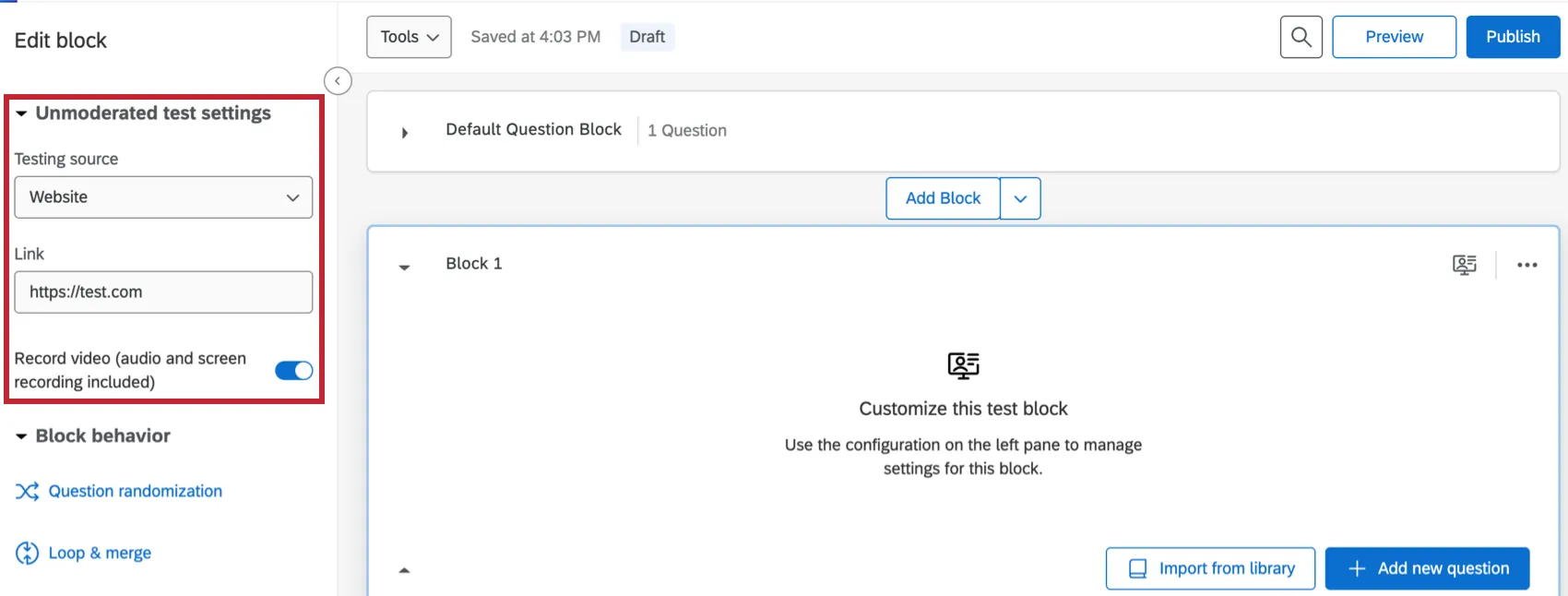
- Testing source: The type of source you are testing.
- Link: A link to your source.
- Record video: Enable this setting if you want to record participants during their test.
Adding Blocks
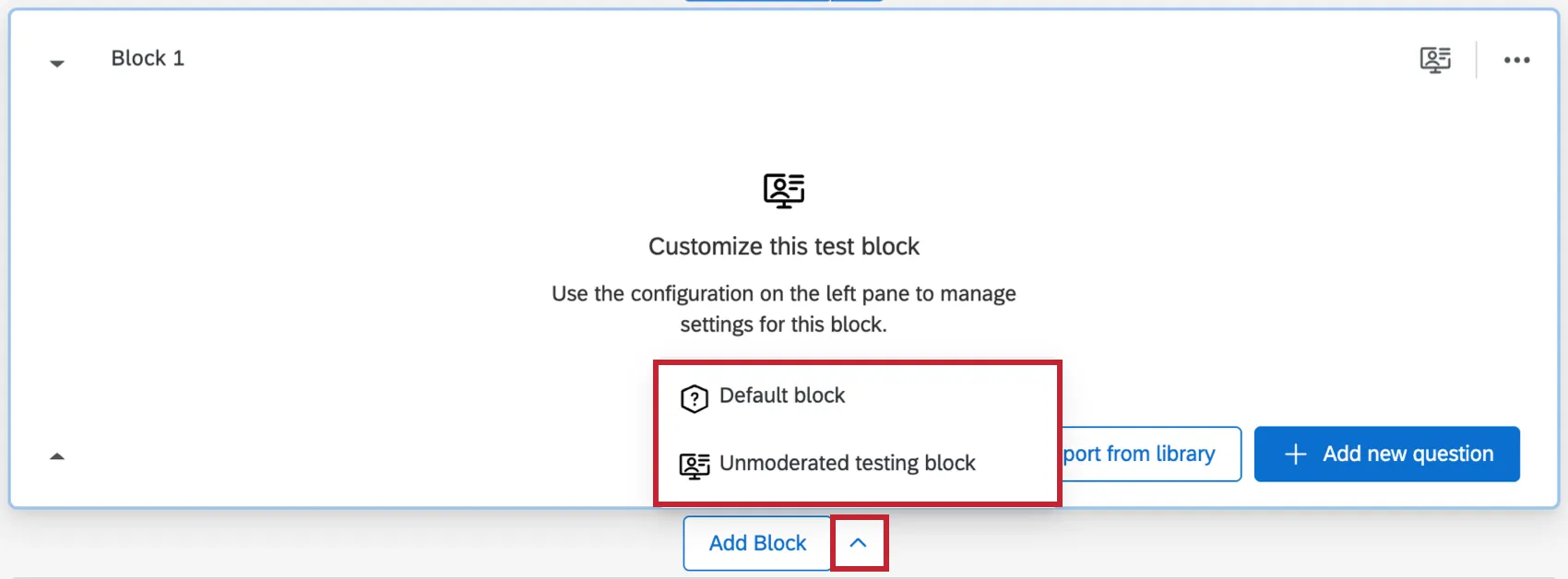
By default, your unmoderated user testing project will have 2 blocks. The first block is a default question block, while the second is an unmoderated testing block.
In addition to these default blocks, you can add more blocks if needed. Select the arrow next to Add block and click the type of block you want to add.
Survey Options
The survey options in unmoderated user testing projects are the same as in other surveys, with the addition of specific UX testing settings. For general survey options, see Survey Options Overview.
Click Unmoderated UX Testing within survey options to view these specific project settings:
- Front facing camera: Enable this to require participants to enable their front facing camera during tests.
- Recording time limit: Specify the maximum duration for video recording during the test. The limit cannot be more than 120 minutes.
Participant Experience
As participants progress through your unmoderated user testing survey, testing occurs seamlessly within the survey. When participants get to your unmoderated user testing block, they will navigate through your test URL and test questions directly within the survey; no new tabs or windows are necessary. After answering all the test questions, their survey will finish.
Viewing Responses
The videos and data recorded during user tests can be accessed within the Audio & Video section of Data & Analysis. For more information, see the Audio & Video Editor support page.
That's great! Thank you for your feedback!
Thank you for your feedback!