

Location Selector Question
What's on this page
About Location Selector Questions
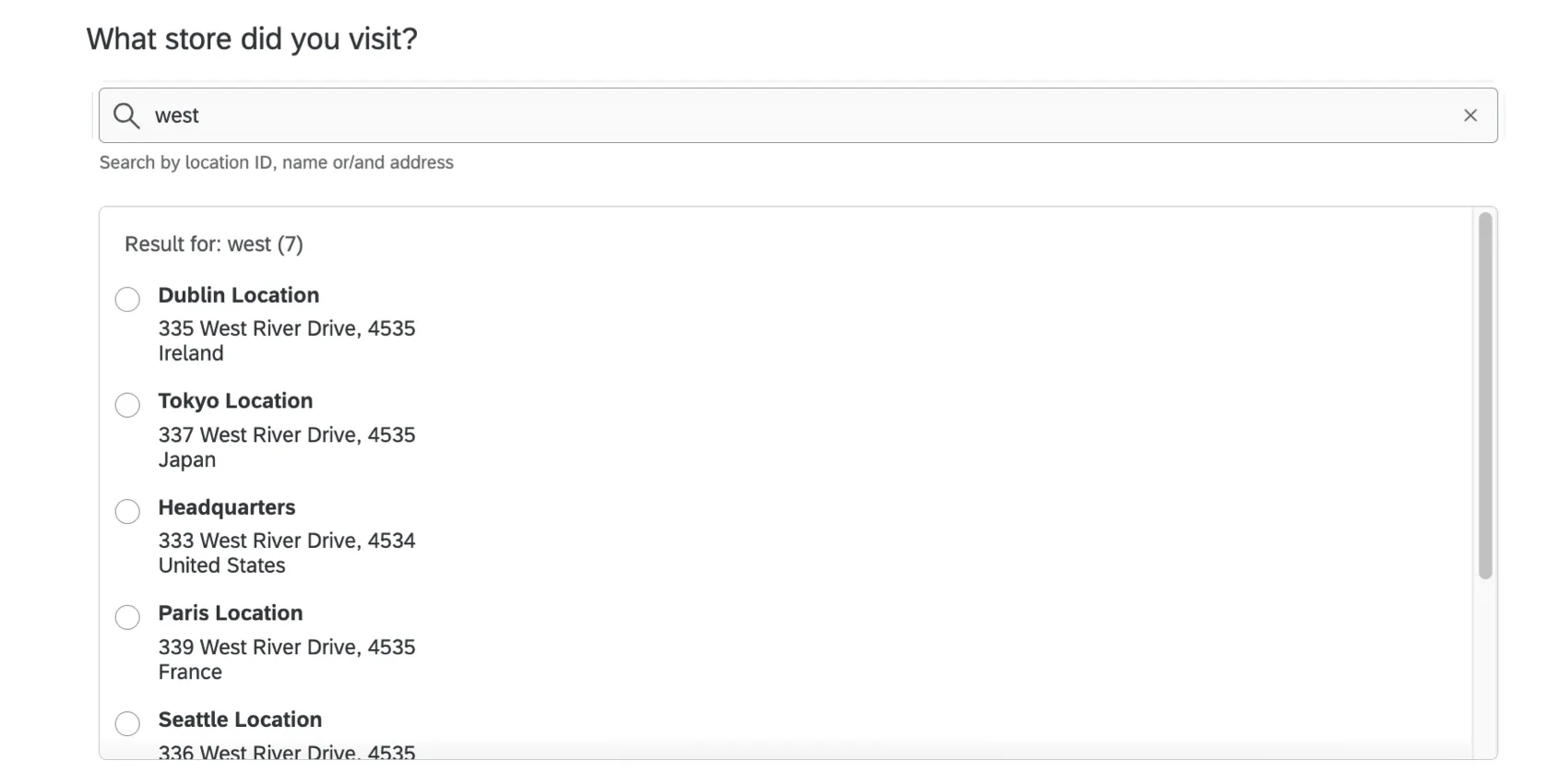
Location selectors let your respondents search through a set list of locations. Respondents can scroll through the list or even type addresses and names to find what they need. This feature is great for providing a dynamic list of your organization’s locations, such as different stores or campuses.
Qtip: This feature is not available for data isolated brands.
Setting Up a Location Selector Question
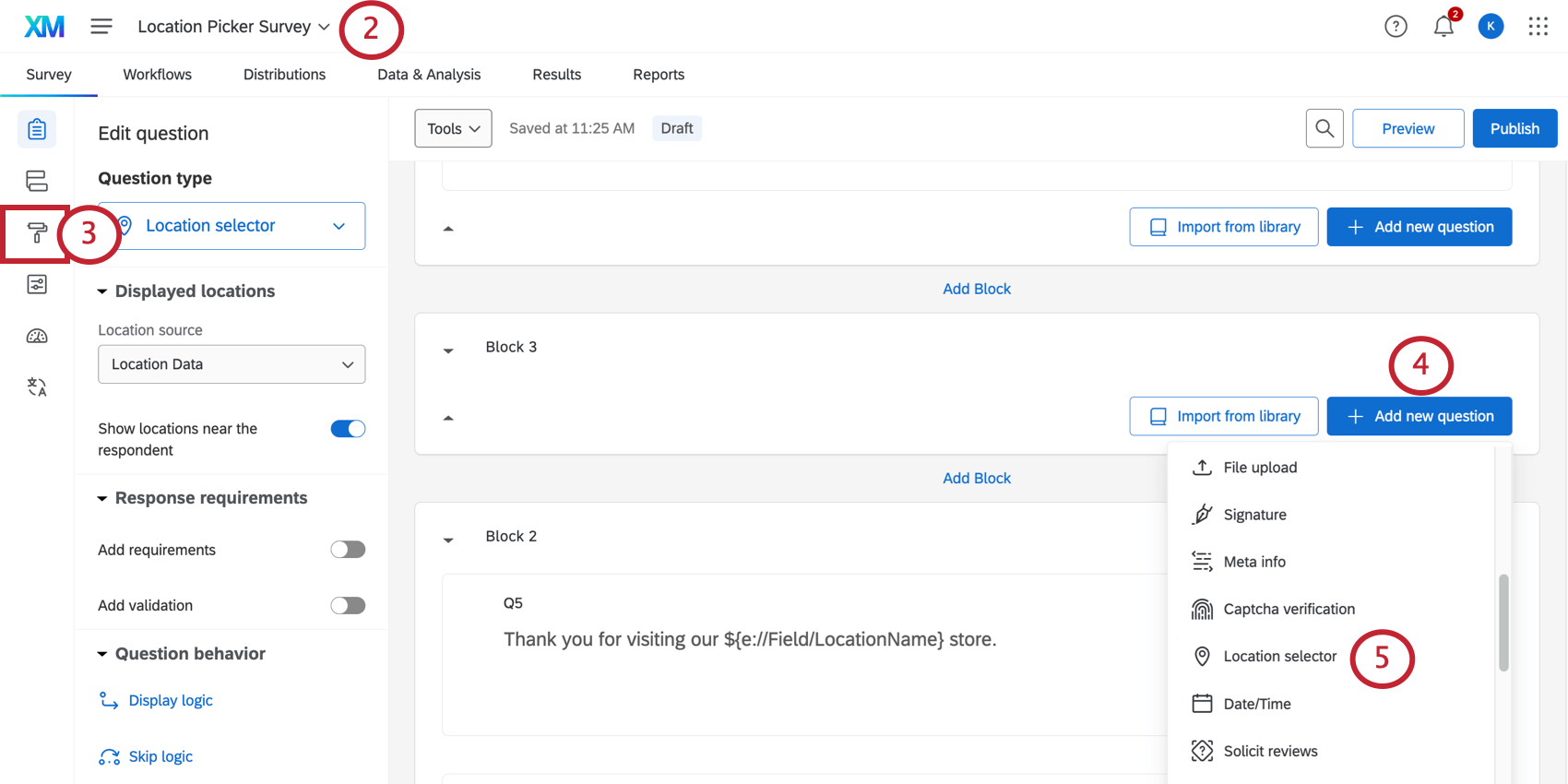
Qtip: Brand new surveys use this experience by default.

Qtip: You may need to refresh the page before this source appears.
Qtip: This option makes it so that when the question first loads (or the search is empty), the list will automatically populate with nearby locations based on the respondent’s current geolocation. Geolocation is only used to identify nearby locations, it is not stored with the response.
-
- Location ID: A unique identifier automatically assigned by the Qualtrics system. This field is selected by default.
- Location External Reference: A unique identifier from your internal system. This can be used to deduplicate locations across directories.
Qtip: For more information on these fields, see Available Location Data Fields.
When you preview the survey, try searching for a few locations by using their location name, city, zip code, and so on. The list will show the locations most relevant to your search input. If you’d like to change how addresses are displayed for locations in the selector, see Editing Locations.
Qtip: Don’t forget to publish your survey when it’s finished.
Qtip: Do you want to direct respondents to different survey questions based on their different location selections? Do you want to show dynamic text to respondents based on their answers? You’ll need to do more survey customization to make that possible. See Customizing Surveys with Supplemental Data.
Required Location Data Fields for Location Selectors
One of the steps to set up a location directory is to create a file of the locations you want to be able to use in Qualtrics. In the previous section, we talked about how to download an example file format, but you may be wondering if all of the columns in that file are required. Below, we’ll give you a list of fields that are required.
- Location name
- Location ID (include the column, but leave the values blank) Warning: You must leave location IDs blank to upload a new location. Upload existing location IDs to make updates to existing locations.

- Location Longitude
- Location Latitude (only required for Nearby feature) Qtip: The location selector question has a “Nearby” feature that will search which of the locations you provided is closest to the survey owner. To activate this feature, your data file must include latitude and longitude fields.

Qtip: In addition to the required fields, you can add as many supported fields as you want. See Available Location Data Fields. Please note that you can only add fields from the linked list.
Customizing Surveys with Supplemental Data
Using supplemental data sources (SDS) in your surveys lets you use location data to customize the survey experience and enhance your data analysis. You’ll be able to customize what customers see based on their location, and you’ll be able to pull in a lot of location data without having to individually save each piece of information in the survey itself.
For more information and steps, see Customizing Surveys with Supplemental Data.
FAQs
How do I reach the location directory?
How do I reach the location directory?
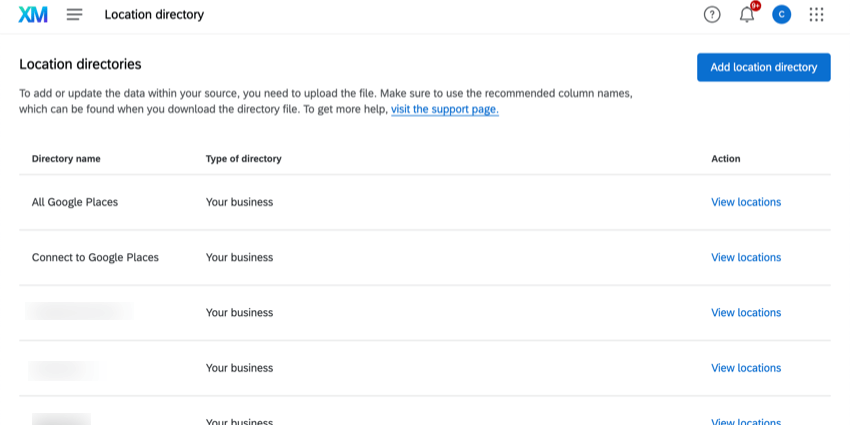
We also link to the location directory in the platform when you create a location selector question and when you create a reputation management project based on searching the web.
Can I use my location data in dashboard reporting?
Can I use my location data in dashboard reporting?
How do I edit my locations?
How do I edit my locations?
Can I change how addresses are displayed in the question?
Can I change how addresses are displayed in the question?
What kind of project can I use this type of question in?
What kind of project can I use this type of question in?
That's great! Thank you for your feedback!
Thank you for your feedback!