

Coaching Recommendations Project
What's on this page
About Coaching Recommendations
Coaching Recommendations projects enable you to get insights on agent performance and ongoing coaching for your contact center teams. Once configured, these projects can be linked to an instance of a Customer Care App so you can visualize agent performance and coaching within several informative widgets.
To set up a coaching recommendations project you’ll need the following:
- Link your Discover and Qualtrics accounts.
- Set up Intelligent Scoring.
- Create a CX Organizational Hierarchy.
Creating a Coaching Recommendations Project
You can create a Coaching Recommendations Project by going to the Catalog and either searching it by name or finding it within the Customer XM category.
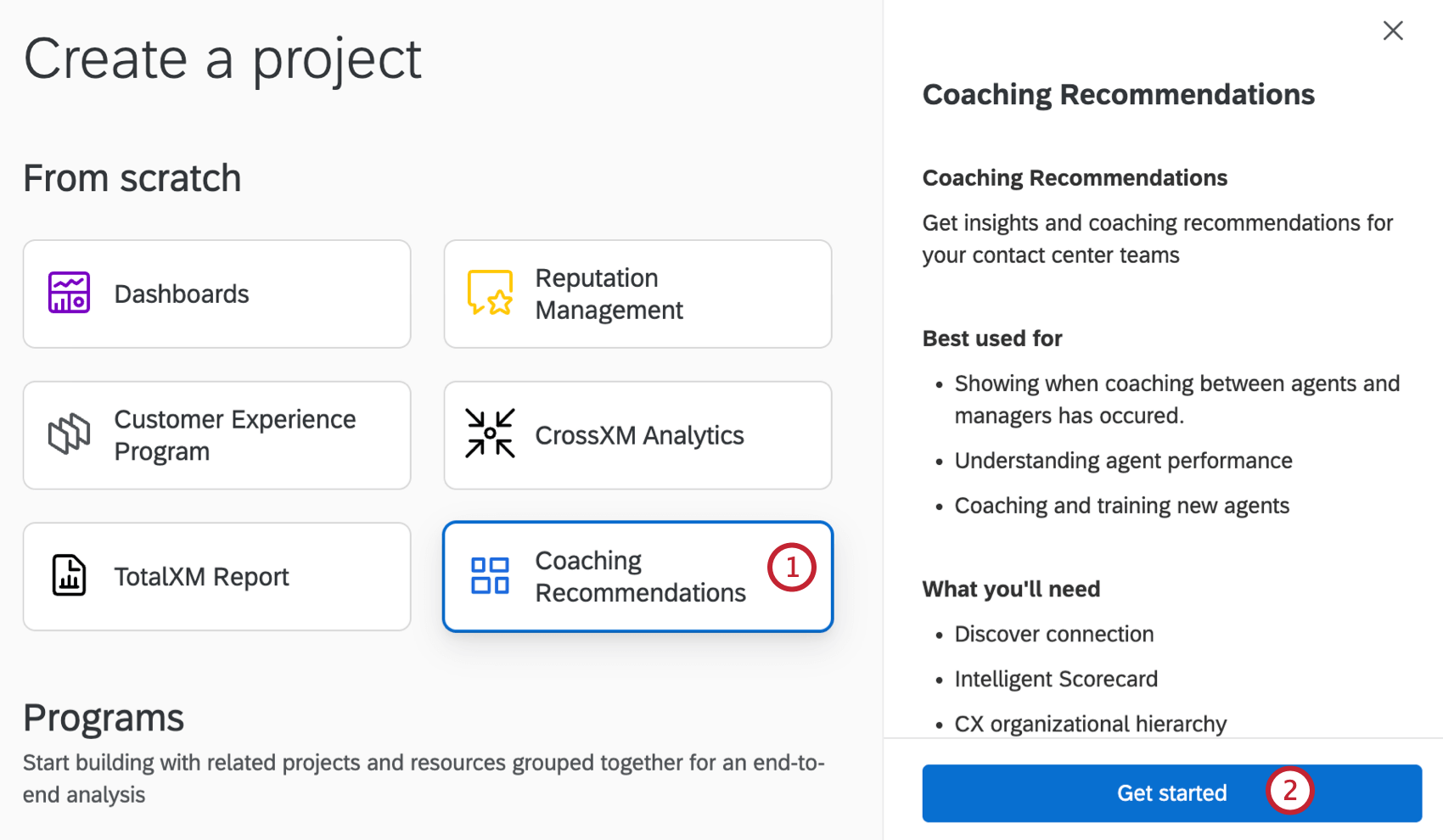
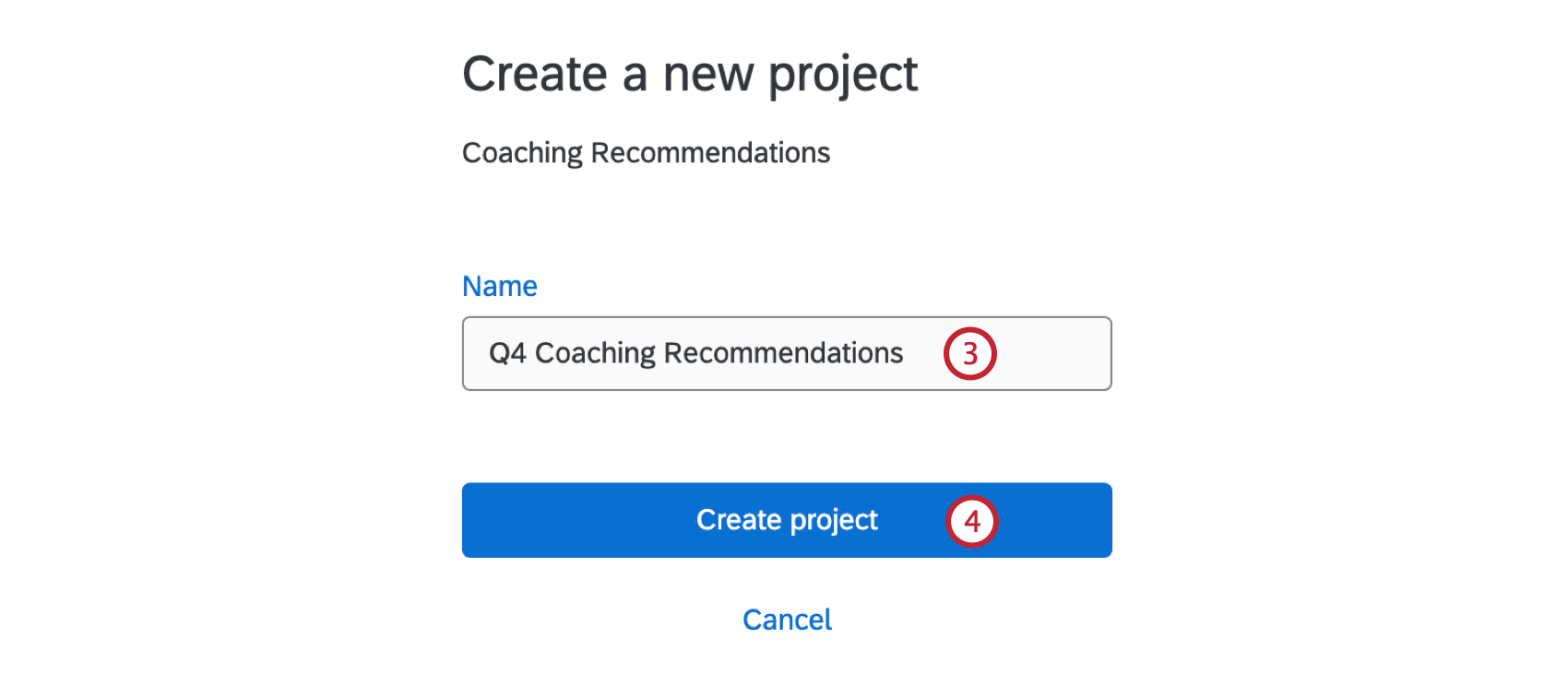
Project Details Tab
You’ll be taken to the Project Details tab after you’ve created your project. Here you can configure project properties, set up a rubric, and configure coaching settings. You have to complete each section in order before moving on to the next one. The status of each section will update as you complete it.
Attention: Click Save as you progress through each section to make sure your configuration is saved.

Project Properties
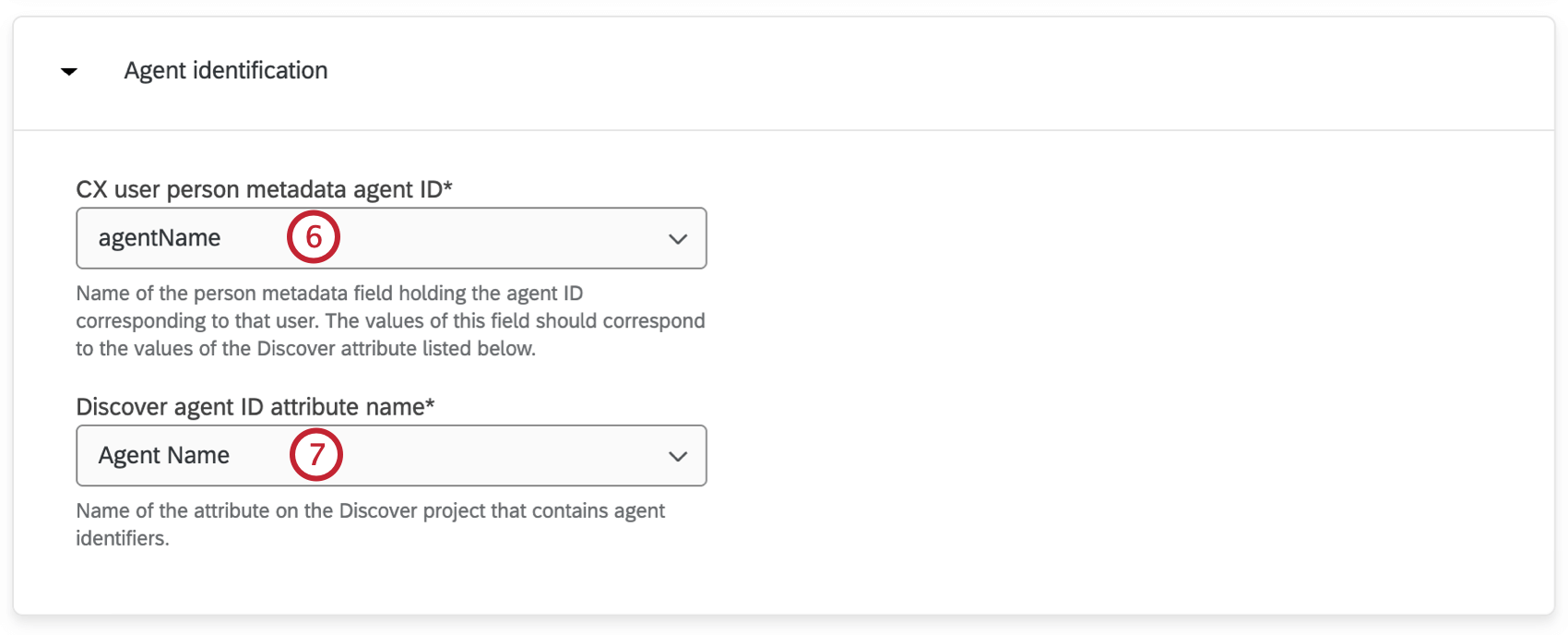
In the project properties section you can configure the properties your coaching recommendations project will have. This includes a Discover data source, a CX organizational hierarchy, and agent identification. Once configured, your Discover rubric criteria can be edited in the next section.
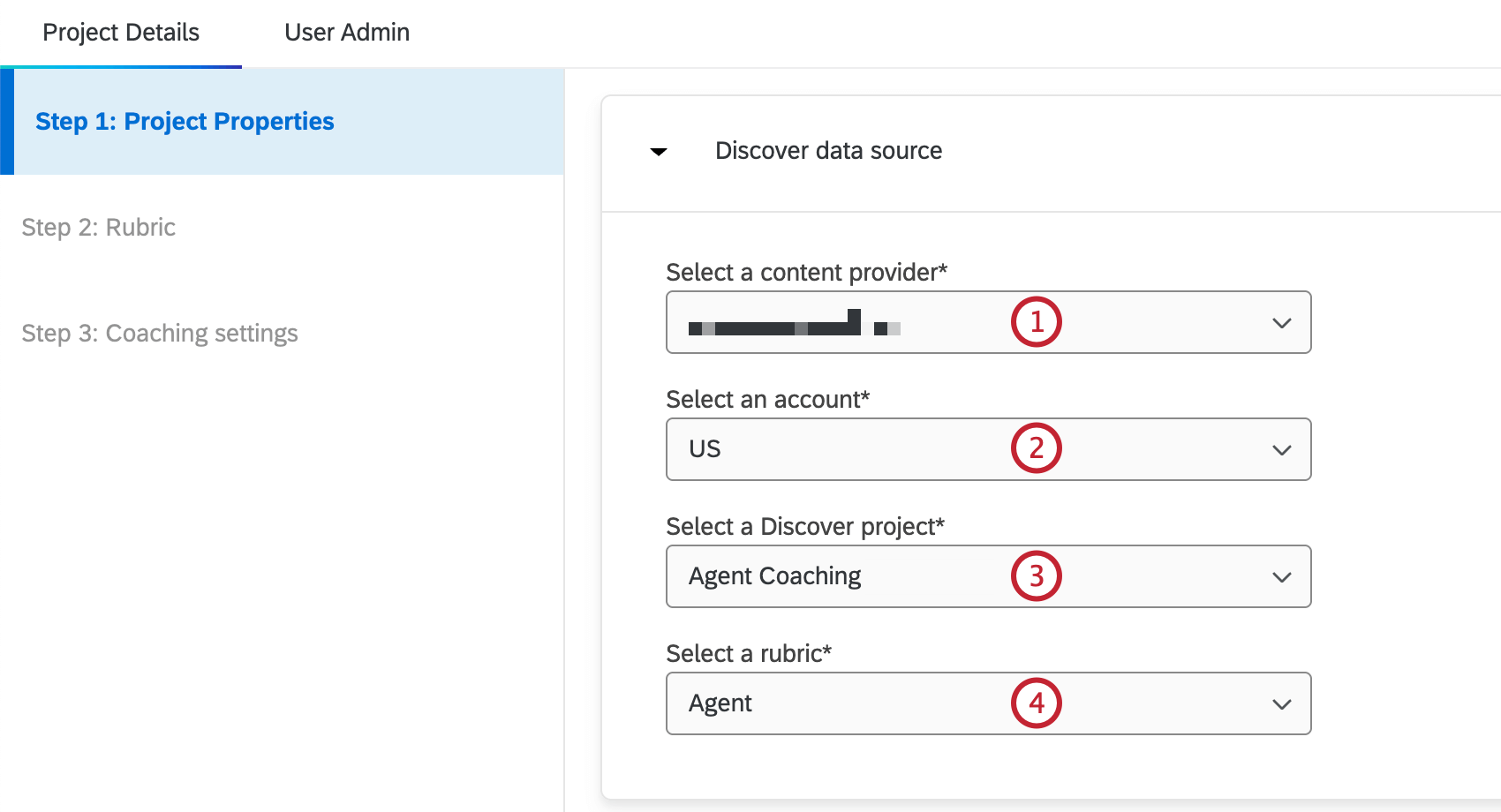
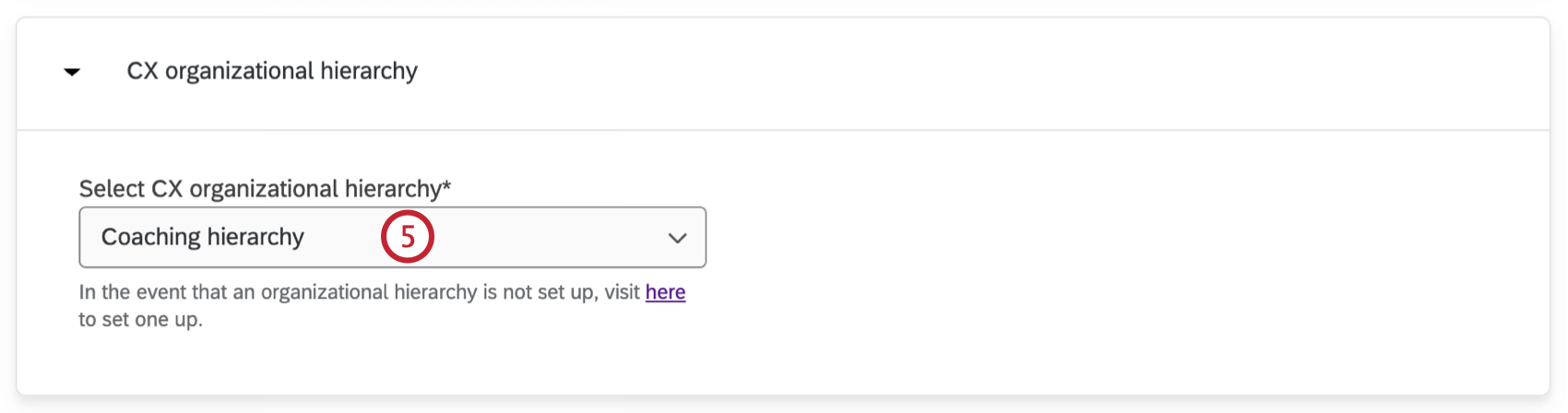
Rubric
The scoring criteria from the rubric you created in XM Discover will be automatically added to this section after it is selected within the Project Properties section. Follow the steps below for each scoring criteria you want to include in your coaching plan.
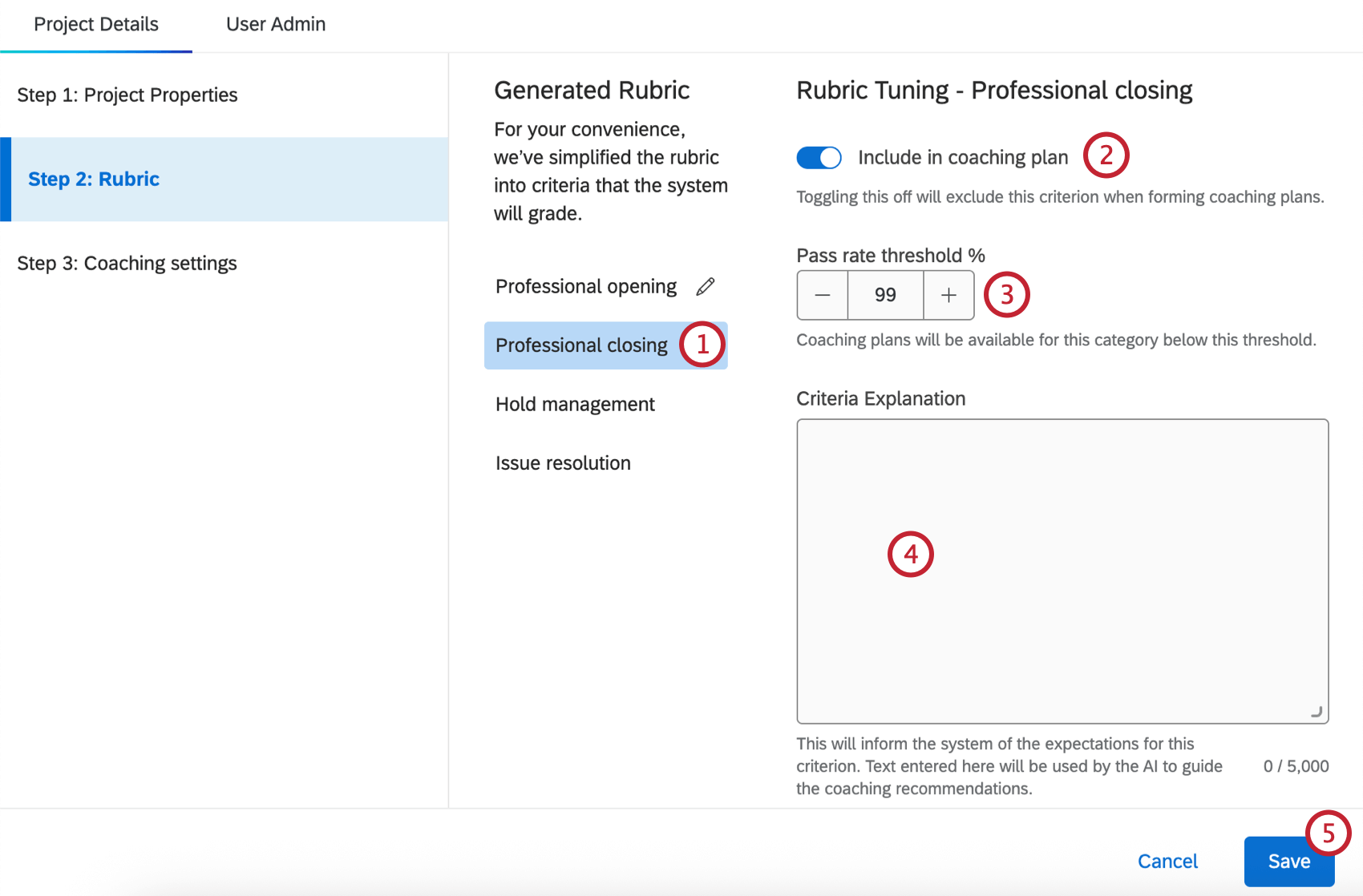
Qtip: Any criteria you’ve edited will have a pencil icon next to them. This icon will disappear when you click Save.

Coaching Settings
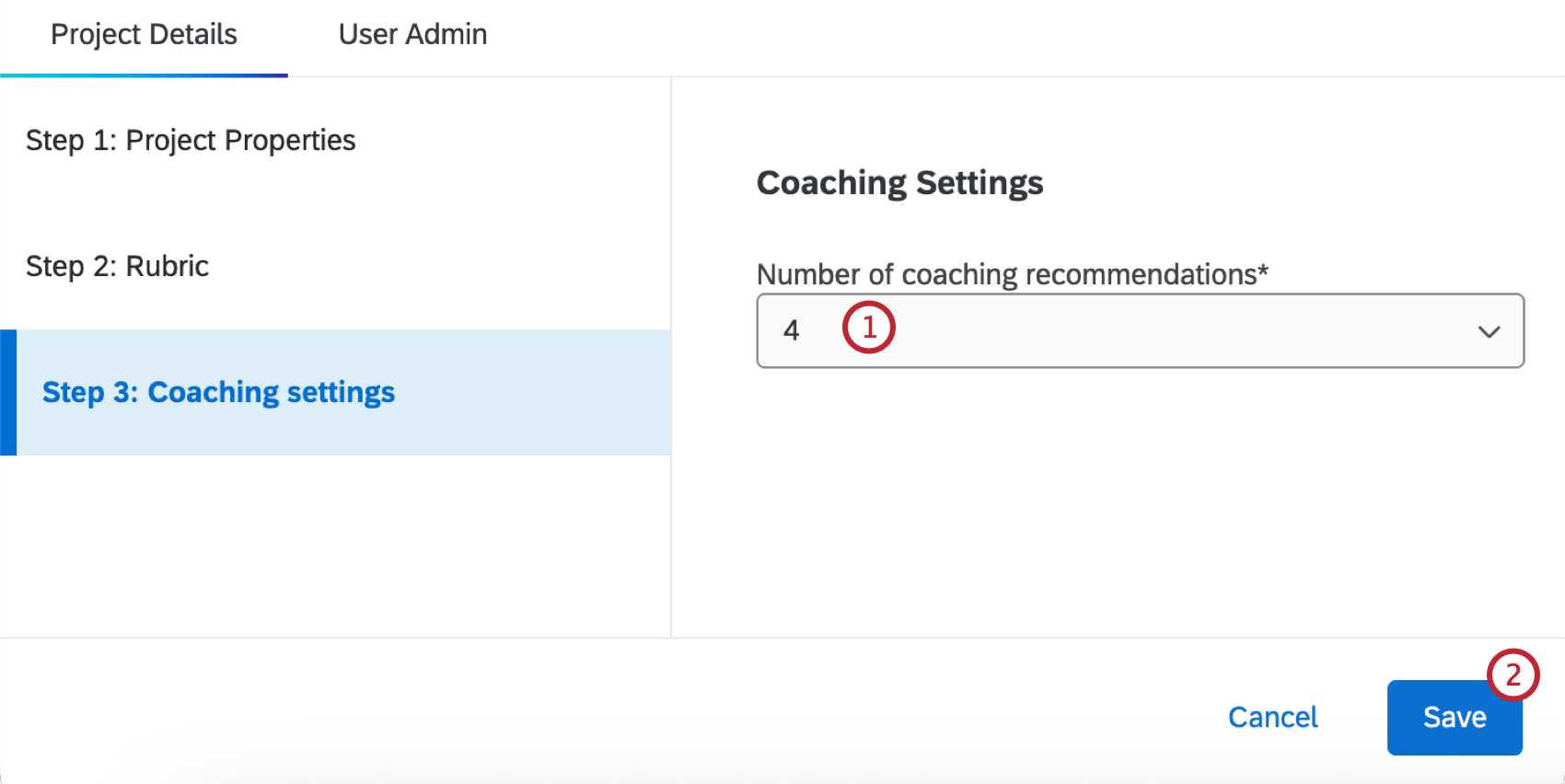
In this section you can set the number of coaching recommendations that will be displayed in the coaching tab of your Customer Care app.
Sharing a Coaching Recommendations Project
You can add other users as project admins or testers by sharing the project with them:
On the Projects page, click the menu next to your project.
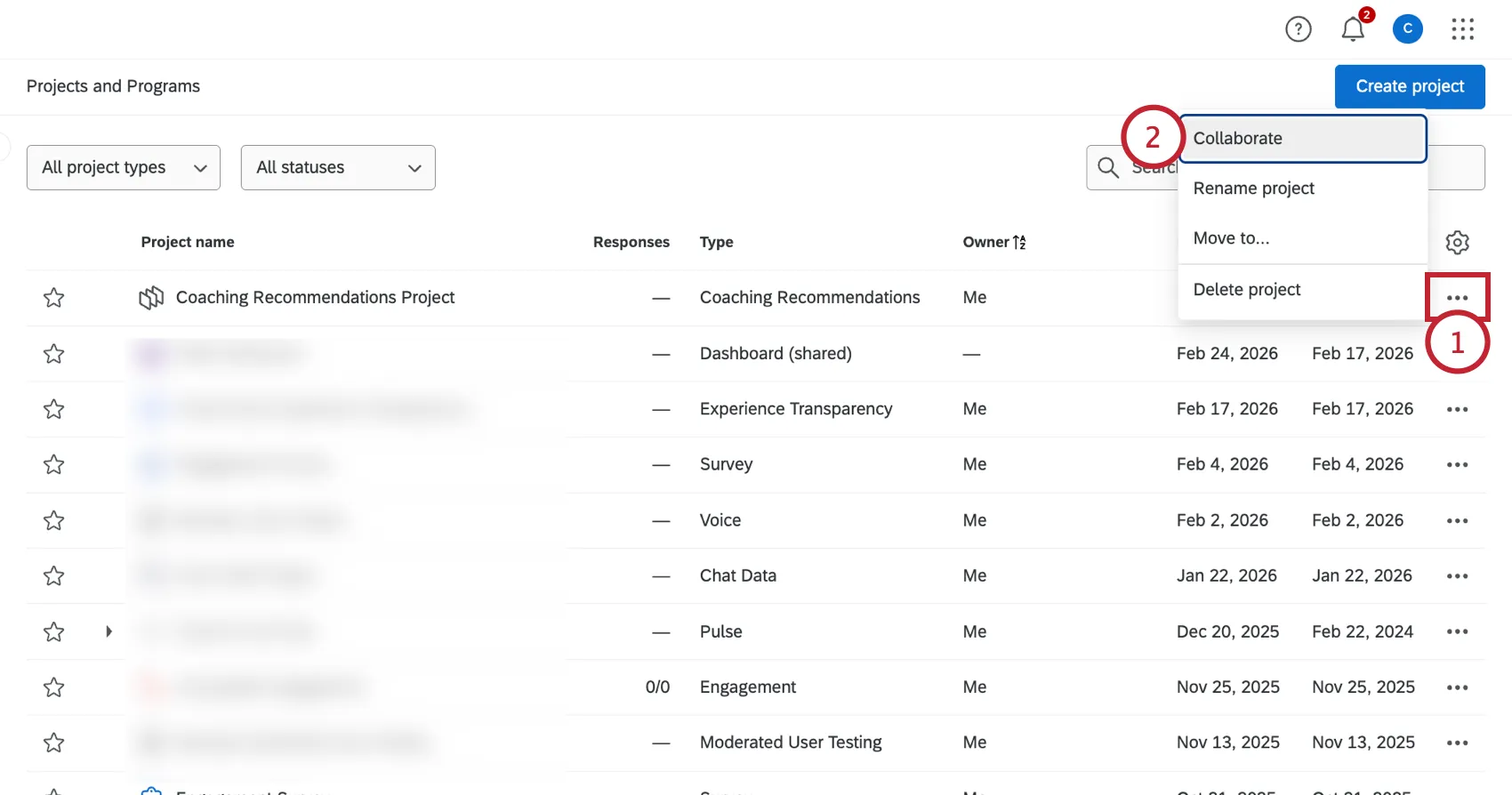
Select Collaborate.
Search for the user you’d like to share the project with.
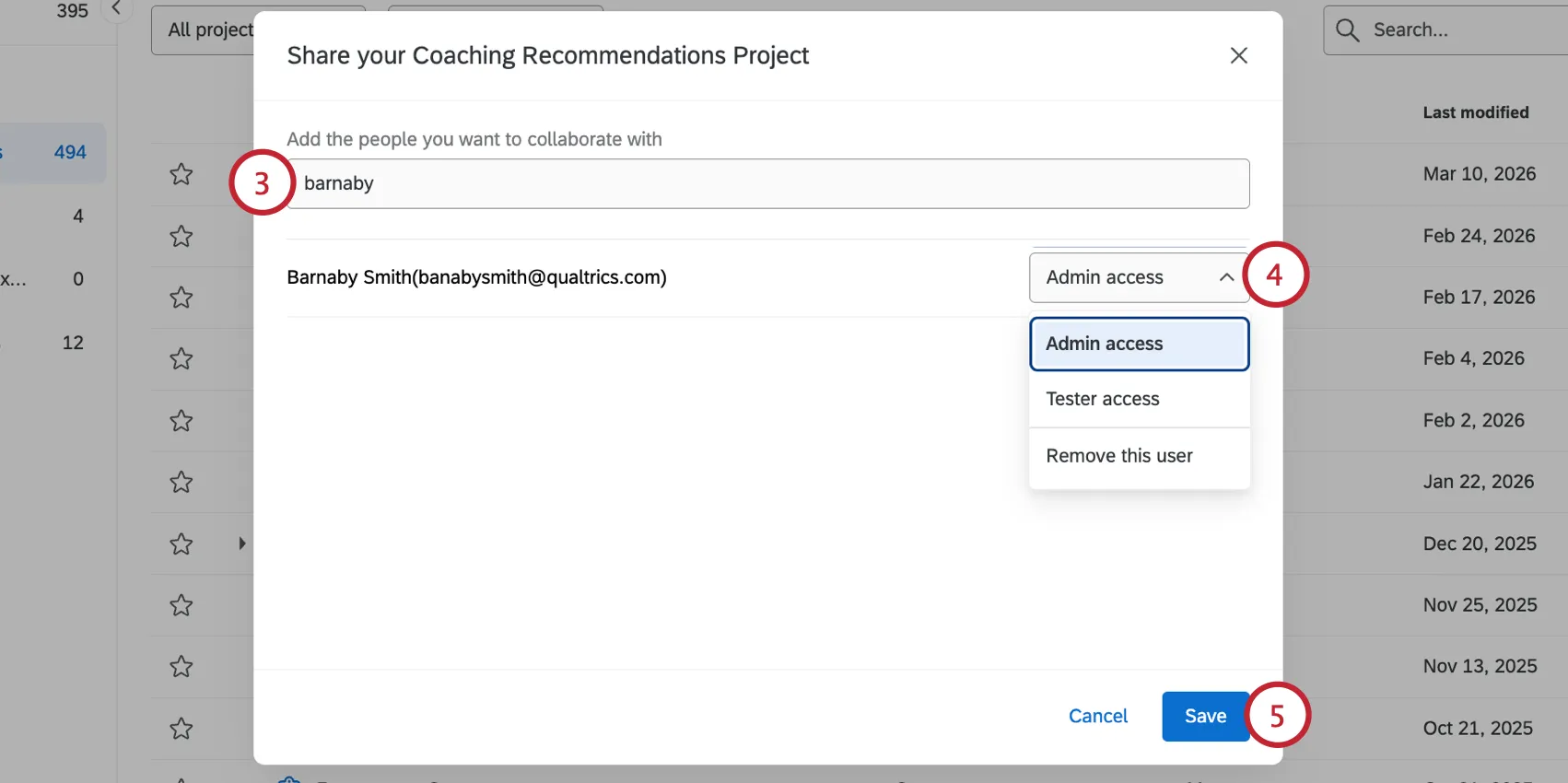
Select their level of access:
- Admin access: Allows the user to make changes in the project details and user admin tabs, and use project testing.
Qtip: Only the project owner can rename, move, or delete the project.
- Tester access: Allows the user to use project testing.
- Remove this user: Remove access for this user.
Click Save.
Project Testing Tab
The Project Testing tab allows you to view how your Customer Care App appears for different users in your organization. This tab is available if you have admin or tester access to the project.
Testing your project allows you to validate that your project is properly set up before going live. Additionally, managers can use testing access to fill in for other managers who are out of office.
Attention: Please note that any actions you take while testing are saved to the app. This includes actions like creating new coaching advice for a user and editing information as a user.
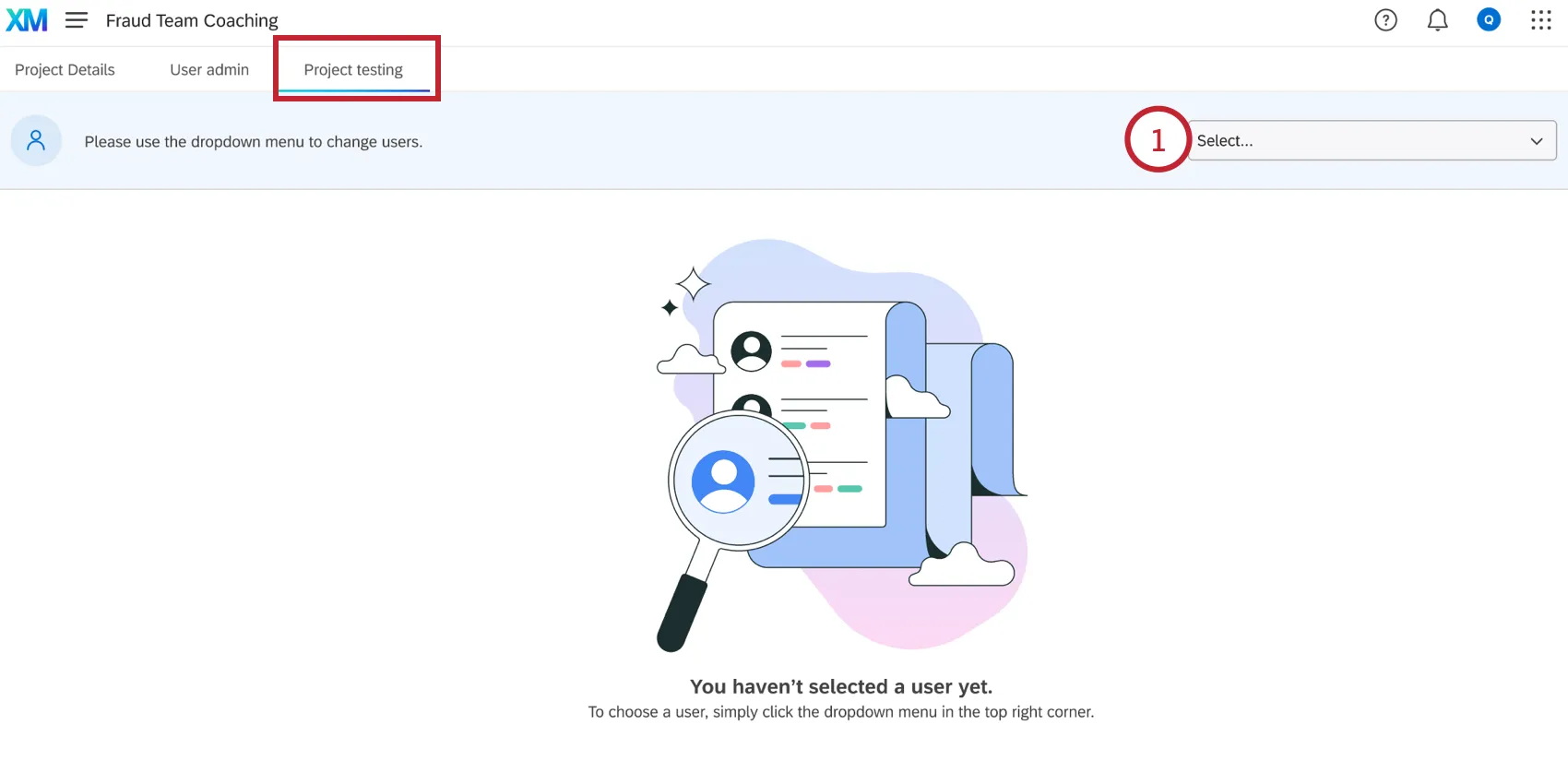
After navigating to the Project Testing tab, use the dropdown menu at the top of the page to select a user to view coaching recommendations as. This menu will be at the top of every page while testing, allowing you to easily switch users at any time. If you’re unable to select a user and see a message that the project setup is incomplete, then a project admin needs to complete the setup in the Project Details tab.
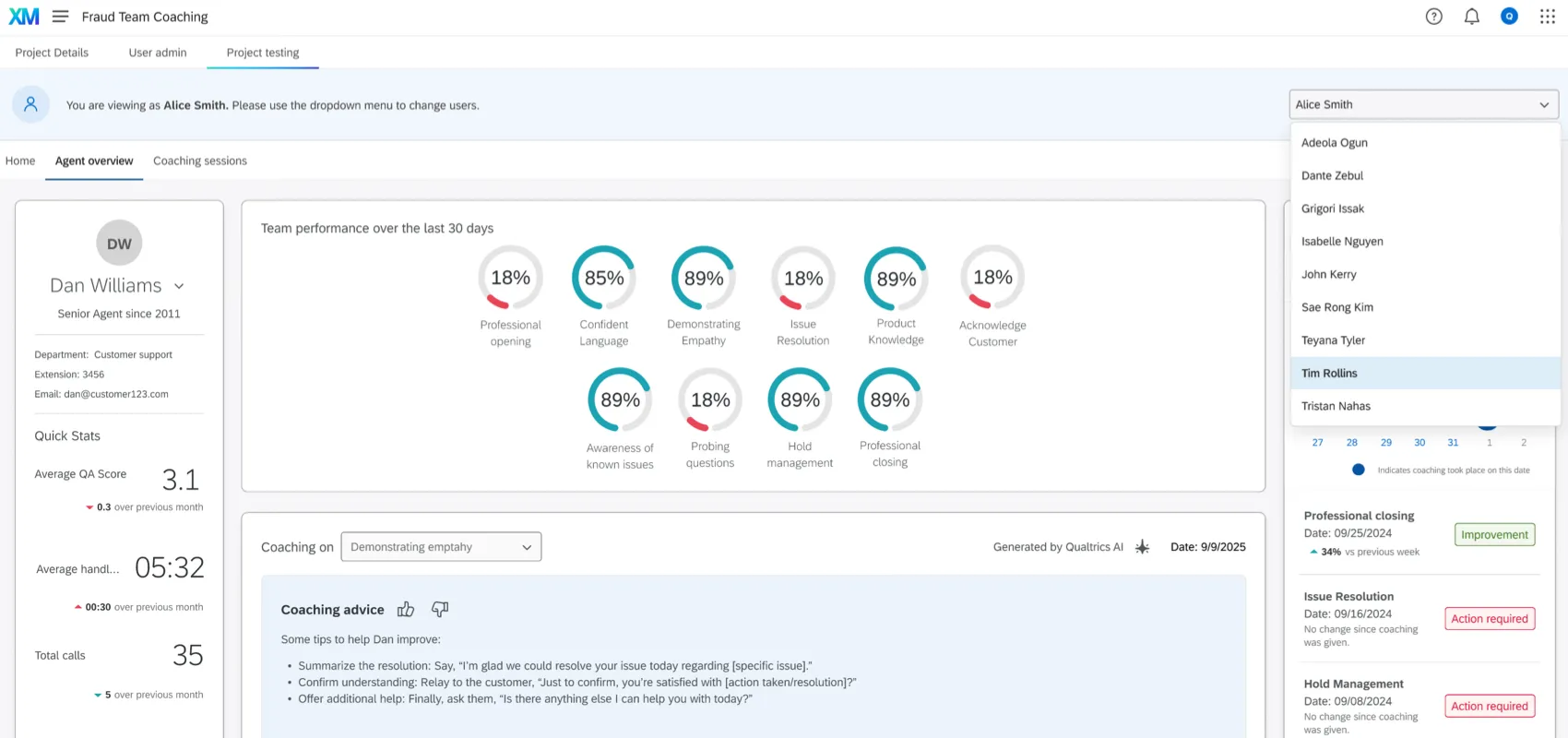
You can navigate this page just like the regular Coaching Tab and perform any actions, like viewing team performance, creating coaching plans, and editing user information. See the linked page for detailed instructions on using the widgets located here.
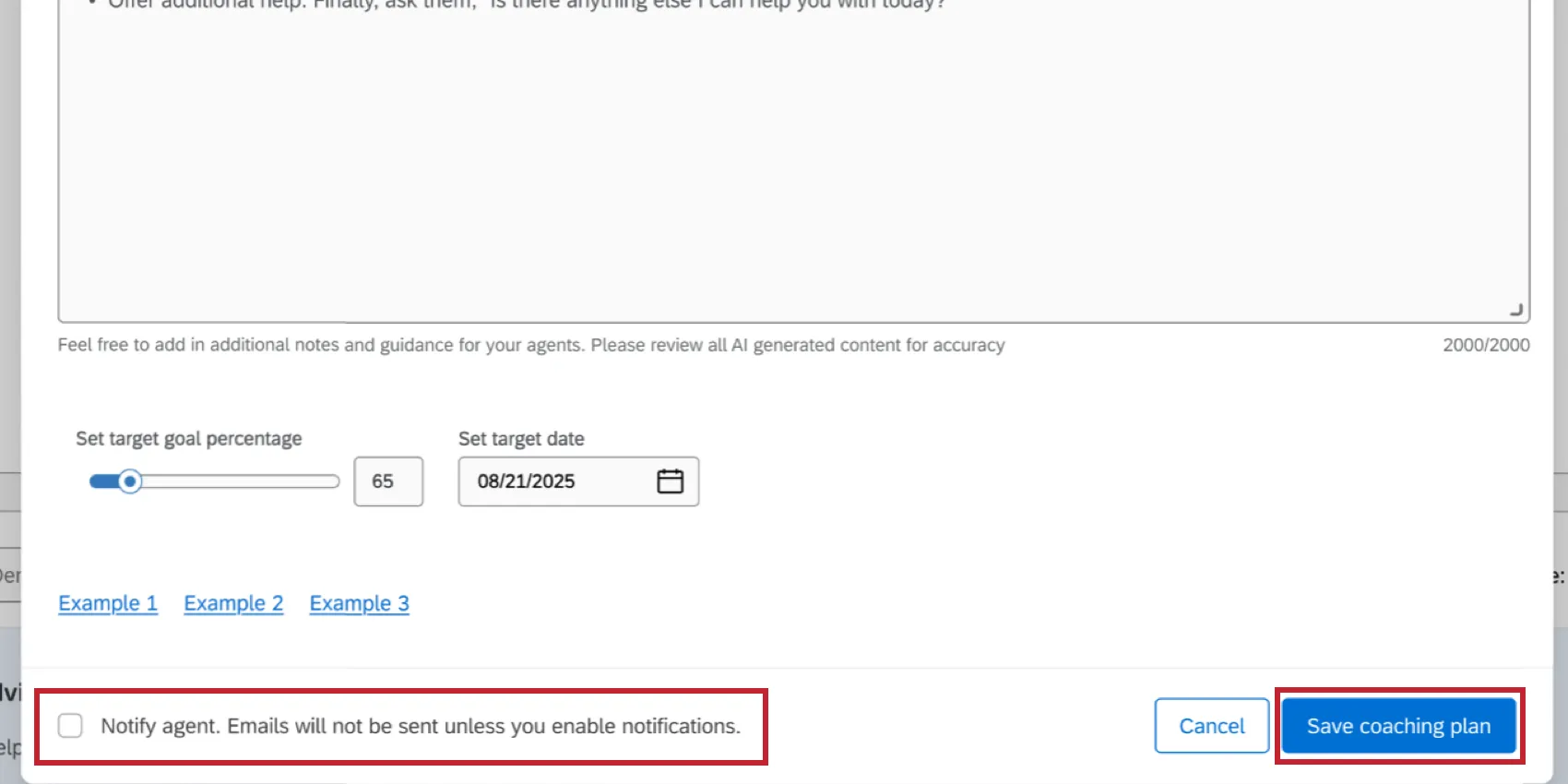
If creating a new coaching plan, you can choose if you’d like to Notify agent about the new plan by enabling the checkbox before saving the coaching plan.
User Admin Tab
In the User Admin tab you can manage and upload users, create org hierarchies, and create roles. The functionality in this tab is the same as User Admin in CX Dashboards. See Managing CX Dashboard Users for more information and instructions on using this tab.
That's great! Thank you for your feedback!
Thank you for your feedback!