

Intercept Options Section
What's on this page
Qtip: If you don’t have access to any of the features described on this page, reach out to your Account Executive. For more information about the differences between Digital Feedback and CustomerXM for Digital, see Digital Feedback vs. CustomerXM for Digital.

About the Options Section
Each intercept you create will have a set of general display options found by clicking the Options section. These options include Sampling, Repeated display prevention, and Randomization.
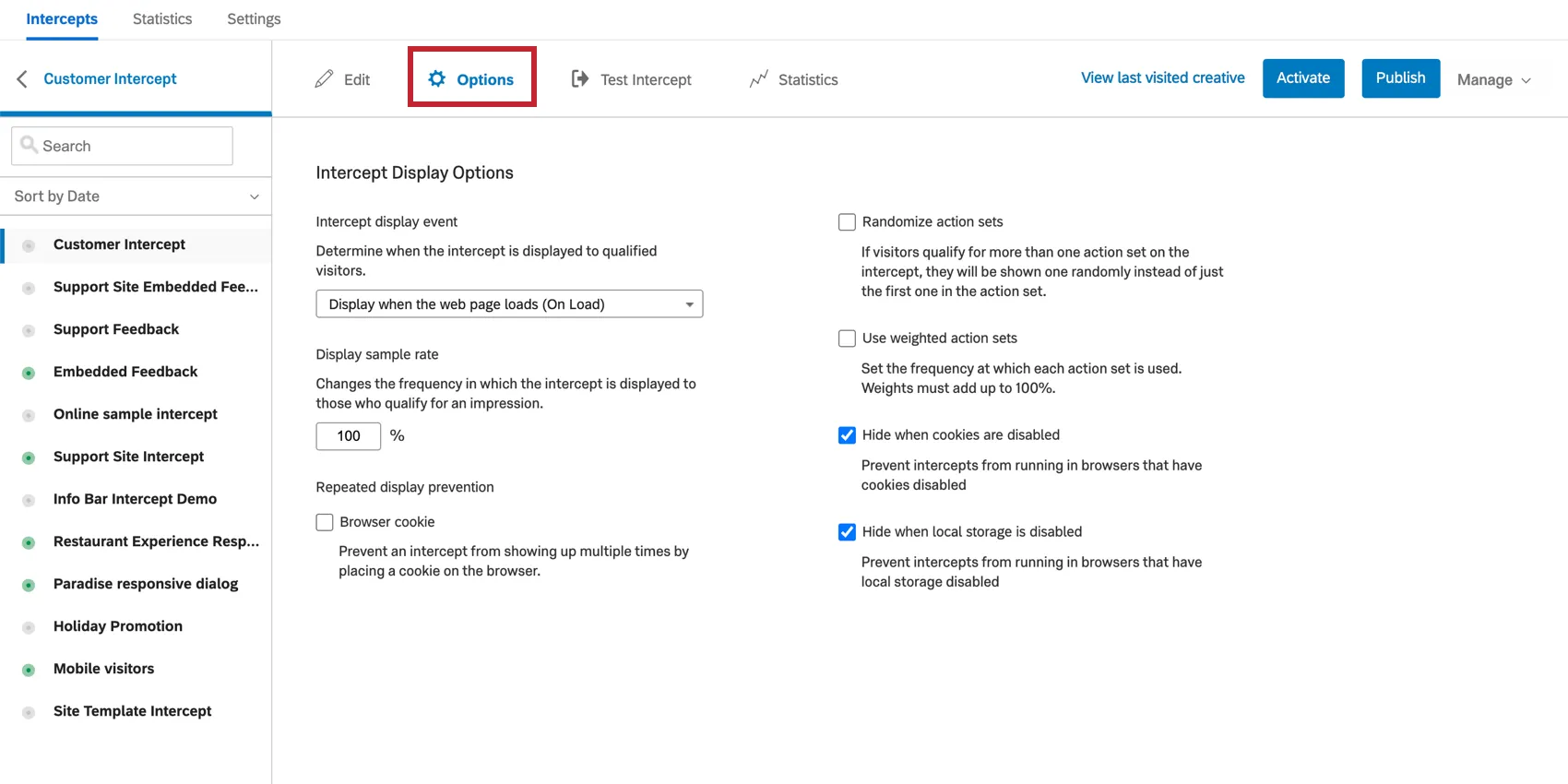
Display Sample Rate
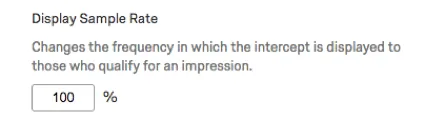
By setting a sample rate here, you can specify what percentage of visitors that qualify for an action within that intercept will be presented with that action. For example, if your intercept has one action set and you change the Display Rate to 50%, only 50% of visitors will get that intercept and thus see that creative.
Qtip: If you’d like, you can use decimals in the Display Sample Rate field. You can input a number with up to two decimal places.
If sample rates are specified within the deployment code itself or within an individual action, the sampling will be compounded.
For example:
Project Deployment Code Sample Rate
50%
Intercept Display Sample Rate
50%
Action Sample Rate
20%
Actual Sample Rate
5% = 50% * 50% * 20%
Repeated Display Prevention & Cookie Domain
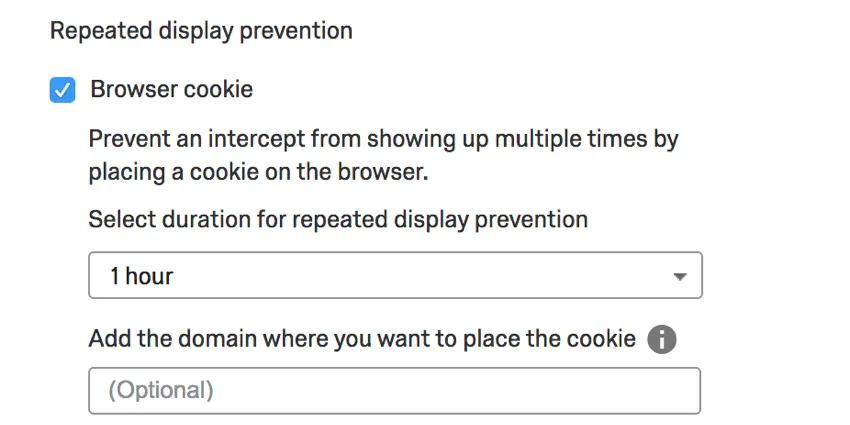
Once a visitor has seen a Creative, Repeated display prevention will prevent this intercept from being displayed again within the time period you specify. Click the dropdown to select a time period.
Repeated display prevention uses a persistent cookie to track whether display should be prevented in subsequent visits. These are cookies with an expiration date. By default, this cookie is specific to the domain or subdomain the visitor was on. For example, shop.siteintercept.com would track Repeated display prevention independently from about.siteintercept.com.
Qtip: Repeated display prevention depends on first party cookies that are placed on the end user’s browser on your behalf. However, if the end user has any mechanism that clears cookies regularly (such as an internal organizational policy) set up, then repeated display prevention will not work. In these cases, we’d recommend using intercept logic to ensure that the same user is not seeing an intercept too many times.
If you would like to specify that this cookie be saved site-wide, or if you would like it saved on a specific subdomain, you can specify the Cookie Domain. For example, we could set a Cookie Domain of siteintercept.com to ensure Repeated display prevention is applied site-wide rather being specific to a subdomain like shop.siteintercept.com or about.siteintercept.com.
Display Intercept
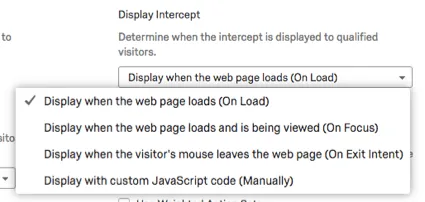
This setting determines when the intercept displays. It comes with several options:
- On Load: As soon as a page has finished loading, the intercept will display if the logic conditions on the intercept are met.
- On Focus: As soon as a page has fully loaded and the visitor is viewing the page, the intercept will be able to display.
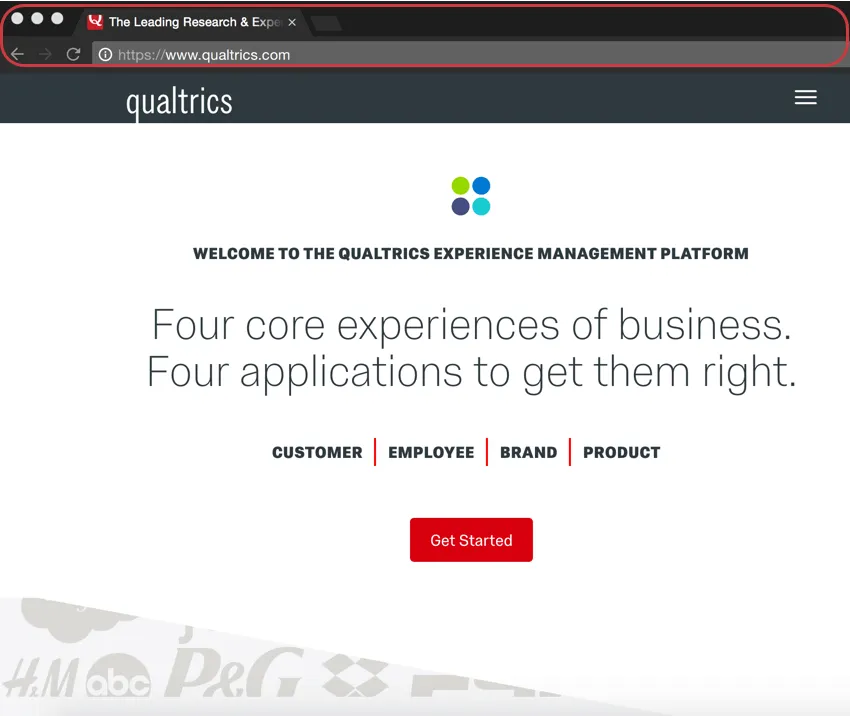
On Exit Intent: The intercept will be able to display as soon as the visitor has moved their cursor outside of the viewing area of the browser. This only includes the area of the browser above the viewing window. This option does not work on mobile browsers.

Example: In the screenshot below, the intercept will be triggered if the cursor moves into the highlighted area and if On Exit Intent is selected.
- Manually: The intercept is not able to display unless prompted by the JavaScript command QSI.API.run().
Randomize Action Set
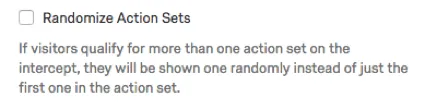
By default, this option is disabled and visitors will see the first action set they qualify for. This is useful if you’d like to prioritize actions according to how they’re ordered in the intercept editor.
With the Randomize action set box checked, the intercept will take all the actions the visitor qualifies for and randomly run one of them. This can be appropriate for A/B testing different versions of a creative to see which is most effective.
Qtip: For more on the order of action sets, see the Multiple Action Sets support page.
Use Weighted Action Sets
Qtip: Use Weighted Action Sets is not an option for mobile intercepts.
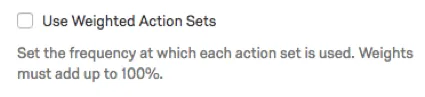
After enabling Use weighted action sets, go back to the Edit Intercept section to assign a weight to each action set by filling out the Display Rate field.
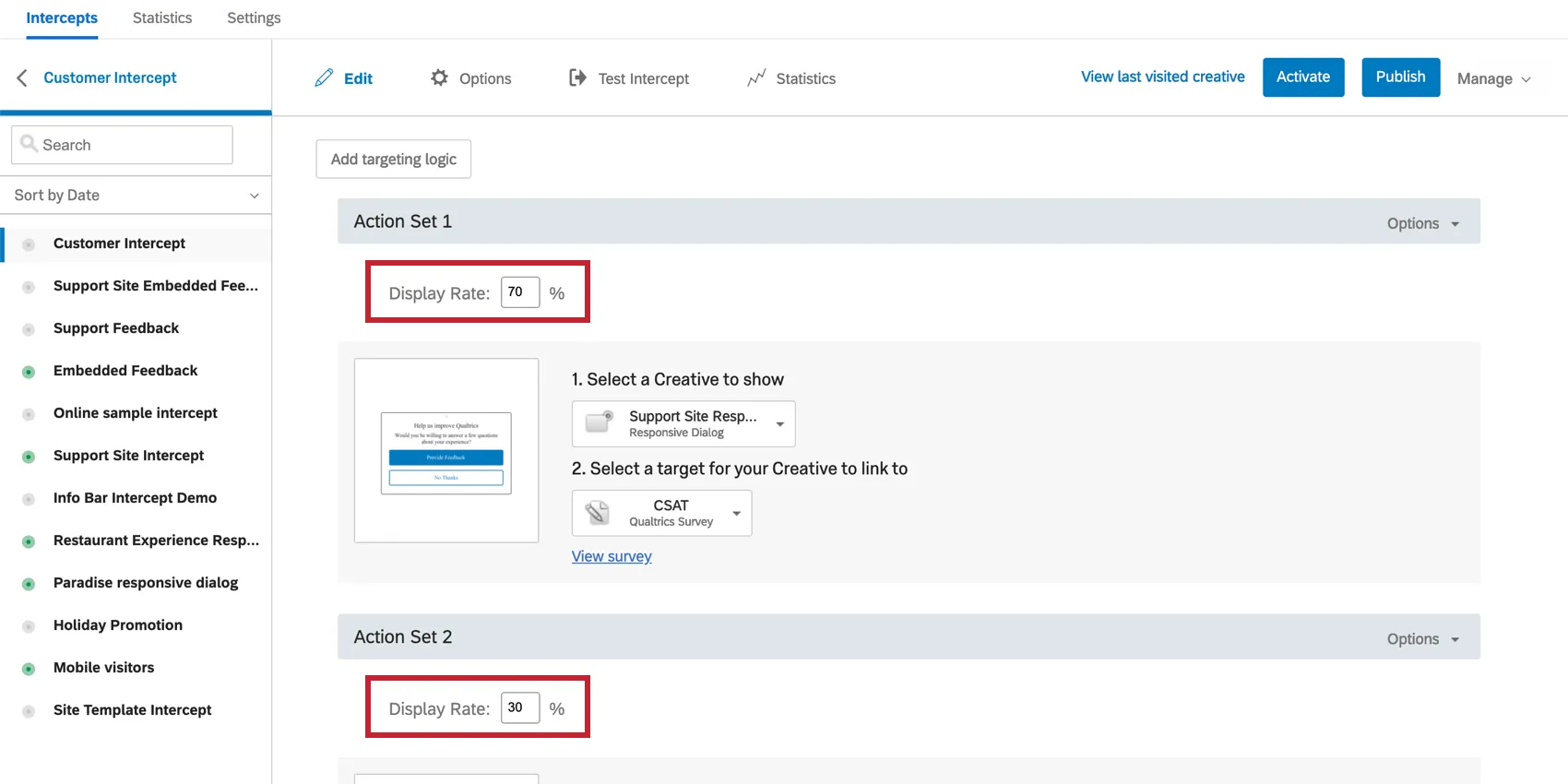
By weighting each action set, you’ll be able to break down how frequently each action set is presented. The total for this weighting should always equal 100%.
Hide When Cookies are Disabled
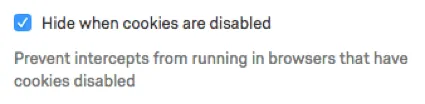
When selected, this option prevents the intercept from displaying when the visitor has cookies disabled on their browser.
This is a good option to use when you have an intercept with conditions or embedded data set to pick up cookie-related functions.
Example: Maybe you’re using Repeated display prevention or basing logic on Site History. If a visitor doesn’t allow cookies, they might be seeing this intercept over and over again because they never meet the conditions for it to stop displaying. Thus you would select Hide when cookies are disabled.
Hide When Local Storage is Disabled
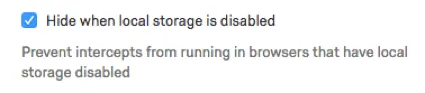
When selected, this option hides the intercept from visitors whose browsers have local storage disabled.
The intercept places a temporary cookie in the browsing session every time it is seen by a visitor. If your visitor has local storage turned off, features based on those cookies, such as Site History logic, do not fire.
You would select this setting in situations similar to when you’d select “Hide when cookies are disabled.”
Link with XM Directory
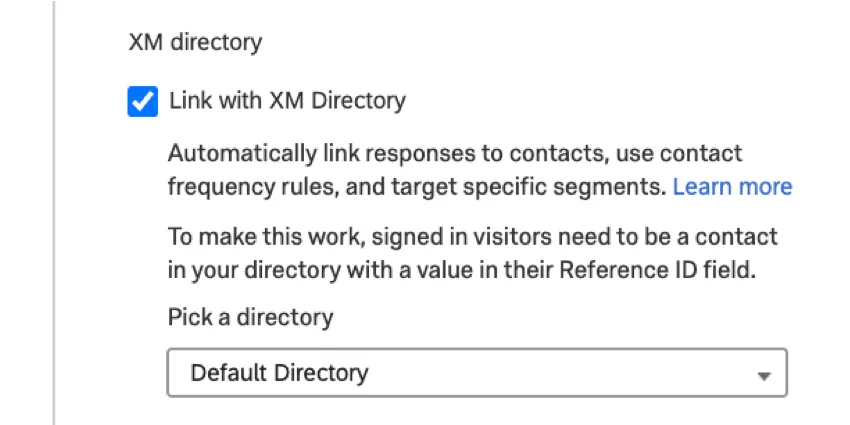
This option allows you to set up a link between your intercept and one of your directories from XM Directory for the following use cases:
Contact frequency rules
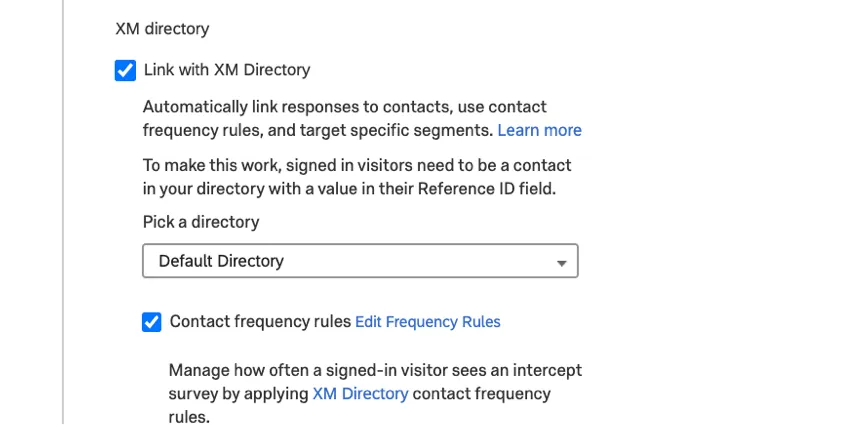
The Contact frequency rules option allows you to base your intercept display on contact frequency rules from the XM Directory. This feature enables cross-browser and cross-device contact frequency controls for your digital intercepts. To use this feature properly, see the XM Directory Integration with Digital Intercepts page for a step-by-step guide on implementing this functionality. Note that you must first enable the Link with XM Directory option before you can select this one.
FAQs
I have built my intercept but would like to test it before activation. How can I do that?
I have built my intercept but would like to test it before activation. How can I do that?
What is the difference between displaying On Load, On Focus, On Exit Intent, and Manually?
What is the difference between displaying On Load, On Focus, On Exit Intent, and Manually?
- On Load: The On Load option is the most basic display option. With this option selected, an intercept fires on a valid page as soon as the page itself loads. This means that a website visitor could load a URL in a separate tab or browser instance and have a creative shown to them without seeing it themselves.
- On Focus: The On Focus option allows us to more reliably ensure that a website visitor is active on a page before encountering an intercept. When a page loads that would display an intercept, the On Focus setting prevents the script from running until the visitor is active on the page. This is determined by mouse movement and clicking. This means that if the URL loads in a new tab, for example, the user will need to navigate to that tab and interact with the page first before the script runs. This is useful if your creatives are set to display on a timer.
- On Exit Intent: This option aims to display a creative when the website visitor attempts to leave your site. When deployment code is present on a page, we can detect the movement of a user’s mouse within the bounds of the browser. The Exit Intent feature detects the moment a cursor moves to the upper regions of a browser and triggers the intercept at this moment. Thus, when someone attempts to close a tab, you can catch their attention.
- Manually: This option is primarily used in Single Page Application setups. Selecting this will prevent anything from being displayed automatically. Instead, the Website Insights API must be run by the site itself to make the script fire and a creative display. Commonly, this is used when you want an intercept to trigger when certain elements on a single page are changed, such as changing filter values or loading elements within the same URL.
That's great! Thank you for your feedback!
Thank you for your feedback!