

Appeals & Rebuttals
What's on this page
About Appeals and Rebuttals
When reviewing interactions in document explorer or the feedback widget, a representative or a supervisor may disagree with how a particular behavior was evaluated due to a transcription error or a behavior that wasn’t captured by a rubric. XM Discover provides a workflow to appeal the scores of individual interactions.
Rebutting a Score
Qtip: To submit a rebuttal request via a ticket, you need a Manual Ticket Creation permission.

This is available for accounts with either Inbox or Tickets integrations. If an account has a Tickets integration, the user must be linked to the correct Engage user.
To submit a rebuttal request, click the clipboard icon in document explorer or the feedback widget to create a ticket from the interaction that was scored incorrectly.
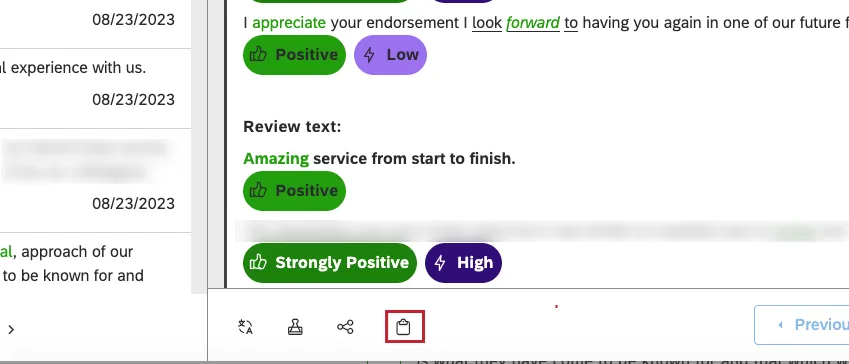
A user with the correct access will then be able to review your request and determine if the score needs to be changed or not.
Changing a Score
A member of the QA team can change a score. To enroll in a Qualtrics Quality Management course, contact your Qualtrics representative.
Qtip: To change a score, you need to have either a Configuration Analyst or Report Creator license, have data access to the project and have the Rebut Rubrics permission.
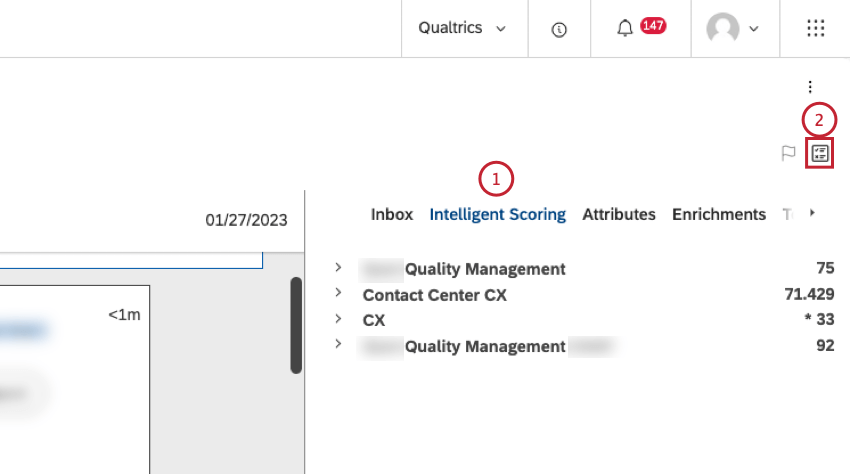
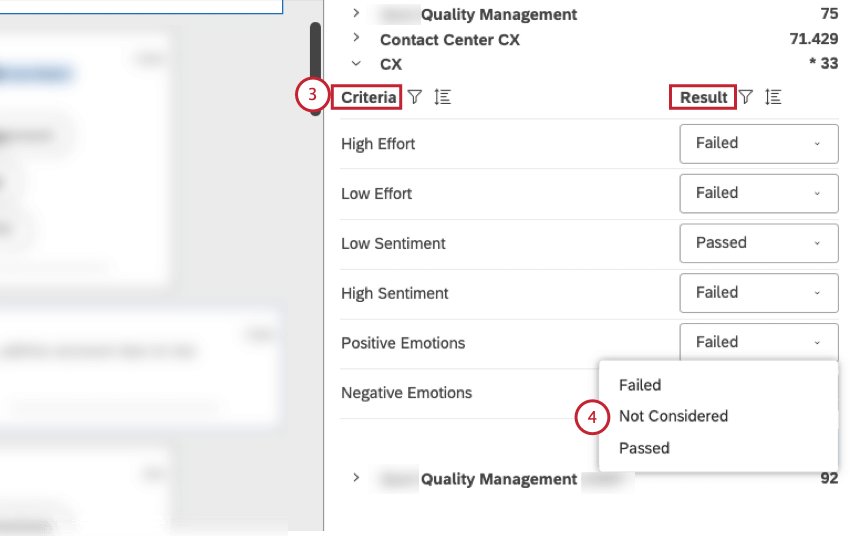
- Failed
- Not Considered
- Passed
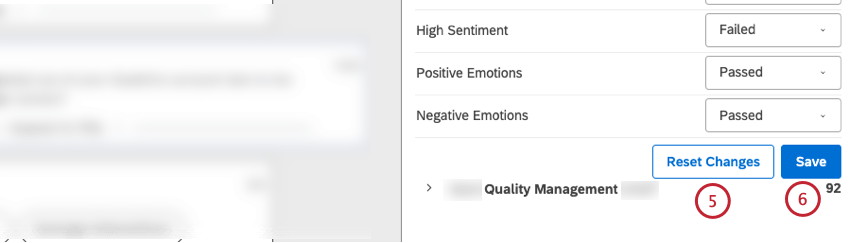
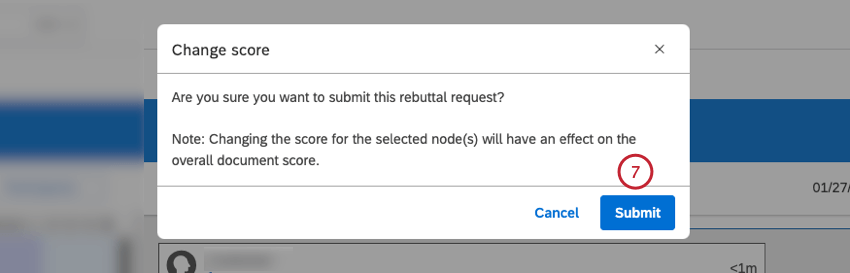
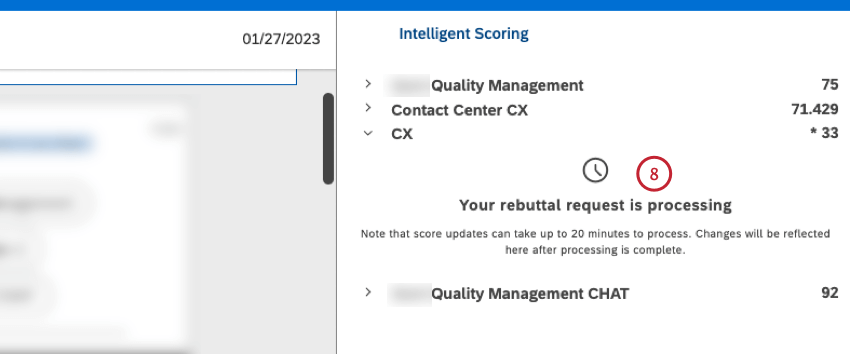
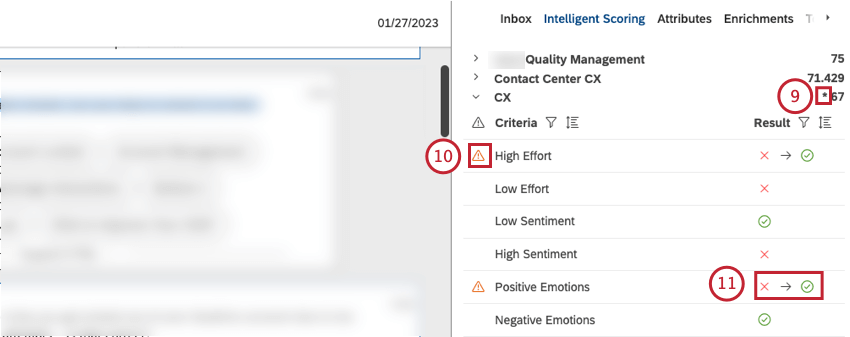
Qtip: Score updates can take up to 20 minutes to process.
Reporting on Rebuttals
Once at least 1 rebuttal is saved, additional topics and metrics become available in Studio. If a particular behavior is repeatedly rebutted, a topic may require review. A Configuration Analyst may need to update the category model from which the rubric is defined to ensure the text from an interaction is captured accurately.
Here are some examples of reports you can run:
- To find out which behaviors get rebutted the most, create a table widget and group data by a derived attribute called [Scoring model name] Rebutted Topics. Add volume as a calculation.
- To find out how many rebuttals were submitted last week, create a metric widget and apply volume as a calculation. Set the date range to Last 7 days. Filter the widget by the [Scoring model name] Rebutted Topics attribute and set the condition to “has any value.”
- To find out the average score for interactions with rebuttals, create a metric widget and apply the intelligent score as a calculation. Make sure Calculation is set to Average in the settings. Filter the widget by the [Scoring model name] Rebutted Topics attribute and set the condition to “has any value.”
- The security audit log tracks the RebuttalSaveEvent, which can be used to validate who is executing rebuttals.
That's great! Thank you for your feedback!
Thank you for your feedback!