

Managing Metric Alerts (Studio)
What's on this page
About Metric Alerts
Metric alerts notify your stakeholders about key metric thresholds. You can edit, enable, disable, copy, transfer, renew, or delete your metric alerts as needed.
To edit or view your metric alerts:
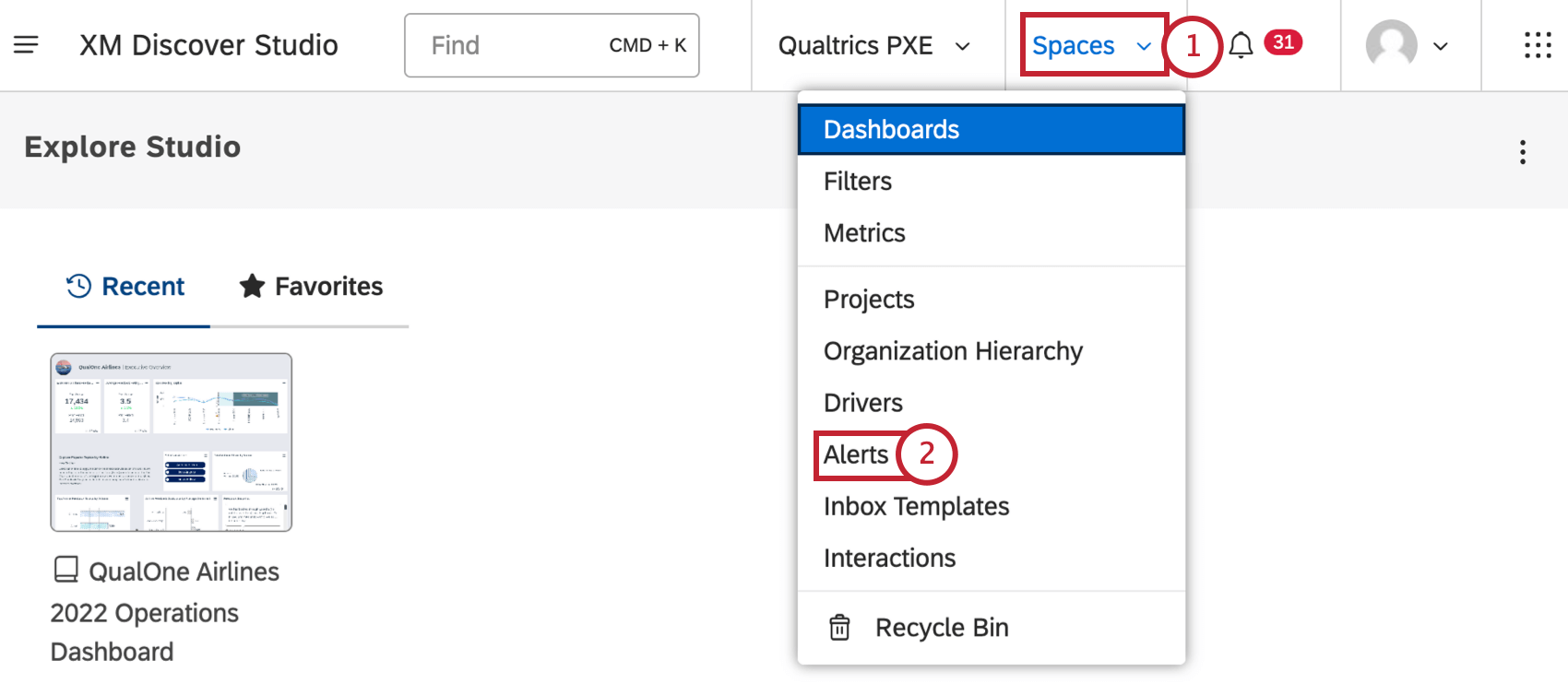
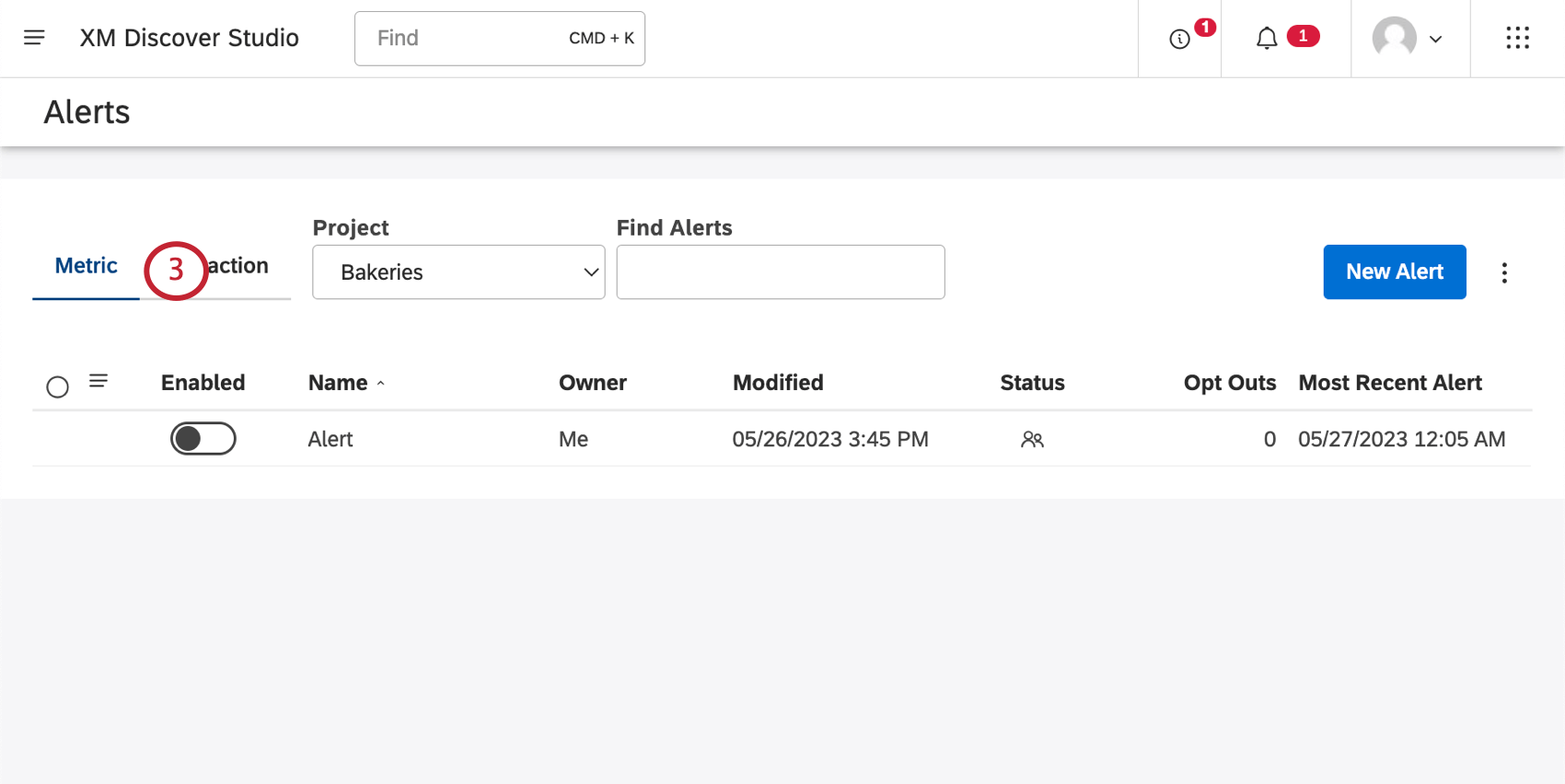
Finding Existing Metric Alerts
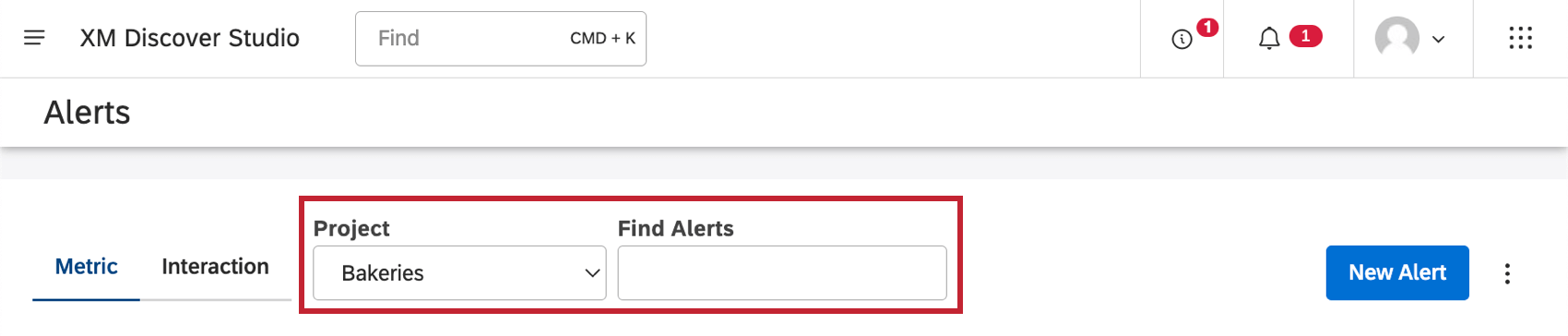
Use the Projects dropdown to switch between different projects your metric alerts are saved to. You can also use the search bar to search metric alerts by name.
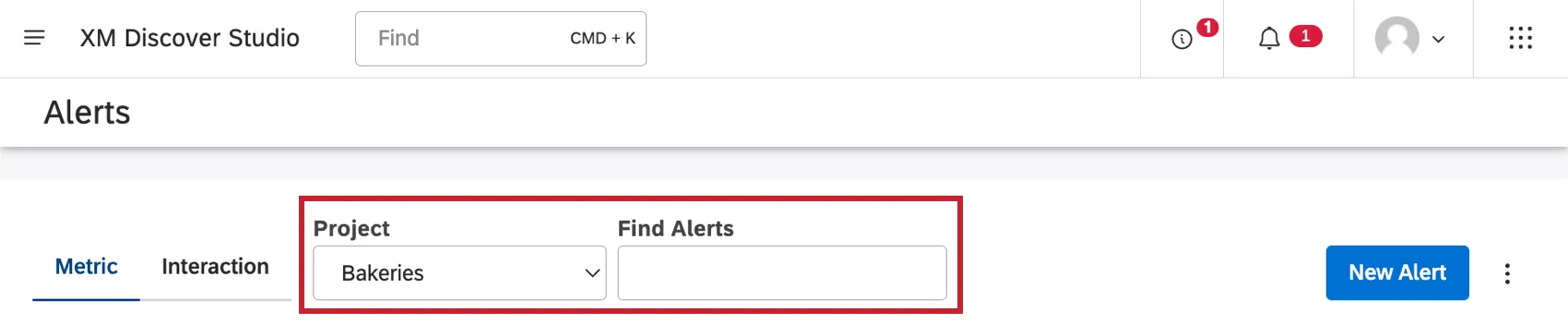
Qtip: You can search 1 project at a time. You may also need to select a content provider and an account, depending on what you have access to.
Qtip: These can be preselected as your favorites in user preferences.
Information on Metric Alerts
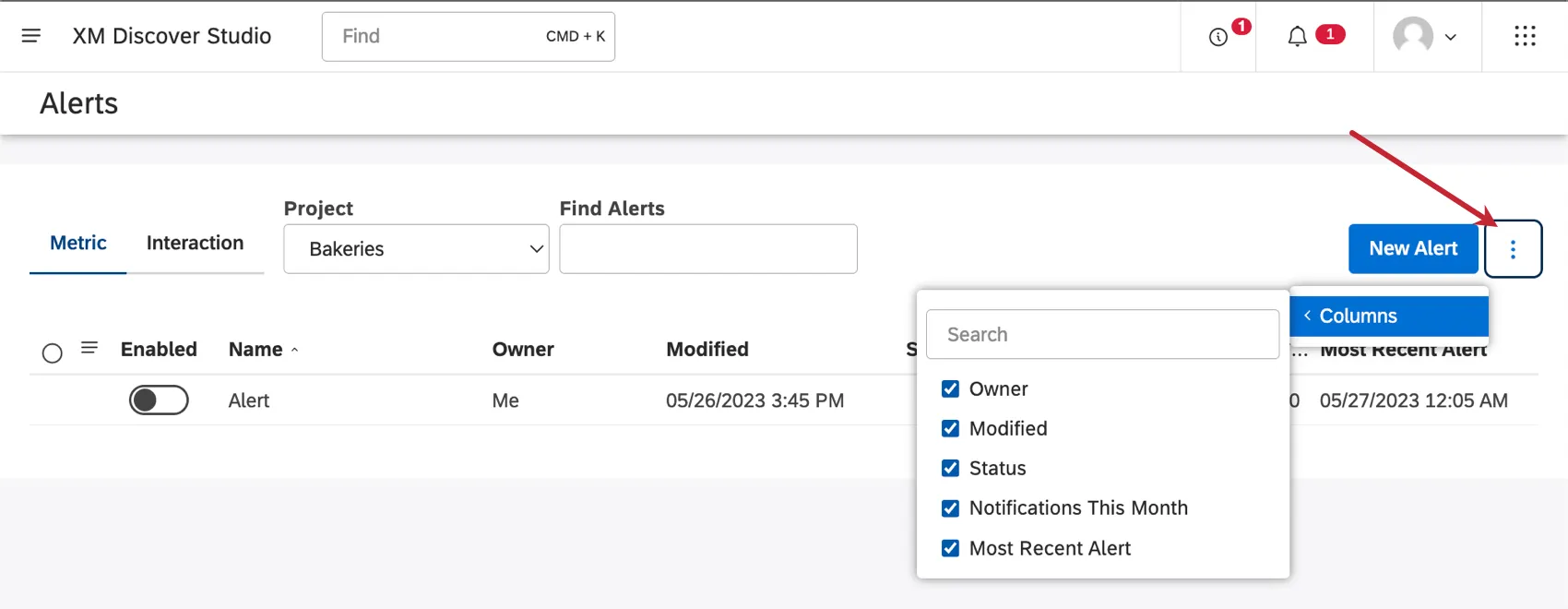
When you view your metric alerts, you’ll see the following columns of information:
- Name: The name of the alert.
- Owner: The owner of the alert. Qtip: Often the owner is the user who created the metric alert. You can also transfer ownership of a metric alert.

- Modified: When the alert was last edited.
- Status: The metric alert’s sharing status:
-
Private: A metric alert that has not been shared or made available to any other users.

-
Shared: A metric alert that has been shared with other users.

-
- Opt Outs: Users can opt out of notifications. This number shows you how many users have opted out. See Managing Metric Alert Opt Outs for how to resubscribe users.
- Notifications This Month: The total number of notifications triggered by the alert during this current month. Qtip: This metric accounts for each notification sent to an individual user. If a user receives both an in-app and email notification, it counts as one. For example, if an alert with 300 subscribers triggers 20 times, it counts as 6000 notifications.
- Most Recent Alert: The date and time the alert was most recently sent out.


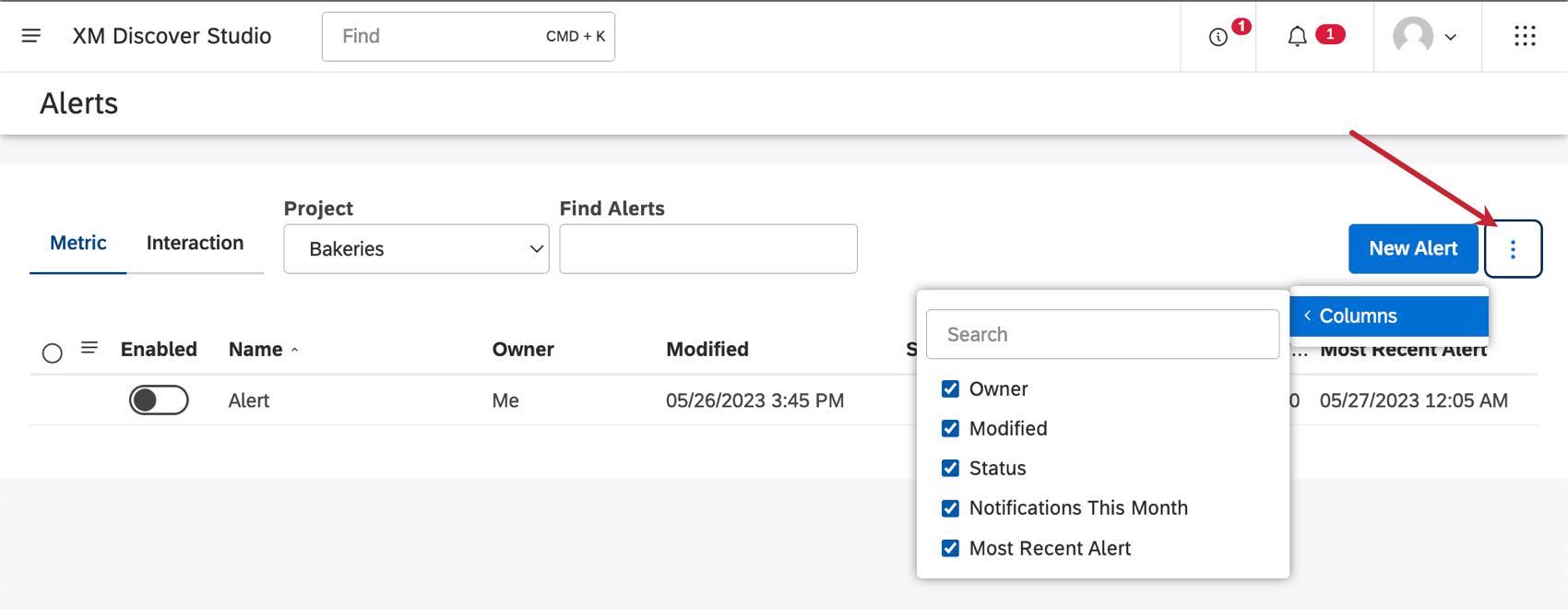
Qtip: Use the button in the upper-right to show and hide columns.
Managing Metric Alerts
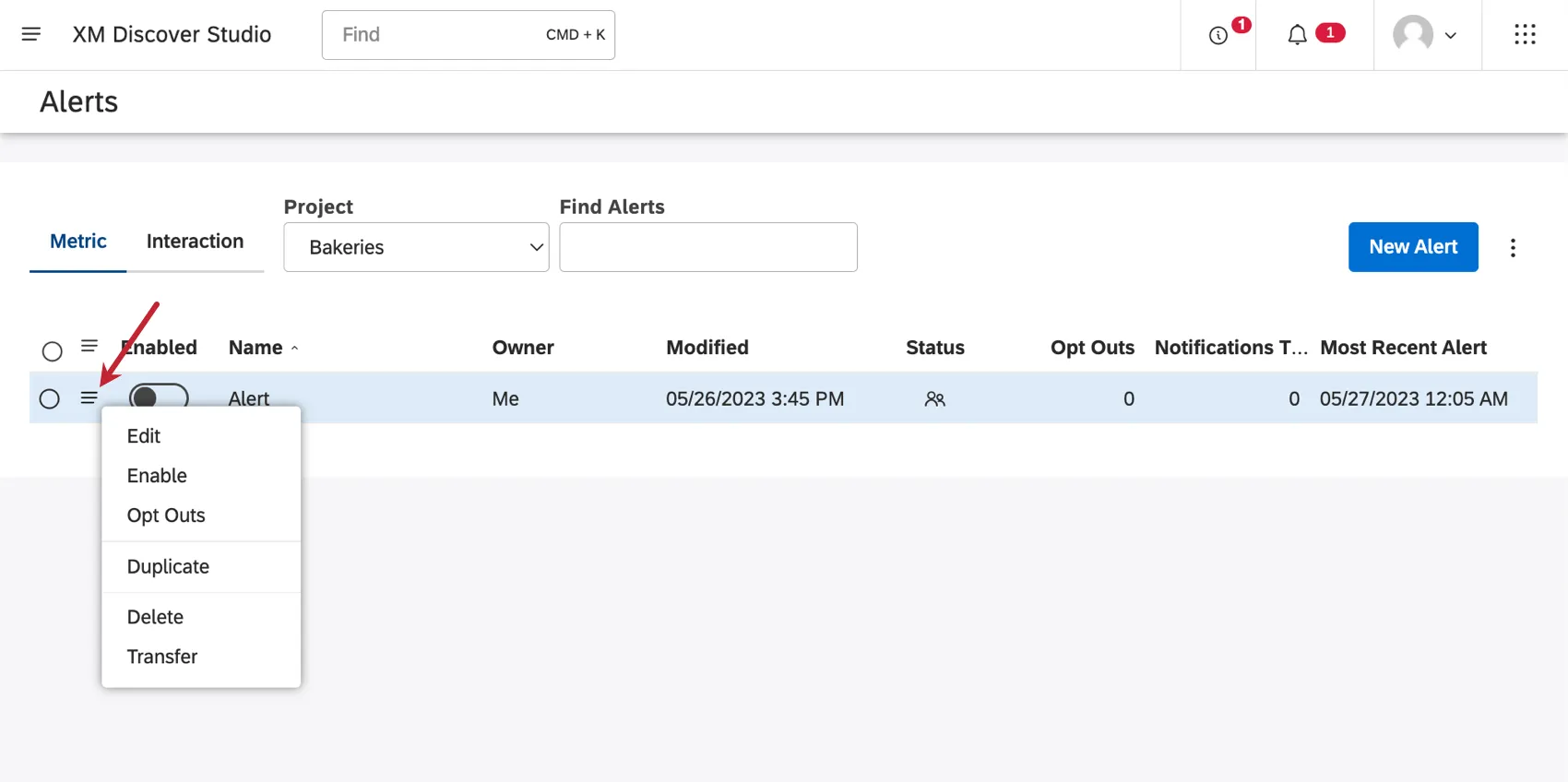
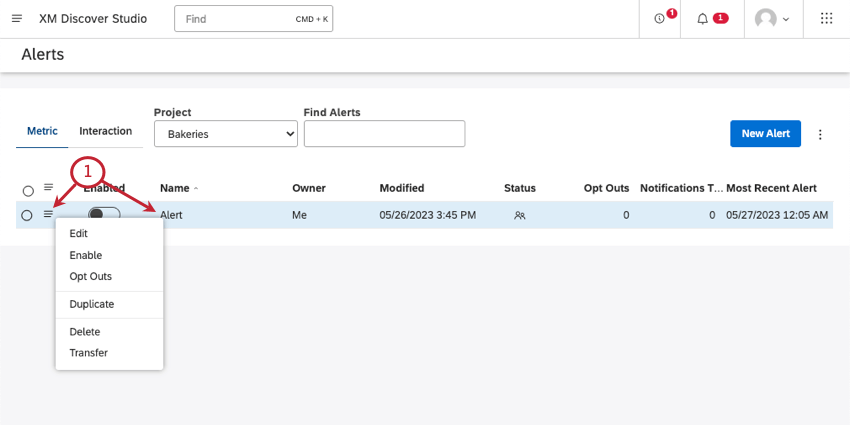
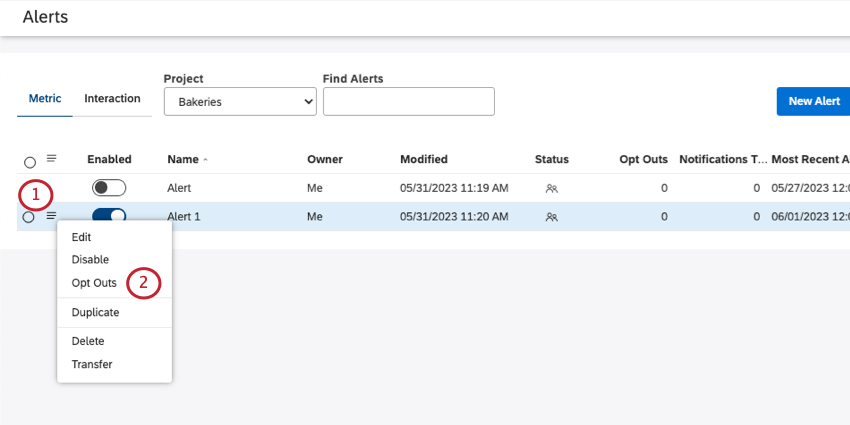
Click the dropdown along the left of a metric alert to see the following:
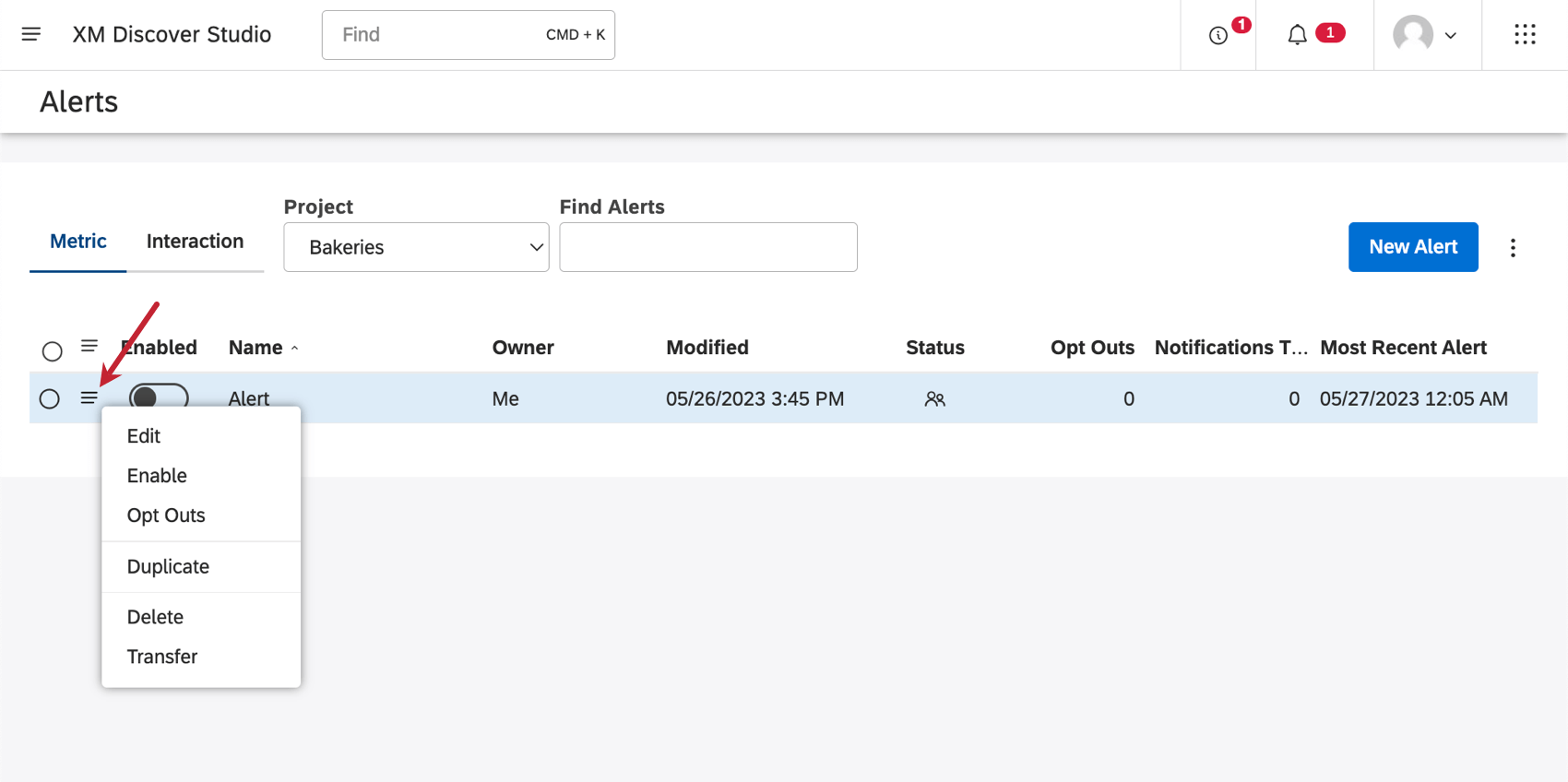
- Edit: Edit the metric alert. To see all the fields you can edit, see Creating a Metric Alert.
- Enable / Disable: When an alert is enabled, it will send a notification when triggered by the appropriate events and conditions. You can only enable 10 metric alerts at a time, although you can create more than that, so long as the additional alerts are disabled. Alerts shared with you by other users do not count towards this cap. You can only enable or disable an alert you have editing access to.
- Opt Outs: See how many users have opted out of the notification. Edit users’ subscription status. See Managing Metric Alert Opt Outs.
- Duplicate: Create a copy of the metric alert.
- Delete: You can permanently delete your metric alert. Warning: Once you delete a metric alert, it cannot be retrieved.

- Transfer: Transfer ownership of the metric alert to another user. See Transferring Metric Alerts.
Qtip: Use the checkboxes to select multiple metrics and manage them in bulk. You can also press SHIFT and select multiple items at once.
Renewing an Expired Metric Alert
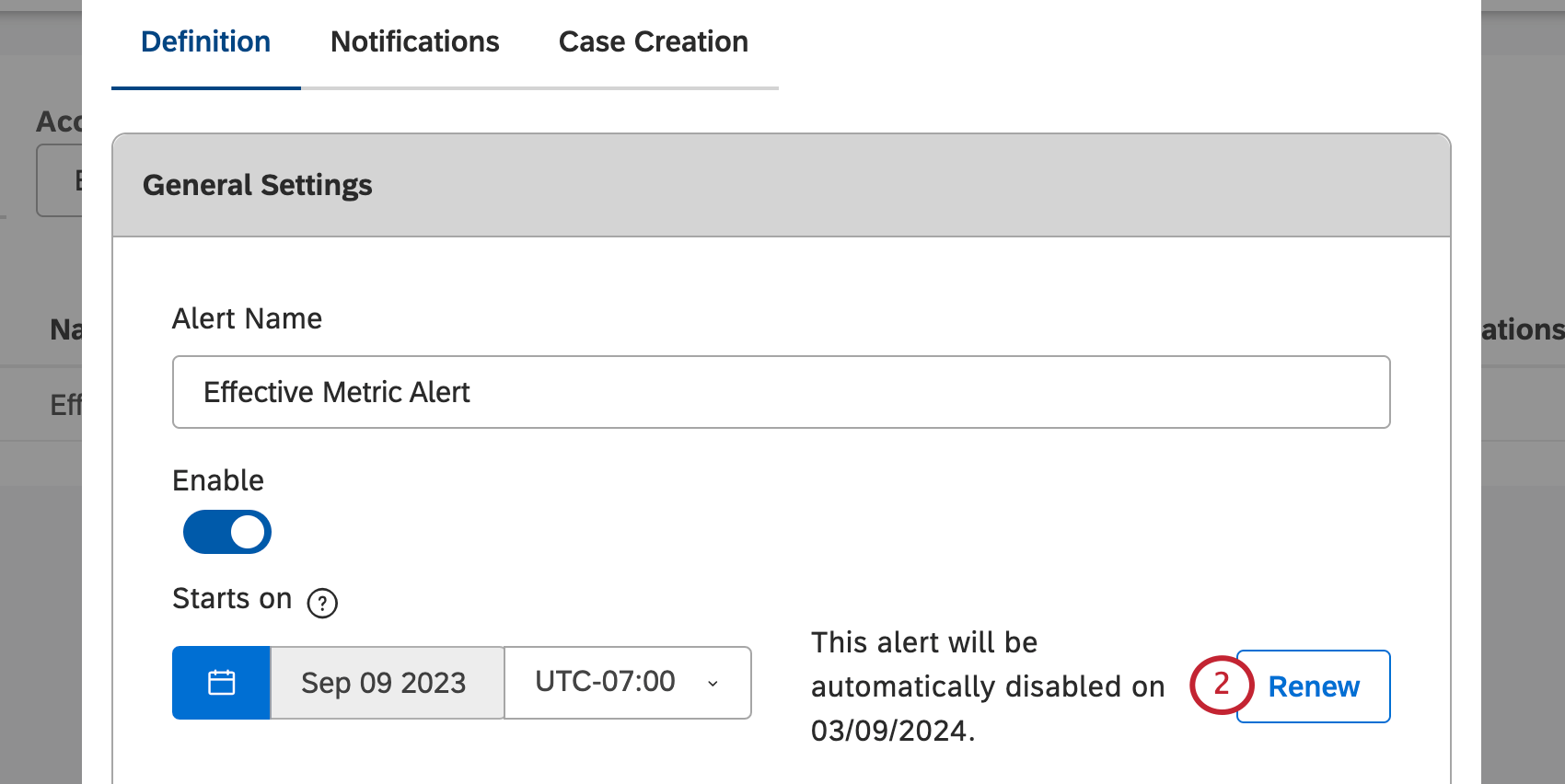
Metric alerts expire 6 months after their starting date. They remain in Studio, but you need to renew them in order to continue receiving notifications.
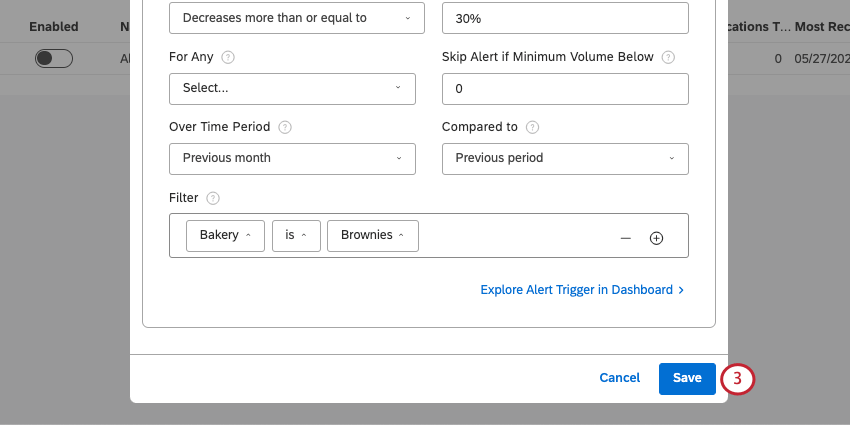
Renewing an alert makes it active for 6 more months.
Qtip: When an alert is about to expire, its owner and subscribers receive both an in-app and email notification.
Transferring Metric Alerts
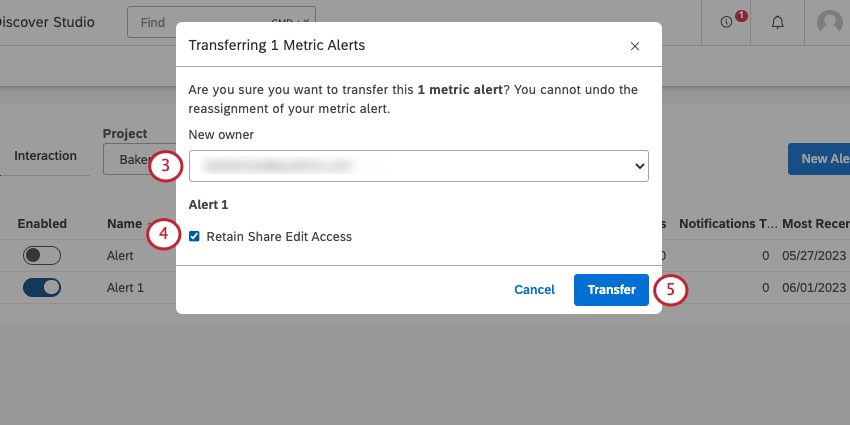
You can transfer your alerts to other users, making them the new owners.
Warning: Once you reassign alert ownership to another user, you will not be able to undo this action. Only the new owner will be able to change alert ownership. However, you can keep editing access to the alert during the transfer.
Metric alert ownership can only be transferred to users who satisfy the following conditions:
- Have the Create and Manage Metric Alerts permission.
- Have at least read-only access to the corresponding project in the content provider.
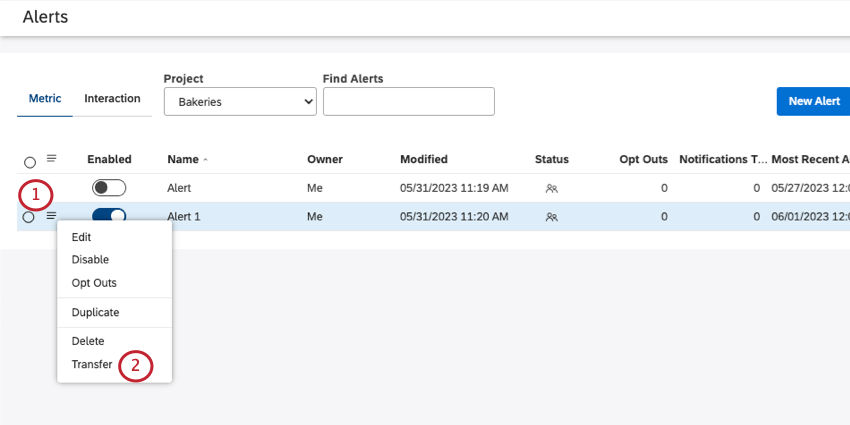
Qtip: You can transfer multiple metric alerts at once by selecting them, then opening the dropdown next to an alert.
Managing Metric Alert Opt Outs
You can see how many users have unsubscribed from your alert’s email notifications and resubcribe them.
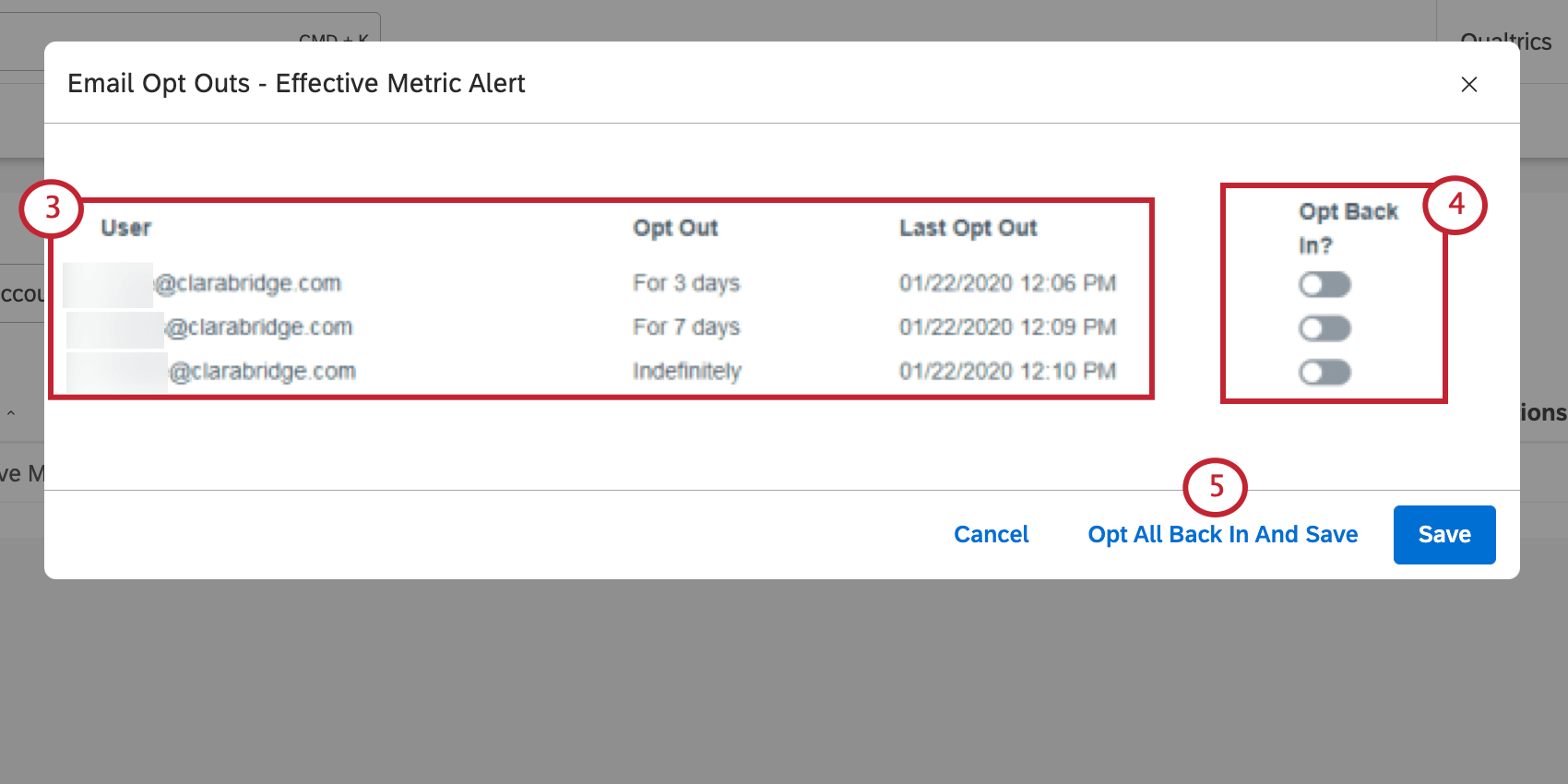
- User: Username.
- Opt Out: How long the user chose to opt out of the alert. This can be for 3 days, 7 days, or indefinitely.
- Last Opt Out: The date the user last opted out of the alert.
FAQs
If I updated the scoring model's topmost topic (root node), but didn’t update my existing (historical) data, will classification be performed on my existing data automatically?
If I updated the scoring model's topmost topic (root node), but didn’t update my existing (historical) data, will classification be performed on my existing data automatically?
How do I enable / disable a rubric?
How do I enable / disable a rubric?
That's great! Thank you for your feedback!
Thank you for your feedback!