

Conversation Transcript Task
What's on this page
Qtip: This support page describes functionality that we intend to release starting October 28, 2026. Qualtrics may, in its sole discretion and without liability, change the timing of any product feature rollout, change the functionality for any in preview or in development product feature, or choose not to release a product feature or functionality for any reason or for no reason.

About the Conversation Transcript Task
The Conversation Transcript task lets you upload a chat, voice, or email transcript to Qualtrics whenever an event happens on another platform. In most cases, we recommend starting the workflow with a JSON event, so that whenever something happens in an external software of your choice, the resulting transcript is uploaded to your Omnichannel project.
Example: Your support software records a transcript whenever an interaction takes place. These transcripts can be automatically uploaded to Qualtrics for conversational analysis almost immediately after creation.

This task offers an alternative to the ETL workflows that Omnichannel projects usually require, in which larger quantities of conversational data are extracted from an external source and loaded into Qualtrics on a regular schedule.
Attention: The setup of a Voice, Chat, or Email Data project is often conducted by the Qualtrics Implementations team. If you have questions about your implementation or want to know if this feature is available for your license, please reach out to your Qualtrics account team.

Formatting Conversation Transcripts
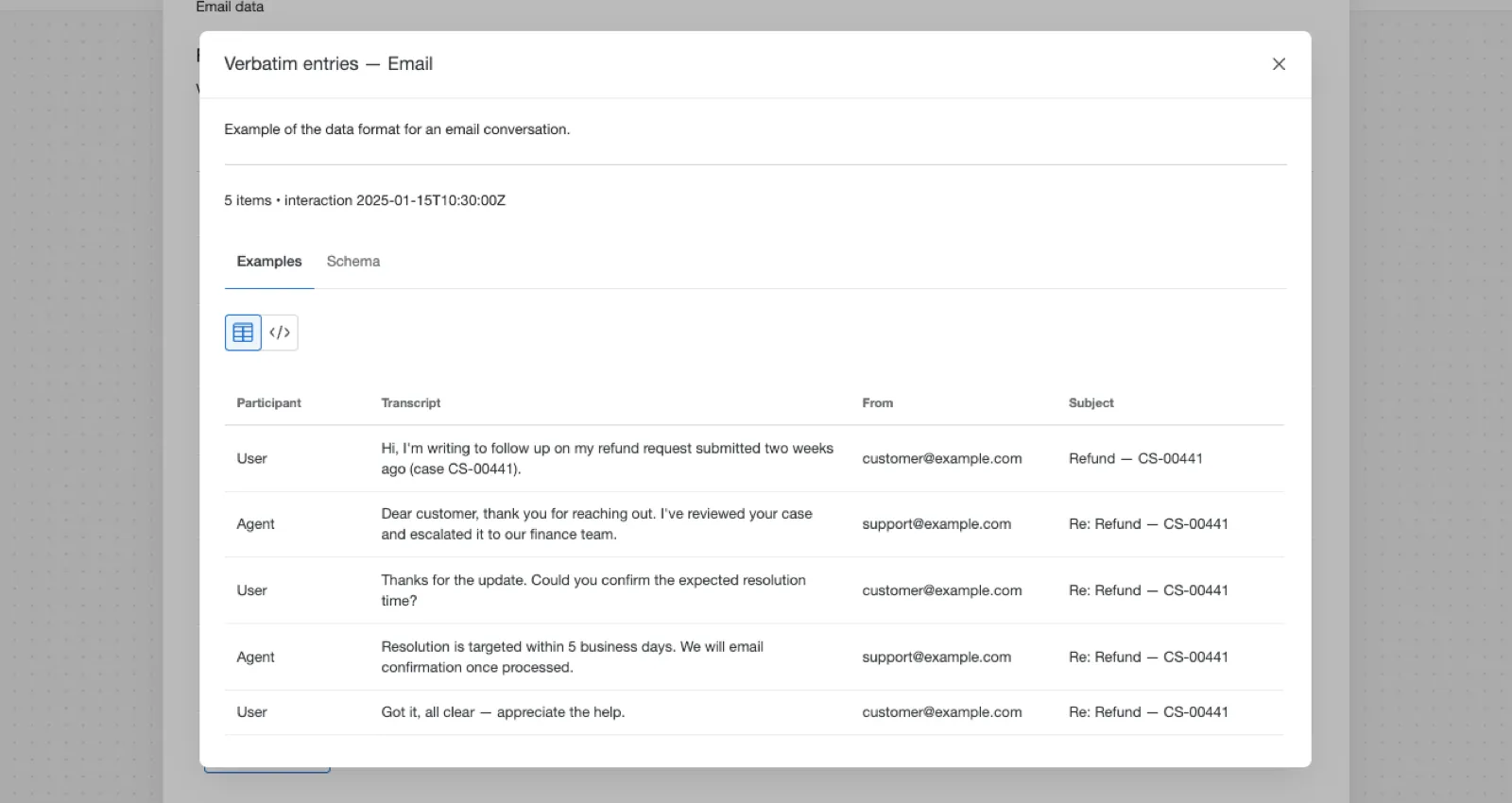
In order for a transcript to be pulled into Qualtrics, it’s important to make sure that the data is formatted correctly. This formatting can be set up wherever your transcripts are saved before they come to Qualtrics, or this transformation can happen in the workflow itself, with the help of a Code Task.
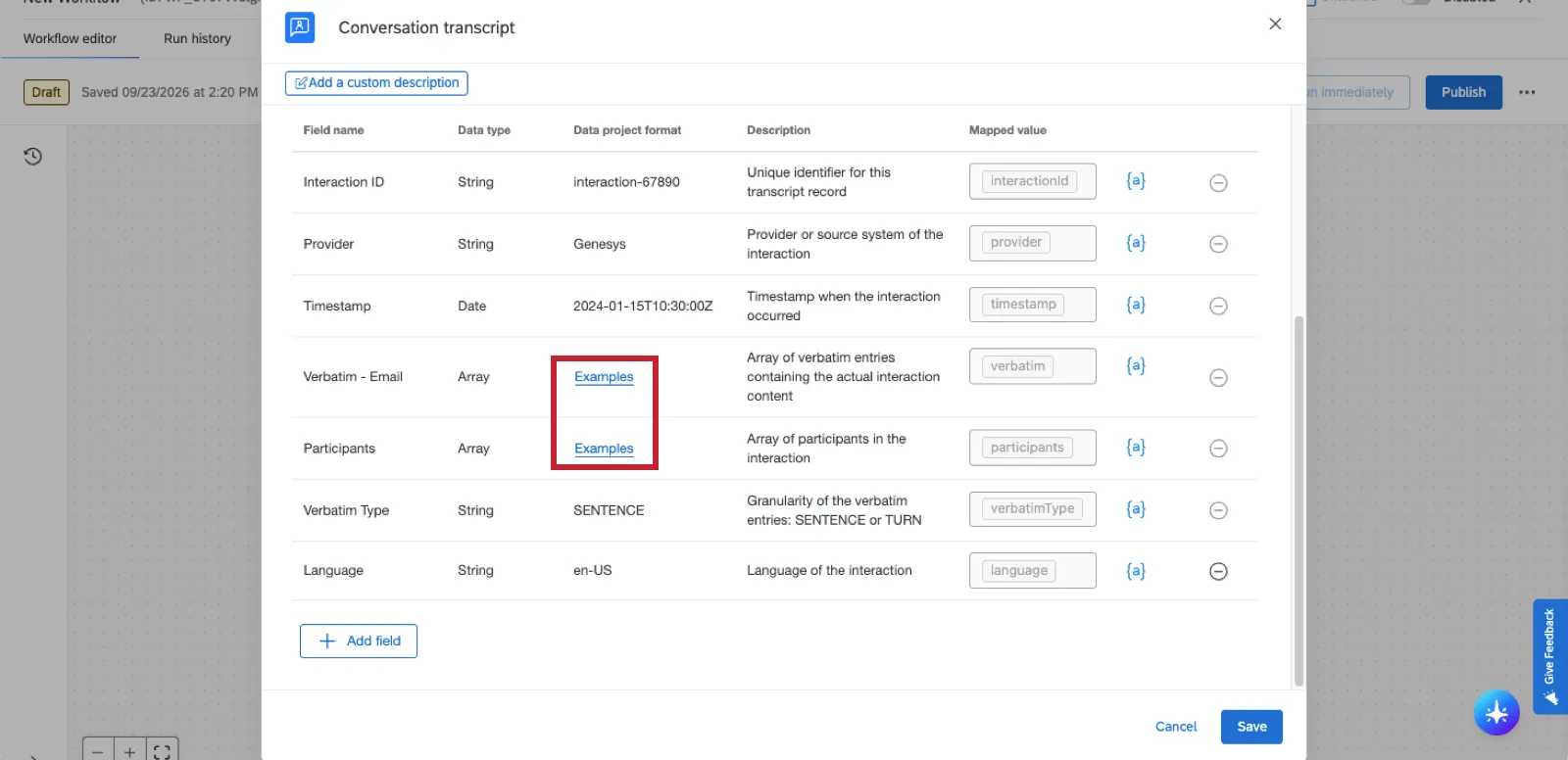
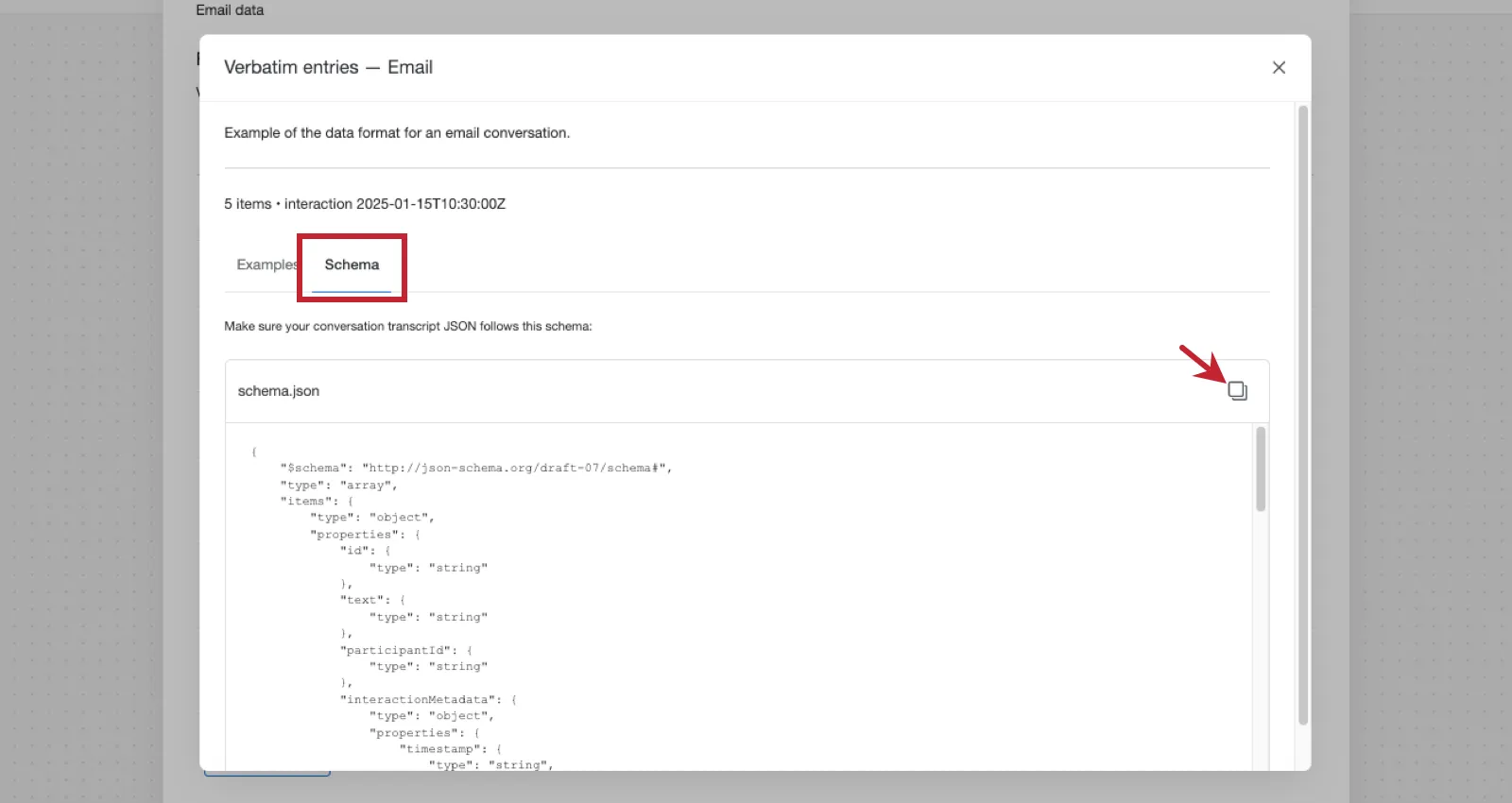
While building the conversation transcript task, click Examples next to any array to see what it’s supposed to look like, along with a JSON schema you can copy.
Click the icon to copy the array schema.
Creating the Workflow
This workflow can only be created in an Omnichannel project, such as Voice, Chat, or Email.
Open your Voice, Chat, or Email Data project.
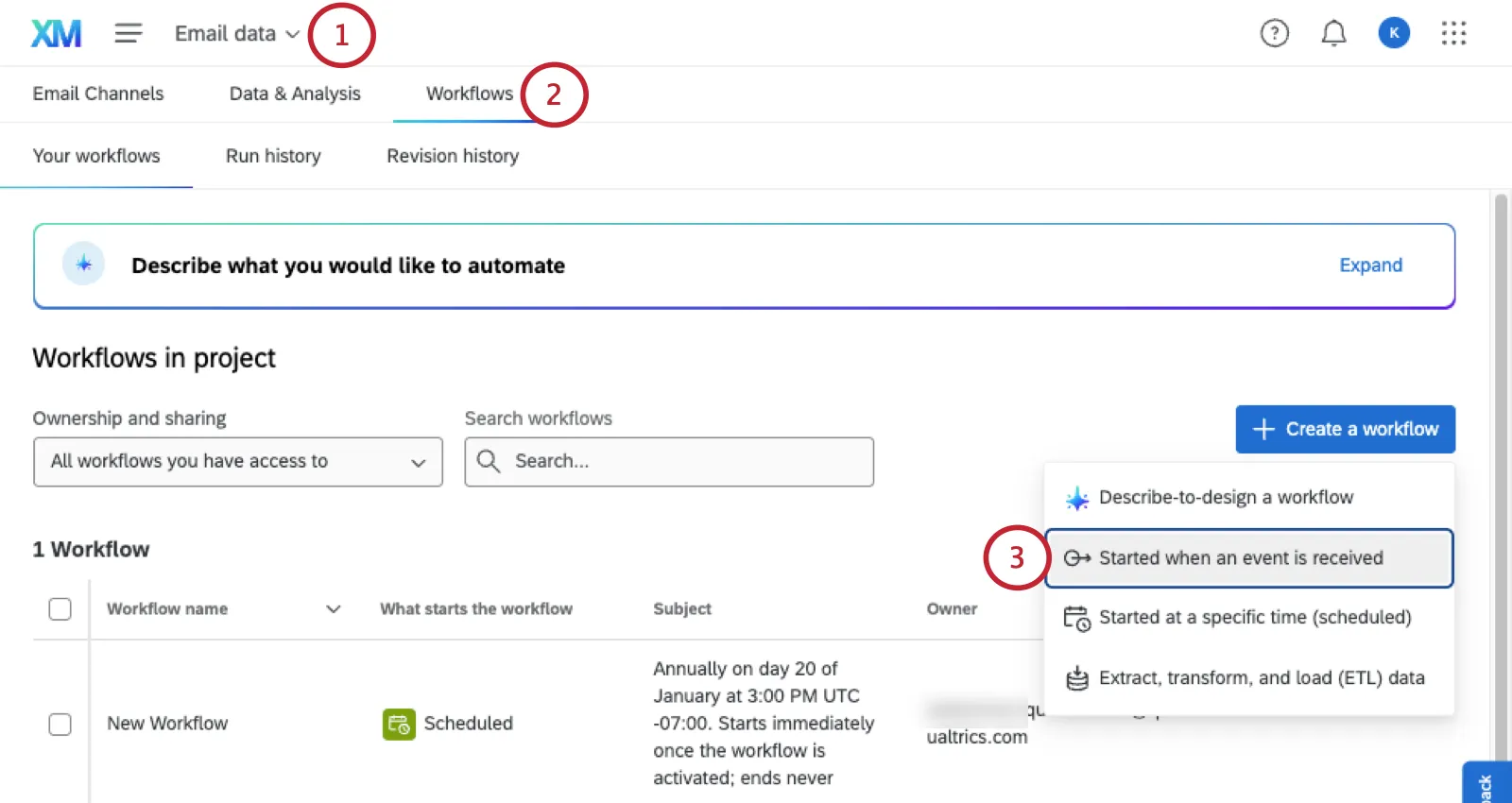
Go to Workflows.
Create an event-based workflow.
Choose your event. For example, the JSON event.
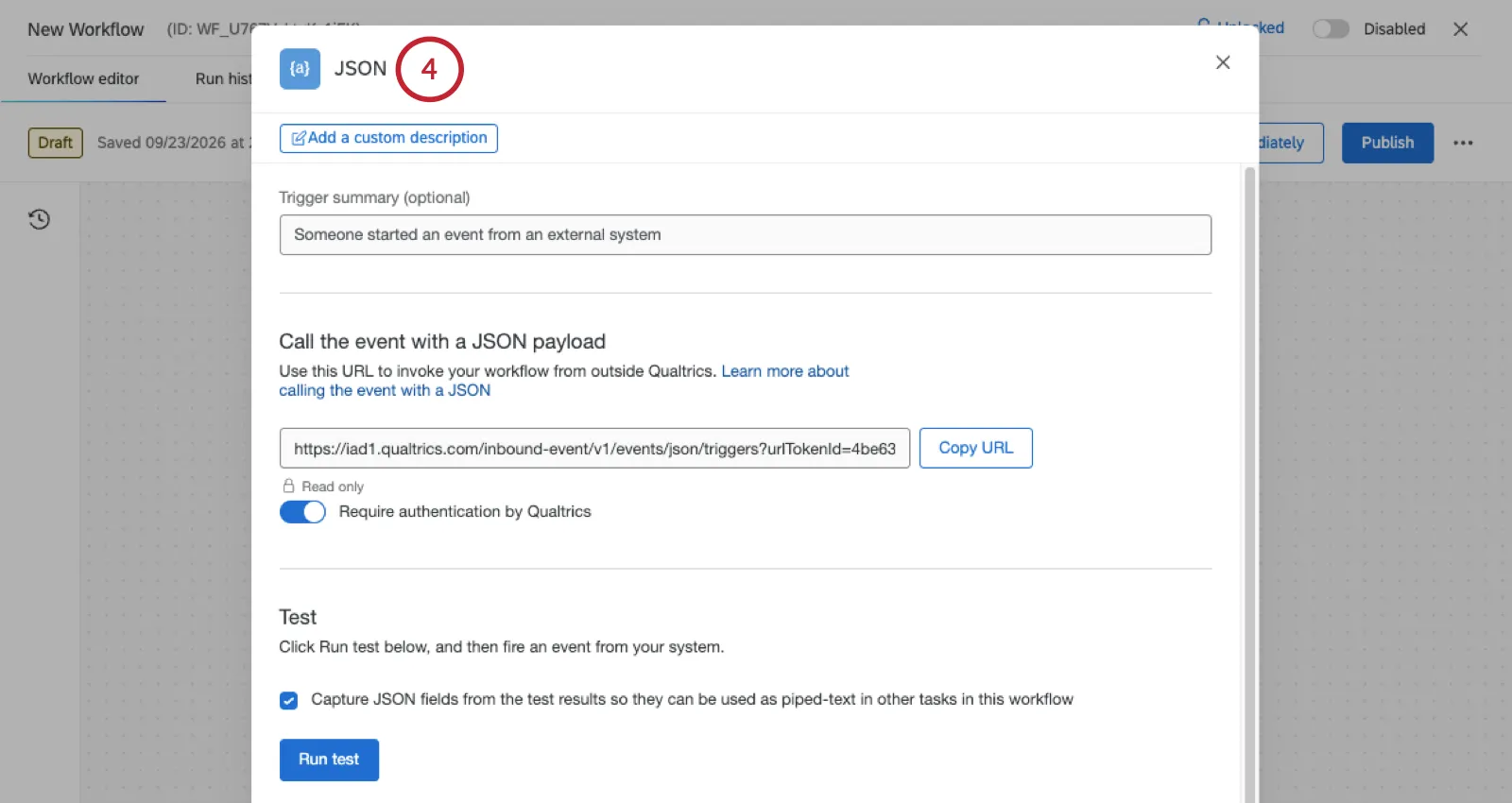
Qtip: For specific event setup, refer to the JSON Event support page.
Qtip: You don’t have to use the JSON event. If it makes sense for your organization, you can also try:
- ServiceNow Event
- Twilio Segment Event
- XM Discover Event
- Any other event accessible in OXM workflows
If needed, you can add a Code Task to reformat data.
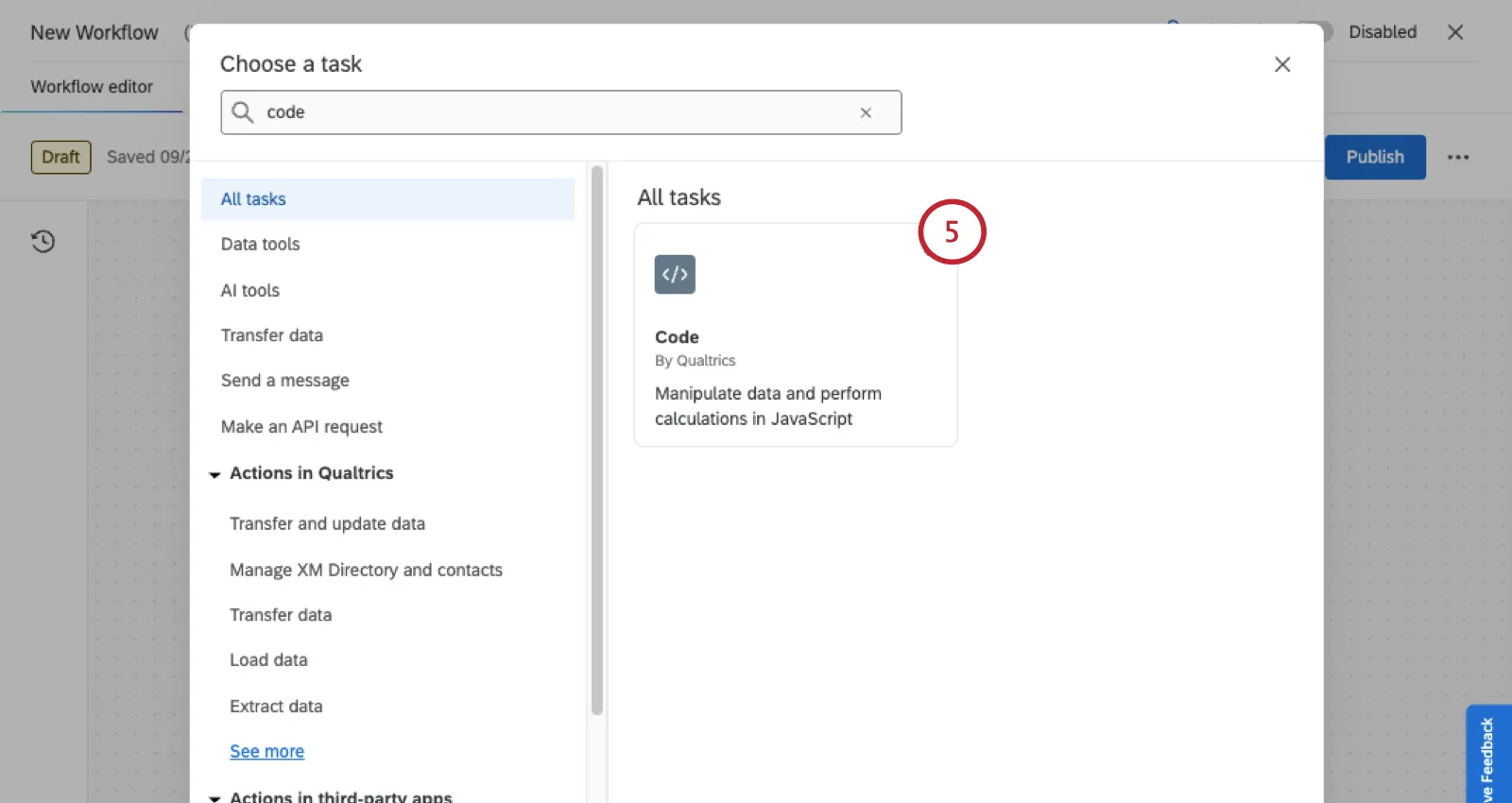
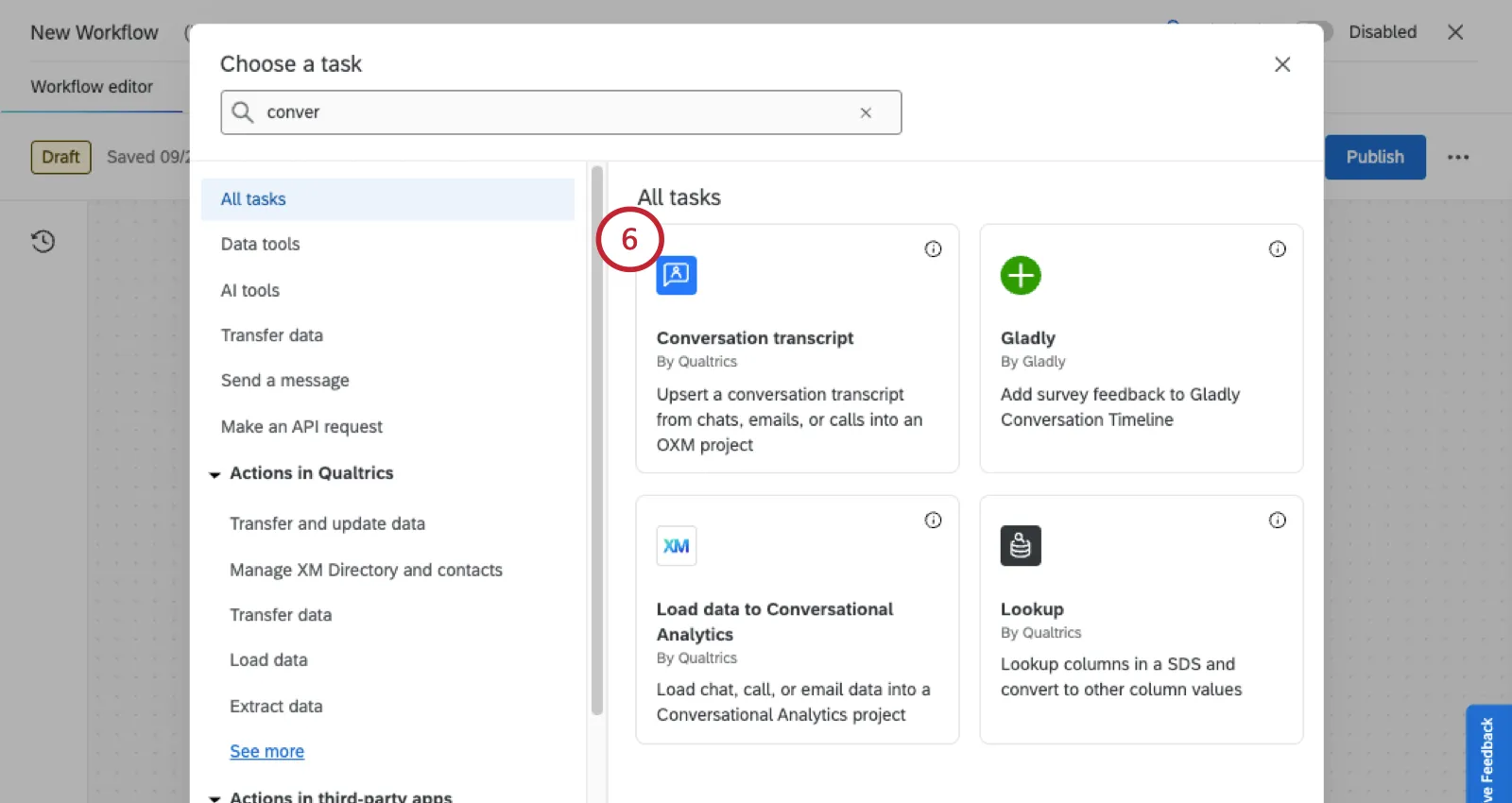
Otherwise, add a Conversation transcript task.
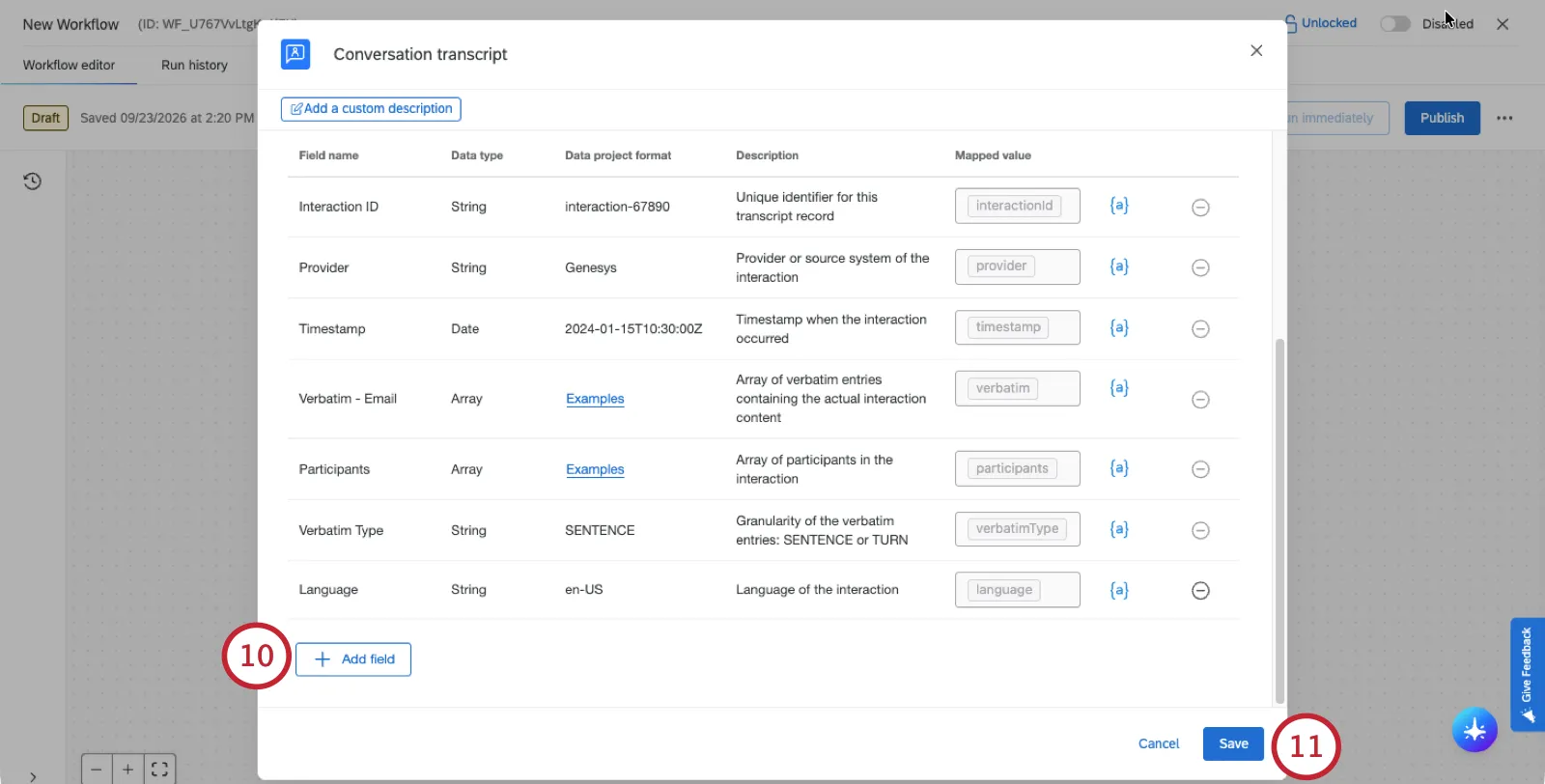
Check the field mappings to make sure they look correct. The task will automatically map required and matching fields as best as it can.
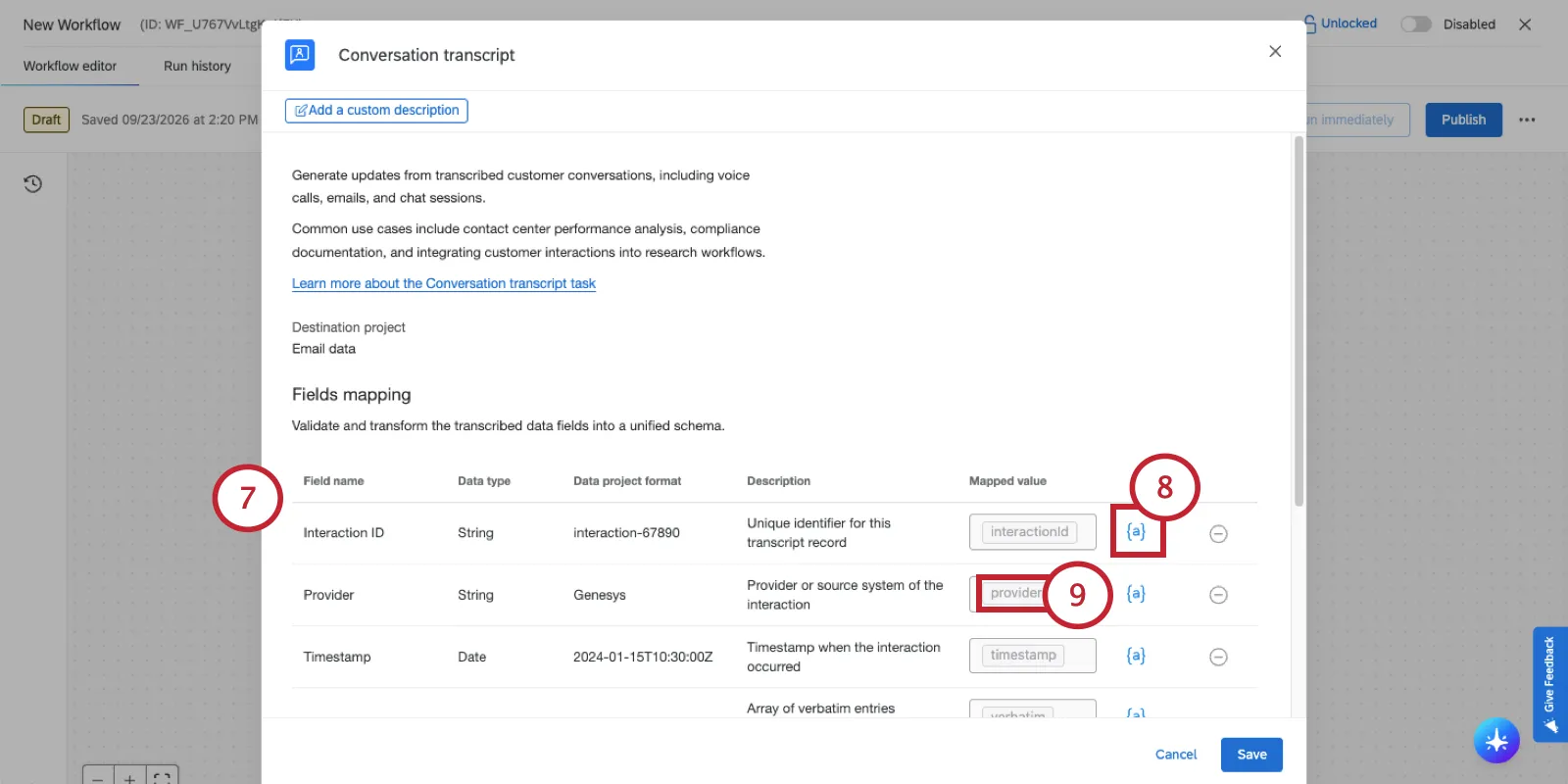
Use the {a} button to match fields from your JSON event to the resulting transcript.
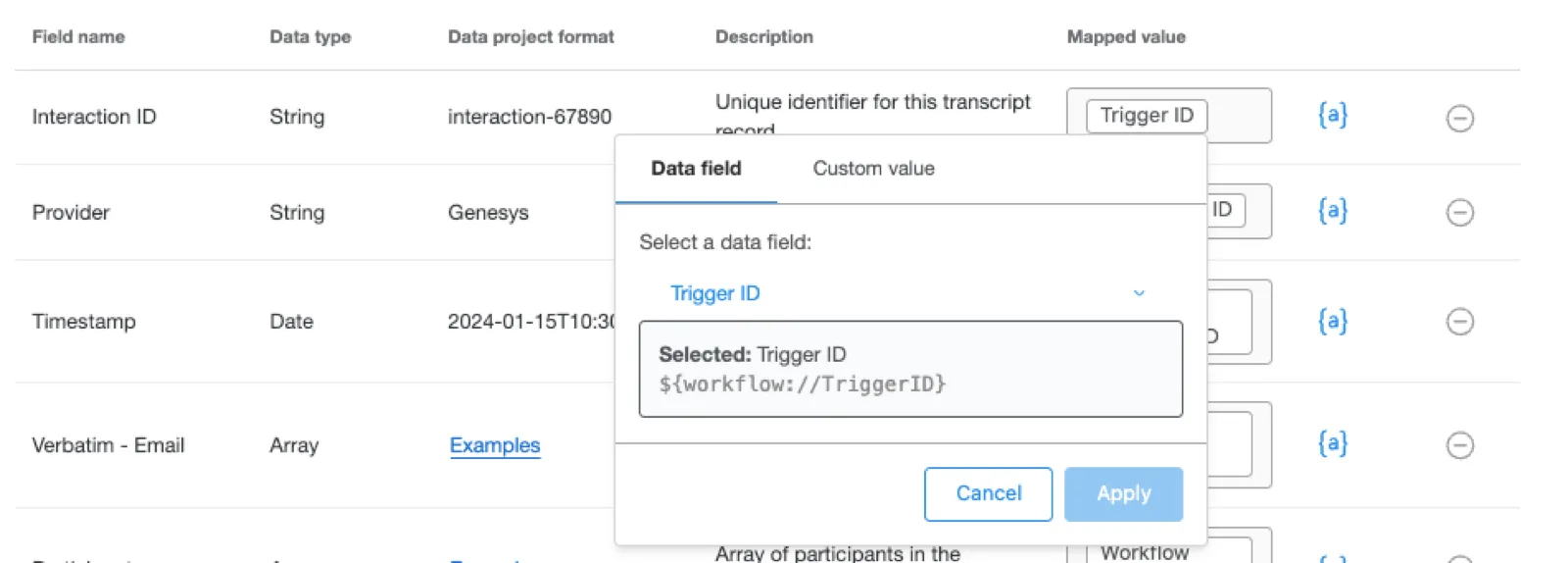
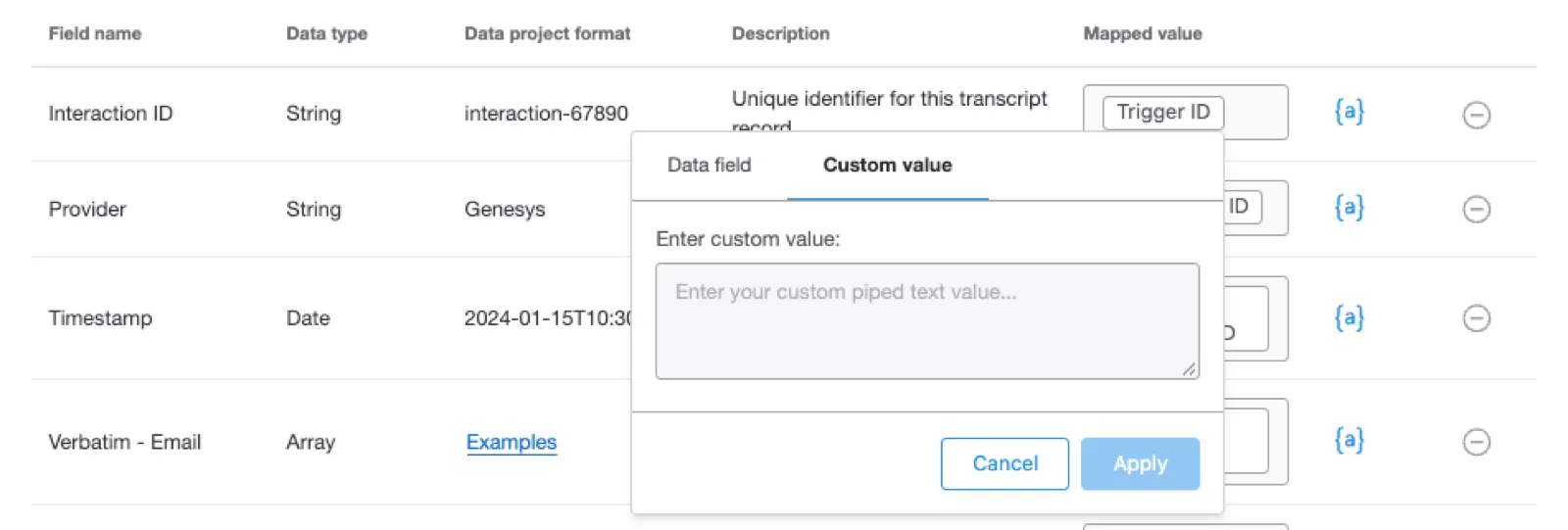
Click a mapped field to adjust the value.
Data field: Select a field from the event to map here.
Custom value: Type custom piped text or a singular, static value to map here.
You can click Add field to add more fields pulled from your event that don’t have a matching mapping.
Qtip: You cannot add new, custom fields here. To do so, go back to the project and use the field editor.
When finished, click Save.
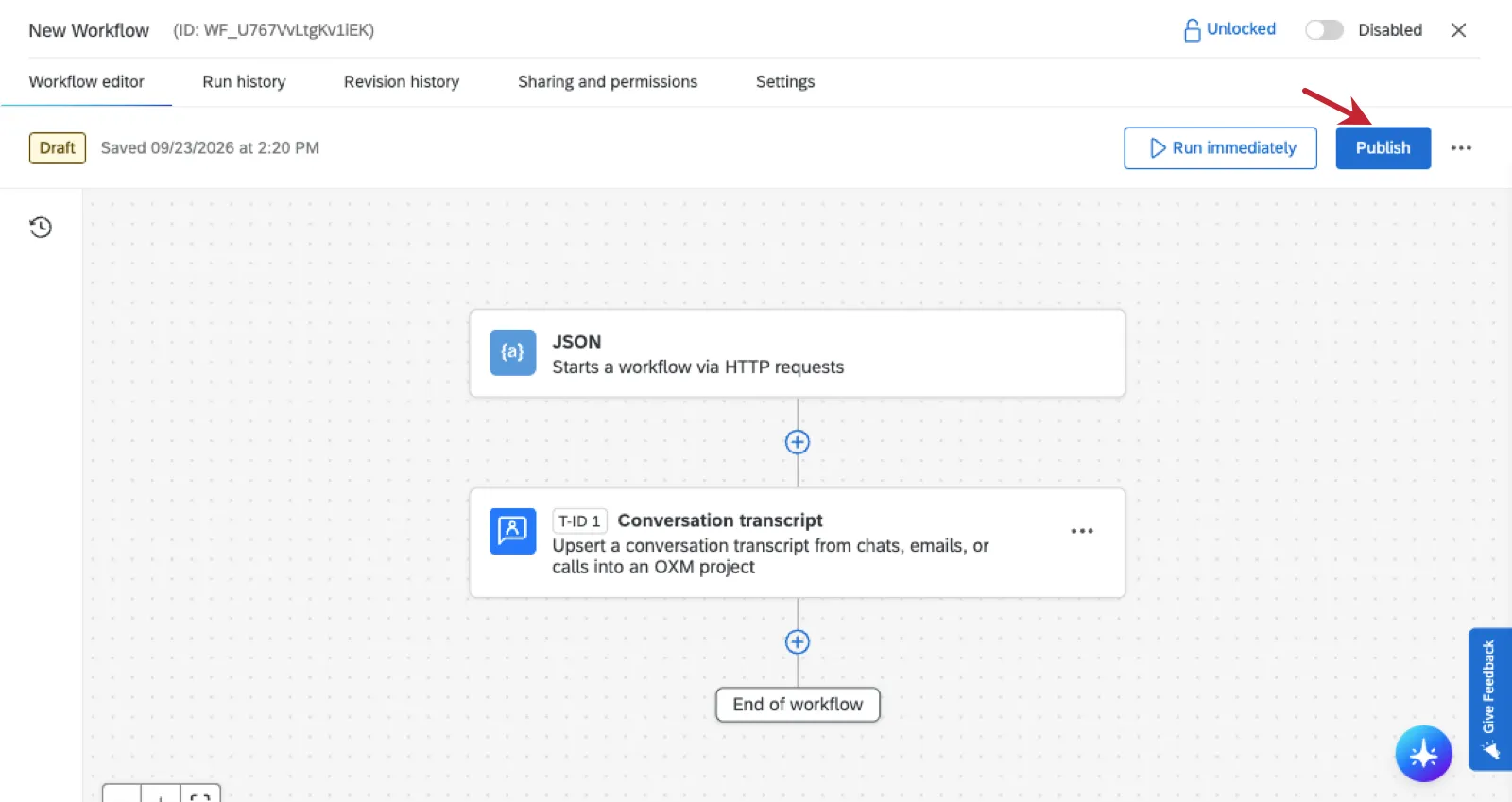
Publish your workflow.
That's great! Thank you for your feedback!
Thank you for your feedback!